Prepare AWS
To assist with the smooth integration of your AWS platform with the HyWorks Controller, use the following references:
Supported Feature Matrix
| Feature | Sub Feature | Sub Feature | Cloud AWS |
|---|---|---|---|
| Fetch Configured/ Deployed VM Details from Connector | OS Information | - | Yes |
| Network Adapters/ IP Addresses | - | Yes | |
| Hostname | - | Yes | |
| Deploy pool with existing VMs | - | - | Yes |
| Desktop VM Provisioning | Clone Type: Linked/Full | - | Full Clone |
| Clone from Snapshot/ Image | Feature Supported or not | No | |
| - | Cloned VM Spec (Disk+Prop, Network, CPU, RAM) | Not Supported | |
| - | Create an Image/Snapshot on the provider from the Management Console | No | |
| Bulk/Batch Cloning | Multiple Clone in Parallel | No | |
| Disk persistence: Persistent | - | Yes | |
| Disk persistence: Non-persistent | Create/ Restore restore points on user logoff | No | |
| Deployment Profile & Desktop Profile[v3.6-SP1] | Hardware Specifications (CPU/RAM/Storage etc.) | No | |
| Copy tag from GM | - | No | |
| Disk Encryption | - | Not Applicable | |
| Recompose | Preserve Network/ MAC Address | No | |
| - | Graceful (Selective) Recompose | No | |
| SHD Provisioning | Automatic Deployment of Session Teams | Yes | |
| Capacity Planning (Automatic Deployment and Power management) | Multi-session/ Share Hosted Desktops | Yes | |
| - | Single Session Desktops | Yes | |
| - | Scheduled Actions | Yes | |
| Desktop Power Operations | Shutdown/Power off/ Power on etc. | - | Yes |
| Hibernate | - | No | |
| OS Support on Provider | Windows Desktops: Windows 10, 11 | - | Yes |
| Windows Servers: Windows Server 2003 / 2008 | - | No | |
| Windows Servers: Windows Server 2008 R2/ 2012R2/2016 /2019/2022/2025 | - | Yes | |
| Linux Desktops: CentOS 7 | - | No | |
| Linux Desktops: Ubuntu/ xUbuntu 16/18/20/22 | - | Yes | |
| Linux Desktops: RHEL 7.9/9 | - | Yes | |
| Linux Desktops: BOSS v8 | - | No | |
| HyLabs support | Scheduled Provisioning and Delivery | - | Yes |
| Virtual IP | Adding IP Address to network adapter | - | No |
Click here to view the Supported Feature Matrix Comparison between all Accops-supported Cloud Connectors.
Prerequisites
-
AWS Account ID: The AWS Account ID is the unique identifier of an account created and granted as an IAM User.
-
AWS Secret Key: An AWS secret is a password known only to your IAM User. It protects your resources by granting tokens only to authorized requestors.
-
AWS Access ID: The Access Key ID is part of Access keys, which are long-term credentials for an IAM user. The AWS Secret Key and AWS Access ID together form an access key.
-
Region: The region is a physical location worldwide where virtual Desktops will be stored.
Configure AWS IAM User
-
Log in here with your credentials: https://console.AWS.amazon.com/
-
Find the Identity and Access Management (IAM): https://console.AWS.amazon.com/iamv2/home?#/home
-
Go to Identity and Access Management (IAM)
-
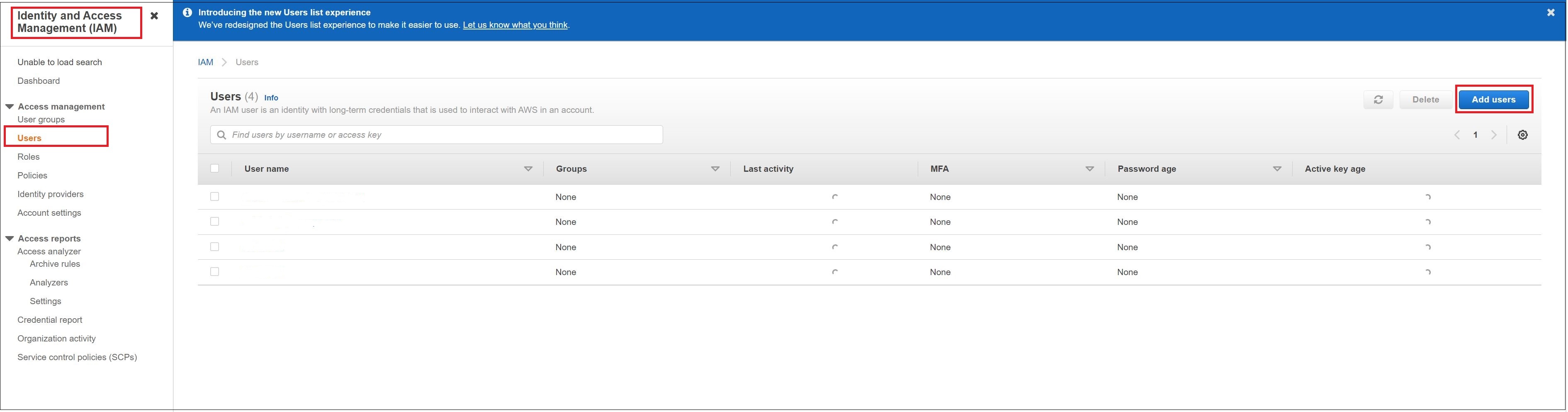
Go to Users and click Add Users.
-
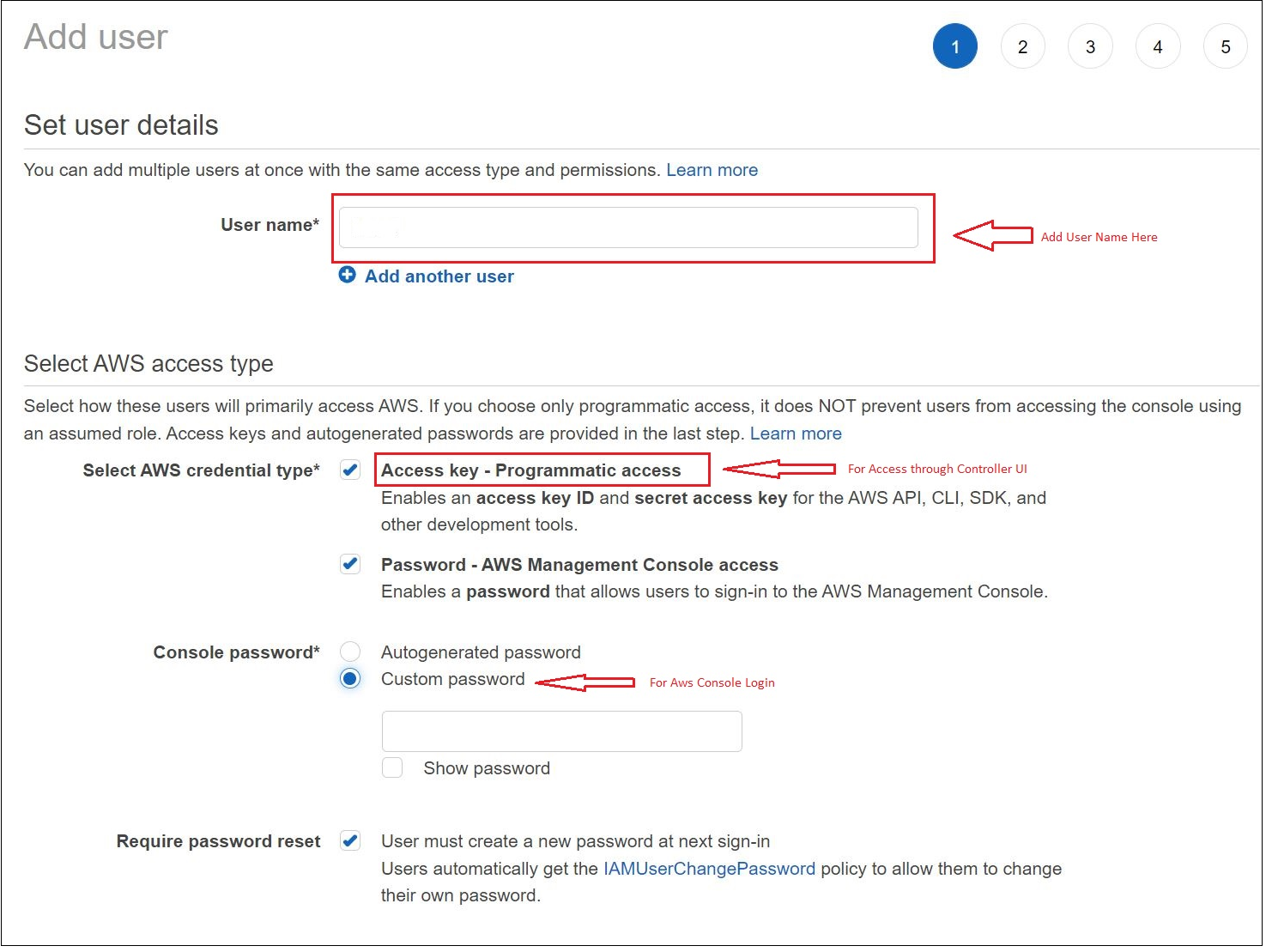
Add Username and Password and click Next.
-
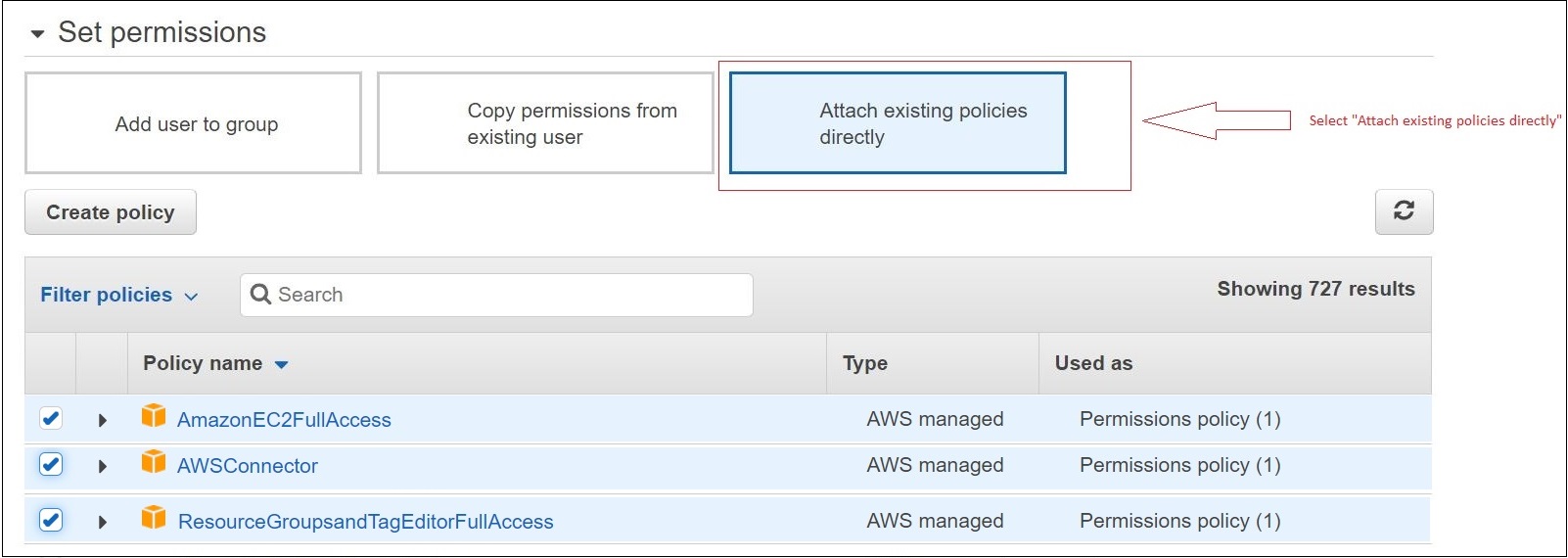
Add User Permission:
- AmazonEC2FullAccess
- AWSConnector
- ResourceGroupsandTagsEditorFullAccess
-
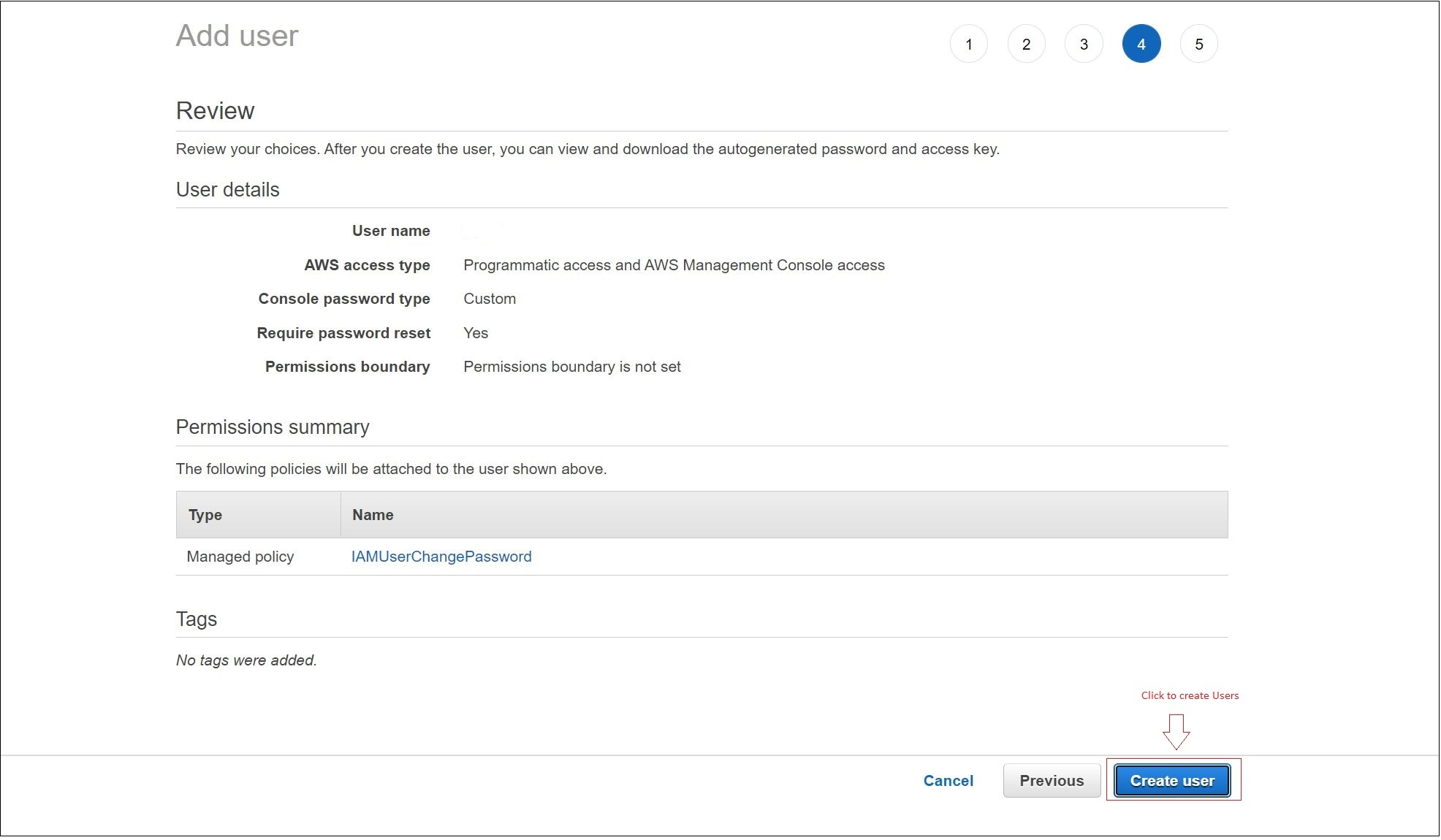
Save the Credentials and download the CSV.
-
The downloaded CSV will contain the User Name (Application ID), Secret access key (Secret), and Access key ID (TenantId).
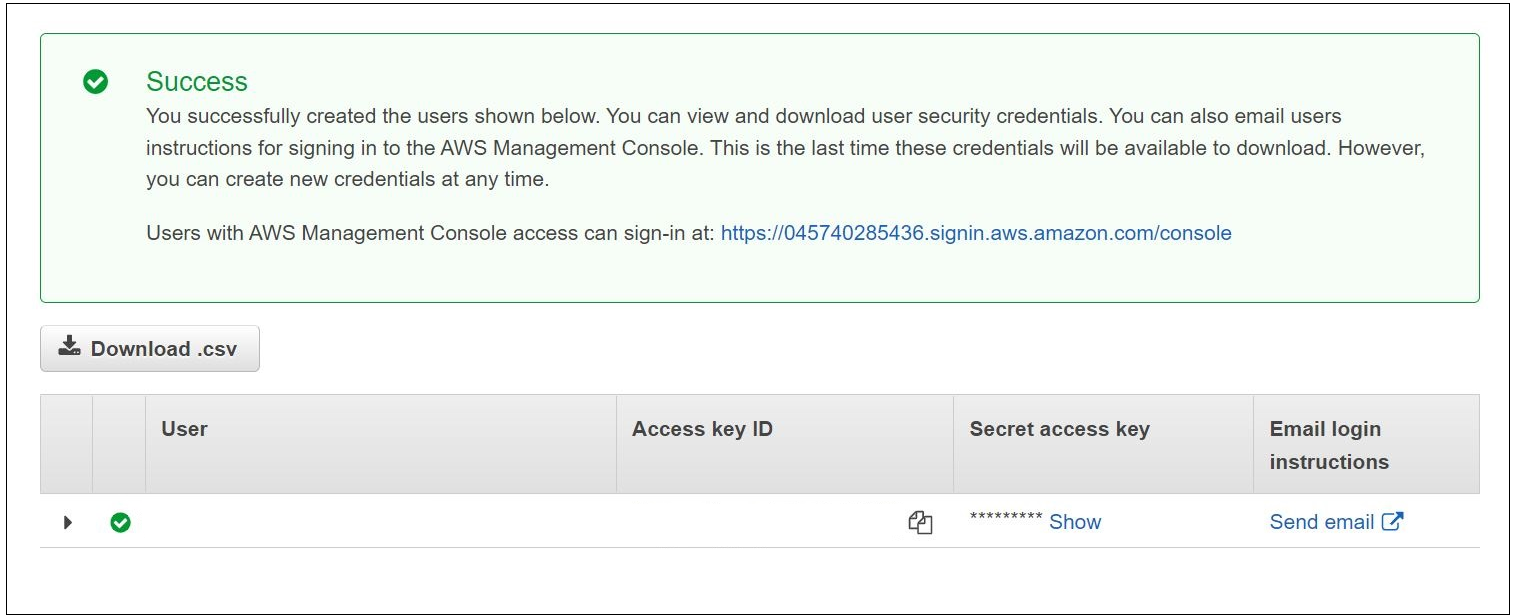
Reference: https://docs.AWS.amazon.com/IAM/latest/UserGuide/id_users_create.html
Configure Controller for Domain Account Authentication in Proxy server
Make the following configurations in the Controller when you configure the proxy server on the Controller and the AWS-based Desktop Provider is being used
-
Install the controller service using this account (not the Local System account)
- The account should be configured as "Logon as Service."
- Configuration can be done at the time of installation or later.
- The specified account will be used to authenticate through the proxy server.
- Whitelist URLs are mentioned above.

Fig: Configuration post-installation
<system.net>
  <defaultProxy>
  <proxy usesystemdefault="true" />
  </defaultProxy>
</system.net>
- Verify the above configuration in the HyWorks controller
x:\Program Files (x86)\Accops\HyWorks\Service\EDC.Service.exe.config

Fig: Configuration file change
Note
- You need to log in again to apply the above-mentioned changes.
Desktop Operation Support
| Operation | Support | Status on AWS | Status on HyWorks |
|---|---|---|---|
| Power On | Yes | Powered On | Powered On |
| Power Off | Yes | powered Off | powered Off |
| Shutdown | Yes | powered Off | powered Off |
| Restart | Yes | Restart | Restart |
| Reset | No | - | - |
| Refresh (Desktop Information on HyWorks) | Yes | - | Update VM details, call the DVM agent |
| Re-Create (single VM from Desktop VMs page) | Yes | - | - |
Limitation with AWS Handler
-
Change the Location (the current VM will be cloned in the source VM location)
-
The Gold Master Disk should be a managed disk.
Multi-availability Zone Deployment Requirements
The customer may try to deploy HyWorks Controllers or its other components, e.g., session host servers, or personal virtual desktops, for fault tolerance.
-
HyWorks will not require any special configurations when being deployed in a distributed manner across availability zones
-
Appropriate port requirements for effective communication between HyWorks components must be maintained for deployments across different availability zones.