Eltima Over the Network
This document details the workflow and configuration for USB redirection over the network using Built-in USB Redirection drive. The traditional USB redirection happens over the virtual channels, which sends traffic on the same TCP port as remote desktop and thus may affect performance. One alternate way is to redirect the USB over the network. This feature enables USB devices to be redirected to a Virtual Desktop session using reserved TCP ports, enhancing the usability and performance in virtual environments.
The AUEM (Accops User Experience Manager) tray plays a central role in this process, allowing users to manage their USB devices effectively. This document details the workflow and configuration for USB Redirection over the network.
Note
This feature is currently available with Linux Workspace clients only.
Prerequisites
-
Administrative credentials are required to access HyWorks version 3.5.0.19765, the controller’s management console.
-
Accops HyWorks Controller version 3.4 SP1 HF5 or above
-
HyWorks Desktop Agent version 3.4.0.939 or above
-
HyWorks Session Host version 3.4.1.35 or above
-
AUEM version 3.4.0.331 or above
-
Accops Linux Workspace Client version 3.2.9522.329522
-
HyWorks Desktop Agent version 3.4.0.939 or later
- AUEM version 3.4.0.331 or later
-
HyWorks Session Host version 3.4.1.35 or later
-
Desktop Client
-
Linux Workspace client v3.2.9522.329522 or later
Note
This feature is currently available with Linux Workspace clients only.
-
Workflow
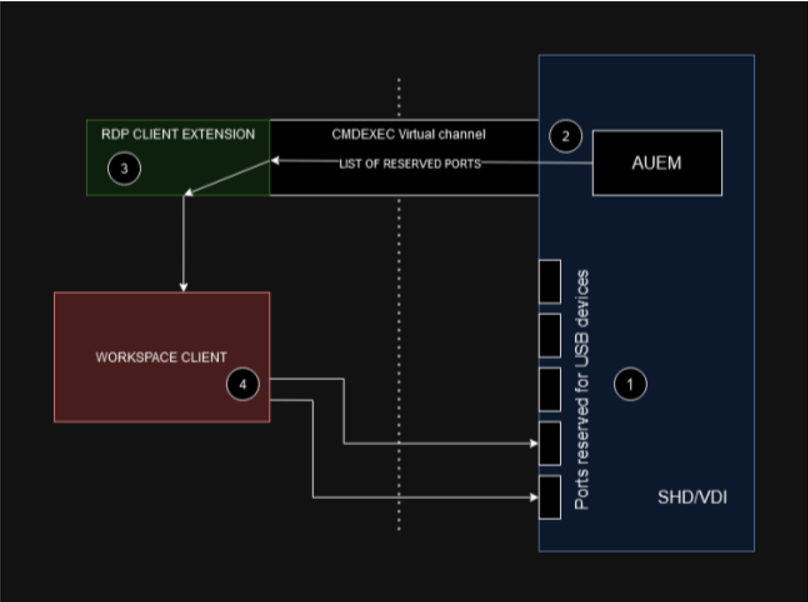
The USB sharing over the network uses the following workflow:
-
Session Launch: Upon launching the VDI session, the AUEM performs the following actions:
-
Port Reservation: The AUEM reserves a set of TCP ports for USB devices shared by the client. The ports are selected from a specified range defined in the registry.
-
Port Release: When the session ends (on logout), the AUEM frees up the reserved ports, making them available for future sessions.
-
-
Communication with RDP Client Extension
- Port Communication: The AUEM sends the list of reserved ports to the RDP client extension via the CMDEX virtual channel.
-
Forwarding to Workspace Client
- Request Forwarding: The RDP client extension forwards the reserved port list to the Workspace client, which must respond with the same acknowledgment format.
-
Device Sharing Based on Reserved Ports
-
Upon receiving the list of reserved ports from the RDP client extension, the Workspace client adjusts its USB device-sharing strategy as follows:
-
It initially shares devices (over RDP).
-
Upon receiving the port numbers, it un-shares these devices and re-shares them as per the specified ports.
-
-
Important
- Each device shared over the network establishes a separate TCP connection with the VDI. The DVM Tools module selects the ports dynamically from the range defined in the registry.
- These values may change each session, so ensure that all ports selectable by the DVM Tools are accessible through the Network application.
- If you want to limit the number of ports, do so first in the DVMAgent registry.
- These values can change every session so make sure that all the possible ports that can be selected by the DVM Tools should be accessible through the Network application.
- If you want to restrict the number of ports, you should do so first in the DVMAgent registry mentioned above.
Configuration Settings
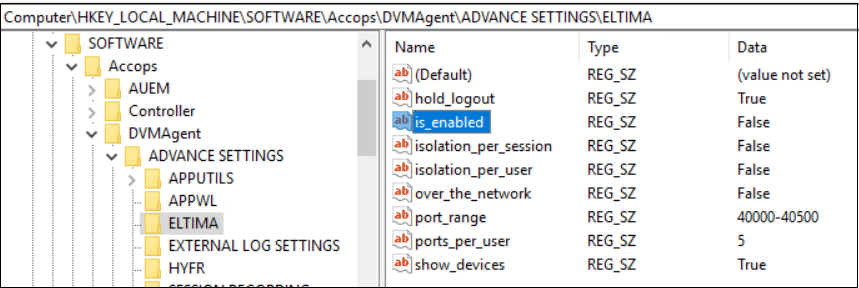
To enable and configure USB redirection over the network for a desktop session, the AUEM reads the following registry setting on the VDI:
Registry Path
Computer\HKEY_LOCAL_MACHINE\SOFTWARE\Accops\DVMAgent\ADVANCE SETTINGS\ELTIMA
-
is_enabled: This key must be set to True to enable USB redirection through Eltima.
-
over_the_network: This key must be set to True to enable device sharing over the network.
-
port_range: Defines the range of TCP ports available for reservation. This should be a string value formatted as 40000-40500.
-
ports_per_user: This key specifies the number of ports to be reserved for each user.
-
Isolation_per_user (optional): Set this key to True to isolate a user's USB devices. This ensures that the USB devices of one user will not be visible to other users in a Shared Hosted Desktop session.
-
Isolation_per_session (optional): Set this key to True to isolate the user's USB devices for each desktop and app session. This means that USB devices from an app session will not be visible in the desktop session, and vice versa.
-
Service restart: Restart the Accops HyWorks Desktop Agent Service to save and apply the settings once the registries are configured on the desktop machine.
Access Method
Steps to Connect and Redirect the USB Devices
-
Connect the USB Device Plug in the USB device (e.g., pen drive, external hard drive, Camera, Microphone, etc.) to the base machine.
-
Open the Accops Workspace Client
Launch the Accops Workspace Client, enter the server details, and then click Test and Apply to establish the connection.
-
Verify Connected USB Devices
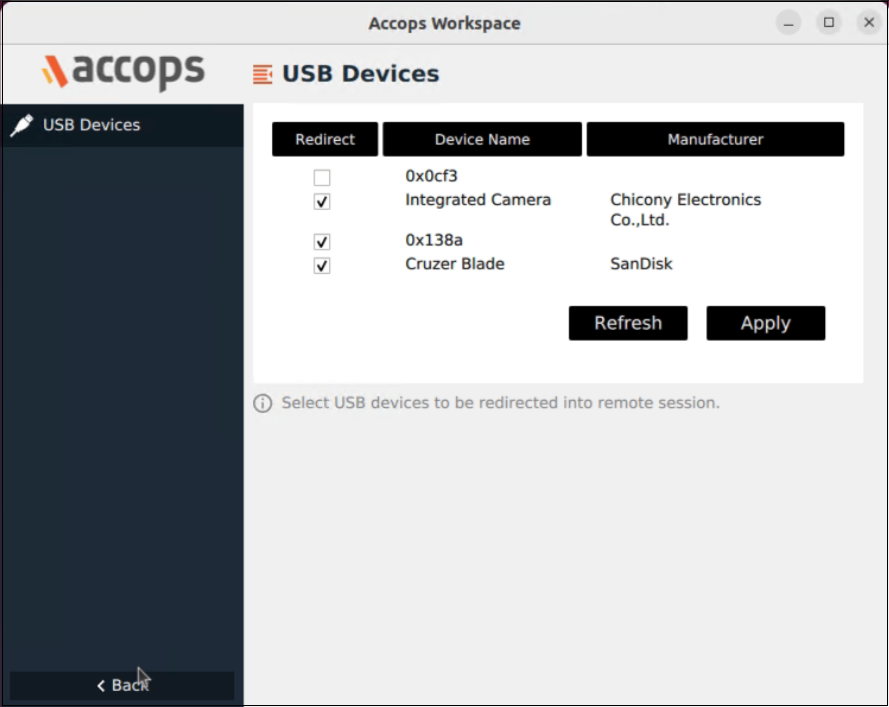
In the client, navigate to the USB device tab to view and check the list of connected USB devices.
-
Select and Redirect the Device
Choose the USB device you want to redirect and click Apply.
-
Log in as a User
Log in through the client and select the configured desktop session that applies all registry settings.
-
Verify Redirected Devices
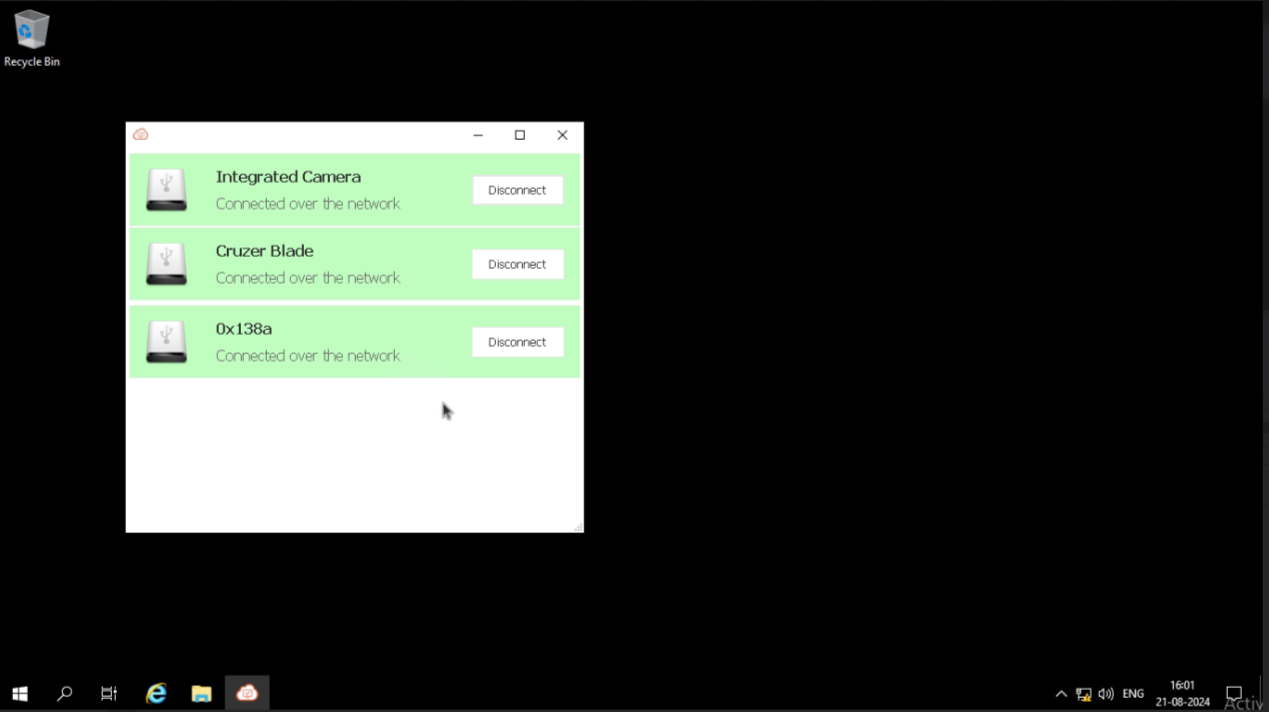
Once logged in, verify the redirected devices in the desktop session’s AUEM system tray.
-
Check Active Ports
Use the command netstat -ant to view the active ports.

-
Access Devices and Perform Operations
Access the USB devices through the file manager to perform operations such as copying, pasting, and creating new files.