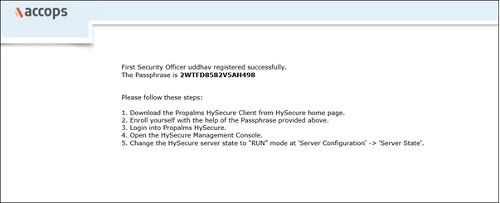
Register First Security Office
In order to register the first Security Officer (SO), a CA certificate needs to be created along with a SO account.
- Once the System Configuration is complete, you will be redirected to the Certificate Authority screen.
-
In the Certificate Authority Mode, by default the Default Accops Internal CA is selected. This enables the server to act as the Certificate Authority. Select External CA if you want to use a Third Party Certificate Authority. The CA that is chosen will help in authorizing the certificate that is to be created for the Security Officer.
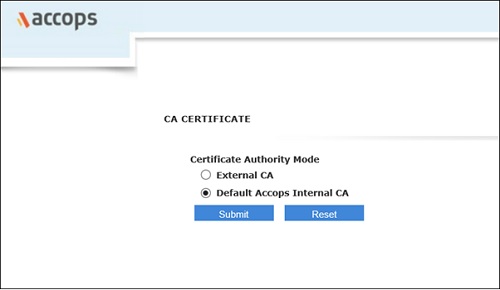
-
For Default Accops Internal CA - a Certificate Creation page will appear. Provide information for CA as well as the Security Officer account creation on HySecure. This account provides Administrator access to the HySecure Management Console from where another accounts can be created.
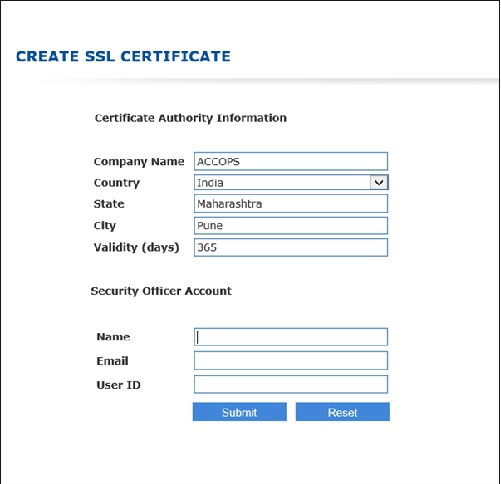
FIELD VALUE DESCRIPTION Certificate Authority Information Company Name \<Company Name\ Name of the company to which Certificate will be issued. Country \<Country Name\ Name of the country where the Certificate will be issued. State \<State Name\ Name of the state where the Certificate will be issued. City \<City Name\ Name of the city where the Certificate will be issued. Validity (days) \<No. of Days\ Validity period for the Certificate Authority. Security Officer Account Name \< First Security Officer Name\ Full name of the First Security Officer. Email \<Username\@domainname\ Email address of the First Security Officer. User ID \<User Name\ Basic Authentication Login ID for the First Security Officer. -
For External CA - Provide a CA Certificate path, a CA Private Key path and a CA Private Key Password.
-
Registration confirmation screen will appear. The Accops HySecure Server will mail the Root Certificate (cacert.cer) and the Passphrase to the the specified email address of the first Security Officer. But it is recommended copy the passphrase, in case this email isn't received. Passphrase is required to enroll the first Security Officer Account and log in to the Management Console.