Enhancements
Custom Header-Based User Login Configuration Through Management Console
The latest release allows configuring all custom header-based user logins from the HySecure Management console. Previously, this was only possible through the backend.
Administrators can set up a custom header-based user login to restrict access to users whose custom headers match the configured value. The user will be denied login if the custom header does not match.
How to configure
Below are the steps to configure a custom header-based user login in the HySecure Gateway:
-
Log in to the HySecure Management Console and go to Settings > Global > Server.
-
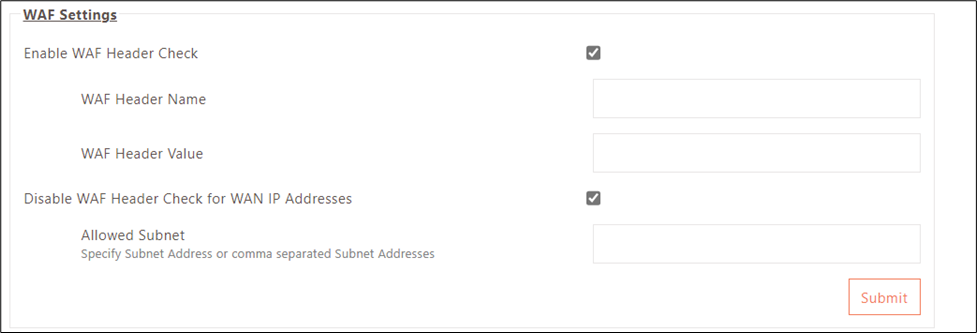
Go to WAF Settings and tick the checkbox against Enable WAF Header Check and configure the below options based on requirement:
-
WAF Header Name: The custom header key the WAF device will add except for the app connect request. By default, it is empty.
-
WAF Header Value: The WAF device assigns value to the custom header. By default, it is empty.
-
Disable WAF Header Check for WAN IP Addresses: Enable this option to allow login without custom header check for specific devices with provided WAN IP Addresses.
-
Allowed Subnet: Provide a comma-separated Subnet address for whom the custom header check is to be ignored for login.
API Access token-based authentication for SMS Gateway
This release has added support for Access token-based authentication with an SMS Gateway. This will enhance security as credentials for the SMS Gateway will not be transmitted with every request, reducing the risk of interception.
How to configure
Follow the below steps to configure Access token-based authentication with SMS Gateway:
-
Log in to the HySecure Management Console and go to Settings > Messaging > SMS Gateway.
-
Click on Add to add an SMS Gateway.
-
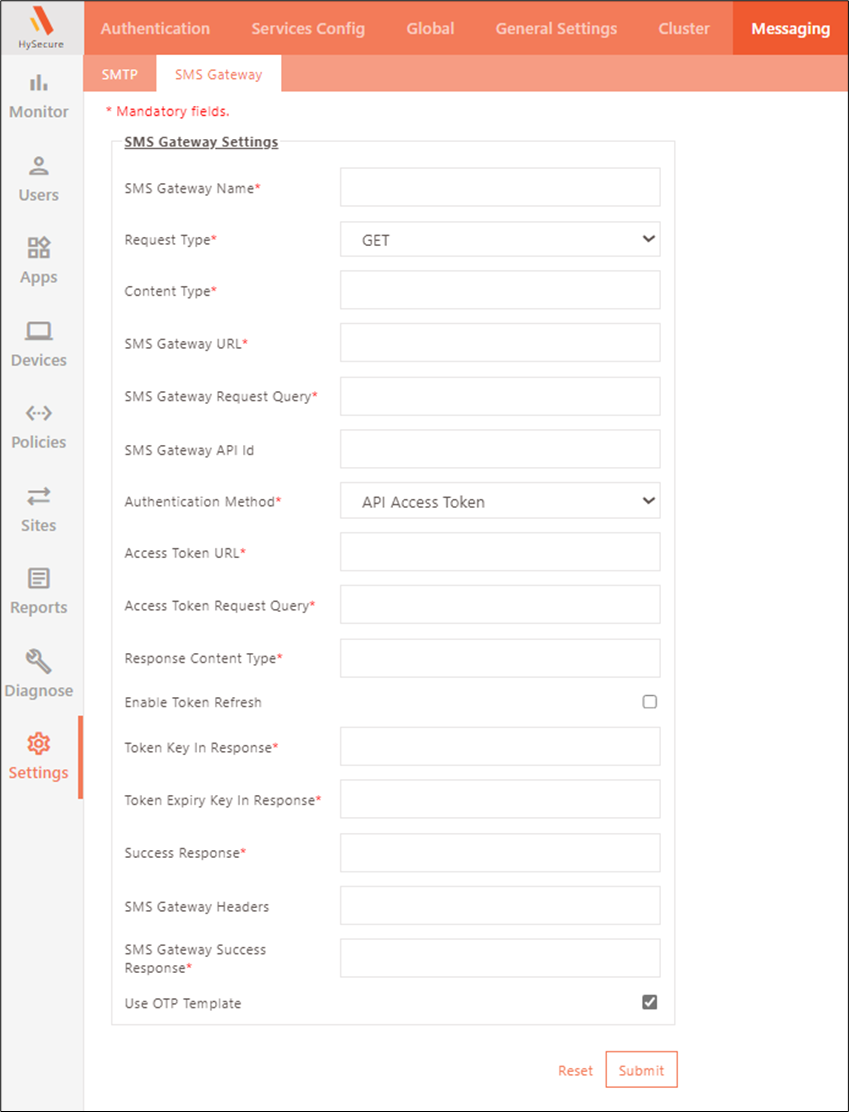
Enter the required details and select Authentication Method as API Access Token.
-
Access Token URL: The Access Token URL is the address of the Access Token API, which will be used to fetch the Access Token. An Access Token is a key to identify and validate the user on the SMS vendor’s side. If validation is successful, the SMS vendor will send the SMS; otherwise, the request will be rejected.
-
Access Token Request Query: Query/payload used to send in the API request. Like the SMS Gateway Request Query used for sending SMS, the Access Token Request Query is employed in the initial API call. It may include unique identifiers specific to that user on the vendor’s side.
-
Response Content Type: The content type the gateway uses to extract the Access Token and its expiry time.
- Enable Token Refresh: If this box is unchecked, the gateway will fetch a token once and use it for all future SMS requests. If it’s checked, the gateway will check for the existing token's expiry; if it expires, it will get a new token for future use.
-
Token Key in Response: The token extraction from the API response involves retrieving the value associated with the key. The API response structure might resemble:
-
Token Expiry Key in Response: The objective is to retrieve the expiry time from the API response. The process involves extracting the value corresponding to this key from the API response, which will be used as the token expiry time.
-
Success Response: This string is utilized to verify the status of the API response.
-
Additional Authentication Configuration Simplification
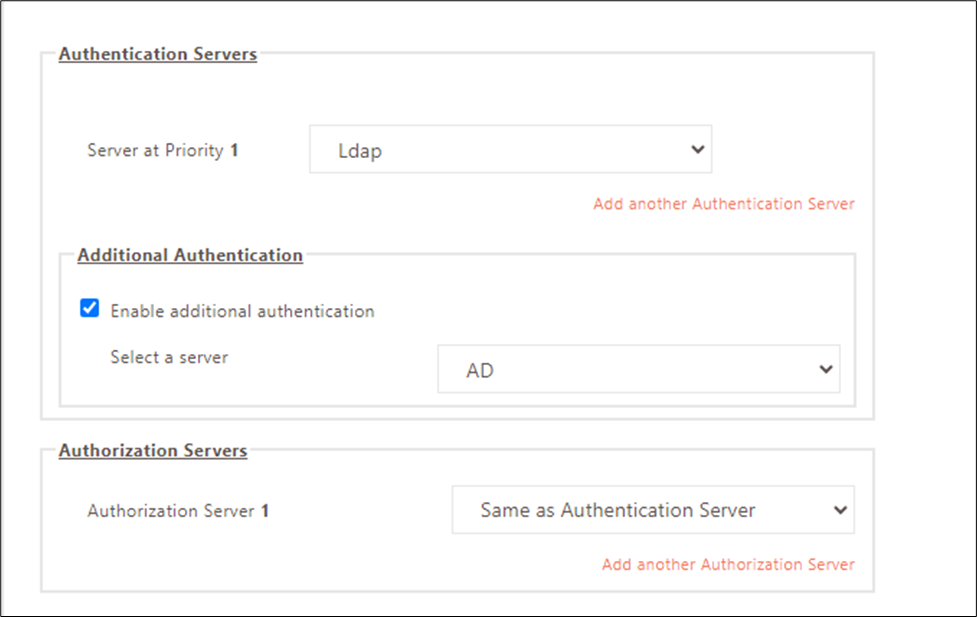
In this release, the configuration for additional authentication has been simplified to make it more intuitive and understandable for administrators. A checkbox was available next to the Authorization Server to enable additional authentication.
From this release onwards, the Enable additional authentication field is moved from the Authorization Domains to the Authentication Servers, with an option to select the additional authorization server.
Bypass Additional Authentication for specific Subnet/ WAN IP Addresses
In this release, an additional authentication feature has been enhanced to provide an option to bypass additional authentication for users logging in from specific subnets or WAN IP addresses. This feature can be configured from the backend as of now.
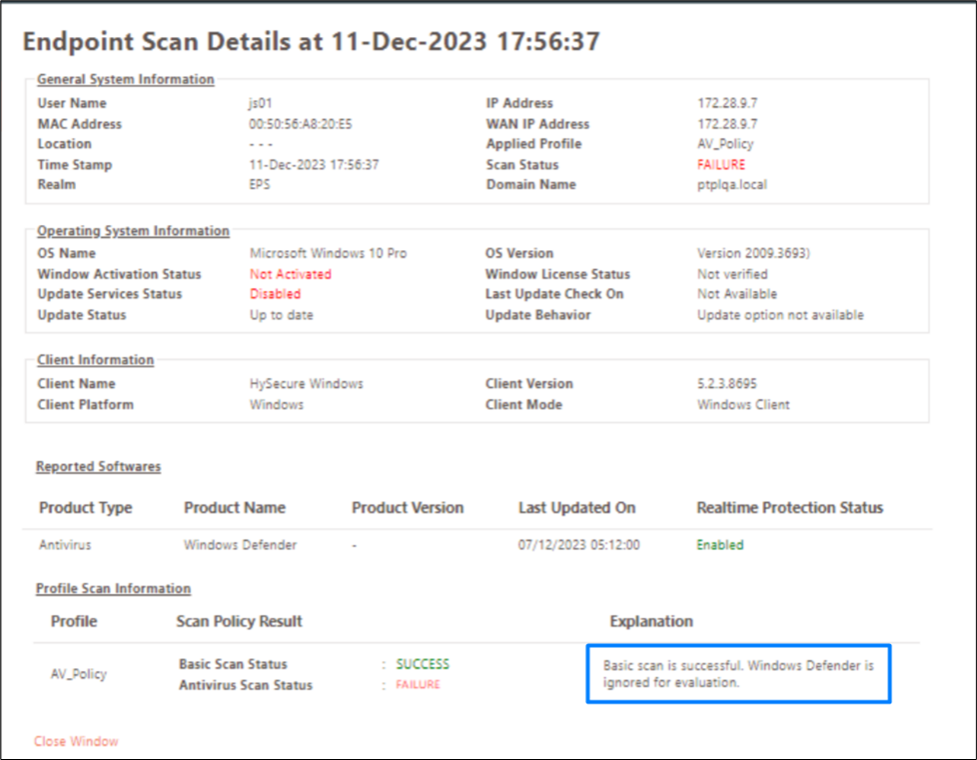
Option to Ignore Windows Defender in Endpoint Host Scan
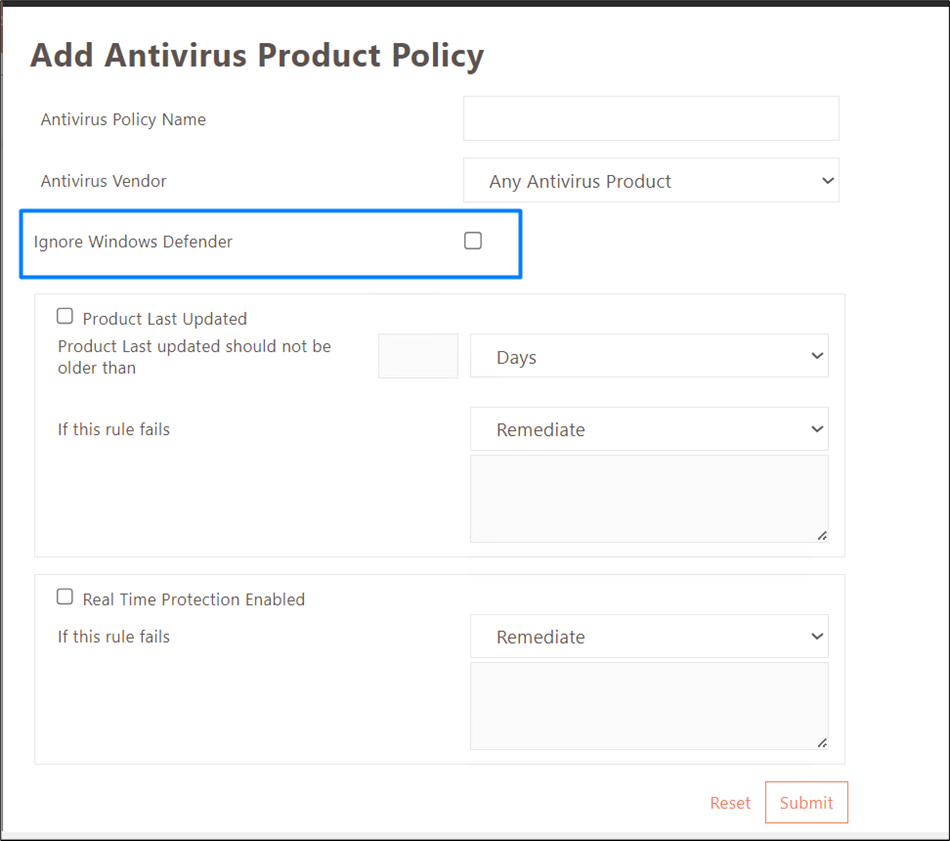
In this release, a new improvement has been introduced in Endpoint Security, allowing administrators to configure the exclusion of Windows Defender antivirus in the host scan policy.
When a user attempts to log in from a machine with only Windows Defender as an installed antivirus and the 'ignore Windows Defender' setting is activated, a remediation message will be displayed to the end user. The message will convey “Problems found with selected Antivirus product: Message from Admin: Windows Defender is not considered an approved antivirus. Please install an antivirus to remediate.”
Enhanced Shell Command History
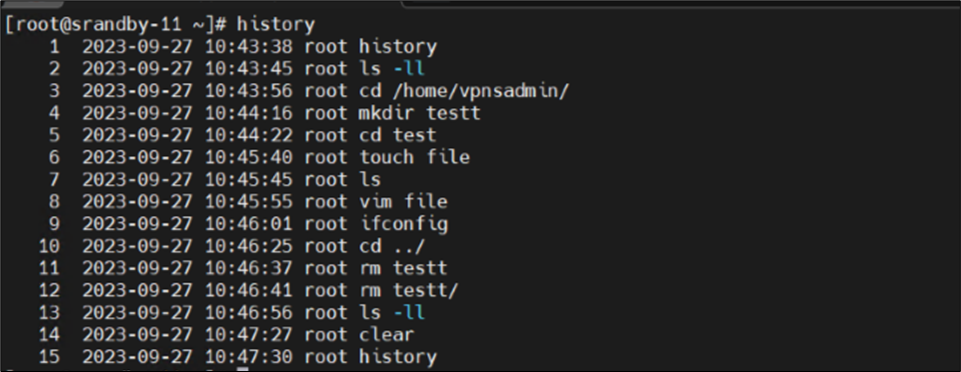
In this latest update, improvements have been made to the shell command history feature to offer additional details for enhanced troubleshooting and auditing capabilities. The following additions have been made to the existing information:
-
Inclusion of the username associated with each command.
-
Integration of a timestamp for each command.
Note
For commands executed before applying the service pack, the timestamp will reflect the time of the upgrade.
Custom User Attribute Mapping Support for SAML Authentication Server
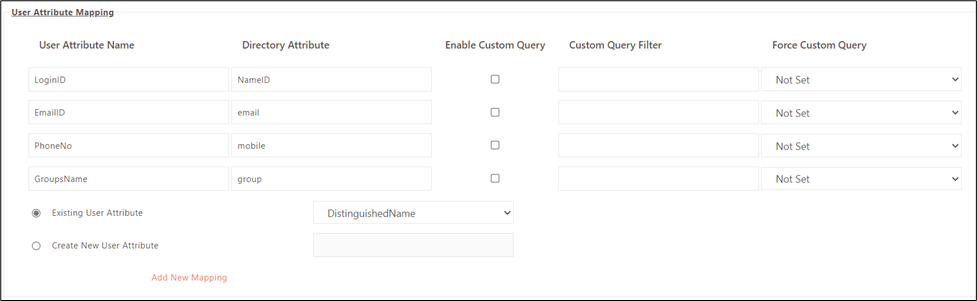
The Custom User Attribute Mapping feature was introduced in the prior release of Active Directory. This release's support for the same feature has been extended to the SAML-based Authentication server configured in the HySecure gateway.
Enhanced Auth As Service
This release includes integrating an enhanced DRS module to improve the Auth as a Service functionality for HySecure.
The key highlights are as follows:
-
Migration of the whole Auth as Service architecture to Cloud
-
New Secured Device registration flow
-
User-sensitive data security
-
Auth Device App profile verification status
-
Global registration of devices for multi-tenant device sharing
SSO to Virtual Apps Through HyLite
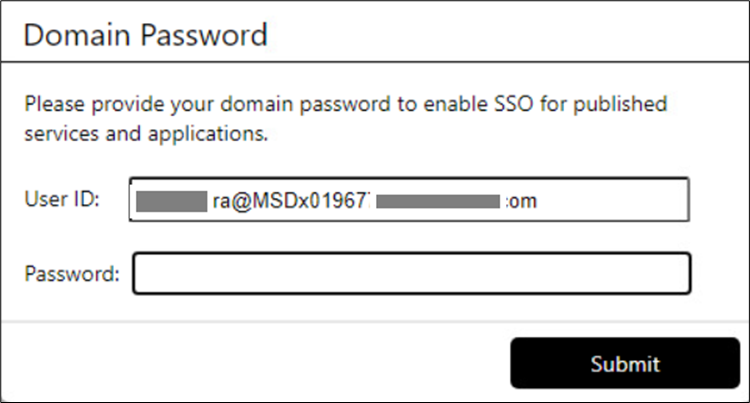
In the previous release, Single Sign-On (SSO) for applications relying on SAML authentication was unavailable, requiring users to input credentials for each application manually. In this latest release, a dialog box will now prompt users to enter their password post-login, and subsequently, this password will be utilized for Single Sign-On across applications.
User Status Search Filter in Local Users
In this latest release, a new search filter called User Status has been added to local users, allowing users to be filtered based on their status, whether enabled or disabled. This enhancement is designed to streamline the user experience by simplifying distinguishing between disabled and enabled users.
Last Login, Mobile Token Activation Status Filter for Registered Users
In this release, two new filters have been added to search Registered Users in the HySecure gateway.
-
Last Login: The administrator can filter users based on the following options:
-
Equal to days/months
-
More than days/months
-
Less than days/months
-
More than equal to days/months
-
Less than equal to days/months
-
-
Mobile Token: The administrator can filter users based on the following options:
-
Mobile token activated
-
Mobile token not activated.
-
Display users associated with Authentication Devices
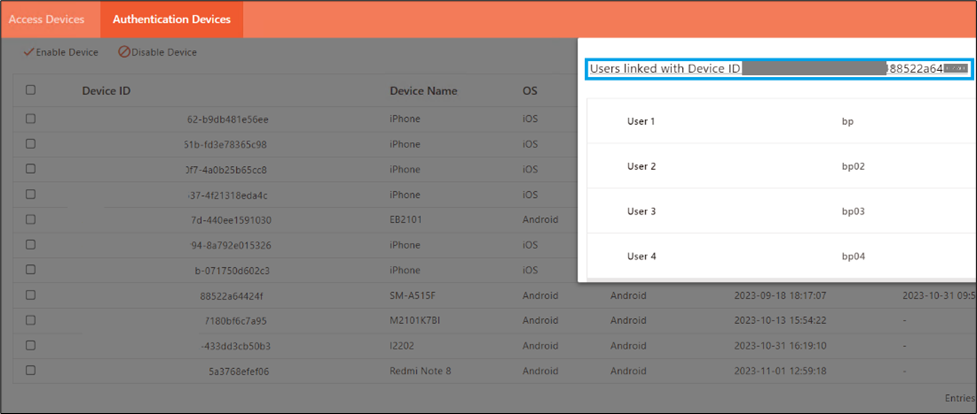
This latest update has implemented improvements for Authentication devices registered in the HySecure gateway. These devices are utilized for Passwordless login and Push notification-based Multi-Factor Authentication (MFA) when logging into the HySecure gateway.
Administrators can now view the users associated with each registered device. This enhancement facilitates troubleshooting and auditing processes.
Enhanced Login Experience with Hostname-based Applications
In this latest release, the DNS cache has been enhanced to accommodate caching for up to 3000 applications, a significant increase from the previous limit of 1024. This enhancement is intended to quickly resolve hostnames for published applications, ensuring a swift login experience.
Message on the dashboard in the absence of Devices
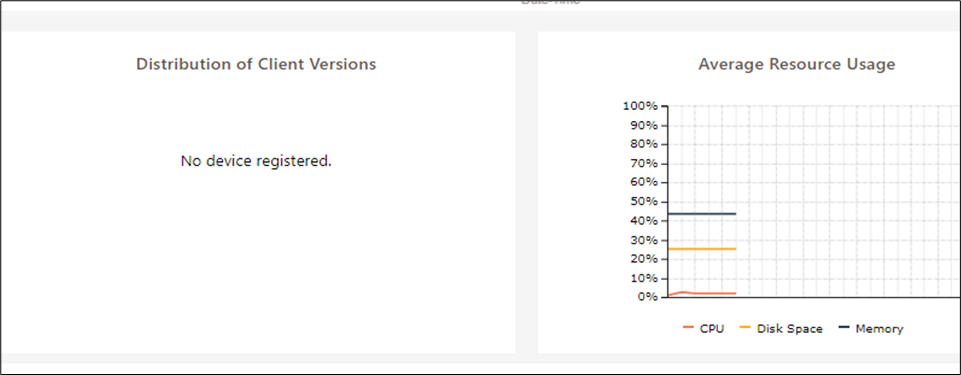
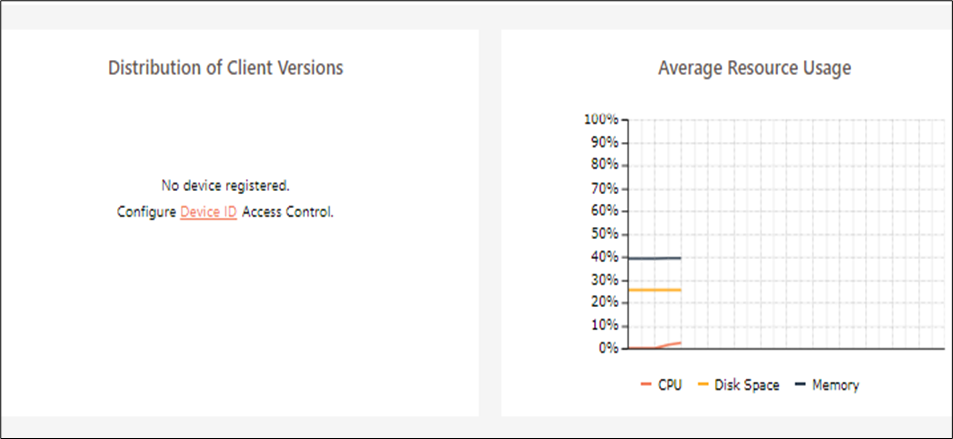
This release includes improvements to the client version distribution graph. In scenarios where a device ID policy is set up, but no Access Devices are present on the Gateway, the Administrator will encounter the message No device registered on the dashboard. Likewise, if there are no Access Devices and the Device ID Access Control is not configured on the Gateway, the Administrator will be prompted with the message No device registered. Configure Device ID Access Control on the dashboard.
Updated HyLite Portal Engine
The HyLite portal engine has undergone enhancements in this update to address minor issues and improve overall performance.
Compatible HyID policy listing in Authentication ACL.
In this release, the below enhancements have been implemented into Authentication ACL:
-
HyID policies compatible with Authentication ACL will only be listed to link with.
-
Message for supported HyID policies in Authentication ACL: Only those enabled HyID policies, configured with at least one of the token types (Email, SMS, Mobile or Hardware), and same HySecure Domain as this ACL, are available for selection.
Improved Captcha Readability
In the latest release, improvements have been made to the user experience by modifying the captcha text color to black. This alteration is intended to enhance readability, rendering the captcha process more user-friendly and ensuring users can effortlessly understand and complete the captcha.
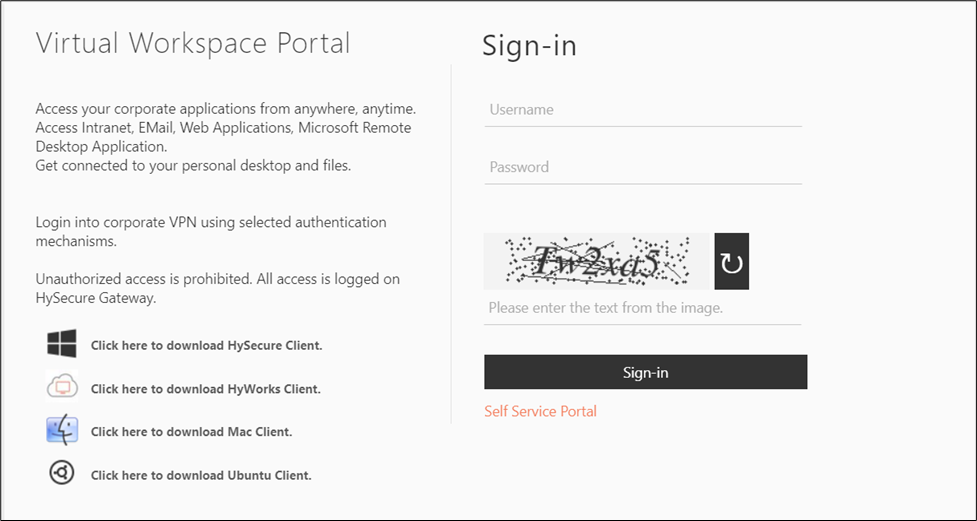
In the same way, the CAPTCHA has also been improved for the Service Portal.
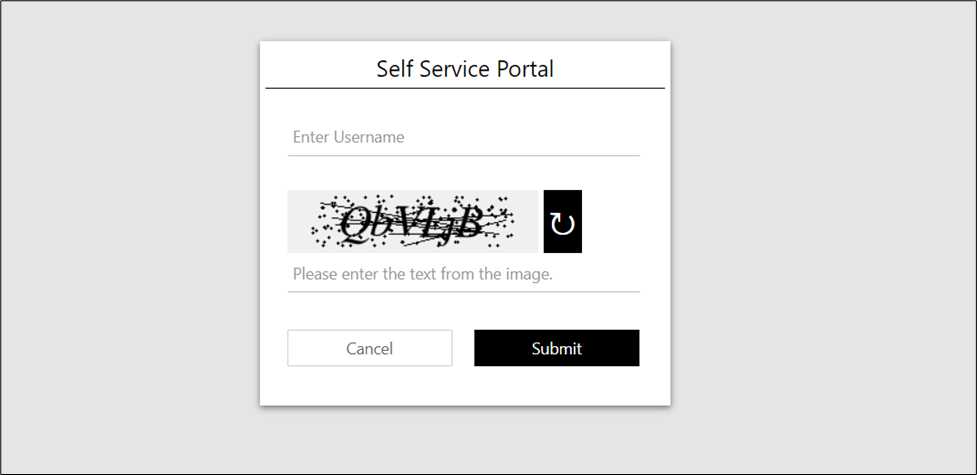
Cosmetic Enhancement for Login and Self Service Portal Experience with Captcha
In this release, cosmetic improvements have been implemented to enhance the positioning of the captcha in relation to the input field, making it more intuitive for the user.
Option to Disable User-Based Reports
In this update, a toggle for enabling or disabling user-based reporting has been introduced to enhance performance.
Note
By default, this release will turn user-based reporting off and can be enabled from the backend. Reports can be generated using existing data; no new data will be added to the user reporting database.
Option to Disable Expired LDAP Password Change Feature
In the earlier release, end users authenticating through the LDAP server were allowed to change their password if it had expired. In this release, enabling or disabling this feature has been configurable to meet specific requirements and enhance performance optimization.
Note
By default, this feature will be disabled in this release and can be enabled from the backend.
Enhanced Details in Error Logs
In this release, error logs have been improved to include additional information, such as the source WAN IP address and port details, for each error log generated due to user activity.
Effortless Configuration in Global Settings
This release has implemented Settings > Global > Server and Settings > Global > Client improvements. Administrators can now easily enable or disable configurations by clicking on the text directly, eliminating the need to target specific checkboxes.
Pagination in Access Controls List
In this latest release, pagination has been implemented in the access control list page to elevate the user experience. This enhancement provides quicker loading of the access control list page, especially when managing many access control lists.