Okta Cloud Two-Factor Authentication (2FA)
Applies To: HySecure 7.0 and above
Category: Security & Access Control
Overview
Okta is a trusted platform that offers cloud software designed to help companies manage and secure user authentication for applications. It also enables developers to incorporate identity controls into applications, websites, web services, and devices.
Okta provides single sign-on and two-factor authentication technologies in a cloud-managed environment and can be integrated with software that supports LDAP and RADIUS.
This guide provides step-by-step instructions for configuring Okta Cloud Two-Factor Authentication (2FA) for Accops HySecure. It includes clear procedures and screenshots to guide administrators through the setup process.
Prerequisites
-
Okta AD Agent (Directory Synchronization)
a. The Okta AD Agent must be installed on a member server within the same Active Directory domain.
b. It is required to synchronize on-premises AD users and groups to the Okta Cloud.
c. Refer to the official Okta document for installation and configuration steps.
-
Okta RADIUS Agent
a. The Okta RADIUS Agent must be installed on a member server or any domain-joined server as recommended by Okta.
b. It is required to enable RADIUS-based MFA authentication, which is used by HySecure for two-factor authentication.
-
Supported Operating System
a. The server must be running a supported Windows Server version as per the latest Okta guidelines.
-
Network Connectivity
a. Ensure outbound HTTPS (port 443) is open and reachable from the server to the Okta Cloud service. b. Both the Okta AD Agent and the Okta RADIUS Agent communicate securely with Okta Cloud over port 443.
Architecture Diagram
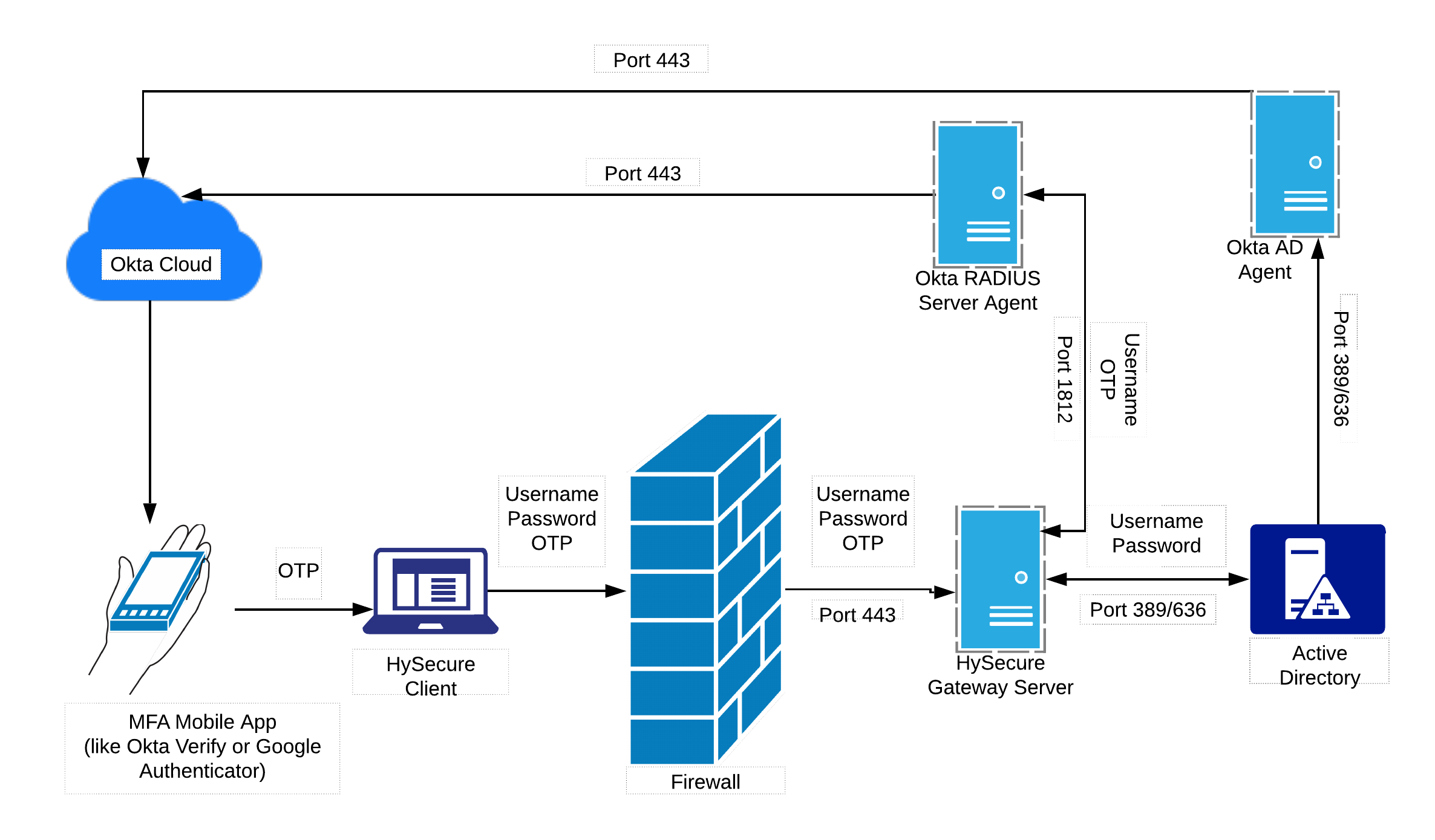
Configuration Workflow
Step 1: User Login Input
a. The user enters the username, AD password, and the OTP generated by their MFA application configured in Okta (e.g., Okta Verify, Google Authenticator) into the HySecure client.
Step 2: Credential Submission to HySecure
a. The HySecure client sends the username, password, and OTP to the HySecure Gateway.
Step 3: Primary Authentication with Active Directory
a. The HySecure Gateway validates the username and password against the configured Active Directory.
b. If AD authentication is successful, the flow proceeds to MFA verification.
Step 4: MFA Verification via Okta RADIUS Agent
a. After AD validation, the HySecure Gateway sends the username and OTP to the Okta RADIUS Agent.
b. The HySecure Gateway is configured as a RADIUS client, and the details of the Okta RADIUS Agent server are stored in its configuration.
Step 5: RADIUS Agent to Okta Cloud Communication
a. The Okta RADIUS Agent acts as a proxy, forwarding the MFA request to Okta Cloud.
b. Okta Cloud validates the MFA code for the user, whose account was synchronized from on-premises AD using the Okta AD Agent.
Step 6: RADIUS Response to HySecure
a. The Okta RADIUS Agent receives the MFA decision (success/failure) from Okta Cloud and returns the appropriate RADIUS response to the HySecure Gateway.
Step 7: User Authorization
a. After successful MFA verification, HySecure performs authorization checks based on the user’s AD group memberships and policies configured in the authentication domain.
Step 8: Successful Login
Once authentication and authorization are complete, the user is granted access and can log in to HySecure with Okta-based Two-Factor Authentication (2FA).
Configure Okta Radius Application
Create RADIUS Application in Okta
Prerequisites
-
An Okta application must be created to enable and configure the Okta RADIUS Agent.
-
Users who will authenticate via RADIUS must be assigned to this application.
Configuration Steps
-
Log in to the Okta Administrator Dashboard.
-
Add the RADIUS Application
-
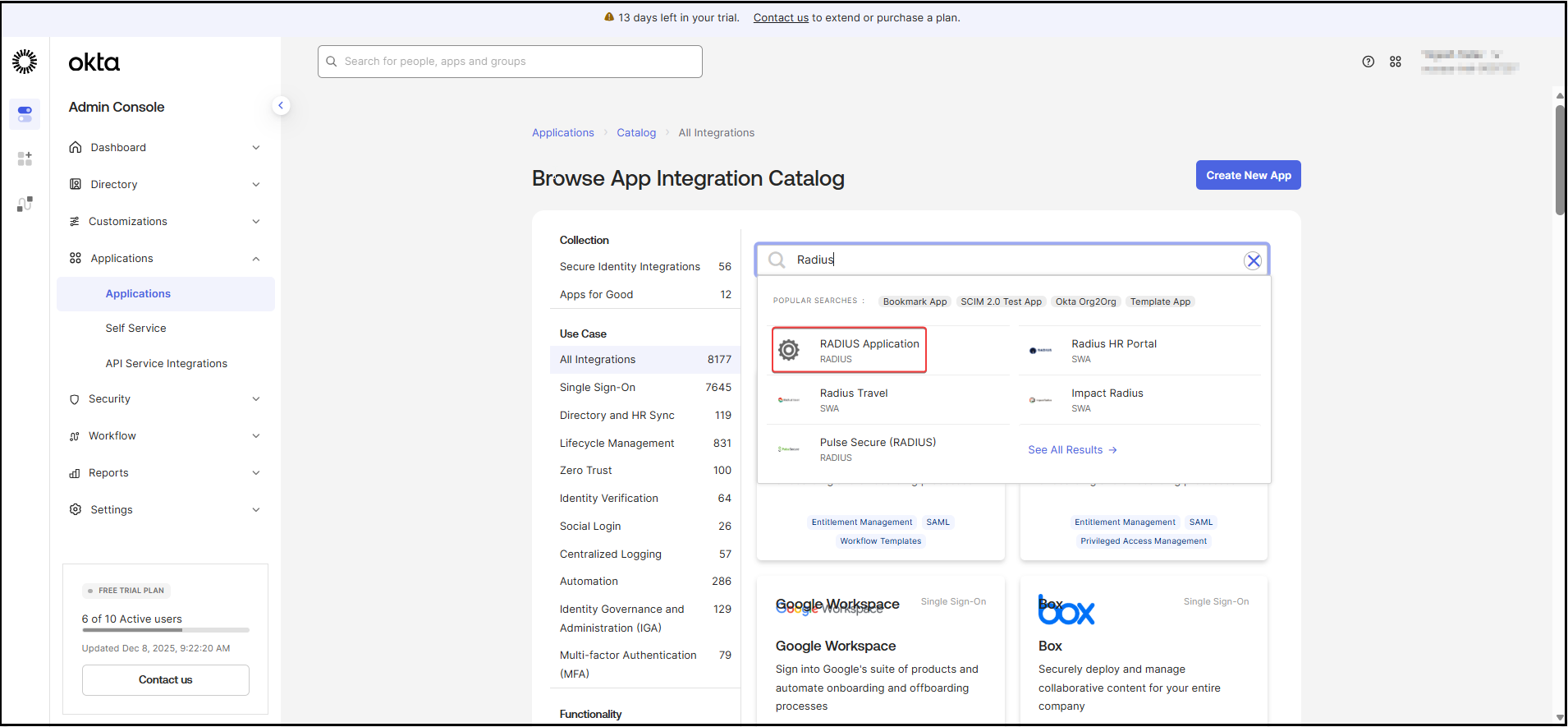
Navigate to Applications > Applications.
-
Click Create New App.
-
Enter Radius in the search field.
-
Select RADIUS Application from the search results.
-
Click Add to create the application.
-
-
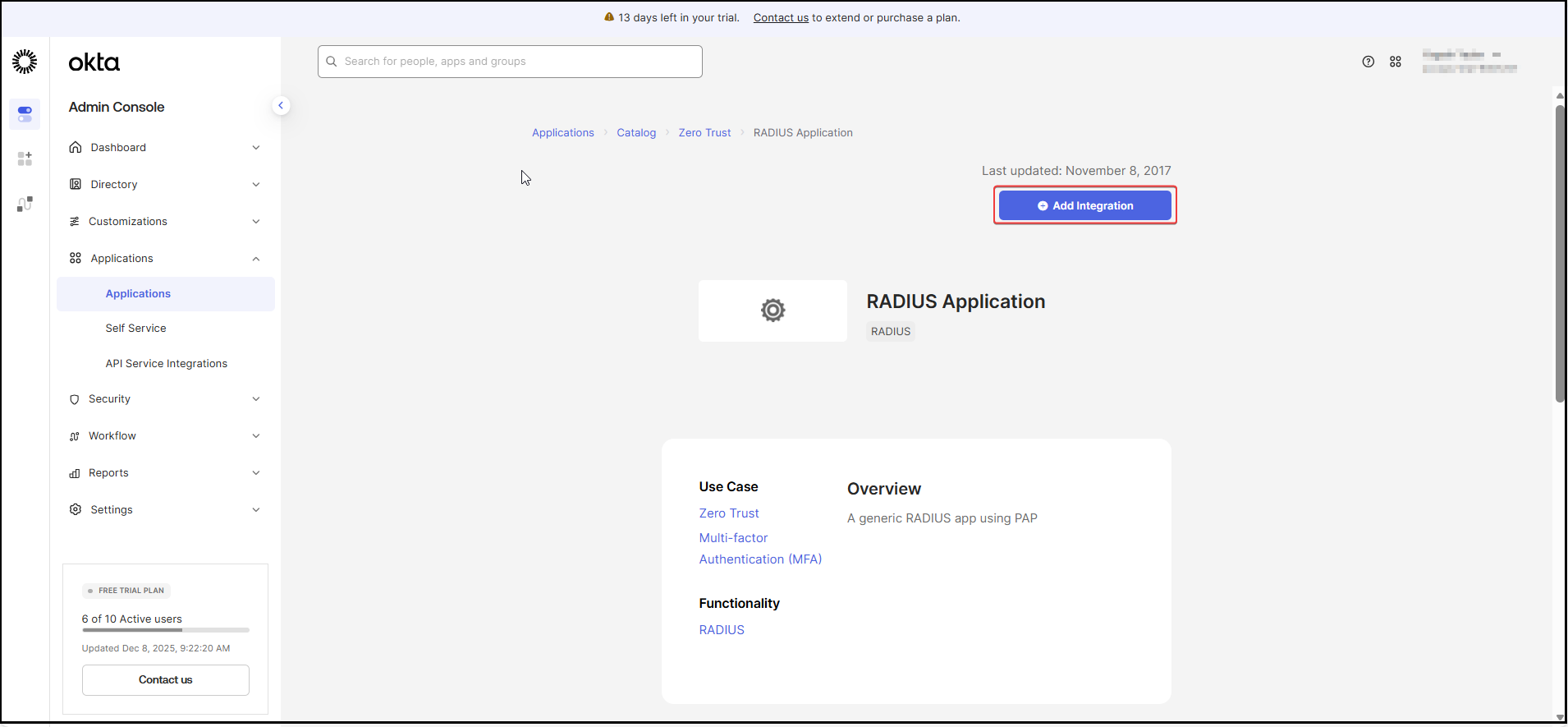
Click Add Integration.
-
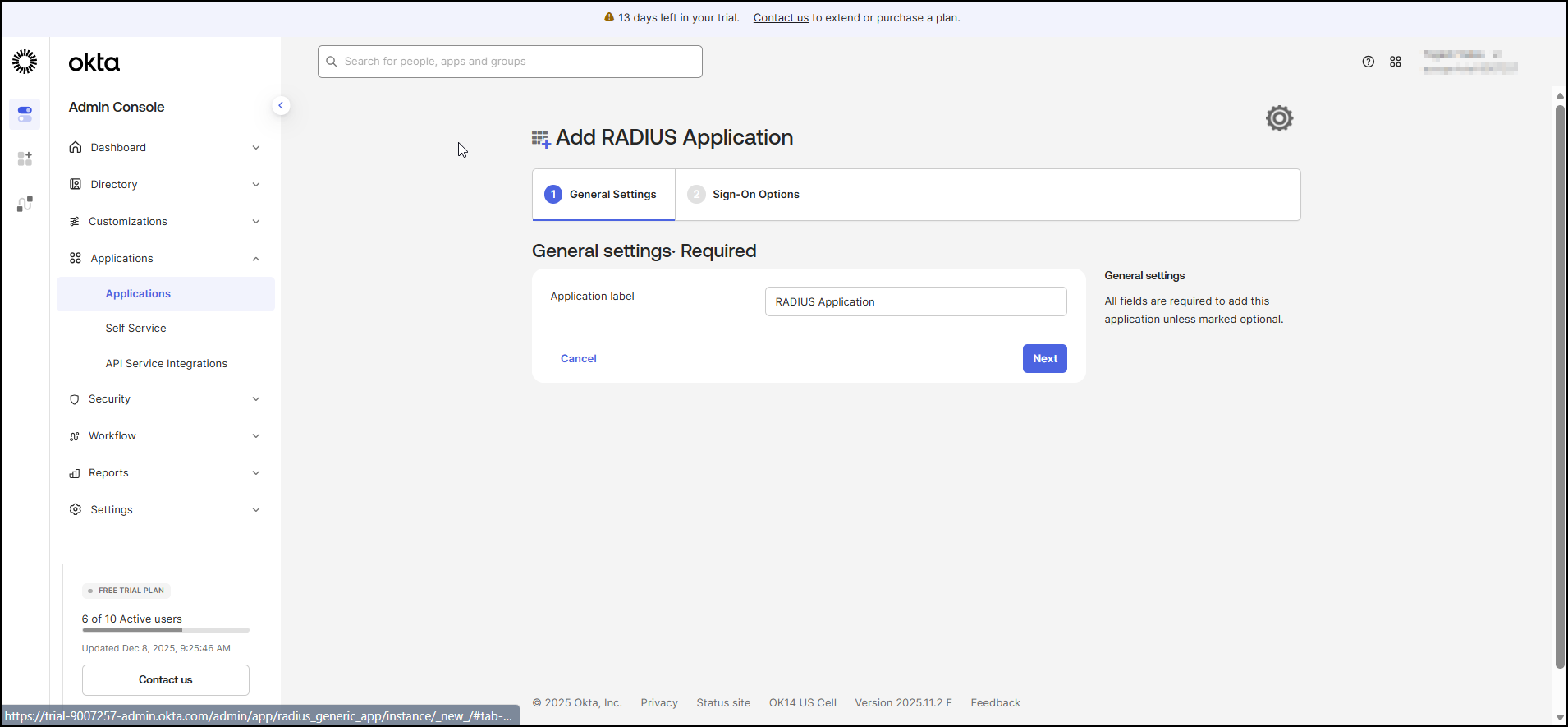
On the General settings tab, enter the Application label, and click Next.
-
Click the Sign-On Options tab, enter the following general details:
Field Example Authentication - Okta performs primary authentication Keep this option Unchecked UDP Port Enter 1812 Secret Key Enter the {secret-key} Under Credential Details > Application username format Select the AD SAM account name Under Credential Details > Update application username on Create and update 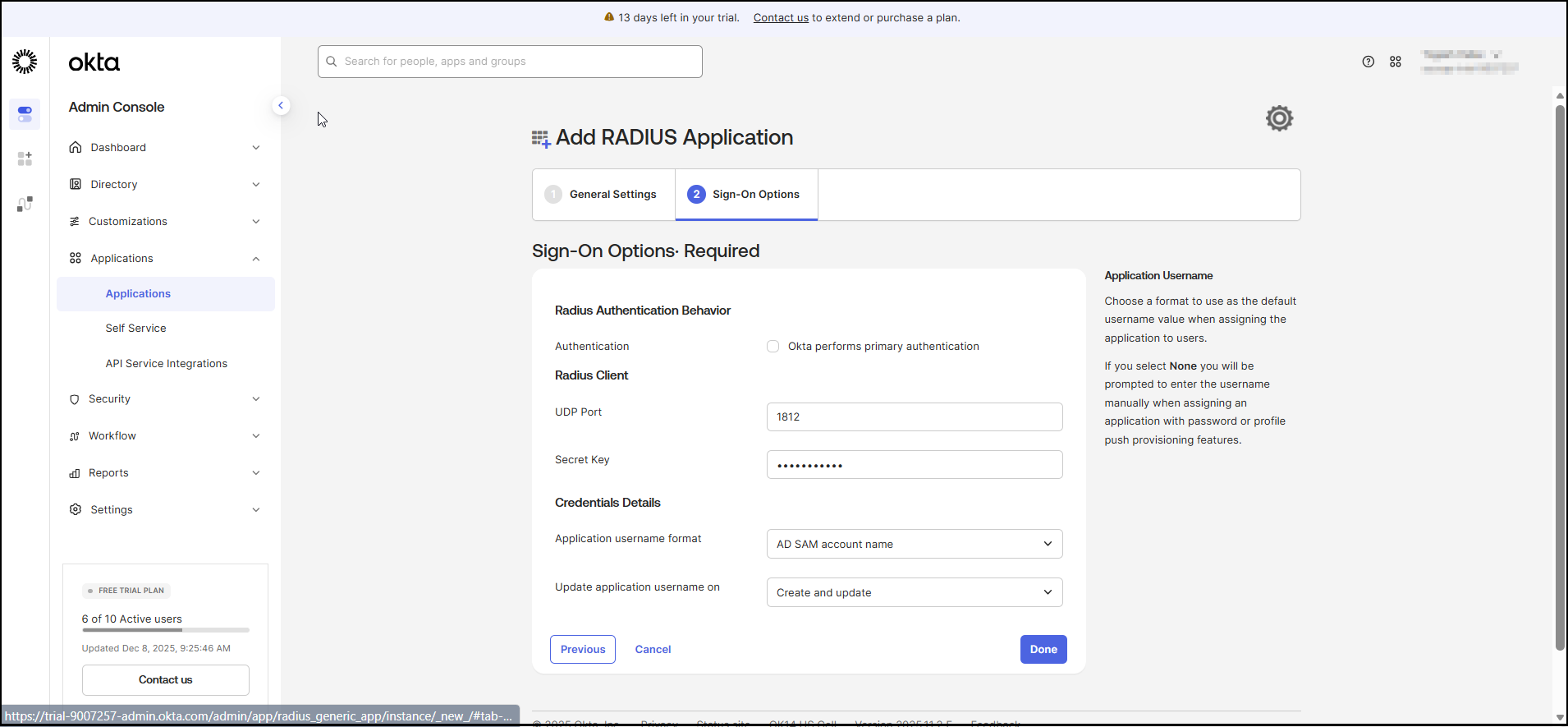
-
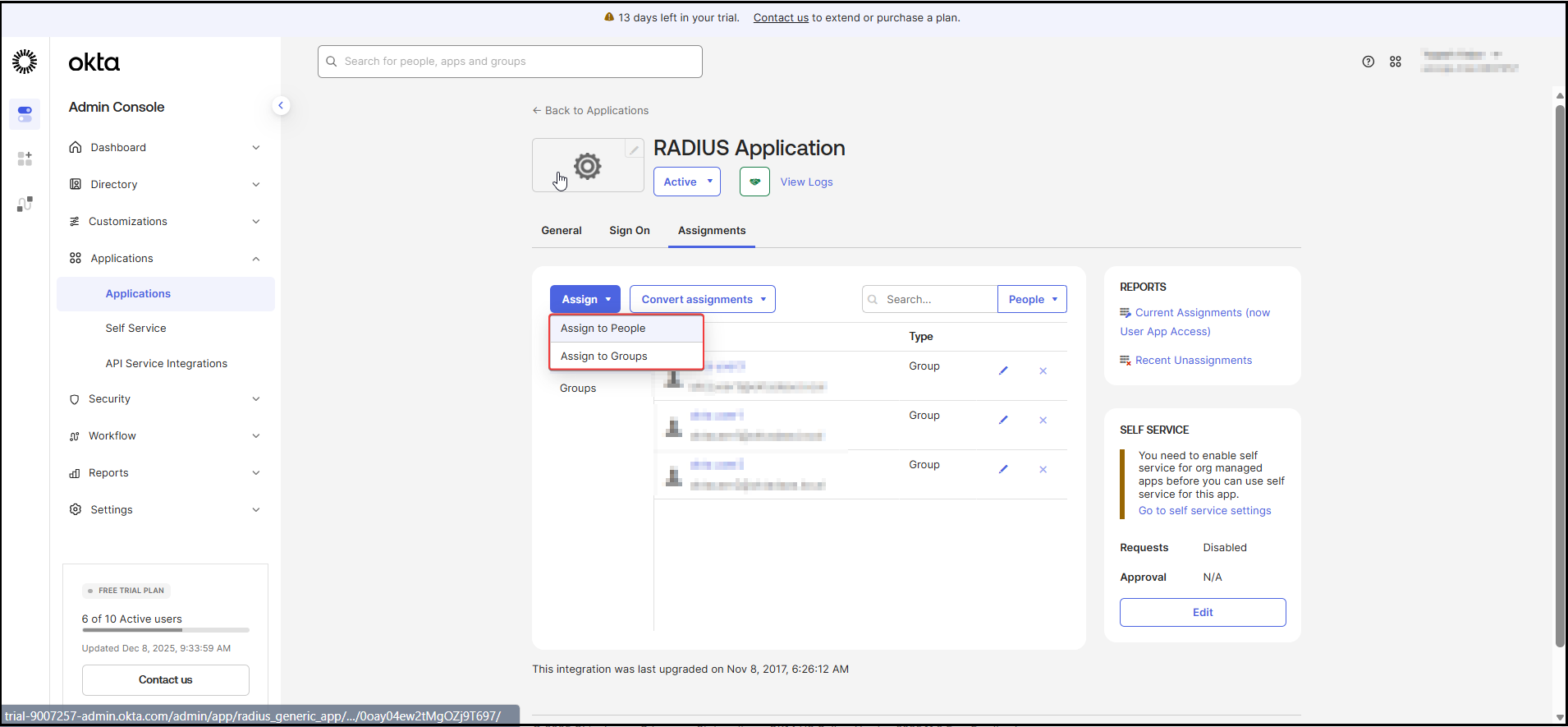
Assign Users/Groups.
-
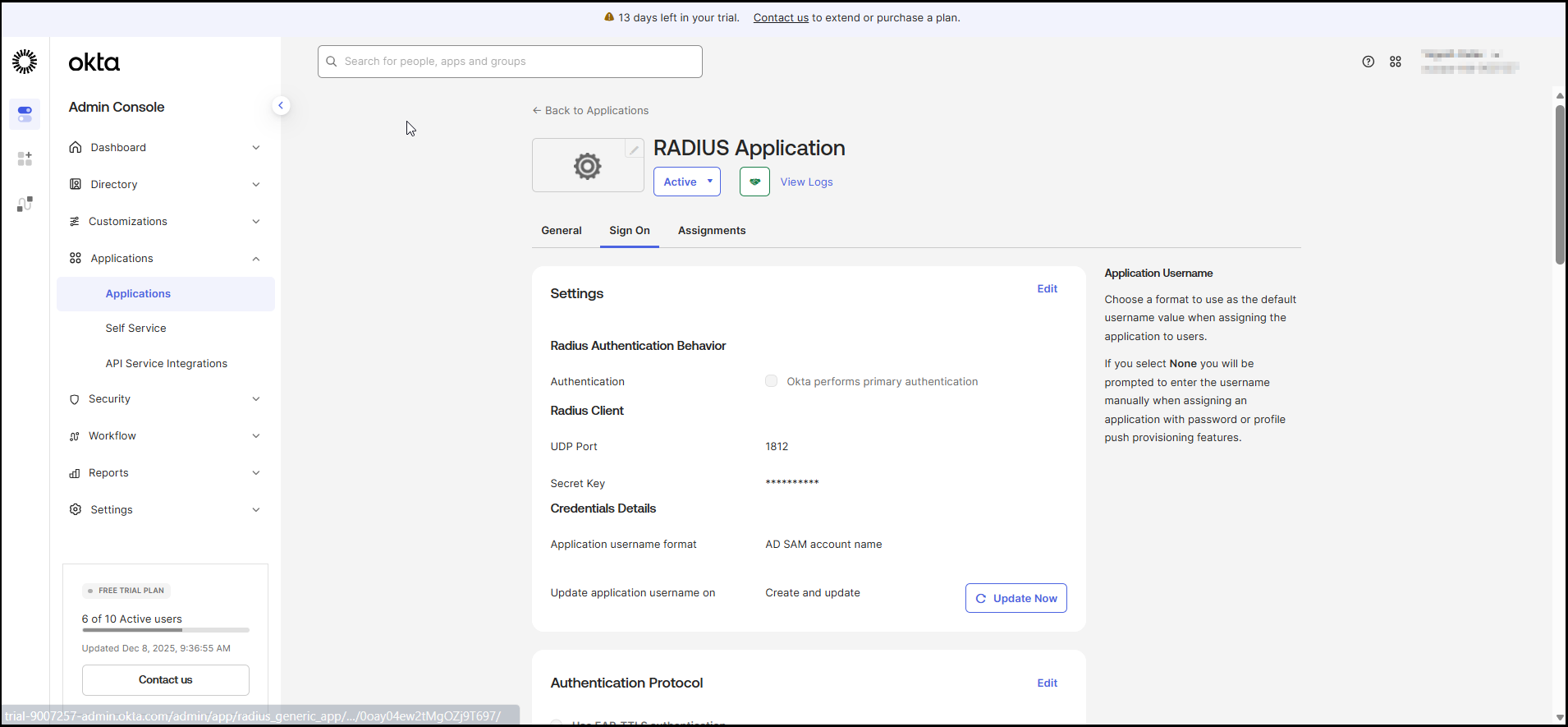
Navigate to the Applications section and click the Sign-On tab.
-
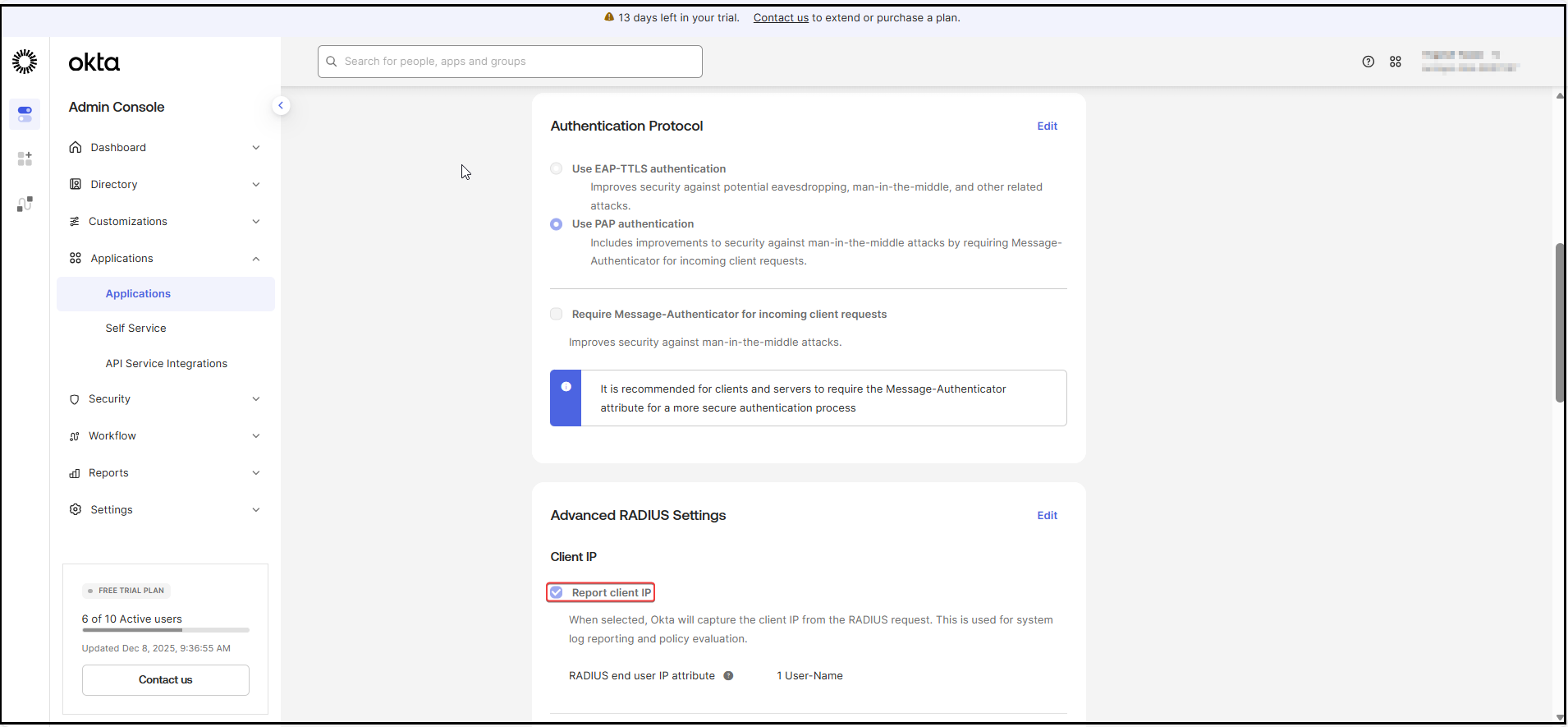
Enable Report Client IP.
-
This allows Okta to capture the client IP from the RADIUS request.
-
This information is used for system log reporting and policy evaluation.
-
-
Enable UPN or SAM Account Name Login.
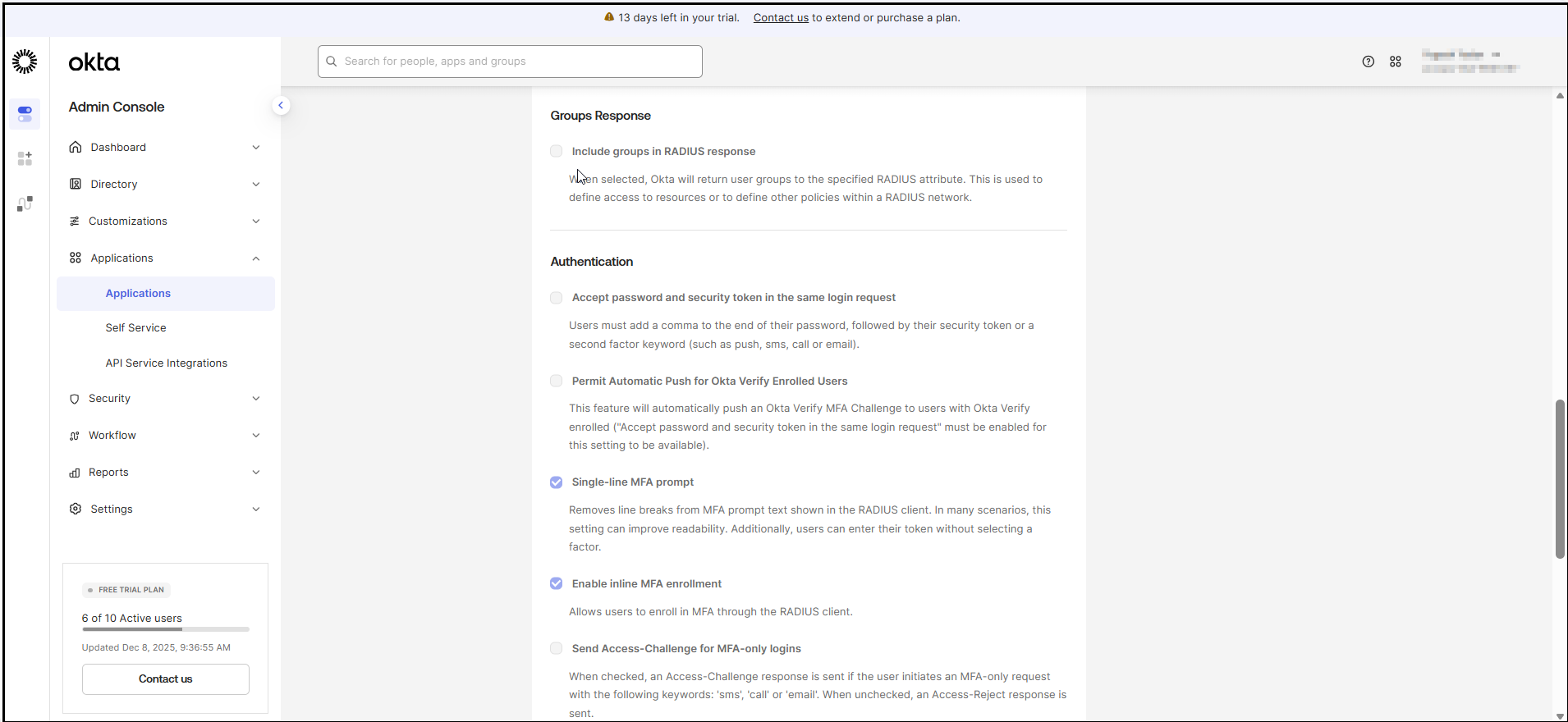
- This allows users to authenticate using either their AD UPN or their SAM Account Name.
-
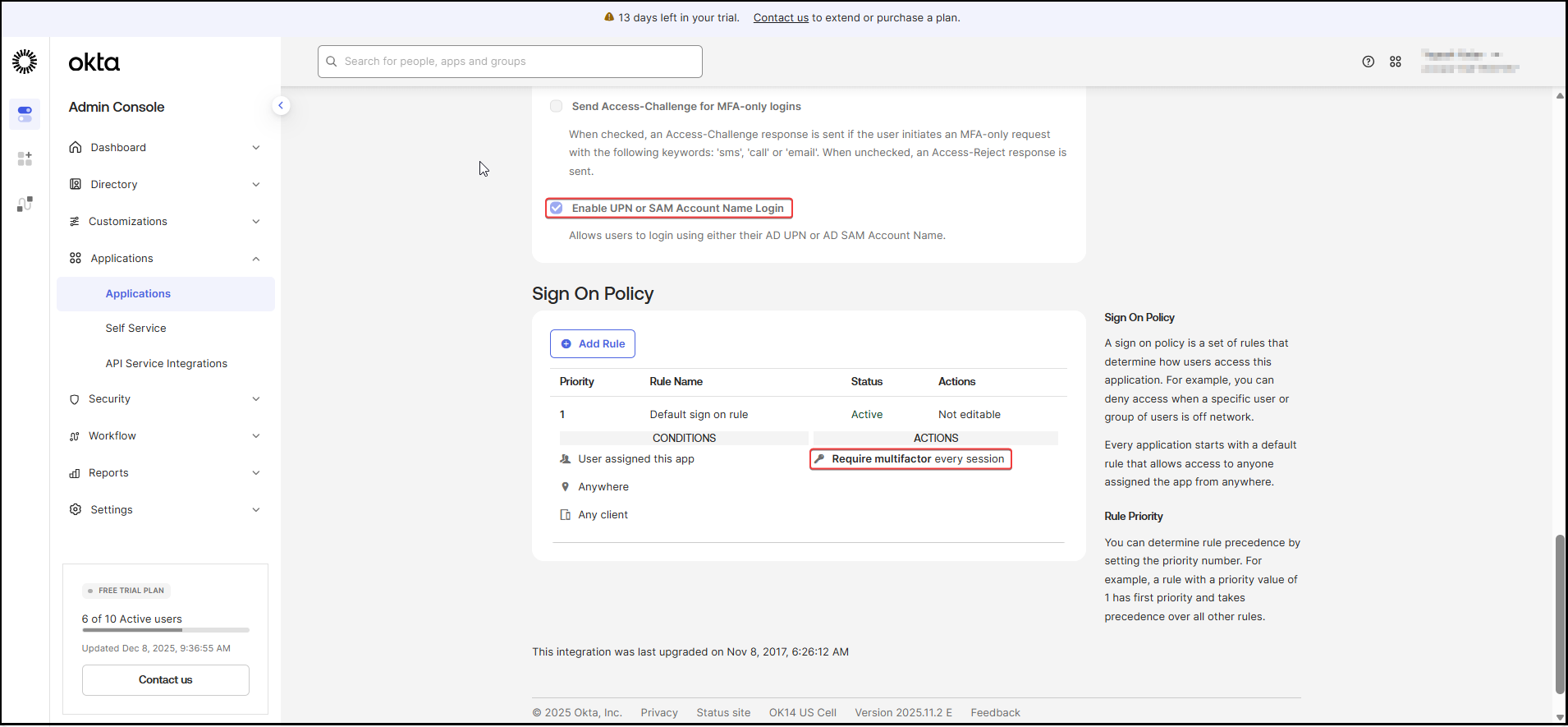
Navigate to Sign On Policy > Require Multifactor every session.
-
Configure the sign-on policy to require MFA for all RADIUS authentication attempts.
-
This enforces the MFA challenge from Okta during HySecure login.
-
-
Configure the Authentication Server on Accops HySecure
Step 1: Access HySecure Management Console.
-
Log in to the HySecure Management Console.
-
In the Settings section, select Authentication Servers to create Authentication Server to add the RADIUS.
| Field | Description |
|---|---|
| IP Address / Host Name | IP Address of the Member Server |
| Port | 1812 |
| Shared Secret |
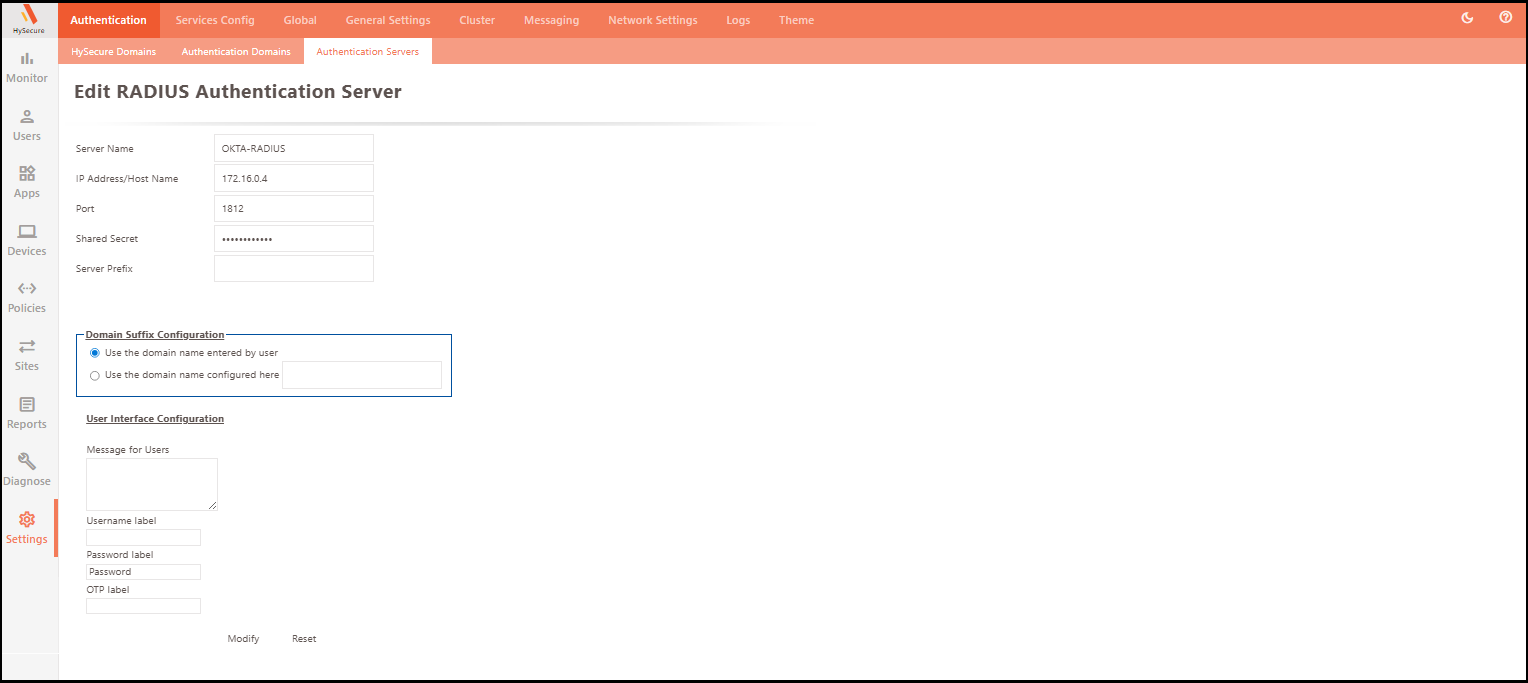
Step 2: In the Settings section, select Authentication Servers to create an Authentication Server to add the AD/LDAP.
| Field | Description |
|---|---|
| Server IP Address / Host Name | IP Address of the Active Directory Server |
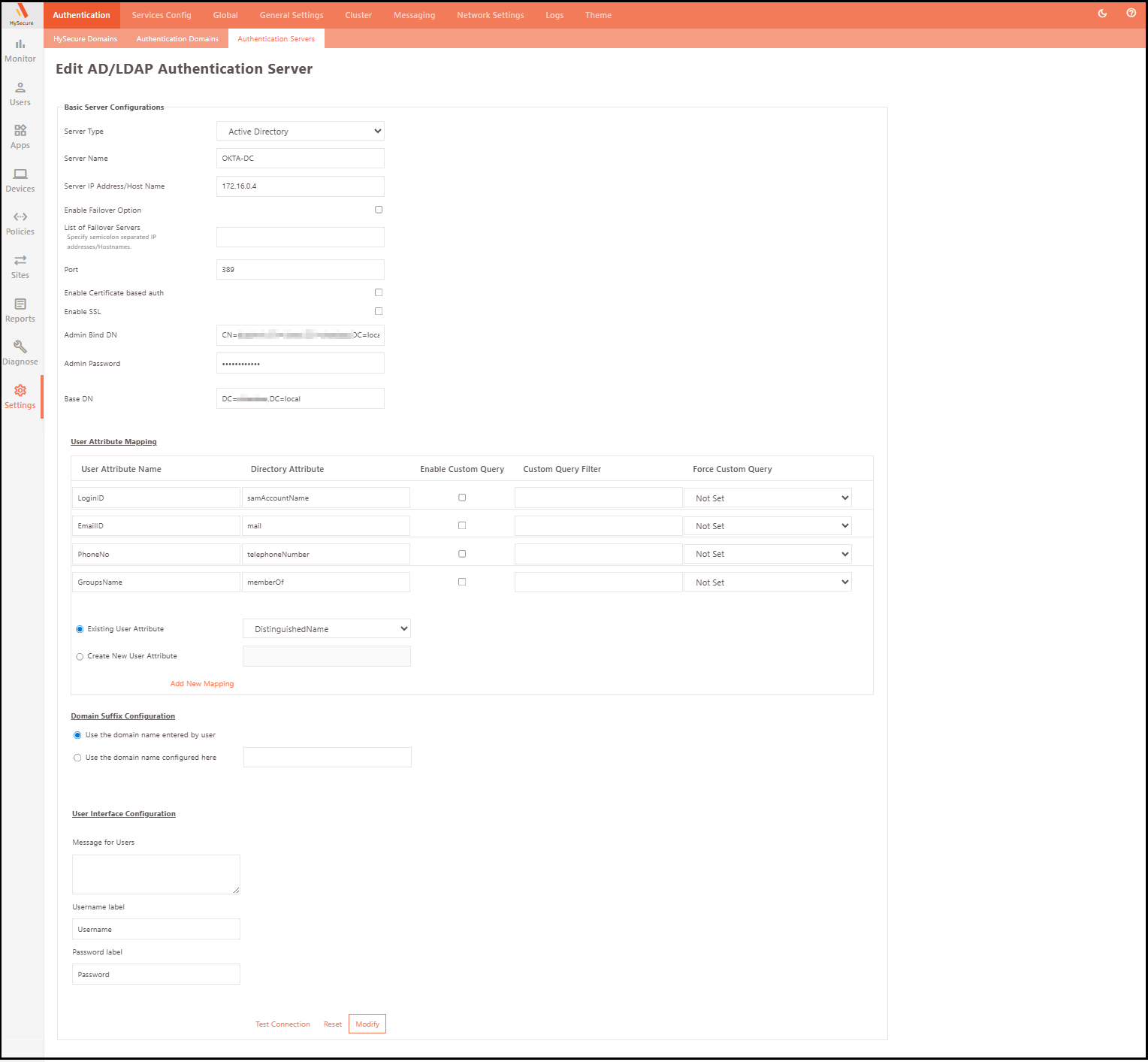
Step 3: Authentication Domain Configuration.
- Add a new Authentication Domain and select the respective Authentication Server (Okta) under the Server at priority 1 field.
| Description | |||
|---|---|---|---|
| Authentication Servers | Server at Priority 1 | Authentication Server | Select Active Directory Server |
| Additional Authentication | Enable additional authentication | Select RADIUS Server | |
| Authorization Servers | Authorization Server 1 | Select Active Directory Server |
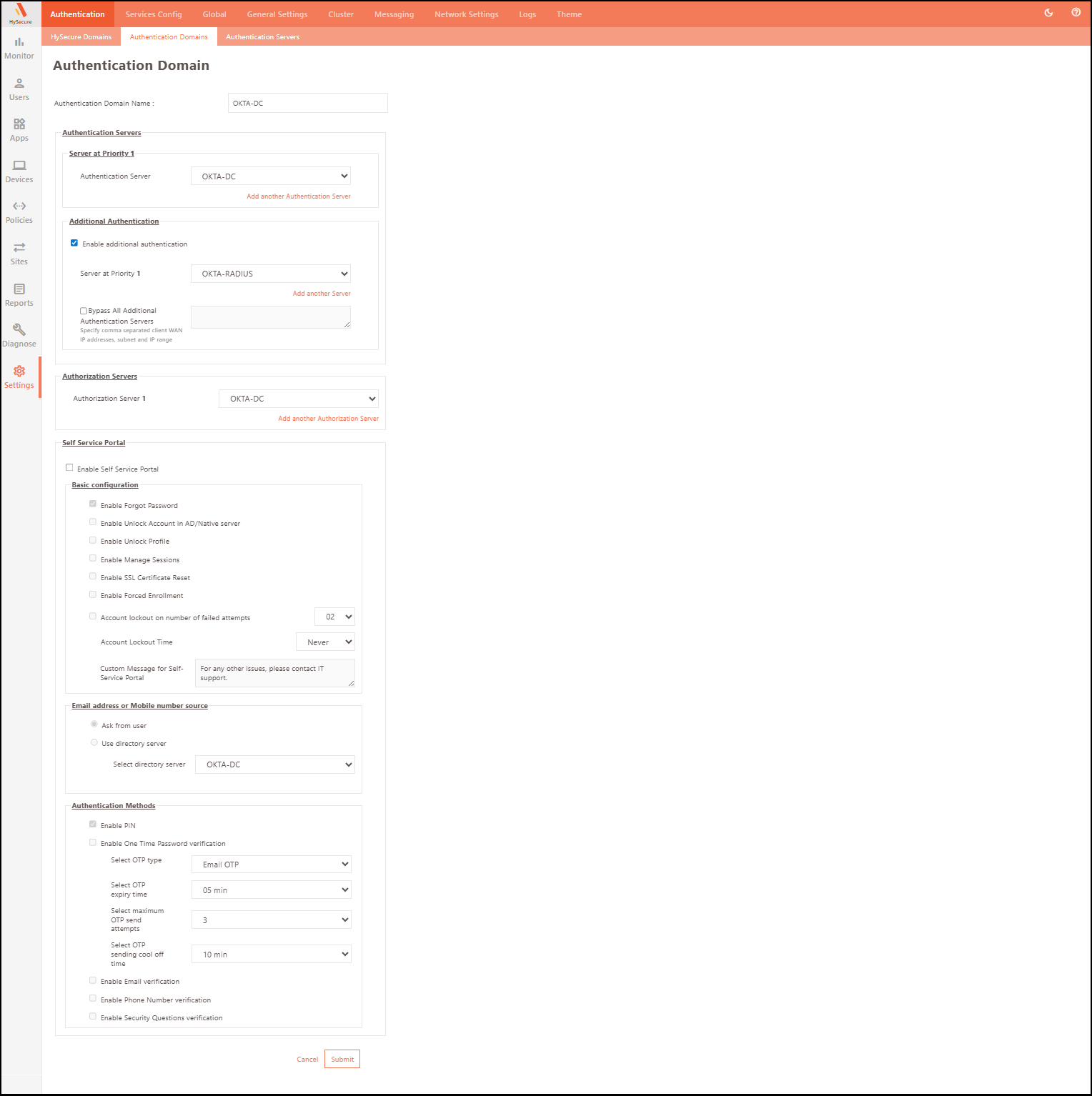
Step 4: HySecure Domain Configuration.
- Add a new HySecure Domain and select the respective Authentication Domain (Okta) under the Select Authentication Domain field.
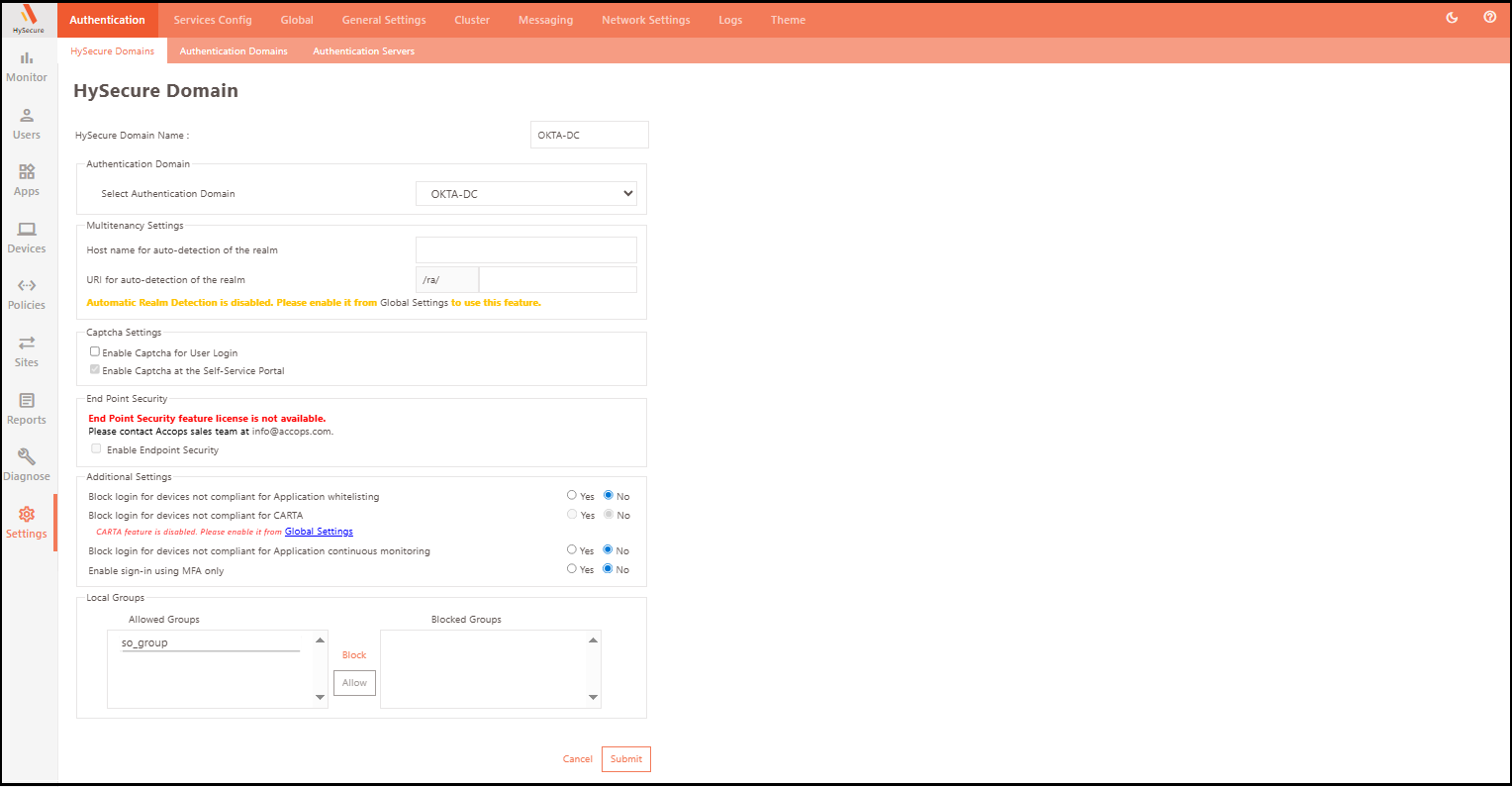
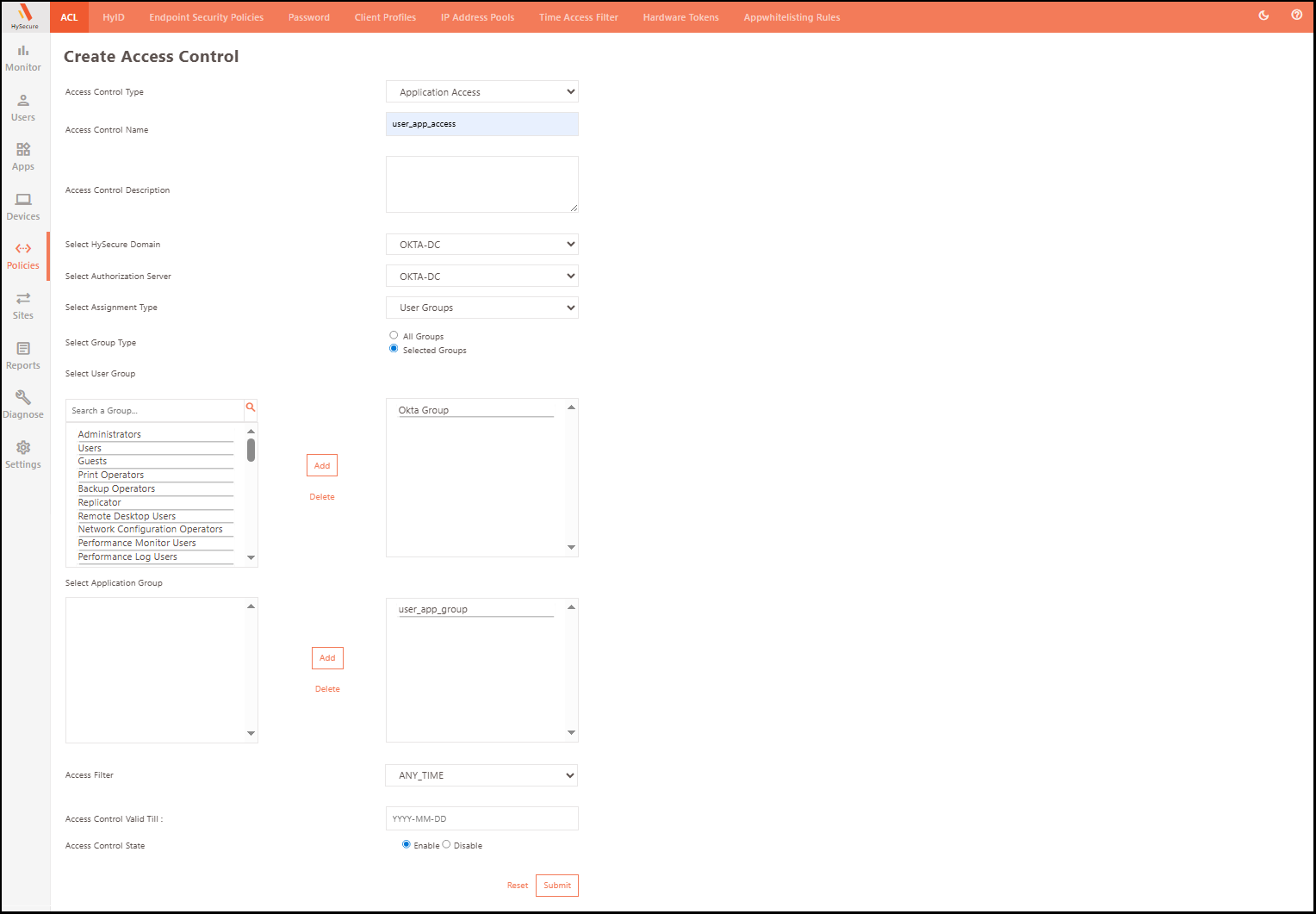
Step 5: Application and ACL Policy Configuration.
-
Create an application and assign it to the application group.
-
Create an ACL policy and configure it with the authentication Server and the respective application group.