Two-Node HA Cluster
This setup involves two nodes working together to provide redundancy and ensure that services remain available even if one node fails.
Unlike a single-node cluster, a two-node HA cluster is designed for production environments, offering improved reliability and uptime. A two-node High Availability (HA) cluster deployment suits small to medium-sized businesses.
There are 4 stages of deployment in a two-node cluster:
- Installing HySecure VM
- Post VM installation (Preboot execution)
- Installing HySecure Client
- Configuring Cluster Services
Deployment Architecture
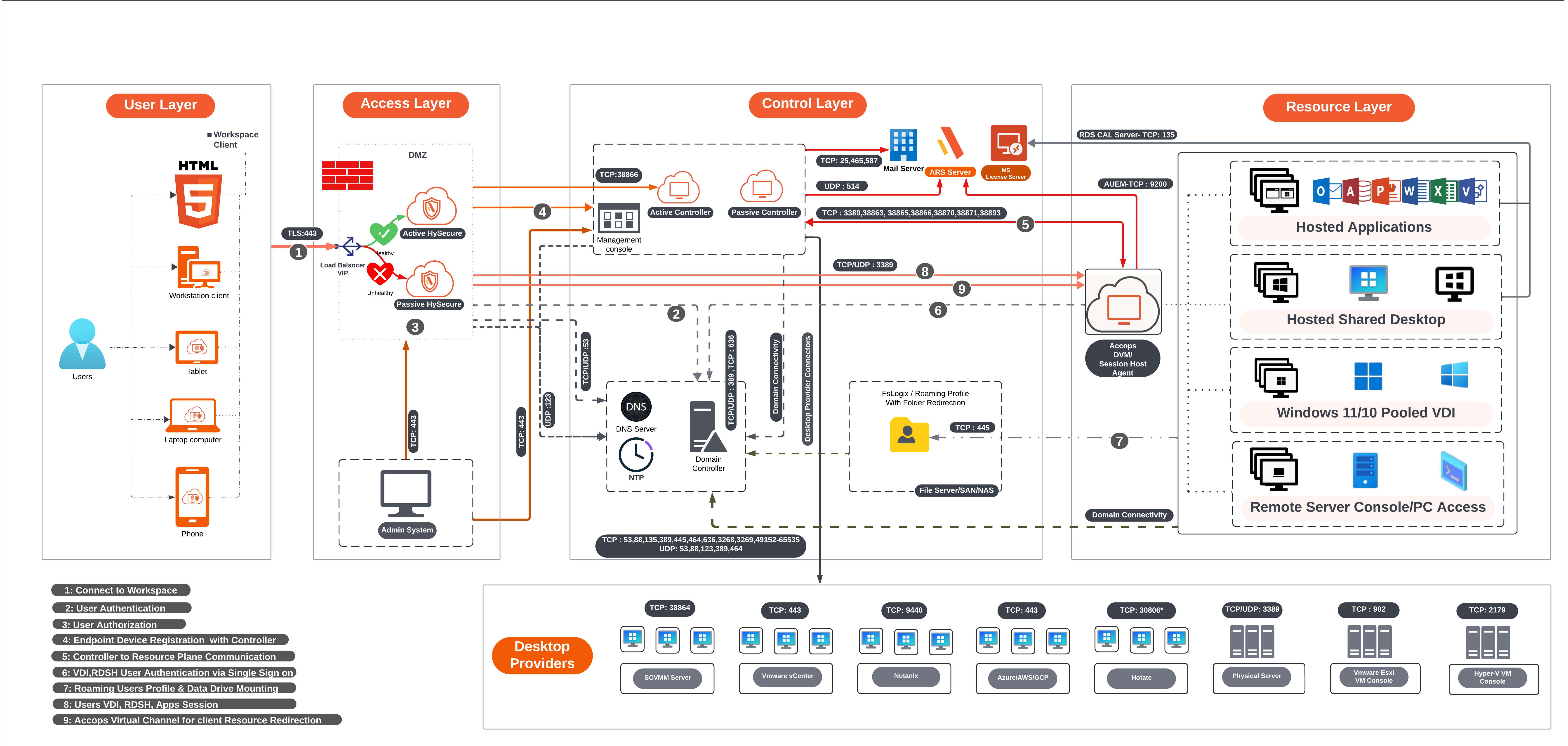
Prerequisites
-
Three free Static IP addresses on the LAN:
- Primary node: To be assigned to the primary node of HySecure.
- Secondary node: To be assigned to the secondary node, which is essential for configuring the cluster.
- Floating IP: To be assigned for the load balancing.
-
A Windows system having access to the HySecure node on port 443 (for HySecure configuration) with an HTML5-supported browser (Microsoft Edge, Google Chrome, or Mozilla Firefox) for post-installation configuration.
Note
This is required for the setup to use an HTML5-supported browser. Make sure the browser on the system meets the requirements outlined by HySecure.
-
DNS server IP address: The IP address of the DNS server that the HySecure gateway will use for domain name resolution. This ensures that HySecure can resolve domain names to IP addresses.
-
NTP Server address: The Network Time Protocol (NTP) server address that HySecure will synchronize with. This is crucial for maintaining accurate time across the network and ensuring that certificates and system logs are properly timestamped.
-
External certificate in PEM format with private key: You can optionally use an external SSL/TLS certificate (in PEM format) with a private key for secure HTTPS connections to the HySecure.
Network Ports
| Source | Destination | Purpose | Port No | Protocol |
|---|---|---|---|---|
| HySecure nodes | HySecure nodes | Internal management (file sync, monitoring, real-time status, clustering, etc.) | 22; 443; 539; 939; 3306; 3636; 4002; 5536; 5124 | TCP |
| HySecure nodes | AD/LDAP | User authentication | 389 or 636 | TCP |
| HySecure Web nodes | AD/LDAP | User authentication | 389 or 636 | TCP |
| HyLite Portal or HySecure Client | HySecure nodes | User login | 443 | TCP |
Sizing Guidelines
The sizing of the cluster depends upon the number of sessions.
For more details refer to the Sizing Guidelines.
Deployment Steps
Installing HySecure VM
-
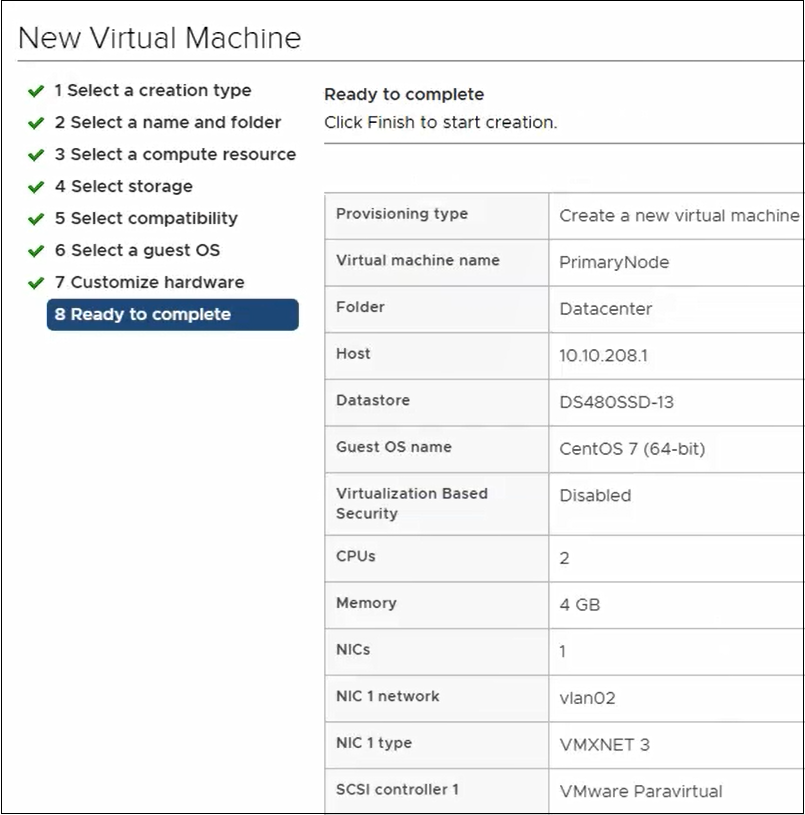
Create a VM with 2 vCPU, 4GB Memory, and 64 GB vDisk. Attach the latest version of the HySecure ISO image to VMware ESXi 6.x/7.x/8.x or Hyper-V. Here, for demonstration purposes, we have created a HySecure VM on VMware ESXi.
-
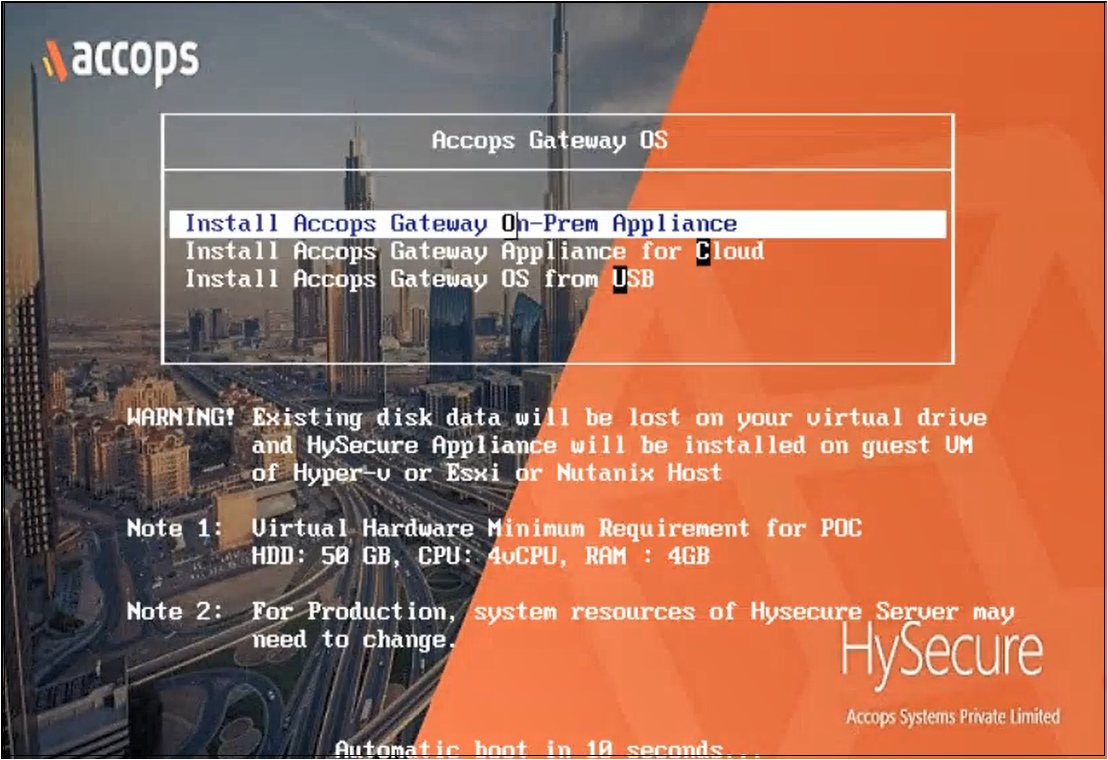
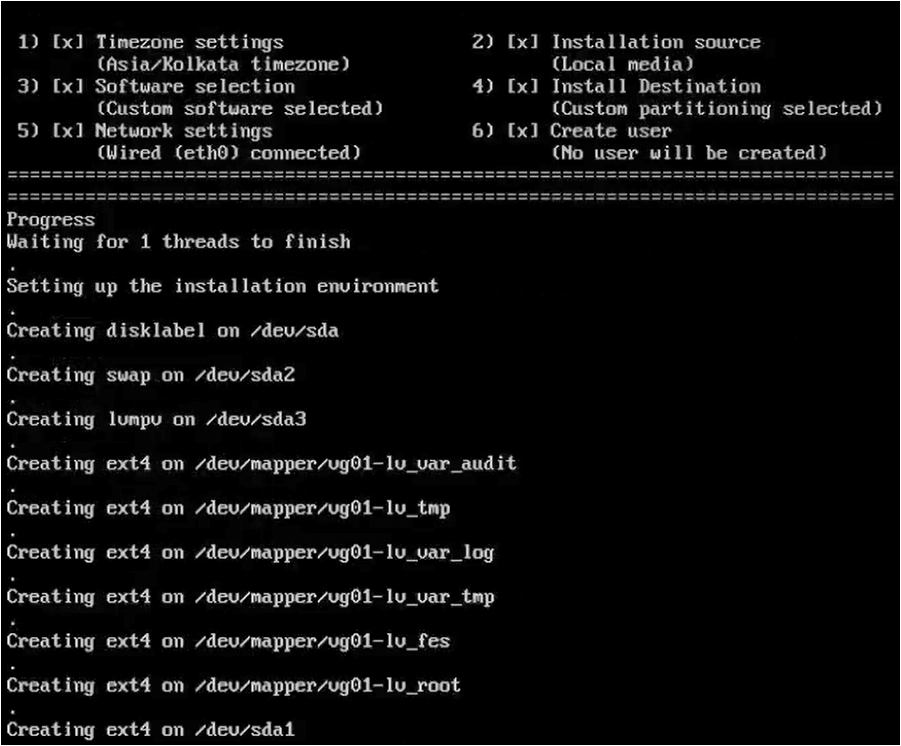
Power On the VM. The installation will begin automatically.
-
Upon completion, the VM will reboot automatically, and the login screen will be presented.

-
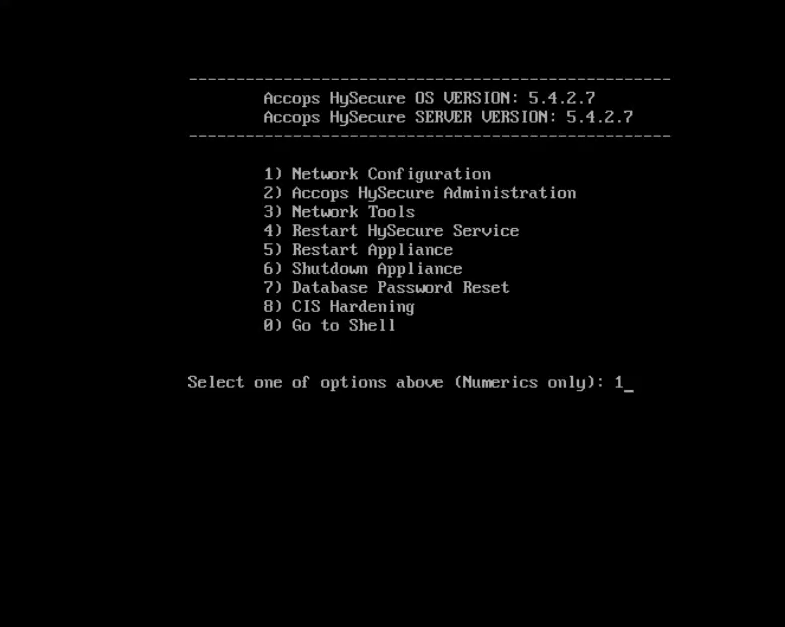
Enter the credentials and the numeric option as shown in the image. Enter 1 to modify the Network Configuration.
-
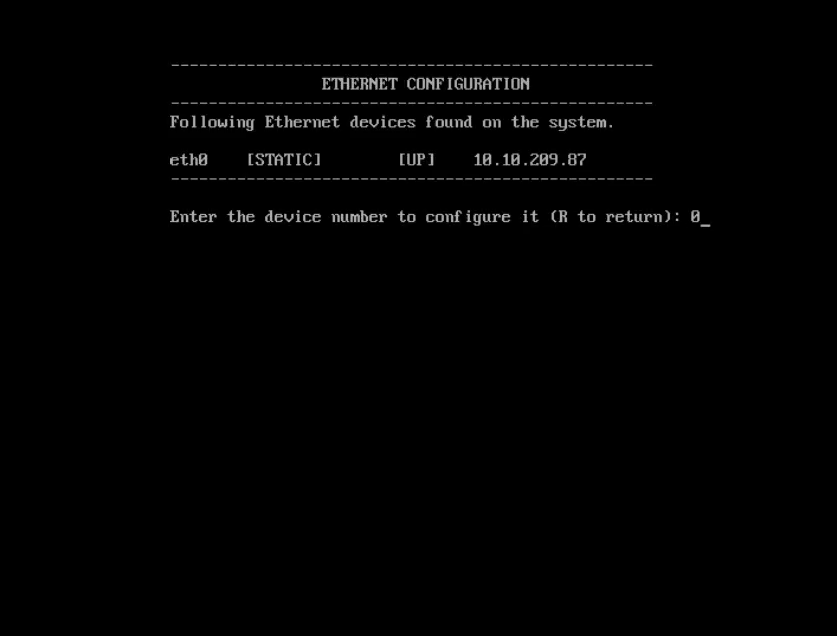
Enter 0 to configure the eth0 interface.
-
Enter 1 to manually configure a static IP address. Enter IP address, Netmask, and Gateway details. Enter Y to save the configuration. Enter R to go to the previous menu.
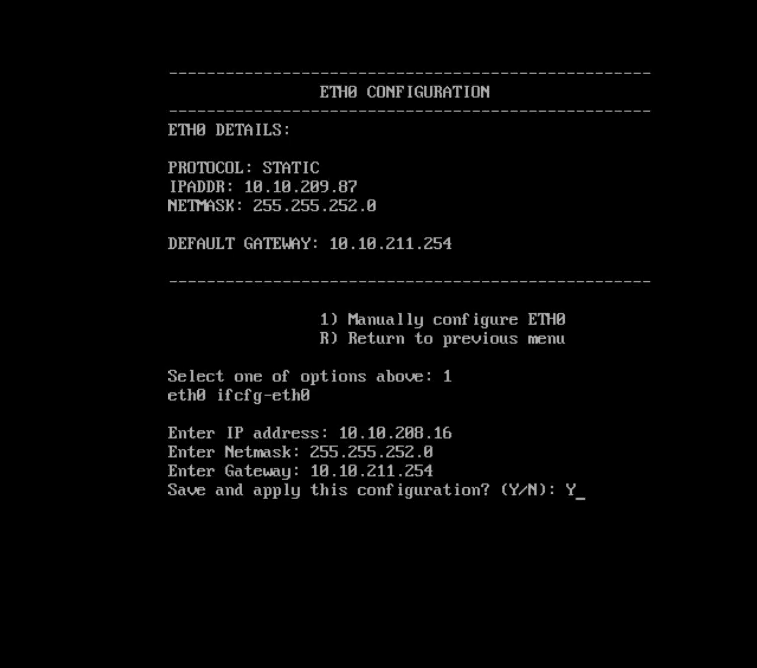
Following the above steps, you have successfully installed the HySecure VM using the HySecure bootable installation ISO image.
Post VM installation (Preboot execution)
After successfully installing the HySecure VM, the next step includes preboot execution. This will ensure that the VM is correctly configured and prepared for operational use.
The following steps will guide you through the necessary actions to complete the post-installation setup and prepare the HySecure VM.
-
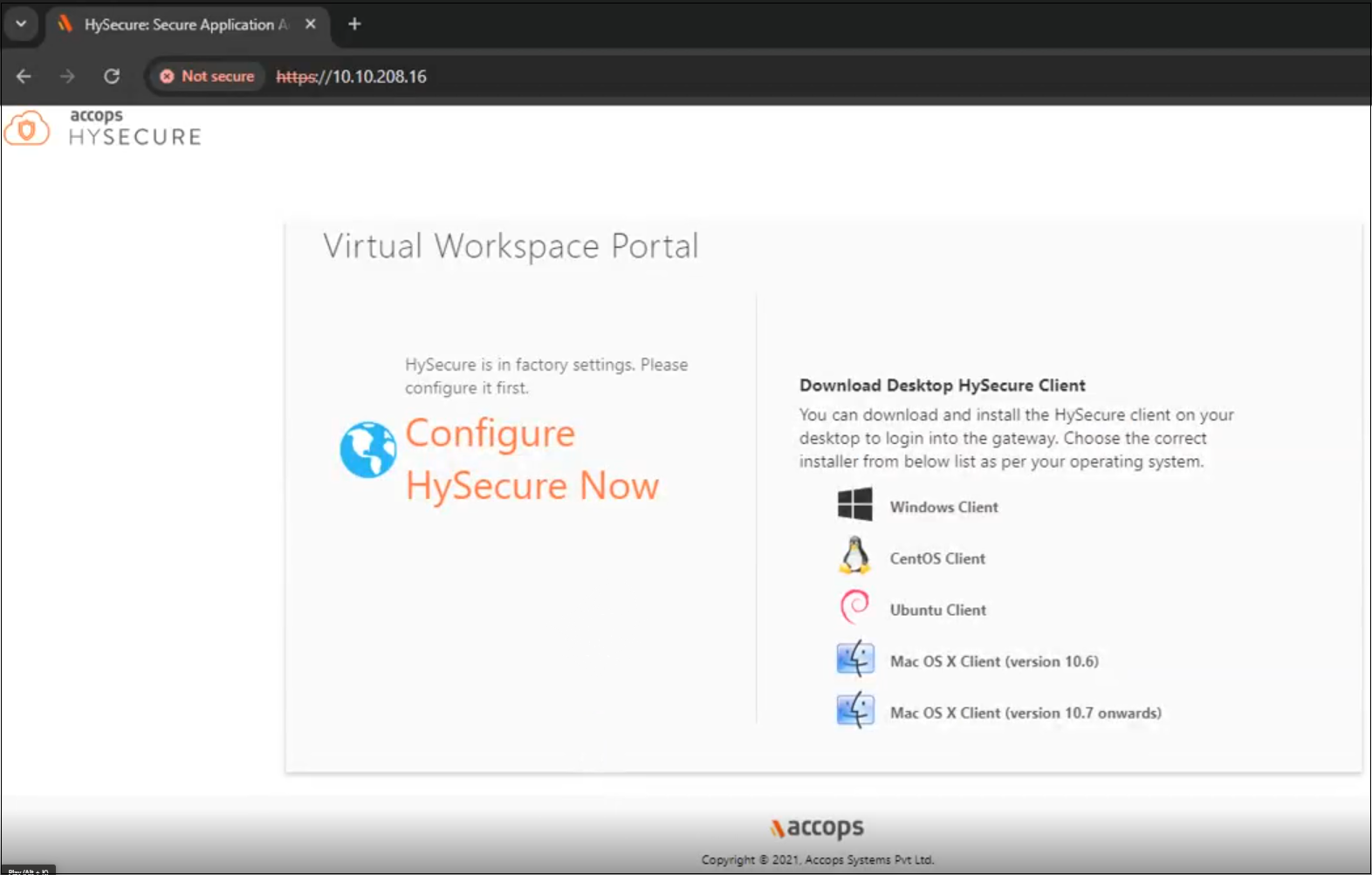
Open the Web browser and enter the website address as the static IP configured on the VM. For example, browse https://10.10.208.16 and click on Configure HySecure Now.
-
Check the I accept the terms and conditions box and click Submit.

-
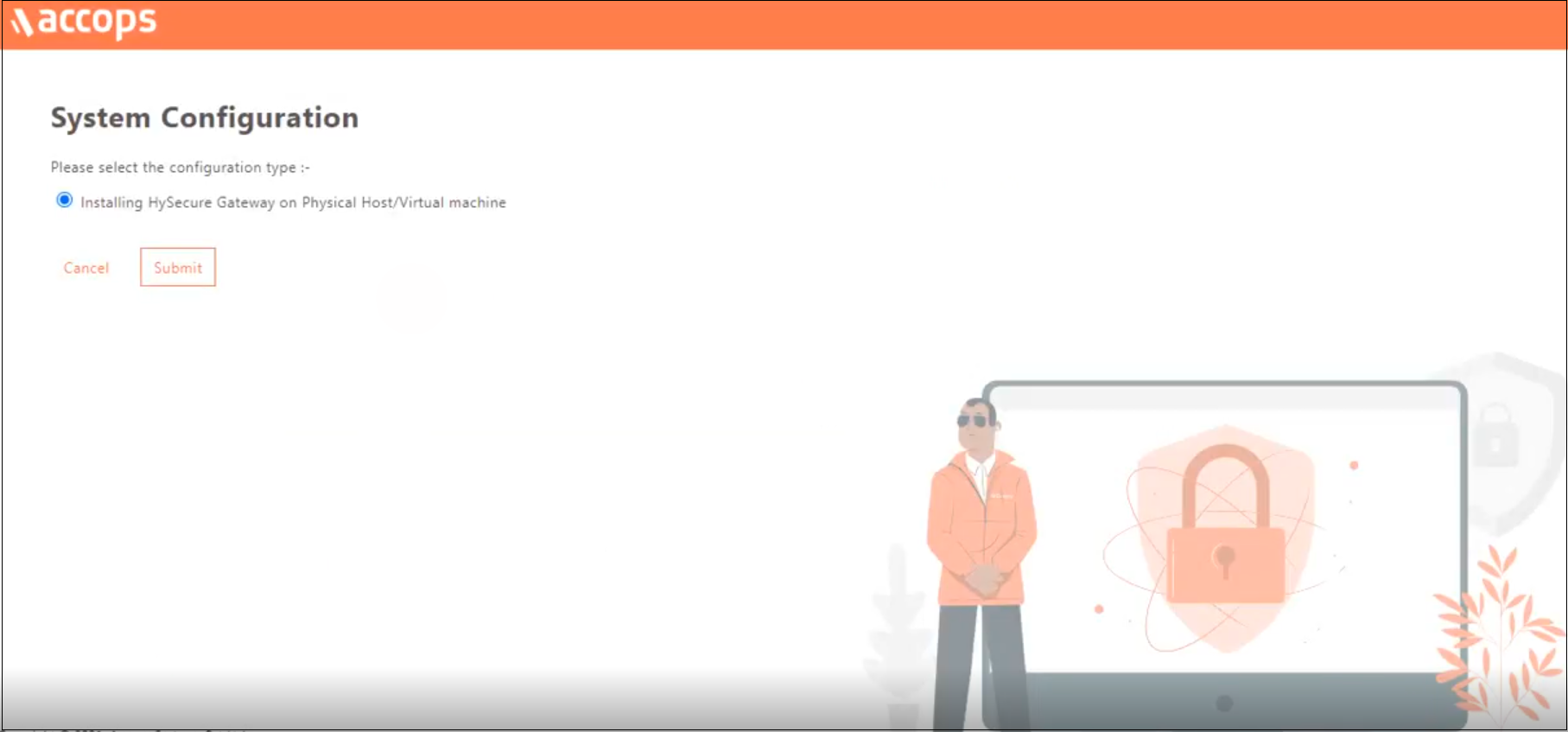
Select the configuration type Installing HySecure Gateway on Physical Host/Virtual machine from the System Configuration window and click Submit.
-
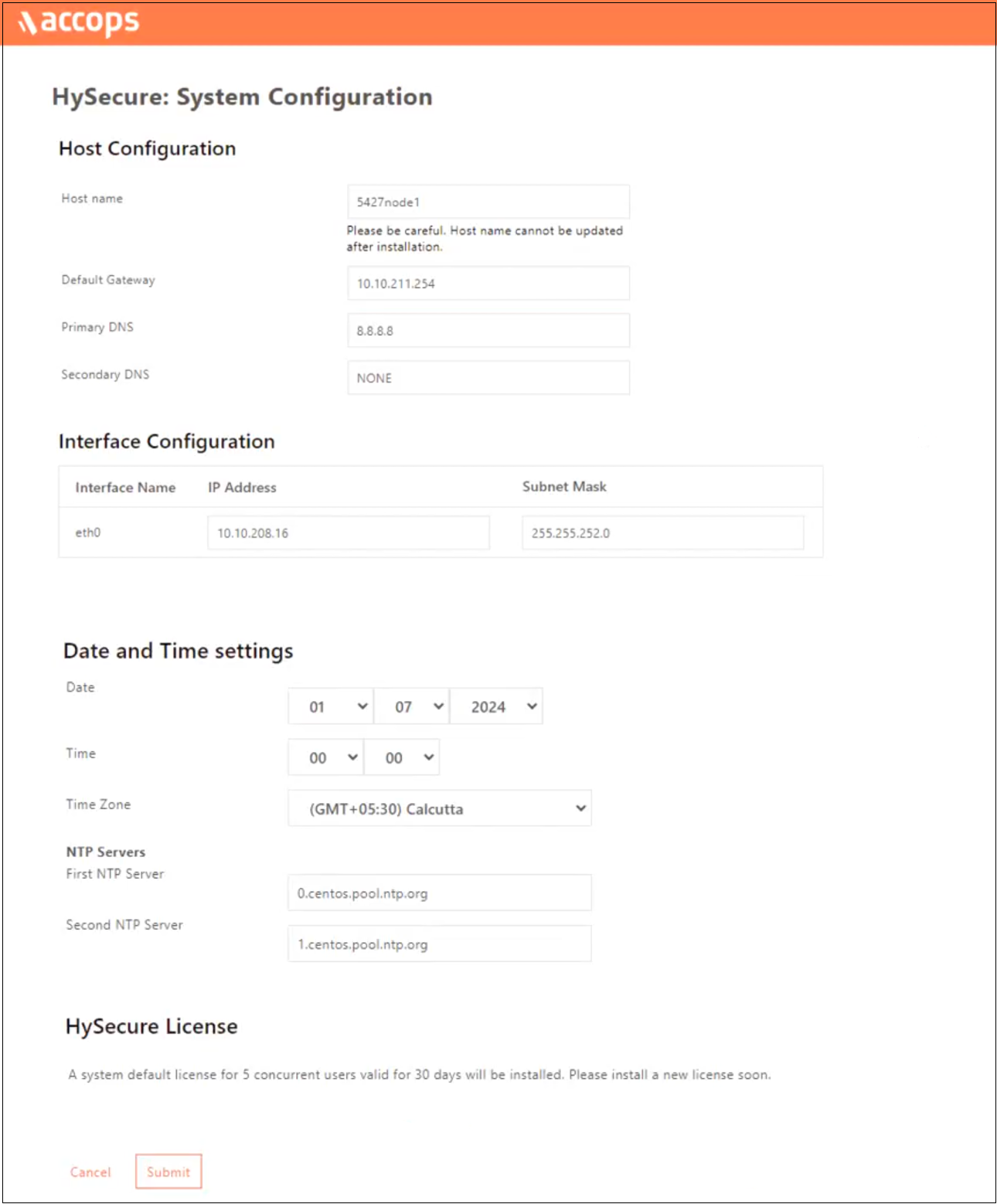
Set the Hostname, DNS server IP address, Time Zone, and NTP Server, and click Submit.
Note
- Configure the internal NTP Server. Internet access is required to reach the external NTP server.
- NTP Server configuration is a must to ensure TIME on all nodes in the cluster are in sync.
-
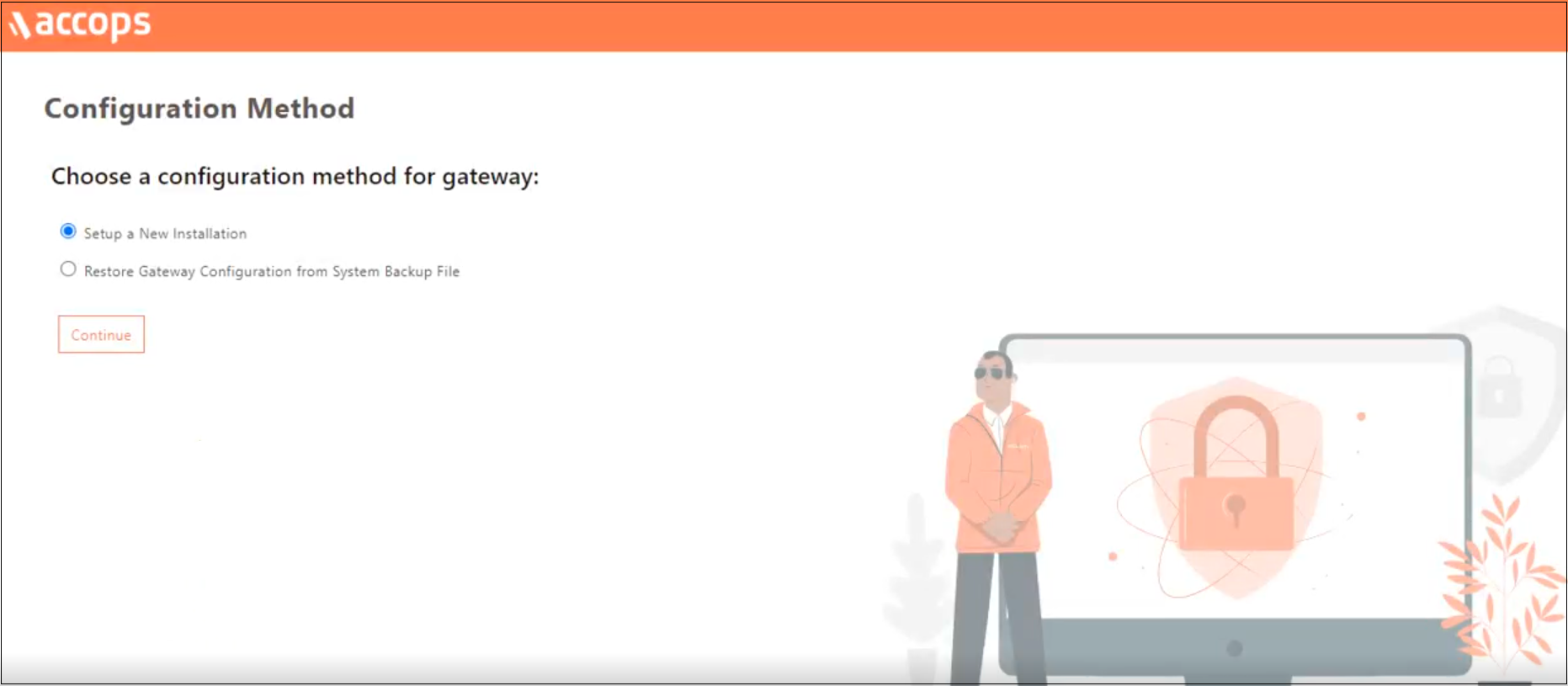
Select the Configuration Method for the gateway as Setup a New Installation and click Continue.
-
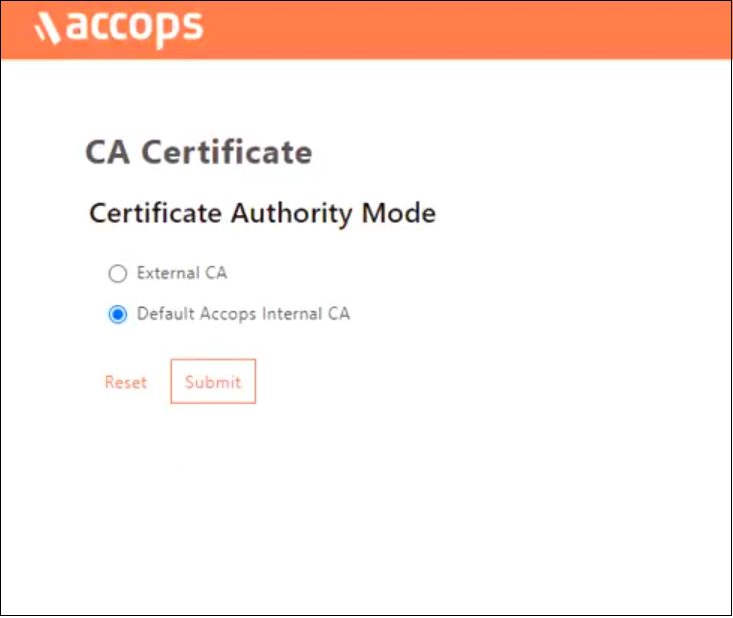
On the Certificate Authority Mode selection window, select Default Accops Internal CA and click Submit.
-
Navigate to the SSL certificate creation platform provided by the Certificate Authority (CA).
-
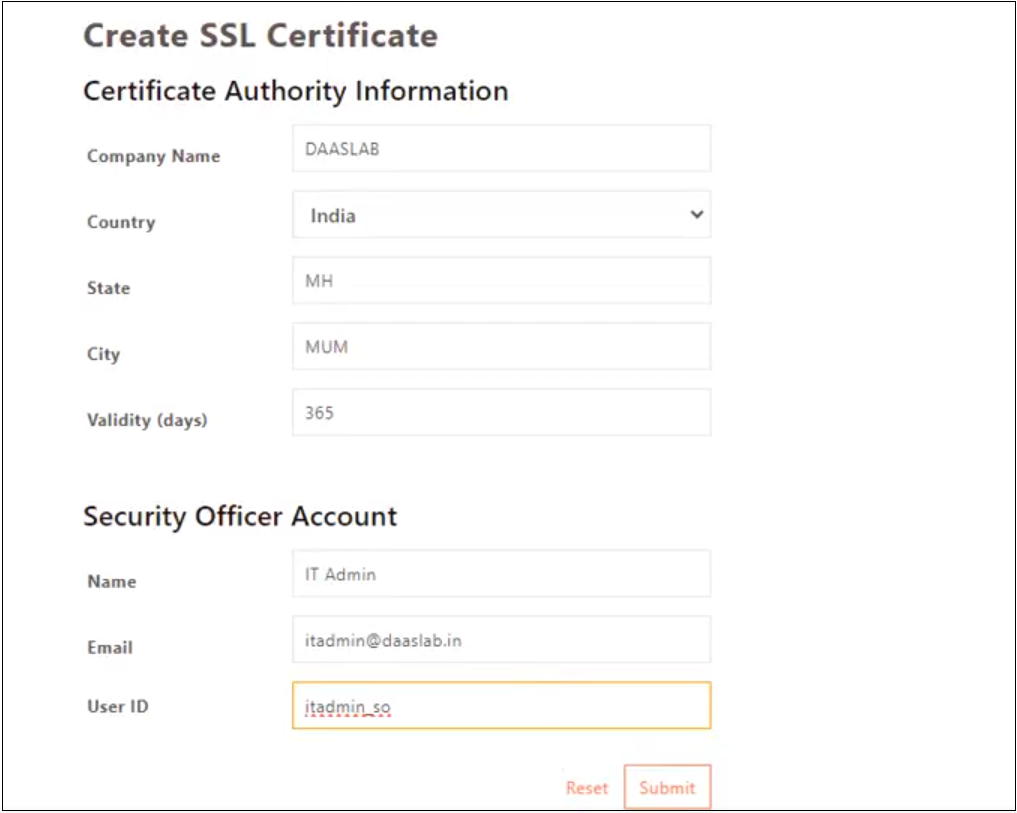
Enter the details to Create SSL Certificate. The CA created is used to create a certificate for HySecure admin, which is called a Security Officer Account (SO account). Click Submit and wait for a few seconds for the operation to complete.
-
A success message and the Passphrase will be displayed. Copy the Passphrase before closing the browser window.

-
Repeat the above steps for adding the additional node of the HA cluster setup and complete the pre-boot execution steps on the rest of the nodes.
Note
Remember to enter a unique User ID for each node during SO account creation.
After completing the preboot process, the next essential step is to install the Windows HySecure Client.
Installing HySecure Client
The Windows HySecure Client is imperative for secure access to the HA admin console. This ensures that all administrative operations are executed securely, thereby protecting the cluster from unauthorized access and potential security threats.
Note
- Remember that the Administrative privileges are NOT supported on Mac and Linux platforms.
- It is recommended to use the latest version of HTML 5-supported browsers like Edge, Chrome, or Firefox to access the HySecure Management Console.
Follow the steps below to install HySecure Client:
-
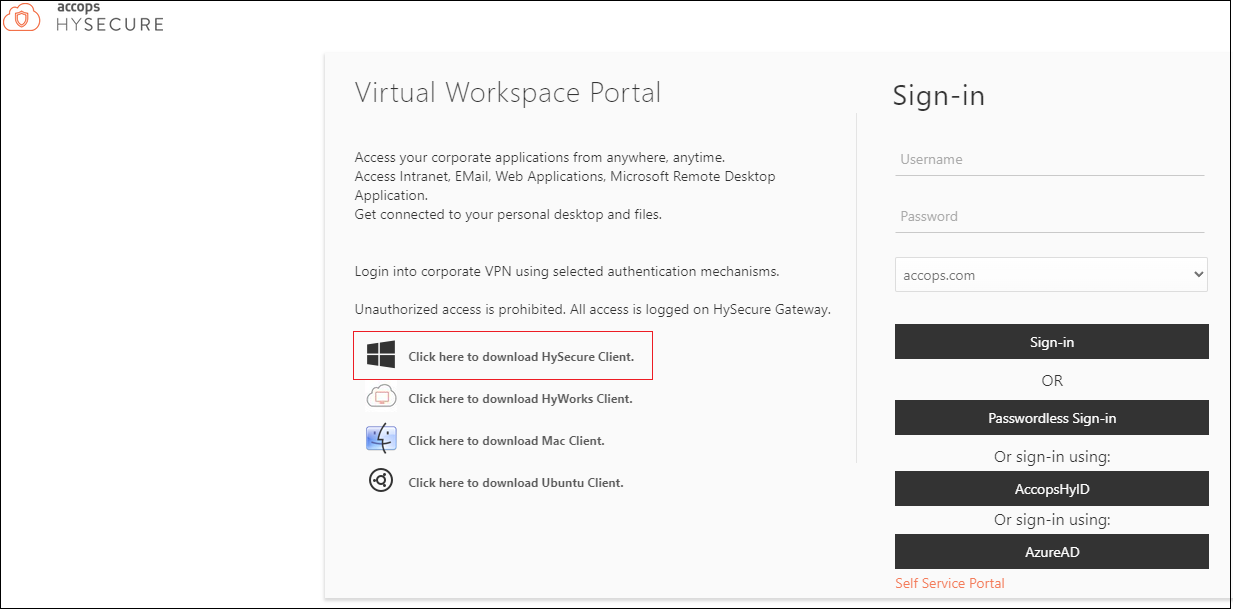
Download HySecure Client:
- From the Windows system, open an HTML5-supported web browser (Microsoft Edge, Google Chrome, or Mozilla Firefox).
- Enter the HySecure VM IP address to access the download page.
- Download the HySecure Client.
-
Install the HySecure Client (Admin privileges required):
- Locate the downloaded executable file and run it.
- Follow the installation wizard steps to complete the installion.
-
Launch the HySecure Client:
- After installation, launch the HySecure Client by entering the HySecure VM IP address in the client interface.
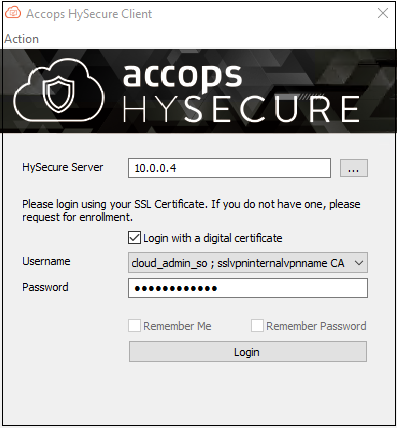
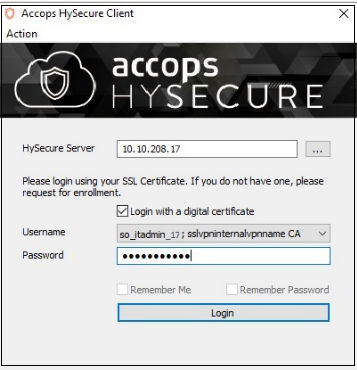
- Select the option Login with a digital certificate.
- Click Action to enroll the Security Officer (SO) account.

-
Enter the Passphrase and Set a Password:
- Enter the Passphrase that was created during the preboot execution process.
- Set a new password for the Security Officer (SO) account.
- Click Submit to complete the enrollment.

-
Login and Access the Management Console:
- Open a HySecure client instance. Select the box Login with a digital certificate and enter the password. Click Login.
- The browser will open automatically and display the HySecure Management Console.

-
Close the browser and log out from the HySecure Client.
-
Set Up Standby Node:
- Repeat the above steps to set up another standby node in the HA cluster.
- Ensure consistent configuration across both nodes to maintain high availability.
By following the above steps, you will successfully install and configure the HySecure Client, enroll the Security Officer account, and set up the standby node, ensuring a reliable and secure HA cluster environment.
Configuring Cluster Services
In high-availability (HA) clustering, Active, and Standby nodes play crucial roles in ensuring continuous service availability and fault tolerance.
Here, we will briefly explain the Active and Standby nodes in an HA cluster and understand the failover mechanism.
-
Active Node: The Active node in an HA cluster serves client requests, runs applications, processes data, executes transactions, and handles user interactions. It is the primary instance responsible for ensuring that services are operational and accessible.
-
Standby Node: The Standby node in an HA cluster is ready to take over operations from the Active node in case of failure or planned maintenance. It mirrors the configuration and state of the Active node to ensure seamless continuity of services and monitors its health status to assume the Active role when needed quickly.
-
Failover Mechanism: A failover mechanism switches roles between Active and Standby nodes in an HA cluster. When the Active node encounters hardware failure, software crash, or scheduled maintenance, the Standby node is automatically promoted to the new Active node, ensuring uninterrupted end-user services.
Active and Standby nodes are crucial for maintaining uninterrupted service delivery in HA clustering. Their coordinated operation and failover capabilities are essential for business continuity and meeting SLAs in various industries and applications.
Configuring First Node
Prepare the first node as the active node
-
Launch the HySecure Client and log in to the first node as a Security Officer(SO).
-
From the HySecure Management console, navigate to Settings > Cluster and click Configure.
- Click the option Create a new cluster and select the role of node as Active Load Balancer.
- Enter the following Cluster Details and click Submit.
- Virtual IP: Any unused static IP address on the network. It should be from the same subnet of the HySecure VM.
- Netmask: Enter the Subnet mask.
- Select Virtual Interface: Select the virtual interface option eth0
- Click Submit.
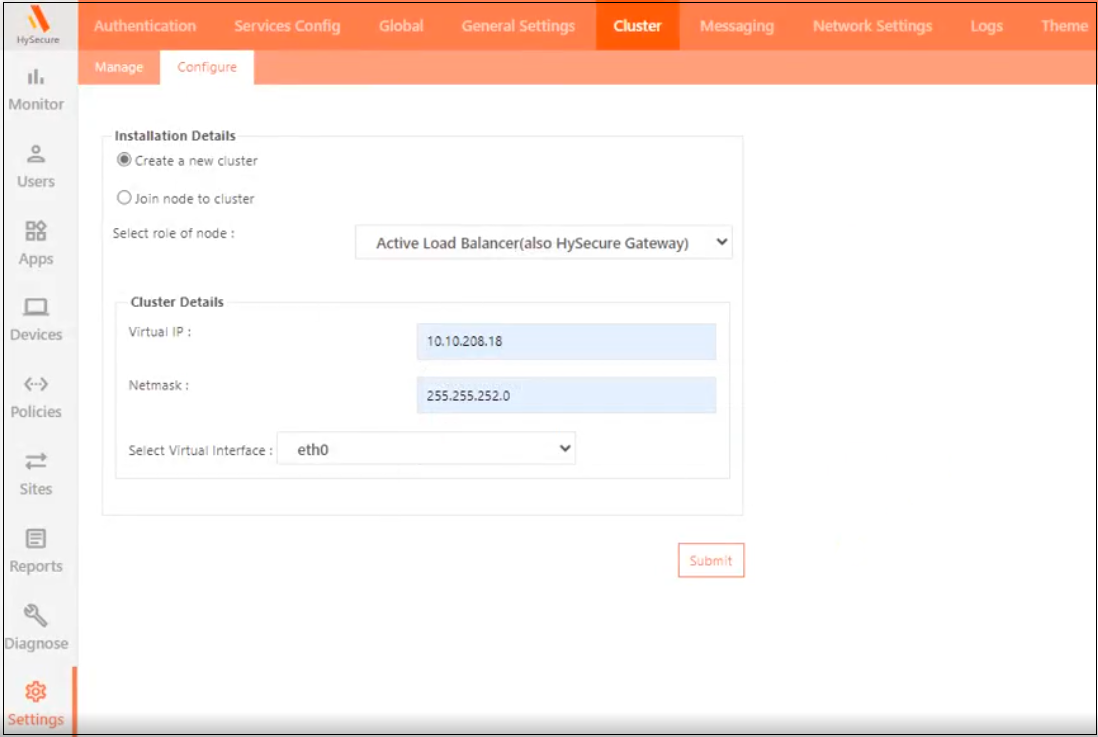
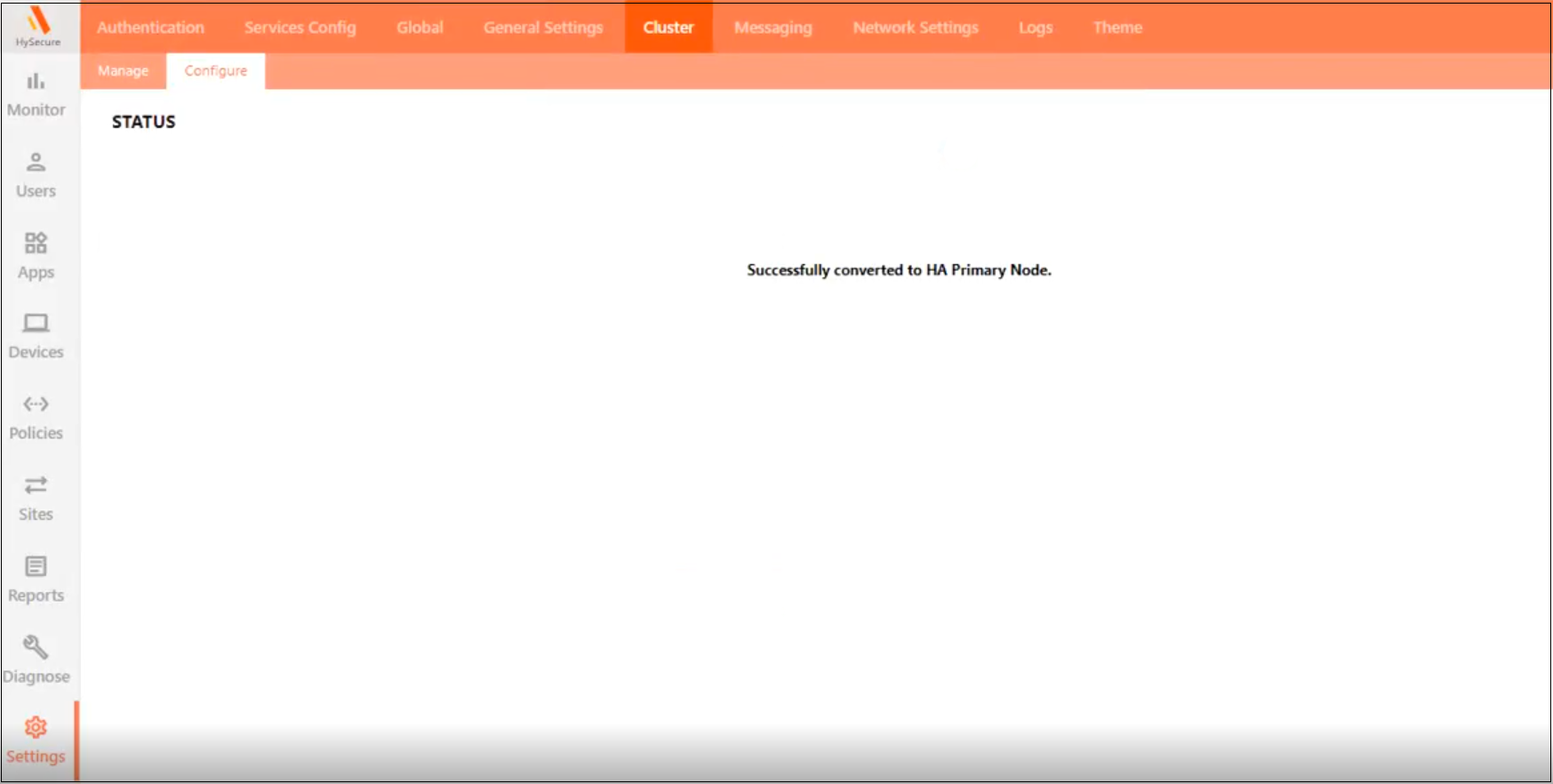
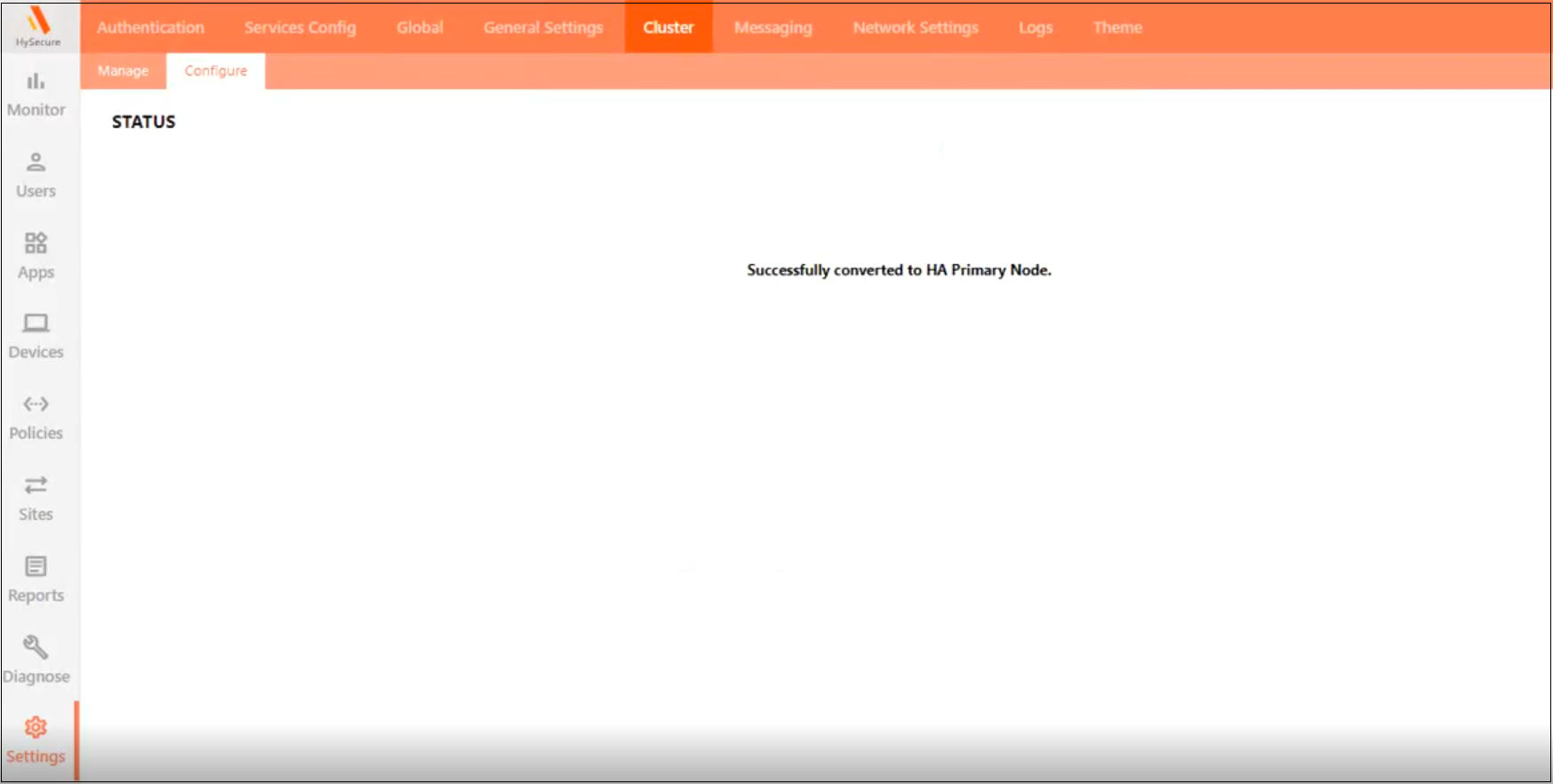
The following STATUS will appear after enabling the cluster: Successfully converted to HA Primary Node.
-
Configure the newly created cluster from the management console:
- Navigate to Apps > Add.
-
Add a new HTTP-type application and set the application server address as the virtual IP address and set port as 3636. Provide the URL as http://hysecure_virtual_IP_address:3636.


-
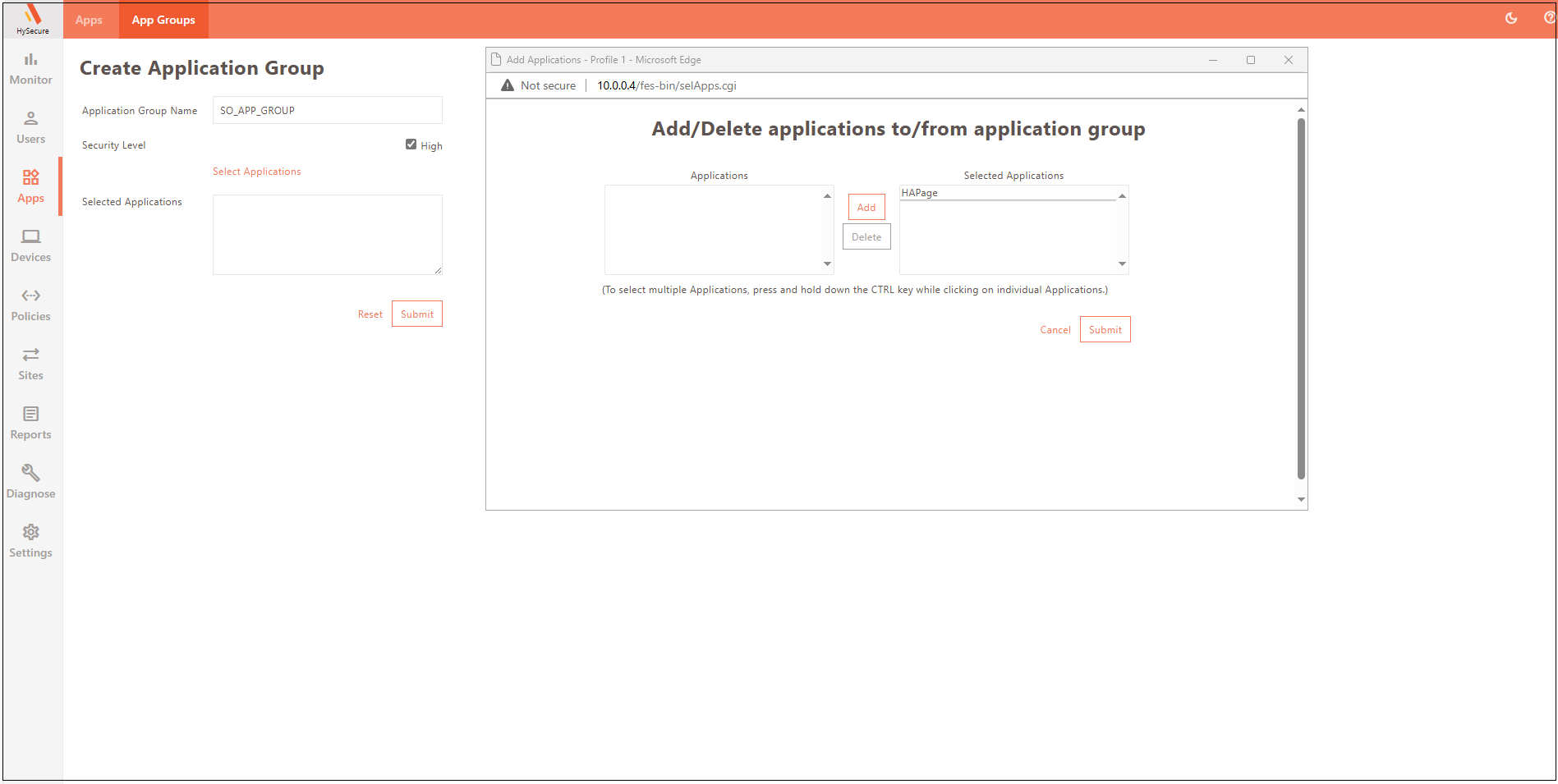
Navigate to Apps > App Groups > Add. Create a High-Security application group and add the application created above to this group.
-
Navigate to Policies > ACL > Add. Create an Application Based Access control using Native as the Authorization Server for high-security users for the SYSTEM user group and assign the newly created High-Security application group.


-
Navigate to Settings >Services Config > Gateway State and change the Gateway state to Run State.

-
Log out from the HySecure Client and re-login. The Configuration page will now be accessible.
-
Navigate to Settings > Cluster > Configure . If the page does not appear, open a new tab in the browser and type the URL: http://HySecureIP:3636/secure/global_settings.php
-
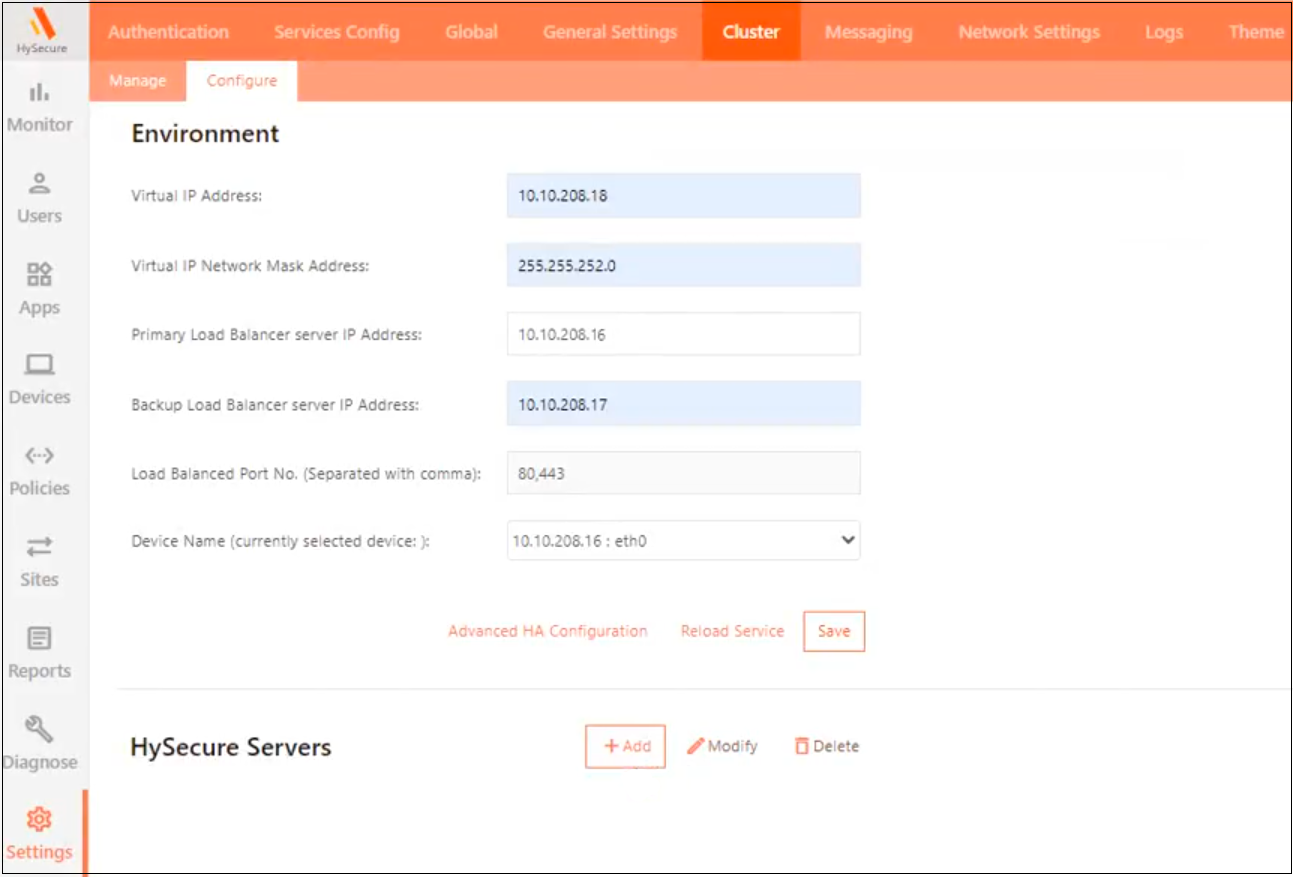
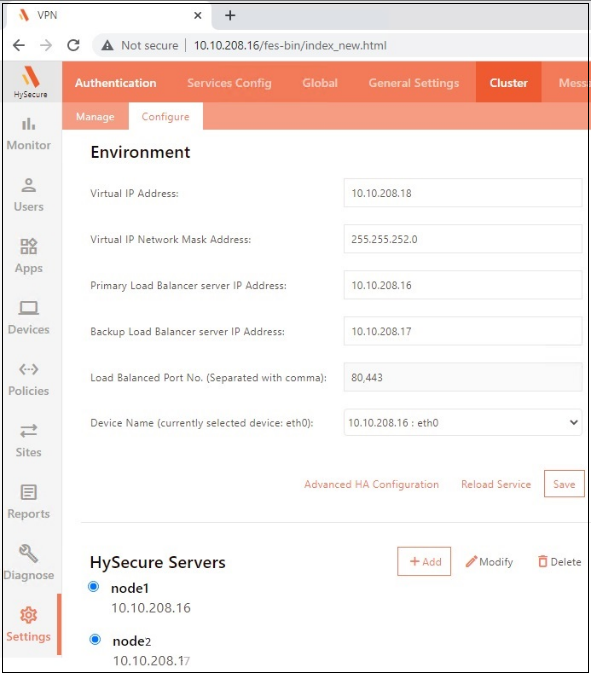
Enter the Environment details and click Save.
-
Virtual IP and Netmask Address: Same as configured during the cluster creation.
-
Primary IP Address: The static IP address assigned to the first HySecure VM.
-
Backup IP Address: The static IP address assigned to the second HySecure VM.
-
-
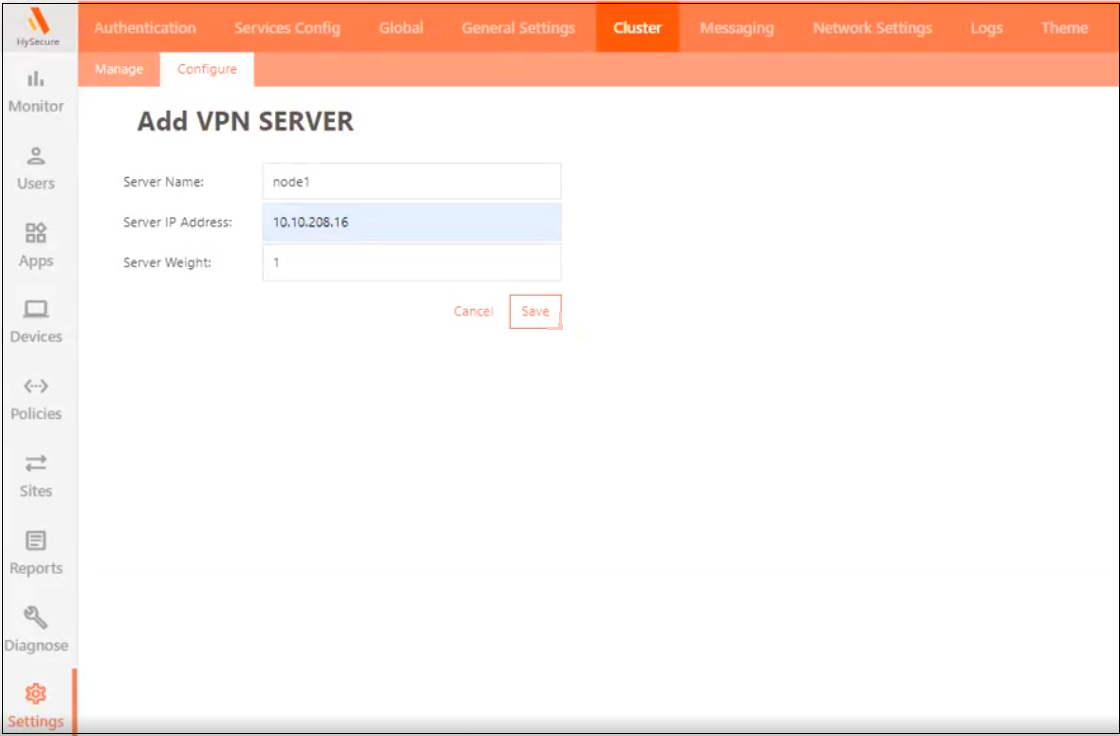
Click Add to add nodes in a cluster. Enter the details and click Save.
-
Server name: Enter the server identifier. It can be any short, friendly name.
-
Server IP address: It should be the eth0 IP address of the HySecure VM.
-
Server Weight: Keep the default value.
-
-
Add another node following the same above steps.
-
Click Save then click Reload Service.
-
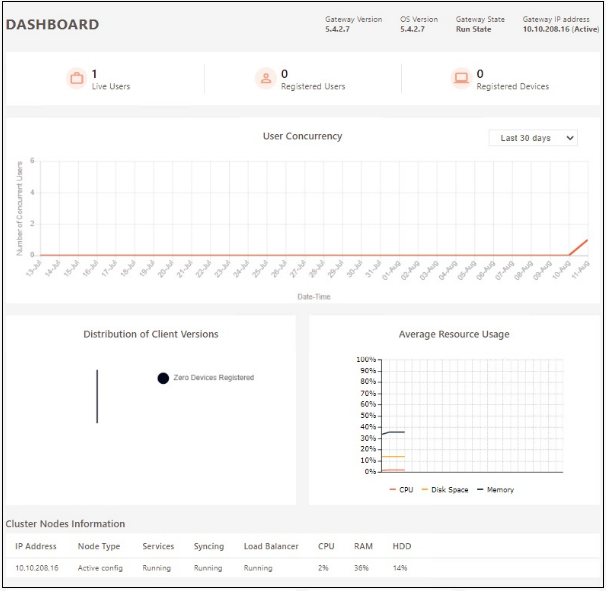
Click Monitor to view the status.
- The popup will appear when connected to Standby/Real. The administrator can verify this by checking the Active, Real or Standby label appearing next to the IP address.
- Gateway IP address: Displays the node you are logged into.
- Cluster Nodes Information: Display the available nodes in a cluster and the Running state of the services.
Configuring Second Node
Prepare the second node as the standby node and join to the existing cluster
-
Launch the HySecure Client and log in as a Security Officer(SO) on the second node.
-
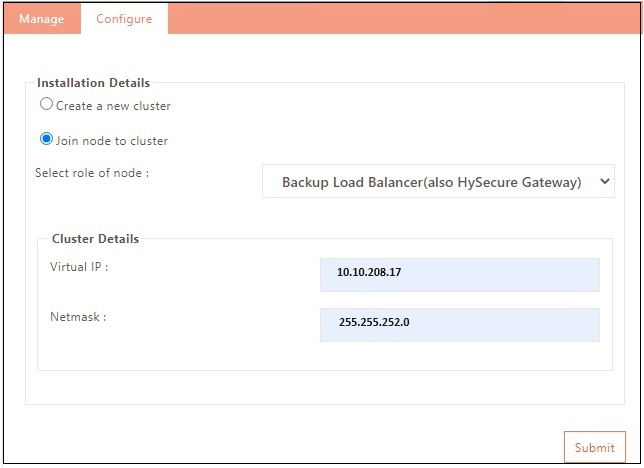
From the management console navigate to Settings > Cluster and click Configure.
-
In the Installation Details section select the Join node to cluster option. Select role of node as Backup Load Balancer(also HySecure Gateway).
-
Enter the Cluster Details:
-
Virtual IP: Same as configured during the cluster creation.
-
Netmask: Enter the Subnet mask.
-
Select Virtual Interface: Select the virtual interface option eth0.
- Click Submit.
-
The following STATUS will appear after enabling the cluster: Successfully converted to HA Primary Node.
-
-
Close the browser and log out from the client. Re-login into the HySecure Client using the certificate of theActive Node.
Note
- All the available nodes will be visible under Cluster Information on the Dashboard.
- After a cluster is formed, only the Active Node SSL Certificate is required to log in to Standby & Web/Real nodes.
Conclusion
In this way, a two node HA cluster deployment offers a viable solution for small to medium businesses seeking to enhance the reliability and availability of their production environments.
By carefully following the deployment steps and considering the limitations, a balanced approach to high availability can be achieved, ensuring that the critical services remain accessible even in the event of a node failure.