Advance Configurations for Linux Session Host Servers
Session Host IP Virtualization
Latest Linux Session host servers support IP virtualization, where each remote session can be provided a unique IP. Having a unique IP in session, enables user identification on the Internet and Internet isolation if required.
If it is needed to enable session host IP virtualization, refer document Session Host IP Virtualization for all relevant configurations on Linux session servers.
The configurations done on Linux gold master will be reflected on all cloned VMs and hence, the Linux server team deployed with pool will be having all session host servers with identical session host IP virtualization configurations.
Direct RDP /Console Block
In some deployments, direct access (console/RDP) needs to be blocked for the users and only connection through HyWorks are to be supported. Direct access can be blocked by configuring settings as given below in the vmInfo.json file of Linux server:
File Path: /etc/edcdvm/linuxDVM/vminfo.json
Available Configurations:
-
DirectRdpBlock: Set this flag to True to block direct remote connections. Default value is false.
-
DirectRdpAdminBlock: Set this flag to True for blocking direct remote connections by admin users. Default value is false.
-
DirectConsoleBlock: Enable the setting for blocking the direct connection via console. By default it is disabled.
-
DirectConsoleAdminBlock: Enable the setting for Direct console block for admin users. By default it is disabled.
-
DirectRdpBlockTimeoutSec: Update the time for Direct RDP/console block session. (Default:10sec).
Note
- The direct RDP block timeout configuration must be set as per the profile loading and overall connection time. If timeout is kept as very less, DVM agent may throw out valid sessions as well.
Pre and Post HyPrep Script Execution Support
Latest version of DVM Tools for Linux supports execution of pre or post HyPrep scripts. These scripts are added to customize files accordingly e.g., hosts or hostanme after hyprep.
-
Script Path: /etc/edcdvm/linuxDvm/scripts/
-
Script Names: HyprepPreScript.sh, HyprepPostScript.sh
Pre and Post AppLauncher Script Execution Support
Latest version of DVM Tools for Linux supports pre and post Applauncher script execution.
-
Script Path: /etc/edcdvm/linuxDVM/scripts
-
Script Names: AppLauncherPostScript.sh, AppLauncherPreScript.sh
Note
- Update the given script with custom tasks if required.
- Set isWaitTillCompletion flag as True, if you want AppLauncher to wait for completion of this script execution.
Accepting calls from Authorized controller only
Latest Linux DVM agent can be configured accept calls from specified controller only. Call from any other controller can be rejected.
Follow the steps given below to configure the Authorized controller entry:
- Connect to Linux SHD Server via SSH Client or Terminal
- Go to the /etc/edcdvm/linuxDVM directory
- Edit the appsettings.json file and set appropriate controller IP for flag AllowedControllerList
- Restart the edcdvm service.
- Now this server will accept call from provided HyWorks Controller address only.
HyShell Configurations for Linux SHD Servers
Note
- HyShell is supported only the Linux SHD OS that is provided by Accops and does not work for vanilla images.
HyShell is desktop customization utility which can be used to change the configuration on the Shared Hosted Desktops:
-
Create Allowed applications shortcuts on Start Menu and Desktop.
-
Restrict user access for any other applications.
Due to application usage limitations, it is recommended to use HyShell enabled Linux Shared Hosted desktops, so that the users can be given a restricted access to full desktop with the allowed applications only.
The customizations include restricting native applications from adding access points for published apps assigned to the user in SHD as application menu and desktop icons.
Various set of configurations are possible and below table details these combinations and their impact in behavior.
| Configured in Controller | Enabled in SHD | Impact |
|---|---|---|
| No | No | User gets desktop with no restrictions |
| Yes | No | User gets desktop with no restrictions |
| No | Yes | User gets restricted desktop with no application (neither assigned apps nor native apps) |
| Yes | Yes | User gets restricted desktop only with assigned applications (no native applications will be available. |
Note
When desktop is restricted:
-
User gets access to only those applications that are assigned by HyWorks.
-
If HyWorks is configured to show desktop shortcuts in SHD, desktop displays icons for assigned applications only
-
If HyWorks is configured to pin applications on Start menu in SHD, Application menu will show only hosted applications along with the disconnect option
-
-
User is not allowed to personalize desktop
HyShell can also be configured to execute user scripts in both system and user context before and after HyShell execution.
How to enable HyShell in Linux Session Host Server
Follow the steps given below to enable HyShell in Linux SHD:
-
Connect to linux SHD server via SSH Client(if ssh enabled) or console session
-
Open HyShell configuration file
sudo vi /etc/edcdvm/linuxDVM/hyShell/hyshell.config
-
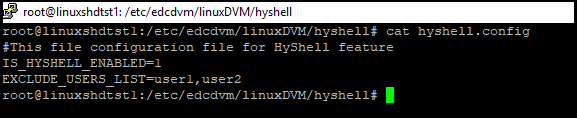
Set the value for IS_HYSHELL_ENABLED to 1.
-
Desktop restriction is not applicable to all the users in included in EXCLUDE_USERS_LIST
-
Restart DVM Agent Service by executing following command
sudo systemctl restart edcdvm
-
Linux SHD is now enabled with HyShell.
Note
-
HyShell configuration is a server level configuration and applicable for all the users accessing Linux SHD Desktops.
-
Once enabled, HyShell provides access to only those applications, that are assigned to the user and published from that server. In other words if a user is not having any applications assigned then the customized Linux SHD desktop will not show any application or shortcuts.
-
HyShell configuration may take 3 to 5 seconds to load.
Enable Published Applications for HyShell
Once HyShell is enabled in Linux Session Host Server, applications must also be configured to be shown in the user session.
Follow the steps given below to publish applications for Linux Shared hosted desktops:
-
Follow the steps mentioned in section Application Publishing in HyWorks
-
In Application Add/ Edit wizard > Additional Settings > Access Settings section
-
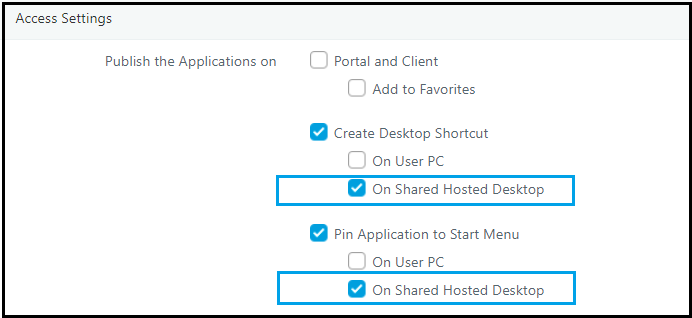
Uncheck option Publish the application on > Portal and client: This will stop showing application on the client screen.
-
Configure Create Desktop Shortcut
-
On User PC option - Uncheck (this will not create Desktop shortcuts on User PCs)
-
On Shared Hosted Desktop option - Check
-
-
Configure Pin Application to Start Menu
-
On User PC option - Uncheck (This will not pin Application on User PCs)
-
On Shared Hosted Desktop option - Check
-
-
Above configuration will create all the applications' shortcut on the desktop or Start menu for the user session.
Run Custom Shell Scripts in User Session
Follow the steps given below to run the custom shell script if required:
-
Connect to Linux SHD Server via SSH Client or Terminal
-
Go to HyShell directory to locate scripts you want to run by executing following command:
cd /etc/edcdvm/linuxDVM/HyShell/
-
Modify and save the following scripts as per the requirement:
-
HyShellLauncherPreScript.sh: This script executes before HyShell is launched.
-
HyShellLauncherPostScript.sh: This script executes after HyShell is launched successfully.
-
-
Scripts will execute from next logon to SHD from server.
Syslog configuration for forwarding Audit Logs to Syslog Server
Linux SHD integrated HyWorks DVM tools supports sending user session logs to Syslog server.
Desktop Agent Logs Format
<Date time of event>, <OS Type>, <Hostname>, <IP Address>, <Username>, <Display Port>, <Process ID>, <Event Message>
-
OS Type: Possible values:
- Windows
- Linux
-
Event Message: Possible values:
- User logged in
- User session disconnected
- User logged out
Sample Logs
-
26-03-2018 15:55:29,Linux,prod-linshd-5,10.0.7.91,sd.sid1,-,-,User logged in.
-
26-03-2018 15:56:56,Linux,prod-linshd-5,10.0.7.91,sd.sid1,11,18418,User session reconnected.
-
26-03-2018 15:57:29,Linux,prod-linshd-5,10.0.7.91,sd.sid1,11,18418,User logged out.
Available states
-
Windows: Login, Disconnect, Logout
-
Linux: Login, Reconnect, Logout
Note
- On Logon, information of 'Display_Port' and 'PID' is not available and hence DASH (-) is displayed in syslog.
Syslog Configuration Process
Follow the below steps to configure logs forwarding to syslog server:
-
Take console or RDP session of Linux VDI Gold Master VM with user having sudo permission
-
Create a file with name EventTypedataPath.txt at /etc/edcdvm/linuxDVM by executing command
cd /etc/edcdvm/linuxDVM
-
Update file with following contents with sudo access:
{
"EventType":3,
"LogType":3,
"SyslogHost":"<Syslog server IP>",
"SyslogPort":"514",
}
-
Save the file and restart DVM Agent Service by executing following command
systemctl restart edcdvm
-
Verify configuration by connecting to the VM using HyWorks client and check syslog server if appropriate log entries are added.
Troubleshooting
Refer section Troubleshooting and basic HowTos for debugging steps and log file paths.