How To Change SQL Admin Password
This document provides information on How to change SQL Admin Account (SA Account) password for HyWorks Controller database setup. When Admin wants to configure secondary Hwyorks controller then we need to configure with same sa password at that time we can find this password from primary hyworks controller
Steps
-
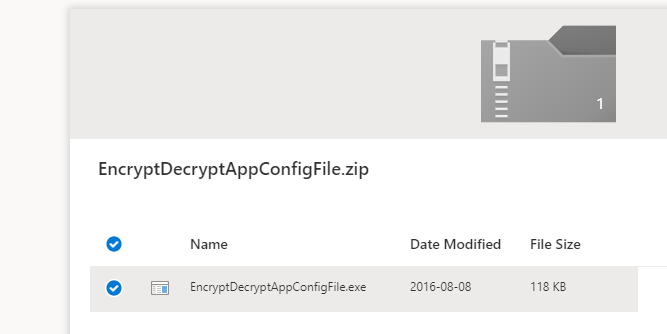
Download the EncryptDecryptAppConfigFile tool from the link below on the Controller VM. If internet is not avilable on controller VM then you can download on Admin system and then copy to controller VM
-
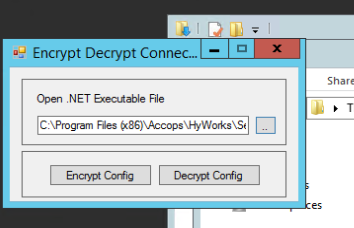
In Hyworks controller VM, extract mentioned software and open the EncrypDecryptAppConfigFile. Run as Administartor. Click on the three dots to browse.
-
Go to below Hyworks controller file location C:\Program Files (x86)\Accops\HyWorks\Service\EDC.Service.exe on the Controller machine (use mstsc) and select the EDC service file.
Click on Decrypt Config.
-
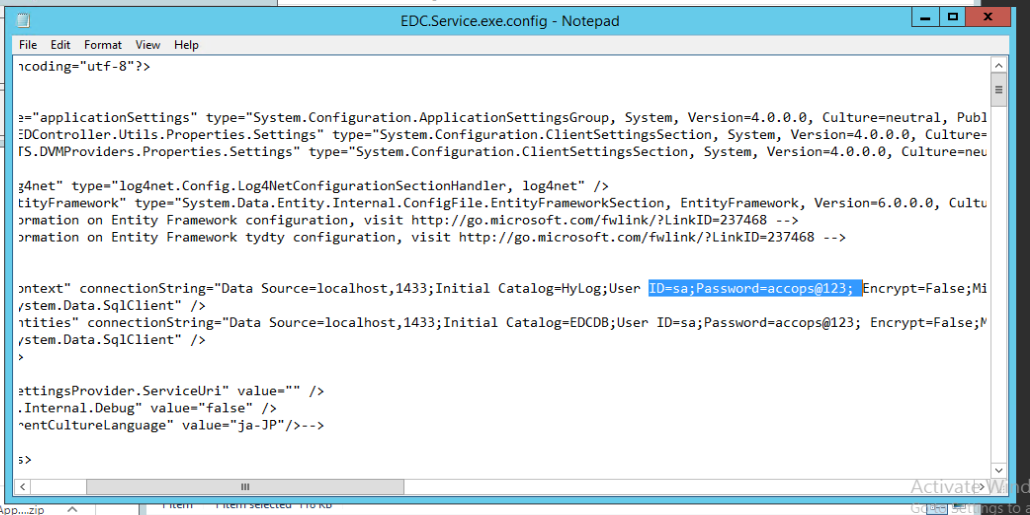
From the file that opens, search text 'password'. Copy the value of the password and save it elsewhere for later use.
-
Connect to HyWorks DB from SQL Server Management Studio with SQL Authentication.
-
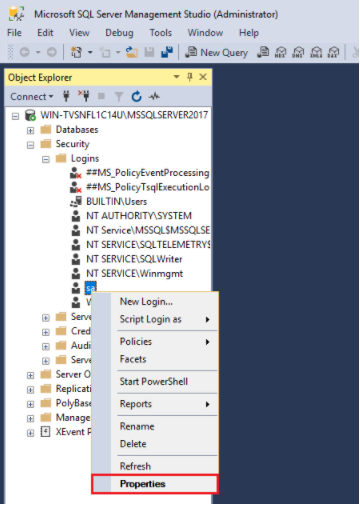
Go to Security > Logins > sa (refer diag below)
-
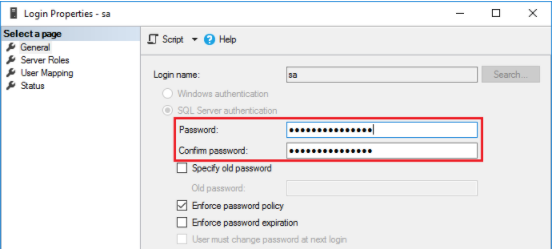
Right click on Properties > Change the credentials as shown in screenshot below and save the changes.
-
Change sa password in edc service file.
-
Restart SQL express service.
-
Restart HyWorks Controller service.