Geolocations
Geolocation restrictions limit user logins to approved geographic locations. Login attempts from non-whitelisted locations are blocked, and an error message is displayed. Geolocation-based login restriction allows administrators to define approved geographic locations for user login. The HySecure Gateway evaluates the user's location at login and blocks access from non-whitelisted locations. Enforcement is configured through Authentication Access Control policies using geofencing settings.
View Existing Geolocations
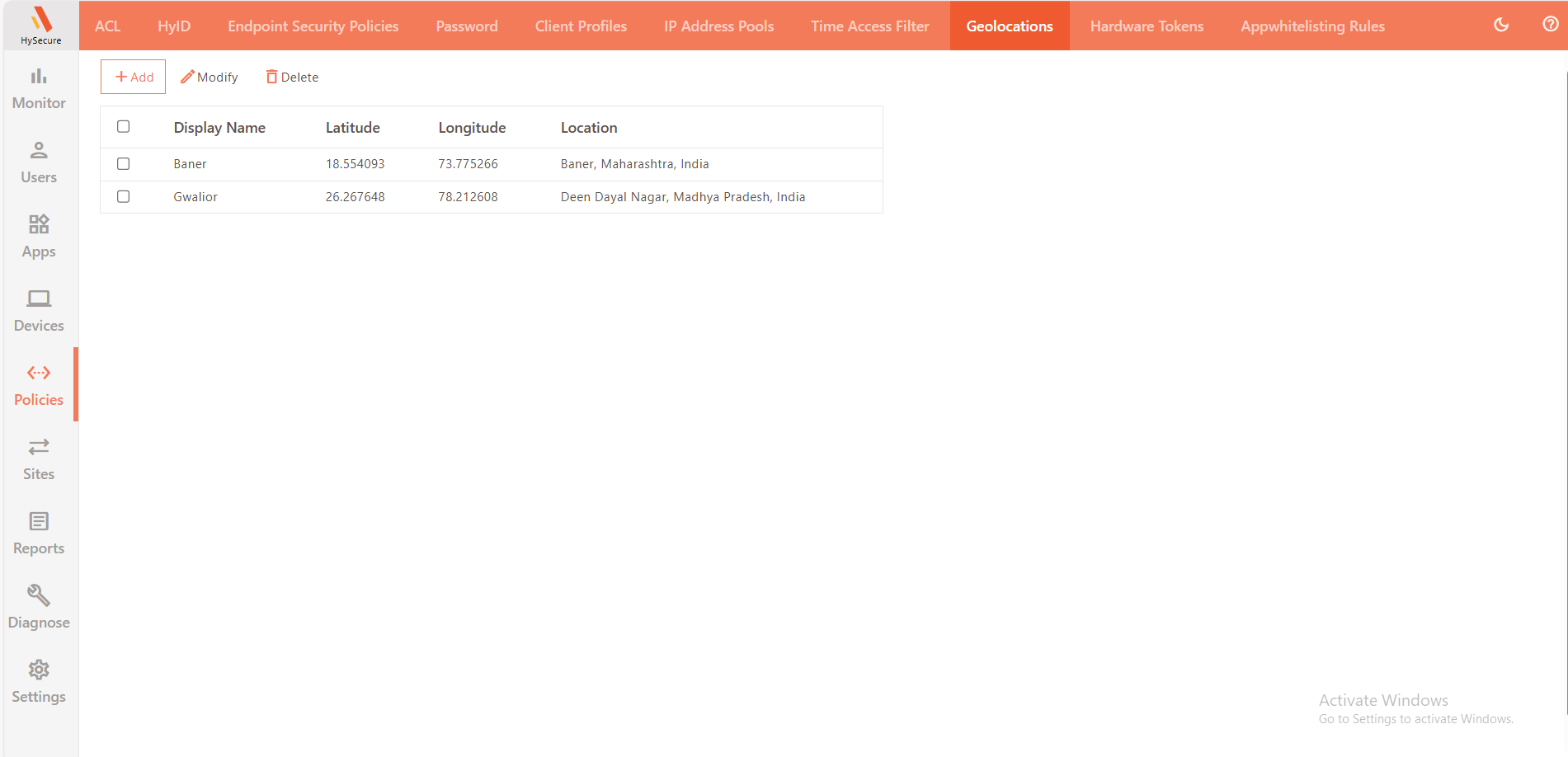
| Field | Description |
|---|---|
| Display Name | Displays the name given to the geolocation. |
| Latitude | Displays the provided latitude details of the location. |
| Longitude | Displays the provided longitude details of the location. |
| Location | Displays more details about the location address using the Google Geolocation API, if the API is accessible through the HySecure gateway. Alternatively, manually entered coordinates are sufficient for the feature to work. |
Add Geolocation
The Geolocation policies can be added when users log in from common shared locations.
-
Log in to the HySecure Management Console as Security Officer/Administrator.
-
Navigate to Policies > Geolocations.
-
Click Add to create a new geolocation entry.
-
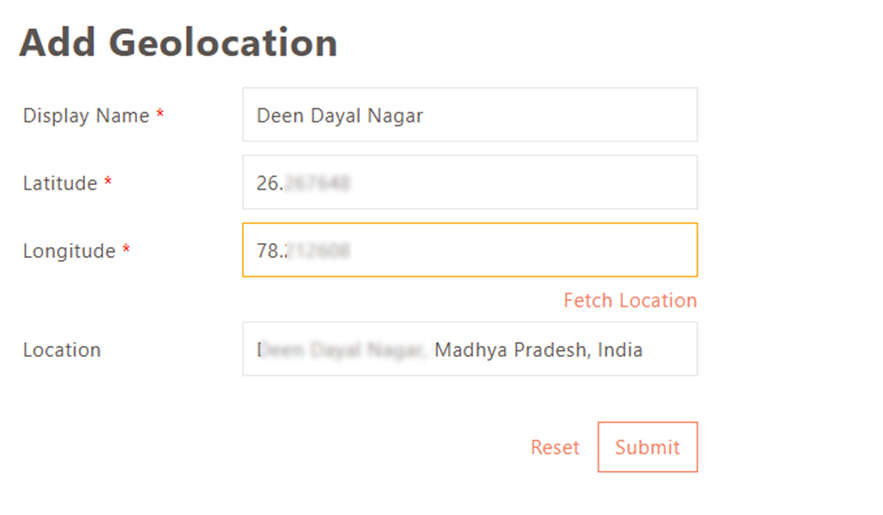
Enter the following details:
-
Display Name: Enter a descriptive identifier for the geolocation.
-
Latitude and Longitude: Enter the coordinates, then click Fetch Location to retrieve details via the Google Geolocation API (if reachable). Alternatively, enter coordinates manually.
-
Location: The data will be fetched via the Google Geolocation API (if it is reachable). Alternatively, Admin can enter the location details.
-
-
Click Submit to save.

Common configurations
For detailed steps on how to Configure Geolocation-based Login Restriction, refer to the KB article.
Modify Geolocations Policy
Select the geolocation and click Modify to edit the policy. Edit details and click Submit.
Delete Geolocations Policy
Select the geolocation to be deleted from the Geolocation Policy page and click the Delete button. Once confirmed, the Geolocation will be permanently removed.