HySecure Domains
HySecure Domains are created to offer precise control over each business unit's application access. Administrators can create multiple HySecure domains, each with only one authentication domain. If required, more security-focused policies, such as Application Whitelisting, CARTA, and Endpoint Security, can be applied to individual HySecure Domains.
View list of HySecure Domains
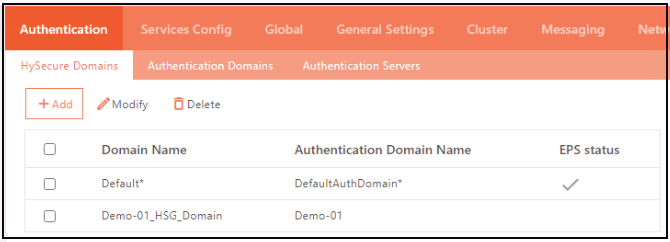
-
Log on to the Management console.
-
Navigate to Settings > Authentication > HySecure Domains.
-
All created domains will be visible on this page in a table.
Domain Details
| Field | Description |
|---|---|
| Domain Name | Displays the domain identifier. It is not possible to delete the default domain, which is represented by an asterisk symbol (*). |
| Authentication Domain Name | Displays the Authentication domain linked with the respective HySecure domain. |
| EPS status | Displays whether the endpoint security is enabled for the domain. A tick indicates that the Endpoint Security is enabled for the domain. |
Adding HySecure Domain
-
Log on to the Management console.
-
Navigate to Settings > Authentication > HySecure Domains and click Add.
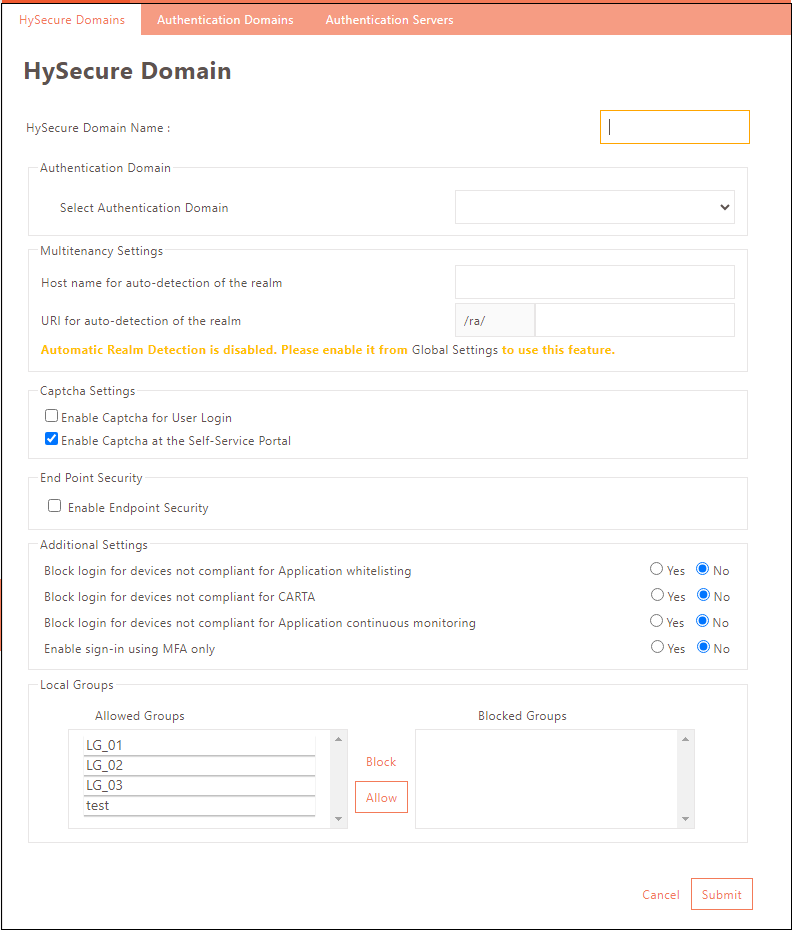
| Field | Description |
|---|---|
| HySecure Domain Name | Enter the domain identifier. |
| Select Authentication Domain | Select the Authentication domain to link with the HySecure domain. |
| Multitenancy Settings | A single HySecure cluster can serve multiple organizations, BUs, or groups within the same organization, each having its own domain name. A multi-tenant architecture can share a dedicated instance for configuration, data, user management, and other properties while still allowing customized business rules. Instead of providing the full list of organizations to all users across every organization, the domain name or URL for each organization can be configured separately. This allows the end users to access their organization's login page directly, regardless of other realms configured on the gateway. |
| Multitenancy > Hostname for auto-detection of the realm | Enter the gateway with the following hostnames: company1.provider.com and company2.provider.com, corresponding to the HySecure Domains (Realms) 'company1' and 'company2'. |
| Multitenancy > URI for auto-detection of the realm | Specify the URL to automatically detect the domain. Enter the HySecure address for a URL-based setup: HySecure Server Address/ra/URL. |
| Captcha Settings > Enable Captcha for User Login | Click to enable Captcha for user logins. It is recommended, to prevent brute-force attacks. |
| Captcha Settings > Enable Captcha at the Self-Service Portal | Click to enable the Captcha on the self-service portal for password reset, account unlocking, and user profile unlocking. |
| Enable Endpoint Security | It is strongly recommended that remote users have Endpoint Security enabled. If the feature is disabled in the license, it cannot be enabled here. |
| Additional Settings > Block login for devices not compliant for Application whitelisting | Enabling this option will prevent the devices from not complying with the application whitelisting policy from logging into HySecure. |
| Block login for devices not compliant for CARTA | Enabling this option will prevent devices that do not comply with the CARTA framework from logging into HySecure. |
| Block login for devices not compliant for Application continuous monitoring | Enabling this option will prevent devices that do not comply with continuous monitoring compliance using face detection from logging into HySecure. |
| Enable sign-in using MFA only | Enabling this option will enable users to log in without a password, using MFA only. |
| Allowed Groups | Select the User Groups from the local database that are allowed to log into this Domain. |
| Blocked Groups | Select the User Groups from the local database that are blocked from logging into this Domain. |
Note
The CAPTCHA feature requires enabling the API Protocol version API V2 from Global > Server settings. Once enabled, web login will always display CAPTCHA when enabled on a realm.
Modify HySecure Domains
Select the domain to modify on the HySecure Domains page. Click the Modify button to make changes in the fields, and click Submit.
Delete HySecure Domains
On the HySecure Domains page, select the domains to delete, then click the Delete button. Click OK to confirm the action.