Configure Enterprise Browser Policies
Last Updated: August 6, 2026
Applies To: HySecure Gateway 7.3 SP1 and above
Category: Client Configuration & Application Access
Overview
HySecure Gateway supports centralized configuration and management of the Enterprise Browser. Administrators can define browser policies in the Management Console, and those policies are delivered automatically to users through their assigned Client Configuration ACL when they log in.
Enterprise Browser configuration controls the browser’s behavior and security posture on user endpoints. Policies can be built using the built-in default configuration or by uploading a custom JavaScript Object Notation (JSON) file for advanced deployments. The configuration is ACL-based, giving administrators precise control over which users receive which browser policy.
Without centralized configuration, browser behavior must be managed per device, creating inconsistency in security posture and increasing administrative overhead at scale. Centralized management through HySecure ensures that every user receives the correct browser policy through their existing login workflow, without additional deployment tooling.
Note
Enterprise Browser configuration is currently supported on macOS Workspace Client version 7.2.1.1043 and later. Support for Windows and Linux Workspace Clients will be available in an upcoming release.
Prerequisites
-
HySecure Gateway 7.3 SP1 or later.
-
Security Officer or Administrator access to the HySecure Management Console.
-
Enterprise Browser installed on user endpoints.
-
A Client Configuration ACL to which the browser policy will be assigned.
How it works
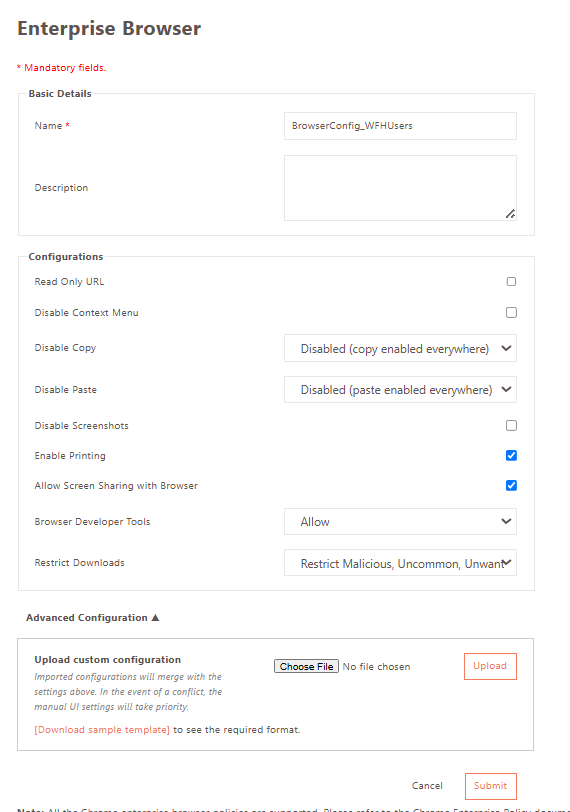
Enterprise Browser configurations are managed under Policies > Enterprise Browser in the Management Console. A built-in Default configuration is available out of the box. Administrators can use the Default configuration directly, clone it and customize the copy, or upload a custom JSON configuration file for advanced policy management.
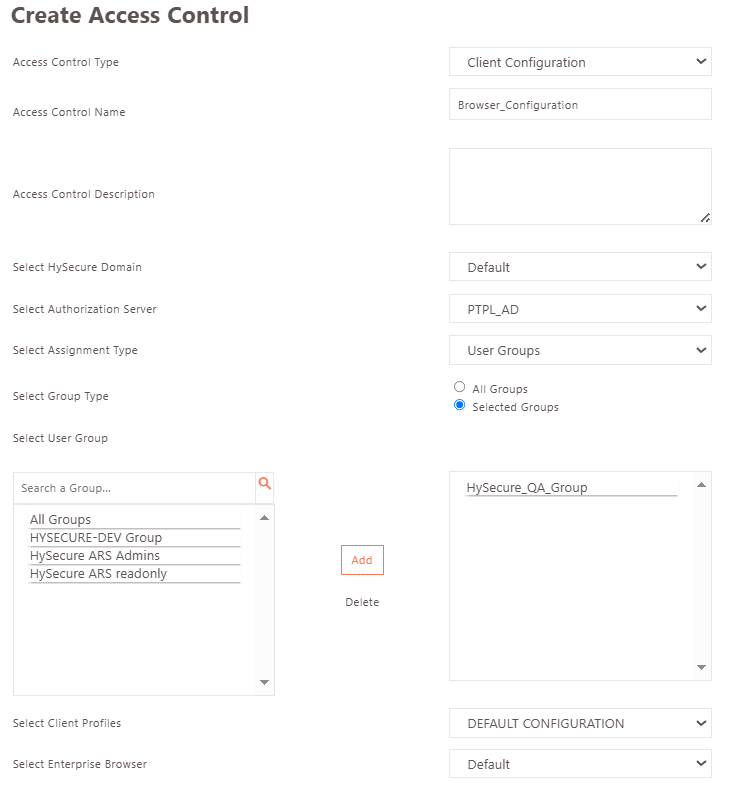
The configured browser policy is associated with a Client Configuration ACL. When a user logs in and the ACL is applied, HySecure delivers the browser configuration to the Workspace Client, which enforces it on the Enterprise Browser for that session.
Each Client Configuration ACL can be associated with one Enterprise Browser configuration. Different user groups can receive different browser policies by assigning them to different Client Configuration ACLs, each linked to the appropriate browser configuration.
Configuration
Step 1: Create or identify an Enterprise Browser configuration
-
Log in to the HySecure Management Console as Security Officer or Administrator.
-
Navigate to Policies > Enterprise Browser.
-
Choose one of the following:
-
Use the Default configuration: Select the Default configuration if the built-in browser policy meets requirements without modification. Proceed to Step 2.
-
Clone the Default and customize it: Click Clone on the Default configuration, assign a name to the new configuration, and modify the settings as required. Use this approach when multiple browser policies are needed for different user groups, or when the Default policy requires adjustment.
-
Upload a custom JSON configuration: Click Add and upload a JSON file containing the browser policy. Use this approach for advanced deployments where the built-in configuration options are insufficient and the policy must be defined externally.
-
Step 2: Associate the configuration with a Client Configuration ACL
-
Navigate to Policies > ACL.
-
Create a new Client Configuration ACL or modify an existing one.
-
Under Select Enterprise Browser, select the required browser configuration from the list.
-
Click Submit to save the ACL.
The browser configuration will be delivered to all users to whom this Client Configuration ACL is applied at login.
Managing multiple browser policies
To apply different browser policies to different user groups, create a separate Enterprise Browser configuration for each group and associate each configuration with the appropriate Client Configuration ACL.
For example, a deployment may require:
-
A standard policy for general users, using the Default configuration.
-
A restricted policy for contractors, using a cloned and modified configuration with additional content filtering.
-
An advanced policy for IT staff, using a custom JSON configuration with elevated permissions.
Each of these would be a separate configuration under Policies > Enterprise Browser, each linked to a separate Client Configuration ACL scoped to the relevant user group.
Updating an existing configuration
Changes made to an Enterprise Browser configuration in the Management Console take effect for users at their next login. Active sessions are not affected until the user logs out and logs back in.
To update a configuration:
-
Navigate to Policies > Enterprise Browser.
-
Select the configuration to modify.
-
Edit the settings or upload a replacement JSON file as required.
-
Click Submit to save.
Limitations
- Enterprise Browser configuration is supported only on macOS Workspace Client version 7.2.1.1043 and later. Support for Windows and Linux Workspace Clients will be available in an upcoming release.