Access Devices
Overview
The device parameters are shared when a user logs in to HySecure from their device. If the Device ID-based Access Control policy is enforced for the user's domain, the device is registered and added to the Device > Access Devices list.
Note
The device gets registered on the first login when no registration entry exists.
From this page, the administrator can View, Enable, Disable, Delete, Search a device, or Download the list of all the devices.
View Device list
-
Log on to the Management console.
-
Navigate to Devices > Access Devices.
-
The page lists all the devices in a tabular form with their respective information.
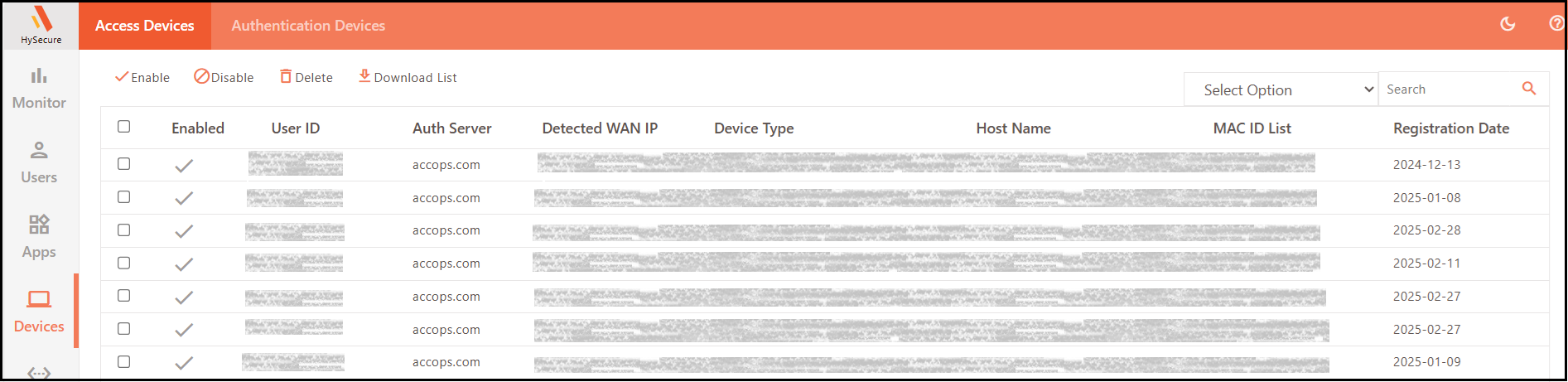
| Field | Description |
|---|---|
| Checkbox | Select the checkbox to select a single or multiple devices and perform actions on them, such as Enable, Disable, or Delete. |
| Enabled | Displays the device entry’s status, whether or Disabled. A tick icon indicates the device is Enabled. |
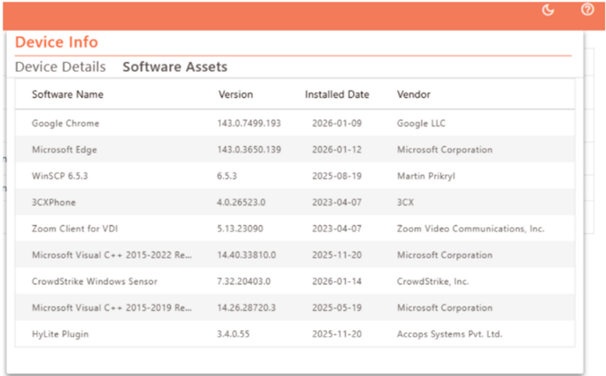
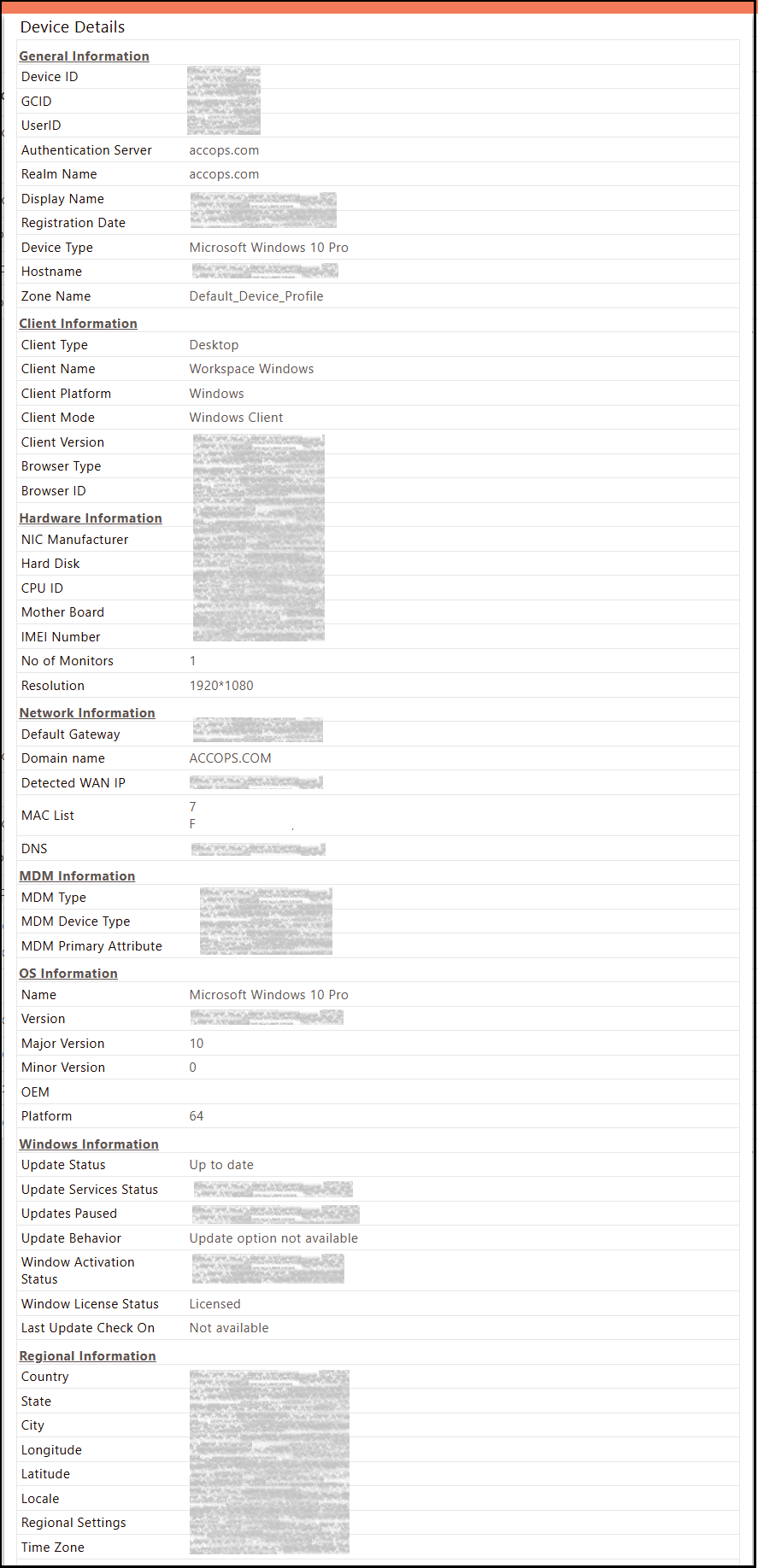
| User ID | Displays the User ID for logged-in users. If the User ID is clicked, a window will display categorized, detailed information about the device.* |
| Auth Server | Displays the authentication server used to authenticate the user. |
| Detected WAN IP | Displays the public IP Address of the endpoint device from where the user is connected to the HySecure Gateway. |
| Device Type | Displays the operating system of the access device used to log in to the HySecure Gateway. |
| Host Name | Displays the hostname of the device used for the login attempt. |
| MAC ID List | Displays the MAC ID of the endpoint device from where the user is connected to the HySecure Gateway. |
| Registration Date | Displays the user’s first login date on the device. |
* Device details in a categorized format.
Enable Device
- Log on to the Management console.
- Navigate to Device > Access Devices.
- Select the checkboxes for the devices to be allowed, then click Enable.
Disable Device
- Log on to the Management console.
- Navigate to Device > Access Devices.
- Select the checkboxes for the devices to be allowed, then click Disable.
Delete Device
- Log on to the Management console.
- Navigate to Device > Access Devices.
- Select the checkboxes for the devices to be allowed, then click Delete.
Download List
- Log on to the Management console.
- Navigate to Device > Access Devices.
- Click Download Device List to download the list of all registered devices in .csv format.
Search Device
In case there are many registered devices, the administrator can filter or search for a particular device based on any one of the following options:
- Device Status
- User ID
- Device ID
- Authentication Server
- Registration Date
- Device Type
- Browser Type
- Browser ID
- NIC Manufacturer
- Hard Disk
- CPU ID
- Mother Board
- IMEI Number
- Locale
- Hostname
- Domain Name
- Regional Settings
- Time Zone
- Default Gateway
- Detected WAN IP
- MAC List
The field to filter the list can be selected from the Select Option drop-down list. The search value can then be specified in the Search text box. The filtered list will be displayed by clicking the search icon.