Configure Geolocation-based Login Restriction
Applies to: HySecure Gateway 7.3 and above
Category: Security & access control
Overview
Geolocation-based login restriction allows administrators to define approved geographic locations for user login. The HySecure Gateway evaluates the user's location at login and blocks access from non-whitelisted locations. Enforcement is configured through Authentication Access Control policies using geofencing settings.
Prerequisites
- HySecure Gateway 7.3 or above.
- Administrator or Security Officer access to the HySecure Management Console.
- Google Geolocation API reachable from the HySecure Gateway (optional — required only for human-readable address resolution from latitude/longitude coordinates).
Supported login methods
- HySecure login with push notification as MFA
- QR code-based login
- SAML identity provider-initiated login
- LIS-based login into enterprise apps
- MFA-only login using push notification
Configuration workflow
Configuring geolocation-based login restriction involves two (2) parts:
- Part 1: Define the geolocation source — where approved location data is stored.
- Part 2: Configure geofencing in the Authentication Access Control policy — how the gateway enforces location-based access.
Part 1: Configure geolocation source
Geolocation data can be stored in one of three (3) places. Choose the option that matches your environment.
Step 1: Choose and configure a geolocation source
Option A: Configure geolocation attribute in AD/LDAP
Use this option when geolocation data is stored as a user attribute in Active Directory or LDAP.
- Log in to the HySecure Management Console as Security Officer/Administrator.
- Navigate to Settings > Authentication > Authentication Server.
- Add a new or modify an existing AD/LDAP Authentication Server.
-
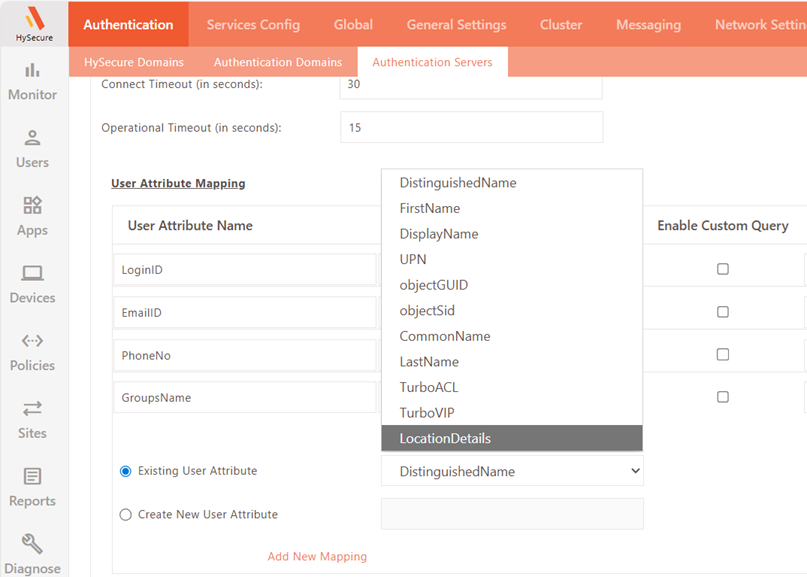
Under User Attribute Mapping, select LocationDetails from the Existing User Attribute dropdown and click Add New Mapping.
-
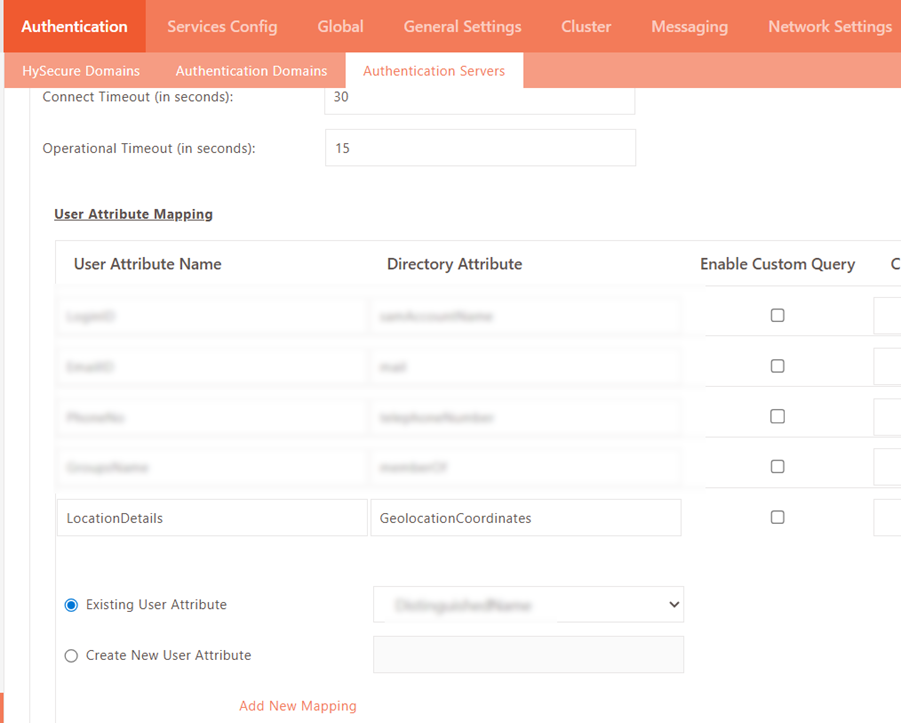
Map the appropriate AD/LDAP directory attribute (where geolocation data is stored) to the LocationDetails user attribute.
-
Click Submit to save.
Option B: Configure authorized geolocations in registered user profile
Use this option when each user has individual whitelisted locations configured in their profile.
- Log in to the HySecure Management Console as Security Officer/Administrator.
- Navigate to Users > Registered Users.
- Select the required user profile and click Profile Details.
- Locate Authorized Locations and click Add to configure a new geolocation entry.
- Provide the following details:
- Display Name: A descriptive identifier for the geolocation.
- Latitude and Longitude: Enter latitude and longitude for the geolocation, click the Fetch Location button to fetch the location details using Google Geolocation API (if reachable), Alternatively, the administrator may manually enter the location details.
- Click the Green Tick icon to save the geolocation entry.
-
Select the Enabled checkbox to whitelist the location for login.

Note
A saved geolocation entry does not permit login unless the Enabled checkbox is explicitly selected.
Option C: Add geolocations in Policies > Geolocations
Use this option when users log in from common shared locations.
- Log in to the HySecure Management Console as Security Officer/Administrator.
- Navigate to Policies > Geolocations.
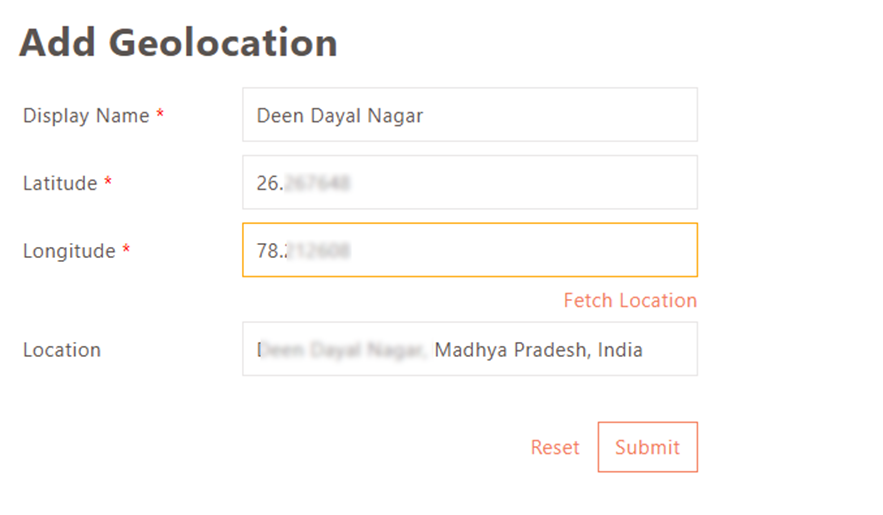
- Click Add to create a new geolocation entry.
- Provide the following details:
- Display Name: A descriptive identifier for the geolocation.
- Latitude and Longitude: Enter latitude and longitude for the geolocation, click the Fetch Location button to fetch the location details using Google Geolocation API (if reachable), Alternatively, the administrator may manually enter the location details.
-
Click Submit to save.
Part 2: Configure geofencing in authentication access control
Once the geolocation source is configured, enable geofencing in the Authentication Access Control policy.
Step 1: Enable geofencing in an Authentication ACL
- Log in to the HySecure Management Console as Security Officer/Administrator.
- Navigate to Policies > ACL.
- Modify an existing or create a new Authentication ACL.
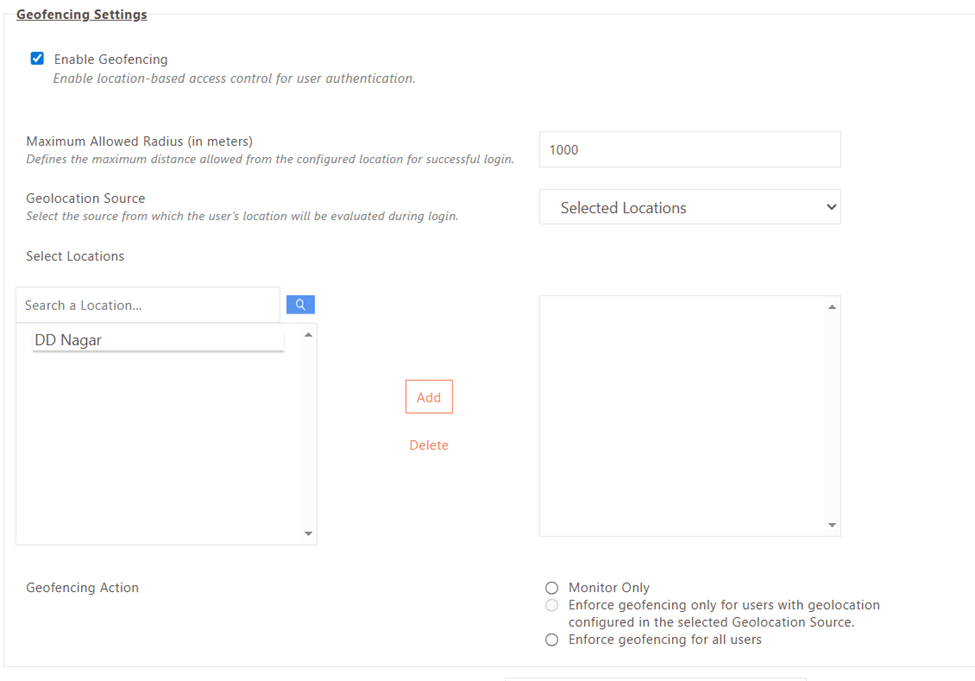
- Under Geofencing Settings, select the Enable Geofencing checkbox.
-
Specify the Maximum Allowed Radius — the permissible distance (in metres) from a whitelisted location within which login is allowed.
-
Select the Geolocation Source based on your configuration:
Source When to use User's Authorization Server Geolocation stored in an AD/LDAP attribute Registered User Profile Each user has individual whitelisted geolocations in their profile Selected Locations Users log in from common locations configured under Policies > Geolocations Any Available Source Geolocation may be retrieved from AD/LDAP attributes for some users and from Registered User Profiles for others -
If Selected Locations is chosen, select the required geolocation(s) from the list of configured locations.
-
Configure the Geofencing Action:
Action Behaviour Monitor only Users are prompted to enable GPS. Location is recorded in logs; no login restrictions are enforced. Enforce for users with geolocation configured Geofencing applies only to users with a geolocation configured in the selected source. Users without a configured geolocation can log in without restriction. Enforce for all users Geofencing applies to all users under the policy. Users without a whitelisted geolocation are blocked from logging in. -
Click Submit to save the Access Control policy.
Important notes
- Geolocation enforcement works using latitude and longitude coordinates even when the Google Geolocation API is not reachable. The API is only required for resolving coordinates to a human-readable address.
- A geolocation entry saved in a Registered User Profile does not enforce login restriction unless the Enabled checkbox is selected for that entry.
- The Monitor only geofencing action records location data in logs without blocking login — use this mode to validate configuration before enforcing restrictions.