Device Profiles
Overview
Device Profiles determine the trust level of a connecting endpoint, rather than the user, and help authorize application access to that endpoint. This trust is established even before the user logs in and is authorized for application access.
The Device Profile policy is applicable at the Gateway level. However, for it to be effective, the following two conditions must be met:
-
The Endpoint Security license should be applied to the Gateway.
-
Endpoint Security should be enabled for the HySecure Domain that the endpoint attempts to connect to.
The Device Profile contains a set of Host Scan policies and the corresponding applications that would get blocked with matching Host Scan policies. The Host Scan policies define endpoint information, such as AV products in use, the firewall, etc.
Important
-
Allow/Block applications configured based on Device profiles take precedence over the allowed applications in the Application Group for Access Control policies.
-
The display will be customized based on the type of device, such as a laptop, tablet, mobile phone, or any other endpoint device.
The HySecure Administrator can create three types of Device Profiles:
- Normal Profile, one for each Profile Security Level
- Mandatory Profile
- Quarantine Profile
The HySecure Administrator can create only one Quarantine Profile and one Mandatory Profile. However, multiple Normal Profiles, one for each different Profile Security Level, can be created.
Flow of evaluating Device Profiles
When an endpoint attempts a connection to the HySecure Gateway, the Device Profiles are evaluated in the following order:
-
Mandatory Profile
This profile is checked against the minimum prerequisites as defined by the Host Scan policies configured for this profile.
-
Normal Profile with Security Level
After satisfying the Mandatory profile, the endpoint details are scanned for Normal profiles with higher Security Level numbers, which primarily indicate a reduced trust level. The first match gives the Device Profile for connecting the endpoint.
-
Quarantine profile
If none of the configured Normal profiles are matched, then the connecting device will fall into the Quarantine profile, and applications are blocked as per the ones configured in this profile.
Mandatory Profile
This is a system profile that contains a set of Host Scan policies that all connecting endpoints must satisfy before the user can log in to the HySecure Gateway. Using the Mandatory profiles, administrators can enforce that all the connecting endpoints comply with certain minimum requirements. An example of a Mandatory profile would be enforcing endpoint login with a particular AV solution updated with the latest signatures and logging in from a specific domain.
Only one Mandatory profile is allowed, making it a prerequisite for all logins. If the endpoint machine fails any policy in the Mandatory profile, the user is denied login to the HySecure Gateway. The configured remediation information will be sent to the user.
The Mandatory profile does not contain any access list, as it will only enforce the selected Host Scan policies on all connecting endpoints. The allowed application list can be enforced through the Normal profile with a configured security level.
Normal Profile with Security Level
Multiple profiles with varying security levels can be created. This helps in setting more blocked applications for endpoints with reduced trust levels.
E.g., A Device Profile with a lower security level, i.e., higher trust, can enforce Host Scan policies for AV, Domain, and Critical Windows Update. This can block no application.
A relatively higher security level, i.e., lower trust level, Device Profile can enforce just AV and moderate Windows updates, blocking a small set of applications.
An even higher security level, i.e., an even lower trust level, can be enforced by the Device Profile, which can block a relatively larger set of applications.
Important
- Security Level 1 is considered as the highest trust level, and 10 is considered the lowest trust level.
- There can be just 1 Normal Device Profile for each of the Security Levels.
- The Device Profiles get matched from the ones with Security Level 1 to the ones with Security Level 10.
Quarantine Profile
For a connecting endpoint, if none of the Normal profiles match, the applications indicated in the Quarantine profile would get blocked. This is a system profile that only includes a list of applications that the user won't be able to access if the device they are connecting from doesn't meet the normal device profiles. This profile doesn't contain any policies.
Important
- A Quarantine profile does not contain any Host Scan policy list, as it is a fallback, no-scan profile.
- If no Quarantine profile exists and the endpoint does not satisfy any other profile, then the endpoint is denied login into HySecure Gateway.
View Device Profiles
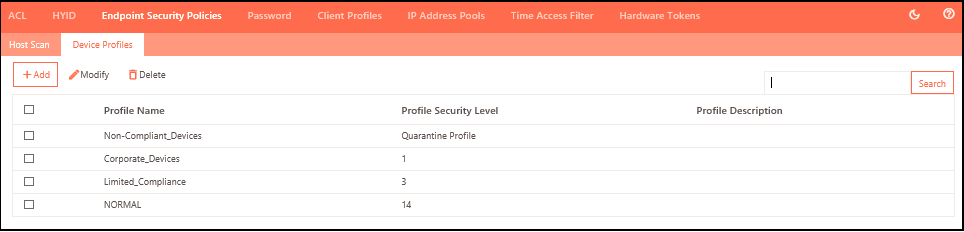
To view the list of Device Profiles and manage them:
-
Log on to the Management Console.
-
Navigate to Policies > Endpoint Security Policies > Device Profiles
-
The page lists all the profiles in a tabular manner with the following information:
| Field | Description |
|---|---|
| Profile Name | Displays the device profile identifier. |
| Profile Security Level | Displays the security trust level of the profile, ranging from 1 to 20, with 1 being the highest. |
| Profile Description | Displays the profile description for easy recall. |
Add a new Device Profile
-
Log on to the Management Console.
-
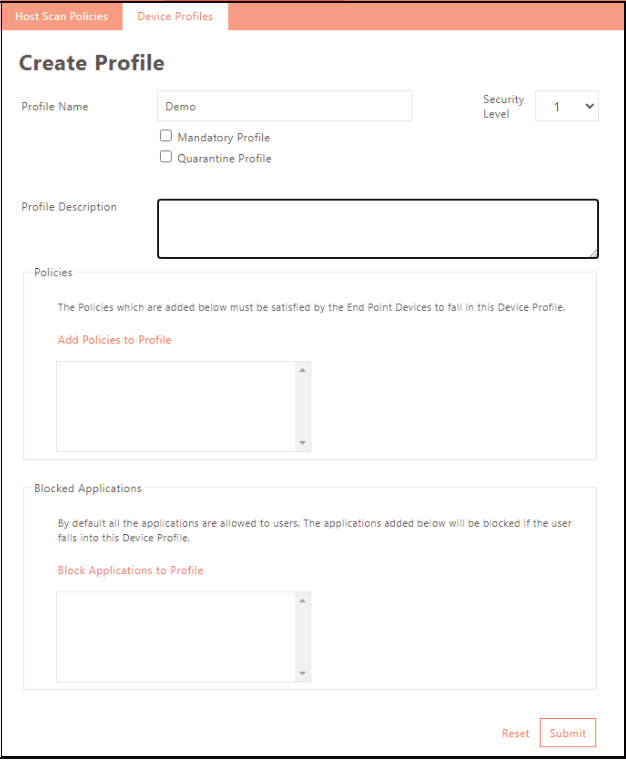
Navigate to Policies > Endpoint Security Policies > Device Profiles and click Add.
-
Provide basic information for the profile as indicated in the table below.
| Name | Description |
|---|---|
| Profile Name | Enter the identifier of the device profile. |
| Security Level | Select the security level from the drop-down list. Endpoints are scanned in ascending order of Security Trust Level, with 1 being the highest trust level. |
| Mandatory Profile | Click to create a mandatory profile. The creation of at least one Normal profile is necessary to create a Mandatory profile. If one already exists, this field is disabled - only one mandatory profile is allowed. |
| Quarantine Profile | To create a Quarantine Profile, click the button. Creating at least one Normal profile is necessary to create a Mandatory profile. If it's already created, the field will be disabled. Only one Quarantine Profile can exist; any endpoint failing all other device profiles will be assigned to it. If no quarantine profile exists and the endpoint does not meet any other profile, the endpoint is denied login to the HySecure Gateway. |
| Profile Description | Provide a profile description for easy recall. |
| Policies | Click Add Policies to Profile to add policies to the profile. The Policies that are added here must be satisfied by the End Point Devices to fall in this Device Profile. |
| Blocked Applications | Click Blocked Applications to block the applications from the profile. By default, all the applications are allowed for users. The applications added below will be blocked if the user falls into this Device Profile. |
Add Policies to Profile
Add the policies the endpoint must comply with to allow a user to log in.
-
Click the Add Policies to Profile link and select profiles to add to the list of mandatory compliance.
-
Click Add and Submit.
Blocked Applications
Deny specific applications to endpoints under this profile. All applications are allowed by default.
-
Click the Block Applications to Profile link on the Create Profile screen to access the Add/Block Applications from the Profile screen.
-
Block apps by selecting them in the Application table and clicking Add and Submit.
Modify Profile
-
Log on to the Management console.
-
Navigate to Policies > Endpoint Security Policies > Device Profiles.
-
Click the check box next to the profile you want to edit, then click Modify.
-
Modify profile details as needed. Refer to the Add Profile section for details.
-
Click Modify to save changes.
Delete Profile
-
Log on to the Management console.
-
Navigate to Policies > Endpoint Security Policies > Device Profiles.
-
Click the check box next to the profile you want to edit, then click Delete.
-
Click OK to delete the profiles when prompted for deletion confirmation.