Apps
Overview
Accops HySecure supports a wide range of multi-port TCP/UDP applications. You can register the services manually or with Auto Configuration of Standard Applications. Accops HySecure can automatically detect standard services running on devices within a given subnet range and use that information to configure them.
When adding applications, HySecure checks whether the specified Application Server hostname and the hostname/domain name in the Web URL are resolvable from a gateway. An error is displayed if the name cannot be resolved. The Administrator can either fix the hostname or create a host file entry for it. This can happen if the hostname is typed incorrectly, the DNS server is misconfigured, or there is no DNS server.
View Application list
Follow these steps to view configured applications:
-
Log on to the Management console.
-
Navigate to Apps > Apps.
-
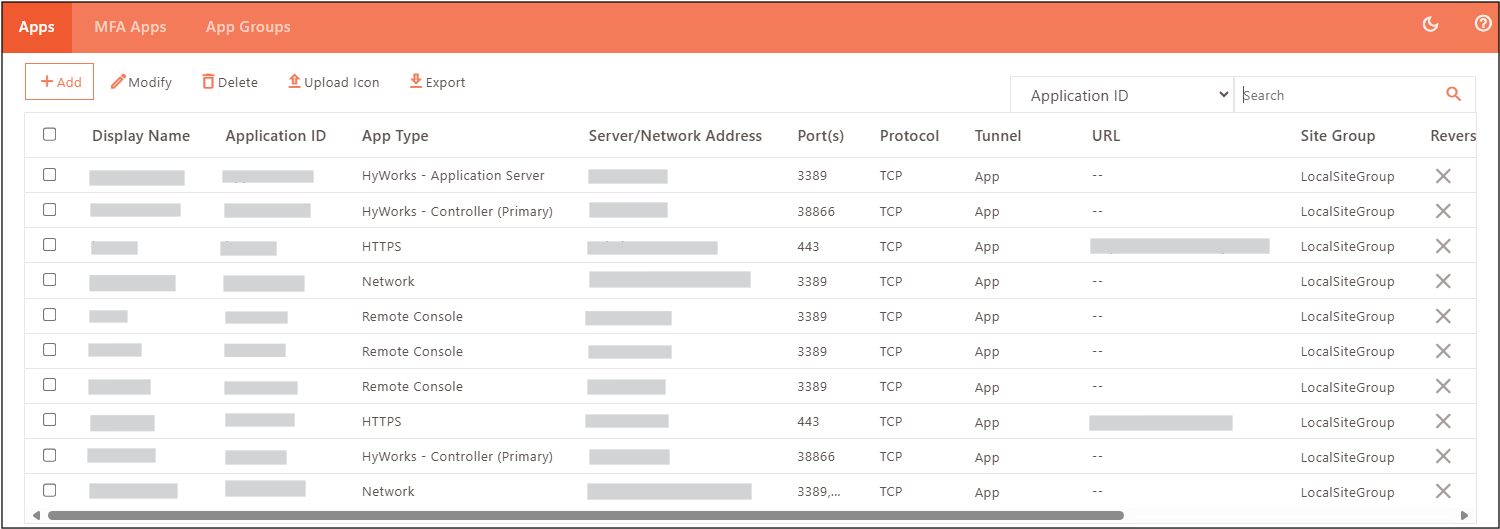
The system displays a table listing all configured applications:
| Field | Description |
|---|---|
| Display Name | Displays the name of the application. |
| Application ID | Displays the unique identifier assigned to the application. |
| App Type | Displays Category/type (e.g., HTTP, HTTPS, SSH, FTP, VNC, etc.) |
| Server/Network Address | Displays the hostname or IP address of the application server. |
| Port(s) | Displays TCP/UDP port(s) on which the application listens. |
| Protocol | Displays the Layer 4 protocol (TCP/UDP, etc.) on which the application runs. |
| Tunnel | Specifies whether traffic uses App Tunnel or Turbo Tunnel. |
| URL | Displays Web URL (for browser-based applications). |
| Site Group | Displays the associated site group (if configured). |
| Reverse Proxy | Indicates if reverse proxy is enabled. |
| Reverse Proxy Method | Displays the method used for reverse proxy configuration. |
| Download Metadata | Option/indicator for metadata download settings |
Add Applications
- Log on to the Management console.
-
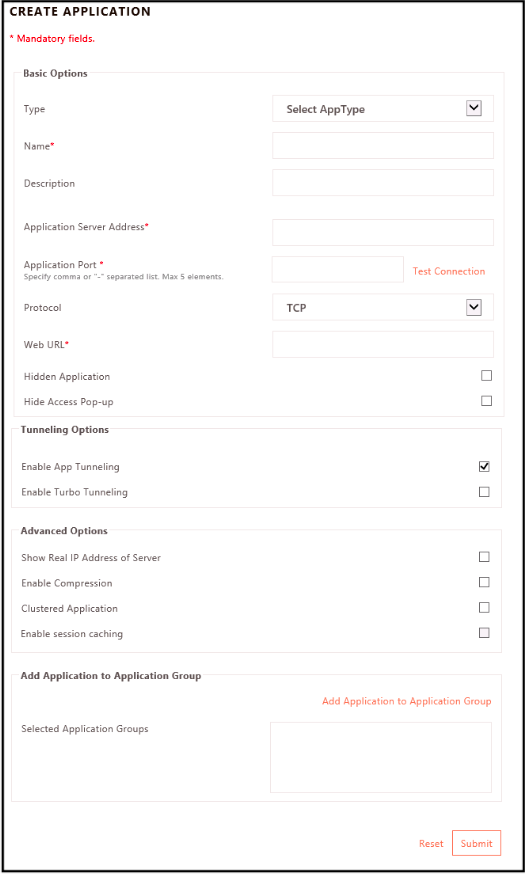
Navigate to Apps > Apps and click Add. Provide the following information and click Submit to save.
Basic Settings
-
Application ID*: Specify Application Identifier. It is used to categorize the application when displaying the application list to users.
-
Display Name: Set display name. It is the application name that will be displayed to the user.
-
Description: Describe if required.
Application Settings
-
Type: Select the Type of application that you want to add.
-
Tunnel Type: Choose Tunnel Type. HySecure Turbo tunnel operates at the L3 level, routing IP traffic from the end-user machine to the corporate network over a UDP-based tunnel. When enabled, a virtual IP address will be assigned to the end-user PC, allowing TCP, UDP, or ICMP traffic to be exchanged between the end-user PC and the corporate network. Turbo tunnel will provide enhanced support for real-time applications, such as VoIP and heavy graphics apps, over VDI. Applications that require a reverse connection (connections originating from server-side applications to end users) are also supported by Turbo Tunnel. Turbo tunnel can be enabled for a specific application and specific users.
-
App Tunnel Type: Provide the hostname or IP address of the application server. Make sure HySecure can resolve the hostname of the application server. Specify a comma-separated list if multiple application servers exist for the same application, along with the clustered application option as described below.
-
Turbo Tunnel Type (L3 VPN): Provide Network Address.
-
-
Application Port: Provide TCP/IP port on which the application server is listening for connections. Specify multiple ports separated by a comma, e.g., 80,100,200, or a range of ports separated by a hyphen, e.g., 80-100, and test the Connection*.
-
Protocol: Select the application protocol TCP, UDP (ICMP or ANY for Turbo Tunnel) from the list.
-
Traffic Routing: To enable traffic routing through the app tunnel, select Allow.
-
Web URL*: Specify the full URL of the target web server in case the application is a web application. If the URL is specified, the application will be listed on the HySecure Web Portal and HySecure Application Launcher on the user’s machine.
-
Access Site Group: Select the Access Site Group if HySecure is deployed behind WAF.
-
Enable Desktop Shortcut: Click to enable the Desktop shortcut and provide a name.
-
Hidden Application: Click Hide Applications to hide the application listing from the Web Portal and Desktop Client. In this case, the application URL is expected to be known to the user, and they will need to enter it manually to access it.
-
Enable Reverse Proxy: Enable Reverse Proxy to allow access to HTTP/HTTPS applications via the HyLite portal.
-
Choose an access method from URL rewriting or DNS-based. Choose URL rewriting if access is provided through a web VPN. Choose DNS-based if Hostname-Based Reverse Proxy (HBRP) applications, i.e., access to HTTP/HTTPS applications via the HyLite portal.
-
For the DNS-based access method, choose Application FQDN and provide the required web application hostname as Application FQDN. This Application FQDN must be mapped with the HySecure gateway’s IP address in the public DNS server, or choose **Sub Domain and configure a prefix with the HySecure gateway’s Authentication Site’s FQDN. The application will resolve to the final FQDN created by adding a subdomain prefix and the HySecure gateway’s Authentication site FQDN.
Notes
- The Gateway will not use the application server’s SSL certificate. A security officer or Administrator must configure a valid SSL certificate on the HySecure Gateway that includes SAN (Subject Alternative Name) entries for all FQDNs or subdomains used in reverse-proxy applications.
- Every application administrator must have a separate FQDN pointing to the HySecure Gateway.
- If WAF is configured, the FQDN should resolve to the WAF Server instead of the HySecure Gateway.
-
Client Settings
-
Hide Access Pop-up: Click Hide Access Pop-up to hide the pop-up from the client system tray when the application is accessed for the first time.
-
Auto Launch: Click Show Real IP Address of Server. This will disable IP address mangling for this application.
-
Show Real IP Address of Server:
Advanced Settings
-
Enable Compression: Click Enable Compression to compress data for this application.
-
Clustered Application: Click Clustered Application when multiple application servers are deployed in the LAN to serve remote users, and HySecure is performing round robin-based load balancing among the application servers for this application.
-
Enable session caching: Click Enable Session Caching to enable sticky sessions when the application is running in clustered mode.
Application to Application Group Mapping
-
Selected Application Groups: Select application group. You can also click Add Application to Application Group to add an application to the group, if required.
-
Click Submit to save the application.
User Options
Certain application types, such as http, https, RDP, FTP, VNC, Microsoft Fileshare, NFS, My Desktop and Files, HyWorks - Controller (Primary & Secondary), Microsoft OWA, etc., have user-configurable options.
| Option | Description |
|---|---|
| Enable Single Sign-on (SSO) | Enables single sign-on functionality from VPN Portal. Select this option to configure additional SSO-related information. |
| Authentication Type (Only for HTTP, HTTPS, Citrix Web, Microsoft OWA applications) | Form-Based Authentication - Single Sign-On URL - Enter the URL to use for form-based authentication. Form-Based Authentication - Request Type - Enter the request type as "GET" or "POST" as is supported by the URL entered for single sign-on. Form-Based Authentication - Request Format - Enter the request format. NTLM-Based Authentication - Use HySecure Credentials - Check this box to use HySecure Credentials to access the application. NTLM-Based Authentication - Use a Common Account - Check this box to use a common account for accessing the application. As a result of this configuration, the credentials used to access the application differ from those used for HySecure authentication. Enter the Username and password for the common account. NTLM-Based Authentication - Domain - Enter the Domain name or workgroup. SAML-Based Authentication - Select one of the preconfigured Service Providers from the drop-down list. Enter Service Provider Login URL, Service Provider Logout URL, Audience, Issuer. These values are available from the selected Service Provider's site. |
| User Home Directory | Specify the user's home directory for "Microsoft Fileshare" / "NFS" access. This will also restrict the user from navigating beyond the home and underlying folders. |
| The user can reboot the VM | Applicable for "Accops VDI" type of application. Check the box to allow the user to reboot the Virtual desktop. |
Remote Display Options
Remote Display options are available for My Desktop, RDP, and Accops VDI application types.
| Option | Description |
|---|---|
| Let User Choose | Enables the user to choose display options, local resources, and program options while accessing the application. |
| Display Options | Choose color, screen resolution, and performance options. |
| Local Resources | Remote Desktop Protocol local resources options for application access. |
| Program Name: | Program to be executed while accessing the application. |
Application Templates
Application templates are included in the management console to help administrators create standard applications and define additional parameters.
| Application Type | Description | Listed on HySecure Portal | Listed on Client App Launchpad | Show in Client Activity List |
|---|---|---|---|---|
| HTTP, HTTPS | Web applications. A URL must be entered. If the URL is not entered, the application will not be listed on the application portal. The domain name in the URL must match either the application name or the “server address”. | X | X | X |
| FTP | File Transfer Protocol application accessible via browser. A URL must be entered. If the URL is not entered, the application will not be listed on the application portal. The domain name in the URL must match either the application name or the “server address”. | X | X | X |
| FTP-java, SSH, Telnet, VNC, RDP, Microsoft Fileshare, NFS | Java-based application applets for accessing VPN applications without client software. | X | X | X |
| Network | Publish multiple IP addresses or a range of network IP addresses | |||
| Microsoft Exchange | Access to Microsoft Exchange Server. | - | - | X |
| My Desktop and Files | MyDesktop is a direct desktop access via Accops HySecure. An administrator can create an application of type MyDesktop and upload a list of usernames along with their desktop hostnames/IP addresses. This application can then be assigned to the groups. When users log in to HySecure, the My Desktop application is displayed on the Web Portal. The user can access her desktop using the hostname “mydesktop” or its IP address. Upload a list of usernames and their corresponding desktop IP address/hostname. The data format is: Username, desktop IP address/hostname, port number. Choose from RDP and VNC based on which protocol users will use to connect to their desktop. | X | X | X |
| HyWorks - Controller (Primary) | ||||
| HyWorks - Controller (Secondary) | ||||
| HyWorks - Application Server | ||||
| Citrix Web | Citrix Web Interface Application. A URL must be entered. | X | X | X |
| Citrix ICA | Citrix ICA Application. | - | - | X |
| Accops TSE - Web | Accops TSE LaunchPad Portal. A URL must be entered. If an application is published with this type and URL, the “TSE Applications” tab will be enabled on the Web Portal. Single sign-on will be enabled for this application. On the Web Portal, the applications will be fetched from the Accops TSE Web server and displayed on the VPN Portal. VPN Client will also fetch the TSE-published applications and display them on the VPN Application LaunchPad. | X | X | X |
| Accops TSE – Application Server | Application to publish RDP access to Accops TSE Application servers. Create applications with this type for Accops TSE Application servers. | Under the TSE tab | As TSE Applications | X |
| As TSE Applications | Application to publish TSE – IFS and Printing access to Accops TSE Application servers. Create applications with this type for Accops TSE Application servers. | - | - | X |
| Accops VDI | Application for publishing Virtual Desktops from Accops VDI. Create this application with the server address set to the Accops VDI connection broker on port 80. The user’s virtual machine access will be provided dynamically. | X | X | X |
| Microsoft OWA | Application to publish Outlook Web Access. | X | X | X |
| Remote Meeting | HySecure desktop sharing, file sharing, and chat | X | X | X |
| Others | Any supported service not of the types described above |
Thin Applications on HySecure Portal
HySecure Web Portal includes a set of Java applications that allow users to access applications without requiring client software. The following Java applications are available on the portal:
| Application | Description |
|---|---|
| Remote Desktop | A remote desktop Java application is a Java application that launches a Remote Desktop Protocol session on a Windows machine. The remote desktop Java application has two modes: |
| 1. When launched, it tries to access the native Microsoft terminal services client. If the Microsoft Terminal Services client is found and can be launched, it is launched with the required parameters to establish a connection. | |
| 2. If the Microsoft terminal services client is not found or cannot be launched, the Java-based remote desktop client is launched with the required parameters. When a remote desktop Java application is launched, it prompts the user for remote desktop protocol-specific options. All options can be controlled and specified by the administrator. The following options are configurable: | |
| 1. Display settings | |
| 2. Local Resources settings | |
| 3. Program Name | |
| The remote desktop application supports single sign-on. The user can choose to use the HySecure username and password for authenticating with the terminal server. The administrator can also force the single sign-on settings. | |
| FILE TRANSFER | File transfer is a Java application to launch an FTP session with an FTP server. The FTP application supports single sign-on. The user can choose to use the HySecure username and password for authenticating with the server. The administrator can also force the single sign-on settings. |
| SECURE SHELL | Secure Shell is a Java application that launches an SSH session to an SSH server. |
| VNC | VNC Application is a Java application for VNC protocol sessions. The VNC application supports single sign-on. The user can choose to use the HySecure username and password for authenticating with the VNC server. The administrator can also force the single sign-on settings. |
| FILE SHARE | File Share application is a Java application for the Microsoft File Share protocol, SMB, and the open protocol NFS. When run by a user, the application browses the shared files and folders on the target server. The File Share application supports single sign-on. The user can choose to use the HySecure username and password for authenticating with the target server. The administrator can also force the single sign-on settings. An administrator can also force a home directory for the user. If specified, the user can only browse the child directories of the home directory and cannot access any other root directory. |
Modify Applications
-
Log on to the Management console.
-
Navigate to Apps > Apps.
-
Select the checkbox next to the application you want to edit, then click Modify.
-
The Modify Application screen appears. Update application details as required.
-
Modify Application Groups by clicking Add/Delete Application Group to Application.
-
Click Submit to save changes.
Clone Applications
Clone applications to reduce the need to manually recreate similar configurations and help maintain consistency across applications and access control policies.
How to Clone an Application
-
Log in to the HySecure management console as Security Officer/Administrator.
-
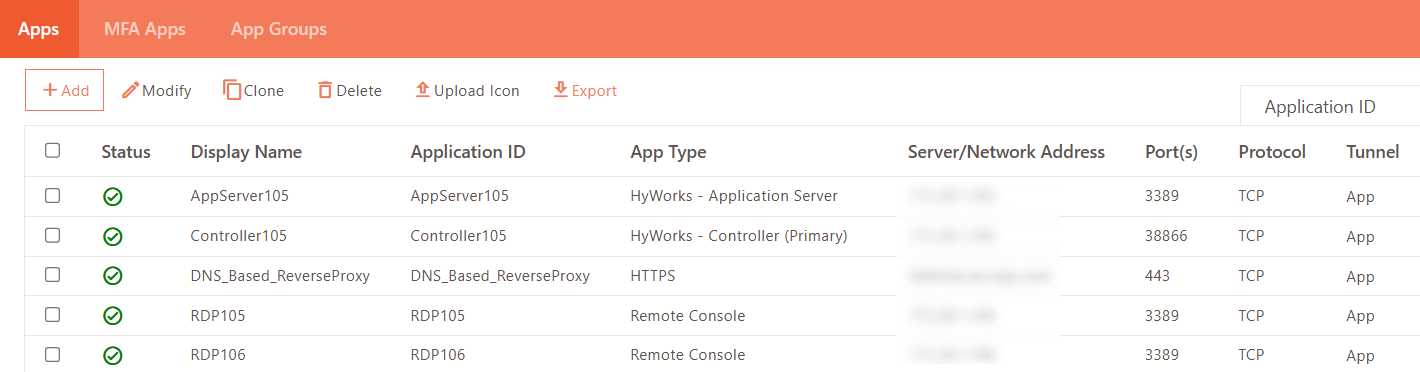
Navigate to Apps > Apps, select the application to clone, then click Clone.
-
Enter the appropriate name for the new application.
-
Click OK to confirm. Upon successful cloning, the administrator will be shown the “Application cloned successfully” message on the screen.
Delete Applications
-
Log on to the Management console.
-
Navigate to Apps > Apps.
-
Select the checkbox next to the applications you want to delete, then click Delete.
-
Click OK to confirm.
Upload Icon
Steps to Create and Upload a Custom Icon for the Application
-
Navigate to the application you want to customize.
-
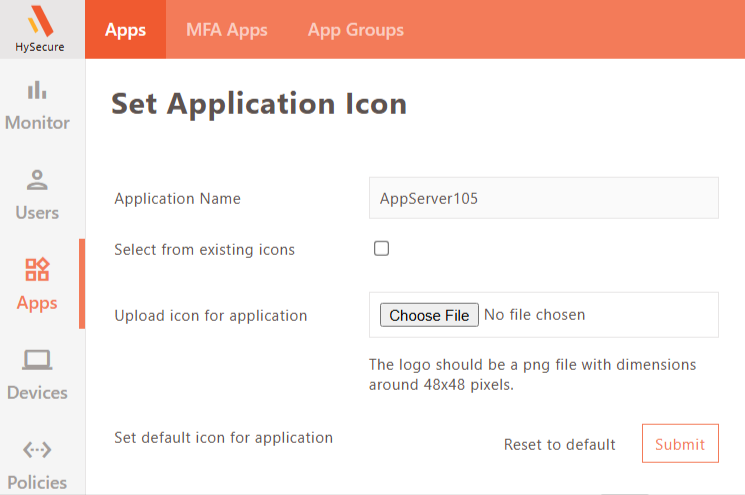
Locate and click the "Upload Icon" button.
-
Browse for the Icon. A dialog will appear; browse your files to select the new icon.
-
Submit the icon. After selecting the icon, click the "Submit" button to upload the icon.
-
Icon Specifications: Ensure the icon is in PNG format and sized at 48x48 pixels.
-
Default Icon Reset (if needed). If you wish to reset to the default icon, click the "Reset to Default" button.
-
User Login Notification: When users log in to HySecure, the new icon will appear in the client portal.
Export Applications
Click Export to save all application details to a CSV file.
Search for an Application
The administrator can search the relevant application based on the following parameters:
| Field | Description |
|---|---|
| Application ID | The unique system-generated identifier assigned to the application when it was created. Search by this to find an exact record. |
| Display Name | The human-readable name given to the application (e.g., "Finance Portal", "Internal Wiki"), as shown to admins and end users. |
| Server/Network Address | The hostname, FQDN, or IP address (or CIDR range) of the backend server(s) the application resolves to. |
| Port(s) | The TCP/UDP port or port range the application listens on (e.g., 443, 8080-8090). |
| App Type | The category/protocol of the application — e.g., Web App, TCP App, UDP App, ICMP, or Client-based App — determines how traffic is proxied. |
| Tunnel Type | The connectivity method used to reach the application, such as Site-to-Site Tunnel, Connector-based Tunnel, or Direct/No Tunnel. |
| Site Group | The logical grouping of sites/locations the application is associated with or made available through. |
| Reverse Proxy | Whether the application is published via a reverse proxy (Yes/No), and if so, which proxy instance handles inbound requests on its behalf. |