Enhancements
Security & Compliance
Firewall Status Evaluation in Endpoint Security Scan
Endpoint security scanning now evaluates the firewall status on the user's device to determine compliance. Previously, firewall status was not included in endpoint security assessment.
Business value
- Ensures only endpoints with active firewall protection can access corporate resources.
- Reduces the risk of compromised endpoints bypassing security controls.
- Provides granular control over firewall compliance requirements per policy.
Key features
- Flexible vendor support: Validates any installed firewall product, or specifically Microsoft Defender Firewall.
- Active status check: Flags endpoints with installed but disabled firewalls as non-compliant.
- Microsoft Defender profile evaluation: Validates compliance if any one of the Domain, Private, or Public network profiles is enabled.
- Optional Defender exclusion: Administrators can configure endpoints with only Microsoft Defender Firewall as non-compliant, requiring a third-party firewall.
Platform support
- This feature applies only to the Accops Workspace Client-based login on Windows OS, scheduled for release by March 2026.
Configuration
- Log in to the HySecure Management Console as Security Officer/Administrator.
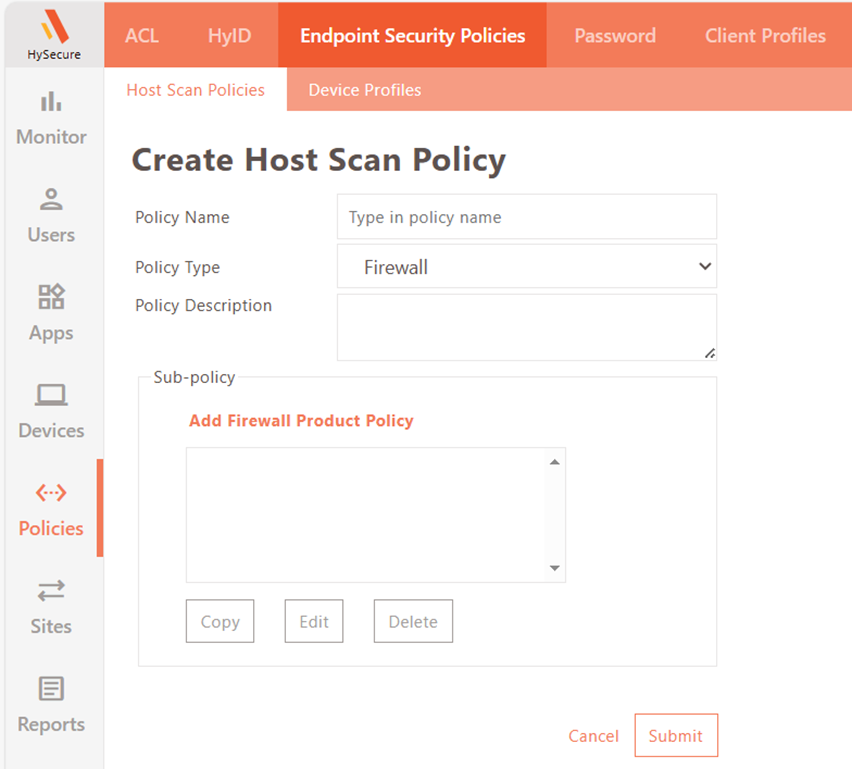
- Navigate to Policies > Endpoint Security Policies > Host Scan Policies.
- Click Add to create a new host scan policy. Select policy type as Firewall.
- Click Add Firewall Product Policy to add a sub-policy.
- Enter a firewall policy name.
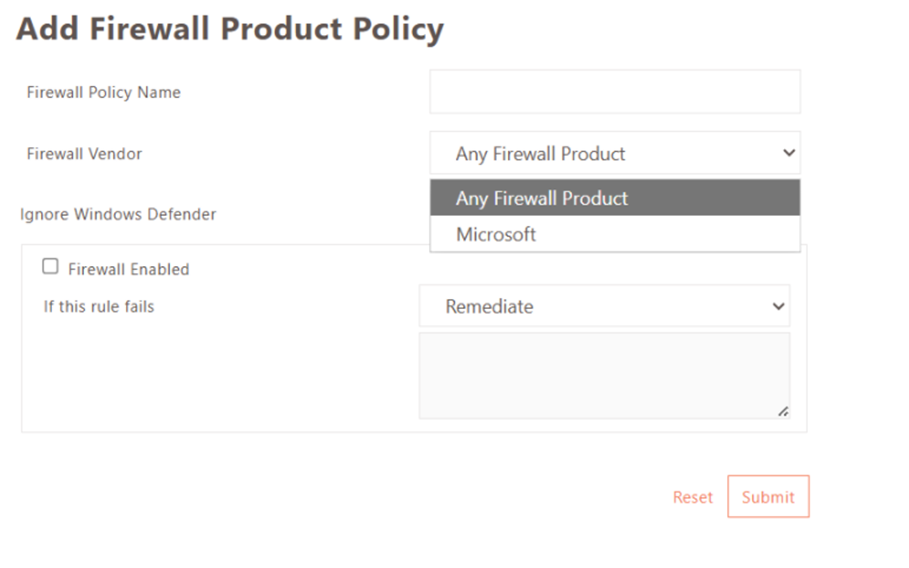
- Select Firewall Vendor based on requirement:
- Any Firewall Product: Validates compliance when at least one firewall product is installed. Optionally, enable Ignore Microsoft Defender Firewall to require a third-party firewall.
- Microsoft > Microsoft Defender Firewall: Validates compliance only when Microsoft Defender Firewall is installed.
- Configure Firewall Enabled status:
- When enabled, endpoints with an installed but disabled firewall are treated as non-compliant.
- For Microsoft Defender Firewall, compliance is met if any one of the following profiles is enabled: Domain Network, Private Network, or Public Network.
- Click Submit to save the sub-policy. Add additional sub-policies if required, then click Submit to save the Host Scan Policy.
-
Add the host scan policy to a new or existing device profile. Enable EPS for the HySecure Domain.
Quantum-resistant Algorithm Support
TLS handshakes between HySecure Gateway and clients, and with integrated servers (LDAP/Active Directory, SMS Gateway, SMTP Server), now support quantum-resistant algorithms.
Business value
- Future-proofs encrypted communications against quantum computing threats.
- Strengthens compliance posture for security-sensitive deployments.
Note
Support for Quantum Resistant Algorithm in the Accops Workspace client is not yet available and will be introduced in a future release.
Infrastructure & Administration
HySecure Web Engine v2
HySecure Web Engine v2 is now enabled by default, offering improved performance.
Business value
- Reduced Login Time during heavy load.
- No configuration required — enabled automatically on upgrade.
How To Toggle
- Log in to the HySecure management console as a Security Officer.
- Navigate to Settings > Service Config > Gateway State and change the state to Configuration State.
- Navigate to Settings > Global > Server, locate Server Settings.
- Set the HySecure WebEngine Version to V1 or V2 as required, and click Submit.
- After changing the WebEngine Version, the Security Officer will be logged out and log in again to change the Gateway state to Run State.
Note
Downtime will be required to change the HySecure WebEngine version.
Simplified Gateway Static Key Management for Distributed Deployments
Administrators can now exchange the Gateway Static Key between the Authentication Site and Access Site clusters directly through the HySecure Management Console. Previously, this required manual access to the database via SSH.
Business value
- Eliminates direct database access, reducing operational risk.
- Simplifies distributed deployment configuration for administrators.
- Improves security by removing the need for SSH-level database operations.
Key features
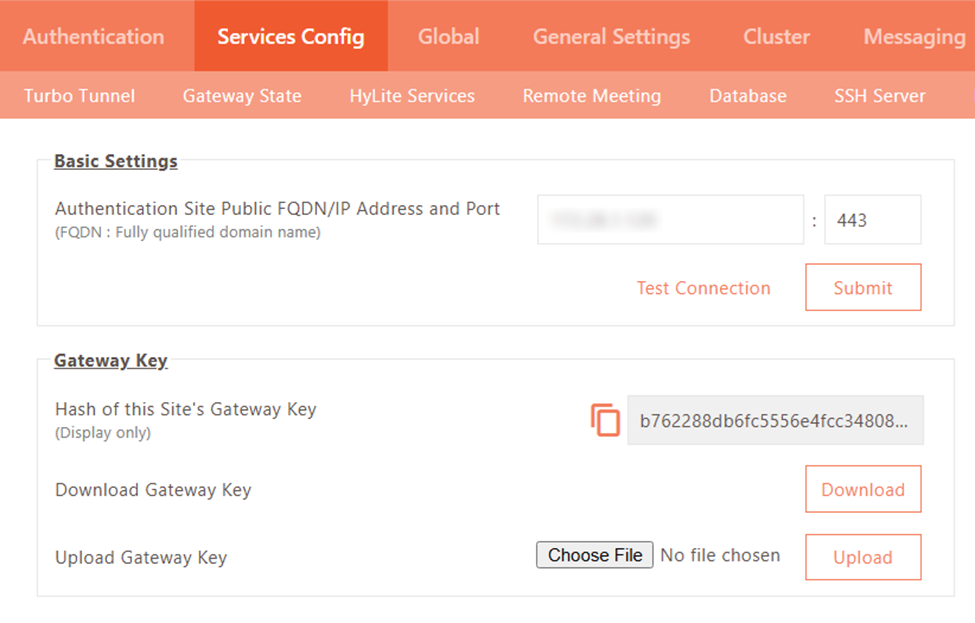
- Console-based key download: Download the Gateway Static Key from the Authentication Site via the Management Console.
-
Hash verification: The uploaded key hash on the Access Site is verified against the Authentication Site hash to ensure integrity.
Note
Gateway static key exchange is required only when the Authentication Site and Access Site are deployed as separate HySecure clusters.
Configuration
On the Authentication Site:
- Log in to the HySecure Management Console as a Security Officer.
- Navigate to Settings > Service Config > Authentication Site.
- Click Download to download the Gateway Static Key.
- Copy and securely save the hash of the Authentication Site Gateway Key.
On the Access Site:
- Log in to the HySecure Management Console as a Security Officer.
- Navigate to Settings > Service Config > Gateway State, then set the gateway to Configuration State.
- Navigate to Settings > Service Config > Authentication Site.
- Enter the resolvable IP address or hostname of the Authentication Site in the Authentication Site Public FQDN/IP Address and Port field.
- Click Choose File, select the downloaded Gateway Static Key, and click Upload.
- Verify that the uploaded key hash matches the hash copied from the Authentication Site.
Windows Update Patch Detection for Client-based Login
HySecure Gateway now retrieves the latest installed Windows update patch identifier and installation timestamp from endpoints during client-based login. This information is recorded in Detailed Endpoint Security Logs.
Business value
- Enables administrators to validate patch compliance across endpoints.
- Supports security posture assessment and audit tracking without additional tooling.
Platform support
- This feature applies only to the Accops Workspace Client-based login on Windows OS, scheduled for release by March 2026.
Networking
HySecure Domain Mapping with Turbo Interface
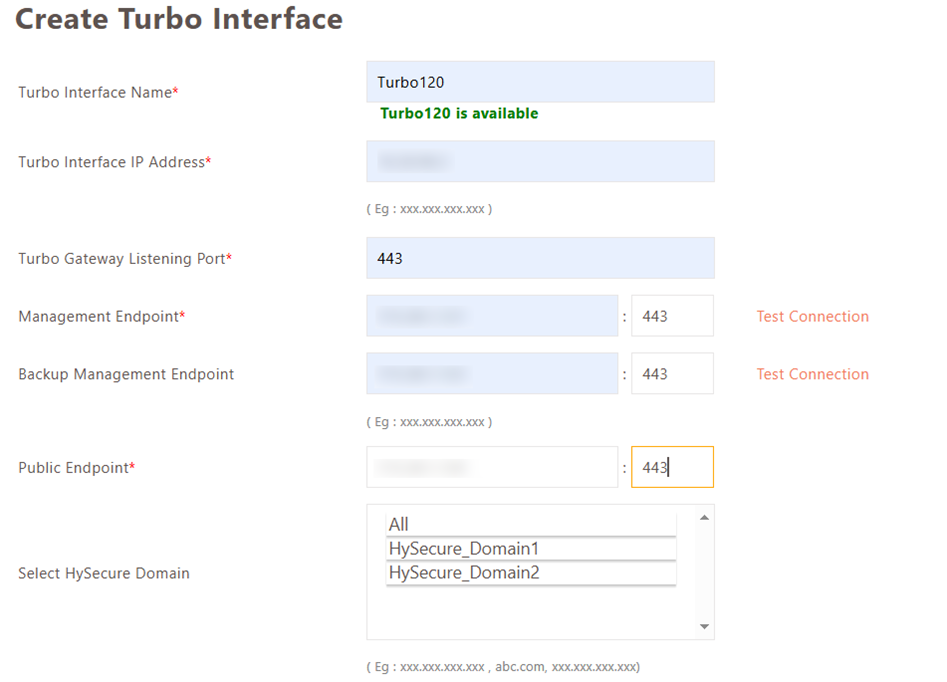
HySecure now supports direct domain-based mapping on Turbo interfaces. Previously, domains were linked only to IP Address Pools, causing access failures when Turbo VIP addresses were assigned via AD/LDAP attributes.
Business value
- Ensures correct network segmentation for users with AD/LDAP-assigned VIP addresses.
- Eliminates application access failures in multi-network environments.
- Removes the dependency on IP Address Pools for Turbo interface mapping.
Key features
- Direct domain-to-interface mapping: Multiple HySecure Domains can be mapped to separate Turbo interfaces.
- AD/LDAP VIP compatibility: Functions correctly when VIP addresses are assigned via AD/LDAP attributes.
Monitoring & logs
Improved Visibility of Endpoint Domain Details in Endpoint Security Logs
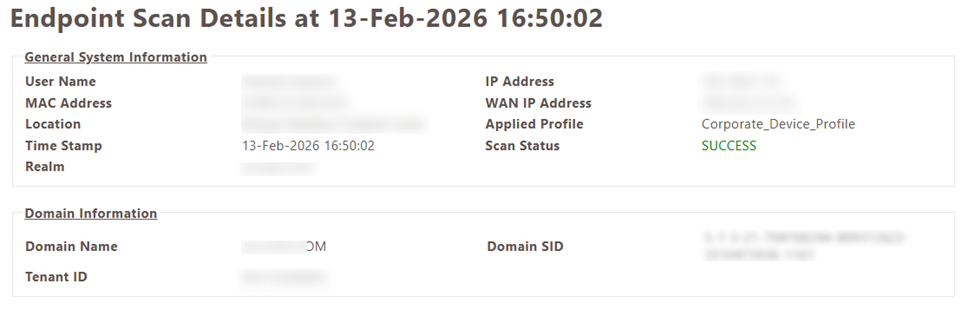
Endpoint domain information is now displayed in a dedicated section within Endpoint Security Logs. Previously, this information was grouped under General System Information.
Business value
- Makes it faster to identify the domain to which an endpoint is joined during security reviews.
- Improves log readability and reduces time spent parsing general system data.
Improved Security for AD/LDAP Server Admin Password Field
For security reasons, the configured Admin Password in AD settings is no longer displayed in masked form. Administrators must use the "Change Password" option to set a new password when required.
Support for Configurable AD/LDAP Connection and Operation Timeouts
In this release, support has been added to configure connection timeout and operation timeout for Active Directory/LDAP servers.
Windows Hello Fingerprint Authentication for HyID Desktop Login
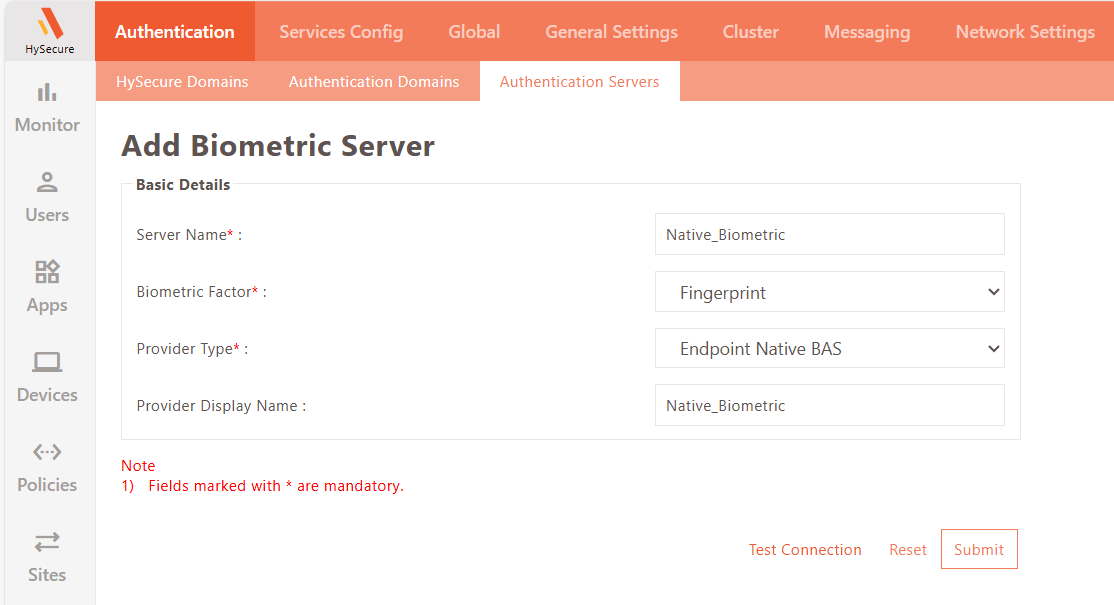
This release introduces support for Native Windows Hello fingerprint authentication for Windows Desktop login through the HyID client. Users can now authenticate using fingerprints enrolled in Windows Hello, eliminating the need for an external biometric authentication server.
Windows Hello fingerprint authentication is supported as a second-factor authentication method for domain, local, and workgroup accounts.
Configuration Steps
-
Log in to the HySecure management console as a Security Officer/Administrator.
-
Navigate to Settings > Authentication > Authentication Server.
-
Click Add to create a new Authentication Server, select the server type as Biometric.
-
Set Biometric Factor to Fingerprint and Provider Type to Endpoint Native BAS.
-
Provide the appropriate Server Name and Provider Display Name.
Map this Biometric Server to an existing or newly created HyID Desktop Agent–type HyID Policy for the changes to take effect.
Configurable User Identifier Display in HyLite Portal Launchpad
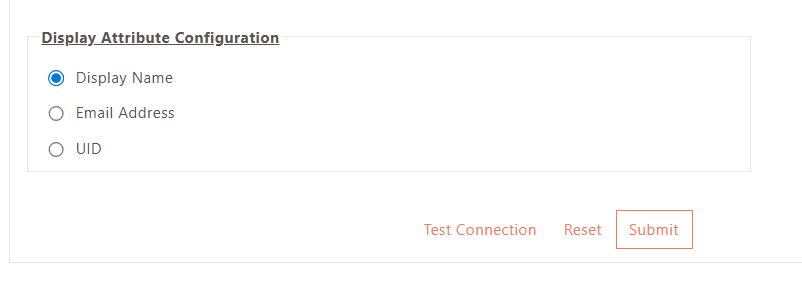
This release introduces support for configurable user identifier display in the HyLite Portal application launchpad after login. These identifiers will be fetched from AD/LDAP user attributes.
Previously, only the user’s display name was shown. Administrators can now choose to display the user’s Email Address, User ID, or Display Name in the launchpad interface.
-
Display Name – Shows the user’s full name as defined in AD/LDAP.
-
Email Address – Displays the user’s registered email address.
-
UUID – Displays the user’s unique identifier (UUID) from AD/LDAP.
Configuration Steps
-
Log in to the HySecure management console as a Security Officer/Administrator.
-
Navigate to Settings > Authentication > Authentication Server.
-
Add a new AD/LDAP type Authentication server or modify any existing one.
Locate the Display Attribute configuration, select the required user attribute. Click Submit to save changes.