Authentication Devices
Overview
Handheld Authentication Devices are registered with the secure gateway to authenticate users. These devices receive Multifactor Authentication (MFA) details, such as OTPs and Push Notifications, and participate in user authentication processes, such as passwordless authentication.
The list of Authentication Devices can be found on Device > Authentication Devices.
This page helps the administrator search for and manage one or multiple handheld authentication devices, enabling or disabling them.
View the Authentication Devices
-
Log on to the Management console.
-
Navigate to Device > Authentication Devices.
-
The page lists devices in a table with their respective information.
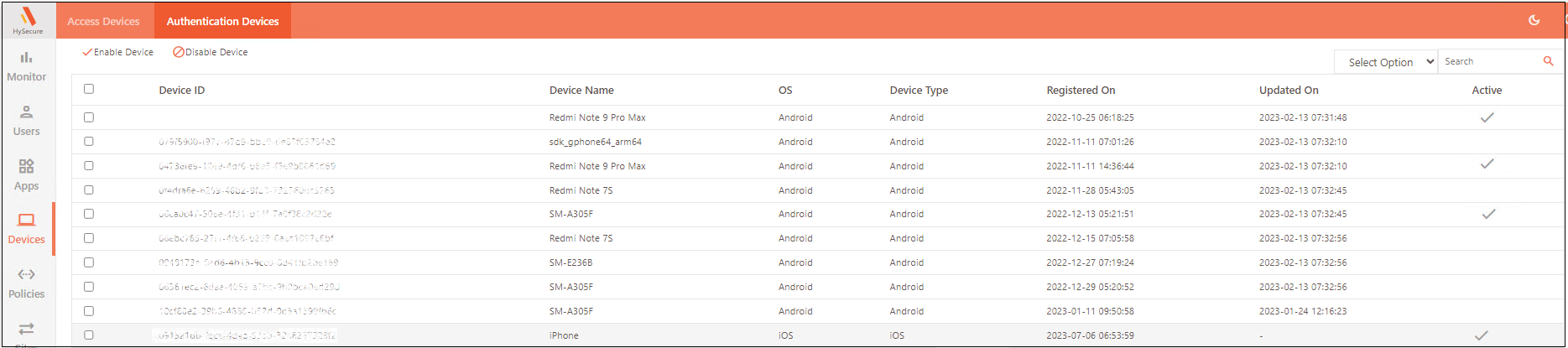
| Field | Description |
|---|---|
| Checkbox | Select the checkbox to select a single or multiple devices to enable or disable. |
| Device ID | The unique device ID. |
| Device Name | The device name given by the user. |
| OS | The handheld authentication device's Operating System (OS). |
| Device Type | Details on the type of device. |
| Registered On | The date on which the device was first registered. |
| Updated On | The last date the user logged in using the authentication device. |
| Active | A checkmark indicates whether the device is enabled. |
Enable a device
- Log on to the Management console.
- Navigate to Device > Authentication Devices.
- Select the checkbox next to a disabled device to be allowed, then click Enable.
Disable a device
- Log on to the Management console.
- Navigate to Device > Authentication Devices.
- Select the checkbox next to an enabled device to be blocked, then click Disable.
Search a device
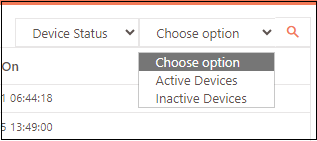
The administrator can search for a particular device based on the Device Status if there are many registered devices. Hence, the devices can be filtered as either Active Devices or Inactive Devices.