New features
Security & Access Control
Geolocation-based Login Restriction
HySecure Gateway can now restrict user logins to predefined approved geographic locations. Login attempts from non-whitelisted locations are blocked, and an error message is displayed.
Business value
- Prevents unauthorized access from unexpected or high-risk locations.
- Reduces exposure to credential-based attacks originating outside approved regions.
- Enables location-aware compliance enforcement without additional infrastructure.
Key features
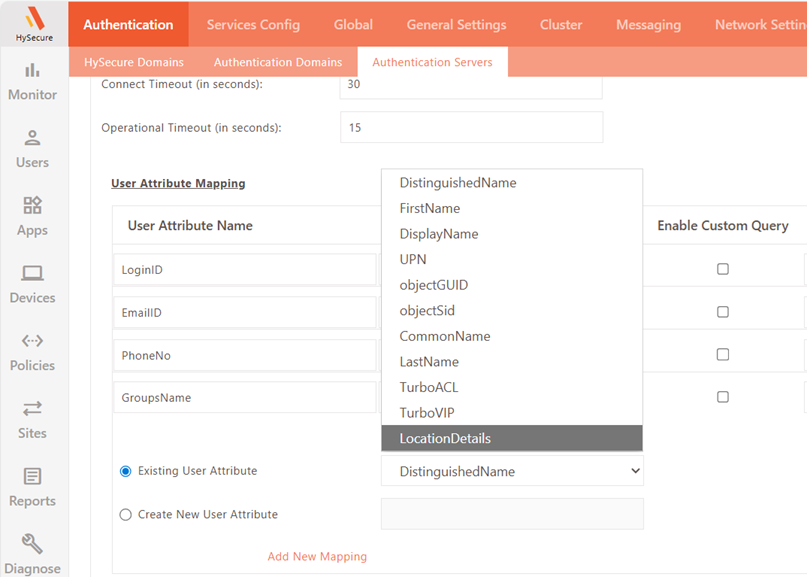
- Geofencing: Defines a maximum allowed radius around whitelisted locations. Logins outside this radius are blocked or monitored.
- Flexible geolocation sources: Supports AD/LDAP attributes, registered user profiles, and policy-based geolocations.
- Multiple enforcement modes: Monitor only, enforce for users with configured geolocation, or enforce for all users.
- Google Geolocation API support: Resolves latitude/longitude to human-readable addresses when the API is reachable. Functions on coordinates alone when it is not.
Supported login methods
- HySecure login with push notification as MFA
- QR code-based login
- SAML identity provider-initiated login
- LIS-based login into enterprise apps
- MFA-only login using push notification
Prerequisites
- Google Geolocation API reachable from the HySecure Gateway (optional — required only for human-readable address resolution).
For more information, refer to the KB Article: Configure geolocation-based login restriction.
High Availability & Resilience
Multi-site health monitoring and seamless failover
HySecure Gateway now continuously monitors the health of DC and DR sites and automatically redirects access to the DR site if the primary site becomes unavailable. Traffic switches back automatically once the primary site recovers — no manual intervention required.
Business value
- Eliminates manual failover steps, reducing recovery time during outages.
- Ensures the continuous availability of published applications and VDI resources.
- Reduces dependency on administrator availability during incidents.
Key features
- Automated failover: Access redirects to the DR site when the DC becomes unavailable.
- Automatic recovery: Traffic restores to the DC site once it is healthy.
- Real-time health monitoring: Continuous monitoring of DC site, DR site, and associated HyWorks services.
How to Enable
Contact Accops Support for assistance with backend configuration.
Authentication
Simplified authentication management for shared user IDs
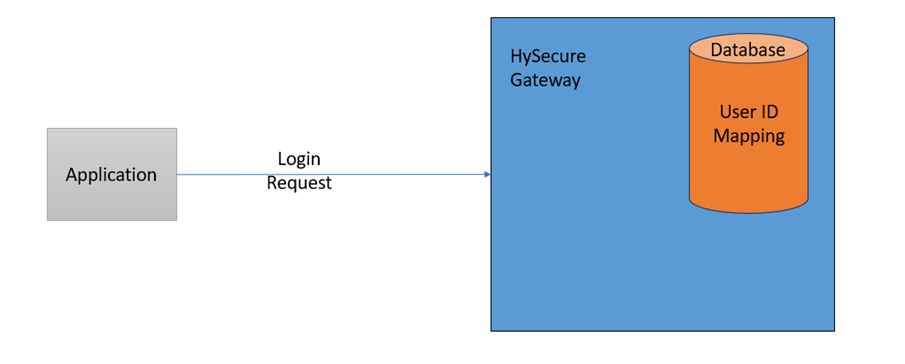
In environments where a single (common) user ID is shared across multiple individual users, authentication and user verification can become complex for administrators. In this release, HySecure introduces intelligent user mapping to accurately identify the actual user behind a shared ID at the time of login. This ensures that Multi-Factor Authentication (MFA) is securely delivered to the correct user, improving both security and manageability without impacting existing workflows.
Business value
- Ensures MFA reaches the correct user in shared-credential environments.
- Improves audit accuracy by identifying the actual user behind a shared login.
- No impact on existing authentication workflows.
Key features
- Intelligent user mapping: Resolves the shared ID to the individual (sub-user) ID at login.
- Targeted MFA delivery: Push notification sent only to the mapped user's registered device.
Prerequisites
- HyID Policy must be configured for individual user IDs.
- HySecure Gateway must be configured to send push notifications as MFA.
Configuration
- Take SSH access to the HySecure Gateway's active node.
- Run:
vim /home/fes/features.status - Set
CHECKFORSUBIDto1.
Note
This feature applies only to LIS-based MFA for enterprise applications and is disabled by default.
Software Asset Collection for Endpoint Software Visibility
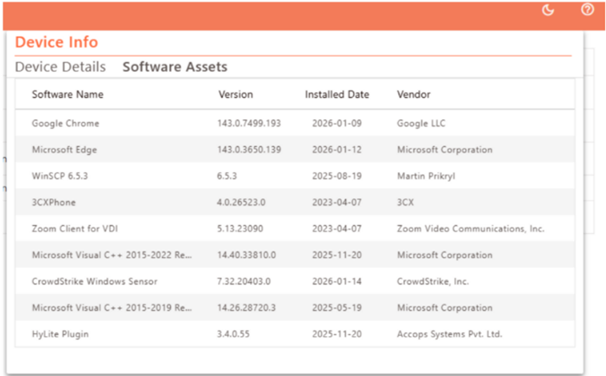
This release introduces Software Asset Collection, which allows administrators to access comprehensive details about applications installed on user endpoints. This capability enhances visibility into endpoint software inventory, supporting compliance monitoring, security governance, and efficient troubleshooting.
Administrators can access this information by navigating to Devices > Access Devices, selecting the desired Access Device, and navigating to the Software Assets tab. This tab presents a comprehensive list of installed applications, enabling centralized visibility to support monitoring, compliance validation, and troubleshooting.
Note
This functionality is available only with the Windows Workspace Client, planned for release in March 2026, and is not supported on earlier client versions.
Configuration Steps
-
Log in to the HySecure management console as a Security Officer/Administrator.
-
Navigate to Policies > ACL.
-
Click Add to create a new Device ID ACL or modify any existing Device ID ACL.
-
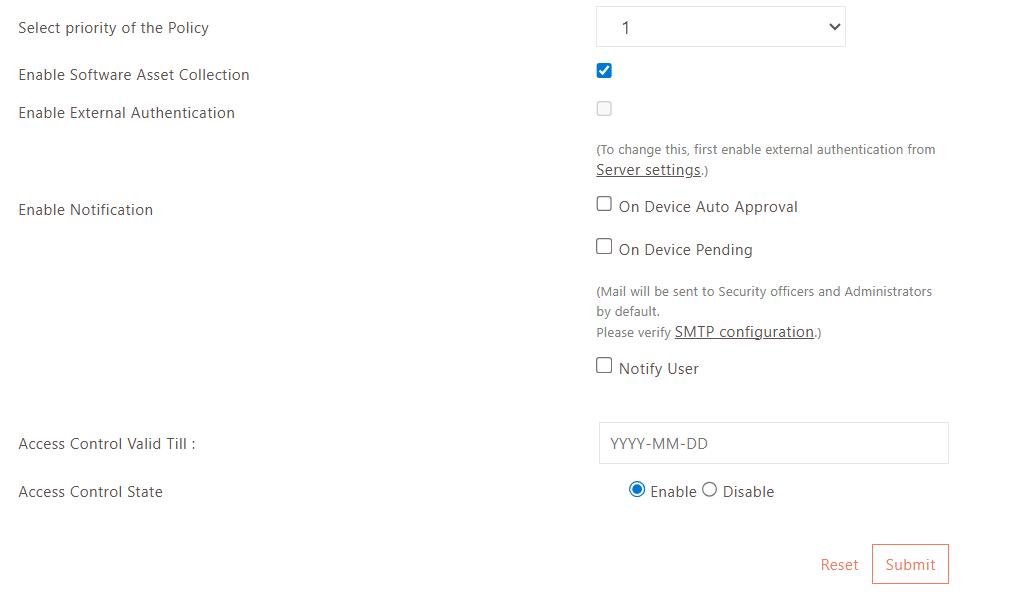
Select the checkbox to enable Software Asset Collection.
-
Ensure that the ACL is enabled, and click Submit to save changes.