Configure Continuous Re-Evaluation for Endpoint Security
Last Updated: August 6, 2026
Applies To: HySecure Gateway 7.3 SP1 and above
Category: Security & Endpoint Compliance
Overview
HySecure Gateway supports continuous re-evaluation of endpoint security posture during active user sessions. When enabled, the gateway periodically checks whether the endpoint continues to satisfy the configured Host Scan policy throughout the session, not only at login. If the endpoint falls out of compliance, the user session is terminated immediately, and a configured remediation message is displayed.
Without continuous re-evaluation, a device that becomes non-compliant during an active session continues to access critical resources assigned through HySecure Gateway until the session ends.
How it works
Continuous re-evaluation operates through a heartbeat mechanism between the Workspace Client and the gateway.
The Workspace Client monitors endpoint security parameters at a configurable interval called the EPS Data Scan Interval. The client sends updated endpoint data to the gateway only when a change is detected, minimizing network overhead.
The gateway re-evaluates the received data against the configured Host Scan policy at a separate interval called the EPS Re-evaluation Interval. If the endpoint no longer satisfies the policy when re-evaluated, the gateway terminates the user session immediately.
Two intervals govern this process independently:
| Interval | Configured on | Controls |
|---|---|---|
| EPS Data Scan Interval | Authentication ACL | How often the Workspace Client scans endpoint parameters and sends changes to the gateway |
| EPS Re-evaluation Interval | Authentication ACL | How often the gateway re-evaluates the received endpoint data against the configured Host Scan policy |
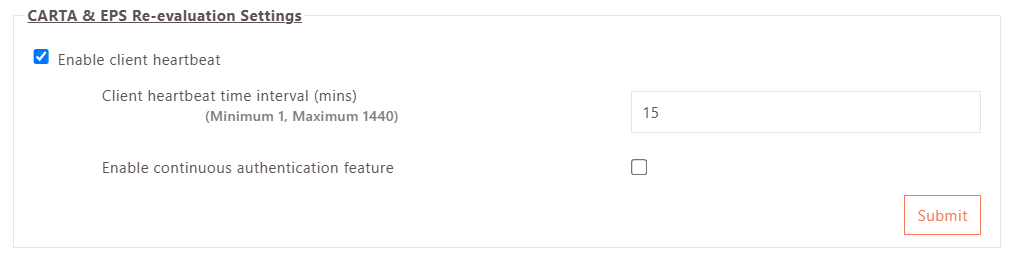
The Client Heartbeat setting, configured at Settings > Global > Server, must be enabled for this mechanism to function. The heartbeat maintains the communication channel between the Workspace Client and the gateway that carries endpoint data updates.
Important
Workspace Client versions that do not support this feature are blocked from logging in when CARTA is enabled on the Authentication ACL. Verify client version compatibility before enabling this feature in production.
Prerequisites
-
HySecure Gateway 7.3 SP1 or later.
-
Security Officer or Administrator access to the HySecure Management Console.
-
A Host Scan policy configured with the endpoint security requirements to enforce during sessions. Refer to the Host Scan policy documentation for configuration details.
-
An Authentication ACL for users requiring continuous endpoint re-evaluation.
-
Compatible Workspace Client versions that support CARTA and the EPS re-evaluation heartbeat.
Configuration
Continuous re-evaluation requires two configuration changes: enabling the Client Heartbeat at the Global Server level, and configuring the CARTA settings in the Authentication ACL. Both must be in place for the feature to function.
The recommended sequence is to configure the Authentication ACL first, then enable the Client Heartbeat. This avoids enabling the heartbeat globally before the ACL policy is ready.
Step 1: Configure CARTA in the Authentication ACL
-
Log in to the HySecure Management Console as Security Officer or Administrator.
-
Navigate to Policies > ACL.
-
Create a new Authentication ACL or modify an existing one.
-
Enable CARTA and configure the Heartbeat interval.
-
Enable EPS Re-evaluation and configure the following parameters:
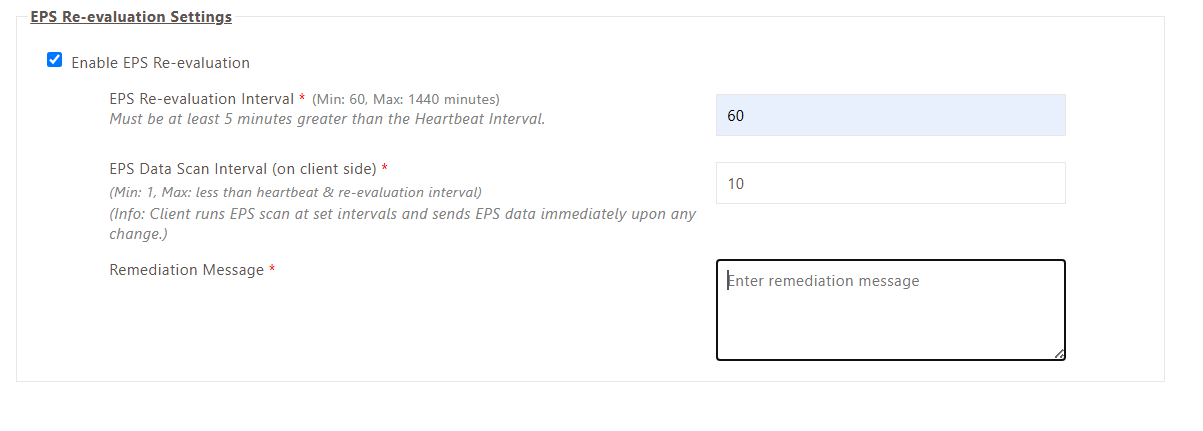
Parameter Description EPS Re-evaluation Interval The interval at which the gateway re-evaluates the endpoint against the configured Host Scan policy. EPS Data Scan Interval The interval at which the Workspace Client scans endpoint security parameters and sends updated data to the gateway when changes are detected. Remediation message The message displayed to the user when the session is terminated due to a non-compliant endpoint. Write a clear, actionable message that tells the user what to do next, for example: contact IT support or remediate a specific issue. -
Click Submit to save the ACL.
Step 2: Enable Client Heartbeat in Global Server settings
The gateway must be put into Configuration State before modifying Global Server settings, then returned to Run State afterward.
-
Navigate to Settings > Service Config > Gateway State and set the gateway to Configuration State.
-
Navigate to Settings > Global > Server.
-
Under CARTA & EPS Re-evaluation Settings, enable Client Heartbeat.
-
Click Submit to save the Global Server settings.
-
Navigate to Settings > Service Config > Gateway State and set the gateway to Run State.
Note
The gateway must be in Run State for users to log in. Configuration State is required only while making changes to Global Server settings. Return the gateway to Run State immediately after saving settings so that users can log in and the new configuration takes effect.
Applying the policy to users
The CARTA configuration in the Authentication ACL takes effect for all users to whom the ACL is applied. Assign the configured ACL to the appropriate user groups or users through the standard ACL assignment workflow.
Users on other Authentication ACLs without CARTA enabled are unaffected and continue to be evaluated only at login.
Session termination behavior
When the gateway determines that an endpoint no longer satisfies the configured Host Scan policy during a re-evaluation cycle, the following occurs:
-
The active user session is terminated immediately.
-
The configured remediation message is displayed to the user.
-
The user must remediate the endpoint issue before attempting to log in again.
Note
Users are also logged out if the device profile detected during EPS re-evaluation differs from the device profile recorded at login (for example, if the endpoint switches network interfaces or a hardware identifier changes during the session).
Limitations
-
Support for this feature is not yet available in the Windows Workspace Client. It will be included in an upcoming release. Users on the Windows Workspace Client cannot use CARTA until that release.
-
Workspace Client versions that do not support CARTA are blocked from logging in when this feature is enabled on the Authentication ACL. Confirm client version compatibility before enabling in production environments.
Interval configuration guidance
The EPS Re-evaluation Interval and EPS Data Scan Interval serve different functions and can be tuned independently based on the deployment's security and performance requirements.
EPS Data Scan Interval controls how frequently the Workspace Client checks the endpoint. A shorter interval increases endpoint visibility but adds client-side processing overhead. A longer interval reduces overhead but widens the window between a compliance change and detection.
EPS Re-evaluation Interval controls how often the gateway acts on the data it has received. Setting this to a shorter value than the EPS Data Scan Interval provides no additional benefit, as the gateway can only re-evaluate data it has received. Align this with or set it longer than the Data Scan Interval.
For most deployments, start with moderate intervals and tighten based on observed impact. For high-security environments requiring rapid response to compliance changes, shorter intervals are appropriate. For resource-constrained endpoints or deployments with large concurrent session counts, longer intervals reduce processing load.