Configuration Changes
This page describes configuration changes that must be made on the DVMs for performance enhancements or HyWorks deployment.
Master image prerequisites for VDI cloning
This page outlines the key prerequisites for preparing a Gold Master image. Use it as a reference when creating a master image that will be cloned at a customer site.
Important prerequisites for the Gold Master VM
Before importing a Gold Master VM into RMS (Reservation Management System), ensure the following prerequisites are met for effective, error-free usage:
-
The Gold Master VM must not be a pre-cloned VM; it must be a freshly installed OS.
-
Do not run Sysprep after installing the DVM tool on the Gold Master image.
-
The latest version of Hypervisor Tools should be installed (as per the hypervisor recommendations) on the Gold Master image.
-
The Gold Master image must not have a static IP configured. HyWorks requires dynamic IP allocation for provisioning.
-
The latest HyWorks DVM Tools must be installed on the Gold Master.
-
NLA (Network Level Authentication) should be turned off. When NLA is enabled, connections from HyLite to incompatible endpoints may fail. Depending on the deployment, NLA can be enabled after careful evaluation of its impact.
-
Sleep and display-off settings should be disabled:
-
Control Panel > Power Options
-
Turn off the display > Never
-
Put the computer to sleep > Never
-
Advanced settings > Turn off hard disk after > 0 (Never)
-
-
-
Audio and video redirection is enabled through group policies.
-
Group policy location:
Computer Configuration\Policies\Administrative Templates\Windows Components\Remote Desktop Services\Remote Desktop Session Host\Device and Resource Redirection -
Group policies to enable:
-
Allow audio and video playback redirection> Enabled -
Allow audio recording redirection> Enabled -
Limit audio playback quality> Enabled - Dynamic
-
-
-
Windows 10-specific configurations:
-
No additional widgets installed from the Microsoft App Store.
-
Location:
Computer Configuration\Policies\Administrative Templates\Windows Components\Remote Desktop Services\Remote Desktop Session Host\Security -
Policy:
Require Use Of Specific Security Layer For Remote (RDP) Connections> set to Negotiate.
-
More references
The following documents can be referenced for Gold Master preparation, based on the operating system:
Enabling Audio in a Remote Session
Though audio is enabled in the HyWorks Controller Connection Profile and Device Settings, audio will not work until the following configurations are enabled on the virtual machine:
STEP 1: Starting the Windows Audio Service
-
The Windows audio service should be running.
-
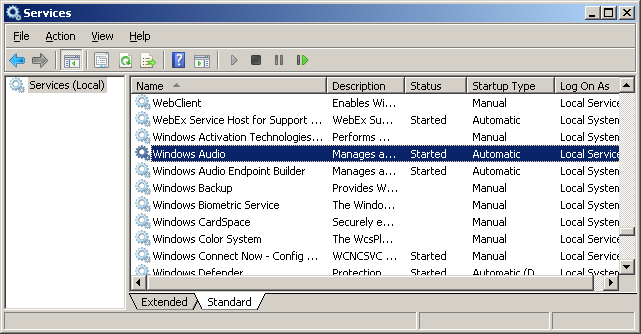
To open Services, at the Run prompt, type Services.msc and press Enter.
-
Make sure the Windows Audio service is Started.
-
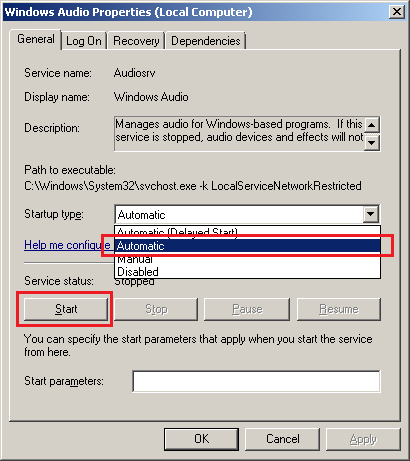
If the Windows Audio service is not running, change the Startup type option to Automatic and start the service.
-
STEP 2: Enable audio and configure audio playback quality in the remote session via Group Policy.
-
Open the Run prompt, type mmc, and press Enter.
-
Add the Group Policy Object Editor snap-in.
-
Go to the Local Computer Policy > Computer Configuration > Administrative Templates > Windows Components > Remote Desktop Services > Remote Desktop Session Host.
-
Enable the Allow Audio and Video Playback Redirection settings in the Device and Resource redirection.
-
Enable the Limit audio playback quality setting as required. The Playback Quality should be configured according to the HyWorks Controller Connection Profile.
-
Restart the virtual machine.
For details on the Audio configuration, refer to the Microsoft KB articles:
Enabling the Microphone (Audio Recording Devices) in a Remote session
-
Open the Run prompt, type mmc, and press Enter.
-
Add the Group Policy Object Editor snap-in.
-
Go to Local Computer Policy > Computer Configuration > Administrative Templates > Windows Components > Remote Desktop Services > Remote Desktop Session Host.
-
Enable the Allow audio recording redirection setting under Device and Resource redirection.
-
Restart the virtual machine.