Session Server Management
To deliver applications or shared hosted desktops to end-users, add session host servers (Linux/Windows) to HyWorks and publish the appropriate applications or shared hosted desktops for end-users. Section VDI > Session Servers > Servers lists all session host servers configured in HyWorks and provides management options.
Session Host Server Categorization
Session host servers can be kept in the following two categories in HyWorks:
-
Managed Session Host Servers: Session host servers, which are deployed via desktop pools in HyWorks, are kept in managed session host categories. HyWorks offers multiple configurations for deployed session servers based on pool configurations.
-
Unmanaged Session Host Servers: Session host servers that are added manually are kept in the Unmanaged category. Configurations must be performed for these servers when adding or updating them in HyWorks.
Preparing Servers for Application and Shared Hosted Desktop Delivery
-
Windows Session Host Server Preparation:
-
Install supported Windows server as a virtual machine or on physical hardware
-
Configure the machine into a domain or workgroup as per your requirement.
-
Install HyWorks Session Host module .
-
-
Linux Session Host Server Preparation:
-
Install supported Linux flavors as a virtual machine or on physical hardware.
-
Install the latest Assistive packages and Linux DVM Tools
-
Configure the machine for LDAP, Microsoft Active Directory, or Workgroup authentication.
-
Linux shared session host server is ready for application and shared hosted desktop delivery
Note
Refer to the relevant installation and configuration guide for Linux and Windows servers for detailed information.
Adding Shared Session Host
Shared session host category refers to Microsoft Windows servers running Accops HyWorks Session Host or Linux with Accops online assistive package and DVM tools module.
Pre-requisites
-
Windows Server: Supported platform OR Linux Server: Supported platform is up and running
-
Accops HyWorks Session Host Server (Session Host Agent and Monitoring Service are running)
-
Appropriate ports are configured to enable communication between the session host and the controller servers.
Add Shared Session Host
Follow the steps below to add a Microsoft Windows or Linux server as a shared session host:
-
Go to VDI > Session Servers > Servers.
-
Click Add
-
General Configurations:
-
Select Type as
-
Microsoft RDS Server for Windows Session Host Servers
-
Linux RDS Server for Linux shared hosted desktops.
-
-
Provide your name in the Name field.
-
In Host Address, provide the host address or IP address
Important
-
If providing a host address, ensure it is resolved correctly from both the Controller and the client, as the same host address will be used to connect to the session server from the client.
-
Controller uses the configured address for providing connection details to endpoints, and thus, if the hostname is configured, it must be resolvable from the endpoints as well.
-
With HySecure being used, appropriate host entries should also be made on the HySecure Host Configurations
-
Avoid using localhost as the hostname, as it will not get resolved while accessing Apps/Desktops.
-
-
RDP Port: Session host server port on which it will accept the remote connection. The default value is 3389, but it can be modified according to server configurations.
Note
RDP Port configuration is not available in older v.3.0 release, and thus HyWorks Session Host Servers can only communicate on default RDP Port (3389)
-
Session Team Select the session team for the session host server. Refer to section Session Host Server Teaming and Load Balancing.
-
Linux Session teams should be chosen for Linux shared session hosts, and Windows session teams should be chosen for Windows shared session hosts
-
By default, a Linux and a Windows session team exists in the system, which cannot be deleted.
-
-
-
Based on team selection, the following things will happen.
-
Weight: Weight is required for Weighted Least Connection or Weighted Round Robin load balancing. If the selected team uses either of these load balancing types, the Weight field will be enabled. In contrast, if the team uses Adaptive load balancing, the Weight field will not be enabled.
-
Session Host Services' Status Check: On Selection of the team, the controller attempts to connect to the Session Host and Monitoring service
Important
-
The administrator can add session host servers even if there is an error with the Session Host Service, Monitoring Service, or both. However, Application or Shared Hosted Desktops will not be delivered until these services are running.
-
The administrator will be able to add session host servers even when it's showing error for Session Host Service or Monitoring Service or Both, but Application or Shared Hosted Desktops will not be delivered until these services are running.
- Max Session: Specify the maximum number of sessions allowed on the server. HyWorks will stop providing sessions from this session host once it reaches the maximum number of sessions.
-
-
Select Active to make the session provider active. Inactive session providers are not considered while providing sessions.
-
Do not select other options, i.e., Enabled Diagnostics, until it is required and recommended by the Accops team. Refer to Advance Shared Session Host Configurations.
- Enable Remote Control: Select this option if session shadow is to be used to support end-users' sessions. If enabled, a remote control icon will appear in the VDI Sessions/App Sessions screen for every shared hosted desktop or application session.
-
Assign Applications: Select this option to obtain a list of published applications and associate this session host with them. HyWorks will consider this server for delivering those applications.
-
Once all required options are configured, click the Test Connection button to verify the session host server's availability on the configured RDP port.
-
The session host server has started. Once the connection is successful, a success message will be displayed, and clicking the Add button will add the session host server.
The administrator will be able to see the configured session host server in the Session Providers screen with the appropriate status.
Deploying Shared Session Host (Managed Session Host Server)
HyWorks has a facility to provision a Session Host Server. This is automatic deployment of Servers, which has the same configuration for all Servers. The server team and associated servers are managed (Add/Delete) by the HyWorks Controller.
Preparation of Source VM(Session Host Server)
-
Install a supported Windows/Linux server as a virtual machine.
-
Install all prerequisites for the session host agent installation.
-
Install HyWorks session host module: Windows/Linux. Source VM is ready for provisioning.
For Session Host Server provisioning, check Session Host Pool Deployment.
Advance Shared Session Host Configurations
Though not tagged as advanced configurations, the following Shared Session Host-specific configurations can be kept in the advanced category. These options are available for Microsoft RDS Server type shared session hosts.
-
Enable Remote Control (Windows Only): Select this option if session shadowing is to be used for user desktop or application sessions from this server. After enabling this option, the administrator will be able to take a session shadow of the user's application and shared desktop sessions.
-
Enable Diagnostics: An advanced configuration for enabling advanced diagnostics of the session host server. Once enabled, the session host server starts logging memory, CPU, HDD utilization, and latency in logs.
Once configured successfully, the added session host server can be used to deliver shared virtual desktops or applications to end users.
Deleting a Shared Session Host Server
-
Select the session provider to be deleted and click on the Delete button.
-
A Confirm Action dialog will be displayed, stating all the consequences of deleting the session provider.
-
Confirm the operation by clicking on the Delete button on the confirmation dialog.
The session provider will be deleted from the HyWorks configuration, resulting in the following impact.
Impact of Deleting the Session Host Server
When a shared session host is deleted from the HyWorks Controller:
-
The provider will be removed from all HyWorks configurations.
-
Session providers: Management of deleted providers will not be possible.
-
Session teams: The deleted server will no longer be part of session teams, and hence it will not participate in session load balancing.
-
Applications/Shared hosted desktop pools: Application sessions from the server will not be given from a deleted server.
-
Update Shared Session Host Configurations
Editable Fields and Impact of Changes
While modifying shared session host configurations, the following configurations can be changed:
For Unmanaged or Manually Added Session Host Servers
-
Name: Name changes will not affect any services. It is not critical to any delivery aspects.
-
Host Address: A Critical field should be updated only when the same server has been migrated to a different IP or host address. Using this information, only the HyWorks Controller fetches the information about Desktops and assignments, etc.
If the same server is not available on the same host address, the existing configuration may become corrupted. The administrator should be Be very cautious when updating the host address field.
-
RDP Port: A Critical field, the controller will check the session host server reachability on this port. Modify only when it has been changed on the session host server configurations as well.
-
Active: Critical. The configuration of each Session Provider type specifies that not selecting the Active checkbox will mark the Session Provider as inactive and ignore it during client Desktop information fetching.
-
Administrators should exercise caution when marking any Session Provider as inactive, as this will cause all associated clients to stop receiving Desktops.
-
With adaptive/ least connection load balancing, adding a new session host server can put immediate load on the newly activated server. It should therefore be considered carefully based on load analysis.
-
-
Changing Session Teams: Critical. Changing the session server team should be done very carefully, as it can affect the load balancing of sessions and delivery to end-users. Depending on the new session server team, the Weight configuration can be changed or specified.
-
Weight: The Critical Weight of a session host server directly affects the number of sessions to the server. Consider adjusting the weight according to the server’s capacity.
-
Other configurations:
-
Enable Remote Control: Check or uncheck to enable/disable. Not critical
-
Enable Diagnostics: Although not critical, it should be enabled as advised by the Accops team's recommendations.
-
-
Max Session: Critical, HyWorks will stop giving sessions from the server if it has reached the Max Session count. A server can become exhausted if the Max session count is very high, and the controller continues to allocate sessions from it.
-
Assign Application: A Checkbox can be used to update the application association with the session host server.
For Managed or Dynamically Deployed Session Host Servers
- Active: For managed session host servers, only the Active field will be modifiable, as all other attributes are configured from the Desktop Pool wizard or the Session Teams page.
Editing Session Host Server
Once changes are identified, the administrator can update the configured session host server details using the following steps:
-
Select the session provider to be modified.
-
Click on the Edit button.
-
The Edit Session Provider dialog will be displayed.
-
Update the fields as required and click on the Update button.
-
Changes will be saved, and users’ sessions will be given from the new session host servers.
Special Case: Marking Session Host Server Inactive
In deployments, maintenance activities may be required on one or more session host servers within a team. Consequently, administrators need to ensure that these servers are not used for providing applications or shared hosted desktops to end-users.
Changing Session host server mode to inactive serves this purpose, and once the session host server is marked inactive, the following activities will be stopped:
-
Health check of session host server reachability, which involves
-
Check connections on the RDP port
-
Session host agent service
-
System resource (Hard disk, Memory, and CPU usage), HyWorks monitoring service
-
-
No new sessions will be given to inactive servers so that maintenance activities can be done
-
Existing sessions will still be managed, but upon re-login, an attempt to reconnect will only give sessions from Active servers.
Shared Session Host Status Monitoring
For the smooth delivery of applications and shared hosted desktops, session host servers must be up and running. For any specific analysis, and the troubleshooting details are provided below:
-
Monitoring Server Health: HyWorks Controller retrieves CPU, RAM, and hard disk utilization information from all configured shared session hosts and displays it at the following location:
-
Navigate to Server > Session Teams. Click on the respective session team > details of all servers will be shown.
-
Dashboard > A summary of all added session host servers will be displayed, highlighting the difference between Okay and Not Okay session host servers.
-
Session Host Server Reachability: HyWorks controller periodically checks session host server reachability from the following perspective:
-
Configured RDP port: An unreachable RDP port indicates the server is unusable, and HyWorks will not initiate sessions from that server. The status will be reflected as red color in VDI > Session Servers > Servers section.
-
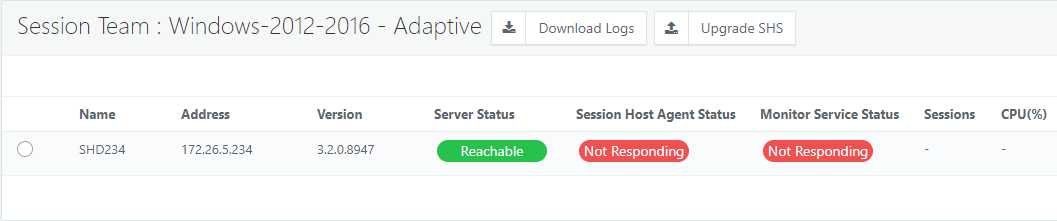
Session Host Server Agent: The session host server agent is a responsible module for mediating all sessions. Unreachability of it is reflected in the Server Session Teams page.
-
HyWorks monitoring service: This service is crucial for sharing system resource values, and any communication failure will impact load balancing. Status can be checked on the dashboard and VDI > Session Servers > Server Teams page.
Advanced Configurations
- Enhanced Shell Tracking for Applications in Shell Mode
- Configuration to Run Application with Specific User Credentials
- Direct RDP/Console Block
- External log Settings
- Allow calls from authorized controller(s) only
- Session change event scripts support
- Pre-Post Scripts for AppLauncher (Linux Only)
- How to configure HyShell
- Pre-Post Scripts for HyShell
Sections to check for troubleshooting
When application or shared-hosted desktop deliveries are functioning normally, monitoring is not needed. Still, in any case, if users are facing issues in connecting to any provider, then the following sections can be checked for server status:
-
VDI > Session Servers > Servers.
-
VDI > Session Servers > Server Teams.
-
Logs > Appropriate warning or error logs are generated when the accessed session host is facing any problems or the controller is facing issues in connecting to the respective session host server.
-
VDI > Desktops > Shared
-
Dashboard for the high-level status of all added session servers.
Advance Configuration
Refer to the section - Advance Configuration For Desktop Provider for provider-related settings.