Restore HyWorks Controller
The entire HyWorks deployment can be restored from a database backup. This section describes the different restore scenarios and methods in detail.
Restoring the same HyWorks Controller version
To restore the HyWorks Controller using a backed-up database from the same Controller version, follow these steps:
Placing a backup file on the HyWorks Controller
After the backup completes successfully, the administrator must place the backup file in the correct format (.bak) in the correct location on the controller to ensure a successful restore.
Backup file format
By default, HyWorks Controller stores the backup file in zip format at the following location:
C:\Windows\TEMP\DB\BACKUP\
To restore a backup, the file must be extracted first. On extraction, the following type of file is available for restoration:
- For an SQL Server database, the extracted file has a .bak extension.
Appropriate directory for restore
The location to restore backup files from depends on how the HyWorks Controller database is configured:
- For HyWorks Controller with an SQL Server database, SQL Server must have write access to the directory that contains the backup file. This can be achieved in one of two ways:
- Copy the backup file to the SQL Server backup directory. The default backup directory does not have the required permissions. Either configure the correct permissions for SQL Server, or move the file to the SQL Server installation's Backup folder. This folder works reliably for restoring the HyWorks Controller with SQL Server, and is the preferred location.
- Configure permissions on the backup file directory: Refer to the Troubleshooting section for the steps.
Restore HyWorks Controller
Important
-
In production environments, perform the restore operation with extra care.
-
Modifying the encrypted SQL Server connection details in the HyWorks Controller Service config file requires the Encrypt-Decrypt tool.
- For security reasons, this tool is not available on public links. Contact the Support Team to get it.
-
The restored HyWorks Controller and the source server (from which the backup was taken) should not run on the same network. Running both can cause session host servers and other modules to receive conflicting HyWorks Controller configurations and communications.
Prerequisites:
-
An appropriate backup file in the specified file format is available for restoration. Refer to the section Backup file format.
-
The backup file is available in the appropriate directory. Preferably, keep the backup file in the SQL Server backup folder itself if SQL Server is installed locally on the same Windows server.
- Default location of the SQL Server backup:
C:\Program Files\Microsoft SQL Server\MSSQL14.SQLEXPRESS\MSSQL\Backup
Restore process using the Controller Setup wizard
Installing a new controller with a backed-up database
Steps to configure a new controller by restoring the backup database:
-
Access the Windows server that will be configured as the HyWorks Controller, ensuring it meets the following prerequisites:
-
All prerequisites for HyWorks Controller, such as .NET 4.5, ASP.NET 4.5, SSCE runtime, SQL Server, and Web Server (IIS roles), are configured.
-
The server does not already have HyWorks Controller installed, since the new Controller must be created from an existing database backup.
-
-
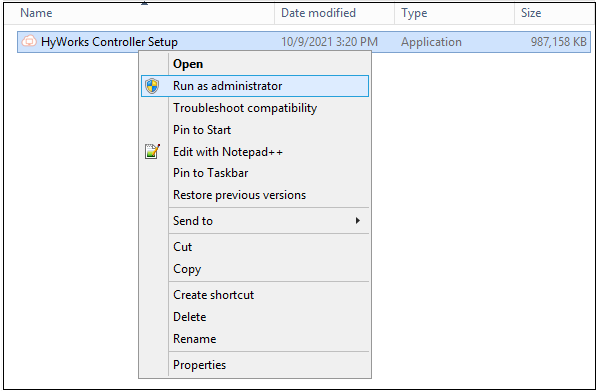
Run the HyWorks Installer with administrative rights on the server where HyWorks Controller is not yet installed.
-
The Setup wizard launches in fresh installation mode and displays the Welcome screen.
-
Follow the on-screen instructions until the Service Database Configuration screen appears.
-
On the Database Selection screen, select Microsoft SQL Server as the database type if the backup file is from a SQL Server-based Controller. Provide the required information, including Database Address, Port Number, Database Name, and Authentication details, then click Next.
-
Select the appropriate log server on the Log Database Configuration screen, then click Next.
-
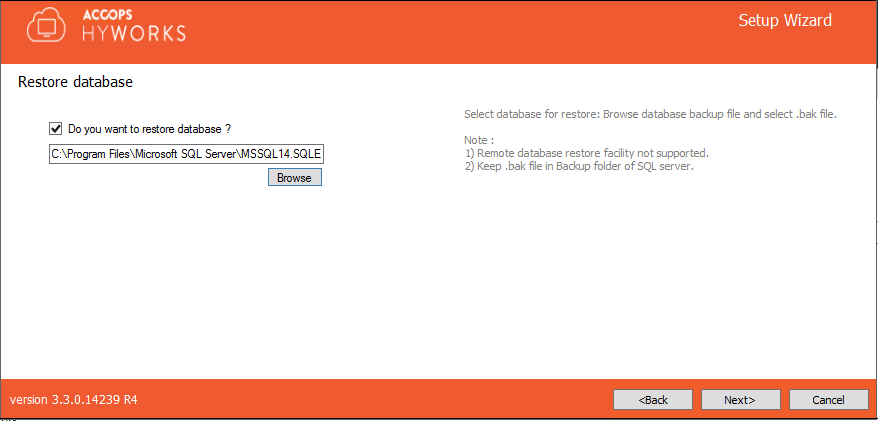
On the Restore Database screen:
-
Select the Do you want to restore the database? checkbox.
-
Click Browse.
-
Browse to the location of the backup file (.bak for an SQL Server database).
-
Select the backup file and click Next.
-
-
Follow the remaining on-screen instructions, then click Install to start the installation.
-
Wait for the installation to complete.
-
Once installation is complete, the new HyWorks Controller is up and running with the configuration from the backup.
-
Verify the configuration from the HyWorks Controller Management Console.
Repair the existing HyWorks Controller and restore the backup
-
Access the Windows server to configure as a HyWorks Controller, ensuring it meets the following prerequisites:
-
All prerequisites for HyWorks Controller, such as .NET 4.5, ASP.NET 4.5, SSCE runtime, SQL Server, and Web Server (IIS roles), are configured.
-
The server already has HyWorks Controller installed, and it needs to be repaired to restore its configuration.
-
-
Run the HyWorks Installer with administrative rights on the server where HyWorks Controller is already installed.
-
The Setup wizard launches in Maintenance mode, showing the Repair and Uninstall options. Select Repair, then click Next.
-
The Repair option in Maintenance mode shows different configuration screens, since most settings were already configured during the original installation. After selecting Repair, the Administrator sees the following screens:
-
Components Selection
-
Service Logon credentials
-
-
On the Restore Database screen:
-
Select the Do you want to restore the database? checkbox.
-
Click Browse.
-
Browse to the location where the backup file (.bak for SQL Server databases) is stored.
-
Select the backup file and click Next.
-
-
Continue through the Setup wizard, providing the required details on each screen, until the Confirm screen appears. Click Repair to start the repair operation using the selected option and the provided backup file.
-
Once the repair operation completes, the existing HyWorks Controller is repaired and its database is restored from the backup file.
-
Verify the configuration from the HyWorks Controller Management Console.
Configurations not supported or not recommended for restore
The following HyWorks Controller configuration types cannot be restored from a backup file. Do not attempt to restore these production configurations.
-
HyWorks Controller configured to use an SQL Server database on a remote machine: The backup itself fails with an error. Even if a backup file happens to be available, do not attempt to restore it.
-
HyWorks Controllers in a two-node cluster configuration: A backup can be taken successfully, but restoring the primary or secondary HyWorks Controller in a cluster configuration is not recommended.
- Recommendation: Prepare a fresh HyWorks Controller of the same version and add it to the cluster. It automatically syncs the database from the primary HyWorks Controller, so no restore is needed.
-
Multi-node setups: Restoring a backup of a multi-node setup brings back all node entries in the cluster configuration, which results in a restored but corrupted cluster. To avoid this, do not restore backups in multi-node setups. Instead, use the following recommendations:
-
Session nodes: Session nodes do not store any node-specific data, so they never need to be restored. Remove the older nodes and install new ones, pointing them to the management nodes.
-
Management nodes, secondary:
- In an SQL-managed database high-availability setup, the secondary management node does not need to be restored. Instead, install a new management node that points to the existing database.
- In a HyWorks-managed database high-availability setup, freshly install the secondary management node and add it to the existing cluster; it joins the cluster as the secondary node.
-
Management nodes, primary:
- In an SQL-managed database high-availability setup, promote the current secondary to primary and remove the old primary management node from the cluster. The new primary does not need to be restored; instead, install a new management node and point it to the existing database.
- In a HyWorks-managed database high-availability setup, promote the current secondary to primary and remove the old primary management node from the cluster. Freshly install a new secondary management node and add it to the existing cluster.
-
Restore using SQL Server Management Studio
As noted in the Troubleshooting and Important sections, restoring HyWorks Controller using the Controller Setup wizard can cause some configuration issues:
- A new controller, identical to the current one, is prepared. Other modules in production may then start communicating with both HyWorks Controllers, which can cause issues.
- The new controller, created from the backed-up database, retains an entry for the old controller (the one the backup was taken from). This entry must be cleared after the new controller is fully installed.
- This method cannot be used for setups where SQL Server runs on a different Windows server than HyWorks Controller.
Restoring the HyWorks Controller backup using SQL Server Management Studio (SSMS) helps overcome these challenges.
Benefits:
- Only the database is restored at first, so no second live HyWorks Controller is created.
- The administrator can clean up the database and remove residual entries from the source controller.
- This method works even when SQL Server runs on a different server than HyWorks Controller.
Prerequisites:
- The backup file from the source controller is available in the appropriate directory.
-
Preferably, keep the backup file in the SQL Server backup folder itself.
- Default location of the SQL Server backup folder:
C:\Program Files\Microsoft SQL Server\MSSQL14.SQLEXPRESS\MSSQL\Backup
Part 1: Restoring the database
- Ensure the backup file is placed in the SQL Server backup location.
- Launch SQL Server Management Studio.
- Connect to the SQL Server instance where the backup will be restored.
- In Object Explorer, right-click Databases.
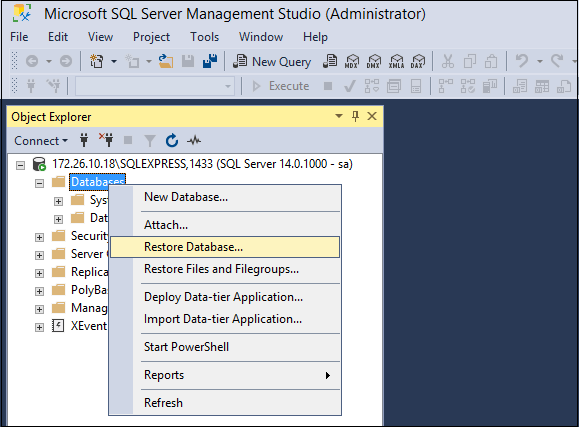
- Select Restore Database...
-
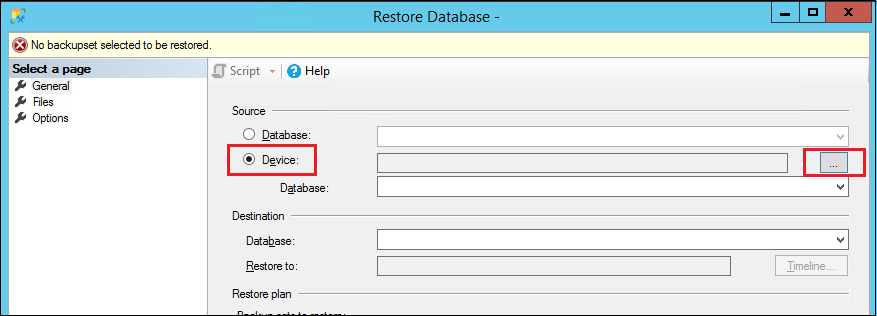
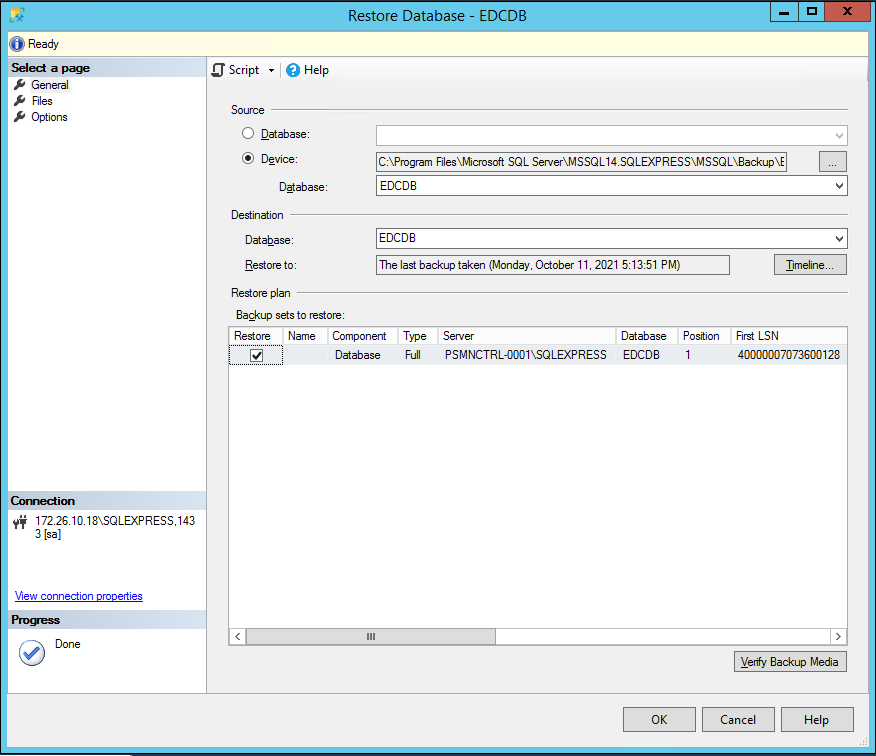
In the Restore Database window:
- Select the Device option.
- Click Browse to select the backup file.
-
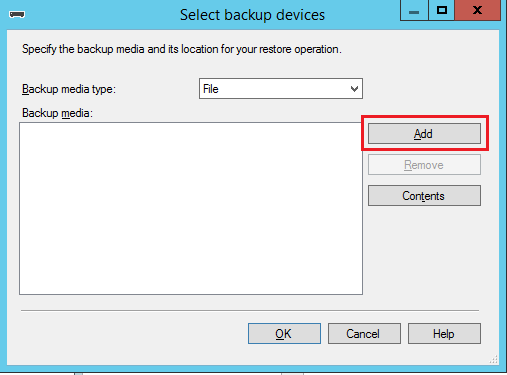
This opens a window for adding a backup file. Click Add.
-
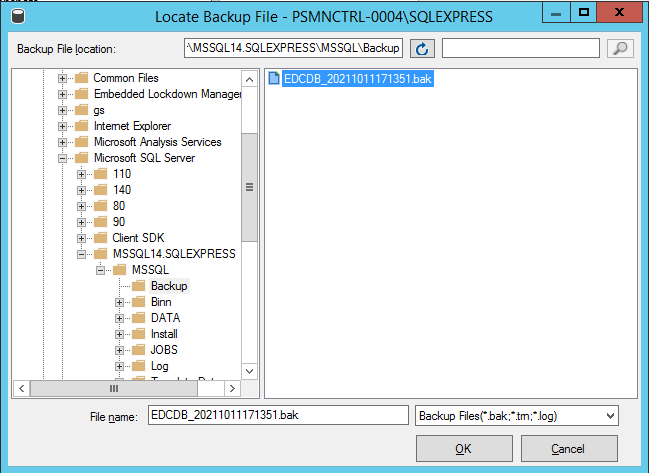
This opens the default SQL Server backup location and lists the backup file copied in step 1.
-
Select the file and click OK. The selected file now appears in the Select backup devices window.
- Click OK to proceed.
- Navigate back to the Restore Database window, which now displays all selected options.
- Click OK to start the restore.
-
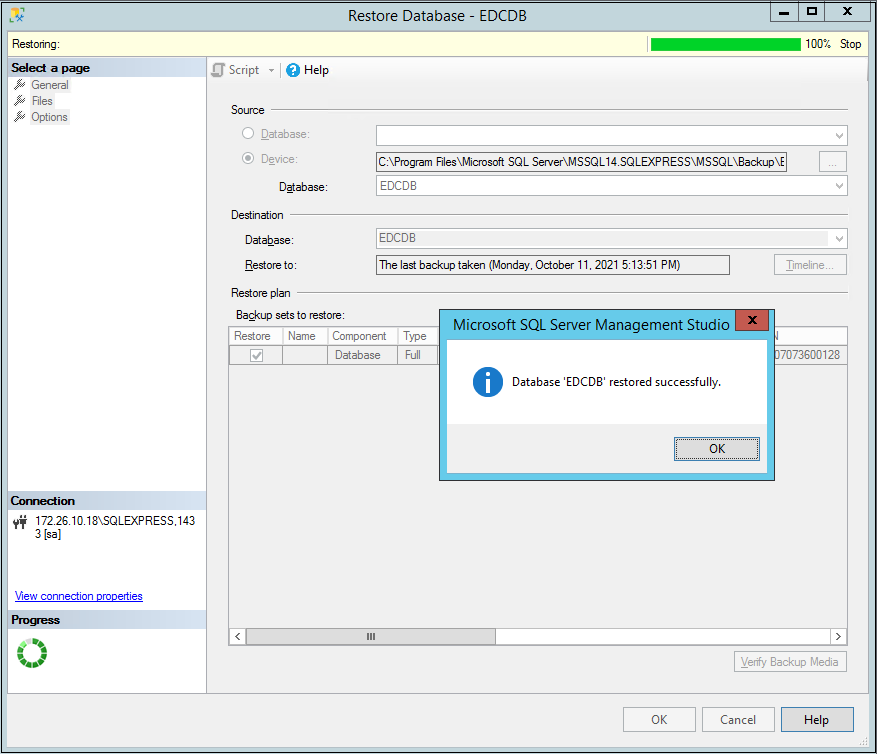
A progress bar appears in the Restore Database window. Once the restore completes, a confirmation message is displayed.
Part 2: Installing the controller with the restored database
-
Copy the HyWorks Controller setup files to a Windows server that has all prerequisites installed and configured.
-
Continue the installation until the Service Database Configuration screen appears.
-
On the Service Database Configuration screen, provide the following details:
-
The SQL Server details used to restore the database.
-
The database name that matches the one restored.
-
Credentials for the SQL Server (the source and destination SQL Server configurations should be identical to avoid failures).
-
-
Click Next.
-
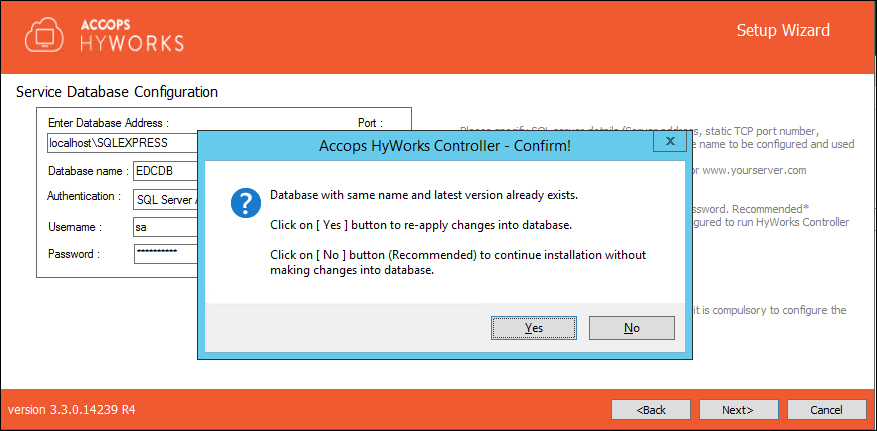
A warning appears, indicating that a database with the same name already exists, and asking whether to use it.
-
Click Yes to proceed with the installation.
-
-
Configure the log database as recommended.
-
Since the controller is being installed with an existing database, do not select the restore database option on the Restore the Database screen.
-
Complete the remaining installation settings as per the deployment requirements and recommendations.
-
Finish the setup. The Controller is now installed with the restored database.
Restoring a higher version of the database with an older setup
Prerequisites:
- HyWorks Encrypt-Decrypt Tool: Used to decrypt the encrypted database connection details in service configuration files. For security reasons, this tool is not available on public links. Contact the Support Team to get it.
Consider a scenario where HyWorks hotfixes are applied to a setup that also includes database changes. The database backup taken from this setup includes all the latest changes, so it can be considered a higher version than an older, hotfix-free installer.
If only the older installer (without the hotfix) is available, using it to set up a new controller may fail because of the more recent database changes.
The following steps can be followed in such cases to restore the database:
-
Restore the database on the target server using SQL Server Management Studio, following the steps in this section.
-
Use the Controller's old installer (without hotfixes) to install, but specify a different database name than the one restored in step 1.
-
Install the latest hotfixes on this setup. At this point, there are two databases: the new database used by the freshly installed Controller (with hotfixes), and the original backed-up database, both available on the same SQL Server.
-
Download and extract the latest Encrypt-Decrypt tool on the HyWorks Controller server (see the Prerequisites section above to get the tool from Accops Support).
-
Run the Encrypt-Decrypt tool with administrator privileges:
-
Select Controller as the mode.
-
Browse to the HyWorks Controller installation directory.
-
Locate and select Edc.Service.exe in the Service folder.
-
Click Decrypt Config to open the configuration file in decrypted mode.
-
Edit the file to point it to the restored database.
-
Save and close the file.
-
Click Encrypt Config to re-encrypt the file.
-
Save and close the file.
-
-
Restart the HyWorks Controller service to apply the changes.
Important
Important
-
License configurations come from the database, but license keys must be applied separately.
-
When a backup from a multi-node setup is restored on a new node, the configuration of the other nodes must be updated to point to the restored database.
-
See the Troubleshooting and Configurations not supported or not recommended for restore sections for more details.
Troubleshooting
Duplicate controller entry after restore
A secondary controller entry is automatically added when HyWorks Controller is installed from a backup database on SQL Server.
To remove the secondary controller entry:
-
Log in to the HyWorks Management Console.
-
Navigate to Server > HyWorks Controller.
-
Confirm that the duplicate entries belong to the same server.
-
Click Delete next to an entry to remove it.
Manually configure permission for SQL Server on default backup directory
This one-time configuration makes backing up and restoring to the default directory more convenient and avoids permission issues on the server.
The goal is to give the MSSQLSERVER account full control over the default backup directory:
C:\Windows\TEMP\DB\BACKUP\
Follow the steps below to configure permissions on this backup folder:
-
Log in to the server (the change must be made on the actual server, not through a network share).
-
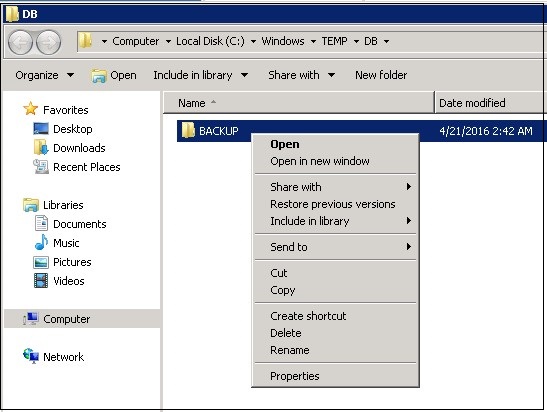
Select the backup folder highlighted below, then right-click it and select Properties.
-
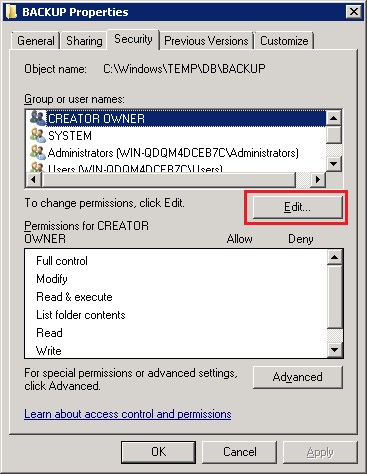
In the Properties window, go to the Security tab and click Edit.
-
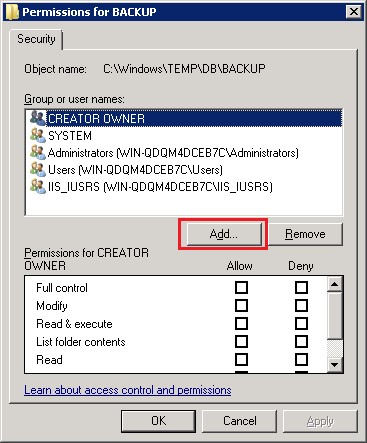
In the Security window, click Add.
-
In the Add User window:
-
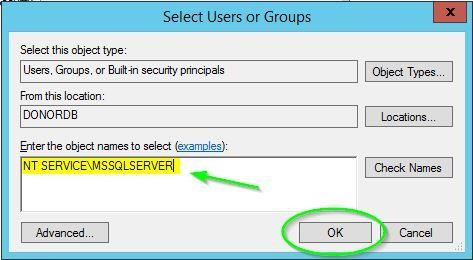
Set Locations to the local server name.
-
Type
NT SERVICE\MSSQLSERVERin the name box. Do not click Check Names. -
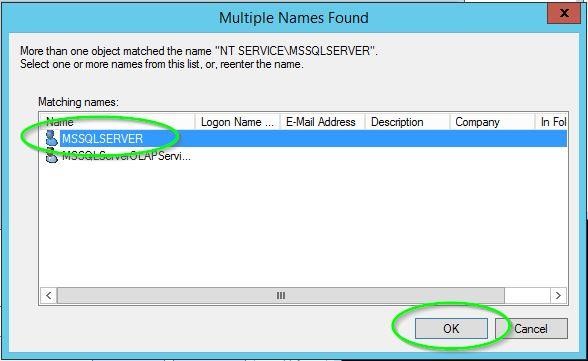
Click OK. A list of matching service accounts appears. Select MSSQLSERVER, and click OK to confirm.
-
The service account now appears in the security settings, where its permissions can be adjusted as needed.