Syslog Config
HyWorks Controller servers can be configured to send logs to an external syslog server.
These configurations are important if the logs must be archived longer.
Configure Syslog Server for Archiving
Prerequisites / Important Considerations:
-
The external Syslog server must be installed, running, and accessible from the HyWorks Controller Server.
-
The External Syslog server must be configured in UDP mode.
-
The Syslog Configurations must be configured on all nodes separately, and the identity must be kept distinct for easy identification of each node.
HyWorks Controller Management Nodes
Configuration Steps: To configure the Syslog server in HyWorks Controller Management nodes, follow the steps below:
Important
-
These configurations must be performed on both the management nodes.
-
For broker nodes, configurations must be done manually. Details are provided in a later section of the document.
-
Log in to the HyWorks Controller Management Console.
-
Navigate to Settings > System > Syslog Config.
-
Identity: Specify the Server name.
-
Remote Address: Specify the Syslog server IP or Hostname.
-
Remote Port: Specify the port on which the syslog server is configured to receive logs.
-
Enable Syslog: Select to send logs to the configured Syslog server.
-
Click Update.
The Syslog server configuration is now complete, and the HyWorks Controller can send logs to the configured Syslog server.
Note
The Accops Reporting Server (ARS) is configured as the Syslog server, which uses the HyWorks logs to generate reports and graphs to be used by the administrators.
HyWorks Controller Broker Nodes or Manual Configurations
HyWorks Controller, Broker, or Session nodes do not get the configurations from the management nodes. The following steps must be performed to configure ARS/Syslog server for log forwarding. The steps are applicable for adding multiple syslog servers or for configuring a syslog server on Management nodes as well.
-
Go to the HyWorks Controller installation directory. Default path:
C:\Program Files (x86)\Accops\HyWorks\Service\. -
Open and Edit log4net.config:
- Add the following
<appender>section above the<root>section. When adding this section, make sure to modify the Appender Name, Identity Value (as per the node hostname), and remote address to the resolvable ARS/Syslog server address.
- Add the following
<appender name="CustomAppndrName" type="log4net.Appender.RemoteSyslogAppender">
<threshold value="Info" />
<identity value="Hostname" />
<layout type="log4net.Layout.PatternLayout">
<conversionPattern value="%date _%property{USERNAME} _%property{ORGNAME}  _%level _%message _%exception _%logger
_%property{CorelationIdL1} _%property{CorelationIdL2} _%property{CorelationIdL3}" />
    <!--   <conversionPattern value="%date %level %property{USERNAME} %property{ORGNAME} %message %exception %property{ORG_ID}
 %logger" /> -->
</layout>
<remoteAddress value="192.168.100" />
<!--default port 514-->
<remotePort value="514" />
<encoding value="utf-8" />
</appender>
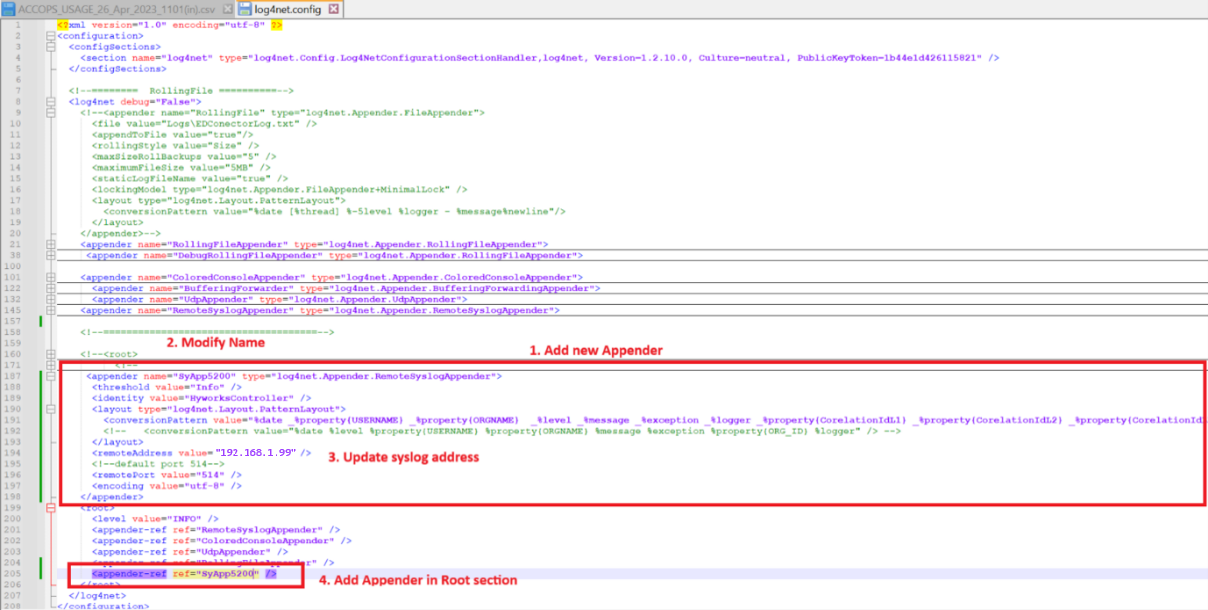
-
If the deployment requires log forwarding to multiple ARS/Syslog servers, multiple appenders can be added using the steps above.
-
Repeat the configurations for all broker nodes; you can do this on management nodes as well if multiple appenders are needed.
Logs Sent to Syslog
HyWorks Controller sends the following logs to the Syslog server:
-
All logs of that HyWorks Controller node. Eventually, all logs for the specific node are sent to the configured syslog server.
-
Generating additional logs and sending to ARS: Administrator can enable additional logs from
HyWorks Controller Management Console > Settings > General > Advance Settings-
Controller session monitoring: Set to True to send the additional logs mentioned below to ARS.
-
Controller session monitoring interval: The frequency at which the Controller sends additional logs to ARS or Syslog.
-
-
Additional sent to ARS:
-
System Usage log: Here is an example of System Usage Logs:
Total license : 2000, Used license : 2, Total logged in users : 2 , Logged in active users : 0 , Logged in idle users : 2 , Logged in disconnected users : 0 , Total application sessions : 0, Application connected sessions : 0, Application disconnected sessions : 0, Total shared desktop sessions : 1, Shared desktop connected sessions : 0,Shared desktop disconnected sessions : 1, Total dedicated desktop sessions : 1 , Total Power On Ready Desktop : 4, Desktop VMs Count : 14, License Type : Eval, Days To Expire : 2608, Expiry Date : 26-08-2033, Entitlement Type : Concurrent_Session, License Status : Activated, Activation Date : 22-03-2026, Grace Days 0. -
Team Session Logs:
[Team Session#] Team Name 'Windows Default', Total SHD Count '0', Desktop Session Count '0', Application Session count '0'. -
Provider Session Logs:
[Provider Session#] 'Provider Name - srvtest-0001,Application Session# - 0,Desktop Session# - 0,Session Limit# - 25,CPU Utilization# - 0,RAM Utilization# - 0,HDisk Utilization# - 0'. -
Controller Information:
[HWCTINFO#]RDIDPN:29293,HWCTIP:192.168.1.1,HWCTNAME:TestCTRL11,HWCTMODE:Primary,HWCTR:Reachable,HWCTRNT:Unknown. Field meaningField Meaning Tag: [Syslog][HWCTINFO#]: Hyworks Controller
HWCTIP: Hyworks Controller IP
HWCTNAME: Hyworks Controller Name
HWCTMODE: Hyworks Controller Mode
HWCTR: Hyworks Controller Reachability
HWCTRNT: Hyworks Controller Node Type -
Connector/Provider:
[DedCTINFO#]RDIDPN:29293,CT:AWS,CN:AWS Connector,CNIP:aws.amazon.com,VMCT:8,ISCR:TrueField Meaning Tag: [Syslog][DedCTINFO#]
Dedicated Connector/Session Provider
CT: Connector Type
CN: Connector Name
CNIP: Connector IP
VMCT: DVM Count
ISCR: Is Connector reachable (True/False) -
SHD Servers:
[Syslog][SHDSRINFO#]RDIDPN:29293,TOTSHD:2,RSHD:(''),NRSHD:('AD12-0001, noosSHD-0001'),RSHDCOUNT:0,NRSHDCOUNT:2Field Meaning Tag: [Syslog][SHDSRINFO#]: SHD Server
TOTSHD: Total SHD Servers
RSHD: Running SHD Servers (comma separated list of running SHD Server names)
NRSHD: Not-Running SHD Servers (comma separated list of not running SHD Server names)
RSHDCOUNT: Running SHD Servers Count
NRSHDCOUNT: Not-Running SHD Servers Count -
Authentication Server:
[Syslog][ASRINFO#]RDIDPN:29293,ASN:Built-In Directory,ASIP:Built-In Directory,ISASR:Reachable,ISASA:TrueField Meaning Tag: [Syslog][ASRINFO#]: Authentication Server
ASN: Authentication Server name
ASIP: Authentication Server IP
ISASR: Is Authentication Server Reachable
ISASA: Is Authentication Server Active(True/False) -
Single-session Pool VM Details:
[Syslog][DedPlVMDtl#]RDIDPN:24041,PN:PS-XRDP-Proxmox,PTp:1,Psb:3,PRd:1,CRT:3,PWD1:0,VRd:0,VBs:0,VFld:0,ANR:3,VPrp:0.Field Meaning Tag: [Syslog][DedPlVMDtl#]
PN: Pool Name
PTp: Pool Type, 2: SharedDesktopByTeam, 1: DedicatedDesktop
PSB: Max Possible Count
PRd: Pool Ready
CRT: Created VMs
PWD1: Powered on VMs
VRd: VM Ready. (VM is powered on, IP address is there, Agent is responding, Sysprep/disk encryption/Snapshot is done if required)
VBs: VM Busy
VFld => VM Failed
ANR: Agent Not Ready
VPrp: VM Preparing -
Unmanaged or Un-provisioned Single-session Desktop Pools:
[Syslog][UMDedPlVMDtl#]RDIDPN:24041,PN:Console,PTp:1,Psb:1,PRd:1,CRT:1,PWD1:0,VRd:0,VBs:1,VFld:0,ANR:1,VPrp:0Field Meaning Tag: [Syslog][UMDedPlVMDtl#]
PN: Pool Name
PTp: Pool Type, 2: SharedDesktopByTeam, 1: DedicatedDesktop
PSB: Max Possible Count
PRd: Pool Ready
CRT: Created VMs
PWD1: Powered on VMs
VRd: VM Ready. (VM is powered on, IP address is there, Agent is responding, Sysprep/disk encryption/Snapshot is done if required)
VBs: VM Busy
VFld: VM Failed
ANR: Agent Not Ready
VPrp: VM Preparing -
Shared hosted Desktop Pool VM Details:
[Syslog][SHDPlVMDtl#]RDIDPN:24041,PN:New-RHEL-SSO,PTp:2,Psb:1,PRd:1,CRT:1,PWD1:1,VRd:1,VBs:0,VFld:0,ANR:0,VPrp:0,VCrd:0,TSS:0, MSS:0,MxSS:0,LBT:2.Field Meaning Tag: [Syslog][SHDPlVMDtl#]
PN: Pool Name
PTp: Pool Type, 2: SharedDesktopByTeam, 1: DedicatedDesktop
PSB: Max Possible Count
PRd: Pool Ready
CRT: Created VMs
PWD1: Powered on VMs
VRd: VM Ready. (VM is powered on, IP address is there, Agent is responding, Sysprep/disk encryption/Snapshot is done if required)
VBs: VM Busy
VFld: VM Failed
ANR: Agent Not Ready
VPrp: VM Preparing
VCrd : Number of cordon VM in pool (SHD Pool), Not for dedicated pool
TSS : Total VDI session on VM in Pool, Not for dedicated pool
MSS : Average VDI session on VM in pool, Not for dedicated pool
MxSS : MAX VDI session on VM in pool, NA for dedicated pool
LBT : Load balancer type for SHD pool - Adaptive/LeastConnection_Weighted/RoundRobin_Weighted, Not for dedicated pool. -
Unmanaged Shared hosted Desktop Pool VM Details:
[Syslog][UMSHDPlVMDtl#]RDIDPN:24041,PN:Old-RHEL-SSO,PTp:2,Psb:1,PRd:1,CRT:1,PWD1:0,VRd:0,VBs:0,VFld:0,ANR:1,VPrp:0,VCrd:0,TSS:0, MSS:0,MxSS:0,LBT:2Field Meaning Tag: [Syslog][UMSHDPlVMDtl#]
PN: Pool Name
PTp: Pool Type, 2: SharedDesktopByTeam, 1: DedicatedDesktop
PSB: Max Possible Count
PRd: Pool Ready
CRT: Created VMs
PWD1: Powered on VMs
VRd: VM Ready. (VM is powered on, IP address is there, Agent is responding, Sysprep/disk encryption/Snapshot is done if required)
VBs: VM Busy
VFld: VM Failed
ANR: Agent Not Ready
VPrp: VM Preparing
VCrd : Number of cordon VM in pool (SHD Pool), Not for dedicated pool
TSS : Total VDI session on VM in Pool, Not for dedicated pool
MSS : Average VDI session on VM in pool, Not for dedicated pool
MxSS : MAX VDI session on VM in pool, NA for dedicated pool
LBT : Load balancer type for SHD pool - Adaptive/LeastConnection_Weighted/RoundRobin_Weighted, Not for dedicated pool.
-