Notification Settings in HyLabs
HyLabs supports email notifications to all registered users, provided SMTP servers are configured correctly in HyWorks and Notification Settings are configured correctly in the HyLabs portal. Details are provided in this section.
Notification Settings
Notification Settings allows the administrator to define email alert configurations for different events.
-
Self-study Reservations: Defines the self-study events on which email notifications will be sent and what type of HyLabs users should receive notifications. The following events can be configured:
-
When created: When a reservation is made in HyLabs.
-
Before Start: X minutes before the self-study reservation starts, send alerts to the participant, creator, and/or admin.
-
When Ready: When the self-study reservation is ready, send alerts to the participant, creator, and/or admin.
-
When Modified: Send alerts to the participant, creator, and admin when the self-study reservation is modified.
-
When Canceled: Send alerts to the participant, creator, or admin when a self-study reservation is canceled.
-
When Failed: When the self-study reservation fails, send alerts to the participant, creator, and admin.
-
When Deleted: When a user deletes the self-study reservation, send alerts to the participant, creator, and admin.
-
When Ended: When the self-study reservation ends, send alerts to the participant, creator, and admin.
-
When Expired: Send alerts to the participant, creator, and admin when the self-study reservation expires.
Note
If the "SMTP email sender" configuration has been updated in HyWorks Controller Management Console > SMTP Settings, the RMS service must be restarted to use the updated configuration. Until restarted, HyLabs reservation notifications will continue to come from the previous SMTP Email sender.
-
-
Course Reservations: Defines the course reservation events on which email notifications will be sent and what type of HyLabs users should receive notifications. The following events can be configured:
-
Send Email [N] minutes before the reservation starts.
-
Send Email [N] days before the reservation expires.
-
Mail Events:
-
When Created: When a reservation is created, send alerts to the incharges, assistants, participants, administrators, and creators.
-
Before Start: X minutes before the course reservation begins, send alerts to the instructors, assistants, participants, the administrator, and the creator.
-
When Ready: When course reservations are ready, send alerts to incharges, assistants, participants, administrators, and creators.
-
When Modified: When the course reservation is modified, send alerts to instructors, assistants, participants, administrators, and creators.
-
When Canceled: Send alerts to instructors, assistants, participants, administrators, and creators when a course reservation is canceled.
-
When Failed: When course reservation fails, send alerts to incharges, assistants, participants, administrators, and creators.
-
When Deleted: the course reservation is removed from HyLabs.
-
Before Expiry: Send notifications before x days of reservation expiry to the selected audience (incharges, participants, assistants, admins, creators)
-
When Ended: Send notifications on the reservation schedule end to the selected audience (incharges, participants, assistants, admins, creators).
-
When Expired: Send notifications on reservation expiry to the selected audience (incharges, participants, assistants, admins, creators).
-
-
-
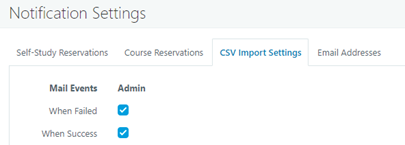
CSV Import Settings: Defines the CSV Import events (Pass/Fail) on which email notifications will be sent to the configured administrator's email IDs. Starting from HyWorks Controller V4.1 HF1, a new mail event, When Success with Failed Records, has been added.
-
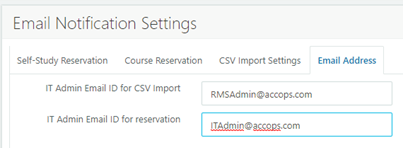
Email Address: Email addresses for CSV Import and Reservations are configured here.
Email Templates in HyLabs
HyLabs supports email notifications for all HyLabs events to selected user types as described in previous sections. For notifications, HyWorks uses pre-defined templates. In HyWorks v4.0, the email templates can now be customized from the HyLabs portal itself, replacing the previous file-based email templates managed from the HyLabs/HyWorks installation directory.
By default, HyLabs will be using the file-based templates in the HyLabs/HyWorks installation directory. The HyLabs portal email templates can be enabled using the following steps.
Enabling Email Template Settings
-
Log in as the HyLabs admin to the HyLabs portal
-
On the HyLabs portal, navigate to
HyLabs configurations > Default reservation settings -
Find the Use Email Templates option, enable it, and save the settings.
-
HyLabs will now use the templates available in the HyLabs portal.
HyLabs portal email templates are covered in the next section.
Email Templates from HyLabs Portal (v4.0)
A new page introduced with HyWorks Controller v4.0 allows admins to update templates through the HyLabs portal.
HyLabs portal > HyLabs Configurations > Email Template Settings
Email recipient users fall into the following two categories:
-
HyLabs Admin users: Includes Admin, Incharge, Assistants, and creators associated with the reservation.
-
HyLabs Participants: Users added as participants in the reservation.
There are two ways to use the email templates:
-
Use the system's pre-defined templates
- The following system-defined templates are available, which can be modified as needed.
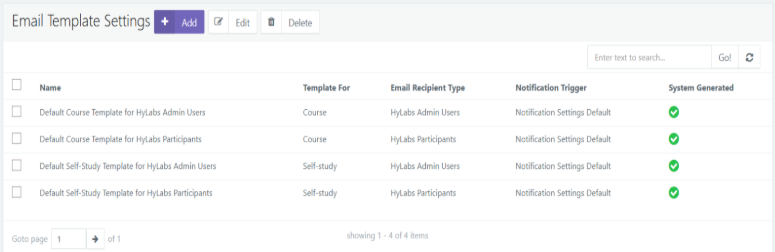
Template Name Reservation Type Target Users Default Course Template for HyLabs Admin Users Course HyLabs admin type users Default Course Template for HyLabs Participants Course HyLabs participant type users Default Self-Study Template for HyLabs Admin Users Self-study HyLabs admin type users Default Self-Study Template for HyLabs Participants Self-study HyLabs participant type users -
Create a template for a specific event and role.
Customizing System-defined Email Templates
-
Log in as the HyLabs admin to the HyLabs portal
-
On the HyLabs portal, navigate to HyLabs Configurations > Email Template Settings
-
The system-defined templates are listed below.
-
Default Course Template for HyLabs Admin Users: Default course reservation template being used for Admins, incharges, assistants, creators.
-
Default Course Template for HyLabs Participants: The default course reservation template is used for participants in reservations.
-
Default Self-Study Template for HyLabs Admin Users: Default self-study and course self-study reservation template being used for Admins, Creators.
-
Default Self-study Template for HyLabs Participants: Default self-study and course self-study reservation template being used for participants.
-
-
Select any template and click Edit. The Edit Template Settings wizard will open.
-
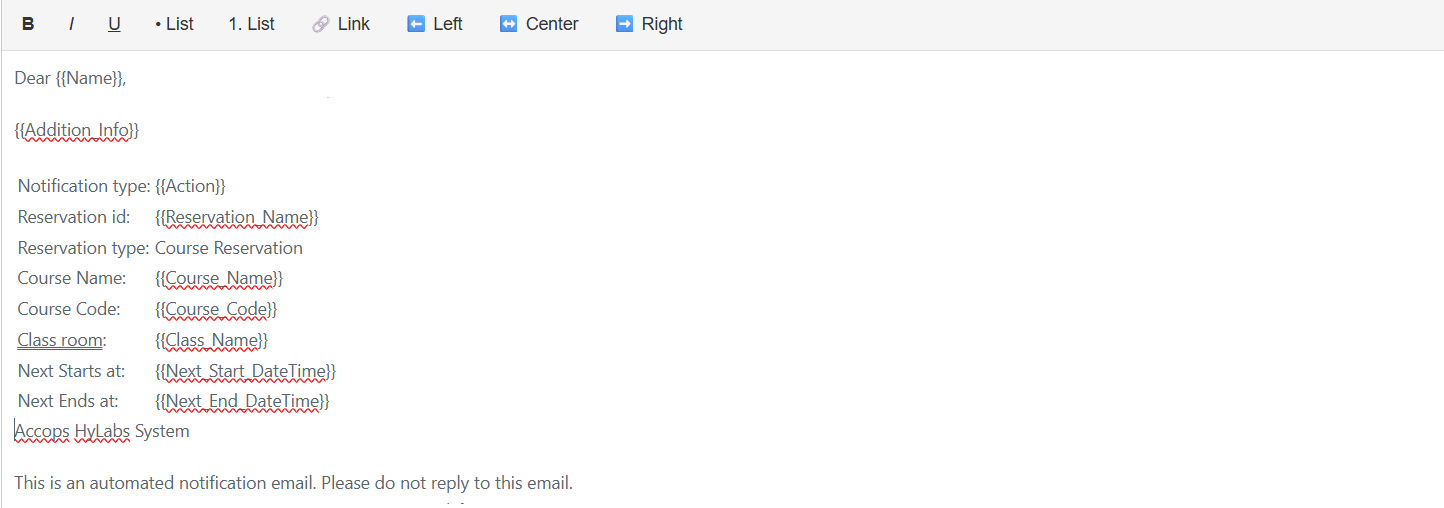
The admin can customize the email content using the keywords listed below:
-
{Name}: Full name of the user receiving the email. -
{Addition_Info}: Any additional notes or instructions related to the reservation. -
{Action}: The type of action taken (e.g., confirmed, canceled, rescheduled). -
{Reservation_Name}: The name of the reservation. -
{Course_Name}: The name of the course. -
{Course_Code}: Unique code or identifier for the course. -
{Class_Name}: Name of the specific class/session. -
{Next_Start_DateTime}: Start date and time of the upcoming reservation. -
{Next_End_DateTime}: End date and time of the upcoming reservation. -
{Problematic_VMs_Info}: Information about VMs which are not ready when Reservation is started (Supported from HyWorks Controller V4.1 HF1)
-
-
Admins can use the keywords above to customize and rearrange the email content as needed. A separate text window is provided for formatting.
-
Click Save. Users will be notified using the customized template when the next reservation event occurs.
Important
As there is one email template for each type of reservation, all reservations will use the same modified template and thus system defined templates should be modified with caution.
Manually adding an email template for a specific event
To create a specific email template for a specific event, follow the steps below.
-
Log in as the HyLabs admin to the HyLabs portal.
-
On the HyLabs portal, navigate to
HyLabs configurations > Email template settings page> Click on Add. -
The Add Email Template wizard will open.
-
Name: Provide a unique name for the template based on the event.
-
Email recipient type: Select the recipient type for the notifications.
-
HyLabs Admin users: Includes Admin, Incharge, Assistants, and creators' roles associated with the reservation
-
HyLabs Participants: Users who are added as Participants in the reservation
-
-
Template for: Select Course if the template is for a course reservation, or Self-study if the template is for a self-study or course self-study reservation.
-
Notification trigger: Select the event type from the list of triggers.
Important
Admin can create one template per trigger, per email recipient type, and per reservation type.
-
Customize or rearrange the keyword templates as needed in the provided text box, then click Save.
-
All subsequent reservation events will use the updated, customized notifications per the configuration.
-
Email Template Usage Fallback Sequence
-
Use Email templates: Disabled (Configurable from Default reservation settings)
- Uses the notification settings from the templates in the HyLabs/HyWorks installation directory.
-
Use Email templates: Enabled (Configurable from Default reservation setting).
-
Priority# 1: Event-specific template (if created)
-
Priority# 2: Default templates on the HyLabs portal.
-
Email Notification Examples
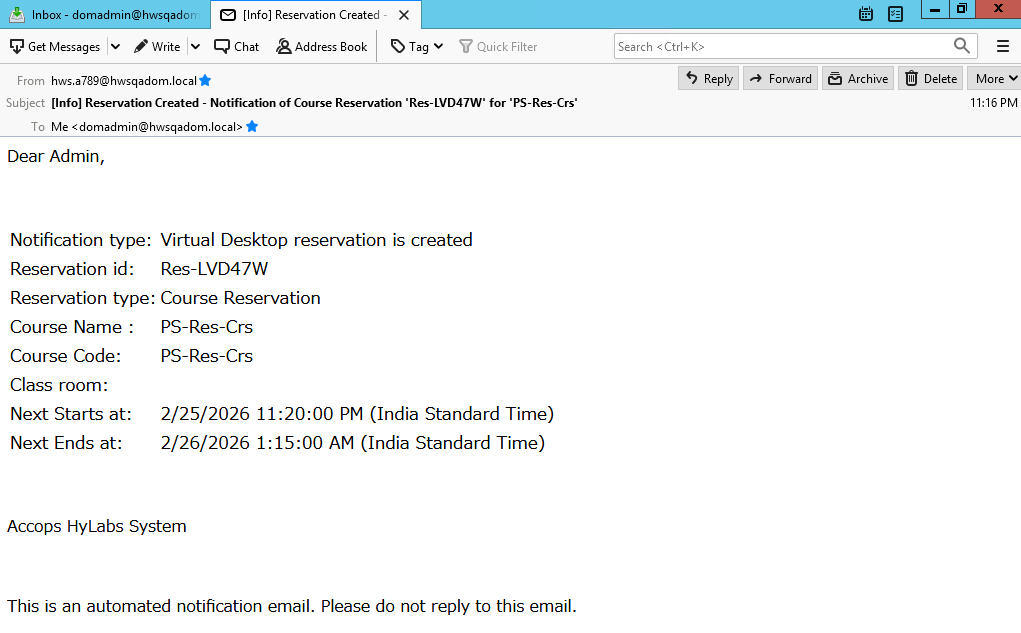
The screenshot below shows a course reservation email notification sent using the default course reservation template for participants.
File-Based Email Templates (HyLabs/HyWorks Installation Directory)
Every notification email from HyLabs is created using a pre-defined template. These template files are generated automatically when a relevant operation (CSV Import, Self-study reservation, or course reservation) is initiated. Each template is stored in a separate file, which can be edited by logging into the HyWorks controller using RDP or console access.
Email templates are stored by default in the following folders for the HyWorks Controller Service and HyLabs Service:
-
HyLabs Service: C:\Program Files (x86)\Accops\HyWorks\RMSService\EmailTemplate
-
Controller Service: C:\Program Files (x86)\Accops\HyWorks\Service\EmailTemplate
Keywords in Email Templates
The following standard keywords can be used in email templates:
-
{Name}: Full name of the user receiving the email. -
{Addition_Info}: Any additional notes or instructions related to the reservation. -
{Action}: The type of action taken (e.g., confirmed, canceled, rescheduled). -
{Reservation_Name}: The name of the reservation. -
{Course_Name}: The name of the course. -
{Course_Code}: Unique code or identifier for the course. -
{Class_Name}: Name of the specific class/session. -
{Next_Start_DateTime}: Start date and time of the upcoming reservation. -
{Next_End_DateTime}: End date and time of the upcoming reservation. -
{Problematic_VMs_Info}: Information about VMs which are not ready when Reservation is started (Supported from HyWorks Controller V4.1 HF1)
Type of Email Templates
Course Email
File location: C:\Program Files (x86)\Accops\HyWorks\Service\EmailTemplate\Course\Course This email template is used when:
-
A Reservation is created.
-
A Reservation has been updated, and its schedule has been changed.
-
A Reservation has been canceled.
-
A Reservation fails during deployment.
-
A Reservation is deleted.
CSV Import
File location: C:\Program Files (x86)\Accops\HyWorks\Service\EmailTemplate\CSV\CSVImport This email template is used to send the result of a CSV import. Once the import is completed, the result, including the number of records imported or failed, is sent via this email.
Enhancements included after HyWorks Controller V4.1 HF1
The CSV Import notification settings have been enhanced to provide better visibility into record-level failures during import processing.
-
When Success — Sends an email only when the CSV import completes successfully and all records are processed without errors.
-
When Success with Failed Records — Sends an email when the CSV import job completes successfully but one or more records fail during processing.
-
When Failed — Sends an email only when the entire CSV import job fails to complete.
This enhancement enables administrators to receive notifications for partial import failures, even when the overall CSV import job is reported as successful.
Self-study
File location: C:\Program Files (x86)\Accops\HyWorks\Service\EmailTemplate\SelfStudy\SelfStudy This email template is used when emailing participants about their self-study reservations.
Customizing Email Contents
Since email templates are stored in both the HyWorks Controller and HyLabs Service, an administrator can modify them from either of the following locations, but the updated template must also be copied to the other location.
The default locations of email templates are:
-
HyLabs Service: C:\Program Files (x86)\Accops\HyWorks\RMSService\EmailTemplate
-
Controller Service: C:\Program Files (x86)\Accops\HyWorks\Service\EmailTemplate
To update email templates for customized email notifications, follow these steps:
-
Log in to the HyWorks controller using RDP or console access.
-
Delete the existing email template files. A new file is generated automatically on the next mail trigger.
-
Create new files and place them in the appropriate folders. Save the files in the same encoding format as the HyWorks email encoding setting.
-
Ensure the correct encoding is set in the HyWorks management console.
-
Repeat steps 1–3 for the secondary HyWorks controller as well.
To restore the original email template files, delete the customized files from the location. HyWorks will automatically create default email template files when creating a new reservation.
Note
If HyWorks Controller and HyLabs Services are running in HA on different Windows Servers, then Email Templates must be copied on all Controller and HyLabs Servers.
Customizing Email Format
Encoding standards tell the web browser or email application how to interpret the text characters in your HTML or email body. The default Email format is:
-
Email Type: HTML
-
Email Encoding: The encoding format is read from the OS settings.
To determine the appropriate format used by your email server, look at the charset attribute in the email header content-type field.
Date: Wed, 16 Mar 2018 14:12:33 -0820
To: test@accops.com
From: testfrom@accops.com
Subject: Test
Message-ID: e0irfueknwie94837dndmfkf@www.accops.com
X-Priority: 2
X-Mailer: office365
MIME-Version: 1.0
Content-Transfer-Encoding: 8bit
Content-Type: text/html; charset="UTF-8"
To configure email format and encoding, follow these steps:
-
On HyWorks Controller Management Console > Settings > General > Advanced Config
-
Find the HyLabs Email HTML Body option and set its value to false to use plain text email format.
-
Find the HyLabs Email Encoding Type option and set the encoding type. The various options are provided below:
-
UTF-8 (Most Recommended)
-
ISO-8859-1
-
ISO-2022-JP (Only Japanese users)
-
Shift_JIS (Only Japanese users)
-
EUC-JP (Only Japanese users)
-
-
Click Update to save the advanced configurations.
-
The settings are automatically synced with the secondary controller, so there is no need to make the same settings on the secondary controller. However, email template files must be updated (or copied) manually on the secondary controller.
Important
Make sure the email template files are stored in the same encoding format as specified in the Email Encoding setting. It is advised to use UTF-8 as email encoding, create the email template files in Notepad, and store them with UTF-8 encoding using the save-as option in Notepad.
Reservation Email Notification Enhancements included after HyWorks Controller V4.1 HF1
The reservation email notification mechanism has been enhanced to provide improved visibility into Azure Virtual Desktop (AVD) deployment and session host registration status.
-
AVD Host Registration Deployment Failure Notifications — Added support for email notifications when an AVD Host Pool deployment fails. These notifications are sent using the existing When Failed notification event for both Course and Self-Study reservations.
-
AVD Session Host Registration Failure Notifications — Added support for email notifications when one or more AVD session hosts fail to register successfully. These notifications are sent using the existing When Ready notification event for both Course and Self-Study reservations.
-
Enhanced Reservation Running with Errors Notifications — Enhanced the existing Reservation Running with Errors email notification to include VM health information whenever a reservation reaches the Running state with one or more desktops that are not fully operational. This enhancement applies to both Course and Self-Study reservations and is included in the email triggered by the When Ready notification event.
Changes required to include VM health information in mail content
-
A new placeholder,
{Problematic_VMs_Info}, has been added to the email template. Existing users must add this tag manually to their email templates. -
This placeholder will display the count and details of VMs that are not fully operational.
-
The notification email will include:
-
The count of VMs with soft errors.
-
The count of VMs with critical errors.
-
This information will be displayed similarly to the Fix Reservation window. This notification covers all VM-related issues, such as non-responding VMs, powered-off VMs, and session host registration in-progress or failed states.
-