Fresh Installation
The HyWorks Desktop Agent uses the HyWorks VM Scale Booster to send status updates and events. The latest HyWorks VM Scale Booster releases also support pushing the HyWorks Session Host Server and the Monitoring Service status/system load information. This helps in getting faster updates and reduces polling overhead on the controller.
Installation of the HyWorks VM Scale Booster
Prerequisites
The HyWorks VM Scale Booster can be installed on either the controller server or any other Windows machine that fulfills the VM Scale Booster Prerequisites.
HyWorks VM Scale Booster Installation
Download the latest HyWorks VM Scale Booster for Windows and follow the steps to install:
-
Double-click on the HyWorks VM Scale Booster Installer (HyWorksVMScaleBooster_Net472.exe).
-
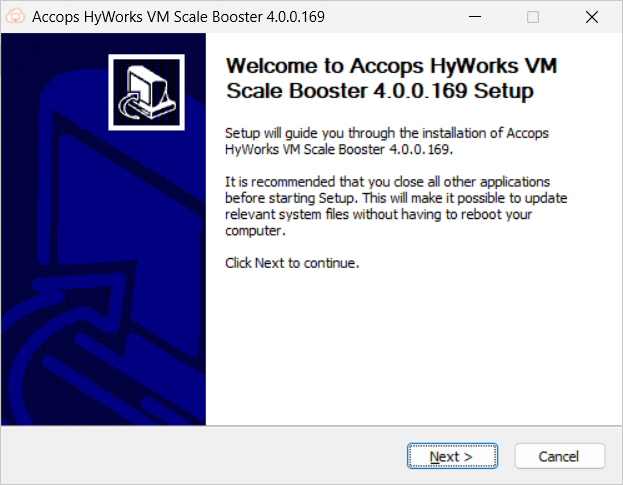
In the Accops HyWorks VM Scale Booster wizard, click Next to proceed.
-
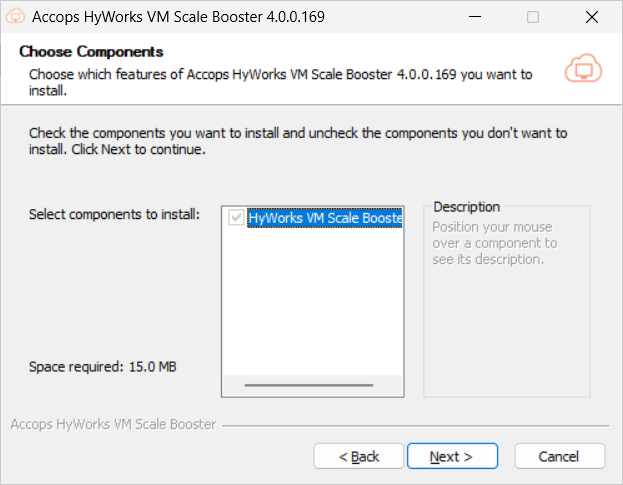
On the Choose Components page, the HyWorks VM Scale Booster will be selected by default. Click Next.
-
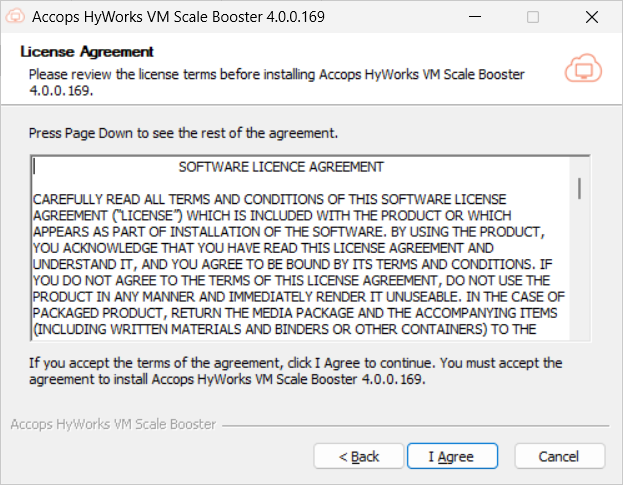
Click I Agree to accept the License Agreement.
-
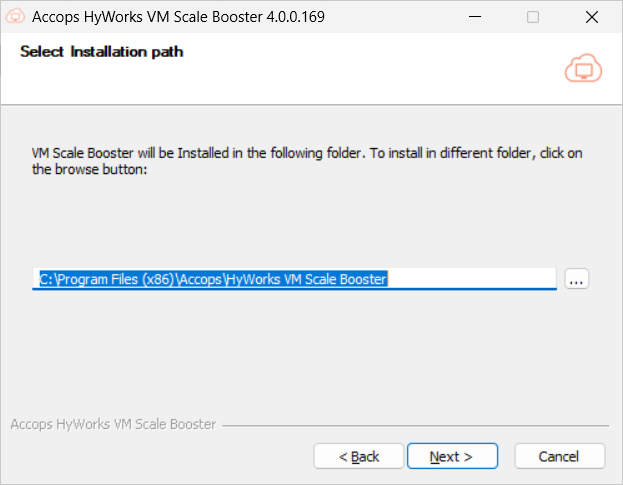
Configure the installation path:
-
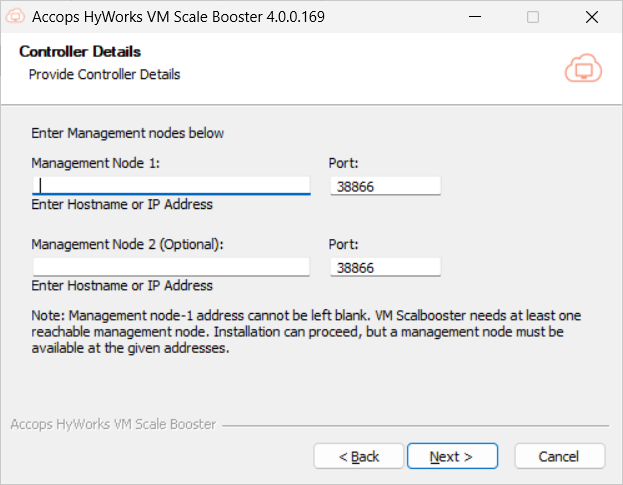
Controller Details:
-
Management Node 1 and Port: Enter the IP address and port number details of the HyWorks controller. It can not be empty.
-
Management Node 2 and Port: Enter the IP address and port number details of the secondary HyWorks controller. It can be empty as it is optional.
-
The installer will check the reachability of both controllers and display a message box only if one is unreachable.
-
Unreachable controllers can also be selected.
-
-
-
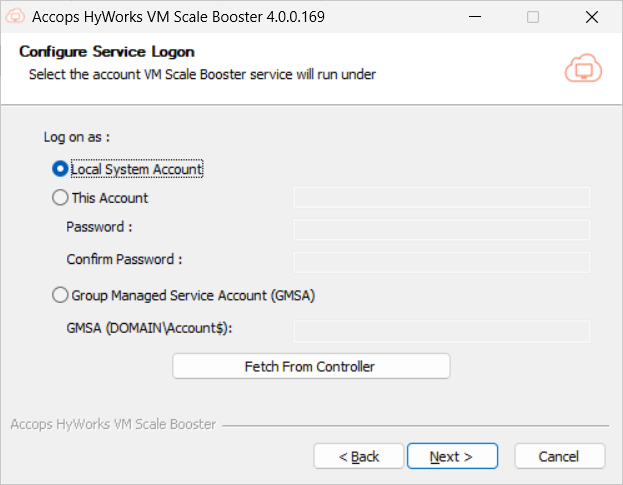
Choose the service logon credentials. This is an important configuration, as VM Scale Booster also uses the Controller database; thus, configurations should be done as per the deployment. Options available are:
-
Local Service Account: VM Scale Booster service will run as a local service account, and the database should be accessible via SQL authentication (as configured on the Controller).
-
This Account: VM Scale Booster service will run with the provided account details. Normally used when the Controller is also configured to run with a service account having access to the database.
-
gMSA (Group Managed Service Account): If deployment is to run with a Group Managed Service Account, this option can be used. The provided account must be configured correctly. The detailed information is available in this gMSA Configuration document.
-
-
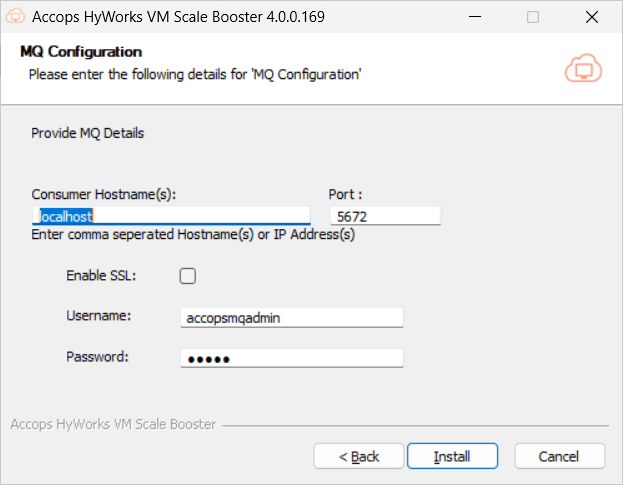
On the MQ Configuration page:
-
Enter the IP address of the host where the RabbitMQ is installed for Consumer Hostname(s). The Port, Username, Password, and the check box to Enable SSL.
-
Click Install to proceed.
Important
Provide both the MQ server host addresses for high availability.
-
-
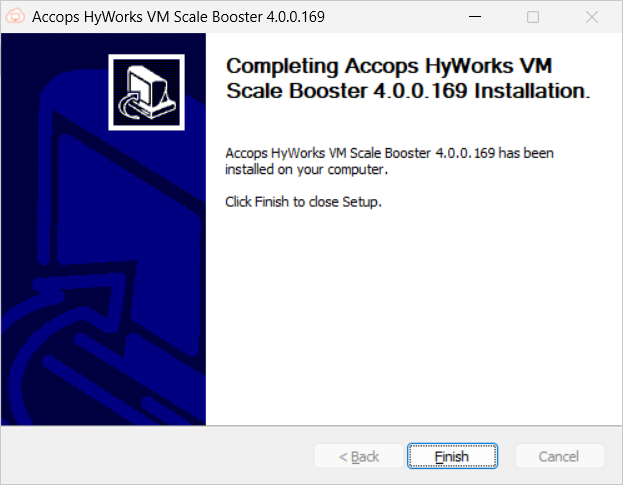
The installation process will start. Once complete, click Finish to close the Installation wizard.
-
Check the services section to verify whether the Accops HyWorks VM Scale Booster Service is installed and running.
-
Run the ConfigureRabbitMQ script at the end to configure RabbitMQ, and follow the steps it outlines.
Enable VM Scale Booster on the Controller
Refer to RabbitMQ Configuration for the Controller and VM Scale Booster for the settings that enable the VM Scale Booster on the Controller.
Configuration on the SHD
-
Install the latest Session Host Installer setup that has the built-in DVM Tools-Lite. The Session Host Server and the Monitoring Services will use the DVM Tools to push the service and the load status.
-
On the Session Host Server, verify that the registry entry EnableShdMode flag is set as true at the location HKLM\Software\Accops\DesktopAgent.
Limitations of the VM Scale Booster
-
The VM Scale Booster feature supports Managed Windows SHD Pools.
- Linux SHD does not support the SHD push Feature.
-
The Single Session (VDI Pool) supports both Managed and Unmanaged VDI Pool types.
-
The HyWorks VM Scale Booster [v3.3.0.20] requires Controllers and SHD version 3.3 GA or above.
Important
- Managed VDI Pool refers to a pool with provisioning, where VMs are provisioned/deployed through the HyWorks Controller.
- Unmanaged VDI Pool refers to a pool without provisioning, where existing VMs are manually added to the pool and are not provisioned by the HyWorks Controller.
Important (VM Scale Booster)
-
During the installation of the new Session Host, DVMTools-Lite will be installed automatically and set the EnableShdMode registry value of the Desktop Agent to True. So if it is set to false, the SHD Push will not work.
-
The manual installation arguments for the SHD Mode-enabled DVMTools with the regular release:
- Argument: HyWorksDVMTools.exe /S /desktopagent=1 /hyprint=0 /usbcleaner=0 /usbredirection=0 /EnableShdMode=1
-
DVM push agent refresh timeout: Only the controller-driven manual poll will be executed for each of the SessionHosts/MonitoringServers/DVMAgents after this timeout.
Azure-specific Configurations on the Controller
Add the following inbound firewall rules for ports:
-
5672: RabbitMQ Message Queue [Must] or as port configurations.
-
15672: RabbitMQ Management Console [Optional] or as port configurations.
VM Scale Booster Configurations and High Availability
Important concepts and terminologies:
Important
-
HyWorks has the concept of consumers and publishers. Modules that send data to the queues are called publishers, and modules that fetch data from the queue are referred to as consumers. For example:
-
VM Scale Booster acts as a consumer picking from message queues sent by the desktop agent as a publisher.
-
Consumers should be provided with both of the message queue server host addresses during installation or configuration.
-
Publisher modules should be configured with a load balancer (if deployed), if load balancer is not there publisher components should be configured with both of the message queue server host addresses during installation or configurations.
-
HyWorks Configurations: Enabling VM Scale Booster
-
Without an External Load Balancer: Considering an example where two VM Scale Booster servers with two RabbitMQ servers are set up without a load balancer configured for RabbitMQ. High availability can be achieved as explained below:
-
Assuming both of the HyWorks Controller Management nodes are installed with the prerequisites for the VM Scale Booster.
-
Configure VM Scale Booster to consume from both of the RabbitMQ servers.
- During the installation of VM Scale Booster, provide the host addresses of both the MQ servers.
-
HyWorks Configurations:
-
From HyWorks Controller Management Console > Settings > General > Advance Settings, apply Tags Filter as VM Scale Booster & Message Queue.
-
To enable VM Scale Booster, provide the following details:
-
MQ Port: 5672 (Non-SSL, default) or 5671 (SSL)
-
MQ Username: As configured during RabbitMQ installation.
-
MQ Password: As configured during RabbitMQ installation.
-
Desktop Poll Mode: Set to 2 to enable VM Scale Booster mode.
-
Enable the notification listener in DVM tools: Not a VM Scale Booster-related configuration, but if scheduled actions are being used, this can be set to true for notifications in sessions.
-
Consume from MQ Server(s): Provide comma-separated separated host addresses of RabbitMQ servers.
-
Use MQ SSL: True or false based on RabbitMQ SSL configurations.
-
Publish to MQ server(s): Comma-separated hostnames/IP addresses of the MQ servers (where messages will be sent), if a load balancer is not used. If the load balancer is present, provide a single IP Address of the load balancer.
-
-
Clear the Tags Filter and try to search for the configuration HA notify control, and set it to True. This is used by HyWorks Controller to notify of Controller switching.
-
Other advance configurations (which should not be changed and should be kept as they are):
-
VM Scale Booster queue hostname: Default value is localhost. Will only be used in older DVM agents (Windows: older than 3.4.0.661; Linux: older than 3.4.0.127).
-
VM Scale Booster queue heartbeat interval: 120. This can be changed if needed based on deployment size.
-
VM Scale Booster desktop agent refresh timeout: 120 by default. Refresh the desktop agent status if the last VM Scale Booster Push time and Poll time are more than this interval (Sec).
-
VM Scale Booster provider timeout: 120 by default. Refresh Desktop details from hypervisor, if the last VM Scale Booster Push time is more than this interval (Sec).
-
MQ Connection Settings: Some default connection settings are specified in JSON format.
-
VM scale booster queue name: Default as edc.dvm.heartbeat-queue.
-
-
-
Save appropriate values in the required fields and then click Update to save the advance settings.
- Scale Booster is now enabled, and logs can be checked for the heartbeats and events from the deployed desktops.
-
Scale Booster/ Message Queue High-availability
The new VM Scale Booster supports active-active mode, where the following two combinations are possible:
-
Without an External Load balancer
-
With an External Load balancer
This section will explain functioning in both cases:
-
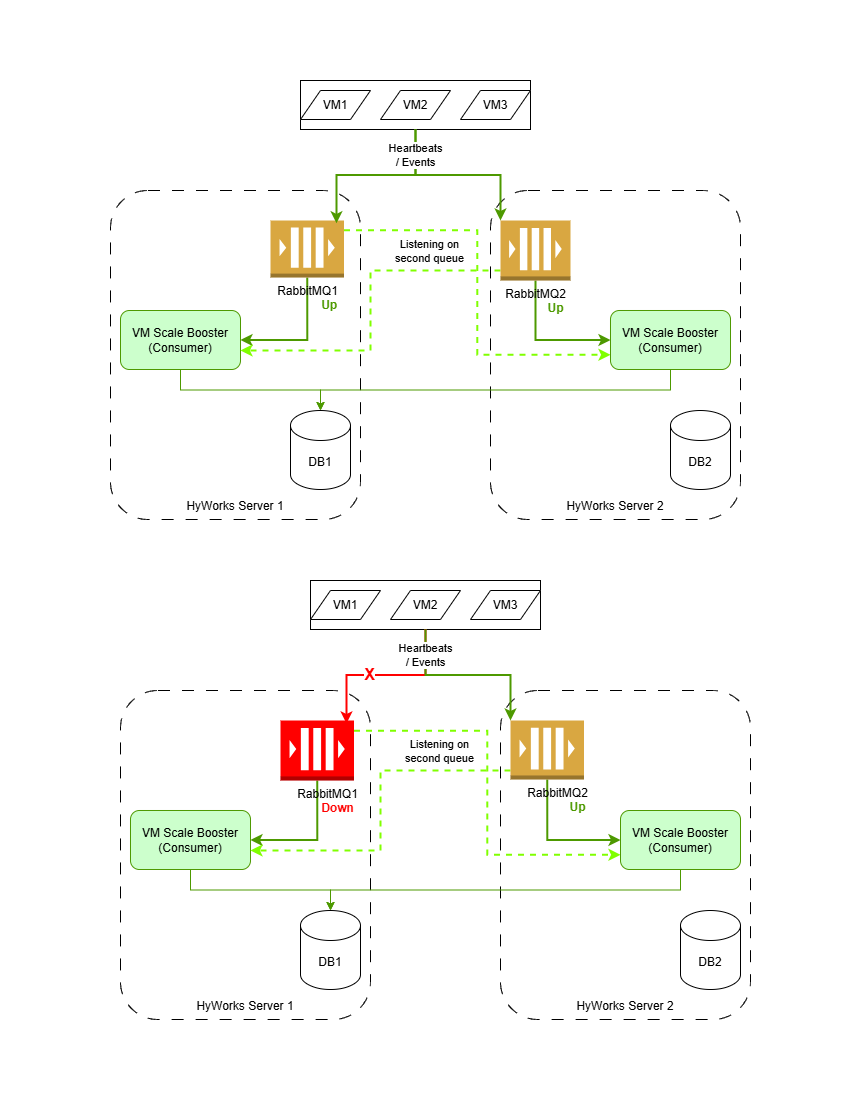
Without an External Load Balancer:
-
Assuming the following configurations are in place:
-
Scale Booster is installed and configured to consume from both of the RabbitMQ servers.
-
VM Scale Booster is enabled, and both message queues’ host addresses are configured for the Consumer and the publisher.
-
-
HyWorks Controller will push the configurations of both RabbitMQ servers to the respective desktop agents.
-
Case #1: Both queues are working:
-
Desktop agents will start sending heartbeats and events to any queue.
-
Both Scale Boosters are listening to both message queues.
-
Any one of the Scale Boosters will process the queue and push it to the HyWorks Controller.
-
-
Case # 2: One of the queues is not working:
-
The desktop agent will attempt to connect to the available queue and start sending to it.
-
Any one of the Scale Boosters will process the queue and push it to the HyWorks Controller.
-
-
Thus, Scale Booster is working in active-active mode, with failover conditions handled by the agent for publishing, and Scale Booster is picking from both queues.
-
-
With External Load Balancer: With an external load balancer configured for RabbitMQ:
-
Assuming the following configurations are in place:
-
Scale Booster is installed and configured to consume from both of the RabbitMQ servers.
-
VM Scale Booster is enabled, with both message queues' host addresses configured for the Consumer and the load balancer IP address configured for the publisher.
-
-
HyWorks Controller will push the configurations for both RabbitMQ servers (consumer addresses and the publisher's load balancer address) to the respective desktop agents.
-
Case #1: Both queues are working:
-
Desktop agents will start sending heartbeats and events via the load balancer to any of the queues.
-
Both Scale Boosters are listening to both message queues.
-
Any one of the Scale Boosters will process the queue and push it to the HyWorks Controller.
-
-
Case # 2: One of the queues is not working:
-
The desktop agent continues to send the heartbeats and events via the load balancer.
-
The Load balancer does not forward the details to the message queue, which is not working; thus, only the working queue receives the data.
-
Any one of the Scale Boosters will process the queue and push it to the HyWorks Controller.
-
-
-
Thus, Scale Booster is working in active-active mode, with failover handled by an external load balancer that forwards details to the functioning message queue, and Scale Booster picks up from both queues.
-