Reservations Overview
Reservations in HyLabs refer to a schedule on which cloned VMs of a Gold Master VM will be delivered to end users.
The Reservations page in HyLabs provides the interface for reservation admins and incharge users to create reservations for participants.
Reservation Life Cycle
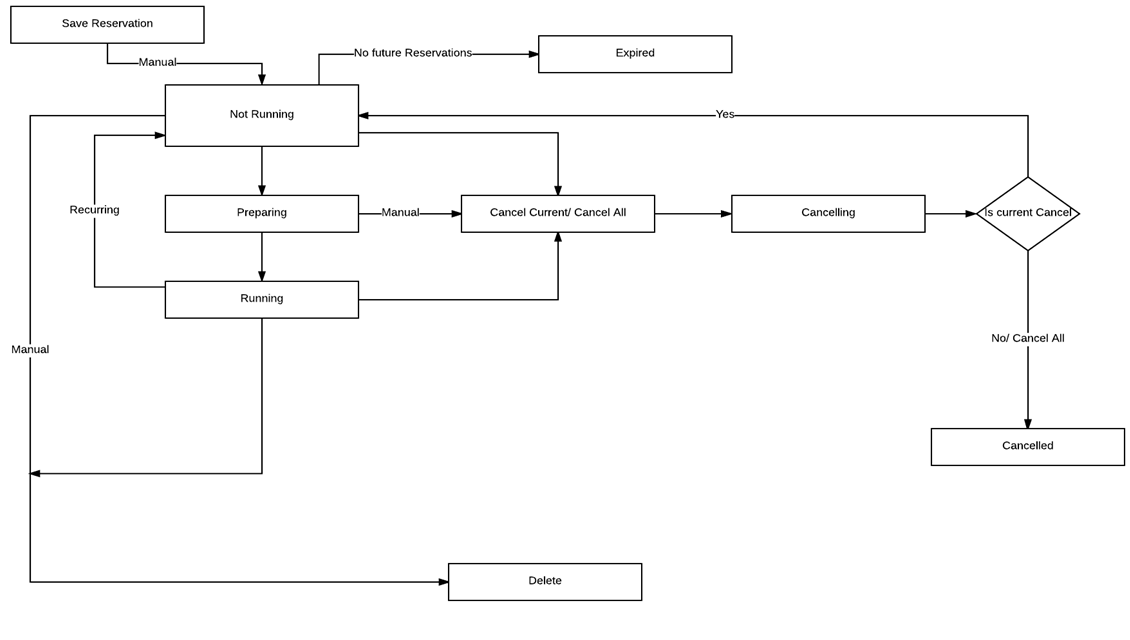
-
An Example of One-time Course Reservation:
-
Once a reservation is saved, it is in Not Running state and none of the associated HyLabs users will be able to access the reserved VMs.
-
Reservation preparation starts one hour before the configured time and its state is changed to the Preparing state.
-
An On-Demand, temporary, or permanent assignment type of desktop pool will be created with all HyLabs users as clients.
-
Reserved VMs will not be accessible during Preparing state.
-
-
Once the VMs are prepared, the machines go into the Ready state. HyLabs users will not be able to access the reserved VMs until the reservation starts.
-
Once the reservation time starts, reservation goes into Running state
-
HyLabs users can now log in, and on connecting will be assigned one of the reserved VMs.
-
The reserved VMs are given first come first serve basis - if there are less VMs than the number of participants, then users connecting first will get assigned with the VMs until all VMs are consumed and users logging-in after that will not get any VMs.
-
-
Once reservation time finishes, reservation gets expired and VMs will be powered off and deleted as per the configuration.
-
Types of Reservations
With HyLabs, the following types of reservations can be configured:
-
Course based reservations: These types of reservations can be created by:
-
Reservation admin
-
Incharge of course
-
System (CSV Import)
-
-
Course self-study reservations
- Incharges, assistants, or participants of a course
-
Self-study reservations
-
Reservation admin
-
HyLabs Users (Incharges/Assistants/Participants)
-
Listing and Viewing Reservations
Once reservations are created, they will be listed on the Reservations > Management page. The following details are displayed:
| Column Name | Description | Sortable | Searchable |
|---|---|---|---|
| Name/ Display Name of Reservation | System-generated unique name of the reservation, or the administrator-provided user-friendly display name | Yes | Yes |
| Course Name/ Course Code | Name of the course and its code for which the reservation is created. For self-study reservations, this is displayed as Self-study | Yes | Yes |
| Classroom | Name of the class for which this reservation is created | Yes | Yes |
| Gold Master | Name of the Gold Master used for this reservation | Yes | Yes |
| Reservation Creator | HyLabs username of the user who created this reservation | Yes | Yes |
| Ready VMs/ Total VMs | Number of reserved VMs in the Ready state (available for end-user connections) vs. the total number of deployed VMs in the reservation | No | No |
| Start Date and Time/ End Date and Time | Date and time of reservation start / Date and time of reservation completion | Yes | No |
| Action | Available actions on the reservation, e.g., Connect. The Connect option is available only to HyLabs users (incharges, assistants, and participants) | No | No |
| Current Status | Current status of the reservation (possible values: Not Running, Running, Finished, Expired, etc.) | Yes | Yes |
| Deployment Status | Reservation deployment status. Possible statuses: Deployment Pending, Redeployment Pending, Deployed | No | No |
For ease of management, the following UI controls are provided:
-
Filter based on reservation time: The administrator can choose to display reservations for today or all.
-
Sorting Reservations: List of reservations can be sorted if the specific column supports sorting.
-
Searching any specific reservation/ reservations: If needed, any specific reservation can be searched using specific search text. E.g., listing all reservations from a specific Gold Master.
-
Refreshing List of Reservations: The list can be refreshed to get a fresh list of reservations from HyWorks.
-
Support from HyWorks Controller V4.1 HF1: Gold Masters can be searched by name or display name.