Prepare AWS
To assist with the smooth integration of your AWS platform with the HyWorks Controller, use the following references:
Supported Feature Matrix
| Feature | Sub Feature | Sub Feature | Cloud AWS |
|---|---|---|---|
| Fetch Configured/ Deployed VM Details from Connector | OS Information | - | Yes |
| Network Adapters/ IP Addresses | - | Yes | |
| Hostname | - | Yes | |
| Deploy pool with existing VMs | - | - | Yes |
| Desktop VM Provisioning | Clone Type: Linked/Full | - | Full Clone |
| Clone from Snapshot/ Image | Feature Supported or not | No | |
| - | Cloned VM Spec (Disk+Prop, Network, CPU, RAM) | Not Supported | |
| - | Create an Image/Snapshot on the provider from the Management Console | No | |
| Bulk/Batch Cloning | Multiple Clones in Parallel | No | |
| Disk persistence: Persistent | - | Yes | |
| Disk persistence: Non-persistent | Create/ Restore restore points on user logoff | No | |
| Deployment Profile & Desktop Profile[v3.6-SP1] | Hardware Specifications (CPU/RAM/Storage etc.) | No | |
| Copy tag from GM | - | No | |
| Disk Encryption | - | Not Applicable | |
| Recompose | Preserve Network/ MAC Address | No | |
| - | Graceful (Selective) Recompose | No | |
| SHD Provisioning | Automatic Deployment of Session Teams | Yes | |
| Capacity Planning (Automatic Deployment and Power Management) | Multi-session/ Share Hosted Desktops | Yes | |
| - | Single Session Desktops | Yes | |
| - | Scheduled Actions | Yes | |
| Desktop Power Operations | Shutdown/Power off/ Power on, etc. | - | Yes |
| Hibernate | - | No | |
| HyLabs support | Scheduled Provisioning and Delivery | - | Yes |
| Virtual IP | Adding an IP Address to the network adapter | - | No |
OS Support on Providers
OS Support on Providers:
| Feature | Sub Feature | Supported on providers |
|---|---|---|
| OS Support on Provider | Windows Desktops: Windows 11,10 | All connectors |
| Windows Server 2025/2022/2019/2016 | All connectors | |
| Linux Desktops: Ubuntu / xUbuntu 24/22 | All connectors except HPE VM Essentials (Having issues) |
|
| Linux Desktops: RHEL 9.4 | All connectors except HPE VM Essentials (Having issues) |
Feature Comparison - Provider
Click here to view the Supported Feature Matrix Comparison between all Accops-supported Cloud Connectors.
Prerequisites
API credentials
-
AWS Account ID: The unique identifier of an account created and granted as an IAM User.
-
AWS Secret Key: A password known only to your IAM User. It protects your resources by granting tokens only to authorised requestors.
-
AWS Access ID: Part of the access key pair, which are long-term credentials for an IAM user. The AWS Secret Key and AWS Access ID together form an access key.
-
Region: The physical location worldwide where virtual desktops will be deployed.
Network requirements
The AWS Connector requires outbound HTTPS access on port 443 to the following AWS service endpoints. Ensure these domains are whitelisted in your firewall or proxy before configuring the connector.
| Service | Endpoint pattern | Protocol | Port |
|---|---|---|---|
| AWS EC2 | ec2.<region>.amazonaws.com |
HTTPS | 443 |
| AWS Resource Groups | resource-groups.<region>.amazonaws.com |
HTTPS | 443 |
| AWS STS (IAM role authentication) | sts.<region>.amazonaws.com |
HTTPS | 443 |
Replace <region> with your configured AWS region, for example us-east-1 or eu-west-1.
Configure AWS IAM User
-
Log in here with your credentials: https://console.AWS.amazon.com/
-
Find the Identity and Access Management (IAM): https://console.AWS.amazon.com/iamv2/home?#/home
-
Go to Identity and Access Management (IAM)
-
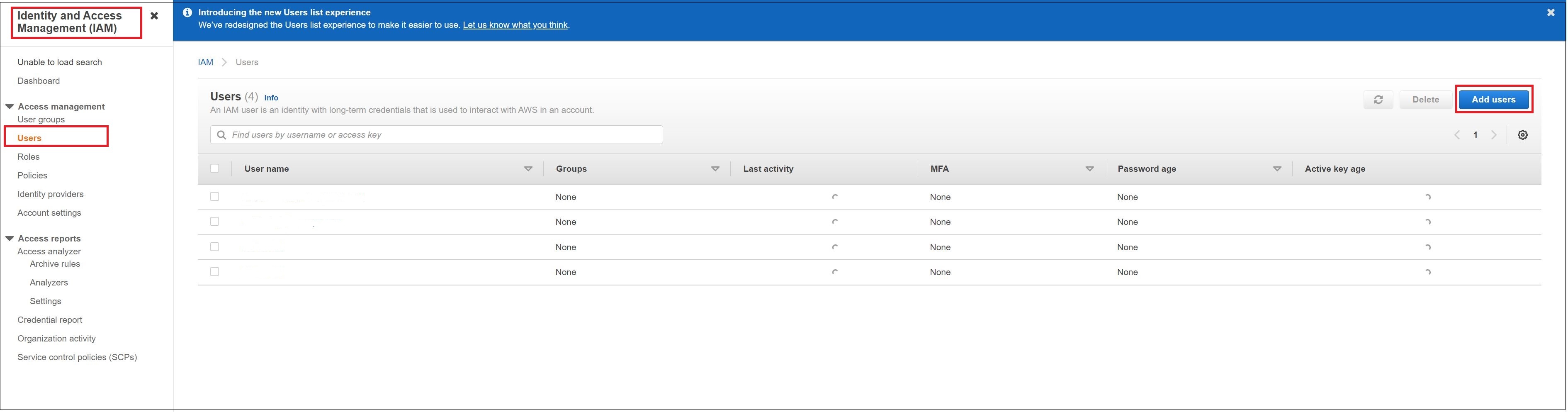
Go to Users and click Add Users.
-
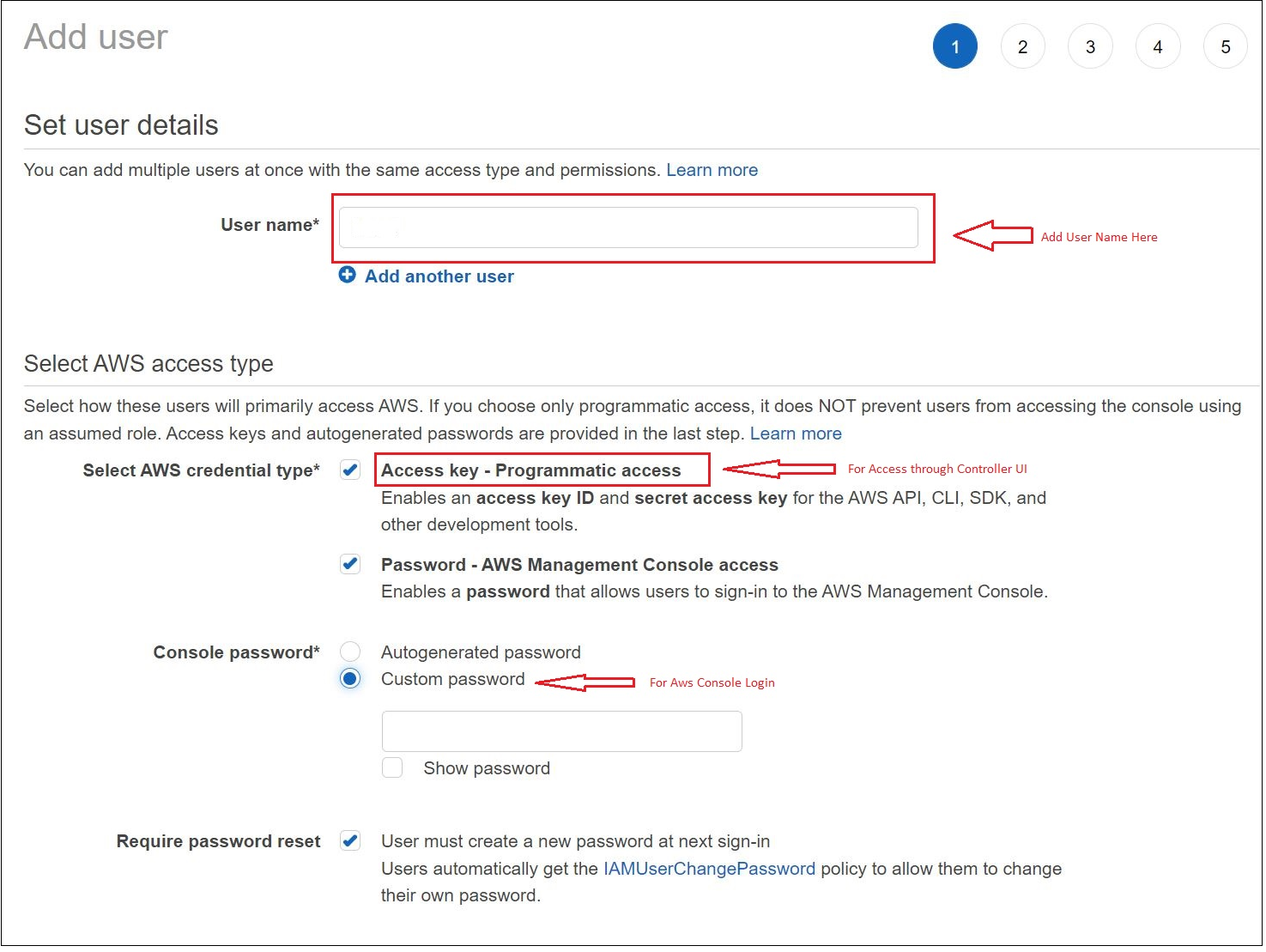
Add a Username and Password, then click Next.
-
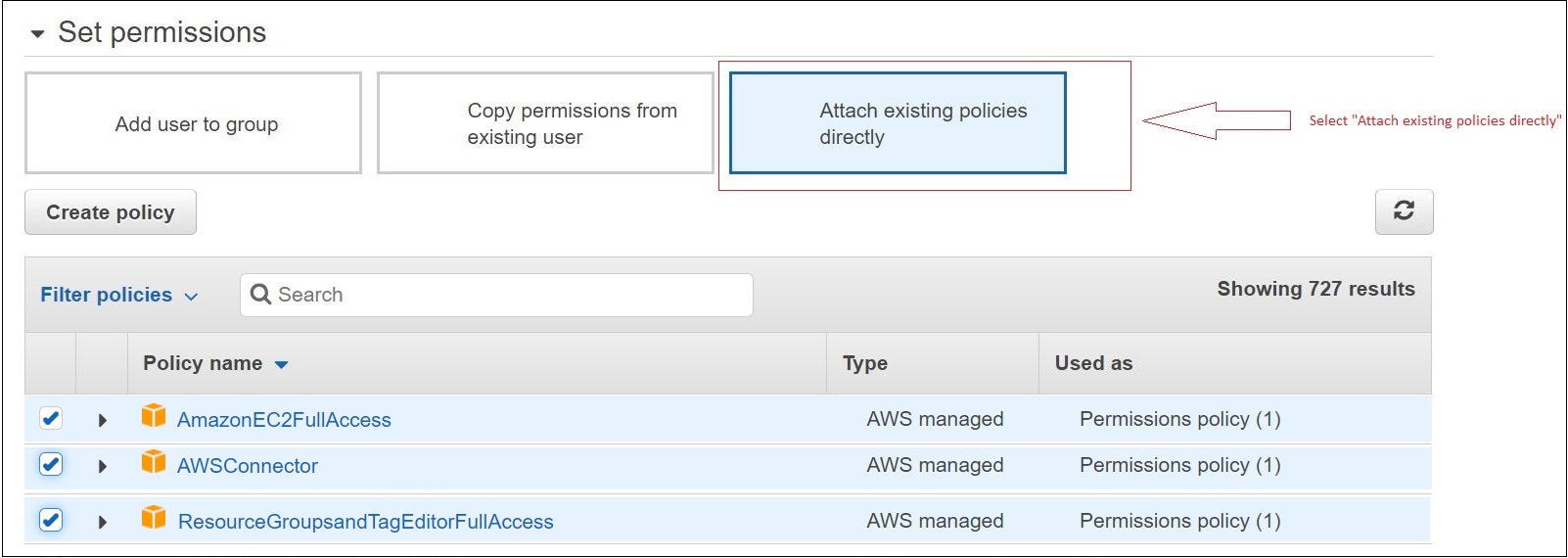
Add User Permission:
- AmazonEC2FullAccess
- AWSConnector
- ResourceGroupsandTagsEditorFullAccess
-
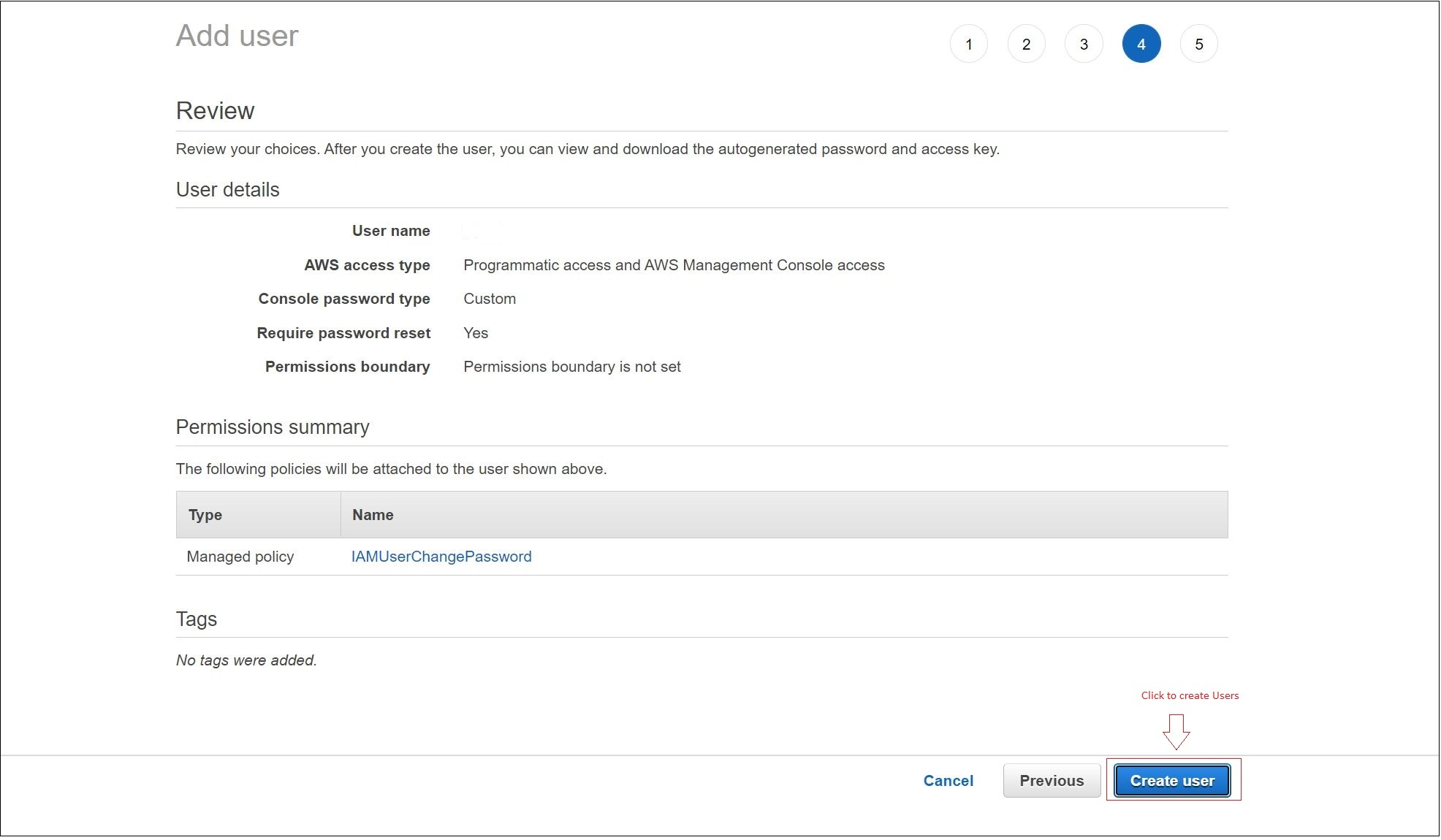
Save the Credentials and download the CSV.
-
The downloaded CSV will contain the User Name (Application ID), Secret access key (Secret), and Access key ID (TenantId).
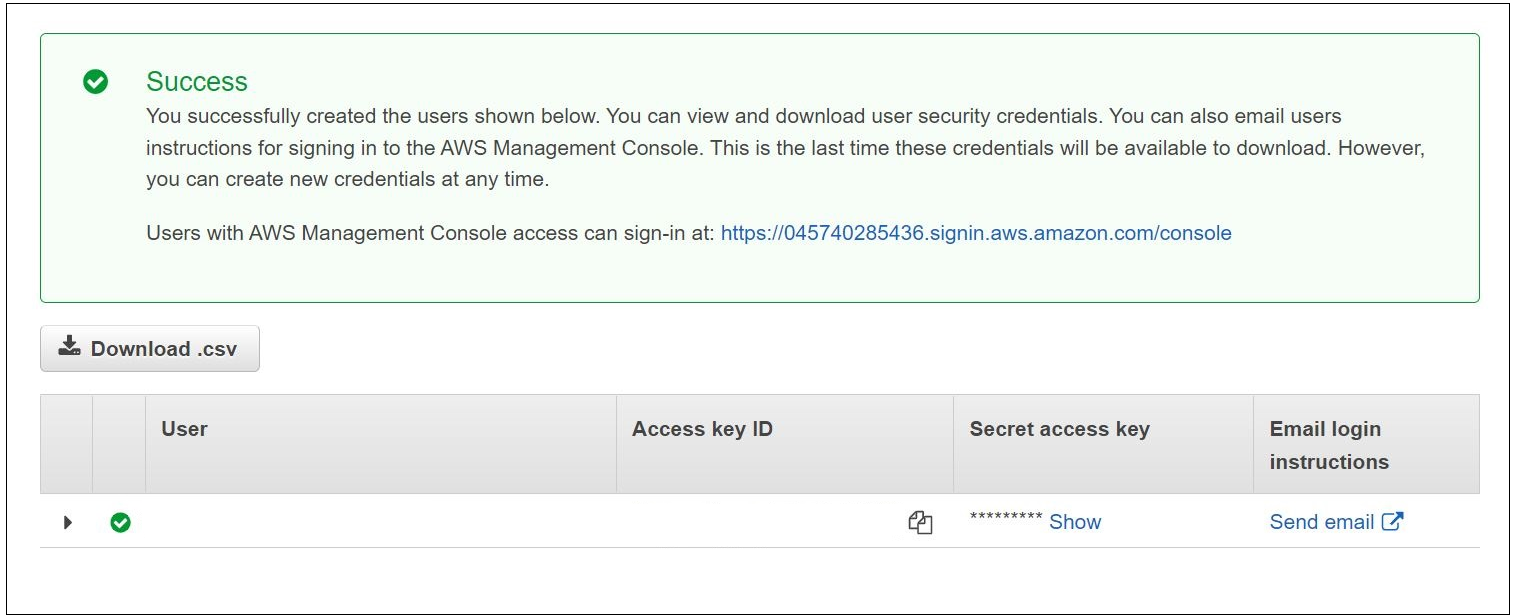
Reference: https://docs.AWS.amazon.com/IAM/latest/UserGuide/id_users_create.html
Configure Controller for Domain Account Authentication in Proxy server
Make the following configurations in the Controller when you configure the proxy server on the Controller, and the AWS-based Desktop Provider is being used
-
Install the controller service using this account (not the Local System account)
- The account should be configured as "Logon as Service."
- Configuration can be done at the time of installation or later.
- The specified account will be used to authenticate through the proxy server.
- Refer to the Network requirements for the list of URLs to whitelist.
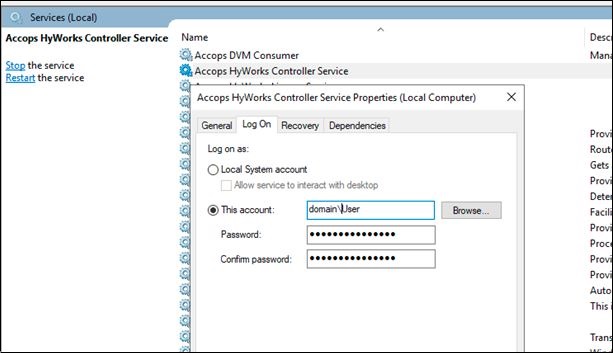
Fig: Configuration post-installation
<system.net>
  <defaultProxy>
  <proxy usesystemdefault="true" />
  </defaultProxy>
</system.net>
- Verify the above configuration in the HyWorks controller
x:\Program Files (x86)\Accops\HyWorks\Service\EDC.Service.exe.config
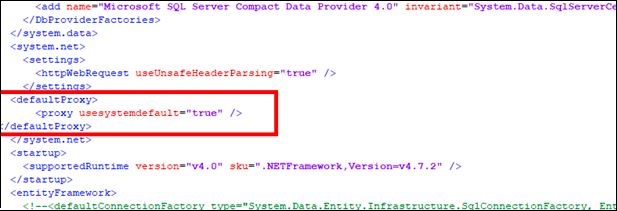
Note
- Log in again to apply the above-mentioned changes.
Desktop Operation Support
| Operation | Support | Status on AWS | Status on HyWorks |
|---|---|---|---|
| Power On | Yes | Powered On | Powered On |
| Power Off | Yes | powered Off | powered Off |
| Shutdown | Yes | powered Off | powered Off |
| Restart | Yes | Restart | Restart |
| Reset | No | - | - |
| Refresh (Desktop Information on HyWorks) | Yes | - | Update VM details, call the DVM agent |
| Re-Create (single VM from Desktop VMs page) | Yes | - | - |
Limitation with AWS Handler
-
Change the Location (the current VM will be cloned in the source VM location).
-
The Gold Master Disk should be a managed disk.
Multi-availability Zone Deployment Requirements
The customer may try to deploy HyWorks Controllers or its other components, e.g., session host servers, or personal virtual desktops, for fault tolerance.
-
HyWorks will not require any special configurations when being deployed in a distributed manner across availability zones
-
Appropriate port requirements for effective communication between HyWorks components must be maintained for deployments across different availability zones.