Notification Settings in HyLabs
HyLabs supports email notifications to all registered users, provided SMTP servers are configured correctly in HyWorks and Notifications Settings are configured correctly in HyLabs Portal. Detailed information about the notification is given in this section.
Notification Settings
Notification Settings allows the administrator to define e-mail alert configurations for different events.
-
Self-study Reservations: Defining the self-study events on which e-mail notifications will be sent and what type of HyLabs users should receive notifications. The following events can be configured:
-
When created: When a reservation is made in HyLabs.
-
Before Start: X minutes before the self-study reservation starts, send alerts to the participant, creator, and/or the admin.
-
When Ready: When the self-study reservation is ready, send alerts to the participant, creator, and/or admin.
-
When Modified: Send alerts to the participant, creator, and admin when the self-study reservation is modified.
-
When Canceled: Send alerts to the participant, creator, or admin when a self-study reservation is canceled.
-
When Failed: When the self-study reservation fails, send alerts to the participant in charge and the admin.
-
When Deleted: When a user deletes the self-study reservations, send alerts to the participant, creator, and admin.
-
When Ended: When the self-study reservation gets ended, send alerts to the participant, creator, and admin.
-
When Expired: Send alerts to the participant, creator, and admin when the self-study reservation expires.
Note
If the "SMTP email sender" configuration has been updated in HyWorks Controller Management Console > SMTP Settings, the RMS service must be restarted to use the updated configuration.
Until restarted, HyLabs reservation notifications will continue to come from the previous SMTP Email sender.
-
-
Course Reservations: Defining the course reservation events on which e-mail notifications will be sent and what type of HyLabs users should receive notifications. The following events can be configured:
-
Send Email [N] minutes before the reservation starts.
-
Send Email [N] days before the reservation expires.
-
Mail Events:
-
When Created: When a reservation is created, send alerts to the incharges, assistants, participants, administrators, and creators.
-
Before Start: X minutes before the course reservation begins, send alerts to the instructors, assistants, participants, the administrator, and the creator.
-
When Ready: When course reservations are ready, send alerts to incharges, assistants, participants, administrators, and creators.
-
When Modified: When the course reservation is modified, send alerts to instructors, assistants, participants, administrators, and creators.
-
When Canceled: Send alerts to instructors, assistants, participants, administrators, and creators when a course reservation is canceled.
-
When Failed: When course reservation fails, send alerts to incharges, assistants, participants, administrators, and creators.
-
When Deleted: the course reservation is removed from HyLabs.
-
Before Expiry: Send notifications before x days of reservation expiry to the selected audience (incharges, participants, assistants, admins, creators)
-
When Ended: Send notifications on the reservation schedule end to the selected audience (incharges, participants, assistants, admins, creators).
-
When Expired: Send notifications on reservation expiry to the selected audience (incharges, participants, assistants, admins, creators).
-
-
-
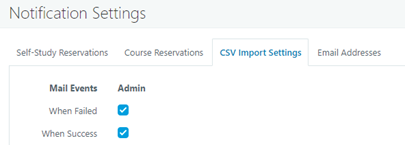
CSV Import Settings: Defining the CSV Import events (Pass/Fail) on which e-mail notifications will be sent to the configured administrator’s e-mail IDs.
-
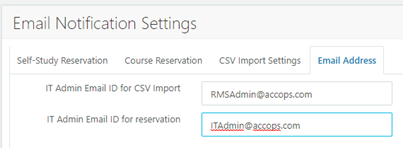
E-mail Address: E-mail addresses for CSV Import and Reservations are to be configured here.
Email Templates in HyLabs
HyLabs supports email notifications for all HyLabs events to selected user types as described in previous sections. For notifications HyWorks uses pre-defined templates. In HyWorks v4.0, the email templates can now be customized from HyLabs portal itself, against the previous mechanisms of management of file based email templates from HyLabs/ HyWorks installation directory.
By default HyLabs will be using the file based templates in HyLabs/ HyWorks installation directory. But the HyLabs portal email templates can be enabled using following steps.
Enabling Email template settings
-
Login as HyLabs admin into HyLabs portal
-
On HyLabs portal Navigate to
HyLabs configurations > Default reservation settings -
Find the option Use Email Templates and enable it and save the settings.
-
HyLabs will now start using templates as available in the HyLabs portal.
In the next section, details of HyLabs Portal Email Templates will be provided.
Email Templates from HyLabs Portal (v4.0)
A new page is introduced with HyWorks controller v4.0 where admin can update templates through HyLabs portal itself
HyLabs portal > HyLabs Configurations > Email Template Settings
The email recipient users can be kept into following two categories
-
HyLabs Admin users: Includes Admin, Incharge, Assistants and creators role associated with the reservation.
-
HyLabs Participants: Users which are added as Participants in the reservation.
There are two ways to use the email templates:
-
Use the system’s pre-defined templates
- The following system-defined templates are available, which can be modified as per requirement.
Template Name Reservation Type Target Users Default Course Template for HyLabs Admin Users Course HyLabs admin type users Default Course Template for HyLabs Participants Course HyLabs participant type users Default Self-Study Template for HyLabs Admin Users Self-study HyLabs admin type users Default Self-Study Template for HyLabs Participants Self-study HyLabs participant type users -
Create a template for a specific event and role.

Customizing System-defined Email Templates
-
Log in as the HyLabs admin to the HyLabs portal
-
On the HyLabs portal Navigate to HyLabs configurations > Email template settings page
-
The system-defined templates are listed below.
-
Default Course Template for HyLabs Admin Users: Default course reservation template being used for Admins, incharges, assistants, creators.
-
Default Course Template for HyLabs Participants: The default course reservation template is used for participants in reservations.
-
Default Self-Study Template for HyLabs Admin Users: Default self-study and course self-study reservation template being used for Admins, Creators.
-
Default Self-study Template for HyLabs Participants: Default self-study and course self-study reservation template being used for participants.
-
-
Select any template and click Edit, Edit template settings wizard will get opened.
-
Admin can customize the email content sent to users for course reservation events using the keywords listed below. Details of the Keywords:
{Name}: Full name of the user receiving the email. {Addition_Info}: Any additional notes or instructions related to the reservation. {Action}: The type of action taken (e.g., confirmed, canceled, rescheduled). {Reservation_Name}: The name of the reservation. {Course_Name}: The name of the course. {Course_Code}: Unique code or identifier for the course. {Class_Name}: Name of the specific class/session. {Next_Start_DateTime}: Start date and time of the upcoming reservation. {Next_End_DateTime}: End date and time of the upcoming reservation. -
Admin can use any of the keywords above and rearrange them to customize the email content as needed. A separate text window will be provided to rearrange and format the settings as per customization needs.

-
Click on Save. After this, when the next reservation event occurs, users will be notified using customized templates.
Important
As there is one email template for each type of reservation, all reservations will use the same modified template and thus system defined templates should be modified with caution.
Manually adding an email template for a specific event
If it requires a specific email template for a specific event, then the steps below can be used to
-
Log in as the HyLabs admin to the HyLabs portal.
-
On the HyLabs portal, navigate to
HyLabs configurations > Email template settings page> Click on Add. -
The wizard to add a new email template will get invoked.
-
Name: Provide a distinguish name for the template as per the event
-
Email recipient type: Select the option for which we want to send the notifications
-
HyLabs Admin users: Includes Admin, Incharge, Assistants, and creators’ roles associated with the reservation
-
HyLabs Participants: Users who are added as Participants in the reservation
-
-
Template for: Select option Course. If the template is for course reservation, select the self-study option. If the template is for self-study or course self-study.
-
Notification trigger: Select the event type from the list of triggers.
Important
Admin can create one template per trigger, per email recipient type, and per reservation type.
-
Customize or rearrange the keyword templates as needed in the provided textbox, then click Save.
-
The next reservation deployment will start receiving updated, customized notifications per the configurations.
-
Email Template Usage Fallback Sequence
-
Use Email templates: Disabled (Configurable from Default reservation settings)
-
Use the notification settings from the templates in the HyLabs/HyWorks installation directory, as earlier.
-
Use Email templates: Enabled (Configurable from Default reservation setting).
-
Priority# 1: Event-specific template (if created)
-
Priority# 2: Default templates on the HyLabs portal.
Email Notification Examples
Below is a screenshot of the course reservation email notification sent when creating an event using the default course reservation template for participants.

File Based Email Templates (HyLabs/HyWorks Installation Directory)
Every notification email from HyLabs is created using a pre-defined template. These templates are generated automatically whenever a relevant operation (CSV Import, Self-study reservation, or course reservation) is initiated. Each template is stored in a different file, which can be edited by logging into the HyWorks controller using RDP or console access.
The E-mail templates are default kept with HyWorks Controller Service and HyLabs Service in the following folders:
-
HyLabs Service: C:\Program Files (x86)\Accops\HyWorks\RMSService\EmailTemplate
-
Controller Service: C:\Program Files (x86)\Accops\HyWorks\Service\EmailTemplate
Keywords in Email Templates
Standard keywords can be embedded in each template to include details like course name, schedule, etc. Following are the standard keywords that can be used in email templates:
-
{Reservation_Name}: Name of reservation
-
{Course_Name}: Course Name
-
{Next_Start_DateTime}: Next start time.
-
{Next_End_DateTime}: Next end time
-
{Action}: Type of change
Type of Email Templates
Course Email
File location: C:\Program Files (x86)\Accops\HyWorks\Service\EmailTemplate\Course\Course This email template is used when:
-
A Reservation is created.
-
A Reservation has been updated, and its schedule has been changed.
-
A Reservation has been canceled.
-
A Reservation fails during deployment.
-
A Reservation is deleted.
CSV Import
File location: C:\Program Files (x86)\Accops\HyWorks\Service\EmailTemplate\CSV\CSVImport This email template is used to send the result of a CSV import. Once the import is completed, the result, including the number of records imported or failed, is sent via this email.
Self-study
File location: C:\Program Files (x86)\Accops\HyWorks\Service\EmailTemplate\SelfStudy\SelfStudy This email template is used when emailing participants about their self-study reservations.
Customizing Email Contents
As email templates are located at both HyWorks controller and HyLabs Service, an administrator can modify them from any of the below locations, but the updated template must also be copied to another location.
Default location of Email Templates
-
HyLabs Service: C:\Program Files (x86)\Accops\HyWorks\RMSService\EmailTemplate
-
Controller Service: C:\Program Files (x86)\Accops\HyWorks\Service\EmailTemplate
To update Email Templates for customized E-mail notifications, follow the below steps:
-
Log in to the HyWorks controller using RDP/ Console access.
-
Delete existing email template files.
-
Create new files and place them in appropriate folders as original files. Please save the files in the same encoding format as the HyWorks email encoding setting.
-
Make sure to set the correct encoding from the HyWorks management console.
-
Repeat steps 1-3 for the secondary HyWorks controller also.
To restore the original email template files, delete the files from the location. HyWorks will automatically create default email template files when creating a new reservation.
Note
If HyWorks Controller and HyLabs Services are running in HA on different Windows Servers, then Email Templates must be copied on all Controller and HyLabs Servers.
Customizing Email Format
Encoding standards tell the web browser or email application how to interpret the text characters in your HTML or email body. The default Email format is:
-
Email Type: HTML
-
Email Encoding: The encoding format is read from the OS settings.
To determine the appropriate format used by your email server, look at the charset attribute in the email header content-type field.
Date: Wed, 16 Mar 2018 14:12:33 -0820
To: test@accops.com
From: testfrom@accops.com
Subject: Test
Message-ID: e0irfueknwie94837dndmfkf@www.accops.com
X-Priority: 2
X-Mailer: office365
MIME-Version: 1.0
Content-Transfer-Encoding: 8bit
Content-Type: text/html; charset="UTF-8"
To configure email format and encoding, please follow these steps: 1. On HyWorks Controller Management Console > Settings > General > Advanced Config
-
Find the option "HyLabs Email HTML Body" and set its value to false to use plain text email format.
-
Find the option "HyLabs Email Encoding Type" and set the encoding type of the email. The various options are provided below:
-
UTF-8 (Most Recommended)
-
ISO-8859-1
-
ISO-2022-JP (Only Japanese users)
-
Shift_JIS (Only Japanese users)
-
EUC-JP (Only Japanese users)
-
-
Click Update Click to save the advanced configurations.
-
The settings are automatically synced with the secondary controller, so there is no need to make the same settings on the secondary controller. Please note that the email template files must also be updated (or copied) manually on the secondary controller.
Important
Make sure the email template file files are stored in the same encoding format as specified in the Email Encoding setting. It is advised to use UTF-8 as email encoding, create the email template files in Notepad, and store them with UTF-8 encoding using the save-as option in Notepad.