Gold Master: More Management Operations
Go to Objects > Gold Master to manage all the Gold Master images in the HyLabs deployment. The details of adding and viewing the Gold Master are described in the previous section. In this section, more Gold Master management operations will be discussed.
Power Operations on Gold Master
Power operations on the Gold Master will be available to the following users:
-
Reservation Admin (All types of the Gold Masters)
-
Incharge (Gold Master assigned to the course, the Gold Master assigned to incharge, course default the Gold Masters (if not restricted to admin only)
-
Any custom role with defined access to Gold Masters
Users with appropriate privileges will be able to perform power operations on the Gold Masters as described below:
-
Power On: The option will be available on Gold Master VMs in the Powered-off state.
-
Shutdown: The option will be available on Gold Master VMs in the Powered-on state. The shutdown operation requires hypervisor tools to be installed on the Gold Master; it will fail without them.
-
Power Off: The option will be available on Gold Master VMs in the Powered-on state. Upon performing the Power off/Suspend/Restart operation, the user will be shown a confirmation dialog.
-
Suspend: The option will be available on Gold Master VMs in the Powered-on state. Upon performing the Power off/Suspend/Restart operation, the user will be shown a confirmation dialog.
-
Restart: The option will be available on Gold Master VMs in the Powered-on state. Upon performing the Power off/Suspend/Restart operation, the user will be shown a confirmation dialog.
-
Resume: The option will be available on Gold Master VMs in Suspended State.
Connect to Gold Master
Reservation Admin/Incharge users can connect to the assigned Gold Master VM. The option will be enabled when the Gold Master VM is powered on, and the DVM agent status is responding. For ready to connect Gold Master VMs,
-
Select the Gold Master VM
-
Click Connect to connect to Gold VM using logged-in user credentials (Reservation Admin or Incharge)
Connect Gold Master Flow:
-
On a connect call to the Gold Master by the reservation admin or incharge, the controller will request the HyWorks DVM agent to configure the following settings:
-
Giving remote access permission to the logged-in user
-
Granting the logged-in user local administrator rights on the Gold Master.
-
-
Now the admin/incharge on-access will get access to the Gold Master with local administrator rights.
-
The user can make necessary changes and then log out.
-
At the next DVM Agent service restart (eventually with the Gold Master restart or shutdown-start), all rights for existing users will be revoked.
Refresh DVM Agent Status of Gold Master
As explained in the section above, the HyWorks DVM Agent plays a critical role in enabling remote access for users, and its unavailability may affect the Gold Master's functionality.
In cases where users are experiencing connection or permission issues on Gold Master, they can verify the agent status and refresh it to get the latest status of the DVM agent. To perform a refresh action on the Gold Master:
-
Select Gold Master from the list.
-
Click Refresh in the action bar.
-
HyWorks in the backend will communicate with the respective session provider to fetch
-
Power status of Gold Master
-
Latest IP address of Gold Master
-
Agent status on Gold Master
-
-
As per the above updates, the Gold Master status will be updated and displayed to the user.
Upgrade Agent on Gold Master
From the Gold master, the administrator can upgrade HyWorks DVM Tools on the Gold master if the Gold Master is running a lower version. To upgrade the DVM tools on the Gold master, either of the following methods can be used:
Upgrade Agent from HyLabs Portal
Prerequisites:
- Make sure to keep the latest DVM tools in the appropriate location on the HyWorks controller server. Refer to the document on the HyWorks Knowledge Center for detailed information.
Upgrade Process:
-
Select the Gold Master to be upgraded.
-
Click Upgrade Agent
-
The HyWorks DVM Tools Manual Upgrade dialog will open, allowing you to choose components to upgrade.
-
HyWorks Desktop Agent
-
HyWorks Built-in USB Redirection Driver
-
HyWorks Printing Module (Session Server Extensions)
-
HyWorks USB Cleaner
- Option to reboot DVM
-
-
Select appropriate options and click Upgrade.
-
The upgrade will be initiated, and the respective DVM will be upgraded to the latest version.
Alternate process of manual Installation of DVM Tools
In older versions of HyLabs, there was no direct upgrade mechanism. Thus, the administrator or incharge must download the latest HyWorks DVM Tools setup and copy it to the Gold Master. The following steps can be followed to upgrade DVM tools on Gold Master:
-
Connect to Gold Master with local admin privileges (Login as Incharge/HyLabs Admin)
-
Download and copy the HyWorks DVM Tools setup locally on the Gold Master.
-
Double-click the setup to invoke the installer.
-
If a User Account Control warning appears, click Yes to confirm the action.
-
Proceed with the installation, and when components are displayed, select all components and click Next to continue.
-
Let the installation be completed.
- In between, it may display the confirmation prompt for the HyPrint module installation.
-
Once completed, click Finish to dismiss the wizard.
Edit Gold Master
Once imported and assigned to a specific HyLabs object (Course/Self-study/Incharge), the following types of Gold Master VMs can be modified:
-
Gold Master assigned to the course with no reservation(s)
-
Gold Master assigned to the course with expired reservation(s)
-
Gold Master assigned to incharge
-
Gold Master assigned to Self-study.
The following attributes of the Gold Master VM can be changed:
-
Usage Information:
-
Assign To
-
Description
-
Computer/VM Name (Only applicable for Self-study Gold masters)
-
Remote Desktop Connection Port
-
-
Assigned Objects (Courses, Incharge)
-
Modify Gold Master Limits
-
Course Gold Masters:
-
Maximum Total VMs
-
Maximum Active VMs
-
Concurrent Connection Limit
-
-
Self-study Gold Master:
-
Maximum Active VMs
-
Max Duration Allowed
-
Max Self-Studies Allowed
-
-
-
Modify Snapshot Settings
-
Modify Access Policies
Edit Gold Master Assignment
As already specified above, only Gold Master VM configurations without reservations can be modified.
Change Gold Master Assign To
It is possible to change the assigned object type of the Gold Master. For example, a course can be changed to the Gold Master's default, or the Gold Master or incharge can be changed.
Conditions:
Assignment to the Gold Master can be changed only by satisfying the following condition:
-
The Gold Master is not assigned to Self-study. Essentially, only those Gold Masters to be used for course reservations (Incharge, Course, or Course Default) can be modified to change the assignment.
-
The Gold Master has no scheduled or deployed reservations.
Let us try to understand it with another example:
An administrator initially assigned a Gold Master to a course, but later needed it modified by Incharge first. To achieve this, the administrator will be willing to change the Assign To of the Gold Master to the course instructor. Below is the step-by-step process to achieve this:
-
Assign the Gold Master to the Incharge of the Course
-
Go to Gold Master > Select the Gold Master to be modified (Assigned to a course but not having an upcoming or a running reservation)
-
Click Edit Gold Master and in the Edit Gold Master wizard.
- Change the Assign To field from the existing HyLabs object to the new HyLabs Object (e.g., Course to Incharge).
-
Click Next to navigate to the Session Provider tab.
-
In the Session Provider tab, it should not allow the user to modify the Session Provider or the selected Gold Master configuration.
-
Click Next to go to the Select Incharge tab (When the reservation admin changes Assign To from Course to Incharge, the third tab also gets changed to Incharge)
-
In the Select Incharge tab,
-
Use an appropriate search string to list users from the authorization server.
-
Select a user to be designated as incharge of the selected Gold Master.
-
-
Click Save to close the wizard.
-
The Gold Master will be saved in HyLabs, and the selected incharge user, upon logging in to the HyLabs portal, will be able to see the assigned Gold Master.
- While creating a reservation for a course that has been unassigned, you won’t be able to see this Gold Master.
-
-
Assign the Gold Master to the Course from Incharge
-
Go to Gold Master > Select the Gold Master to be modified (Assigned to a course but not having an upcoming or a running reservation).
-
Click Edit Gold Master.
-
In the Edit Gold Master wizard.
- Change the Assign To field from the existing HyLabs object to the new HyLabs Object (e.g., Incharge to Course).
-
Click Next to navigate to the Session Provider tab.
-
In the Session Provider tab, it should not allow the user to modify the Session Provider or the selected Gold Master configuration.
-
Click Next to go to the Select Course tab (When the reservation admin changes Assign To from Incharge to Course, the third tab also gets changed to Select Course)
-
In the Select Course tab,
-
Use the appropriate search text to list the available courses.
-
Select the intended course.
-
-
Click Save to close the wizard.
-
Gold Master will be saved in HyLabs and assigned to the selected course. While creating reservations for the course, the selected course master will be displayed.
- On the next logon, the incharge (previously assigned to Gold Master) will not be able to view the Gold Master (if the same incharge user is not included in the newly assigned course).
-
Change Gold Master Assigned Objects
Edit Gold Master wizard also provides options to change the assigned objects while keeping the Assign To same as before, e.g., changing the course of a Gold Master or changing incharge of a Gold Master. To achieve this, follow the steps below:
- Change Course(s) of a Course Gold Master: Courses with existing reservations cannot be removed, but new ones can be added.
-
Go to Gold Master > Select the Gold Master to be modified (Assigned to a course but not having an upcoming or a running reservation).
- To Edit Gold Master > in Edit Gold Master wizard:
-
Do not make any changes in the Usage tab, and click Next.
-
Click Next to navigate to the Session Provider tab.
- In the Session Provider tab, it should not allow the user to modify the Session Provider or the selected Gold Master configuration.
-
Click Next to go to the Select Course tab.
-
In the Select Course tab,
-
Click Add to add new courses.
-
Use the appropriate search text to list the available courses.
-
Select the intended course(s).
-
Select the courses already added, then click Remove Courses to remove the course mapping.
-
-
Click Save.
-
Gold Master will be assigned to the new course.
-
While creating a reservation for the previous course, the Gold Master will no longer be available.
-
Gold Master can now be used while creating a reservation for a new course.
-
-
Change Incharge of a Gold Master Assigned to an Incharge: The process for changing incharge is similar to the process for modifying a course. Follow the same steps as above, and on the Select Incharge tab,
-
Search and select a new incharge for Gold Master.
-
Save the settings
-
Gold Master will be assigned to the new incharge
-
The person in charge on the next login will not be able to view or control the Gold Master.
-
The new in-charge on the next logon will be able to view and control the Gold Master
-
Note
An issue arises when removing an in-charge who has already deployed reservations with the Gold Master, as it can cause problems during redeployment or other operations on those reservations. To prevent this, the administrator must ensure that no reservations are deployed by that in-charge before proceeding with removal.
Modify Other Configurations of Gold Master
Following other configurations can also be modified in the Edit Gold Master wizard:
-
Description: Modification of description does not have any impact on any of the associated objects.
-
Gold Master Limits
-
Course Reservation Gold Master:
-
Maximum Total VMs: This could affect the overall reservation creation process, as changing the number may affect the reservation capacities.
-
Maximum Active VMs: This could affect the overall reservation creation process, as changing the number may affect the reservation capacities
-
Concurrent Connection Limit: Existing connections will not be affected, but new ones will.
-
-
Self-study Gold Master:
-
Computer/VM Name: Once the computer name is updated, changes will take effect only on the next reservation deployment after the update, and an appropriate warning will be shown in the UI.
-
Maximum Total VMs: This could affect the overall reservation creation process, as changing the number may affect the reservation capacities.
-
Maximum Duration Allowed: The changed configuration will be used for new self-study reservations. Existing reservations will not affect the outcome.
-
Max Self-Studies Allowed: Same as above, only new reservations will be affected.
Important
The feature is supported in HyWorks v4.0 or later.
-
-
-
Remote Desktop Connection Port: The updated port will be used for the new deployment.
Modify Session Provider Configurations
There are no configurations to be modified in the Session Provider tab of the Edit Gold Master wizard. Only the Gold Master Name and the Associated Provisioning Profile are shown in read-only mode.
Edit Gold Master Snapshot Settings to Redeploy Reservations
The administrator can modify the Gold Master VM’s snapshot configurations while modifying Gold Master. The changes can be used for the following two purposes:
-
Future reservations from this Gold Master will use new settings.
-
Redeployment of existing reservations with new snapshot settings of Gold Master.
To redeploy existing reservations, the following steps should be followed:
-
Go to Gold Master > Select the Gold Master to be modified (Assigned to a course and not having any about-to-start or running reservations).
-
Click Edit Gold Master.
-
In the Edit Gold Master wizard, go to the Snapshots tab.
-
Update Snapshot settings as per requirements.
-
Below the Snapshot settings, the Reservation List will be displayed.
-
Displaying all reservations from this Gold Master, their current snapshot configuration, and, e.g., whether a reservation is deployed using the Current State of Gold Master, it will show that in-charge deploys no reservations, Snapshot Name as blank, Snapshot Source as Current State, and Redeployment State.
-
Select reservations that require redeployment as per the current snapshot configuration change.
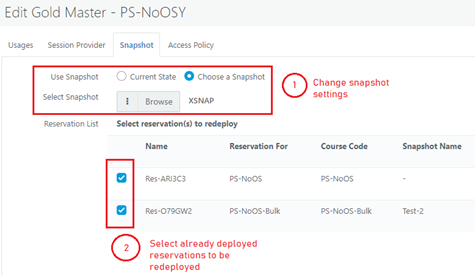
-
-
-
Proceed to save settings and finish the Edit Gold Master wizard.
-
HyLabs will mark all selected reservations for redeployment, as shown on the Reservations screen.
-
As per the next deployment window, all re-deployments will be done.
-
If administrators are willing to redeploy reservations immediately, they can do so from the Deployment options on the Reservations screen.
Important Notes for Re-deployments
The administrator will be able to select one or multiple reservations to be redeployed using the following rules:
-
Only those selected reservations that use a different snapshot from the currently selected snapshots will be redeployed; e.g., a Gold Master has 3 reservations deployed with Snapshot1 and 1 with Snapshot2. Now, the administrator changes Snapshot settings to move to Snapshot2 and select all 4 reservations; then the 4th reservation, which is already using Snapshot4, will not require redeployment and will not be redeployed.
-
All re-deployments will be done as per the deployment settings.
-
Reservation will not be redeployed immediately; however, if they have multiple schedules or are recurring, redeployment will be done in the next deployment window.
-
Expired or cancelled reservations will not be listed for redeployment.
Edit Self-study Gold Master Reservation Window
The Gold Master of type self-study has an additional configuration for the reservation window, which can be modified while editing the Gold Master. The following configurations of the Reservation Window can be changed:
| Configuration Name | Is Modifiable? |
|---|---|
| Reservation Window (Enable/Disable) | Yes |
| Advance Booking in Days | Yes |
| Allowed Time Window | Yes |
| Restrict Reservations on | Yes |
Important
-
Although all Reservation Window configurations can be modified, this will not impact any existing self-study reservations linked to the Gold Master.
-
The configurations will only affect the creation of the next self-study reservation.
Edit Gold Master Access Policies
Administrators can modify access policies using the Edit Gold Master wizard. They can choose to remove or add client groups to the Gold Masters. Please follow the steps below to update the access policies of an existing Gold Master.
-
Go to Gold Master > Select the Gold Master to be modified (Assigned to a course but not having an upcoming or a running reservation).
-
Click Edit Gold Master.
-
In the Edit Gold Master wizard, go to the Access Policy tab.
-
Add/ Remove Client groups as per requirements.
-
It will display a warning message with the list of affected reservations.
-
-
Click Save to save settings. Now Gold Master access policies have been modified, and the following behaviour is expected:
-
Existing reservations' access will be affected, but already connected sessions will not be affected.
-
New reservations will be created in accordance with the new access policies.
-
Delete Gold Master
An existing Gold Master can be deleted from HyLabs. The deletion only removes the Gold Master from the HyWorks database and does not delete it from the deployer incharge, which has no reservations or dedicated session provider.
Follow the steps below to delete Gold Master from HyLabs: 1. Go to Gold Master > Select the Gold Master to be deleted. 2. Click Delete Gold Master. 3. The Confirm Action dialog will be displayed; click Delete to continue deleting the Gold Master. 4. Gold Master will be deleted from HyLabs, and the associated HyLabs object (Course, Incharge) will no longer be able to make use of the deleted Gold Master VM.
Gold Master VMs Deletion Dependencies:
HyLabs will not allow deletion of Gold Master VMs that are associated with existing objects, such as those assigned to courses or with running reservations. Thus, the following types of Gold Master VMs can be removed from HyLabs:
-
Gold Master, which does not have any associated reservations (attempting to delete Gold Master assigned to a course with a scheduled or running reservation will fail).
-
Gold Master assigned to incharge.
Gold Master Snapshot Management
HyWorks provides mechanisms to manage snapshots of added Gold Master VMs directly from the HyLabs portal. Administrators will be able to perform the following operations:
Create New Snapshot: To create a new snapshot of Gold Master, follow the steps below:
-
Log in as the reservation admin.
-
Select Gold Master VM, then launch the Available Snapshots dialog by clicking Manage Snapshots.
-
In the Available Snapshots dialog,
-
Click Create Snapshot
-
Provide an appropriate Name and Description for the new snapshot.
-
Click Save Snapshot
-
-
The Available Snapshot dialog will be dismissed, and a new snapshot will be taken.
Revert to Snapshot: To revert to the existing snapshot, follow the steps below:
-
Log in as the reservation admin.
-
Select Gold Master VM and launch the Available Snapshots dialog by clicking Manage Snapshots.
-
In the Available Snapshots dialog:
-
Select a snapshot from the tree view to which the Gold Master should be referred.
-
Click Revert Snapshot.
-
Confirm Action text will be shown. Click Revert Now to continue reverting to the snapshot.
-
The available Snapshot dialog will be dismissed, and the Gold Master will be reverted to the selected snapshot.
-