Management Console Layout Overview
The HyWorks Management Console provides a very intuitive user interface for centrally managing all HyWorks configurations. These configurations are available under various screens, as described below:
HyWorks Management Console Navigation Layout
This has a Three-level menu navigation layout:
-
Primary - Left side menu
-
Secondary - Top menu
-
Tertiary - Second from the top menu
Top-most Right Side Panel
The top panel of the Management Console provides access to:
-
The option to Switch Organization
-
Details of the logged-in user
-
Link to the Logs screen
-
Change Password: Applicable for a HyWorks local user super-administrator account (not for Active Directory users, designated as HyWorks super-administrator)
-
Logout option
-
Link to Help page
Current Organization and the option to switch Organization
The top panel displays the currently selected organization and allows the Administrator to switch to another organization.
Currently Logged-in User Details and Actions
The top panel also displays the details of the current administrator user.
The dropdown list (available next to the name of the administrator) provides options to:
-
View Logs
-
View Help
-
Change Password
-
Logout
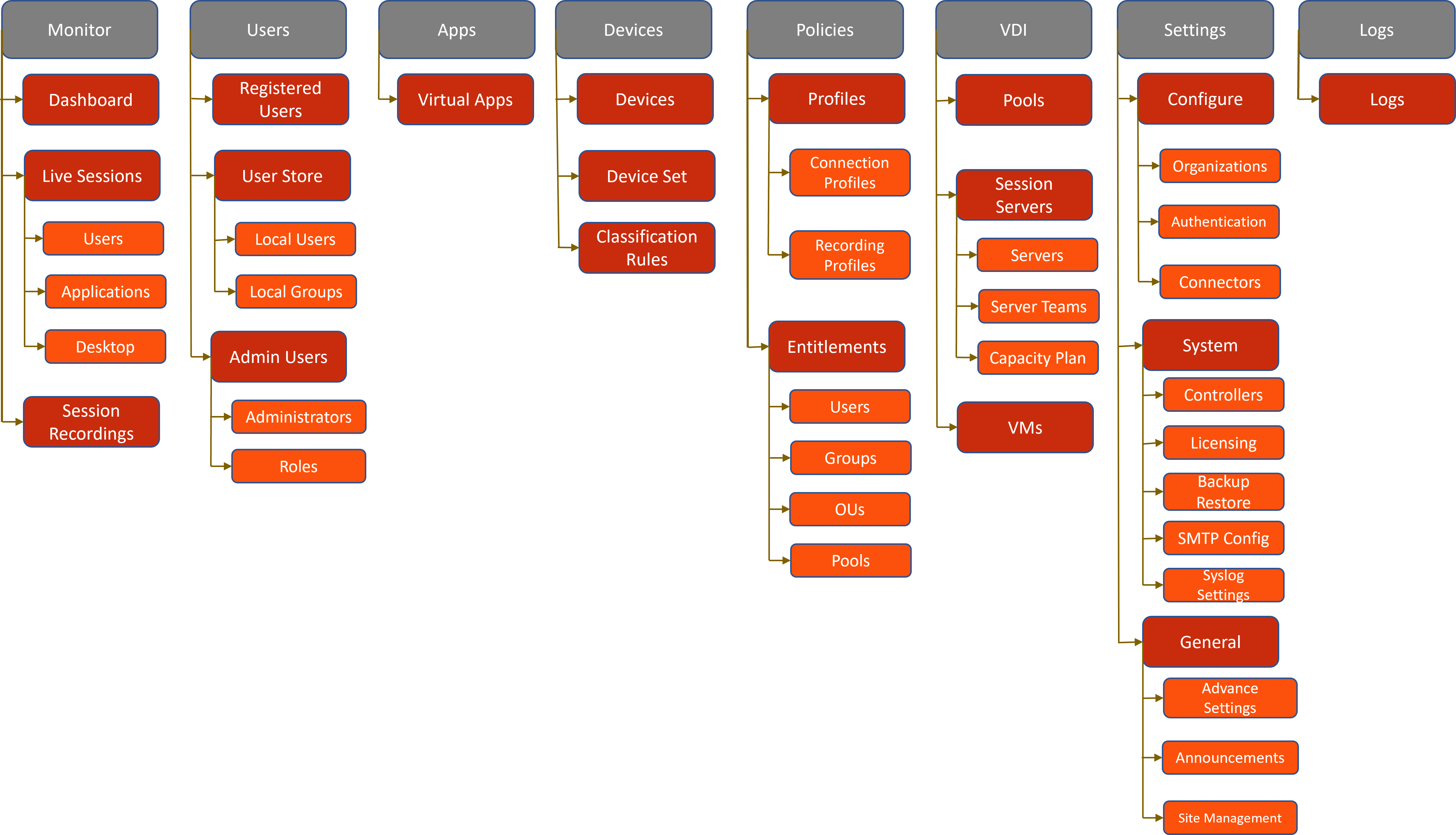
Monitor
The Monitoring section in HyWorks provides the administrator with the ability to monitor and manage the following objects:
-
Dashboard
-
Live Sessions
-
Session Recordings
Dashboard
Upon successful log-in, the Administrator can navigate to the Dashboard. The Dashboard will display a summary of HyWorks configurations and deployments in an easy-to-read format, enabling quick analysis of current system usage and status. The following information is available on the Dashboard:
-
System Usage: Session information, endpoint information, information of the desktop virtual machines, license usage, and published virtual applications information.
-
Configurations: HyWorks Controller configuration and status, Shared Session Hosts, Authentication Servers, and Dedicated Session Providers information.
Live Sessions
Types of sessions that can be monitored and managed from the Live Sessions are:
-
User Sessions
-
Application Sessions
-
Desktop Sessions
Session Recordings
Recorded files for application and desktop sessions can be managed using the Session Recording menu. Only a user with a Recording Auditor role can view the recordings. By default, the super-administrators have the privilege to view the recordings.
Users
The Users section in HyWorks allows the administrator to manage registered users, the user store, and admin users. The following menus are available in this section:
Registered Users,
This screen lists all the registered users (any user who has signed in successfully to HyWorks at least once). It also shows the assigned applications, desktops, and connection policies, as well as the following options:
-
View details of the user
-
Delete a user
-
Export (export user details)
User Store
The User Management section enables Administrators to configure local users and groups within the HyWorks database. These users and groups can be used to authenticate and authorize access. The Users and Groups sub-sections can be used to manage users and groups, respectively.
Local Users
This section can help in managing built-in users (users created within HyWorks) with the following actions:
-
Add new users
-
Modify existing users
-
Delete existing users
-
Import/Export users from/to CSV files
-
Sync Users
-
Download template CSV files for user import
Local Groups
-
Add new groups
-
Modify existing groups
-
Delete existing groups
Admin Users
The Admin Users section in HyWorks provides an interface for defining access and delegating administrative policies. The following two sub-sections are available within this section:
Administrators: This section covers adding, removing, or changing users' administrative permissions.
Roles: This section covers viewing system-defined roles and managing custom roles.
Apps
The Applications section can be used for the following operations:
-
Add/Publish a virtual application
-
Copy an existing application
-
View details of applications that are already added in Read-only mode
-
Modify added applications
-
Delete existing applications
-
Export (Export application details)
Devices
Endpoint management in HyWorks enables Administrators to control every aspect of registered endpoints, such as volume control, display management, and policy controls.
Devices
This section includes information on registered devices for adding, removing, or changing their settings. The Devices section can be used for the following operations:
-
Default Settings
-
Device Settings
-
Export registered device data.
-
Disable, Delete Device
-
Move to group/set
-
Get logs of devices
Device Set
This section includes information on the registered device used to add, remove, or change device settings. The Devices set section can be used for the following operations:
-
Add a new device set
-
Edit an existing service set
-
Delete a device set
Classification Rules
This section has information for managing client groups. It can be used to restrict end-user access to desktops or virtual applications to the allowed list of endpoints, based on MAC address, LAN IP, or WAN IP rules. The following operations can be performed:
-
Add a new rule
-
Edit an existing rule
-
Delete rules
Policies
This section can be used to define policies for session experience, connection properties for desktops or applications, user session recording, and application entitlements for Users, Groups, OUs, and Pools.
Profiles
This section can be used to define policies for the user session experience, connection properties for desktop/application sessions, and session recording.
Connection Profiles
Connection profiles define the session experience and connection properties for a desktop or an application. The following management operations can be performed through this section:
-
Create a new connection profile
-
Modify an existing connection profile
-
Delete an existing connection profile
-
Copy
-
Reset Profile
Session Recording Profile
The session recording profile has configurations to control the behavior of session recordings, such as when to start/stop recordings and also the properties of a session recording file. The following management operations can be performed:
-
Add a new profile
-
Edit an existing profile
-
Delete a profile
USB Profiles
The USB Profile management feature in the HyWorks Management Console allows administrators to control which USB devices can be redirected during Desktop Sessions. This feature is designed to enforce organizational policies by managing USB device usage and redirection across the network.
To learn more about configuring USB policies, click here.
Desktop Policy
The Desktop Policy feature in HyWorks enables administrators to create and manage desktop policies for connection profiles. These desktop policies allow you to configure user and computer settings for remote desktop connections.
To learn more about configuring Desktop policies, click here.
Entitlements
The Entitlements section can be used to add/edit/delete application and connection profile entitlements for the current organization. The following types of entitlements can be created:
-
Users
-
Groups
-
OUs
-
Desktop Pools
VDI
The VDI section allows management of desktop pools, session servers (session hosts, session teams, capacity planning), and desktop virtual machines.
Pools
The Desktop Pools screen provides an interface for creating and managing desktop pools and associating them with intended clients. The following management operations are possible:
-
Add/Edit/Delete Dedicated Desktop Pools
-
Add/Edit/Delete Shared Hosted Desktop Pools
-
Add to maintenance/Remove from maintenance
-
Export (export pool details)
Session Servers
This section can be used to manage servers, server teams, and capacity planning.
Servers
Shared session providers can be used to deliver applications or shared desktop sessions to end users and are configured and managed in this section. Shared session hosts (Microsoft RDS servers/ Linux RDS servers).
The following administrative tasks can be done via this section:
-
Add a new Server
-
Modify the configurations of an existing Server
-
Delete an existing Server
-
Troubleshoot
-
Copy (Creating a Shared Session Hosts copy with the same settings)
Server Teams
This section can be used to manage session host server teams. Having multiple session host servers in a team enables them to balance the load of remote sessions among all the member servers. HyWorks supports Adaptive (live resource-based), Weighted Round Robin, and Weighted Least Connection load-balancing mechanisms. The Administrator can perform the following actions:
-
Add new session teams
-
Modify an existing session team configurations
-
View/Upgrade and download logs of member Session Host Servers
-
Delete existing session teams
-
Export (export team details)
-
The Bar Icon for Managed Teams shows a chart of the Servers and Connections
Capacity Plan
This section can be used to provision and manage teams' session host servers according to the configured plan, helping reduce costs in Cloud Deployments. Based on the user's session load, various plans can be assigned to teams. Separate plans can be used to manage weekday and weekend loads. Each team can be assigned multiple plans based on their session usage pattern.
The Administrator can perform the following actions:
-
Add a New Plan
-
Modify an existing capacity plan
-
Delete a capacity plan
Desktops
Once a desktop pool is created in HyWorks, all virtual machines in the pool will be listed in the VMs section. The desktops are distributed into different pages under desktops as per their type:
-
Personal: All personal desktops are listed here for management and monitoring.
-
Shared: All deployed shared desktops are listed here.
The administrator will be able to manage all the configured desktop VMs using the following options:
-
Power Operations
-
Assign/Unassign desktops
-
Remove from the pool
-
Refresh Desktop Agent status, Upgrade DVM Tools, and download Desktop Agent logs
-
Fix errors (if a VM provisioned by HyWorks is reporting an issue, recreate the desktop)
-
Troubleshoot
Schedules
The Schedules section can be used to create and manage maintenance schedules for personal or shared desktops. More details are available in the Schedules section.
Settings
The Settings section is used to manage configurations for organizations, authentications, and connectors (Session Providers). The section also provides system-level settings and General settings.
Configure
The Configure section manages Organizations, Authentication, and Connectors (Session Providers).
Organizations
Administrators can have multiple sub-organizations in HyWorks to enable a logical separation of resources. They can be assigned to clients and deliver several types of desktop pools and applications to users across distinct organizations. The following actions are available in Organizations:
-
Create a new organization
-
Modify existing organization configurations
-
Delete newly created organizations
-
Expand (jump to sub-organizations)
Authentication
This section helps to manage authentication servers for HyWorks configurations. HyWorks supports Microsoft Active Directory, Novell eDirectory, OpenLDAP, and Built-in (HyWorks database) as authentication and authorization servers. The administrator can use this section to complete the following administrative tasks:
-
Add an authentication server
-
Modify authentication server configurations
-
Delete an existing authentication server
Connectors
All types of session providers that can deliver desktop sessions to end-users are configured and managed in the Connectors section. HyWorks supports the following categories of session providers: Dedicated session providers (VMware vCenter Servers/ESXi Servers and Microsoft SCVMM/Hyper-V Servers, Nutanix, Azure, Physical PCs). The administrative tasks listed below can be completed through this section:
-
Add a new Connector
-
Modify configurations of an existing Connector
-
Delete an existing Connector
-
PhysicalPC Template
System
The System section in HyWorks is used to configure most system settings. It consists of the following subsections:
Controllers
The HyWorks Controller section in HyWorks enables the administrator to perform the following configurations:
-
View the current HyWorks Controller Server and database details
-
Add HyWorks Controller to create a cluster
-
Change the HyWorks Controller server's mode
-
Delete the HyWorks Controller Cluster Server
Licensing
A dedicated section for viewing, applying, and updating licenses in HyWorks.
Backup Restore
The Backup and Restore section is used for configuring HyWorks scheduled backups or to take instant backups.
SMTP Config
The SMTP Config section helps in configuring the SMTP server for notifications and backups.
Syslog Settings
The Syslog Settings section has information for configuring the Syslog server in HyWorks for log forwarding. The configured Syslog server can also be used for log archiving.
General
The General section can be used to manage Advance Settings, Announcements, and Site Management.
Advance Settings
The Advanced Settings section contains essential server-level configurations for performance tuning and enabling system-level changes. Caution is advised when modifying these configurations, as they will be applied at the department level.
Announcements
This page lists endpoint announcements and provides options to add, edit, and delete them.
Site Management
The Site Management section is used for Disaster Recovery management.
Logs
This section is a dedicated screen for viewing and downloading the HyWorks Controller logs.