Integration in HyWorks/ HyLabs
Assuming all prerequisites are properly configured (Microsoft Azure is set up in HyWorks as a connector with the necessary permissions), this document explains how to proceed with HyLabs configurations for delivering single- or multi-session desktops.
Delivering AVD via HyLabs
For delivering AVD single-session or multi-session desktops via HyLabs, the following process is to be followed:
Create AVD-Enabled Provisioning Profile
Assuming all specified prerequisites are configured and the Gold Master VM is ready on Azure, the first step to deliver AVD-based HyLabs is to configure the Provisioning Profile in HyLabs:
-
Access the HyLabs portal with a user having HyLabs admin rights.
-
Navigate to the Provisioning Profile section.
-
Create a new provisioning profile by clicking Add Provisioning Profile.
-
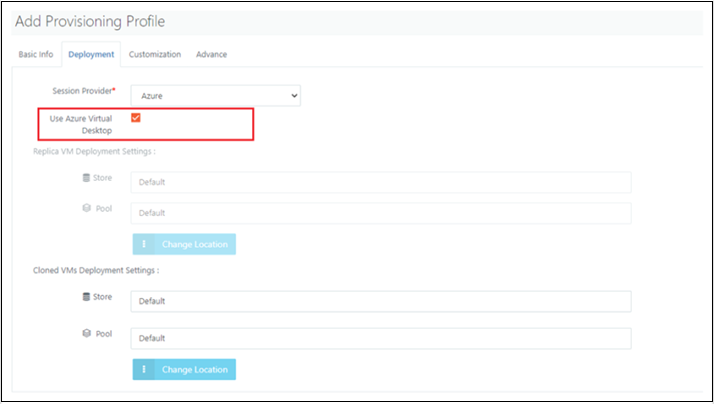
Enable the Use Azure Virtual Desktop option.
-
Navigate to the Advance tab.
-
Save the provisioning profile.
Adding Gold Master in HyLabs
After creating the Provisioning Profile, create the Gold Master specifically configured for AVD.
Adding Single Session Gold Master
-
Access the HyLabs admin portal.
-
Navigate to the Gold Master section. Click on the Add button to open the Add Gold Master wizard.
-
In the Usage tab:
-
Select Session Type as Single Session.
-
Set other options (E.g., Assign To/Description/GM Limits RDP Ports, etc.) as required.
-
-
Click Next to go to the Session Provider tab.
-
Select the Session Provider that was added as the Azure connector.
-
Select the Provisioning Profile with AVD enabled (see the provisioning profile creation section for more details).
-
-
Search and select the appropriate Gold Master created for AVD-based HyLabs delivery.
-
Other pages can be reset (Course selection/Snapshot/Access Policy, etc.) with configurations based on the requirements.
-
Click the Save button to finish adding the Gold Master.
-
AVD-enabled Single-session Gold Master will now be available in HyLabs for deployments.
Adding a Multi-Session Gold Master
-
Access the HyLabs admin portal.
-
Navigate to the Gold Master section. Click on the Add button to open the Add Gold Master wizard.
-
In the Usage tab:
-
Select Session Type as Multi-Session.
-
Set other options (E.g., Assign To/Description/RDP Ports) as required.
Note
GM limits do not apply to multi-session AVD-enabled gold Masters, hence limit configurations will appear disabled.
-
-
Click Next to go to the Session Provider tab.
-
Select the Session Provider that was added as the Azure connector.
-
Select the Provisioning Profile with AVD enabled (see the provisioning profile creation section for more details).
-
-
Other pages (Course Selection, Snapshot, etc.) can be configured as required.
-
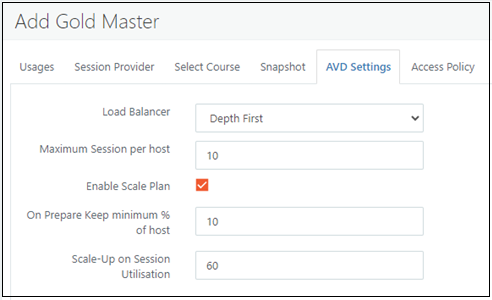
Click Next to go to the AVD Settings page, which has the following configurations:
-
Scale Plan Load Balancer Algorithm: Choose between Breadth-First and Depth-First load-balancing algorithms to optimize session distribution.
-
BreadthFirst: Distributes new user sessions across all available session hosts.
-
DepthFirst: Distributes new user sessions to session hosts with the highest number of connections below their maximum session limit threshold.
-
-
Max Session per AVD Host: Set the maximum number of concurrent user sessions per session host.
- Ensure efficient resource allocation by setting an appropriate max session limit based on deployment configuration and VM capacity.
-
Enable AVD Scale Plan: Toggle option to enable or disable scale plans specifically for AVD reservations. Set to true to activate scale plans for AVD reservations, and false to deactivate them.
-
On Prepare Keep Minimum % of Host: This setting ensures that a minimum percentage of the host is kept prepared and ready for new sessions, reducing wait times for users.
-
Scale-Up on Session Utilization: This parameter defines the threshold for session utilization that triggers scaling up resources to accommodate additional sessions.
-
-
-
Click the Save button to finish adding the Gold Master.
-
AVD-enabled Multi-session Gold Master will now be available in HyLabs for deployments.
Deploy AVD-Enabled Reservation
Once the Gold Master course is ready, proceed with the reservation process for AVD:
-
Navigate to the Reservation section within HyLabs.
-
Initiate a new reservation and specify it as a Course reservation.
-
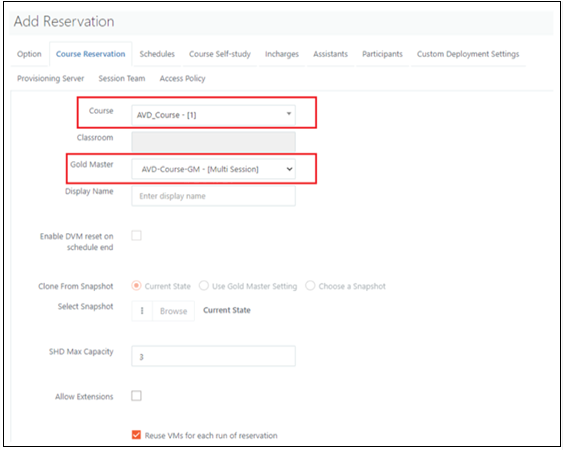
Select the course that has been assigned to the AVD multi-session.
-
Choose the Gold Master where the session type is set to single session or multi-session, and the provisioning profile is AVD-enabled.
-
Add schedule and other relevant details.
-
Save the reservation settings.
AVD Supported Reservations
-
Course Reservation
-
Single Session
-
Multi Session
-
-
Self-Study Reservation
-
Single Session
-
Multi Session
-
Scale-plan enabled
-
Scale-plan disabled
-
-
-
Course Self-study Reservation
- Single Session
Advance Settings in HyWorks for AVD
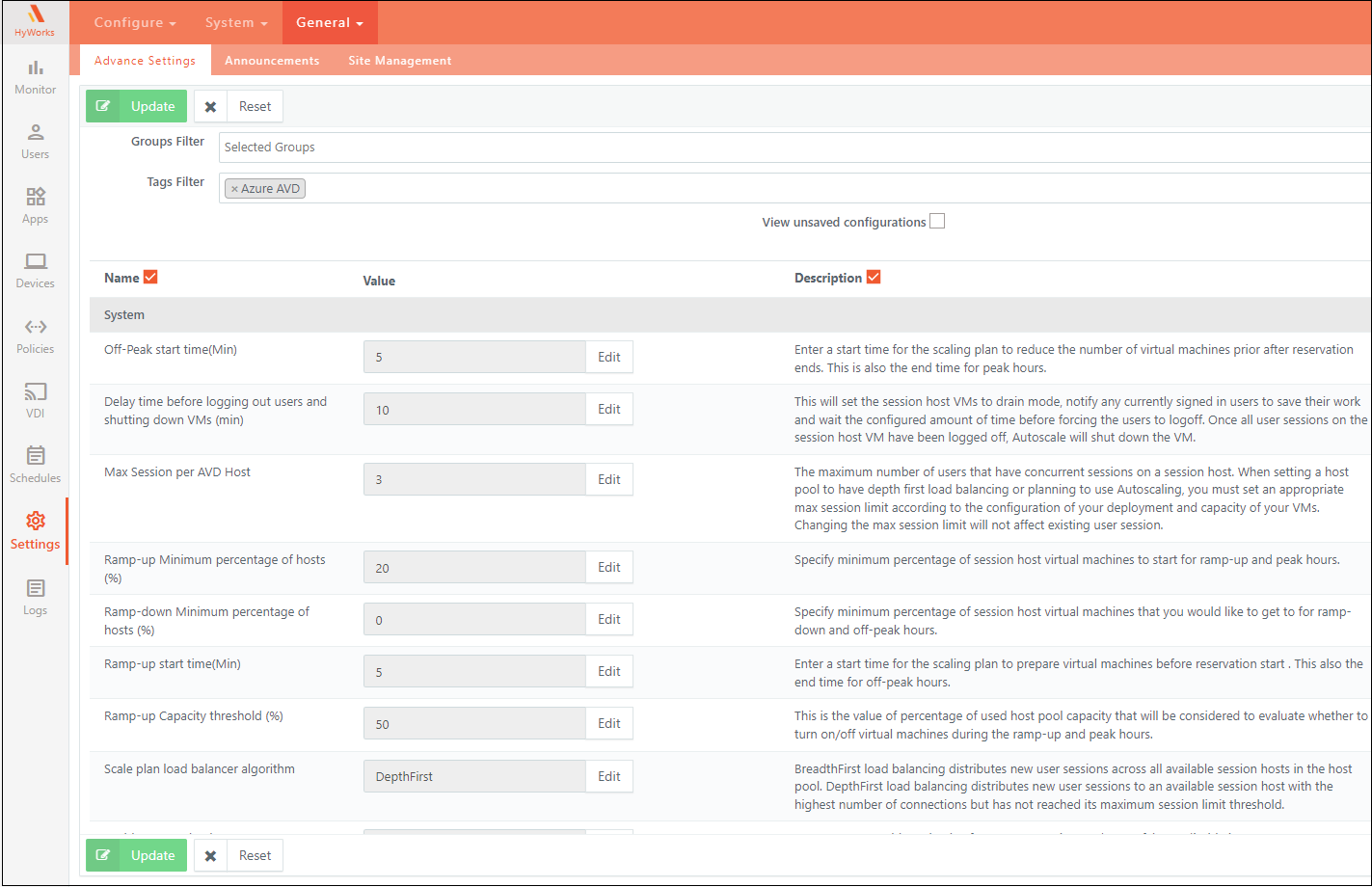
Multiple system-level configurations are specified in HyWorks Advance Settings. Below are some of the advanced configurations for HyLabs and Azure AVD integrations:
-
Path:
HyWorks Controller Management Console > Settings > General > Advance Settings -
Tags Filter: Azure AVD
AVD Scale Plan Advance settings
The following are the advanced settings for the AVD scale plan:
| Configuration Name | Description | Default Value | Tag |
|---|---|---|---|
| Ramp-up Start Time (Min) | Defines the start time for the scaling plan to prepare virtual machines before the reservation begins. Also marks the end time for off-peak hours. | 5 | Azure AVD |
| Ramp-down Capacity Threshold (%) | Determines the percentage of used host pool capacity to decide whether to turn off virtual machines during ramp-down and off-peak hours. | https://learn.microsoft.com/en-us/azure/virtual-desktop/users/connect-remote-desktop-client?tabs=windows#download-and-install-the-remote-desktop-client-for-windows-msi | Azure AVD |
| Delay Time Before Logging Out Users and Shutting Down VMs (Min) | Configure the duration before logging out users and shutting down VMs in drain mode. *Usage:* Allows users to save their work gracefully before being logged out, ensuring a smooth transition. | 5 | Azure AVD |
| Off-Peak Start Time (Min) | Set the start time for the scaling plan to reduce the number of virtual machines after the reservation ends. Also set the end time for peak hours. | 1 | Azure AVD |
Benefits:
-
Dynamic Scaling: Automate scaling operations based on demand to optimize resource utilization and cost efficiency.
-
Fine-tuned Session Management: Customize session distribution and shutdown processes to improve the user experience and resource efficiency.
-
Improved Performance: Proactively prepare virtual machines ahead of peak hours and reduce resource usage during off-peak hours to ensure optimal performance and cost savings.
AVD URLs Advance settings
| Configuration Name | Description | Default Value | Tag |
|---|---|---|---|
| AVD Web URL | The URL(s) are used when connecting to AVD from the HyLabs portal. If the URL is modified, it can be entered here and will be used in the HyLabs portal. Azure Virtual Desktop (AVD) Web URL to connect devices and apps from a web browser. |
ps://windows.cloud.microsoft/ | HyLabs, Azure AVD |
| AVD Client download link for Windows | If the link to download the Azure Virtual Desktop (AVD) Desktop Client for Windows changes, it can be configured here to reflect on the HyLabs portal. | https://learn.microsoft.com/en-us/azure/virtual-desktop/users/connect-remote-desktop-client?tabs=windows#download-and-install-the-remote-desktop-client-for-windows-msi | HyLabs, Azure AVD |
| AVD Client download link for Mac OS | If the link to download the Azure Virtual Desktop (AVD) Desktop Client for Mac OS changes, it can be configured here to reflect on the HyLabs portal. | https://apps.apple.com/app/microsoft-remote-desktop/id1295203466?mt=12 | HyLabs, Azure AVD |
| AVD Client download link for iOS | If the link to download the Azure Virtual Desktop (AVD) Desktop Client for iOS changes, it can be configured here to reflect on the HyLabs portal. | https://apps.apple.com/app/microsoft-remote-desktop/id714464092 | HyLabs, Azure AVD |
AVD Deployments Enhancement - AD Groups
HyLabs v4.0 has enhancements to support assignments of reservations to user groups and organizational units. The feature is also extended to AVD integrations, where application group assignments and session host assignments to AD groups can be done.
-
When an AD Group/OU is assigned at the course, participant, or incharge level: Add the corresponding AD Groups to the AVD Application Groups.
-
Session Host Assignment: Dynamically assign AVD session hosts based on users resolved from the assigned AD Group/OU.
Known Limitations of AVD Integration in HyLabs
-
The controller does not control sessions initiated through AVD, so session timeouts and other connection profile settings do not apply to AVD sessions.
-
There is no direct communication between the controller and the agent, so features like printing, shared drive mapping, and clipboard functionality may not work through Accops.
-
The Gold Master Limit is not supported for multi-session courses and self-study Gold Masters.
-
Multi-session course reservations do not support self-study courses.
-
For multi-session AVD reservations, HyWorks creates a pool as a Persistent Virtual Desktop with a Desktop Pool Type and sets a Personal Desktop as the Assignment Life Span, as HyLabs does not manage session teams for these multi-session AVD reservation pools.