SRMS Requirements
To install SRMS on a Windows desktop system, the following prerequisites must be fulfilled:
Hardware Requirements
Minimum configuration for Windows server:
- Minimum 4GB RAM
- 4 vCPUs
- 10 GB of free space on the installation disk for installation, dependencies, and post-installation management files.
Note
Upgrade the server size to accommodate the necessary recording file size and the history to be maintained.
Supported Operating Systems
SRMS can be installed on any Windows operating system with the necessary prerequisites. Still, installing it on a Windows Server OS is recommended for optimal performance and ease of use.
Where to install SRMS?
SRMS needs to receive, process, and stream session recordings, which requires significant processing power. Hosting it on the same server as the Controller may lead to excessive resource consumption. It is recommended that SRMS be installed on a separate Windows server distinct from the HyWorks Controller.
Software Prerequisites for SRMS
To configure Windows Server with the SRMS, the following software must be installed and configured on the system:
Compatible Erlang/OTP, RabbitMQ, ASP.Net Core, and Dot Net Desktop Runtime Versions and Download Links
This section of the document provides the latest version(s) of RabbitMQ and Erlang OTP supported by HyWorks modules that require these components.
Important
About RabbitMQ and Erlang/OTP
-
It is highly recommended to keep RabbitMQ and Erlang/OTP interoperable, following the guidelines. Refer to Erlang Version Requirements | RabbitMQ for details.
-
Not all minor versions are being tested, so it is highly recommended to use the mentioned minor versions.
-
Please check the EOL of RabbitMQ and supported Erlang/OTP versions.
-
Important points to note for ASP.NET Core and .NET Desktop Runtime
-
Download and install only the recommended major version. You can select the highest minor version available. For example, if the recommended version is v8.0., then use 8.0.x. Do not use 8.1.x* or higher.
-
The official site recommends installing the desktop runtime by default, which includes the .NET Runtime, so explicit installation of .NET Runtime should not be necessary.
-
v4.0 Series
| Accops Module/ Release/Latest Version | Compatible HyWorks Controller | Latest Verified RabbitMQ and Erlang/OTP Version [Recommended] |
ASP Dot Net Core and Dot Net Desktop Run Time | Minimum Verified RabbitMQ and Erlang/OTP Version [Supported but not recommended] |
|---|---|---|---|---|
| VM Scale Booster v4.0.0.169 [v4.0] |
v3.6-SP2 and the latest available hot-fix (if any). | RabbitMQ: 4.2.1: Download from here Erlang/OTP: 27.3.4.6: Download from here |
Not required for VM Scale Booster. | RabbitMQ: 3.13.6: Download from here Erlang/OTP: 26.2.5.16: Download from here |
| Scheduler v4.0.0.221 [v4.0] |
v3.6-SP2 and the latest available hot-fix (if any). | RabbitMQ: 4.2.1: Download from here Erlang/OTP: 27.3.4.6: Download from here |
ASP Dot Net Core 8.0.* Dot Net Desktop Run Time 8.0.*: Download ASP.NET and .NET Desktop Runtime from here |
RabbitMQ: 3.13.6: Download from here Erlang/OTP: 26.2.5.16: Download from here |
| Action Processor v4.0.0.172 [v4.0] |
v3.6-SP2 and the latest available hot-fix (if any). | RabbitMQ: 4.2.1: Download from here Erlang/OTP: 27.3.4.6: Download from here |
ASP Dot Net Core 8.0.* Dot Net Desktop Run Time 8.0.*: Download ASP.NET and .NET Desktop Runtime from here |
RabbitMQ: 3.13.6: Download from here Erlang/OTP: 26.2.5.16: Download from here |
| Session Recording Manager Server v4.0.0.102 [v4.0] |
v3.6-SP2 and the latest available hot-fix (if any). | RabbitMQ: 4.2.1: Download from here Erlang/OTP: 27.3.4.6: Download from here |
ASP Dot Net Core 8.0.* Dot Net Desktop Run Time 8.0.*: Download ASP.NET and .NET Desktop Runtime from here |
RabbitMQ: 3.13.6: Download from here Erlang/OTP: 26.2.5.16: Download from here |
| Policy Engine v20251113T1240 [v4.0] |
v3.6-SP2 and the latest available hot-fix (if any). | RabbitMQ: 4.2.1: Download from here Erlang/OTP: 27.3.4.6: Download from here |
Not required for Policy Engine. | RabbitMQ: 3.13.6: Download from here Erlang/OTP: 26.2.5.16: Download from here |
References:
-
Erlang/OTP and RabbitMQ Compatibility: https://www.rabbitmq.com/docs/which-erlang
-
Download links for RabbitMQ and Erlang/OTP Versions: See the tables above for official download links.
-
RabbitMQ Configuration Script: Required for configuring RabbitMQ to be used with HyWorks modules.
Installing Downloaded Compatible Softwares
ASP.NET Core 8.0 Installation
ASP.NET Core Installation Steps:
-
Log in to the server using user credentials that have local administrator privileges.
-
Copy the downloaded setup files of aspnetcore-runtime-x.y.z-win-x64.
Important
x.y.z indicates the suggested version, where the major parts (x and y) should align with the recommendations, while z can be assigned to the highest available version. For instance, if the recommended version is 8.0.x, select versions from 8.0.1 up to 8.0.x, but avoid using 8.1.0 or higher.
-
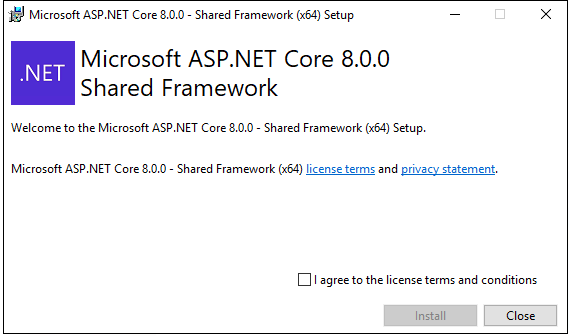
Double-click the setup file aspnetcore-runtime-x.y.z-win-x64.
-
Accept the license terms and conditions and click Install.
-
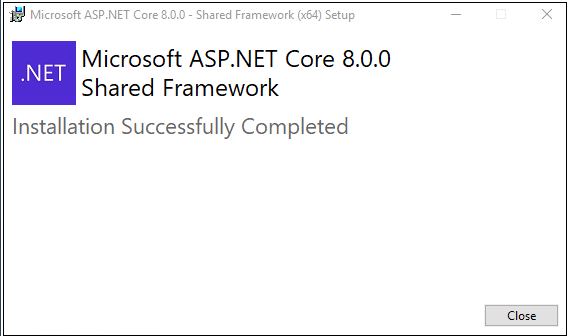
Close the setup wizard once the installation is complete.
.NET Desktop Runtime 8.0 Installation
.NET Windows Desktop Runtime Installation Steps:
-
Log in to the server using user credentials that have local administrator privileges.
-
Copy the setup files for windowsdesktop-runtime-x.y.z-win-x64.exe.
Important
x.y.z represents the recommended version, where the major version parts (x and y) must match the recommendations, while z can be set to the highest available version. For example, if the recommended version is 8.0.x, use versions from 8.0.1 to 8.0.x, but do not use 8.1.0 or greater.
-
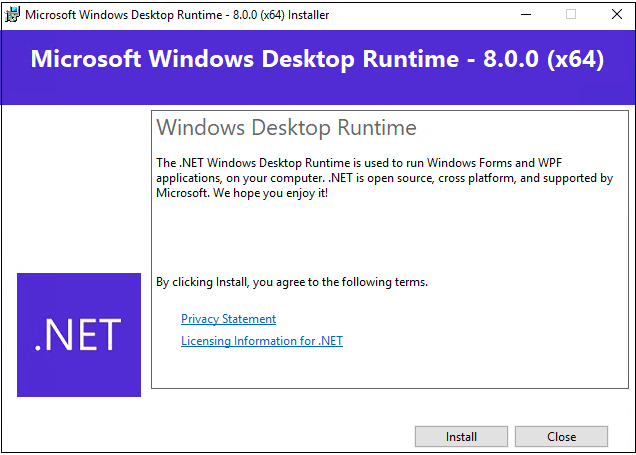
Double-click the setup file windowsdesktop-runtime-x.y.z-win-x64.exe.
-
Click Install to start the installation.
-
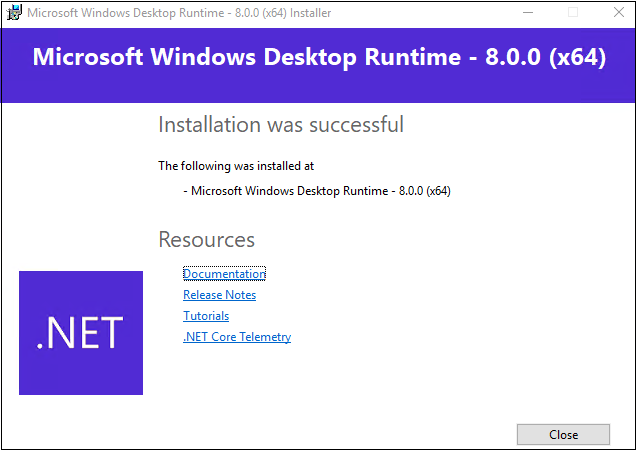
Close the setup wizard once the installation is complete.
Erlang OTP Installation
Erlang OTP Installation Steps:
-
Copy the setup file of the downloaded compatible version of Erlang (OTP).
-
Log in to the server using user credentials that have local administrator privileges.
-
Double-click the otp_win64_xx.x.x.exe (where xx.x.x is the version; the .exe name may differ), and install with the default selections.
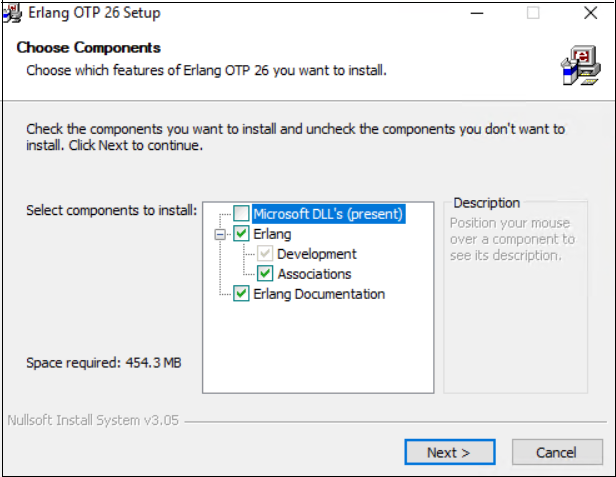
-
Select the installation location for ErlangOTP, then click Next.
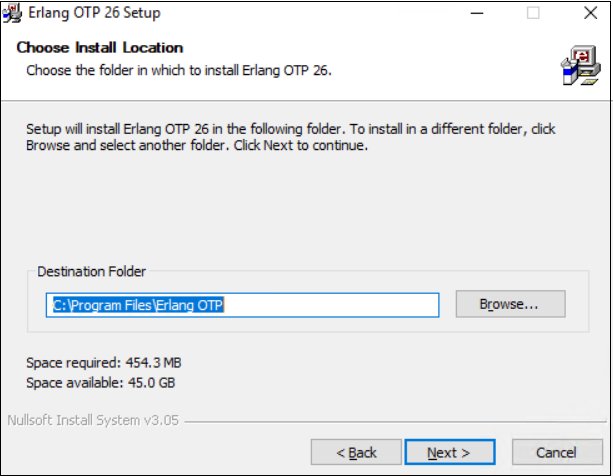
-
Click Install to start the installation.
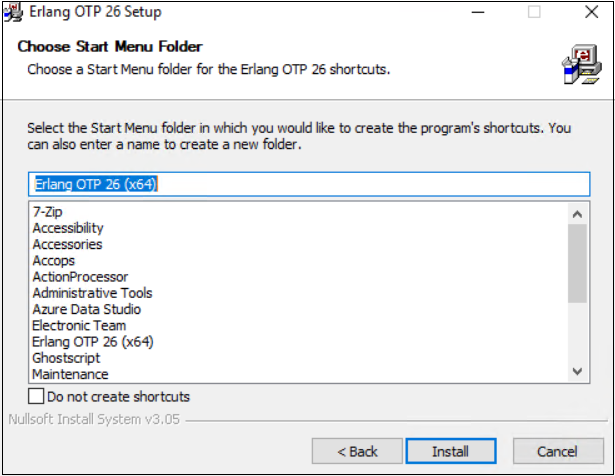
-
Once the installation is complete, click Finish to close the Erlang installation wizard.
-
Reboot the system if required to complete the Erlang installation process.
Note
The exact version of Erlang (OTP) is required for the installation.
RabbitMQ Installation
RabbitMQ is used in HyWorks by several modules to send, receive, and manage messages to support multiple features, enabling various features, some of which are outlined below:
-
DVM Push: Desktop agents will push session events and heartbeats while the VM Scale Booster (Consumer service) updates the database, thereby reducing overhead on the HyWorks Controller.
-
HA Notify: The HyWorks Controller sends updates on the current high-availability status, including the active primary server, enabling modules to connect to the appropriate server.
-
Scheduler Action and Notification: The Scheduler and Action Processor components use message queues to perform scheduled actions and then send notifications to agents in sessions.
Note
The exact version of RabbitMQ is required for the installation.
RabbitMQ Installation Steps:
-
Copy the setup file of the downloaded compatible version of the RabbitMQ server.
-
Log in to the server using user credentials that have local administrator privileges.
-
Double-click the rabbitmq-server-x.xx.x.exe (where x.xx.x is the version; the .exe name may differ) and proceed with installation.
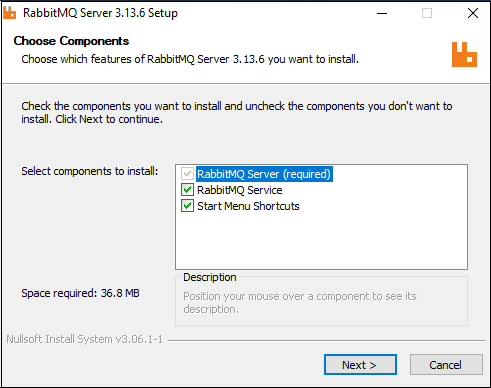
-
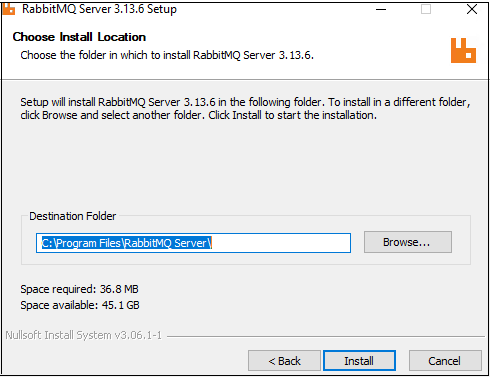
Select the install location folder and click Next.
-
Once the installation is complete, confirm that the RabbitMQ service is installed properly and running.
-
At this point, RabbitMQ, with its prerequisite Erlang OTP, will be ready.
-
The next step is to configure the RabbitMQ service to enable it for other Accops modules such as VM Scale Booster, Scheduler, or Action Processor.
-
Basic Configuration: To configure the basic RabbitMQ server, follow the RabbitMQ Server Configuration steps.
-
Advanced Configuration: To perform advanced configurations, such as enabling SSL, changing the default port, upgrading, and enabling high availability, refer to the RabbitMQ Advanced Configurations section.
-
RabbitMQ Configurations
RabbitMQ is used in HyWorks by multiple modules to send, receive, and manage messages to support multiple features, some of which are mentioned below:
-
DVM Push: Desktop agents will push the session events and heartbeat and VM Scale Booster (Consumer service) pushes the updates to the database and thus reducing overhead on the HyWorks Controller.
-
HA Notify: HyWorks Controllers push the updates about current HA status e.g., current primary server and thus modules reading this can connect to correct primary server.
-
Schedule Action and Notification: Scheduler, Action Processor components use message queues for performing scheduled actions and then send notifications to agents in the sessions.
Understanding the importance of RabbitMQ in HyWorks deployments, this section will provide detailed information on RabbitMQ configurations(assuming installation is already completed):
RabbitMQ Server Configuration
RabbitMQ settings require modification after installation. A configuration script is provided and needed to execute the following necessary tasks:
-
Create a user in RabbitMQ: This user account will be configured in RabbitMQ to communicate with RabbitMQ from external hosts. A default user will not be allowed to connect other than localhost.
-
Set the Erlang cookie so that the RabbitMQ command works correctly.
-
Configuring some plugins and timestamp settings.
Steps to run RabbitMQ Configuration Script:
Follow the steps below to configure the RabbitMQ server for use with HyWorks components:
-
Log in to the server using user credentials that have administrator privileges.
-
Make sure the exact versions of Erlang OTP (Prerequisite for RabbitMQ) and RabbitMQ are already installed on the server.
-
Make sure that the RabbitMQ service is running after the installation is complete.
-
Run the ConfigureRabbitMQ.bat with admin privileges. Refer to this download link of the Configuration Script for RabbitMQ v3.13.
-
It will ask you to enter the username and password to configure RabbitMQ.
-
Enter the username and password, and remember these details. This information needs to be configured in the HyWorks components that use RabbitMQ.
-
-
RabbitMQ is ready to be configured into the Accops HyWorks Controller and other components.
-
This is a non-SSL configuration on port 5672.
-
Refer to the RabbitMQ Advance Configurations section to configure RabbitMQ for SSL communication.
-