RemoteApp &
Old Shell Mode
This section will provide details of virtual application delivery with HyWorks. Previous sections already provide information on the session host server and teams; refer to them.
Publish (Add) Applications
Prerequisites:
- The HyWorks Session Host Server is configured as a Session Provider. For information on adding and managing session host servers in HyWorks, refer to Shared Session Host Management.
Steps to Publish a Virtual App:
-
Launch the browser, open Primary HyWorks Controller Management Console, and log in using administrator credentials.
-
Go to Apps > Virtual Apps.
-
Click Add '+'.
-
In Application Information
-
The Application Platform is set to Windows for publishing and delivering applications from Windows session host servers and to Linux for publishing and delivering applications from Linux session host servers.
-
Application Type: There are two types of application formats supported in HyWorks:
-
Installed App: An existing application type used to configure apps installed on SHD.
-
MSIX App Attach is a new Windows Application packaging format provided by Microsoft. Applications can be installed and packaged in virtual hard disks (VHDs) and stored on out-of-session host servers. These applications are then attached to the operating system on demand.
- This provides no footprint on the OS and offers applications to be mounted via a virtual disk (dynamically). Refer to MSIX App Attach for more information on MSIX App Attach.
-
-
Application Display Name to be displayed to the user.
-
Application Path: The full path of the application exe. It is also possible to publish a shortcut file that points to the application's launch path. The command line argument can be read from the shortcut file.
-
Application Internal Name: Actual name of the application.
-
Application Description: Description if required.
-
Application Command Line: The command-line parameter will be used while launching the application.
-
Application Status: When Disabled, applications are not shown to users even when assigned.
-
Parent Folder Name (Applicable to MSIX App Attach-type applications) This is the name of the folder in the VHD file that contains the expanded MSIX application. Refer to MSIX App Attach for more information.
-
MSIX Name (Applicable to MSIX App Attach type applications): This is the name of the MSIX package that is added inside the VHD file. Refer to MSIX App Attach for more information.
-
Volume GUID (Applicable for MSIX App Attach type applications) VHD packages are mounted on the session host server as virtual disks and have GUIDs associated with them. The creator of the VHD package provides this. Refer to [MSIX App Attach] for more information.
-
Application Icon:
-
Get Icon Automatically: Use the icon fetched from the application's exe.
-
Use Default Icon: Use Accops HyWorks Default Icon.
-
Use Custom Icon: To browse and fetch custom icons for the application.
-
-
-
Click Next to proceed to the Additional Settings section.
-
In Additional Settings
-
User Context: Select a user context from the one a logged-in user uses to launch the applications.
-
Run As: Select the user context under which to launch the app.
-
Logged-in User: No change in user context. Use the logged-in user.
-
Different User: Specify the user account to launch the application.
-
System: Launch the application under the system account.
-
-
-
Folder Information: folder under which the application will be displayed on the client side.
-
Launch Settings:
-
Logout if no window: Some applications (like Explorer and IE) linger for some time before exiting. If this setting is enabled, the session will be logged out when there is no activity.
-
Specify Connection Profile: This must be configured if a specific connection profile is required for application access.
-
Virtualization Profile: If this application should use any specific Virtualization profile to support Virtual IP.
-
Limit Total Concurrent Sessions: Specify the application's total number of concurrent sessions.
-
Limit Total Concurrent Sessions per Server: Specify a total number of concurrent sessions per server that should be allowed.
-
Limit Single Instance per user: Specify whether only one application instance is allowed per user. If checked, the user cannot invoke the application instance more than once.
-
Auto-Launch: The application should be launched automatically when the user logs in.
-
-
Access Settings: Define where the application can be accessed.
-
Portal and Client: Select this option to publish applications for display on the client and HyLite.
-
Create Desktop shortcut: Specify a location for the application shortcut.
-
Pin Applications to Start Menu: Specify whether to create a Start Menu shortcut for the application.
-
-
-
Click Next to proceed to the Select Teams & Servers section.
-
In Teams & Servers, select either Sessions Teams or an individual Session server to publish an application. When a Session Team publishes an application, it becomes available to all Session Hosts in this Team. When a new Session host is added to a Session Team, the application is automatically available from the newly added Session Host server.
a Applications from their respective management sections can be added to Session Teams and Session Hosts.
Refer to Server Selection for Application Publishing for information.
-
Click Next to process the Virtual IP Address.
-
In Virtual IP Address, configure the application's virtual IP address settings to deliver application sessions using the virtual IP address. Refer to the Virtual IP Address section for more details.
-
Enable session virtual IP address: Set it to enable session virtual IP address support.
-
If no virtual IP address is available, block the session or allow it with the server IP address. If the virtual IP address is unavailable for a new session or the session virtual IP address setting is not enabled on the team, block the session.
-
Apply a virtual IP address to indicate whether it should be used for all processes or only specific ones.
-
All Processes: The session virtual IP address will be applied to all processes within a session.
-
Specified processes only:
-
Include: A virtual IP address will be assigned only to specified processes.
-
Exclude: Specified processes will not be assigned any virtual IP address.
-
-
-
Process list to be: Choose if the list of processed should be inclusions or exclusions.
-
Specify the process list: List comma-separated processes to be included or excluded. A maximum of 50 processes, each with fewer than 255 characters, can be defined.
-
Session virtual IP address on the team: The session virtual IP address is set on the team. If it is not set on the team, a blocked session or an allowed session with the server IP address action will be taken, as specified above.
-
-
Click Next to proceed to Entitlements.
-
In Entitlements, click Add to add an entitlement and select Users/ Groups/ OUs or Pools (User-based)
-
Click Next to proceed to Client Group.
-
Classification Rules: Configuring classification rules is optional and allows you to restrict shared hosted desktop or application access to only users connecting from a specific LAN, WAN, or MAC. Refer to Classification Rules for more details.
-
Click Save to complete the application.
Once the application is saved, the administrator will be notified. The process list is merged when multiple virtual IP addresses are enabled for the remote app in the Applications section.
Notes For Application Details
Note
-
Application details (Full Path/ Internal Name and Icon) will be fetched automatically when the administrator types the application exe path and moves to the next tab (using key entry Tab or by using Mouse click). Refer Section:Get Application Details by Providing Full Application Path
-
This does not work for applications from Linux session host servers
-
The administrator can also navigate to the configured Session Host Server directory to browse and get the application details. See section Browse Application in Session Host Server Directory.
Notes For Virtual IP Address
Note
Remote App: Merging the process list is a crucial concept to understand. When multiple virtual IP addresses are enabled for the Remote app, the process list is merged. The policy for the last virtual IP address overrides the previous policy, and the include and exclude lists are merged with the previous policy.
Suggestions: 1. App/process from the same session team should have identical VIP settings. 2. Use the 'Specified processes only' option.
Application Publishing Facts and Concepts
Browse Application in Session Host Server Directory
Note
- Only applicable for Windows-based session host servers.
-
Select the Session Team using the dropdown in Browse Application Details.
-
Select RDS Server.
-
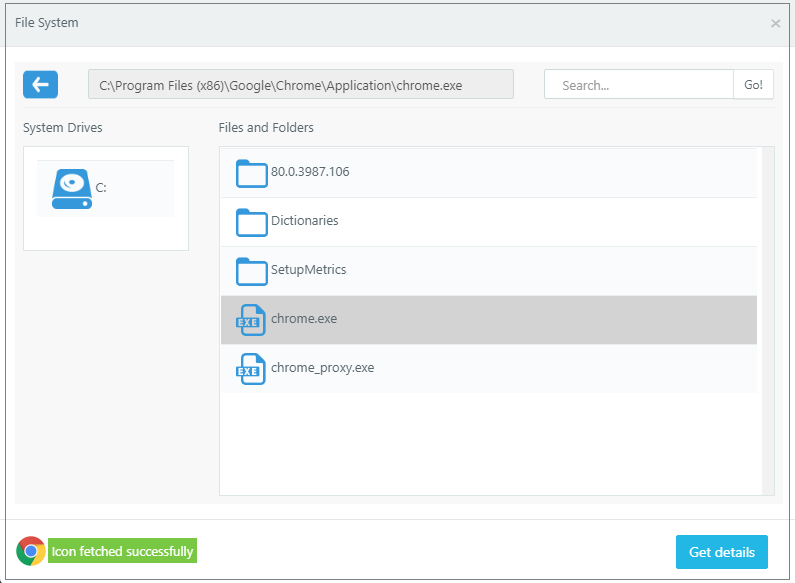
Click Browse to open the File System dialog.
-
Click any displayed drive in the File System dialog to navigate the application path.
-
Navigate to the folder where the application exe can be found and select the application.exe (Google Chrome application is selected in the image below)
-
It automatically fetches the icon and shows a success message in the same dialog.
-
Click Get Details to go back to the Add Application wizard.
-
-
Application Path and Application Internal Name will be filled automatically.
Get Application Details by Typing the Full Application Path
An additional shortcut method is available to retrieve application details automatically.
In the Add Application wizard, type the full path of the executable file in the Application Path field. Change the focus by using a tab or by clicking another field. All the application details (Full Path/ Internal Name and Icon) will be fetched automatically.
Server Selection for Application Publishing
-
The list includes all the session host servers added to the current organization.
-
If the selected servers are session team members, the server will be selected according to the load-balancing mechanism while providing the application session.
-
If the selected servers do not belong to the same session team, the session will not be load-balanced, and it may be served from any server.
- If the Authorization server is built-in, the application session will be provided by the session host server to which the user belongs.
-
When selecting a server that does not have the application installed, it will be shown with a cross (X) and should not be selected.
- Selecting such a server will continue to give the application data from the server, which may result in a failed session.
Application-Specific Connection Profile
In HyWorks deployment, if a specific connection profile must be used for an application, specify it for the application.
Application-specific connection profile takes priority only when:
-
When the access mode in the connection profile is selected as Shell mode
-
In Remote App mode, an application-specific connection profile will be used only if that application is the first on the specific session host server. If the application is accessed after another application is invoked, applying a new connection profile won't be possible.
The connection profile for an application can be specified in the Additional Settings section of the Add or Edit Application wizard.
Application in Shell and RemoteApp mode
Applications can be accessed in RemoteApp or Shell mode as follows:
-
Shell mode: The published application opens in the shell (Black background), where only accessible applications are shown. For each application instance, a separate RDS session is created.
-
Shell mode in HyLite is more user-friendly: it creates a new tab for each RDS session, so different applications are available in different tabs.
-
Shell mode is recommended when accessing the None folder from the HyWorks client on Linux or macOS.
-
-
RemoteApp mode: Seamless application mode, which appears like native applications. Multiple instances of applications in RemoteApp mode can be opened from a single RDS session.
- Remote App mode provides a better user experience when accessing HyWorks Client on Windows.
How to enable Shell/RemoteApp mode: To enable specific mode:
- Add/ Edit a connection profile.
- Go to the Application Access Settings screen.
- Configure the Application Launch Mode to match the required access mode for the Remote App or Shell.
- Assign the connection profile to the application.
If only Windows-based clients are the default profile, it can be used with RemoteApp mode. Similarly, if only HyLite-based deployment is preferred, the connection profile can be modified to use Shell mode.
Always Seamless and Never Seamless Access Experience
Seamless mode refers to the access experience in which the user is shown a progress bar until the session is ready on the session host server. Thus, the user gets a seamless experience.
In Never Seamless mode, a window showing all session loading information is always visible, and after the application launches, it remains the parent window.
Use Cases for configuring never seamless mode:
-
The application launch is not working.
-
User input is required to complete the login process, but seamless mode does not display it, causing the session to fail and preventing the application from launching.
How to configure Never Seamless mode
-
Add/Edit connection profile.
-
Go to the Application Access Settings screen.
-
Set the Session Experience Option to Never Seamless.
Using Folders to Categorize Applications
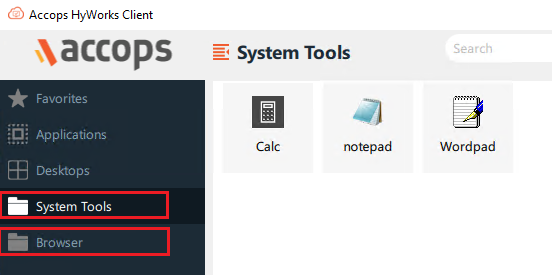
Administrators can categorize applications by placing them in a container called a Folder, which is displayed on the client side.
-
The Create Application or Edit Application wizard can only create or modify folders. To create a new folder, select Create New in the Folder Information section and enter the folder name.
-
To use an existing folder, select the Use Existing option in the Folder Information section of the Additional Settings screen of the Add or Edit Application Wizard. A dropdown list with all existing folder names will then be displayed.
-
Administrators can edit an existing folder by clicking. The folder name will be modified with the new name provided in the Edit Folder wizard.
When a user logs in from the HyWorks Client, the applications will only be shown in the respective folders.
Note
- Folders, once created, cannot be deleted. However, applications can be easily moved out by selecting None as the folder.
Publishing Application for Shared Hosted Desktops only/ Desktop Customization/ HyShell
Use HyWorks desktop customization when users have full desktop access, but only the applications published to and assigned to them are displayed on their desktops.
Desktop customization is the process of customizing a user's session on a shared hosted desktop to display application shortcuts on the desktop and in the start menu for easier access.
To enable desktop customization, the following two changes must be made:
-
Enable desktop customization on shared session hosts: Follow the steps in the document Shared Hosted Desktops Advance Operations.
-
Configure Applications for HyShell: While HyShell has been enabled on shared session hosts, applications can be configured for HyShell using the steps below:
-
Go to the Additional Settings screen in the Application Add/Edit wizard.
-
In the Access Settings section, define from where the application can be accessed. The following options are available for Publishing the Applications on:
-
Create a Desktop shortcut
- On Shared Hosted Desktop: If desktop customization or HyShell is enabled on session host servers, these published application shortcuts will be created on the user's shared hosted desktop. Refer to the HyShell for more information.
-
Pin Applications to Start Menu:
- On Shared Hosted Desktop: Select this option to pin application shortcuts on the shared hosted desktop.
-
-
Save the application; shortcuts will be created during the user's desktop session.
-
Important
-
HyShell supports only those application shortcuts in session, which are assigned to the user and published from this server. If an application is not available or published on the current server, the shortcut will not be created.
-
Linux Session Host Server: HyShell is supported with Accops delivered Linux SHD OS only. Vanilla xUbuntu images configured as session host servers do not support desktop customization using HyShell
Manage Applications
View Published Application
Go to Apps > Virtual Apps to view the list of published applications.
| Sr. No. | Column Name | Description |
|---|---|---|
| 1 | Application Name | Displays the name of the application. |
| 2 | Folder Name | If the application is kept under a specific folder. |
| 3 | Description | Application description. |
| 4 | Session Settings | Connection profile, if any specific connection profile is provided. |
| 5 | Application Status | Enabled/ Disabled |
| 6 | Defined In | If the application is defined at the current organization level, this means it has been published in that organization. |
| 7 | Platform/ Type | Windows or Linux as an icon/Installed App or MSIX App Attachment. |
View Application Configurations
Click Application Name from the Application list or select an application and click View Details. The application will open in read-only mode to view configurations.
An option to edit is also available in read-only mode, enabling application editing using the same wizard.
Edit Applications
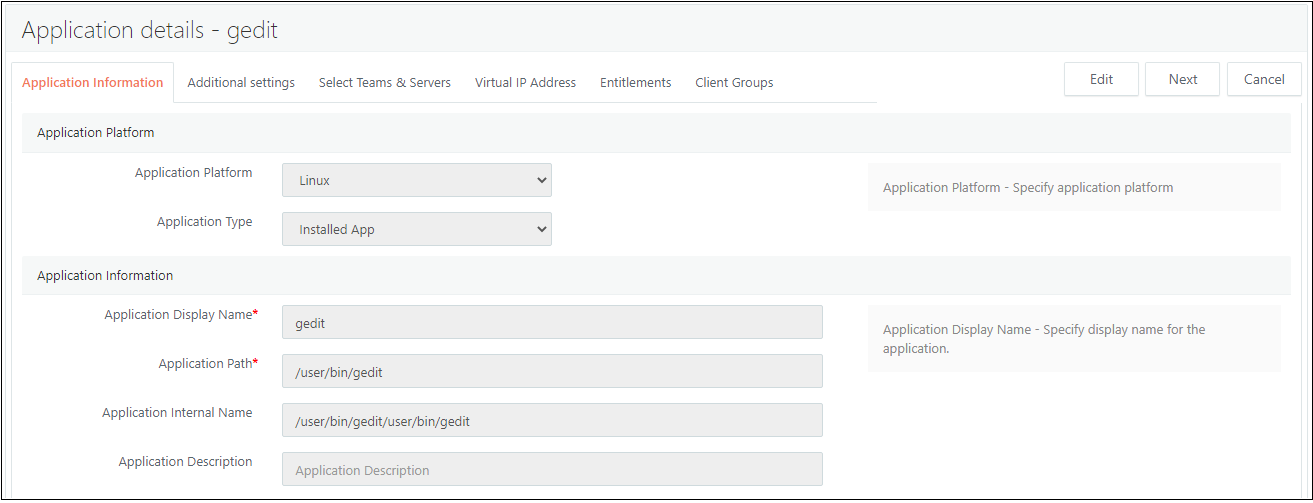
The Edit application wizard can be used to modify the configurations of an existing application. Applications can be opened in Edit mode, and the following two methods can be used:
-
Go to Apps > Virtual Apps, select the application, and click Edit.
-
Update the required information.
Copy Application
Copying an application enables administrators to clone it with similar configurations and entitlements quickly.
-
Go to Apps > Virtual Apps.
-
Select Application from the list and click Copy.
-
The Copy Application dialog will be displayed to enter a new name for the application. The default name uses the format Application Name-Copy.
-
Provide the appropriate name and click Save.
-
The new application will be created by cloning an existing application with the specified name, and it will appear in the list.
Delete Application
-
Go to Apps > Virtual Apps.
-
Select Application from the list and click Delete.
Deleting an application will have the following impact on user sessions:
-
New Sessions: Users on fresh logon won't be displayed with deleted applications
-
Existing Sessions:
-
Users who have already logged in:
-
Deleted applications will be deleted when the application list is refreshed.
-
The error "No Apps Found" will be displayed when you click the application name.
-
-
Users running applications will continue to use them until they log out or the session expires, depending on configured timeouts.
-
Disabling Application
Instead of deleting an application, it can be marked as Disabled. Disabling an application can have a similar impact as deleting it, except the application can be enabled in the future with the same configurations.
Impact of disabling an application:
-
New Sessions: Users on fresh logon won't be displayed with disabled applications
-
Existing Sessions:
-
Users who have already logged in
-
Disabled applications will disappear when the application list is refreshed.
-
When clicking on the application name, the error 'Application is disabled by administrator' will be displayed.
-
-
Users with active application sessions will continue to use the application until they log out or the session expires, depending on configured timeouts.
-
To disable an application, the following steps can be used:
-
In the Add Application wizard, keep the Application Status as Disabled.
-
Select an application and click Edit. In the Entitlements section, leave it until it is assigned to at least one application or assigned using the Edit Application wizard; set Application Status to disabled.
Exporting Applications
HyWorks Controller can export a CSV of all published applications in the current organization from the management console. To export a CSV of applications:
-
Go to HyWorks Controller Management Console > Apps > Virtual Apps.
-
Click Export.
-
Select the Encoding type and columns.
-
Click Export.
-
CSV with details of all applications will be downloaded.
Application Entitlements Management
The Entitlements section under Policies can be used to manage application and connection profile assignments to the following objects:
-
Users
-
Groups
-
OUs
-
Pools
This section will describe the management of entitlements for these objects.
Users
The Users section in the Policies > Entitlements menu displays users’ current entitlements and can be used to manage entitlements and connection profile assignments.
Viewing User Entitlements
Navigating to the Users tab in the Entitlements screen displays a list of users who have one or more application entitlements or are assigned connection profiles.
The following information is displayed in respective columns:
-
Username: Username of the user.
-
Connection Profile: Assigned connection profile.
-
No. of Applications: Number of applications assigned to the selected user.
-
Authorization Server: Auth server details from where users are fetched.
Administrators in the Users section under Entitlements can also search for user entitlements by entering the appropriate search string in the search box.
Viewing Entitlements of a Single User
To view the entitlements of any specific user:
-
Select a single user from the Users list, then click View Details or the username.
-
All entitlements to the user will be displayed in the following two sections.
-
Applications are assigned directly to at least one application or to the user.
-
The application is assigned to the user through a group or OU.
-
Note
-
From the Users tab in the Entitlements section, applications directly assigned to user can be deleted.
-
On the client side, only the final set of applications (removing duplicate assignments through groups or OUs) is shown.
Add User Entitlements
To add new user entitlements, follow the process below:
-
Go to Entitlements > Users section.
-
Click Add Entitlement
-
In Users > Add Entitlement wizard.
-
Click Add Users.
-
The available Clients dialog will be displayed; enter the appropriate search string to retrieve the user list.
-
Select intended users and click OK.
-
Selected users will be added to the Add Entitlements wizard.
-
-
Click Next to proceed to the Applications screen.
-
On the Application screen, select the applications to assign to the selected user(s).
-
Click Next to proceed to the Connection Profiles screen.
-
On the Connection Profiles screen:
-
Select any appropriate connection profile to be assigned to users.
-
Keep connection profiles unchecked if no specific connection profile is required.
-
-
Click Save to save the entitlements.
-
All user entitlements will be saved, and the Users screen will now start displaying the list of users with entitlements.
-
Upon login, the user will see all assigned applications.
Edit User Entitlement
Like adding user entitlements, the administrator can modify them as well. To alter the entitlements of a user:
-
Select a single user from the Users list and click Edit Entitlement.
-
A list of assigned applications will be displayed with selected checkboxes, and unassigned applications will be listed with unchecked checkboxes.
-
Select or deselect applications as required.
-
Click Save to save entitlement changes.
-
Application entitlements will be updated, and user entry in the entitlements list will now be displayed with the respective application count.
-
The user will be displayed on a new login, with an updated list of applications.
Remove Entitlement
A user's entitlements can be removed by using the following steps:
-
Select a single user from the Users list, then click Remove Entitlement.
-
Confirm Action dialog will be displayed. Click Delete to continue removing the entitlements.
-
User entitlements will be removed, and if a user is not assigned a connection profile, their entry from the Users section under Entitlements will also be removed.
Note
An entry for a user, group, or OU in the Entitlements section remains until it is assigned to at least one application or to a connection profile.
Assign Profile
The administrator can also assign any specific connection profile to one or more users by following the steps:
-
Select one, more, or all users displayed in the section under Entitlements.
-
Click Assign Profile.
-
The Connection Profiles dialog will display a list of connection profiles.
-
Select the appropriate connection profile, then click Save.
-
The Connection Profile will be assigned to all selected users and applied to their user sessions at the next logon.
Unassign Profile
Like assigning profiles, administrators can also unassign connection profiles from a single user, multiple users, or all users listed in the Entitlements section. Follow the steps below to unassign connection profiles from user entitlements:
-
Select one, more, or all users displayed in the Users section under Entitlements.
-
Click Unassign Profile.
-
The connection profile will be unassigned, and users will now be listed with no connection profile entry.
Important
If users have no entitlements, then when the connection profiles are unassigned, their entries in the Entitlements section will be removed.
Groups
The Groups section in the Entitlements menu displays the current entitlements to the groups and can be used to manage entitlements and connection profile assignments.
All operations for group-based entitlements remain the same as specified in the section Users above.
The following operations on group entitlements can be performed:
-
View List of Group Entitlements.
-
View Application Entitlements of a group.
-
Add Group Entitlement.
-
Edit Group Entitlement.
-
Remove Group Entitlement.
-
Assign Profile.
-
Unassign Profile.
OUs
The OUs section in the Entitlements menu displays the current entitlements to the OUs and can be used to manage entitlements and connection profile assignments.
All operations for OUs-based entitlements remain the same as specified in the section Users above.
Following operations on OUs entitlements can be performed:
-
View List of OUs Entitlements.
-
View Application Entitlements of an OU.
-
Add OU Entitlement.
-
Edit OU Entitlement.
-
Remove OU Entitlement.
-
Assign Profile.
-
Unassign Profile.
Pools
Direct application entitlements to a desktop pool can be managed from the Pools section under the Entitlements menu if it satisfies the following conditions:
-
If it's a USER-BASED desktop pool.
-
It's a Shared Hosted Desktop pool.
Making entitlements for the desktop pool indirectly assigns applications to all users in the pool.
All Pool-based entitlement operations remain the same as specified in the Users section above.
Following operations on the Pools entitlements can be performed:
-
View List of Pools Entitlements.
-
View Application Entitlements of a Desktop Pool.
-
Add Pool Entitlement.
-
Edit Pool Entitlement.
-
Remove Pool Entitlement.
-
Assign Profile.
-
Unassign Profile.
Application Sessions Management
Now that the previous sections have covered all the details for submitting applications, this section will provide details for administering application sessions.
Application access details in User Sessions
Whenever a user connects to HyWorks and accesses published applications, the count is reflected on the User Sessions page. For example, if a user has initiated three application instances, the Application Sessions column will show as 3.

Application Sessions Detailed View and Management
Go to Monitor > Live Sessions > App Sessions to view all details of applications accessed by end-users.
Provider Session: It is equivalent to a session ID on the session host server, where one or more application sessions can run, e.g., a provider session with running calculator and notepad applications in remote app mode under it.
App Sessions: An instance of the application running under a provider session. Notepad running in provider session.
Information available in the App Session Section
| Sr. No. | Column Name | Description |
|---|---|---|
| 1 | Username | Displays the username of the logged-in user |
| 2 | IP Address | The IP address of the server from the app session is provided |
| 3 | Session ID | The Remote Desktop Server session ID of the user |
| 4 | No of Applications | Count of application sessions |
| 5 | Connection Profile | Connection profile applied on application session |
| 6 | Status | Status of App session, which could be Running/Initializing/ Disconnected |
| 7 | Remote Control | to perform a session shadow on the application session |
Clicking on the username expands the details of app sessions running for the user, and the following information is displayed for application sessions:
| Sr. No. | Column Name | Description |
|---|---|---|
| 1 | Application Name | Display name of the application, accessed by the user |
| 2 | Server name | Name of the session host server on which the remote session (app session) is running |
| 3 | Virtual IP Address | Displaying the virtual IP address assigned to the application. If not enabled, then the VIP column will have a value of Not Available |
| 4 | Status | Status of app session, which could be Running/Initializing/ Disconnected |
Application Session Removal
The administrator can choose to remove specific application sessions, and the section enables the administrator to remove all the application sessions from all session host servers or terminate specific application sessions.
-
Terminate Specific Application Session: To terminate a specific application session for a user, the following steps can be used:
-
Go to Monitor > Live Sessions > App Sessions.
-
Click Username (User whose application session needs to be terminated).
-
This will expand and display the list of the application sessions running for the user.
-
Select the application that needs to be closed.
-
Click Remove App Session(s)
-
On the Confirm Action dialog,
- Select the Show message option to specify a custom message to display to the user when terminating the app session.
-
Specify the Wait Time in minutes to allow the user to keep the session open for that duration.
- Click Remove.
-
The selected remote app session will be closed, and the user will be notified according to the options specified in the Confirm Action dialog. Administrators can remove one or multiple app sessions at a time.
-
-
Terminate Provider Session or Remove RDS Sessions of a user: In certain situations, an administrator can opt to remove all application sessions of a user, termed as provider session removal. To remove the provider session of a user, the following steps can be used:
-
Go to Monitoring > Live Sessions > App Sessions.
-
Select the Username (User whose application sessions/ provider sessions need to be removed)
-
Click Terminate Process(s)
-
Click Remove on the Confirm Action dialog
-
User remote sessions from all the session host servers will be completely removed.
-