Objects - Gold Master
Go to Objects > Gold Master to manage all the Gold Master images in the HyLabs deployment.
Gold Master is a template VM from a dedicated session provider used in HyLabs as a source to clone multiple reserved VMs for classes. A Gold Master VM will have all the necessary configurations and applications installed for participants.
The following management options are provided on the Gold Master page:
View Gold Master VMs and UI Operations
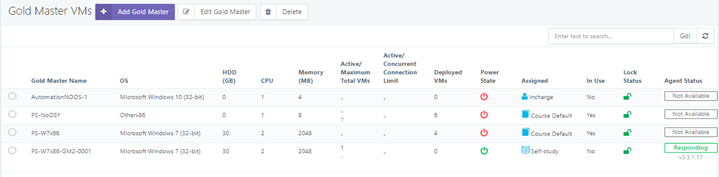
On navigating to the Gold Master page, the reservation admin user can view the list of already added Gold Master VMs with the following details:
| Column Name | Description | Sortable | Searchable |
|---|---|---|---|
| Gold Master Name | Name of Gold Master VM as fetched from the dedicated session provider | Yes | Yes |
| OS | Operating System of Gold Master VM as fetched from the dedicated session provider | Yes | Yes |
| HDD (GB) | Hard disk size in GB | Yes | No |
| CPU | Number of vCPUs allocated to Gold Master VM | No | No |
| Memory | Memory in MB allocated to Gold Master VM | No | No |
| Active/ Maximum Total VMs | Currently running or Active VMs from the Gold Master Vs the Maximum number of VMs to be created from this Gold Master VM | No | No |
| Active/ Concurrent Connection Limit | Total active connections to VMs from Gold Master vs Concurrent Connection Limit for Gold Master | No | No |
| Deployed VMs | Total number of VMs deployed using this Gold Master | No | No |
| Power State | Power state of Gold Master VM | No | Yes |
| Session Type/Assigned | Single-session or multi-session. HyLabs object to which Gold Master VM is assigned (Possible value: Course, Course Default, Incharge, Self-study) |
Yes | No |
| In Use | If Gold Master has any active reservations | No | Yes |
| Lock Status | Gold Master is locked during replica creation. The Locked icon will indicate the lock status. Gold Master is currently being cloned and is in use. If cloning from a replica is in progress, it will be shown as an icon. |
No | No |
| Agent status | The agent version and agent status are shown. Possible statuses are Responding, Not Available, and Not Responding | No | No |
Add a new Gold Master VM
A new Gold Master can be added to HyLabs. The Gold Master can be connected and managed for reservations by the authorized users. A Gold Master can be assigned to the following objects:
-
Assign to a course: When creating course reservations, the assigned Gold Master will be used for cloning. Reservation administrators can access a Gold Master assigned to a course, the course incharge, and the course’s assistants.
-
Assign to Self-study: For self-study reservations, the assigned Gold Master will be used for cloning purposes. Only reservation admins will have access to the self-study Gold Master.
-
Assign to Incharge: The Incharge will be able to connect, manage (Power operations), and configure the assigned Gold Master, as well as create course reservations using the assigned Gold Master. The Gold Master assigned to the in-charge will be accessible to the reservation admins and the assigned in-charge.
-
Course Default Gold Master: A course default Gold Master can be used for any course reservation. The Gold Master type is useful, as it allows all courses to use the same Gold Master for reservations. By default, the course’s Gold Master is accessible to the respective incharge, assistants, and reservation administrators, but it can be configured to be restricted to administrators only.
While adding a Gold Master, the administrator can also choose to use Snapshot to create reservations. The following types of snapshot configurations can be made:
-
Current state: select to create a reservation from the current state of the Gold Master.
-
Specific Snapshot: Select to make reservations from a snapshot of the Gold Master.
HyLabs also has Snapshot Management capabilities available for administrators.
Prerequisites for Gold Master VM
Before importing a Gold Master VM into HyLabs, for effective and error-free usage of the Gold Master in HyLabs, the following prerequisites must be fulfilled:
-
Recommendation: The Gold Master VM must not be pre-cloned; it should be a freshly installed OS.
- Explanation: Using a cloned VM as a Gold Master may cause issues, as HyWorks Controller already manages it, leading to conflicts.
-
The latest version of Hypervisor Tools must be installed on the Gold Image.
- Explanation: Hypervisor tools on a VM enable multiple features; e.g., shutdown on VMware requires VMware tools to be installed.
-
The Gold Master image must not have a static IP address configured.
- Explanation: Since the Gold Master will be cloned multiple times, having a static IP configured will result in IP conflicts among the cloned VMs.
-
The latest HyWorks DVM Tools must be installed on the Gold Master.
- Explanation: To enable features such as Gold Master connection, OS customization post-cloning, and other HyWorks DVM Tools, additional tools will be required.
-
Windows Firewall and NLA (Network Level Authentication) configurations.
-
Although HyWorks DVM Tools handles configuring appropriate firewall rules, in some cases, the Windows firewall rule may be missing, which could cause a failure in Controller-Desktop agent communication or prevent connection to virtual machines. E.g., custom RDP port. If it is not required, the Windows firewall can be kept disabled.
-
Network Level Authentication: Typically, Gold Master connect, and Reservation Connect in HyLabs occur from HyLite, which may result in connection failure with NLA; therefore, it should be kept turned off.
- However, suppose Gold Master Connect is not a use case, and the access mechanism involves Windows endpoints. In that case, NLA can be kept enabled, which may require a connection profile with the appropriate configuration (CredSSP - Enabled).
-
-
Sleep/Display Off settings should be disabled.
-
For Windows Gold Master: Control Panel > Power Options
-
Set Turn Off the display to Never.
-
Set the Put the computer to sleep option to Never.
-
Advanced Settings > Set Turn off hard disk after to 0 (Never)
-
-
Explanation: If these settings are left enabled, the Windows machine can enter sleep mode, preventing it from fetching its IP address and causing a connection failure. Therefore, these configurations must be disabled.
-
-
Audio and Video Redirection is enabled from group policies.
-
Group Policy Location:
Computer Configuration\Policies\Administrative Templates\Windows Components\Remote Desktop Services\Remote Desktop Session Host\Device and Resource Redirection
-
Group Policies to be enabled:
-
Allow audio and video playback redirection > Enabled.
-
Allow audio recording redirection > Enabled.
-
Limit audio playback quality > Enabled - Dynamic.
-
-
-
Windows 10 Specific Configurations:
-
No additional Microsoft Store Apps installed or removed.
- Sysprep fails after you remove or update Microsoft Store apps that include built-in Windows images (please refer to the KB article from Microsoft on the same topic.
-
The following group policy configurations should be enabled and configured to set to Negotiate.
Computer Configuration\Policies\Administrative Templates\Windows Components\Remote Desktop Services\Remote Desktop Session Host\Security > Require Use of Specific Security Layer for Remote (RDP) Connections.
-
DVM Tools has integrated the HyPrep module, which enables faster customization of Windows Desktops and helps avoid all Sysprep-related failures. Please check the Enabled HyPrep section on the Gold Master for detailed instructions.
-
-
Ubuntu Specific Configurations
-
For VMware Provider: Per VMware recommendations, the latest Open VM Tools should be installed.
-
All Gold Master Ubuntu VMs should be configured with a unique hostname; using the same hostname can cause issues with console or remote access.
-
Domain joining on Gold Master must be done manually (Please refer to the Linux VDI Configuration document for detailed information).
- Click DHCP configuration must support appropriate IP distribution to Linux VMs (In some cases, newly cloned machines are unable to obtain IPs from the DHCP server or take a long time to do so.)
-
Preparing Gold Master
Preparing a Gold Master for HyLabs is the same as preparing it in HyWorks. Refer to the HyWorks Knowledge Center’s Getting Started section. Assuming the virtual machines are available with appropriate configurations and prerequisites. Please follow the links below for preparing Gold Master images:
Step-by-Step process to add a new Gold Master
Considering that all prerequisites are configured on the target Gold Master, the following steps can be used to import the Gold Master into HyLabs: 1. Log in to the HyLabs Console in HyLabs Admin mode using the appropriate user credentials that have reservation admin rights.
-
Go to Objects > Gold Master and click Add Gold Master to open the wizard.
-
The Usage tab defines the purpose of adding the Gold Master into HyLabs.
-
The respective entitlement tab will be enabled dynamically based on the selection of the Assign To option in the Usage tab.
-
Set Assign To – Course will enable the Select Course tab.
-
Set Assign To – Incharge will enable the Select Incharge tab.
-
Set Assign To – Self-study or Course default will not enable any new tab.
-
Add Gold Master for the Course
Prerequisite: The course is already created with the appropriate participants, assistants, and in-charges.
Process:
-
Invoke the Add Gold Master wizard.
-
In the Usage tab, fill in the following details:
-
Select the Course in the Assign To option from the dropdown list.
-
Provide a Description for the Gold Master.
-
Provide the appropriate number for Gold Master limits:
-
Maximum Total VMs: The total number of VMs to be deployed from the Gold Master. Specify 0 for an unlimited number of VMs.
-
Maximum Active VMs: The Total number of VMs that can run in parallel in one or multiple reservations. Specify 0 for an unlimited number of VMs.
-
Concurrent Connection Limit: Total number of allowed connections to reserved VMs deployed from the Gold Master. The feature implementation requires a hybrid controller polling mode, meaning DVM Push services must be active.
-
Remote Desktop Connection Port: The Default is 3389. It will be used to connect via endpoints to desktop VMs from this Gold Master’s reservations.
-
-
-
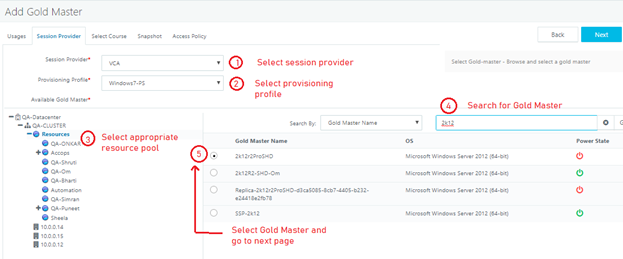
Click Next to navigate to the Session Provider tab. In the Session Provider tab, select the session provider from the drop-down list.
-
For VMware, it will show the complete vCenter hierarchy.
-
Select the Provisioning Profile to associate with Gold Master (Provisioning profile is mandatory for any Gold Master and defines the whole deployment of reservations to be created using this master.)
-
The added session provider’s data center will be displayed in the tree view. Click “+” icon to expand the tree
-
Click the resource pool or object under which the intended Gold Master is residing. All the VMs in the selected, resource pool or VMware object will be listed on the right side.
-
Once the desired VM is listed, it can be selected.
-
-
For Azure, it will list all the resource groups in the subscription configured in HyWorks.
- Click the resource group to list the virtual machines within it, select the Gold Master from the displayed list, and then click Next to proceed.
-
For AWS, Resource groups should be created, and virtual machines should be tagged with resource groups. On selecting AWS as the provider, resource groups will be listed.
- Click the resource group to list the virtual machines within it, select the Gold Master from the displayed list, and then click Next to proceed.
-
For Nutanix, it will display the Cluster names, and clicking on a cluster will list all VMs hosted in that cluster.
- Click the cluster name to list the virtual machines in the cluster, then select the Gold Master from the displayed list. Alternatively, an administrator can search the Gold Master using its name.
-
-
Click Next to navigate to the Select Course tab. In the Select Course tab,
-
Click Add Course.
-
Search with the appropriate search text to list down the available courses.
-
Select and add intended course(s) (one or multiple).
-
-
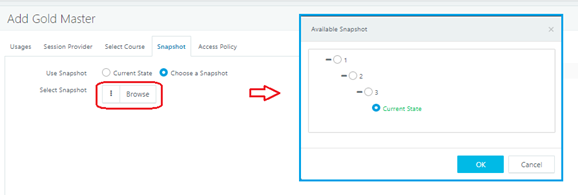
Click Next to move to the Snapshot tab and set appropriate Snapshot configurations for Gold Master. In the Snapshots tab, the following settings can be made:
-
Set snapshot configurations as Current State or Choose a Snapshot.
-
Selecting the "Choose a snapshot" option enables browsing snapshots, which list all available snapshots of the Gold Master. HyLabs supports the creation and management of Gold Master snapshots. Refer to the section ‘Snapshot management’ for more details.
-
-
Click Next to proceed to the Access Policy tab, which allows you to restrict reservation connections from specific endpoints (referred to as Client Groups) only. Selected client groups at the Gold Master level can be removed at the reservation level to restrict their usage further. Still, new client groups cannot be added to allow usage from client groups other than those defined for Gold Master.
-
In the Access Policy tab,
-
Select option Unrestricted access if all reservations from this Gold Master should allow access from anywhere.
-
Select the option From Specific Classification Rules only to select classification rules from which reservations will be accessible.
-
-
Click Save to close the wizard and save the configuration.
-
The Gold Master will be added to HyLabs and synced for its status and associated data.
-
Reservation Administrators or instructors for selected courses can now use this Gold Master to schedule reservations.
Add Gold Master for Self-study
Participants can also import a Gold Master for self-study. Once imported into HyLabs, participants will be able to request a self-study reservation of this Gold Master.
Process:
-
Invoke the Add Gold Master wizard.
-
In the Usage tab, fill in the following details:
-
Select the Self-study option in the Assign To dropdown list.
-
Provide a Description for the Gold Master
-
Select a Computer/VM name option (Support from HyWorks controller V4.0)
-
Use Provisioning profile Computer/VM Name: Reserved VMs will use the same VM name as configured in the provisioning profile.
-
Override Default computer/VM Name: When selected, a textbox will appear below, prompting the user to enter a custom computer name. The input supports up to 1-10 alphanumeric characters. VMs will be named using the new computer name, overriding the configurations in the provisioning profile. The computer name will be unique across organizations, and all validations will be checked when the Save Gold Master button is clicked.
Important
- The feature is supported in HyWorks v4.0 or later.
-
-
Provide the number of Maximum Active VMs to be created. At a given point in time, HyLabs will allow up to the Maximum Active VMs count of self-study reservations.
-
Remote Desktop Connection Port: The port to be used for remote sessions of reservations from this Gold Master. The default is 3389. It does not change the port configurations on Gold Master or reserved VMs; however, it must be configured according to the RDP port configuration on the Gold Master.
-
Max Duration Allowed: The maximum duration of a single self-study. The end-user will not create a self-study reservation exceeding the configured number of hours. The default value is 3 hours.
-
Max Self-Studies Allowed: Number of self-studies allowed in a day for an end-user. The default is 1. An end-user will be able to complete only one self-study per configured number. If a reservation spans two calendar days, it will be counted as of the first day of the reservation.
-
-
Click Next to navigate to the Session provider tab. In the Session Provider tab,
-
Select the session provider from the dropdown list.
-
Select the Provisioning Profile to associate with Gold Master.
-
Select the VM from the list to be imported as a Gold Master into HyLabs. A detailed process for selecting the Gold Master is already provided in the Add Gold Master for Course section.
-
-
Click Next to move to the Snapshot tab and set appropriate Snapshot configurations for Gold Master.
-
Click Next to open the Reservation window tab and restrict self-study creation to specific days.
-
Enable Reservation window: UI to configure the Advanced booking window, and allow/restrict the time window for self-study will appear.
-
Advance booking in x days: Controls how far in advance users can create reservations.
-
If the value is set to 0: Users can create a reservation for any future date.
-
If value > 0: Users can only create reservations within N days of today. E.g., Advance Booking = 2: User can only book today and tomorrow (2 days maximum)
-
-
Allowed time window: Defines when the Gold Master is available for self-study reservations.
-
Allow all the time between specified dates: The reservation can be created any time within that period.
-
Allow during specified date and time windows: Reservations can only be created within the specified time window range. 1. One time: An SS reservation can be added for a specified date and time once. Multiple schedules can be added for one time.
-
-
Recurrence: Used to add repeating reservation windows. Daily and weekly recurring windows can be added, and SS reservation creation will only be possible on those specific dates and times.
-
-
Restrict reservations on: Administrators can configure specific dates or time windows when reservations are not allowed. Multiple schedules can be added within a restricted reservation window, and they will take precedence over the allotted time window.
-
None: SS creation will not be restricted, and users can create Self-study reservations as per the allotted time window.
-
Full Day on specified dates: Blocks reservation creation for the full day. The system automatically applies a timeframe of 00:00 - 23:59
-
Restrict only to these time windows: Block reservation during a specific time range on a specified date.
-
-
-
Click Next to proceed to the Access Policy tab, where you can restrict reservation connections to specific endpoints only. Establish and implement access policies that meet requirements. Refer to section - Restrict Reservation Usage using Classification Rules for more details.
-
Click Save to close the wizard and save the configuration.
-
The Gold Master will be added to HyLabs and synced for its status and associated data.
-
Participants can now schedule self-study reservations using this Gold Master VM.
Self-study reservation window
HyLabs v4.0 now supports a reservation window configuration for Self-study Gold Masters.
The Reservation Window section allows administrators to define when self-study reservations are permitted or restricted.
The feature encompasses two main components:
Gold Master Configuration UI: Administrative interface for configuring reservation policies, allowed time windows, restricted schedules, and advance booking limits.
Participant Reservation System: User-facing calendar with visual conflict indicators and restrictions that enforce the configured policies.
The feature introduces visual indicators of conflict and restrictions in the reservation calendar, helping users understand Gold Master availability and resource limitations based on administrator-configured schedules.
The Gold Master Schedule Conflict Check introduces the following capabilities:
- Visual representation of Gold Master schedule restrictions in the reservation calendar.
- Two display modes: Simplified and Detailed view.
- Color-coded conflict indicators for different restriction types.
- Real-time conflict detection when creating/editing self-study reservations.
- Prevention of reservations during restricted time periods.
- Enforcement of Gold Master connection and course limits.
- Clear feedback on why a time slot is unavailable.
The self-study reservation calendar view for participants can be displayed in both simplified and detailed formats, intended for the administrator’s review.
Self-study reservation creation by Participant with simplified view (Existing behavior)
-
Log in as a Participant to the HyLabs portal.
-
Navigate to My Reservation > Click on Add new Self-study reservation > Select desired Gold Master.
-
The calendar grid view opens to select the date and time.
-
The user will not be able to create reservations within the restricted time window, and a validation message will be shown for a schedule conflict.
-
If the user creates the schedule within the allotted time window, the reservation will be created successfully.
-
Self-study reservation creation by Participant with a detailed view
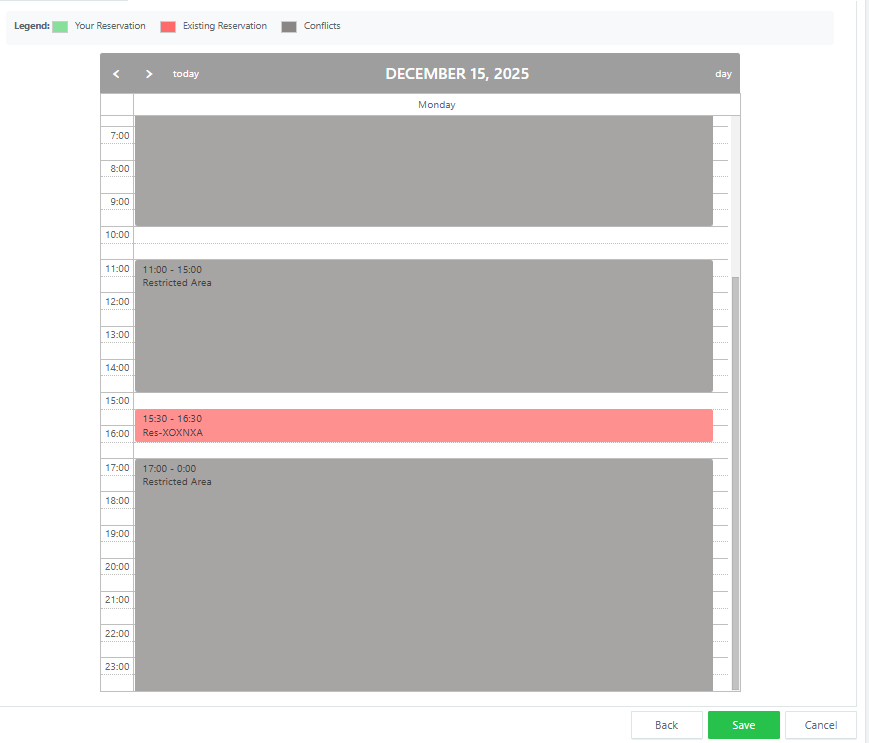
The detailed view provides comprehensive information on conflict types, with color-coded categories.
Configuring the detailed view
Admin needs to append ?Detailview=true to the reservation URL, for example, /ParticipantClient/ParticipantClientHome?Detailview=true
The detailed view provides comprehensive information on conflict types, with color-coded categories for Add new reservation.
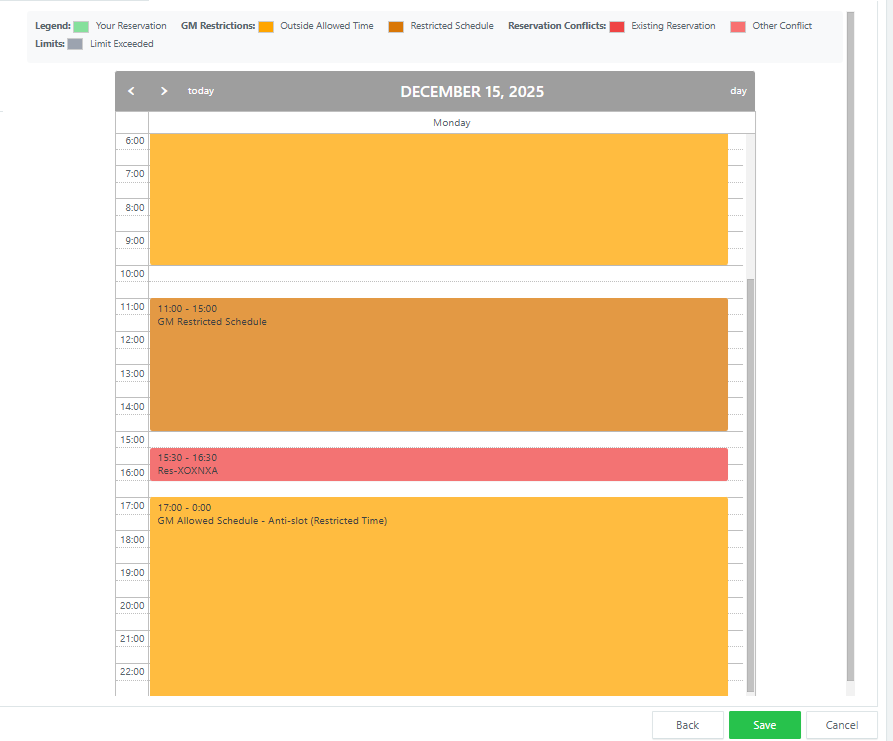
Visual Elements:
-
Bright Orange blocks (6:00-10:00, 17:00-0:00): "GM Allowed Schedule - Anti-slot (Restricted Time)" - outside allowed windows
-
Dark Amber block (11:00-15:00): "GM Restricted Schedule" - explicitly restricted period
-
Red block (15:30-16:30): "Res-XOXNXA" - existing reservation
Add Gold Master for Incharge
A Gold Master can also be assigned to an in-charge, allowing the in-charge to make appropriate changes to the Gold VM and subsequently use the Gold Master VM to create reservations for its courses.
Prerequisites:
- The authentication domain is configured with an appropriate authentication and authorization server.
Process:
-
Invoke the Add Gold Master wizard.
-
In the Usage tab, fill in the following details:
-
Select the option Incharge in the Assign To dropdown list.
-
Provide a Description for the Gold Master.
-
Provide the appropriate number for Gold Master limits:
-
Maximum Total VMs: The total number of VMs to be deployed from the Gold Master. Specify 0 for an unlimited number of VMs.
-
Maximum Active VMs: The Total number of VMs that can run in parallel in one or multiple reservations. Specify 0 for an unlimited number of VMs.
-
Concurrent Connection Limit: Total number of allowed connections to reserved VMs deployed from the Gold Master. The feature implementation requires a hybrid controller polling mode, meaning DVM Push services must be active.
-
Remote Desktop Connection Port: The port to be used for remote sessions of reservations from this Gold Master. The default is 3389. It does not change the port configurations on Gold Master or reserved VMs, but must be configured according to the RDP port configuration on the Gold Master.
-
-
-
Click Next to navigate to the Session Provider tab. In the Session Provider tab,
-
Select the session provider from the dropdown list.
-
Select the Provisioning Profile to associate with Gold Master.
-
Select the VM from the list to be imported as a Gold Master into HyLabs. A detailed process for selecting a Gold Master is already provided in the ‘Add Gold Master for Course’ section.
-
-
Click Next to navigate to the Select Incharge tab. In the Select Incharge tab,
-
Click Add Incharge to invoke the Incharge dialog, which can be used to search for an appropriate search string to list users from the authorization server that are already added as incharge in HyLabs.
-
Select one or multiple incharge for the selected Gold Master.
-
-
Click Next to move to the Snapshot tab and set appropriate Snapshot configurations for Gold Master. In the Snapshots tab, the following settings can be made:
-
Set snapshot configurations as Current State or Choose a Snapshot.
-
Selecting the Choose a snapshot option enables browsing snapshots, which list all available snapshots of the Gold Master. HyLabs supports the creation and management of Gold Master snapshots. Refer to the Snapshot Management section for more details.
-
-
Click Next to proceed to the Access Policy tab, which lets you restrict reservation connections to specific endpoints. Refer to the section Restrict Reservation Usage using Classification Rules for more details. In the Access Policy tab,
-
Select option Unrestricted access if all reservations from this Gold Master should allow access from anywhere.
-
Select the option From Specific Classification Rules only to select Client Groups from which reservations will be accessible.
-
-
Click Save to close the wizard and save the configuration.
-
The Gold Master will be added to HyLabs, and the selected in-charge user, upon logging in to the HyLabs portal, will be able to view the assigned Gold Master.
Add Course Default Gold Master
To add the course default Gold Master, follow the steps below:
-
Invoke the Add Gold Master wizard.
-
In the Usage tab, fill in the following details:
-
Select the Course Default in the Assign To dropdown list.
-
Provide a Description for the Gold Master.
-
Provide the appropriate number for Gold Master limits:
-
Maximum Total VMs: The total number of VMs to be deployed from the Gold Master. Specify 0 for an unlimited number of VMs.
-
Maximum Active VMs: The Total number of VMs that can run in parallel in one or multiple reservations. Specify 0 for an unlimited number of VMs.
-
Concurrent Connection Limit: Total number of allowed connections to reserved VMs deployed from the Gold Master. The feature implementation requires a hybrid controller polling mode, meaning DVM Push services must be active.
-
Remote Desktop Connection Port: Port to be used for remote sessions of reservations from this Gold Master. The default is 3389. It does not change the port configurations on Gold Master or reserved VMs; however, it must be configured according to the RDP port configuration on the Gold Master.
-
-
Enable the Only Admin Access option if the Gold Master should be managed only by the reservation admin. (Unchecking the option will make it accessible to the incharge and assistants also)
-
-
Click Next to navigate to the Session Provider tab. In the Session Provider tab,
-
Select the session provider from the dropdown list.
-
Select the Provisioning Profile to associate with Gold Master.
-
Select the VM from the list to be imported as a Gold Master into HyLabs. A detailed process for selecting the Gold Master is already provided in the Add Gold Master for Course section.
-
-
Click Next to move to the Snapshot tab and set appropriate Snapshot configurations for Gold Master. In the Snapshots tab, the following settings can be made:
-
Set snapshot configurations as Current State or Choose a Snapshot.
-
Selecting the Choose a snapshot option enables browsing snapshots, which list all available snapshots of the Gold Master. HyLabs supports the creation and management of Gold Master snapshots. Refer to the Snapshot Management section for more details.
-
-
Click Next to proceed to the Access Policy tab, where you can restrict reservation connections to specific endpoints only. Establish and implement access policies that meet requirements. Refer to the section Restrict Reservation Usage using Classification Rules for more details.
-
Click Save. The course default type, Gold Master, will be added to HyLabs. Now, when creating a reservation, the Gold Master will be available for selection.