SRMS Installation
This section guides you through installing the HyWorks Session Recording Manager Server (SRMS), a critical component of the session recording process.
Note
- Copy the HyWorks Session Recording Manager Server (SRMS) setup locally on the target server. Running the HyWorks SRMS setup from the UNC path is not supported and will fail.
- Running the HyWorks SRMS setup may also fail during the file extraction process if the logged-in user has a roaming profile. Hence, it is recommended to log in as a local administrator.
Overview
The session recording feature is integrated into the monitor and records the activities performed on the VDI.
SRMS (Session Recording Management Server) is used to manage, upload, and stream user session recordings. The sessions can be recorded and uploaded to a given location (local/remote).
The recordings can be accessed from the HyWorks management console by the user having appropriate privileges. One can also automatically clean up old records after the configured number of days.
While installing SRMS on Windows servers, the following modules will be installed:
- SRMS Aggregator Service
- SRMS Manager Service
- AutoClean Task (Optional)
System Requirements
Hardware Requirements
Minimum configuration for Windows server:
- Minimum 4GB RAM
- 4 vCPUs
- 10 GB of free space on the installation disk for installation, dependencies, and post-installation management files
Note
Upgrade the server size to match the required recording file size and the history to be maintained.
Supported Operating Systems
SRMS can be installed on any Windows operating system with the prerequisites installed, but for performance and ease of use, it should be installed on a Windows Server OS.
Prerequisites for SRMS
To configure the Windows Server with the HyWorks Controller, the following software must be installed and configured on the system:
Installation Modes
SRMS can be configured with HyWorks in two different modes:
- Two-Node Active-Passive/Multi-Node HyWorks Managed Database Sync
- Multi-Node SQL Managed High Availability
For each mode, two types of installation are supported:
- First-time Installation
-
Maintenance
a. Upgrade
b. Uninstall (Using the control panel)
Important Installation Configurations
- Components: SRMS (Session Recording Management Server).
-
Controller Details:
-
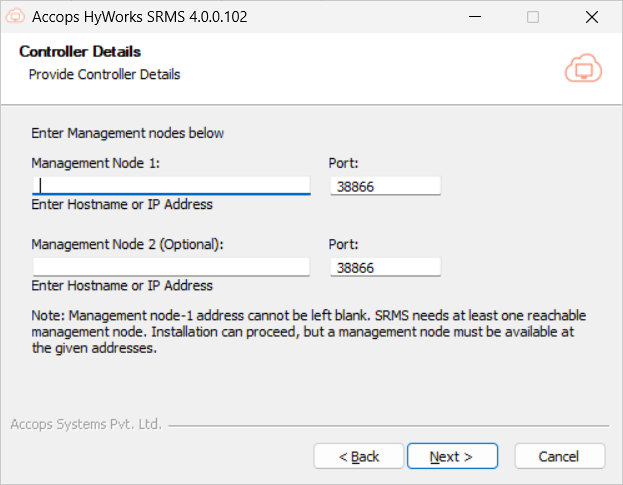
Management Node 1 and Port: The IP address and port number of the HyWorks controller. It can not be empty.
-
Management Node 2 and Port: The IP address and port number of the secondary HyWorks controller. It can be empty as it is optional.
- The installer will check for the reachability of both controllers and will display a message box only if one of the controllers isn't reachable.
- Unreachable controllers can also be selected.
-
-
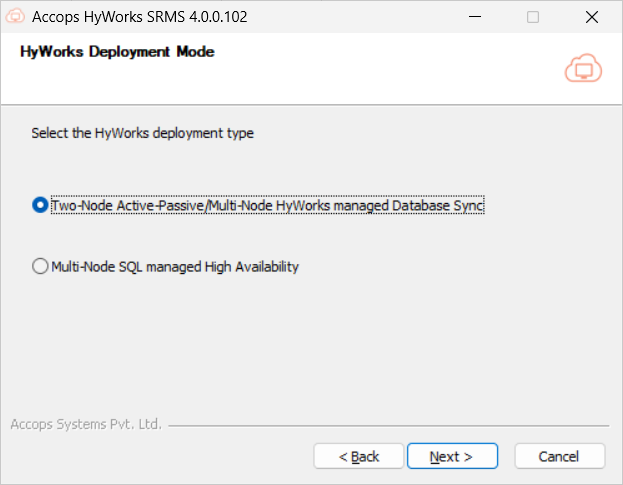
Deployment Mode: Select deployment mode.
-
Two-Node Active-Passive/Multi-Node HyWorks Managed Database Sync
-
Multi-Node SQL Managed High Availability
-
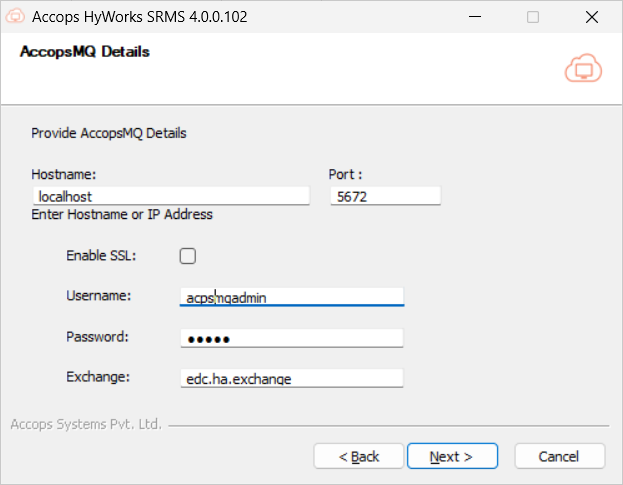
AccopsMQ Details:
-
This page contains information and credentials of AccopsMQ.
-
This page will show up only if the user selects Two-Node Active-Passive/Multi-Node HyWorks Managed Database Sync as the deployment mode.
-
Reachability for the IP of AccopsMQ would be checked here. A warning message box will be shown in case of failure.
-
The configuration is required to handle the Controller’s high availability and to switch to the primary controller in the event of a failover.
-
-
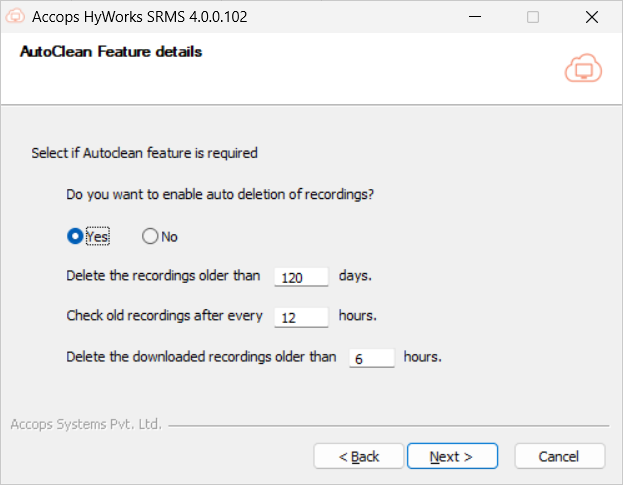
AutoClean Feature details:
-
The user must select if the AutoClean feature is required.
-
If it is required, then the following fields are needed:
- Number of days, to delete the recordings that are older than the given number of days.
- The valid range for the number of days is 1 to 365.
- Number of hours, the interval to run the task in a day.
- The valid range for the number of hours is 1 - 24 hours.
-
-
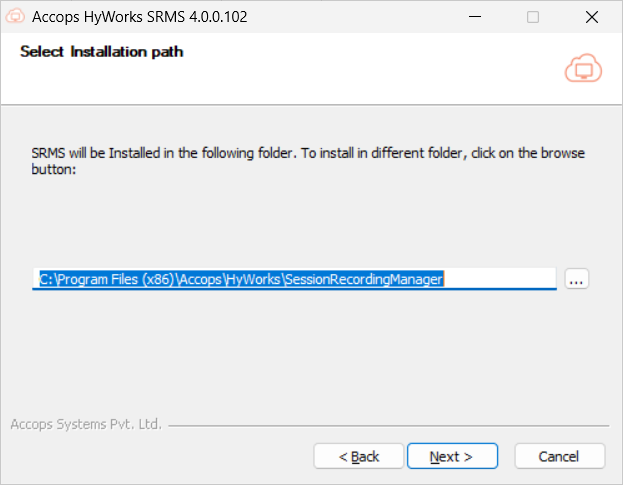
Installation Path: The path where SRMS is installed can be changed here.
-
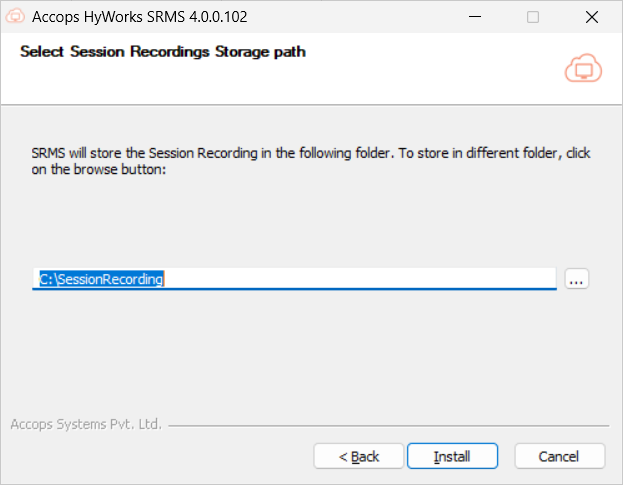
Session recordings storage path: SRMS will upload the user session recordings to this given location.
Installation steps
-
Log in as a local administrator user on the dedicated desktop or server machine.
-
Download HyWorksSessionRecordingManager.exe. Verify the MD5 sum of the downloaded file.
-
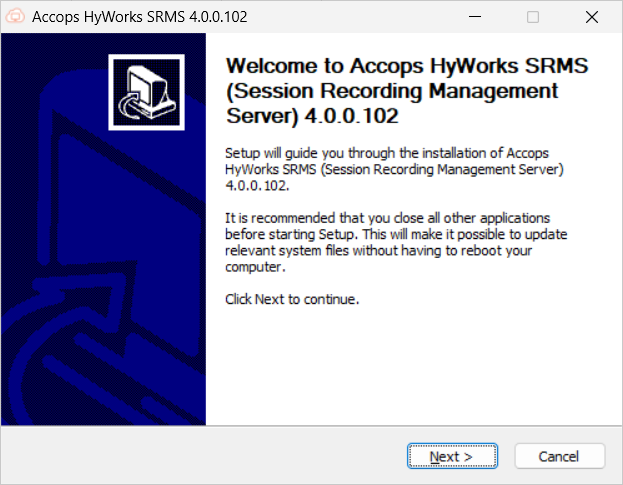
Double-click and launch the Installer. Click Next to proceed.
-
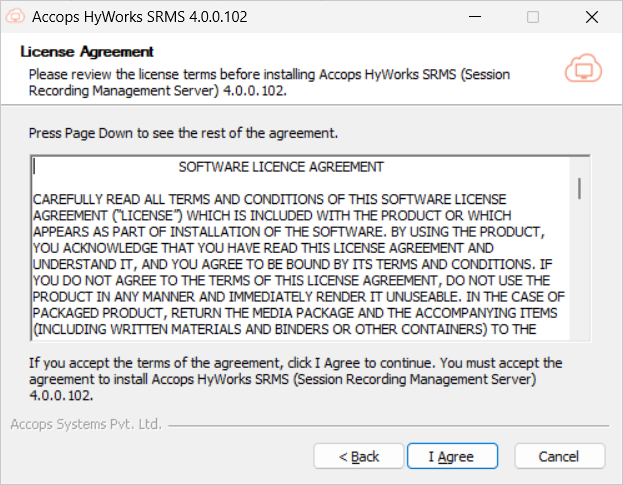
Accept the License Agreement by clicking I Agree.
-
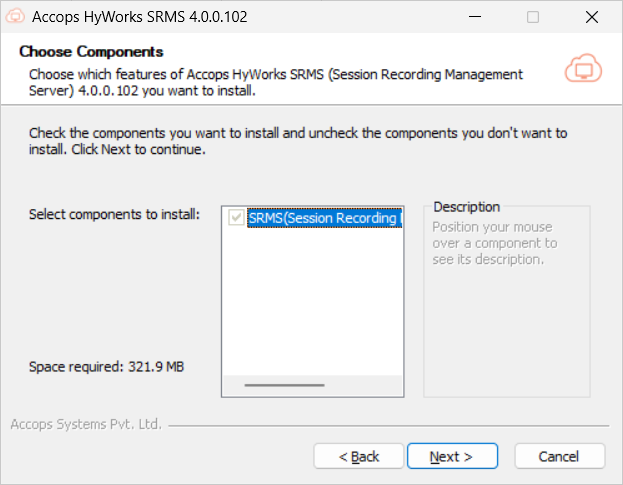
The components that will be installed are selected by default. Click Next to proceed.
-
Enter the Controller IP Details and click Next to proceed.
Note
If the controller is standalone, then the second field to add Node 2 details is optional.
-
Select the HyWorks Deployment Mode from the following options. Click Next to proceed.
-
Two-Node Active-Passive/Multi-Node HyWorks Managed Database Sync: Select this option if the controller is deployed in an HA configuration.
Note
For this deployment method, RabbitMQ installation is mandatory. RabbitMQ can be installed on the same machine where SRMS is installed or on other machine.
-
Multi-Node SQL managed High Availability: Select this option if the controller is deployed in an Active-Active setup.
-
-
Enter the IP address of the host where RabbitMQ is installed. The Port number, Username, Password, and queue details will be filled in by default. Click Next to proceed.
-
This screen will only be displayed for the deployment type as Two-Node Active-Passive/Multi-Node HyWorks Managed Database Sync.
-
SRMS uses a specific configuration to manage controller failover and switch to the primary HyWorks controller. It is important to note that SRMS lacks additional mechanisms for high-availability (HA) handling of the controller. Therefore, this configuration is essential for HA deployments, as mentioned in point #1.
-
For HA handling using Accops MQ, the following flag must be enabled: Navigate to Settings > General > Advanced Settings > HA notify control and set it to True.
-
If deployment uses multiple Accops MQ servers or has VM scale booster deployed in HA, then the Accops MQ VIP should be provided as a configuration.
-
-
Select Yes if the Auto-Clean feature is required. Click Next to proceed. The Admin can configure the days and hours; after that, recordings will be deleted.
-
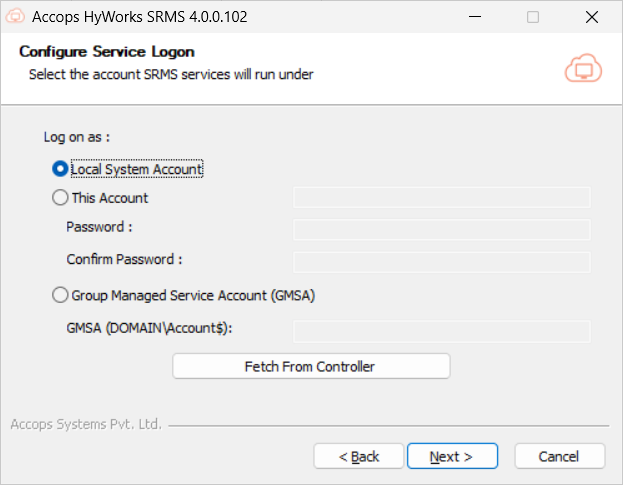
Choose the service logon credentials. This is an important configuration, as SRMS also uses the Controller database; thus, configurations should be done as per the deployment. Options available are:
-
Local Service Account: SRMS service will run as a local service account, and the database should be accessible via SQL authentication (as configured on the Controller).
-
This Account: SRMS service will run with the provided account details. Normally used when the Controller is also configured to run with a service account having access to the database.
-
GMSA (Group Managed Service Account): If deployment is to run with a Group Managed Service Account, this option can be used. The provided account must be configured correctly. The detailed information can be found in the GMSA Configuration document.
-
-
Select the destination folder, then click Next to proceed.
-
Browse and enter the session recording storage path where you want to save the recordings. Click Install to start the installation process.
-
Once the installation is complete, click Finish.
-
Run the ConfigureRabbitMQ script at the end to configure RabbitMQ. And follow the steps mentioned in the script.
Note
If SRMS is to be configured in HA, then the admin should follow the same installation procedure to prepare two SRMS servers and then use a third-party load balancer for load balancing and failover conditions.
HyWorks Database Authentication Mode is Windows Authentication
When the HyWorks database configuration operates in Windows authentication mode, the SRMS services must also run under the same user credentials used to run the HyWorks Controller services. SRMS employs the same authentication mechanism as HyWorks Controllers to establish connections to databases.
In the mentioned deployment scenario, if SRMS is installed (where it usually runs as the Local System Account by default), it becomes necessary to reconfigure its services to operate under the same user credentials as those used by the HyWorks Controller services. To perform this configuration, follow these steps:
-
Connect to Windows server hosting SRMS services with administrator privileges.
-
Open the Run prompt and type services.msc > Press Enter.
-
Locate the SRMS Service named Accops HyWorks Session Recording Aggregator. Right-click on it and select Properties.
-
Navigate to Log on and change the configuration from Local System Account to This account.
-
Provide appropriate user credentials (Same credentials used for running HyWorks Controller).
Important
The configured user credentials must have log on as a service rights on the Windows server.
-
Save the configurations and restart the Accops HyWorks Session Recording Aggregator service.
-
Follow the same steps (# 1 to #6) for the other SRMS service Accops HyWorks Session Recording Manager.