HyWorks Controller Prerequisites
To promote a server with HyWorks Controller, the following prerequisites must be fulfilled:
-
Deployment-specific server configurations: Not required for all deployments.
-
Should not have Accops HyWorks Session Host Server installed on the same server. [Applicable for v3.6 or above].
-
The latest versions of the HyWorks Controller and Session Host Server do not allow installation on the same machine. If one module is already installed, the installer for the other will block the setup.
-
Accops strongly recommends installing the HyWorks Controller and HyWorks Session Host Server on separate machines to ensure stability, performance, and long-term maintainability.
-
Hardware Requirements
Minimum configuration for Windows server to be configured as Accops HyWorks Controller:
-
Minimum 4 GB RAM
-
4 vCPUs
-
10 GB free space on installation disk for installation, dependencies and post installation management files
Note
This is minimum requirement for configuring HyWorks Controller on Windows server but appropriate server sizing should be done as per expected load and roles configurations.
Supported Operating Systems
The HyWorks Controller can be installed on these Windows Server operating systems:
-
Windows Server 2025
-
Windows Server 2022
-
Windows Server 2019
-
Windows Server 2016
-
Windows 10 (Supported but not recommended)
Note
The installer can be run on other Windows platforms that meet the system configuration and software requirements. However, for optimal performance, it is recommended to install the software only on the server-class machines mentioned.
Database Requirements
To install the HyWorks Controller, Microsoft SQL Server must be configured as the database. This section of the document will provide details of the installation and configuration of Microsoft SQL Server for HyWorks Installation.
Supported Microsoft SQL Versions
HyWorks Controller supports the following versions of Microsoft SQL Server:
-
Microsoft SQL Server 2025
-
Microsoft SQL Server 2022
-
Microsoft SQL Server 2019
-
Microsoft SQL Server 2017
-
Microsoft SQL Server 2016
-
Microsoft SQL Server 2014
-
Microsoft SQL Server 2012
Please refer to the section Preparing Microsoft SQL Server for HyWorks Deployment for detailed instructions on SQL Server configurations for HyWorks installation.
Prepare Microsoft SQL Server for HyWorks Deployment
Configure the SQL Server as follows to support the HyWorks Controller and clustering:
-
Enable remote connections on the SQL Server instance.
-
Configure the SQL server to listen on the static port.
-
Turn on the SQL Server Browser service.
Assumption: The SQL Server is already installed (with Windows authentication or mixed mode) and ready for configurations.
Enable Remote connections on the SQL Server Instance
Follow the steps given below to configure the SQL Server to allow remote connections:
-
Open the SQL Management Studio and connect to the SQL Server configured as the HyWorks Controller's database server.
-
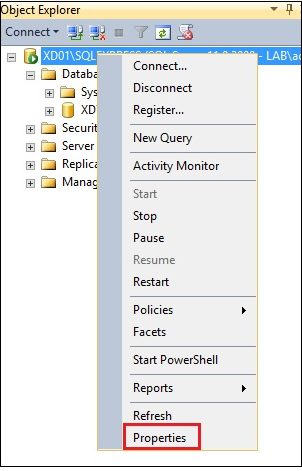
Right-click on the server name in the left pane and select Properties.
-
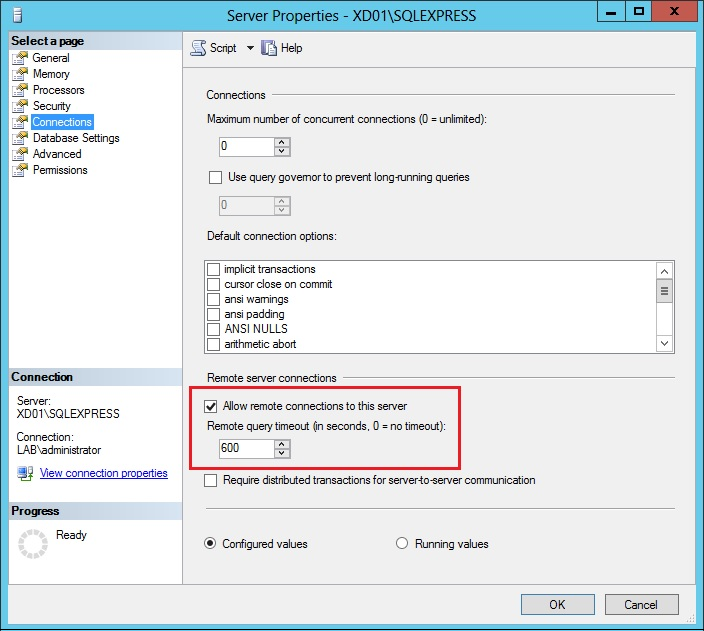
Select Connections.
-
Under the Remote server connections section, select the Allow remote connections to this server.
Configure the SQL server to communicate on the static port
The HyWorks Controller supports communication with the SQL server over a static port. Using the dynamic port may cause database connectivity issues.
Verify whether the SQL Server is using a static TCP port
-
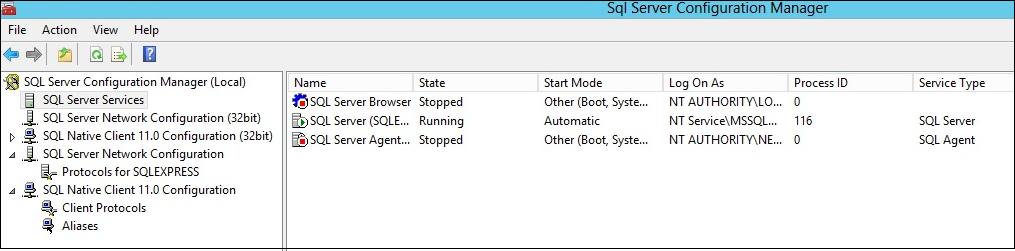
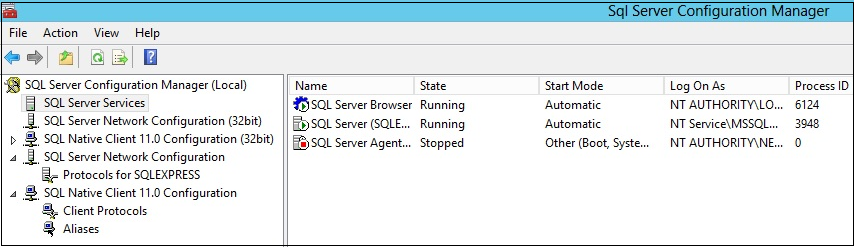
Open the SQL Server Configuration Manager.
-
Click the SQL Server Services.
-
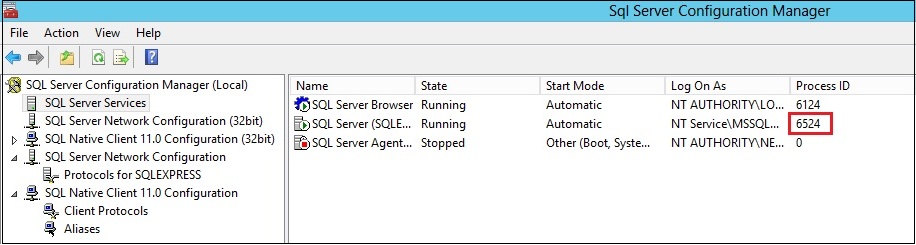
Note down the process ID of the SQL Server instance displayed in the right pane, for example, 116 in the above image.
-
Open the command prompt and execute the following command:
Code
netstat -ano | find /i \<PID of SQL Server>e.g. netstat -ano | find /i "116"
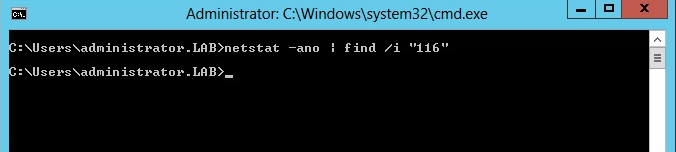
The command will not show any output if the SQL Server does not use a static TCP port and should be configured to use one, as shown in the screenshot above.
Enable the SQL Server to communicate on a static port
-
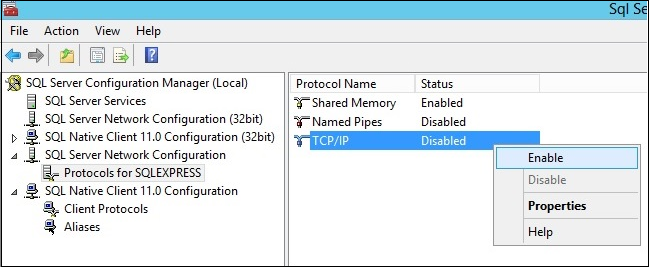
Go to the SQL Server Configuration Manager.
-
Click SQL Server Network Configuration.
-
Right-click and select Enable.
-
Restart the SQL Server service and identify the Process ID assigned to the SQL service.
-
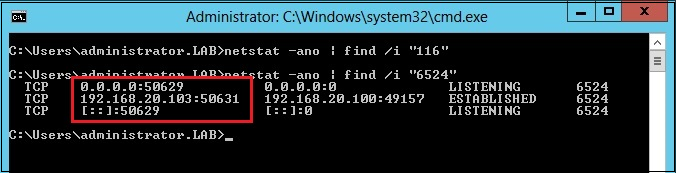
To verify whether the SQL services are listening on a TCP port or not, execute the following command in the command prompt:
Code
netstat -ano | find /i \<PID of SQL Server\
-
To configure a specific port:
-
In the SQL Server Configuration Manager.
-
Click SQL Server Network Configuration.
-
Right-click TCP/IP protocol.
-
Select Properties.
-
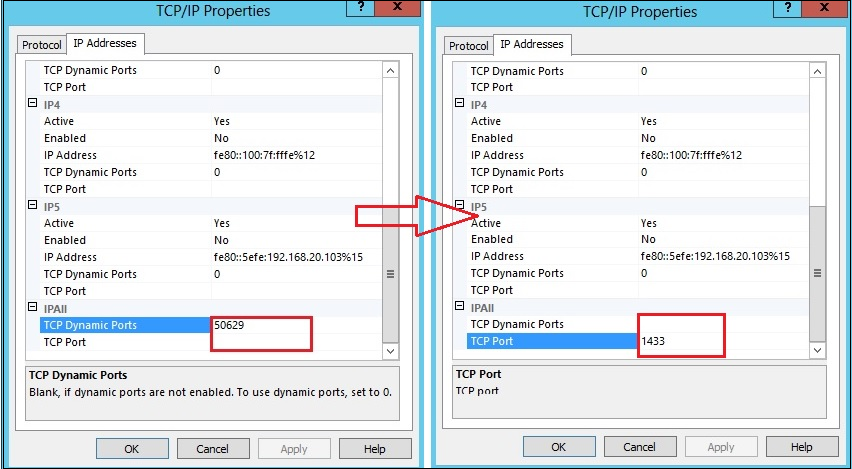
Go to IP Address > IPAll.
-
Remove the value configured in the TCP Dynamic Ports section. Do not configure it as 0 (zero).
-
Configure 1433 or any other port as per the requirement for TCP Port.
-
-
Restart the SQL Server service. Identify the new process ID assigned to the SQL service, and in the command prompt, execute the following command to verify whether the SQL Service is now listening on the configured TCP Port, i.e., 1433.
Code
netstat -ano | find /i "PID of SQL Server";
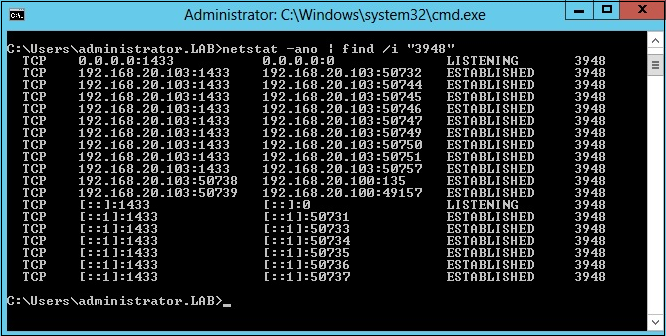
SQL Express should now be configured to listen on the standard port 1433. Check the SQL Server port reachability from the Controller Installer server.
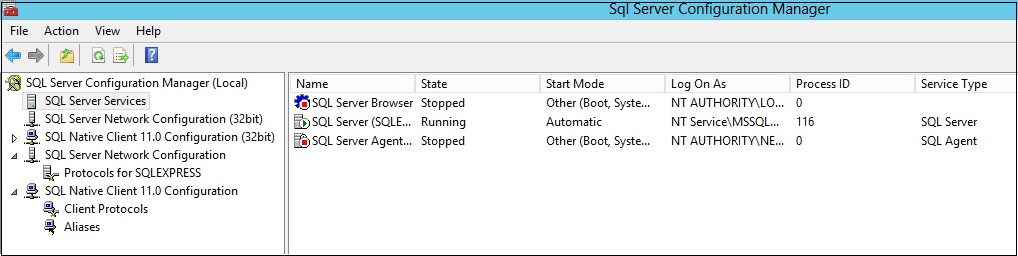
Start the SQL Server browser service
- Open the SQL Server Configuration Manager.
- Click on SQL Server Services.
-
Right-click SQL Server Browser service and select Properties.
-
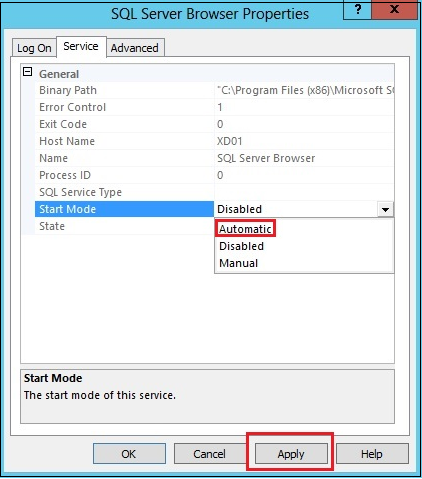
Go to the Service tab and select Automatic for Start Mode.
-
Click Apply.
-
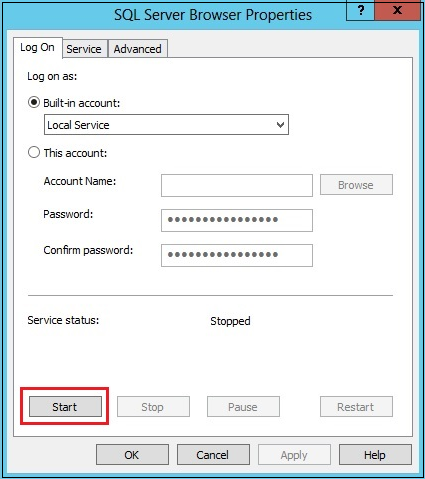
Click Start to start the SQL Browser service.
-
Confirm whether the SQL Server Browser service is up and running.
Dot Net Framework
Install Dotnet 4.7.2
The HyWorks Controller v3.2-GA (v8493) or later requires .NET 4.7.2, which should be installed on the Windows Servers before installing the HyWorks Controller.
Refer to the Microsoft article for .NET version compatibility with different Windows server versions: https://docs.microsoft.com/en-us/dotnet/framework/get-started/system-requirements
- On Windows Server 2019 or above
Windows Server 2019 or later comes preinstalled with .NET 4.7.2 or later and therefore does not require explicit installation. If .NET 4.7.2 is not found, follow the standard Microsoft-recommended process to install it.
- On Windows Server 2016
Windows Server 2016 comes preinstalled with .NET v4.6. Download and install the required .NET installer from the Microsoft website - https://support.microsoft.com/en-us/help/4054530/microsoft-net-framework-4-7-2-offline-installer-for-windows.
Follow the steps to install the default options. Once installed, configure the remaining prerequisites for the HyWorks Controller installation.
- On the Windows Server 2012 R2
The Windows Server 2012 R2 requires the following Windows updates installed on the system before installing .NET 4.7.2. Installation must be done in the following sequence:
-
Install update KB2919442, which is a prerequisite for update KB2919355.
-
Install update KB2919355.
-
Install Dot Net 4.7.2.
Important
The HyWorks Controller deployment does not work on Windows 2012 or 2012-SP1.
- On Windows Server 2008 R2
.NET 4.7.2 supports only Windows Server 2008 R2-SP1 as the minimum supported Windows Server version. Any existing Windows Server 2008 R2 must be upgraded to SP1 before installing .NET 4.7.2.
Follow the steps given below to install and register .NET with IIS:
- Install the SP1 update of the Windows Server 2008 R2 (if required)
- Install Dot Net 4.7.2
-
Once the installation process for Microsoft .NET 4.7.2 is complete, open the Command Prompt with Administrator privileges and execute the following command:
"C:\Windows\Microsoft.NET\Framework\v4.0.30319\aspnet_regiis.exe -iru"
Register ASP.NET 4.0 post Web Server Role Addition
The Accops HyWorks Controller Management Console requires an appropriate .NET application pool to be added to the IIS.
Sometimes, the successful installation and configuration of the Web Server role in the Windows 2008 R2-SP1 .NET 4.0 pool does not register in IIS.
Follow the steps given below to verify and configure the appropriate .NET Pools:
Verify .NET Pool
-
Go to Start > Administrative Tools > Internet Information Services (IIS) Manager.
-
Click Application Pools in the inventory list on the left-hand side. It should display all application pools on the servers.
-
Verify if the ASP.NET 4.0 pool is listed (See the screenshot below).
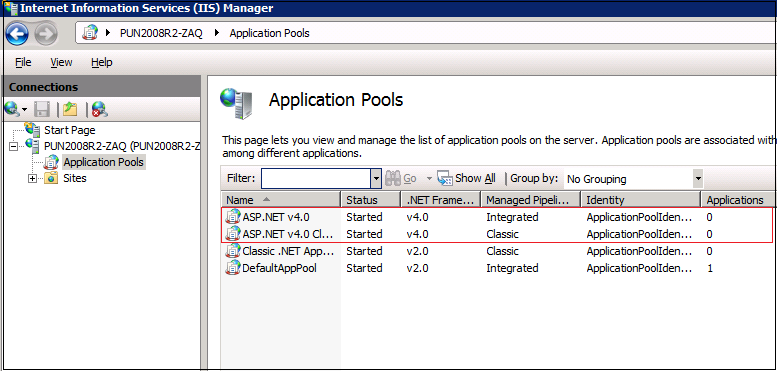
If the ASP.NET 4.0 pool is not on the list, follow the steps given in the Configure ASP.NET 4.0 Pools section in IIS.
Configure ASP.NET 4.0 Pools in IIS
-
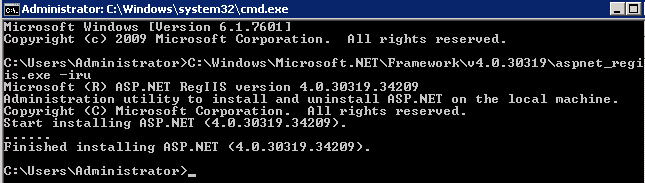
Open the Command Prompt with Administrator privileges and execute the following command:
"C:\Windows\Microsoft.NET\Framework\v4.0.30319\aspnet_regiis.exe -iru"
-
If the command is executed successfully, it should display a success status, as shown in the screenshot below:
-
Repeat the steps in the Verify the .NET Pools section to verify the pools.
Other Software Requirements
To configure the Windows Server with the HyWorks Controller, the following software must be installed and configured on the system:
- Microsoft Sync Framework v2.1 (KB2703853): Explicit installation of sync framework is not needed for v3.4-SP1 or higher.
Server Configurations
For some specific deployment types, the following configurations may require:
Provide User Logon as a Service Rights on Windows Server
The HyWorks Controller service must be configured to run with the specific user account for deployments where SQL database configuration needs to be done with Windows authentication. The provided user account must have logon as a service privileges on the system; otherwise, the HyWorks Controller service may fail to start after the installation.
Follow the steps given below to configure users’ accounts with logon as a service privilege:
-
Click Start > Run, type mmc, and click OK.
-
Click Add/Remove Snap-in > Add on the File menu, and double-click Group Policy Object Editor.
-
In Group Policy Object, click Browse to the Group Policy object (GPO) that you want to modify, click OK, and then Finish.
-
Click Close, followed by OK.
-
In the console tree, click User Rights Assignment; this is available at the following location: Group Policy Object\ [\Computer Name] Policy >> Computer Configuration >> Windows Settings >> Security Settings >> Local Policies >> User Rights Assignment.
-
In the details pane, double click Log on as a service.
-
If the security setting has not been defined yet, select the Define these policy settings.
-
Click Add User or Group. Add the appropriate account to the list of accounts with Log on as a service.
-
Open the command prompt as administrator, and execute the below command to push the changes to take effect:
- gpupdate /force
-
The added user account can now run the HyWorks Controller service.