New Features in Accops Workspace macOS Client version 7.2.1.1043
VDI Lockout Support
This release introduces re-authentication enforcement for VDI sessions that are locked, idle, or where the endpoint operating system has been locked. It enhances session security by enforcing user re-authentication when a virtual desktop session becomes locked, the endpoint operating system is locked, or the client remains inactive for a configured period.
The feature helps prevent unauthorized access to active VDI sessions and ensures that users revalidate their identity before resuming access.
Key Benefits
- Protects active VDI sessions from unauthorized access.
- Enforces user identity verification after lock events.
- Enhances compliance with organizational security policies.
- Provides consistent security behavior across VDI and endpoint environments
Re-Authentication Functional Behavior
The client automatically transitions to a LOCKED state when any of the following events occur:
VDI Session Lock
The virtual desktop session is locked through the Cmdex virtual channel.
Endpoint Operating System Lock
The client detects that the local endpoint operating system has been locked.
Idle Timeout
The client remains inactive for a configured period and exceeds the administrator-defined idle timeout threshold.
On application launch while locked, the client prompts for password-based re-authentication.
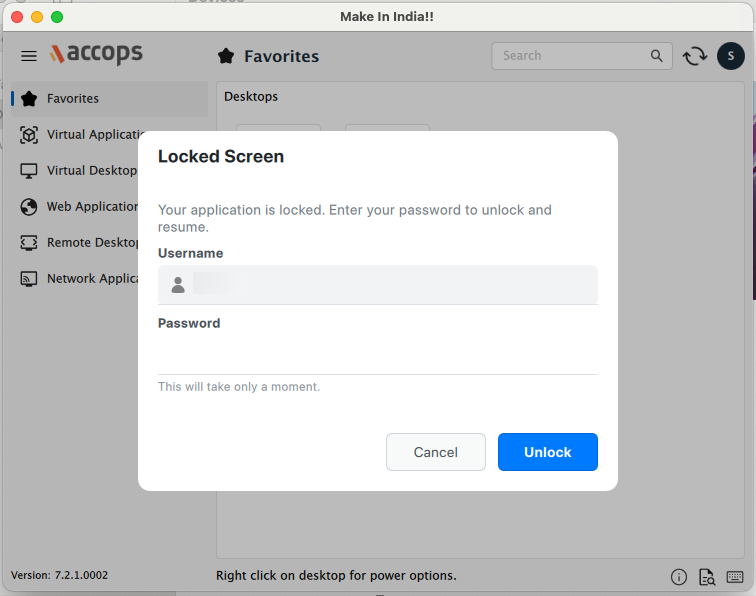
When the application launches while locked, users are prompted to re-authenticate with their password before regaining access.
Retry and Logout Policy
-
On an incorrect password entry, an error message is displayed showing the number of remaining attempts.
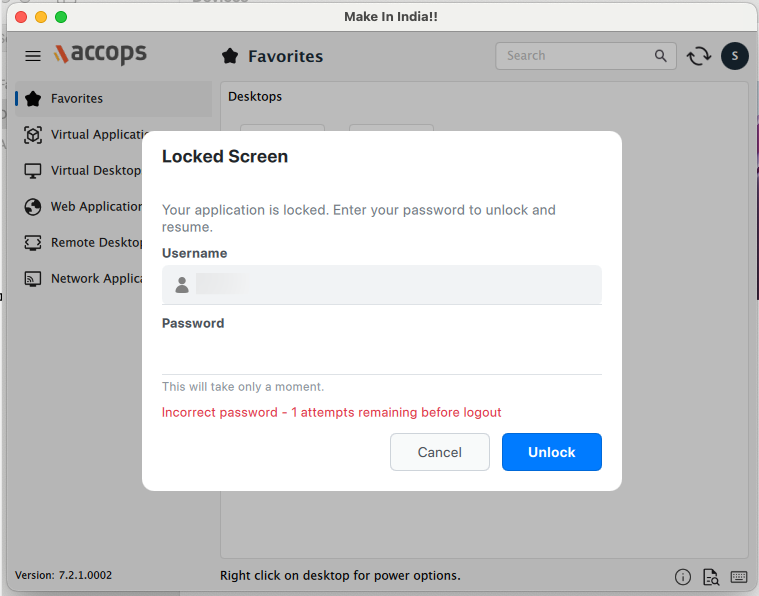
-
After 3 consecutive failed attempts, the client session will be automatically logged out.
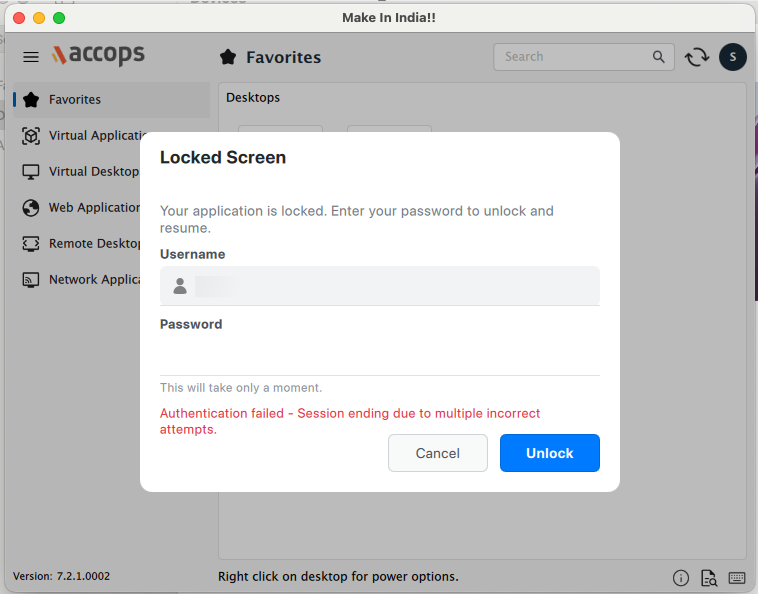
HySecure Gateway Configuration
Configure the following flags in globalclientsetting.js on the HySecure Gateway:
| Tag | Description |
|---|---|
ASK_REAUTH_ON_LOCK_OR_IDLETIME = true |
Requires re-authentication when a session is locked or becomes idle. It is recommended to Enable (true) for environments with sensitive data or shared workstations. |
REAUTH_IDLETIME_INTERVAL = <seconds> |
Defines the idle threshold (in seconds) before a re-authentication prompt is triggered. Suggested values: 300 (high security), 900 (standard), 1800 (low disruption). |
| Maximum Retry Attempts | Defaults to 3. This is the maximum number of consecutive failed authentication attempts before the user is logged out. |
Compatibility and Limitations
-
VDI lock detection is protocol-dependent
-
VDI lock detection (i.e., the gateway knowing when a remote session is locked on the endpoint) only works with protocols that support the
Cmdexvirtual channel, such as Native Protocol. -
If a protocol does not support
Cmdex, the gateway cannot detect VDI lock state and therefore cannot trigger lock-specific re-authentication logic.
-
-
Protocols that do NOT support VDI lock detection
-
Protocols such as Windows App do not support the
Cmdexvirtual channel. -
For these protocols:
-
The gateway cannot detect when the VDI session is locked.
-
Therefore, VDI lock-based re-authentication is not enforced.
-
-
-
What is enforced for non-
Cmdexprotocols (e.g., Windows App)-
For protocols without VDI lock detection, the gateway enforces only:
-
Endpoint Lock
-
If the local endpoint device is locked (e.g., the user locks their macOS machine), the gateway can enforce re-authentication in response to that lock event.
-
This is independent of VDI session lock state; it relies on endpoint-level signals rather than
Cmdex.
-
-
Idle Timeout
-
If the user is inactive for the duration defined by
REAUTH_IDLETIME_INTERVAL, the gateway triggers a re-authentication prompt. -
This works regardless of whether the protocol supports
Cmdexor VDI lock detection.
-
-
-
-
Practical implications for configuration
-
When
ASK_REAUTH_ON_LOCK_OR_IDLETIME = true:-
For
Cmdex-supporting protocols: re-authentication is triggered on VDI lock and on idle timeout. -
For non-
Cmdexprotocols (e.g., Windows App): re-authentication is triggered only on:-
Endpoint lock, and
-
Idle timeout.
-
-
The lock on the VDI session itself is not detected, so that specific scenario is not enforced.
-
-
JioSphere Browser Integration
JioSphere Browser is now integrated with Accops Workspace Client and HySecure Gateway, providing secure, policy-driven access to enterprise web applications.
Built on the Chromium engine, JioSphere supports centralized browser policy management through HySecure Gateway and Chrome Enterprise Policies, enabling administrators to enforce security, DLP, browsing controls, and session management from a single location.
Key Features
-
Web application Launch via JioSphere
-
JioSphere browser policy management and delivery from the gateway
-
JioSphere Exit on logout with notification
-
Cleanup JioSphere History on login and logout - tag-based
-
Cleanup JioSphere CACHE on login and logout - tag-based
-
Encrypted Policy Support for JioSphere - POC on Chromium
-
Restrict compatible JioSphere launch with the minimum supported browser version
Quick Configuration Guide
-
JioSphere Usage & Client Benefits
JioSphere is an enterprise-grade browser integrated with Accops HySecure Gateway and Accops Workspace client that enables secure access to enterprise web applications. It provides a secure, policy-driven browsing experience using Chromium and Chrome Enterprise Policies, fully controlled through centralized gateway configuration.
Key Highlights
-
Built on Chromium engine → compatible with modern web applications
-
Supports Chrome Enterprise Policies → centralized browser control
-
Provides secure enterprise browsing
-
Supports DLP and browser isolation features
-
Enables:
-
Restricted clipboard operations
-
Controlled downloads
-
Secure session handling
-
Browser lockdown configurations
-
Controlled URL editing
-
Context menu restrictions
-
Benefits for End Users
-
Seamless access to enterprise web applications
-
Enhanced enterprise data security
-
No dependency on local browser configurations
-
Centralized policy enforcement from the gateway
-
Consistent browsing experience across devices
-
-
Browser Configuration Policies
Browser configuration policies control browser behavior, security settings, DLP restrictions, download behavior, password management, clipboard isolation, and secure browsing enforcement.These policies can be configured from:HySecure Gateway → Policies → Browser Configurations
Supported Browser Configuration Policies
Policy Tag Values Description IncognitoModeAvailability 0 Incognito mode enabled 1 Incognito mode disabled 2 Incognito mode forced PromptForDownloadLocation true Always ask where to save downloads false Save to the default location without asking SavingBrowserHistoryDisabled true Disable saving browser history false Enable saving browser history DownloadRestrictions 0 No special download restrictions 1 Block dangerous downloads 2 Block potentially dangerous downloads 3 Block all downloads 4 Block malicious downloads PasswordManagerEnabled true Enable the built-in password manager false Disable the built-in password manager AutofillEnabled true Enable form autofill false Disable form autofill SphereDisableContextMenu true Disable right-click context menu popup on webpages false Enable right-click context menu popup on webpages SphereReadOnlyUrl 0 The URL bar is editable by the user 1 URL bar read-only (user cannot edit address) SphereDisablePaste 0 Paste enabled everywhere 1 Paste disabled everywhere (Strict mode) 2 Paste allowed only within the same tab (Intra-tab Isolation) 3 Paste allowed only within the same window, including other tabs in the same window (Intra-window Isolation) SphereDisableCopy 0 Copy enabled everywhere 1 Copy disabled everywhere (Strict mode) 2 Copy allowed only within the same tab (Intra-tab Isolation) 3 Copy allowed only within the same window, including other tabs in the same window (Intra-window Isolation) -
Chrome Enterprise Policies Overview
JioSphere uses Chrome Enterprise Policies internally to enforce browser configurations.
Supported Policy Types
Type Description Example String Text values "DownloadDirectory" Integer Numeric values "DownloadRestrictions": 3 Boolean True/False flags "PrintingEnabled": false List of Strings Array values "ClipboardAllowedForUrls": [] Note
On macOS, the Sphere Enterprise Browser only supports this policy when its Chromium version is equal to or newer than the minimum supported Google Chrome version specified in the policy document.
-
Preparing Chrome Policies (JSON Format)
Step 1: Browse Policies using the Chrome Enterprise Policy List. Then search for required policies and note the following items:
-
Policy name
-
Type
-
Supported value
Step 2: Create JSON
{ "NewTabPageLocation": "https://outlook.com", "ShowHomeButton": false, "DownloadRestrictions": 3, "DownloadDirectory": "/Users/Shared/edc", "PrintingEnabled": false, "DeveloperToolsAvailability": 2, "ScreenCaptureAllowed": false, "DefaultClipboardSetting": 2, "ClipboardAllowedForUrls": [ "https://accops.com", "https://*.accops.com" ] } -
-
Convert JSON to Base64
-
Open: Base64 Encode Tool
-
Paste JSON
-
Click Encode
-
Copy Base64 output
-
-
Browser Control Configuration for Client
Browser control configurations are client-side enforcement settings used for browser launch handling, cache cleanup, history cleanup, logout behavior, and browser version enforcement.
These configurations can be added in:
-
default_client_settings.js
-
HySecure Gateway → Policies → Client Profiles
Supported Client Configuration Tags
TAG TYPE USAGE SPHERE_POLICY_B64 STRING Base64 encoded browser policy SPHERE_FORCE_LAUNCH BOOL Force web application launch using JioSphere SPHERE_EXIT_ON_LOGOUT BOOL Exit JioSphere on Workspace client logout SPHERE_CACHE_CLEANUP_ON_LOGOUT BOOL Cleanup JioSphere cache on Workspace client logout SPHERE_CACHE_CLEANUP_ON_LOGIN BOOL Cleanup JioSphere cache on Workspace client login SPHERE_HISTORY_CLEANUP_ON_LOGOUT BOOL Cleanup JioSphere browsing history on Workspace client logout SPHERE_HISTORY_CLEANUP_ON_LOGIN BOOL Cleanup JioSphere browsing history on Workspace client login SPHERE_MIN_VER_REQ_MAC STRING Minimum JioSphere version required for macOS; blocks launch if version is not valid SPHERE_MIN_VER_REQ_RHEL STRING Minimum JioSphere version required for RHEL; blocks launch if the version is not valid SPHERE_MIN_VER_REQ_UBUNTU STRING Minimum JioSphere version required for Ubuntu; blocks launch if version is not valid SPHERE_MIN_VER_REQ_WINDOWS STRING Minimum JioSphere version required for Windows; blocks launch if version is not valid FORCE_EXIT_BROWSERS_ONLOGOUT BOOL Force quit Chrome, Safari, and JioSphere after Workspace client logout -
-
Prerequisites
-
Mac client version 7.2.1.1042 or above
-
JioSphere integrated installer (JioSphere version-142.0.7444.165)
-
Proper gateway configuration
-
Backend access to configure browser policies
-
HySecure Gateway browser configuration enabled
-
-
Post-Login Behavior
After successful login:
-
Web applications launch automatically via JioSphere
-
Enterprise browser policies are applied automatically
-
DLP restrictions become active
-
Clipboard and download restrictions are enforced
-
Session handling follows configured gateway policies
-
-
Runtime Behavior
Feature Behavior Policy Enforcement Chrome Enterprise policies applied dynamically Cache Handling Cleared based on configured settings History Handling Managed according to login/logout cleanup settings Exit Handling Browser closes automatically on logout (if enabled) Version Enforcement Access is blocked if the minimum version requirement is not met Clipboard Isolation Copy/Paste is controlled based on the DLP policy Download Control Download restrictions enforced per policy -
Verification of Applied Policies
Steps to verify that Chrome Enterprise policies are correctly applied in JioSphere:
-
Open JioSphere browser
-
Navigate to: jiosphere://policy/
-
Press Enter
Expected Result: A policy page will be displayed showing all active browser policies.
Verify the following:
-
Policy names
-
Applied values
-
Policy source
-
Effective enforcement status
-
Native Protocol Upgrade
The Workspace macOS Client now includes an upgraded native protocol stack designed to enhance virtual desktop performance, multimedia redirection, and collaboration experiences.
The upgraded protocol delivers improved RDP functionality and support for modern unified communications platforms.
-
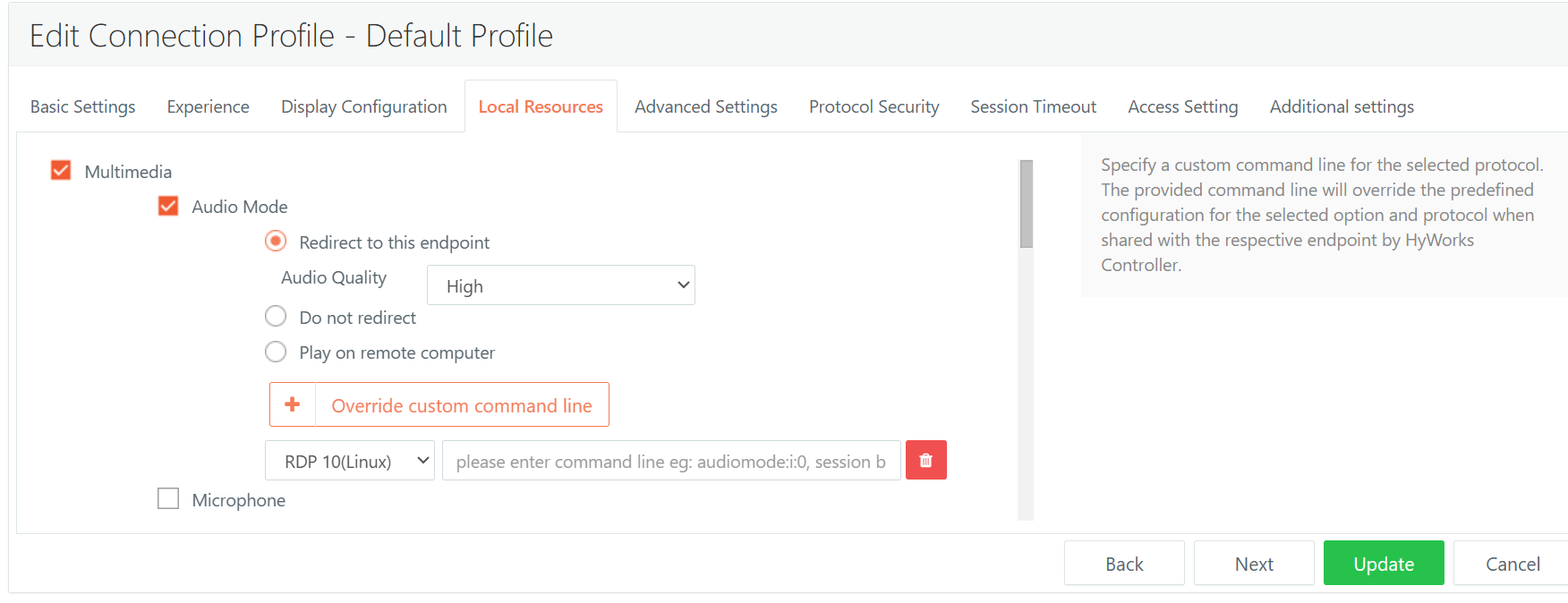
Audio Redirection: Audio support for voice/video calls.
-
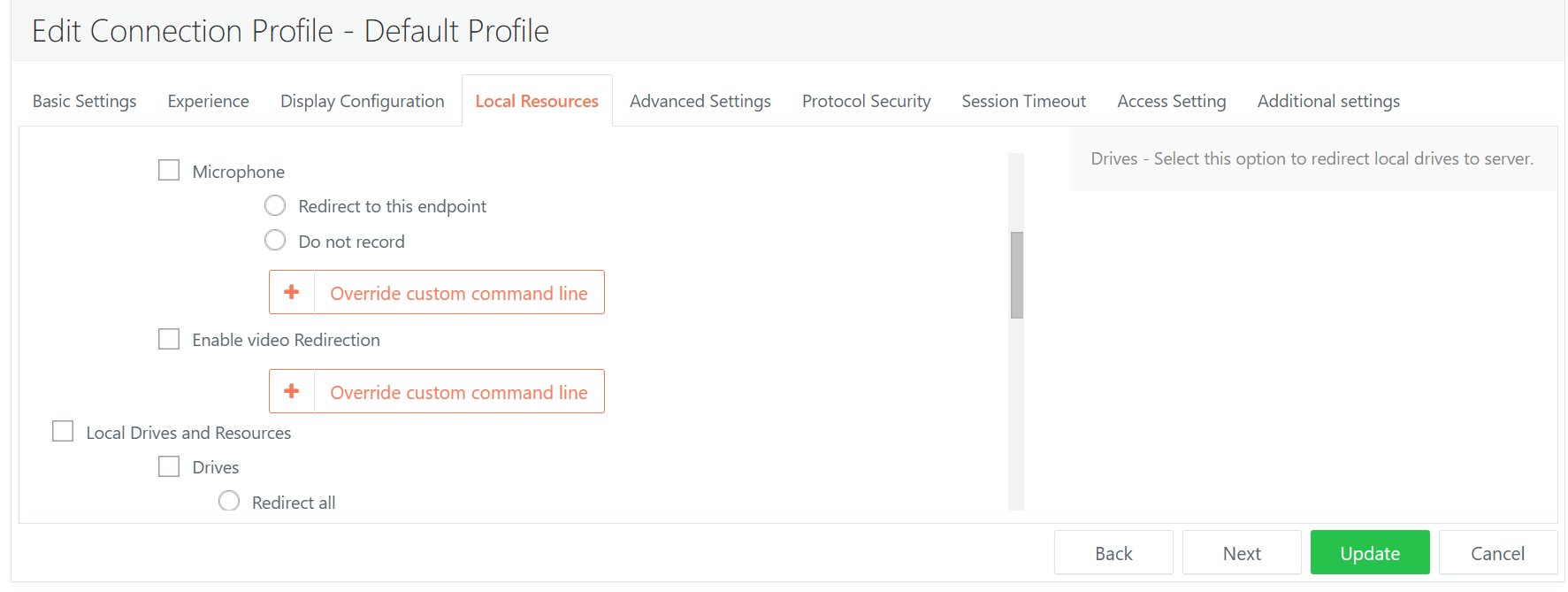
Webcam and Camera Redirection: Webcam/camera redirection for video conferencing (Teams, Google Meet, Zoom, Webex).
-
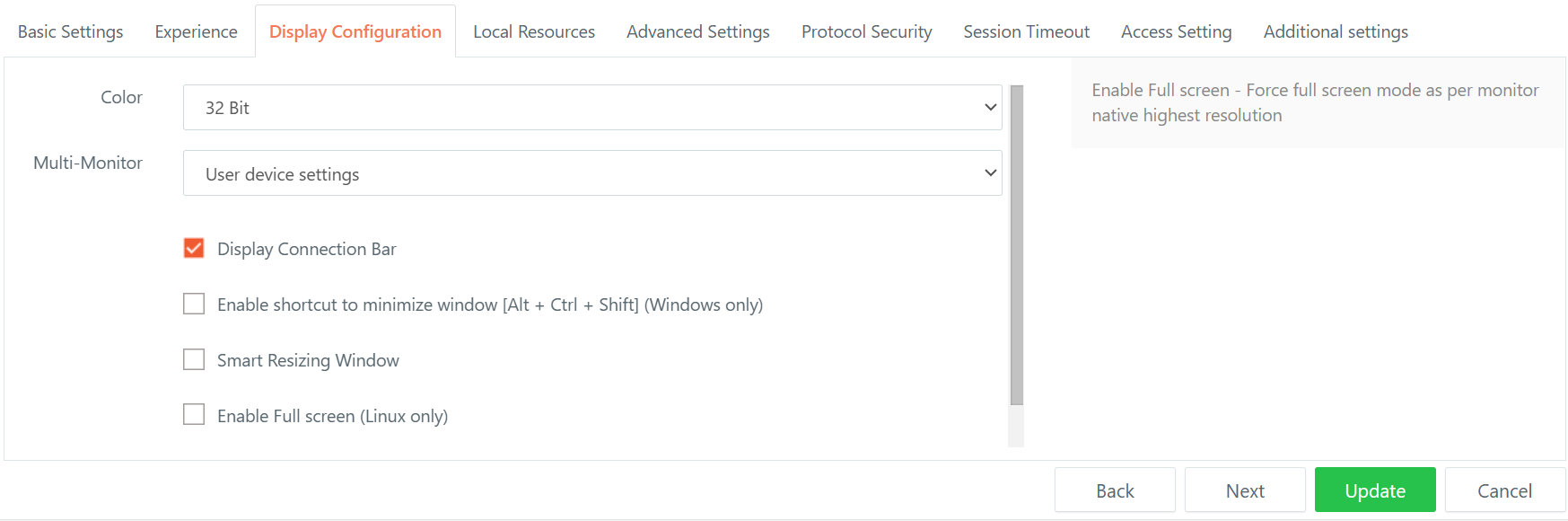
Multi-Monitor Support: Users can extend virtual desktop sessions across multiple displays.
-
Enhanced RDP Performance: Improved RDP protocol support compared to older versions
-
Screen Capture Protection: Screenshot and screen-sharing block of the RDP window
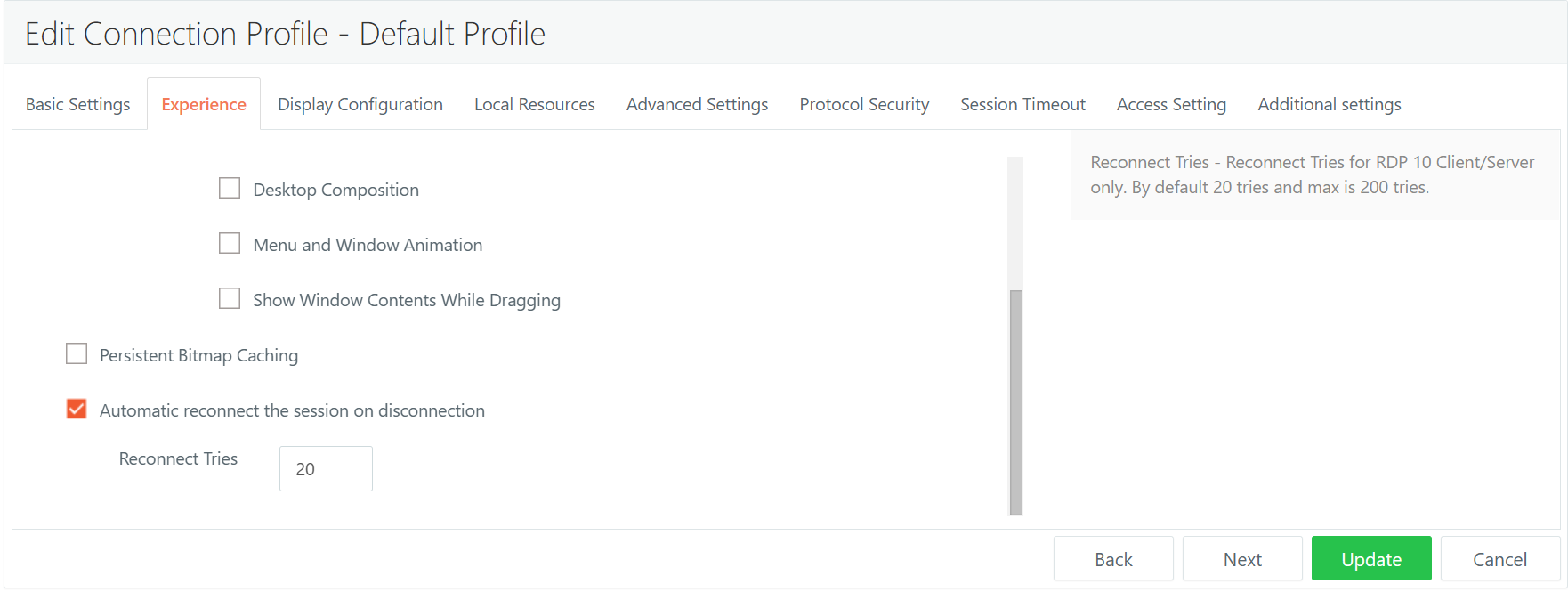
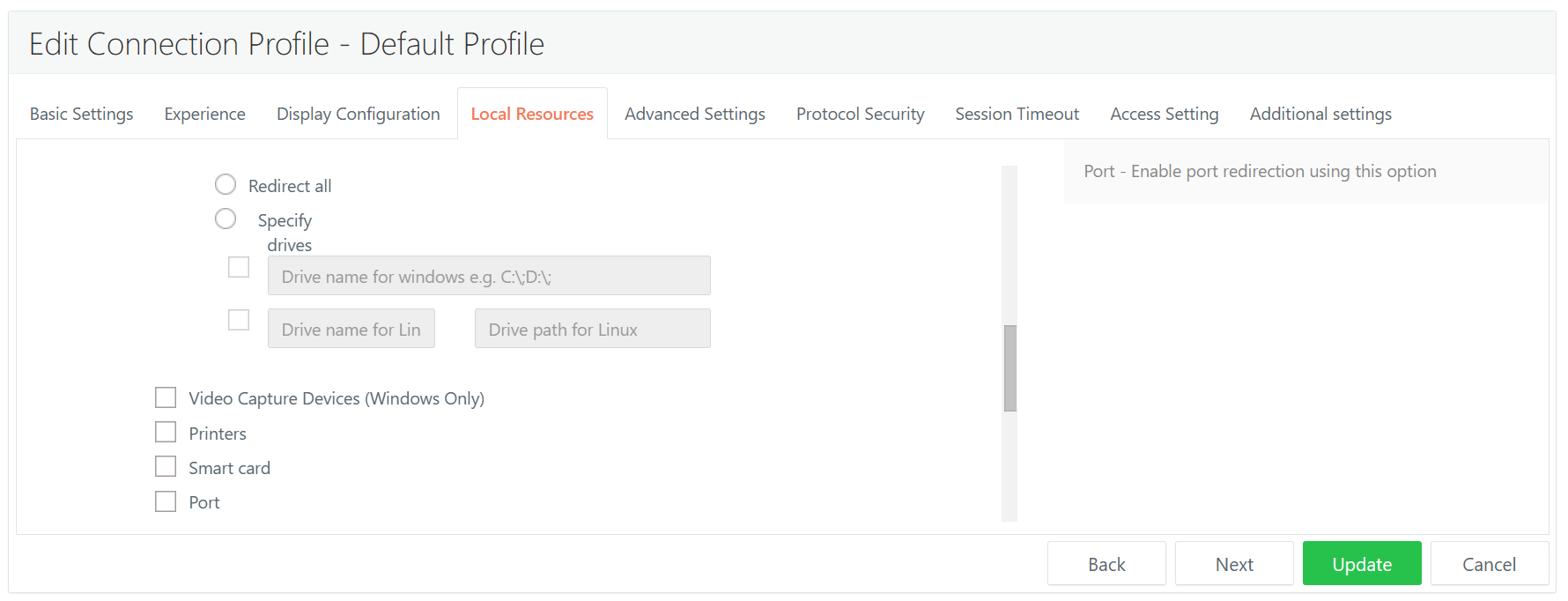
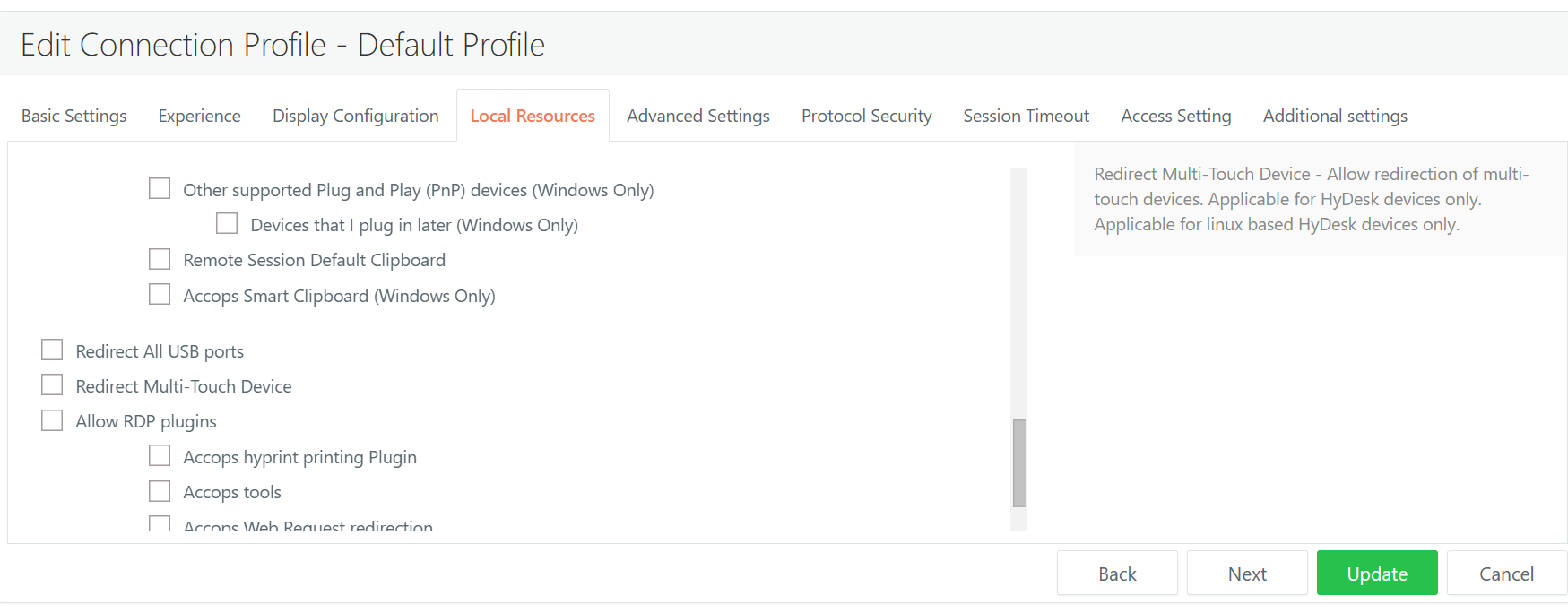
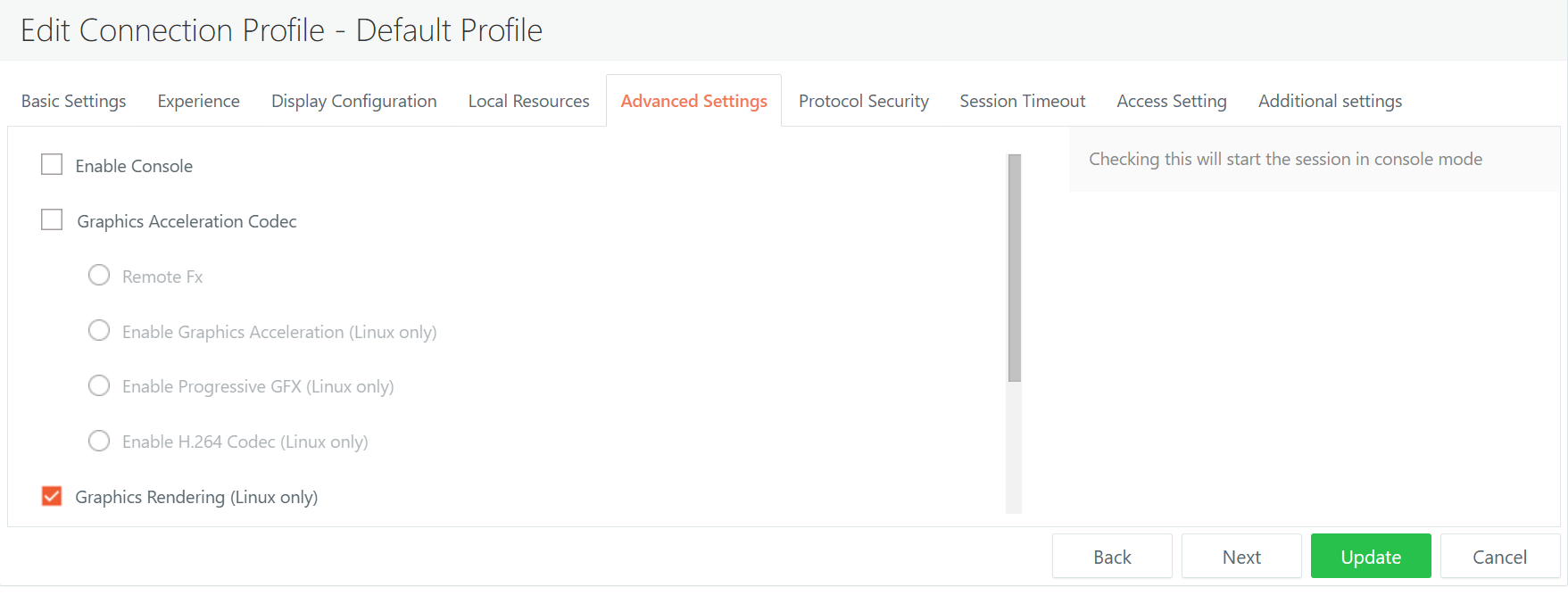
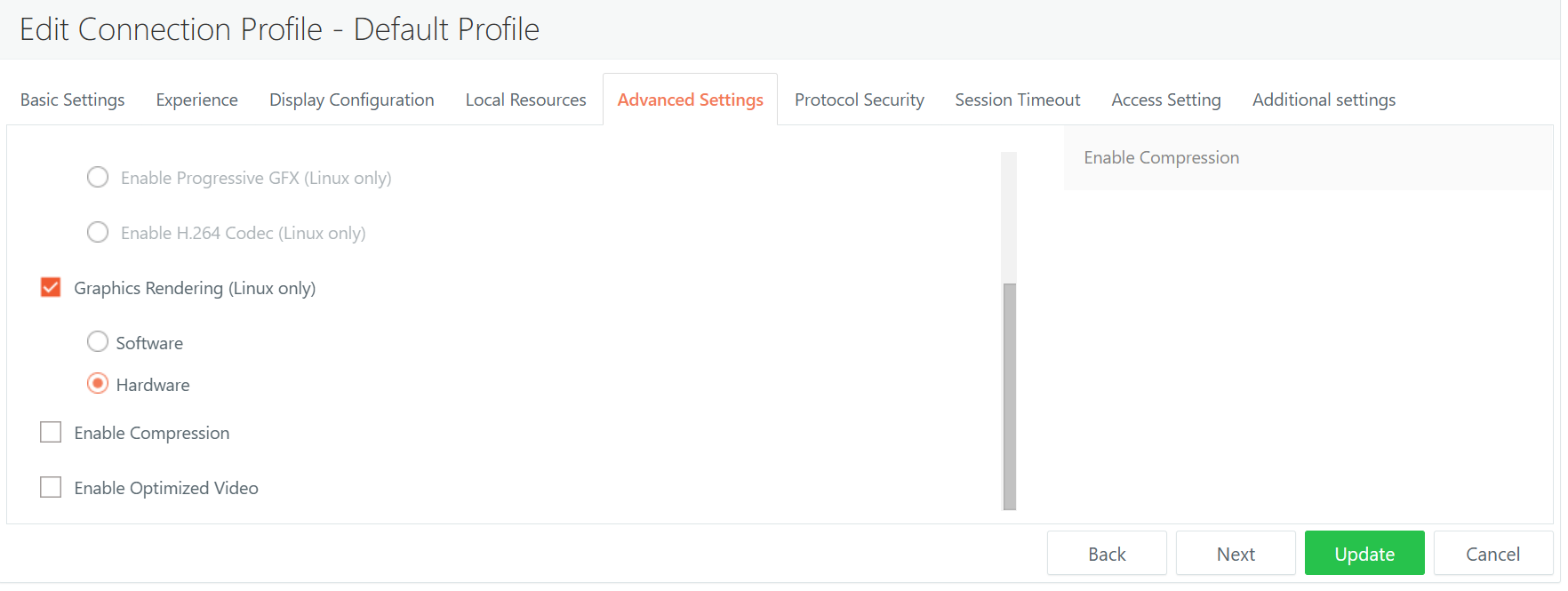
Connection profile for Workspace macOS Client with Native Protocol
-
Experience
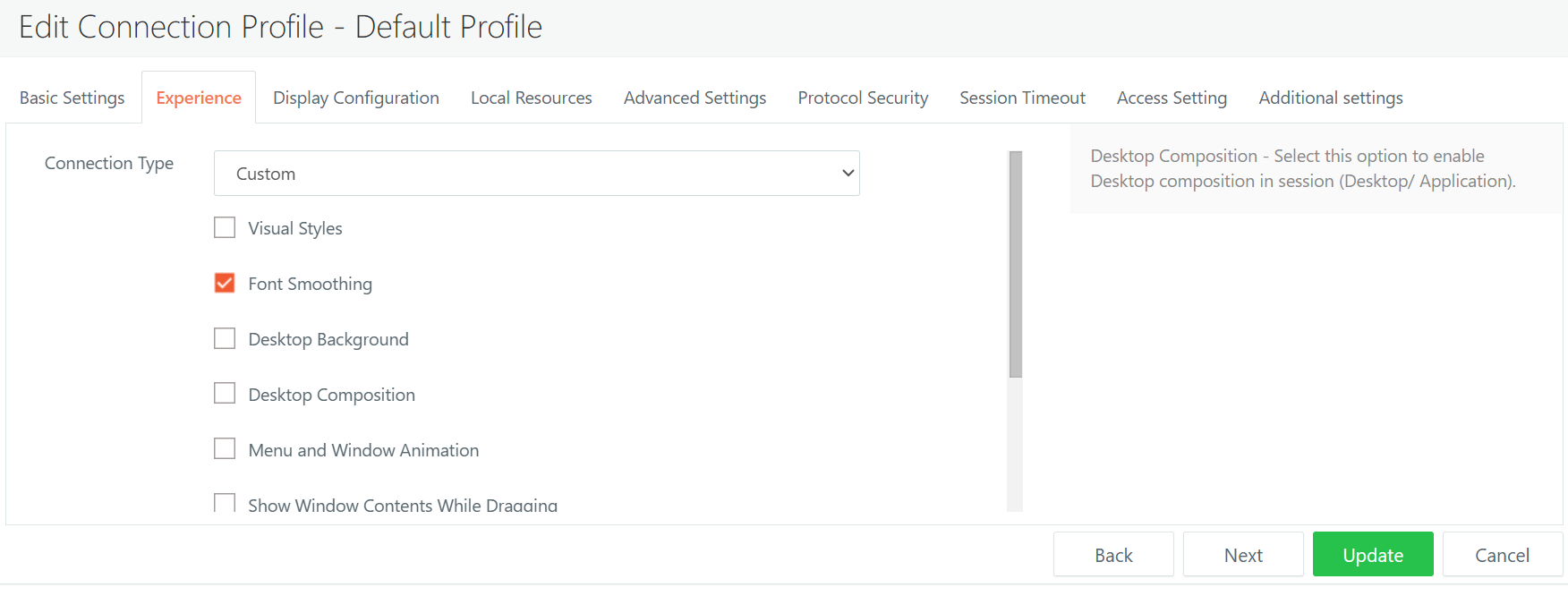
-
Display Settings
-
Local Resources
-
Advanced Settings
-
Protocol Security
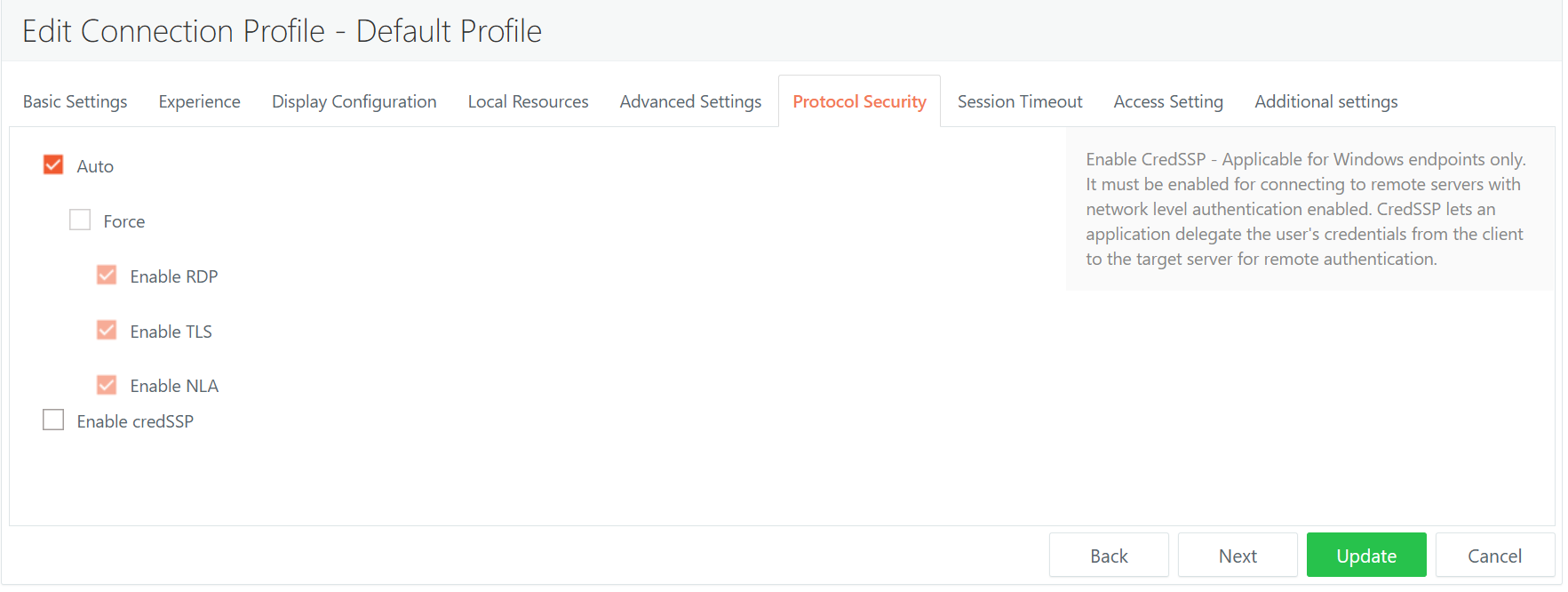
-
Access Setting
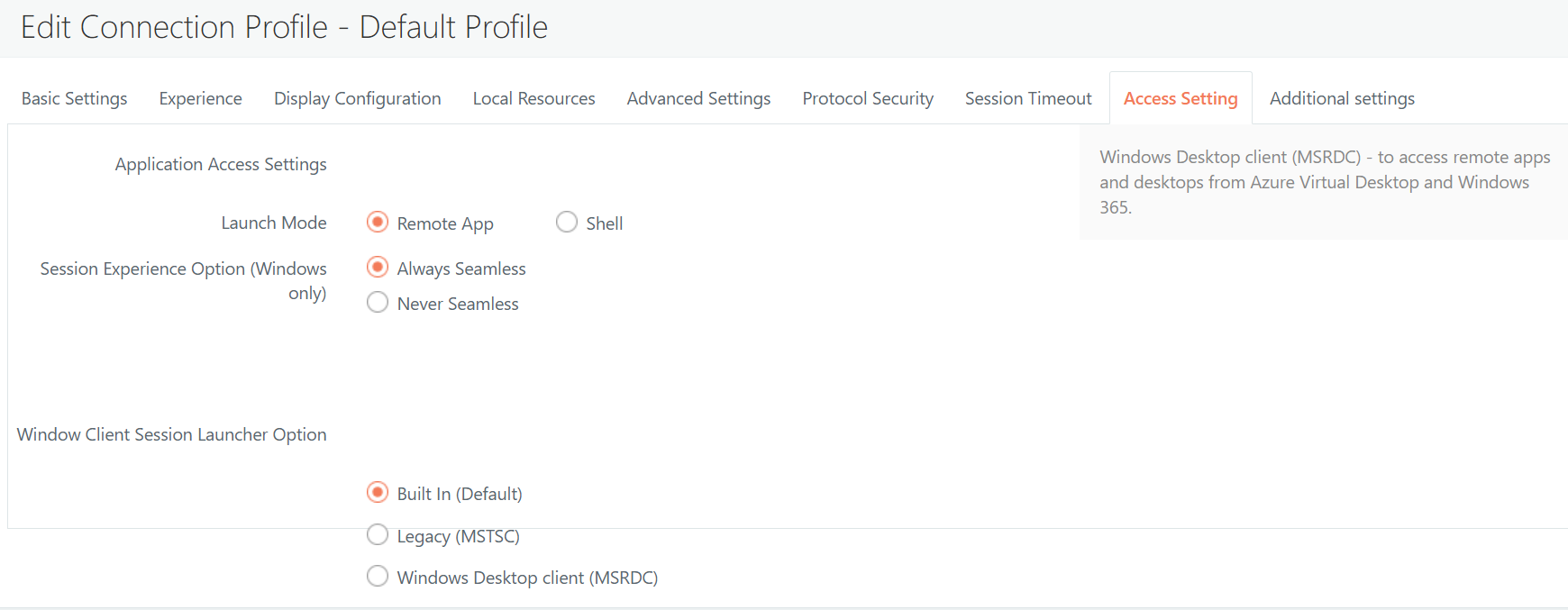
-
Additional Settings
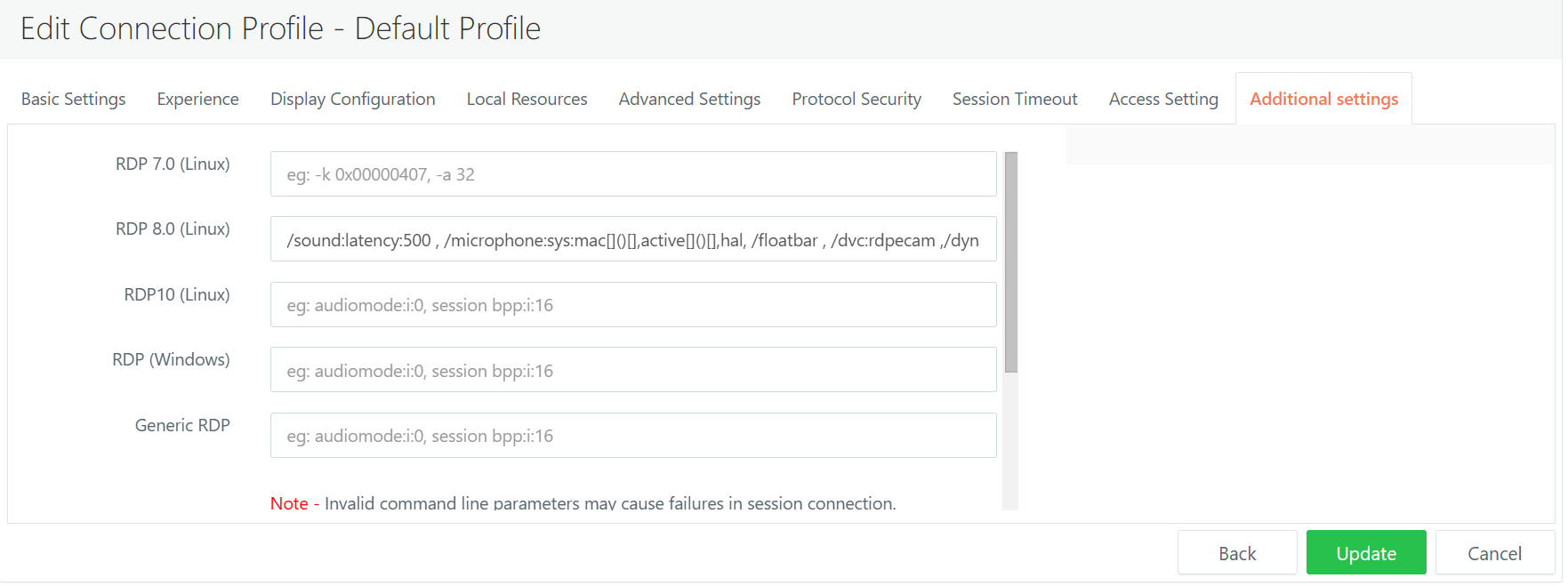
Command Parameters
Command parameters for RDP 8.0 on Linux for the Workspace macOS Client:
/sound:latency:500, /microphone:sys:mac[]()[],active[]()[],hal, /floatbar, /dvc:rdpecam, /dynamic-resolution, /vc:hyprint, /gfx:AVC444[]()[],progressive:on[]()[],thin-client:off[]()[],small-cache:off
Command parameters if the user wants to use multiple monitors,/multimon should be passed.
For example:
/sound:latency:500 , /microphone:sys:mac[]()[],active[]()[],hal, /floatbar, /dvc:rdpecam ,/dynamic-resolution, /vc:hyprint, /gfx:AVC444[]()[],progressive:on[]()[],thin-client:off[]()[],small-cache:off, /multimon