Configure Multimedia Redirection
MMR redirection on macOS can be achieved by Windows App protocols.
The Workspace macOS Client supports three protocols.
-
Legacy protocol
-
Native Protocol
-
Windows App
Important
- Legacy Protocol: ==Not recommended== for Audio calling through VDI/SHD.
- Audio Calling: No (Does not support Audio and Microphone redirection through the controller).
- Video Calling: No (Limitation: No Support for Camera redirection)
- Native Protocol: ==Not recommended== for Audio calling through VDI/SHD.
- Reason why not recommended: Frequent disconnection of the session.
- Windows App: Recommended Support Audio and Video Redirection.
Pre-Requisite and Configuration Steps on Controller and HySecure Gateway
-
Settings on Controller connection profile for VDI/SHD
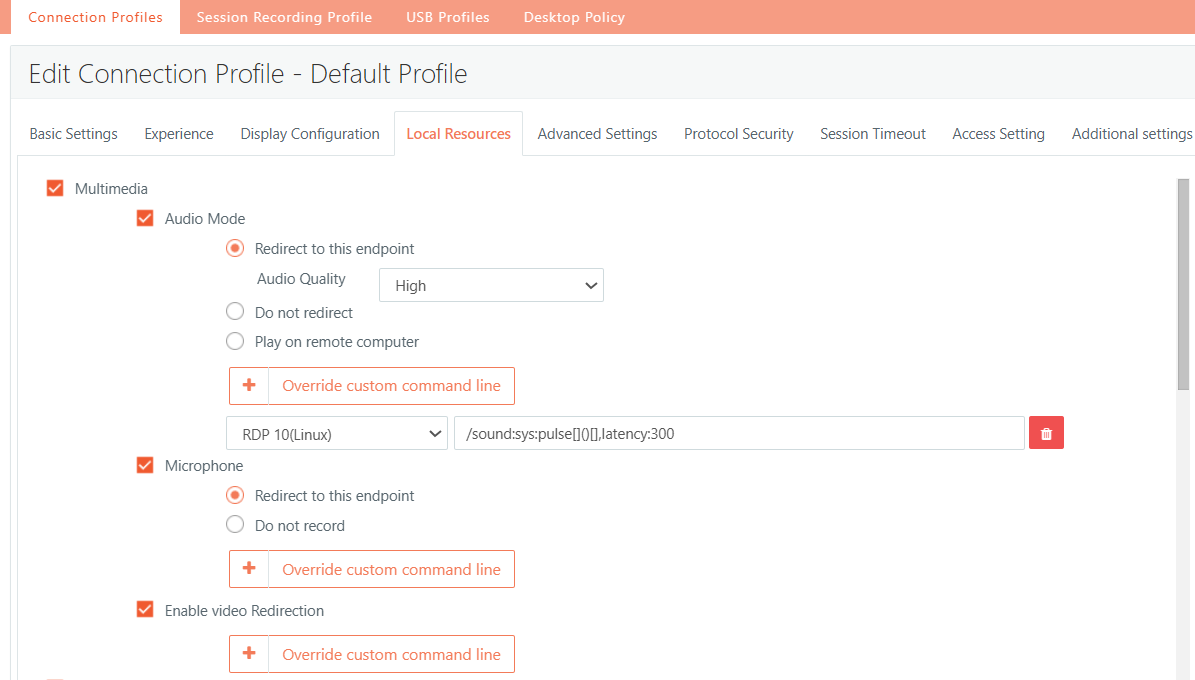
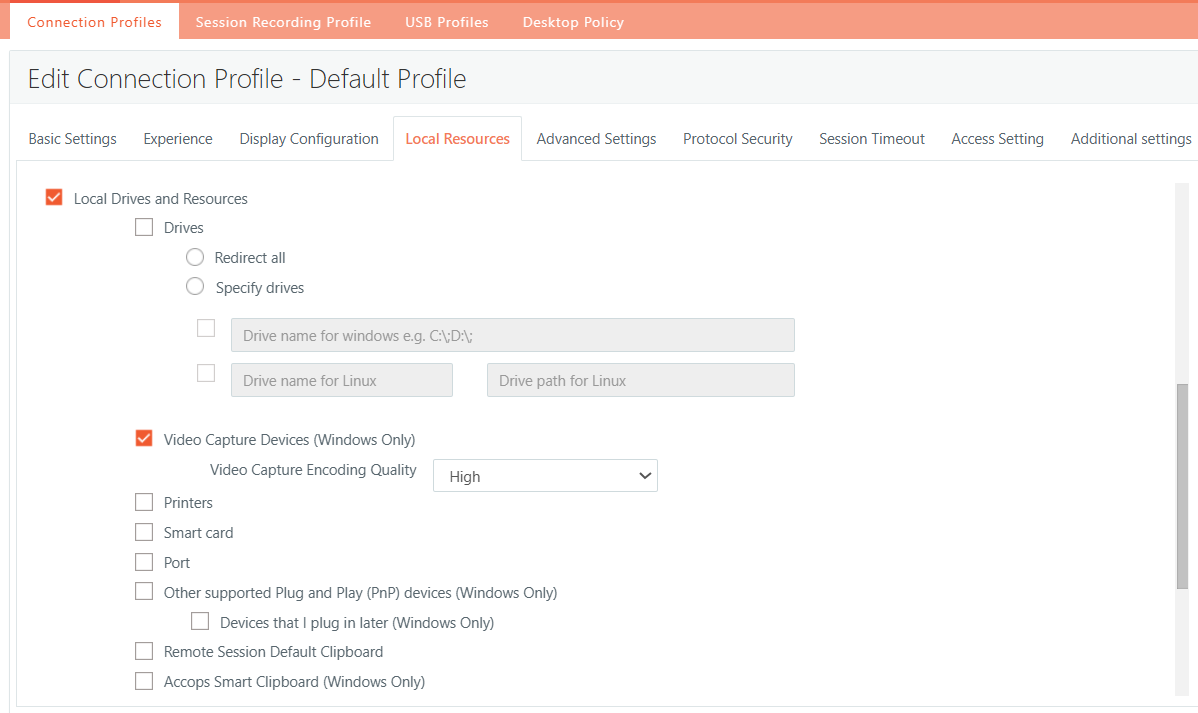
-
Settings required for RDP application on HySecure Gateway for Camera redirection:
By Default, the integrated camera gets redirected through the Windows App. If additional parameters are required to add, then the admin can add additional supported RDP parameters of the Windows app in the HySecure Gateway.
Settings on the HySecure Gateway and HySecure Mac client.
Navigate to the HySecure management Console. Navigate to Policy > Client Profiles > Default configurations > App Launch Configurations.
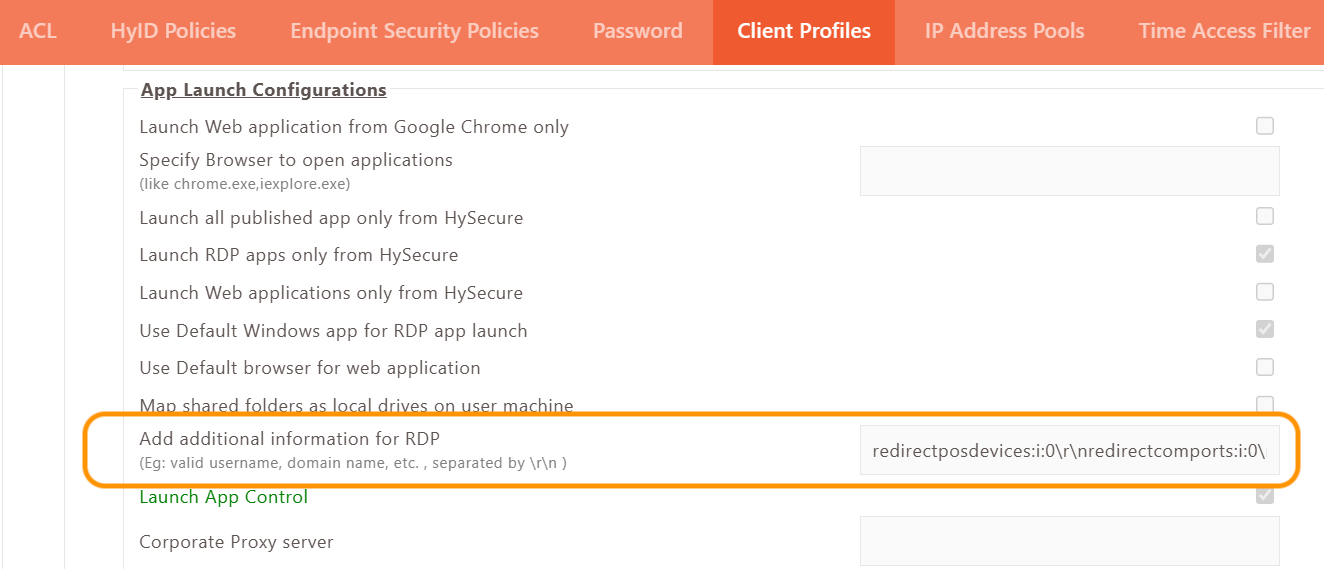
Integrated Camera redirection through Windows App
Windows App (previously Microsoft Remote Desktop protocol).
Windows App Services does not allow the redirection of video capture devices by default. Upon enabling the RDP setting from HySecure Gateway, video streams can be redirected to remote machines.
Windows VDI/SHD/Apps/RDP Applications Support
Integrated Camera redirection: Supported platform.
-
Windows 10 and above
-
Windows SHD-2019 above
Settings on macOS
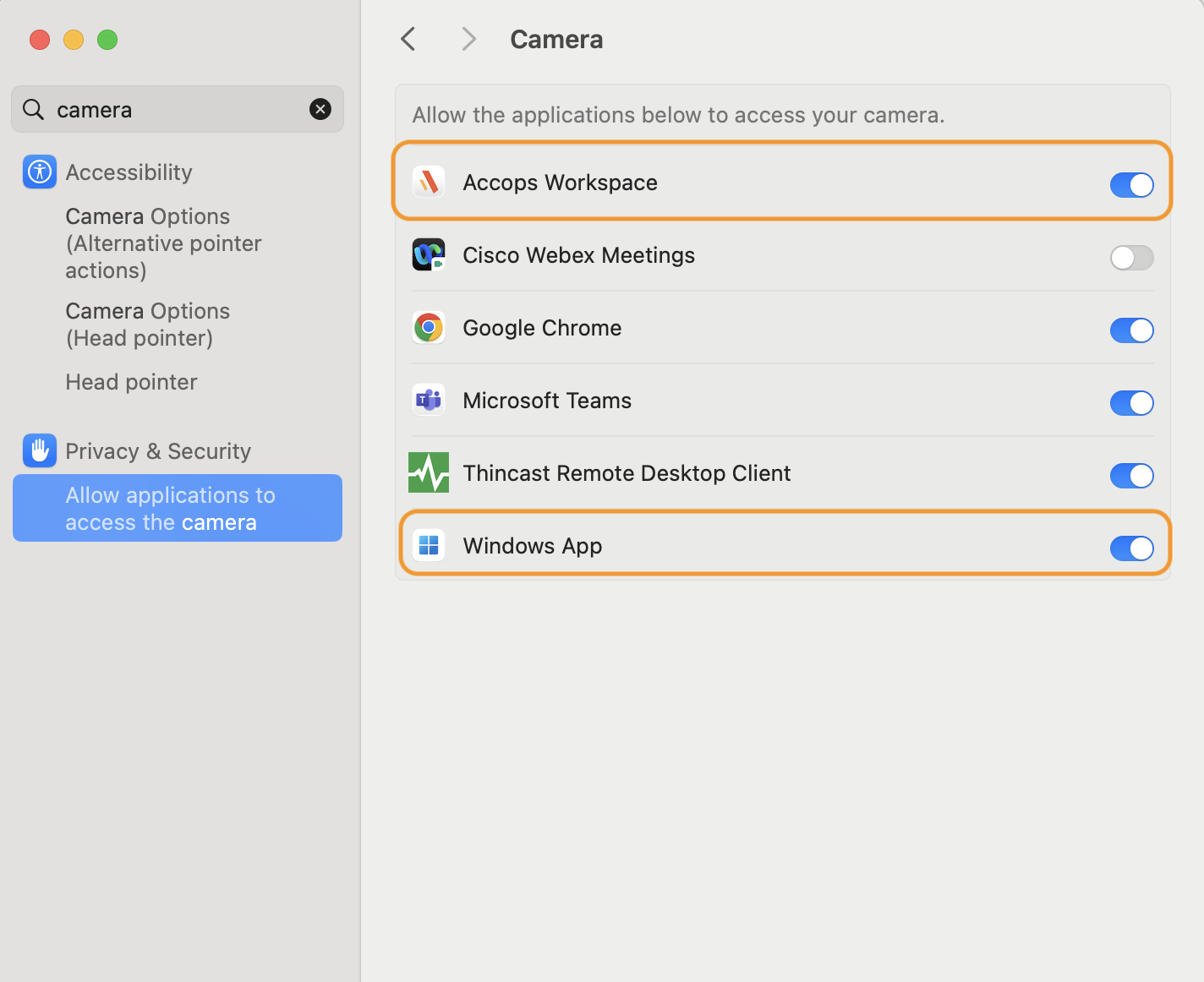
To redirect the camera, you need to check the following settings.
Security and Privacy Settings: Go to Security and Privacy>Camera
-
Enable the Windows App.
-
Enable those applications that will be used for Video calling, e.g., Microsoft Teams, Skype, etc.
-
Enable for the Chrome browser.
Note
If an application is not visible in the Camera section of Privacy settings, users must first use the app and grant permission when prompted by macOS. Once permission is given, the application will automatically appear in the privacy settings, allowing users to enable or disable camera access as needed.
Settings on RDP/VDI/SHD Application
Once the above-mentioned settings are configured, the user will be able to redirect the integrated camera from Windows 10 VDI and RDP applications to Windows SHD-2019.
-
Server-Side settings
-
To enable camera access, go to Start > Camera Privacy settings and allow applications to access the camera on your device.
-
To enable microphone access, go to Start > Microphone Privacy settings and allow applications to access the microphone on your device.
Tip
If the Camera is not reflected in Microsoft Teams, then please check the driver installed in the Windows 10 device manager. If possible, update the driver.