Configure Screen Sharing Block Support for Workspace Client
Introduction
This feature prevents screen capturing, recording, and sharing after a user logs into the Workspace macOS Client. Any attempts to capture or share the screen will be blocked.
This ensures the confidentiality and integrity of the data displayed during the session. The primary purpose of this feature is to avoid data leakage by restricting applications when screen sharing is detected on Mac devices after logging into the workspace.
Overview
The macOS utility for screen sharing control monitors active application windows and enforces policies to minimize or hide sensitive apps during screen sharing. It supports dynamic configuration using JSON input and provides robust logging as well as policy enforcement.
Platform Constraints
macOS enforces strict user privacy and does not expose a public API to determine if screen sharing, screen recording, or remote desktop access is currently active. As a result:
-
The client cannot directly detect screen-sharing activity.
-
Instead, detection must rely on heuristic rules, such as:
-
Presence of specific window titles (e.g., "is sharing your screen")
-
Active windows from known screen-sharing apps (e.g., Microsoft Teams)
-
These rules must be configured in the JSON or tag metadata.
-
-
This affects functional expectations and should therefore be clearly documented as a platform-imposed limitation rather than a feature gap.
-
Configuration required on the gateway to enable the feature on the user device.
-
The latest Client Installed supports these features.
Assumptions
-
Configuration is required on the gateway to enable the feature on the user device. [App Control Enabled, App Control JSON configured, Enabled screenshot block].
-
The latest Client Installed supports these features.
-
App Control Enabled for MAC – SCREEN CONTROL ENABLED through app_control json
System component description
-
Gateway: Configuration will be fetched from the HySecure gateway.
-
Accops Workspace Client: To use Access Gateway / Controller.
-
Accops App Screen Sharing Control App: Used for Detecting Screen Sharing and controlling the apps.
Functional specification
Gateway Configuration-
-
Log in to the HySecure Gateway using the SO user credentials and access the management console.
-
Navigate to the Client Profiles Section under the Policies menu.
-
Create a New Client Profile by selecting the +Add option, entering the desired configuration name, and saving the profile.
-
Select the newly created client configuration and proceed to modify its settings.
-
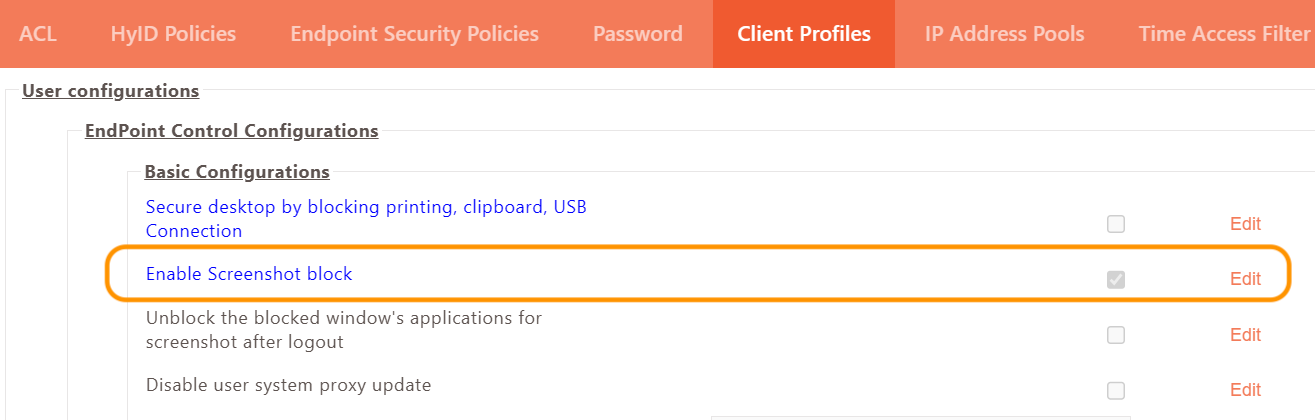
Enable the Screenshot Block Option by accessing the User Configuration section, then End Point Control Configurations, and finally Basic Configurations.
-
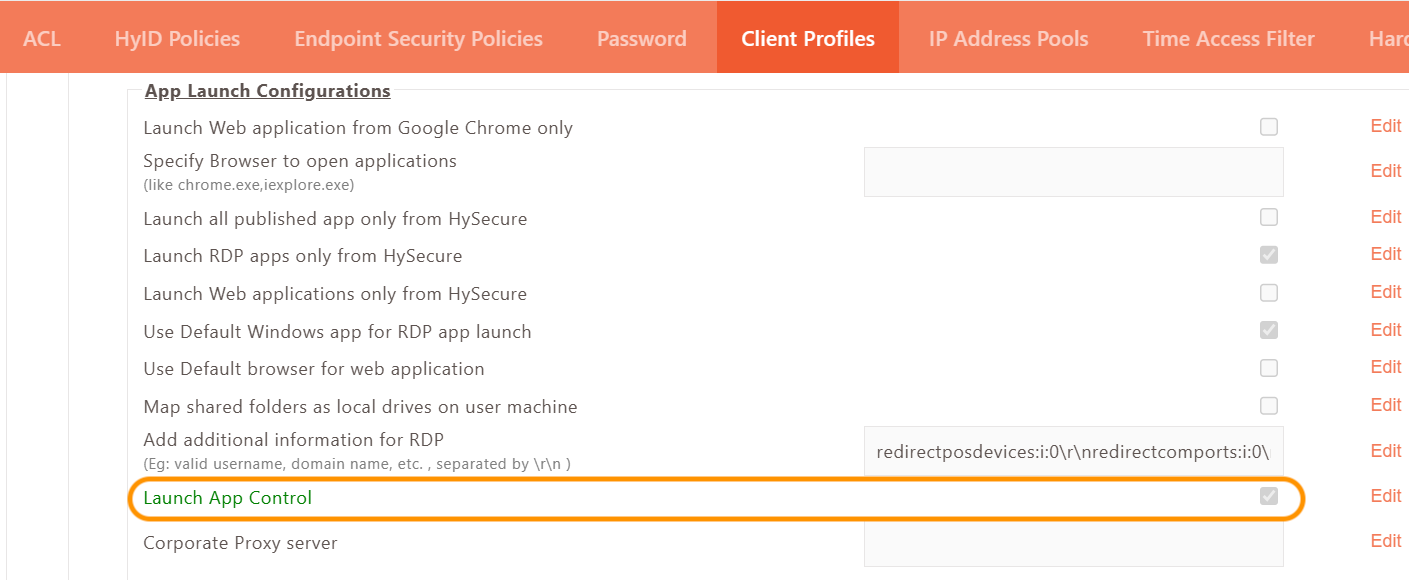
Enable Launch App Control from App launch configuration.
-
Scroll to the bottom of the client configuration page, locate the Customized Options section, and add the tag: APPCONTROL_CONFIG=app_control.json
-
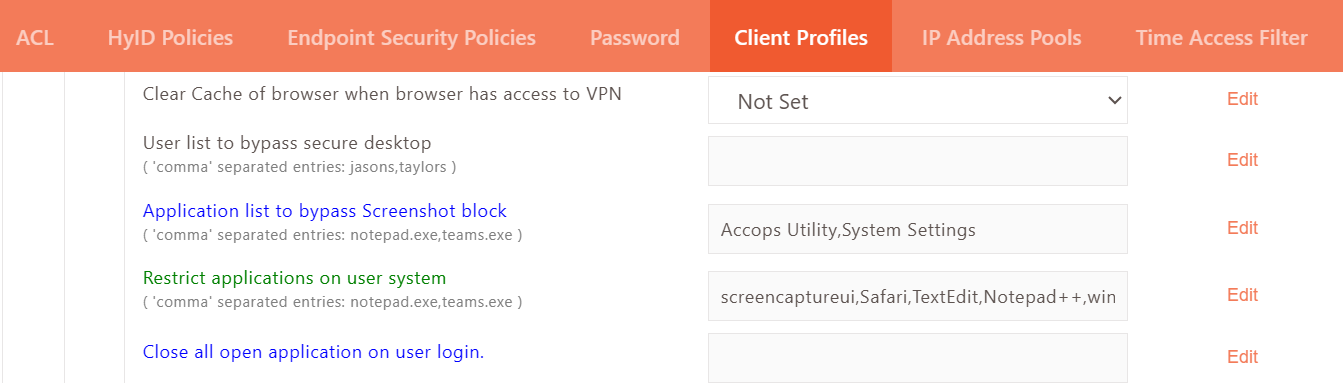
To exclude certain applications from screen sharing, enter their names in the designated field as a comma-separated list.
When you need to bypass the log viewer, select Accops Utility. For managing system preferences, go to System Settings.
-
After saving the client configuration, proceed to set up an ACL specifically for that client configuration.
Configuration of app_control.json
| Description | Filename | Useful For | MD5sum | Download Link |
|---|---|---|---|---|
| app_control.json | app_control.json | Manual | 1470896ff721b6b522d2274a82a33df7 | app_control.json |
-
Establish an SSH connection or WinSCP to the HySecure Gateway and navigate to the directory /home/fes/public.
-
Copy the app_control.json file and place it in the /home/fes/public directory.
-
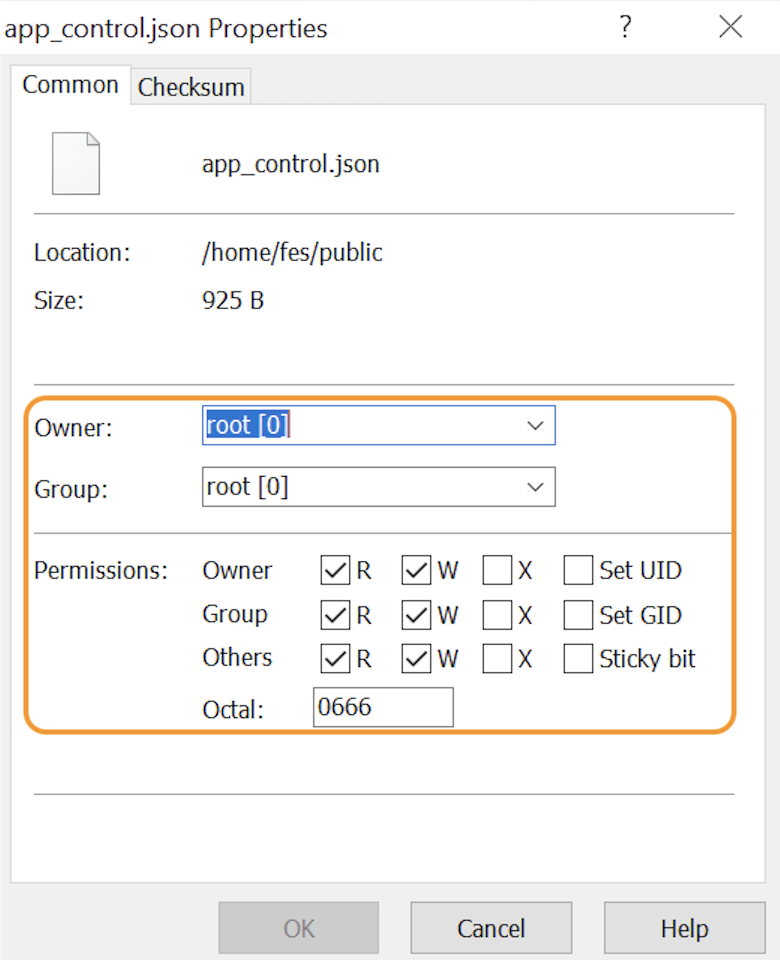
Give the required permission for app_control.json file.
-
Whitelisting of app_control.json
-
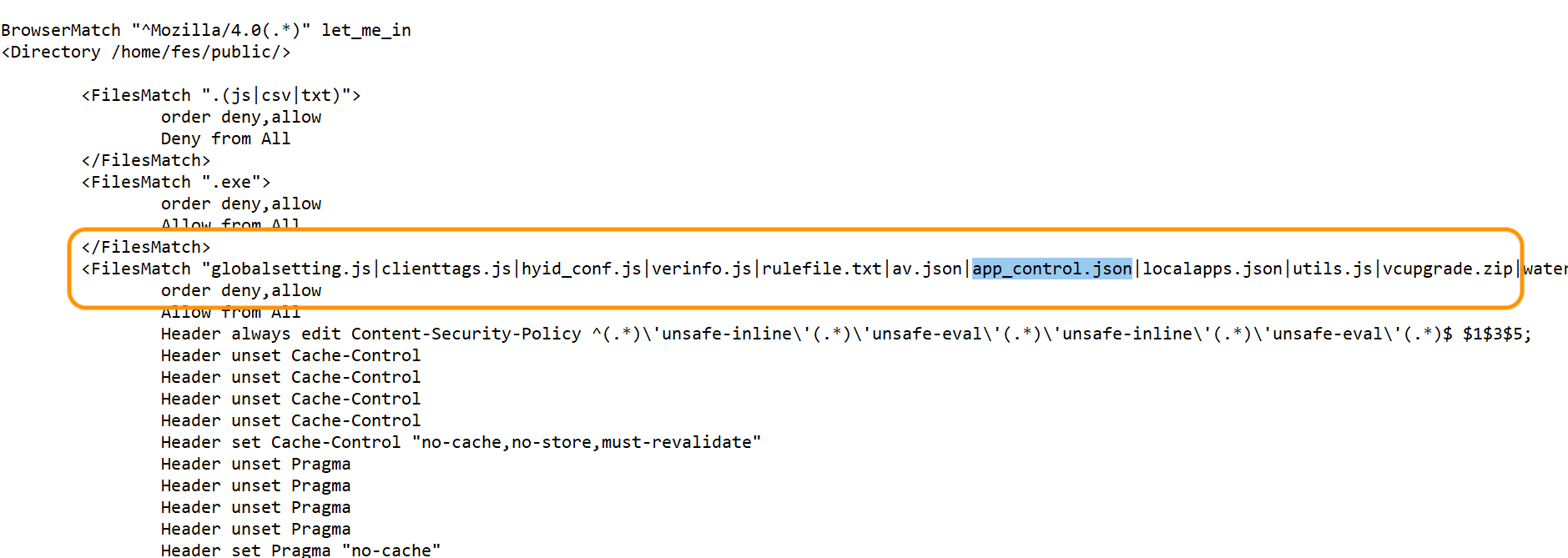
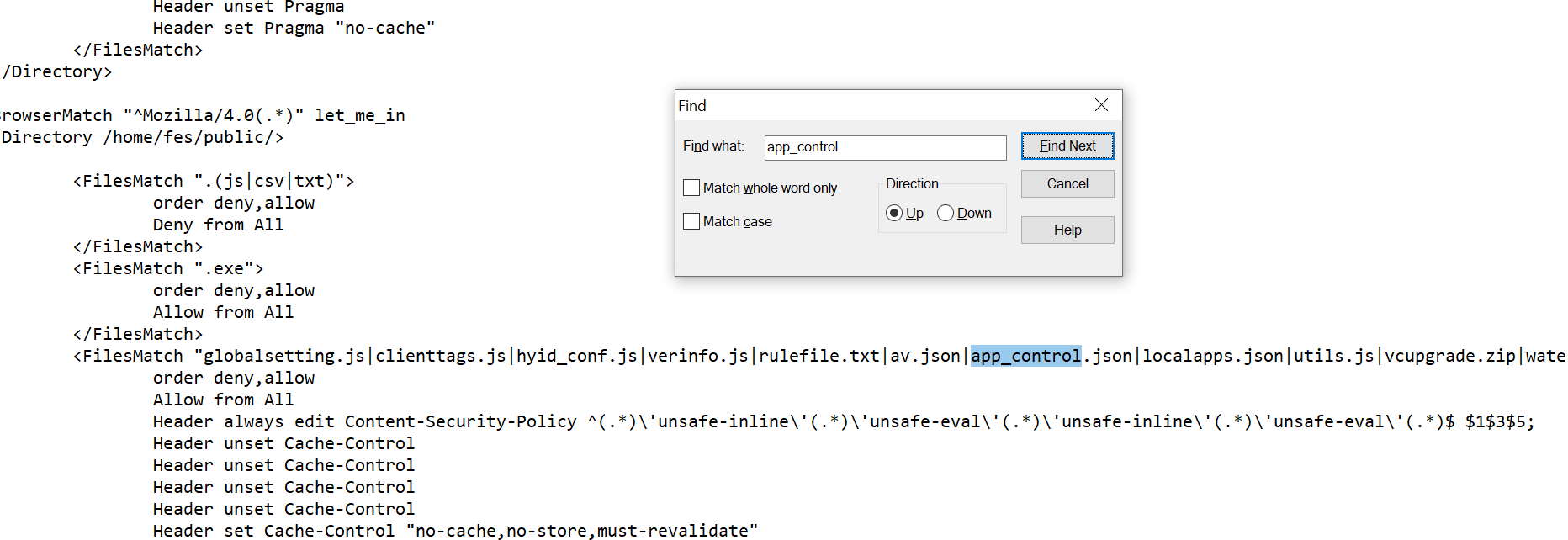
Go to the directory /etc/httpd/conf/ and open the httpd.conf file.
-
Add the following entry for app_control.json in the httpd.conf file as shown below.
-
Restart the httpd service by running the command after taking ssh of HySecure Gateway: systemctl restart httpd
Note
To verify if the ap_control.json is working, open the URL in a browser. URL: https://<HySecure Gateway IP>/fes-bin/public/app_control.json
-
Support
Contact the Accops Support team for any assistance or queries.