Workspace macOS Client Launchpad
Accops Workspace macOS Client Launchpad is an interface or platform that allows users to access and launch applications, resources, or services quickly. It's a hub where users can see a list of available tools or resources and start them with a single click or action.
It displays a set of virtualized applications like Microsoft Word, Excel, proprietary tools, or even full virtual desktops. The user simply clicks on an icon to launch the desired application or desktop environment.
It serves as a centralized dashboard where users can see and launch their virtual desktops, applications, and other resources from a unified portal.
Key Features
-
Centralized Access: A Launchpad brings together a variety of applications, resources, or services in one place for easy access.
-
Quick Launch: Users can quickly start applications or resources with a single click or tap.
-
Customization: It allows users to organize or customize the apps or resources displayed, such as adding them to favorites.
-
Categorization: Apps or services can be grouped into categories or categories based on usage or type, allowing for more efficient navigation.
The following describes the various widgets displayed on the launchpad screen:

-
Burger Menu: Click
 to expand or collapse the main navigation options available. It allows the interface to remain clean and uncluttered. Users can reveal the full navigation when needed in an organized and simplified manner.
 -
Turbo Status: Displays the HySecure turbo connection status. This status will be updated instantly on turbo connect, disconnect, service starting, and stopping.
-
User Profile Menu: Click to view various options available related to the user's account and settings.
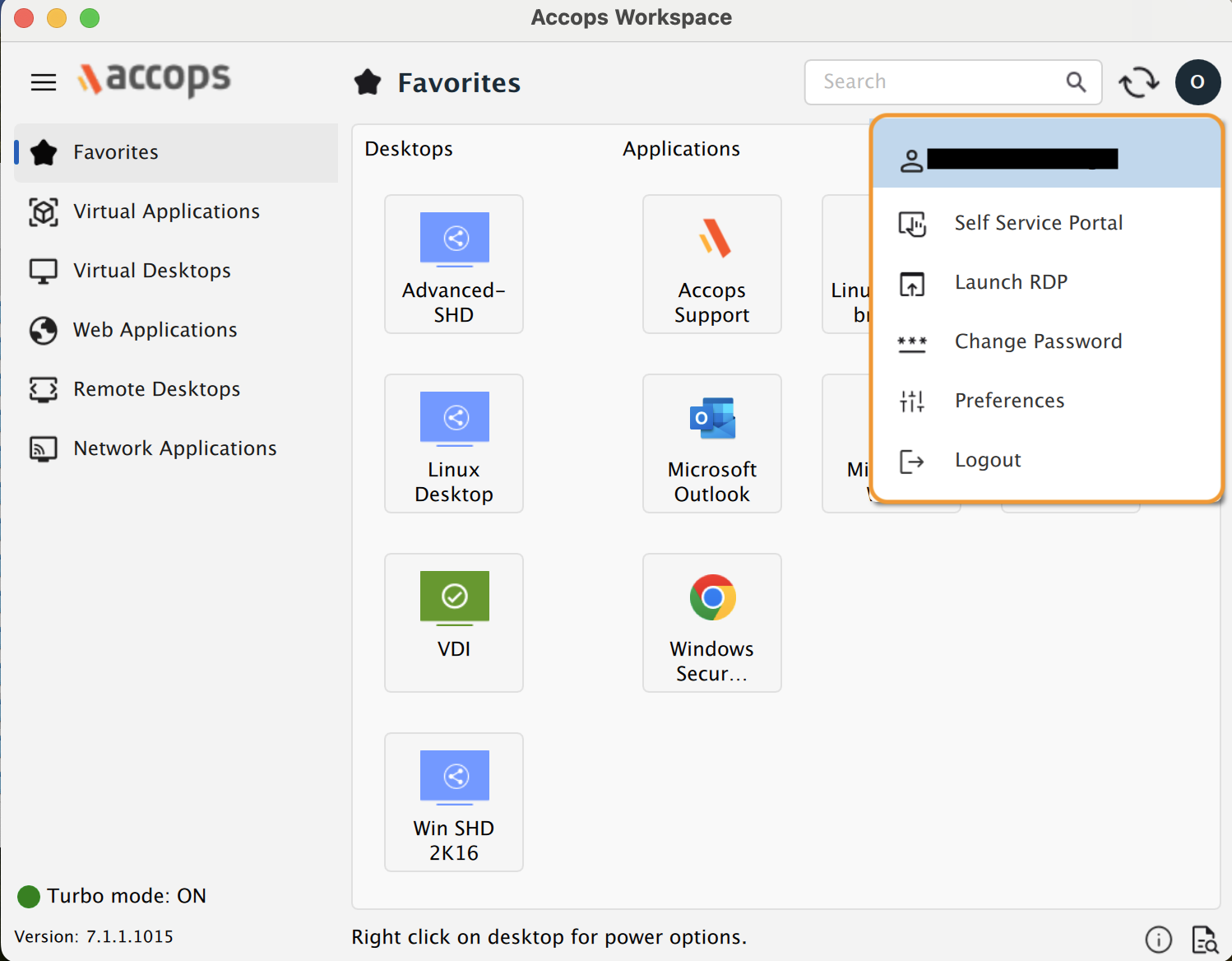
The following are the options available under the user profile:
-
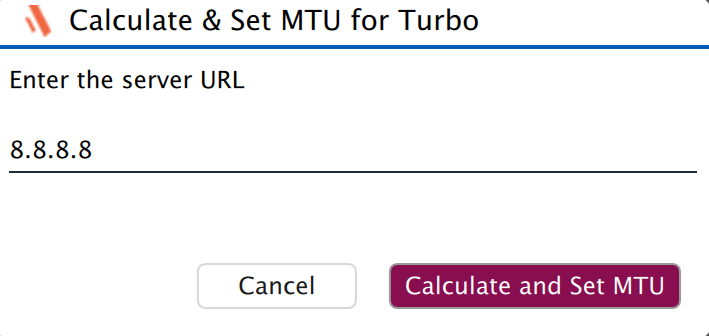
MTU for Turbo: Click this option to enter the server URL or IP to calculate and set the MTU (Maximum Transmission Unit) for turbo accordingly.
-
Preferences: Click this option to set the user profile preferences settings.
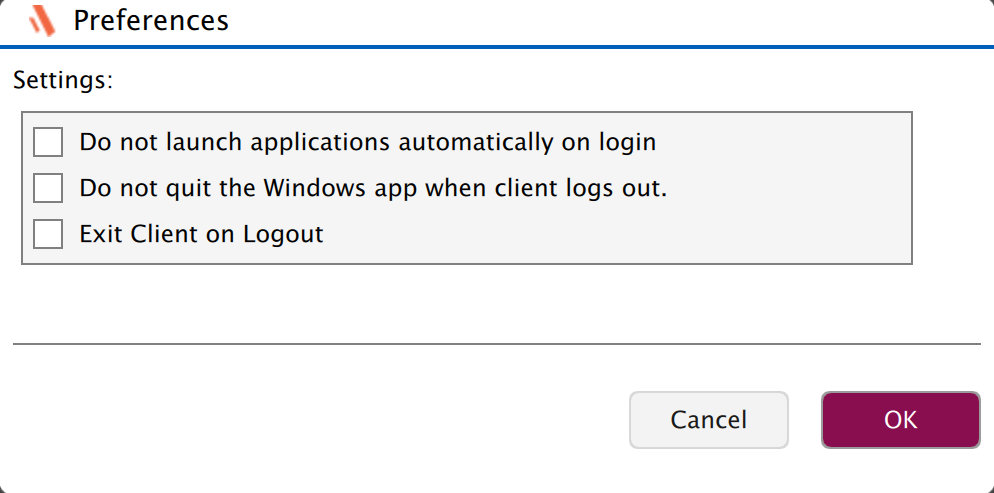
The following are the options available under the Preferences tab:
-
Settings:
-
Do not launch applications automatically on login: Enable this option to allow or prevent the automatic launch of the published applications.
-
Do not quit the Windows app when the client logs out:
-
Exit Client on Logout: Enable this option, to exit the Client application automatically upon user logout.
-
-
-
Post Logon
Once the user has logged in, the UI gets reorganised, and the following information will be available:
-
Resource Tabs:
a. Favorites: Displays favorite applications and all assigned desktops.
b. Virtual Applications: Displays all assigned Applications.
c. Virtual Desktops: Displays all assigned desktops.
-
Info Button: Same as described in the above section, displaying important client configurations.
-
Virtual Keyboard: To invoke the virtual keyboard.
-
Search: To search the list of apps and desktops.
-
Refresh: Internal refresh control to refresh the list of desktops/ applications.
-
Username: The initial letter of the username. Clicking on this will show the full username and the logout option.
-
Desktop List: All the desktops assigned to the user are listed with the following conventions:
a. Different icons for shared and dedicated desktops.
b. Dedicated Desktop Status: The Power state of assigned desktops is shown with different colours and icons:
-
Green: Desktop is ready for connection.
-
Yellow: Desktop is powered on but not ready for connection.
Tip
Wait for the desktop to be ready; if not ready, initiate appropriate power operations.
-
Red: Desktop is powered off.
Tip
Right-click and power on the desktop and wait for it to get ready.
c. Right-clicking on the respective assigned desktop will show the available power operations. E.g., a suspended VM can only be resumed.
-
-
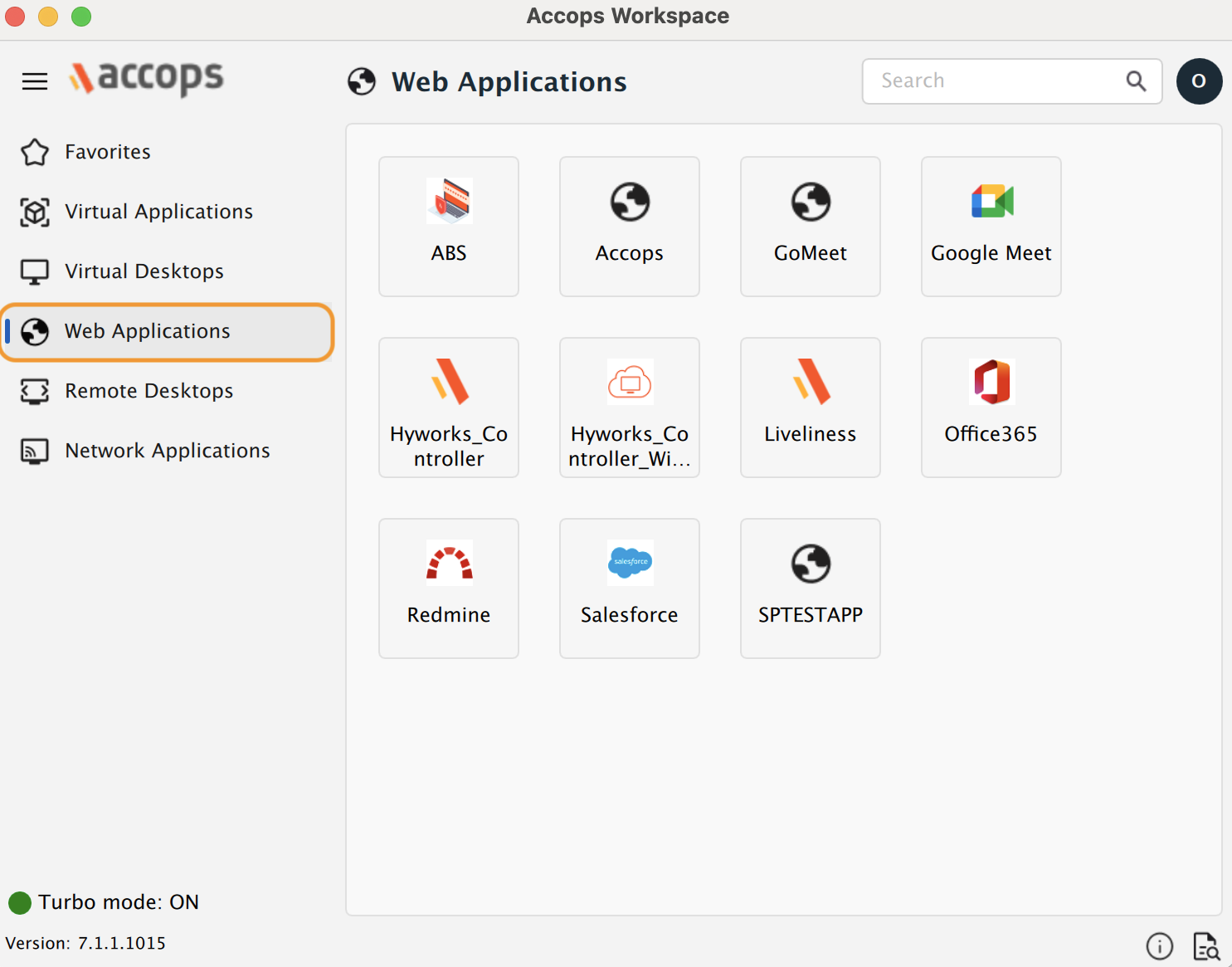
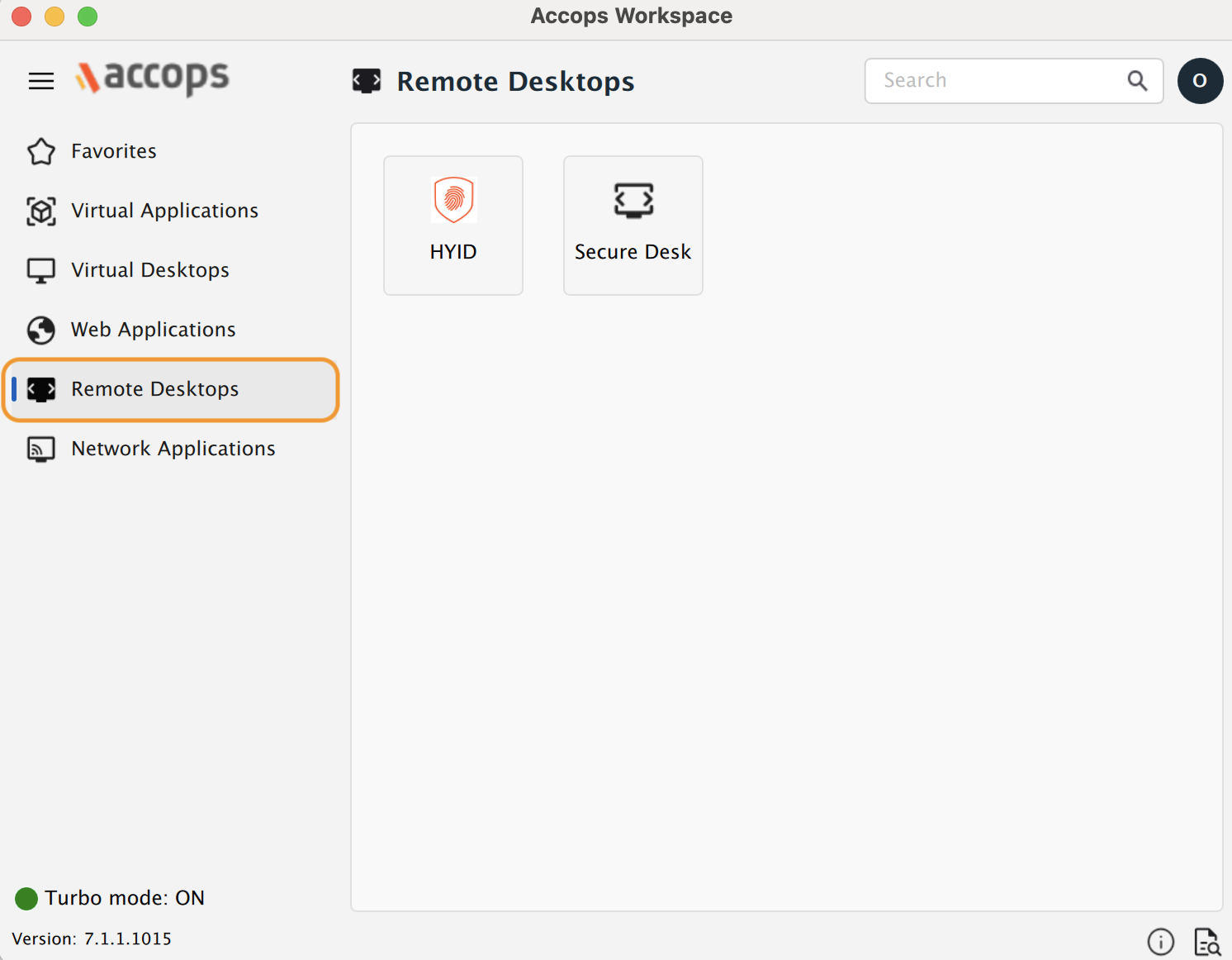
Web Application: Workspace Mac client supports HySecure web (http and https) applications.
-
Remote Desktop: Support for HySecure RDP applications in workspace clients. RDP Applications/Desktops will launch with a different Protocol depending on the selected protocol from Settings > Protocol.
Favorite Apps
Users have the option to mark Workspace Applications published via HySecure Gateway and HyWorks Controller as Favorites, enabling quick and convenient access from the Favorites tab.
-
Right-click the target application to add it to the Favorites tab.
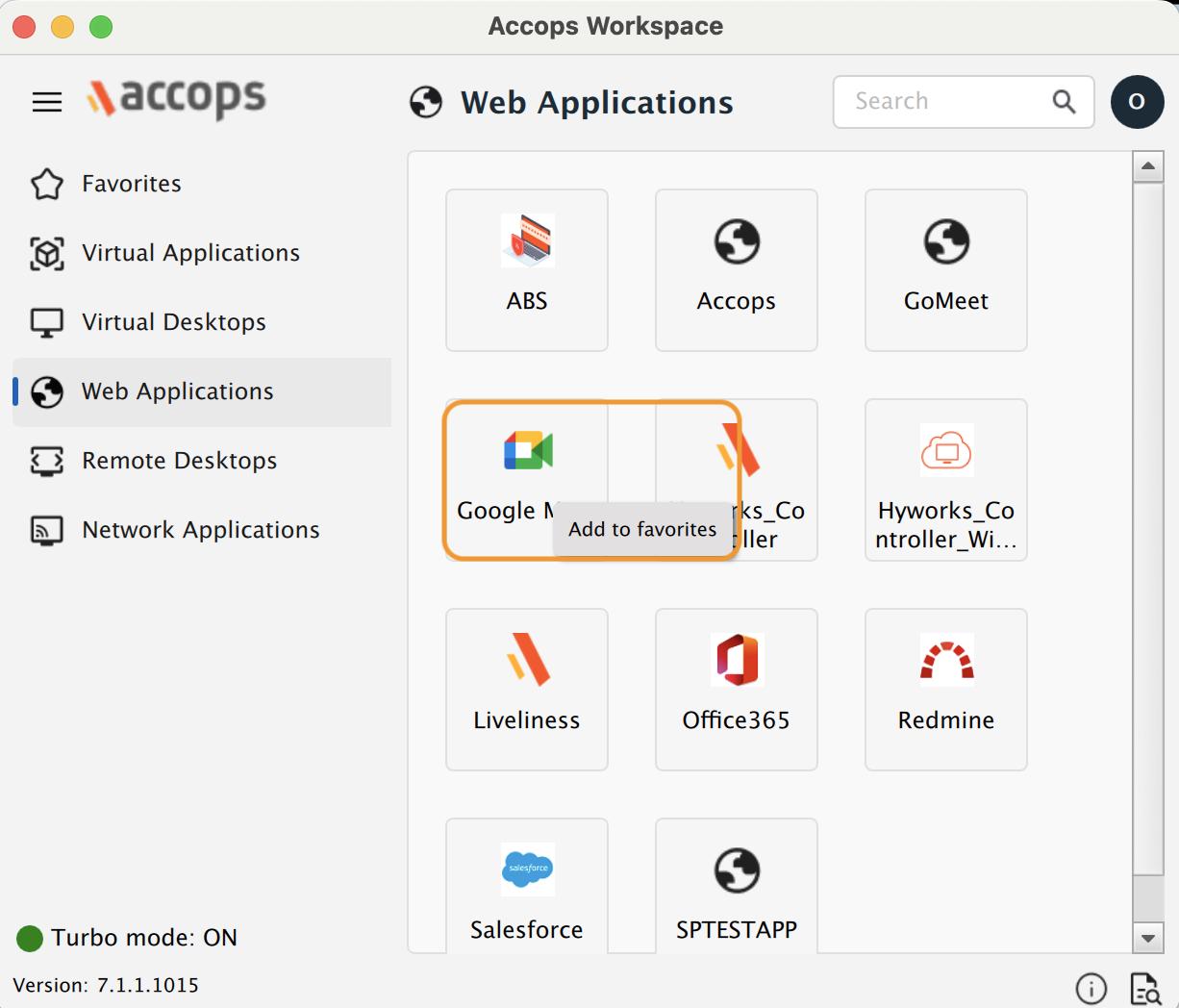
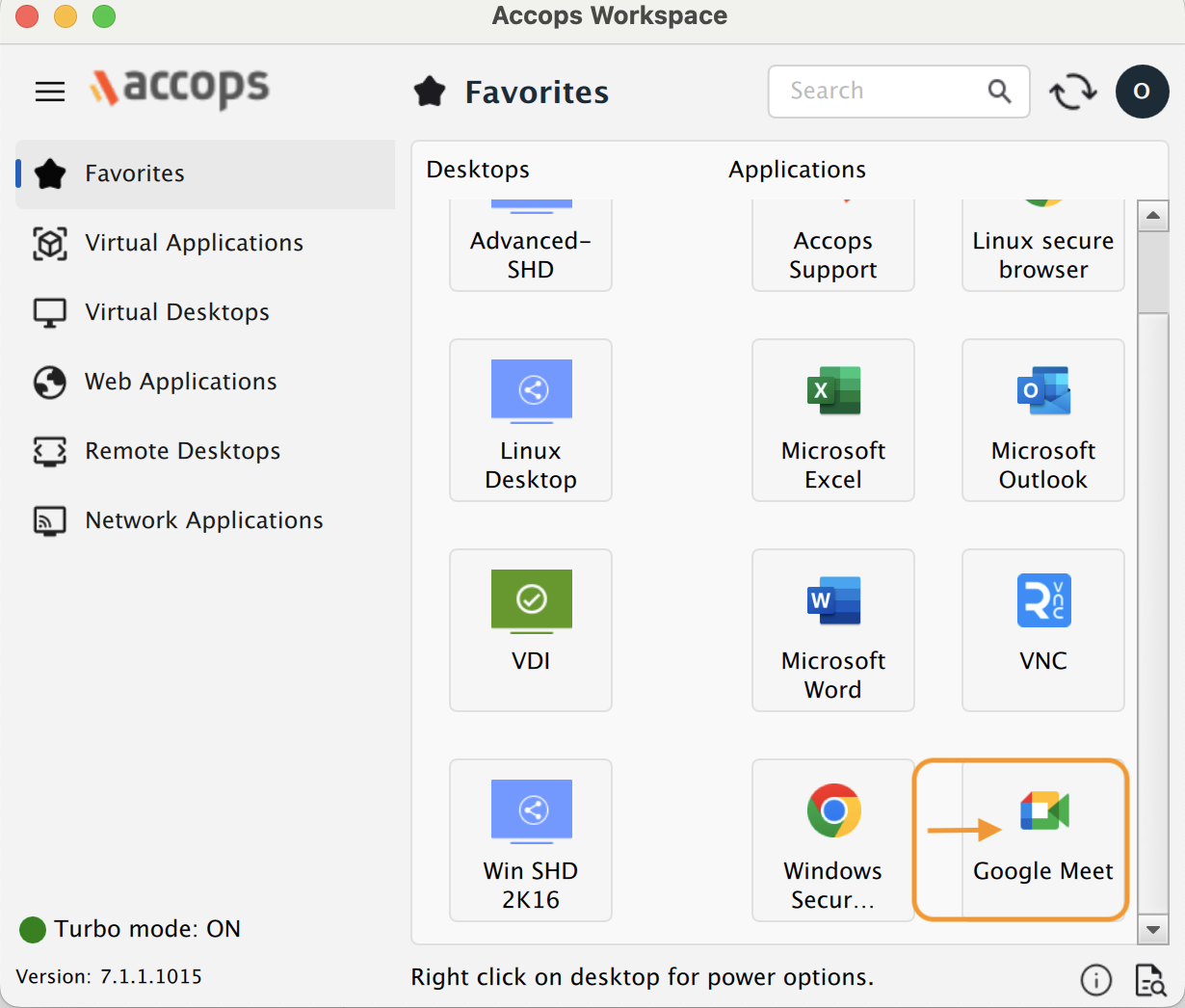
Upon clicking Add to favorites, the application will be added under the Favorites tab.
-
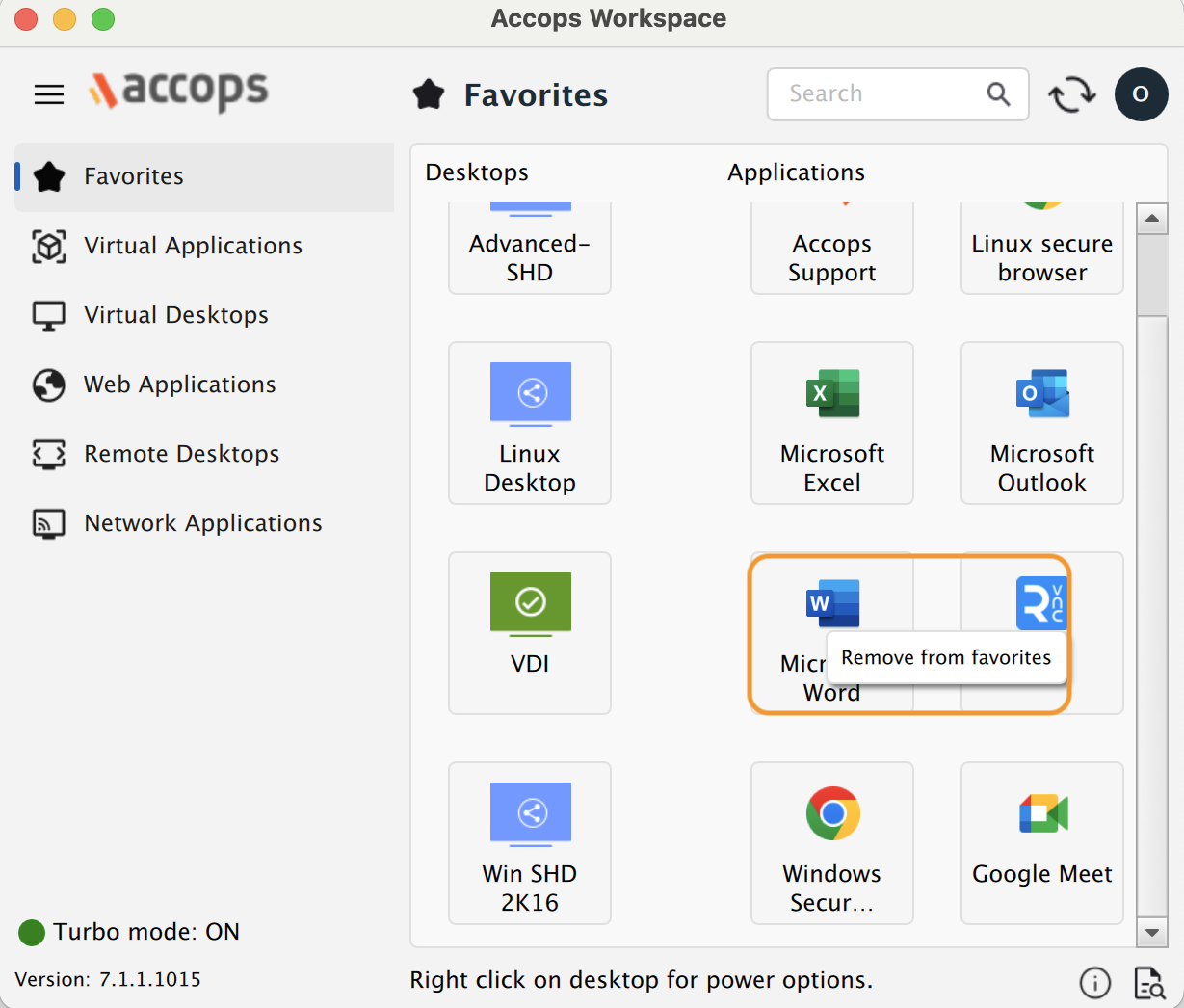
To remove an application from the Favorites tab, right-click the application in the Favorites tab and select the Remove from favorites option.
Log viewer
Users can now directly view logs in the Log Viewer.
Listing Log files: Users can view various log files such as uac.log, ui.log, and edcservice.log, etc. These logs contain essential information, including:
-
Date and Time: Timestamp of when each event occurred.
-
User Login Details: Information about user authentication and sessions.
-
Application Information: Data related to the applications in use.
-
Problem Severity: Indicators of the severity of issues encountered.
-
Messages: Descriptive messages detailing events or errors.
This comprehensive logging allows for effective monitoring and troubleshooting of system activities.