Enhancements in Accops Workspace macOS Client version 7.1.1.1018
Bypass app tunnel traffic from full turbo tunnel
Bypassing app tunnel traffic from a full turbo tunnel involves configuring the HySecure Gateway to exclude specific application traffic from being routed through the full turbo tunnel. This allows designated app traffic to bypass the tunnel for scenarios where direct network access or different routing is required. It enhances flexibility in network traffic management by selectively excluding certain applications from the tunnel while maintaining secure access for other traffic via the turbo tunnel.
Remember me support
The current Workspace Client application exhibits inconsistent behaviour when saving usernames and passwords, especially when different combinations of gateway-side configurations are applied.
The Remember me support has been added to the Client launchpad. Additionally, user preferences allow saving credentials on the client launchpad.
Gateway Configuration
-
Log in to the client with the SO user and access the management console.
-
On Settings > Global > Client > uncheck the options Do not allow user to remember password on local device and Do not allow user to remember username on local device.
Client Login
-
Install the Accops Workspace client 7.1.1.1018 on the user’s system.
-
Launch the client, enter the server address, and fetch the realm.
-
Check the Remember me box on the login page, and log in to the client.
-
Now, log out of the client.
-
User’s login credentials will be saved on the login page during the next login.
-
If the user unchecks the Remember me option, then login credentials will not be saved.

Limitation
This is applicable only for scenarios that are configured through the gateway.
UI enhancement
In the latest Workspace macOS Client, the server URL is now shown on the login screen, enhancing user clarity during the sign-in process.
Additionally, the Workspace macOS Client features a refreshed application icon, which is updated across the installer, desktop shortcut, and macOS dock for a consistent appearance.
User Idle Timeout
The user idle timeout should be enforced using the global settings configured on the HySecure Gateway management console, taking effect after the user logs into the client, without requiring the client to fetch the realm.
If the USER IDLE TIMEOUT option is enabled, actively monitor the user’s activity for idleness. If it is disabled, do not monitor for idleness.
Windows App 11.2.1 integrated
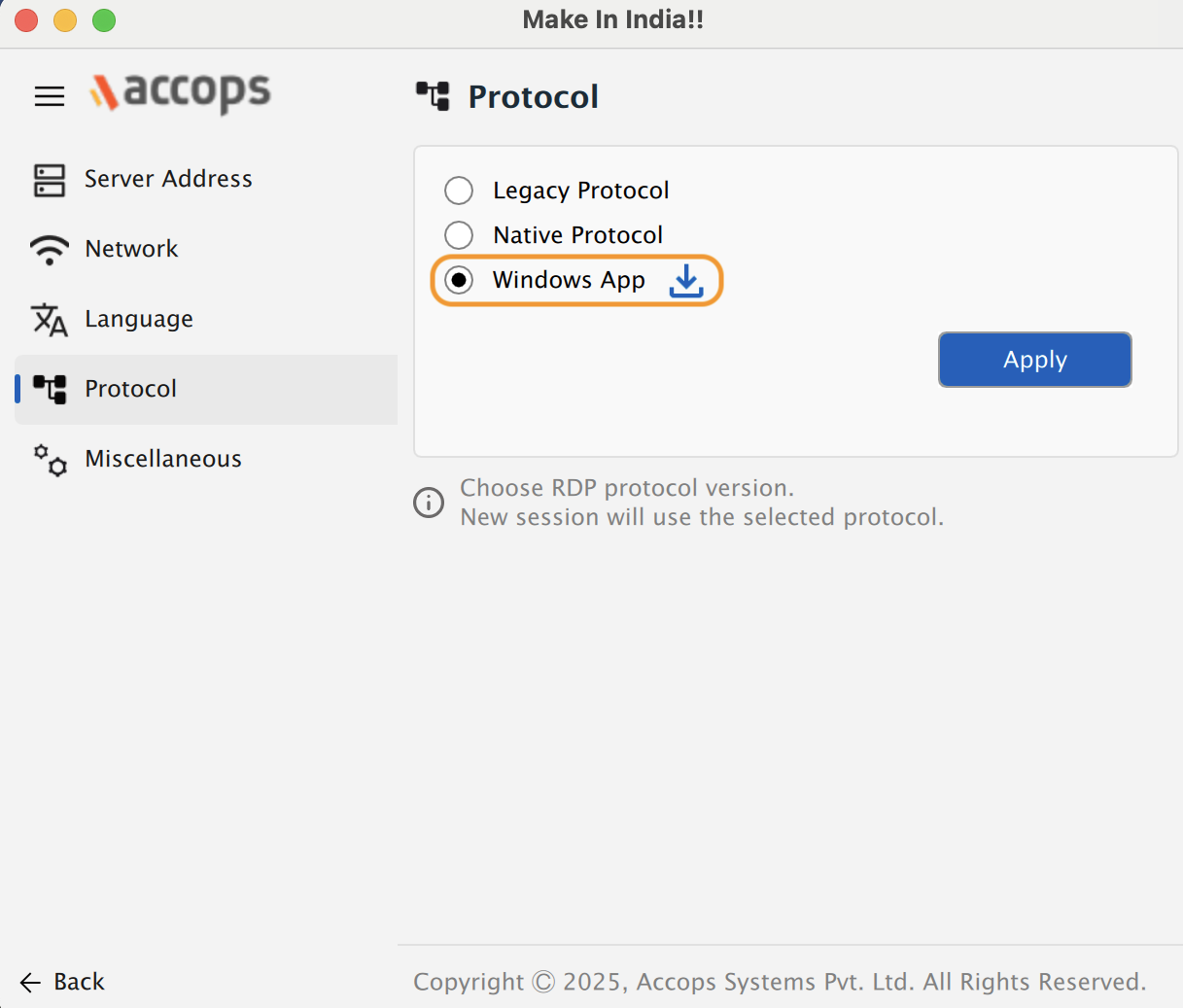
Workspace macOS Client with only Windows App (WA), the version of the Windows App integrated is 11.2.1
Windows App download icon
If the Windows App is not installed on the macOS system, a Download icon will be displayed.
Upgrade
The Workspace macOS Client can be manually upgraded from the Workspace Client.dmg setup.
Upgrade from HySecure Gateway (Old to Latest Workspace client)
Gateway Configuration
Client upgrades can be done using 3 methods:
-
Client upgrade through the HySecure Gateway.
-
Client upgrade through URL.
-
Client downloads through the HyLite portal.
Method 1: Client upgrade through HySecure Gateway
-
Upload the installer file with the file name mac_release.dmg to the Gateway at the publicly accessible location.
-
In the globalsetting.js file, add or change the available macOS client version to the version number string.
MACOS_UPGRADE_ENABLED=true
MACOS_FORCE_ENABLED=false
MACOS_CLIENT_VERSION=7111018
MACOS_UPGRADE_FROM_WEBLINK=false
MACOS_UPGRADE_FROM_GATEWAY=true
MACOS_UPGRADE_WEBLINK=
MACOS_CLIENT_MD5=259452d7ba892f66c1a6915fa3f9eb3d MACOS_CLIENT_INSTALLER_NAME=mac_release.dmg -
Set the Upgrade mode as ask the user or enforce.
-
In the HySecure gateway, navigate to Client Settings > Enable HySecure Client Upgrade Notification to Users.
-
Specify the client version in the .js file.
Steps to Download Client and Upgrade Consent in Accops Workspace
-
Launch the Workspace client.
-
Connect to the HySecure Gateway and select the appropriate realm.
-
A client download notification consent pop-up will appear.
-
User consent is required for the download. Click Start Download to proceed.
-
The client will be downloaded to the AccopsUpdater folder. Path of AccopsUpdater folder /Users/Shared/AccopsUpdater

-
If the download fails, it may be due to a network issue, an incomplete download, or a download failure. In such a case, an error message with a retry option will pop up.

-
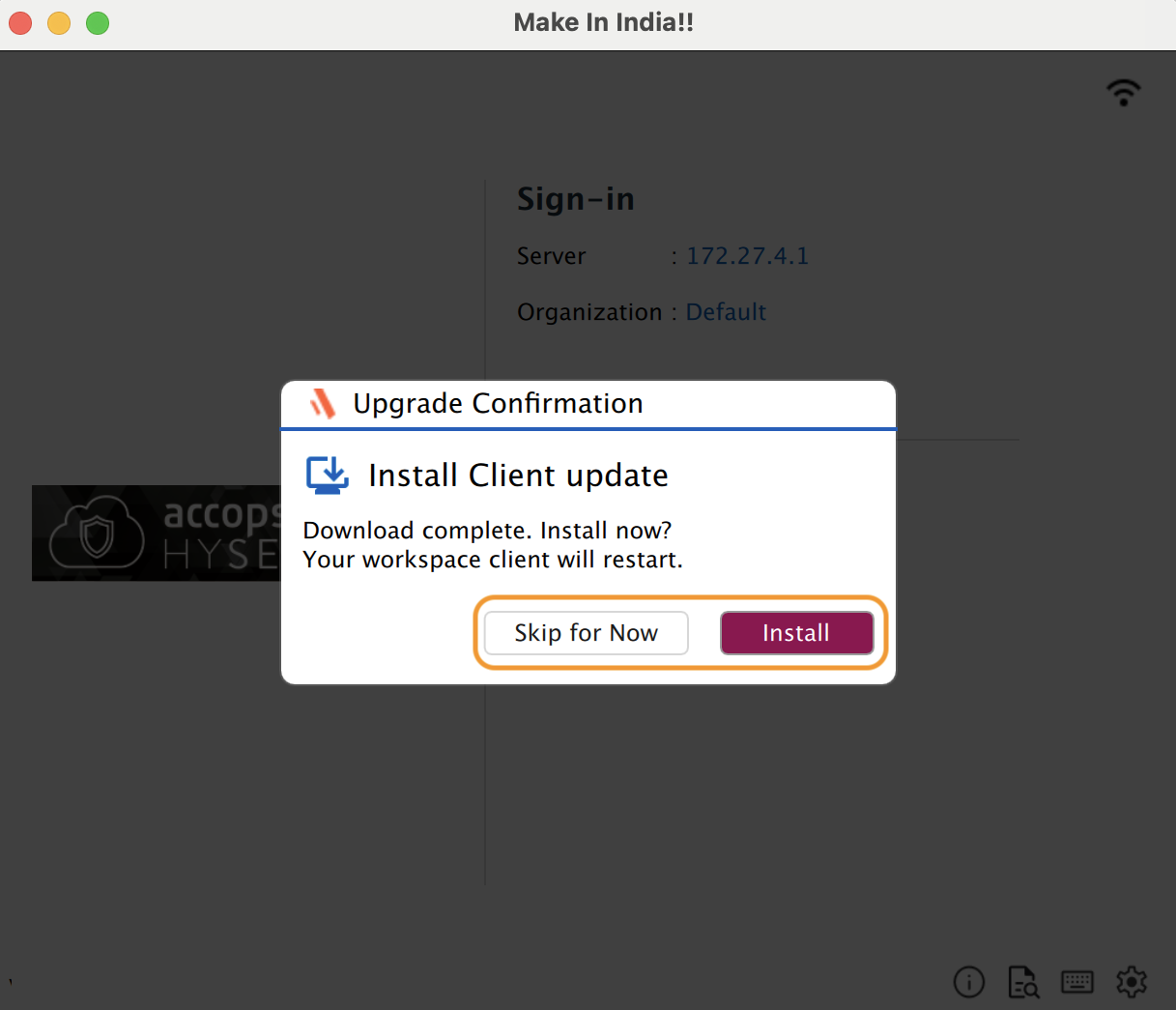
Once the download is complete, a consent notification for the upgrade will appear when the user logs in, logs out, or relaunches the client.
-
Click Install to approve the upgrade. The new version of the Workspace client will be installed.
-
Client upgrade logs can be found in the Accopsupdater folder.
-
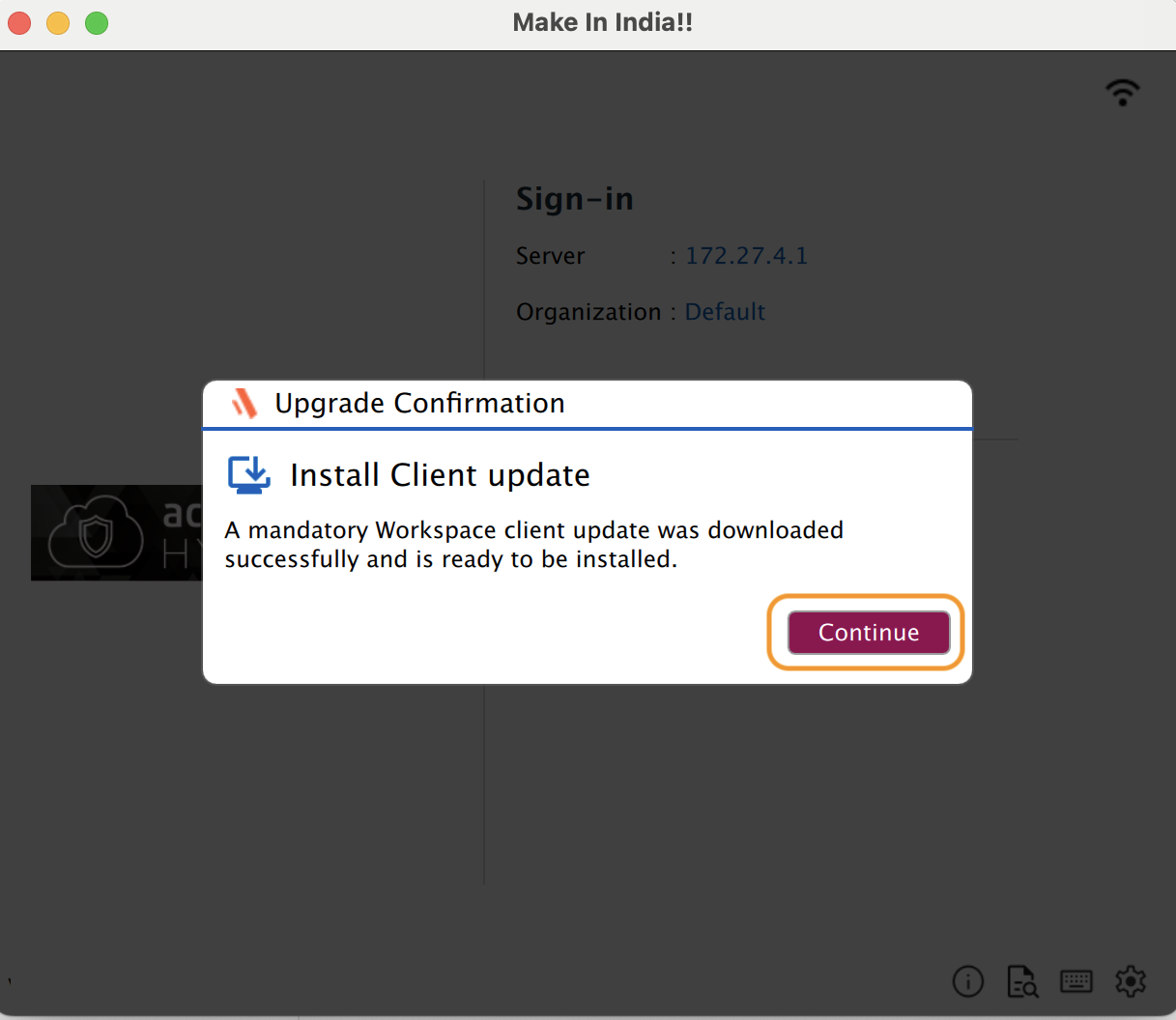
When Force upgrade option is enabled from the HySecure Gateway, users must provide consent for the upgrade by default before the process can proceed.

Method 2: Client upgrade through URL
Configuring Third-party websites
-
Upload the installer file to a designated location on the third-party website and create a downloadable URL. Ensure the download link works by testing it in a browser.
-
Ensure that the third-party website has a valid certificate(HTTPS is valid).
-
In the default client settings, add or change the available macOS client version to reflect the correct version number string.
-
Configure the Upgrade client hash in the default client settings.
-
Enable the Upgrade from the third-party website flag.
-
Set the URL in the configuration.
-
Choose the Upgrade mode, either prompt the user for confirmation or enforce the upgrade automatically.
Client downloads workflow
When the client is launched, it downloads the client settings from the gateway.
If the upgrade flag is enabled, the following checks will occur in the client settings:
- The version and self-version will be compared. If the self-version is lower than the version specified in the client settings:
- The system will check if the installer file is present in the AccopsUpdater folder.
- If the installer file exists, it will verify the hash of the setup file against the default client settings.
- If the hash matches, the upgrade process will be initiated.
-
If it does not match:
- The system will determine whether to download from the gateway or a third-party website.
- If downloading from the gateway, it will retrieve the client and place it in the AccopsUpdater location on the system.
- If downloading from a third-party website, it will use the download URL specified in the client settings to obtain the client and store it in a temporary location on the system.
Upgrade workflow
-
Ensure that the ask user to upgrade flag is enabled:
-
If yes, prompt the user to confirm whether they want to proceed with the upgrade.
-
If the user agrees, execute the installer with administrator privileges.
-
If the user declines, take no action and wait till the next execution.
-
Method 3: Client downloads through the HyLite portal
-
Upload the new client setup file (i.e., mac_release.dmg) to the gateway at the publicly accessible location and grant all permissions to the file.
-
Rename the client setup file in the loginpage.htm file located at /home/fes/public/portal/act.

Client download and installation
-
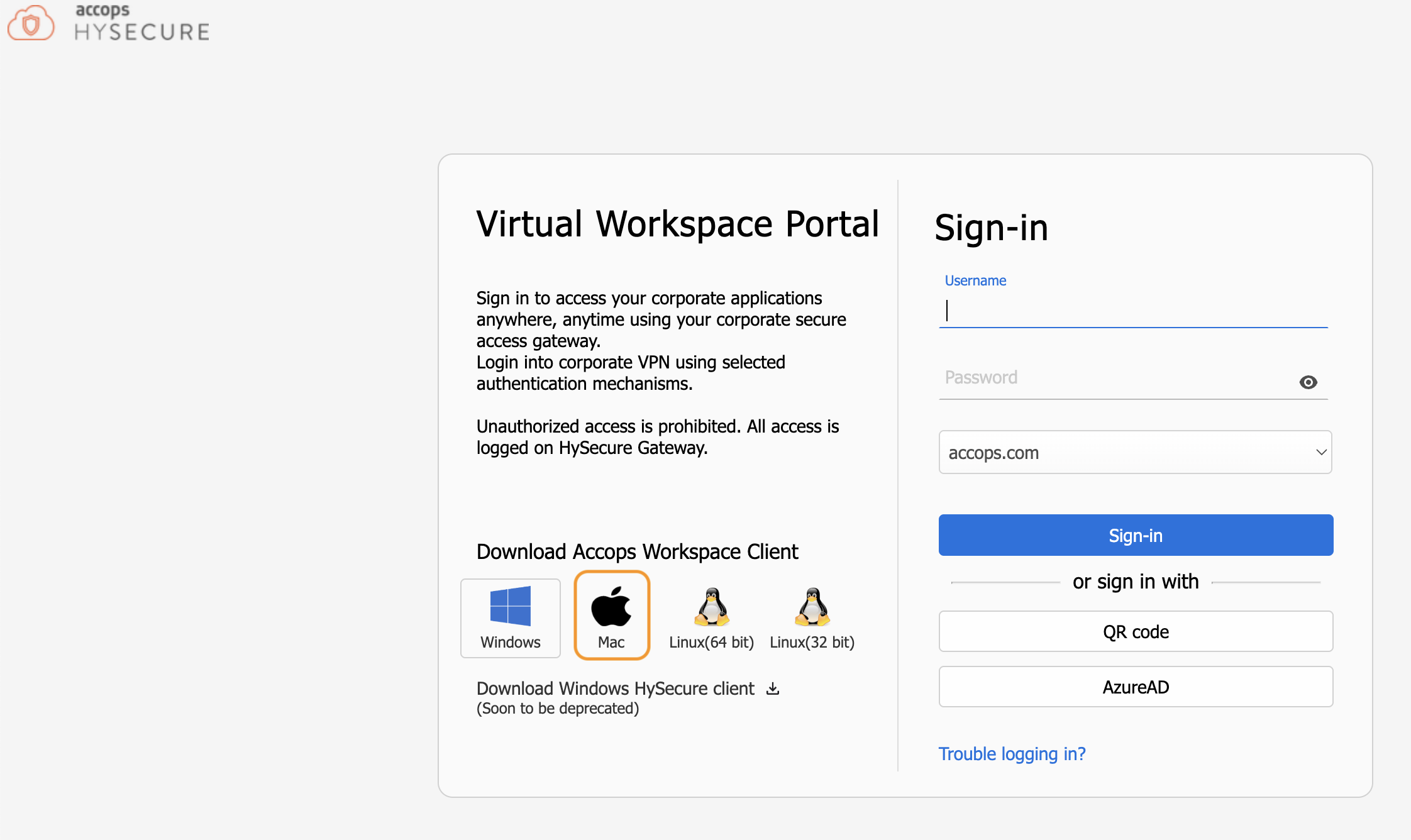
Step 1: In the HyLite portal of the HySecure gateway, locate the section labelled Download Accops Workspace Client and click on the Apple icon for Mac.
-
Step 2: A new setup file will be downloaded. Use this file to install the Accops Workspace Client for Mac.
Update Details in System Tray
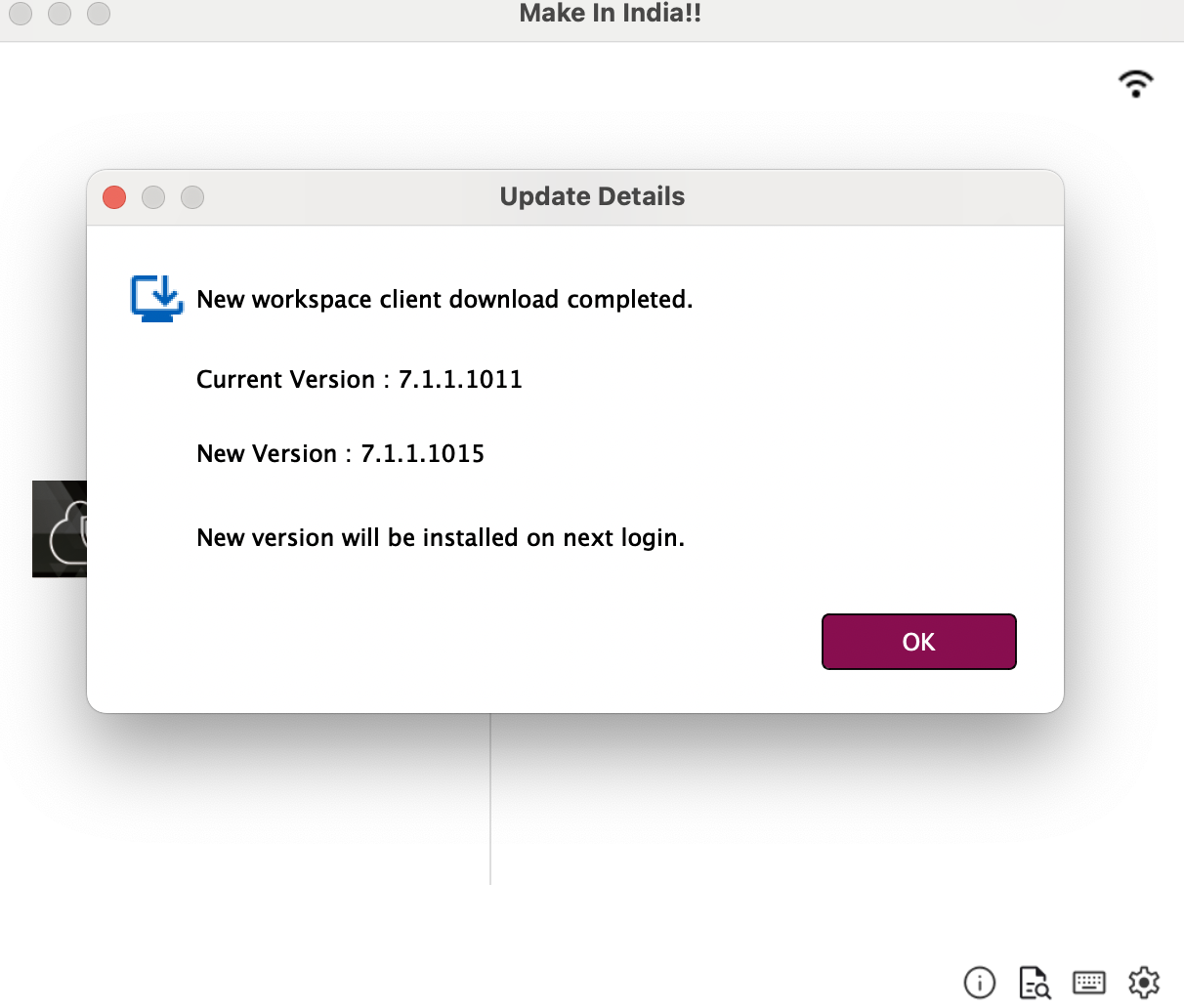
The macOS system tray on the Workspace client now provides users with the ability to check update details directly.

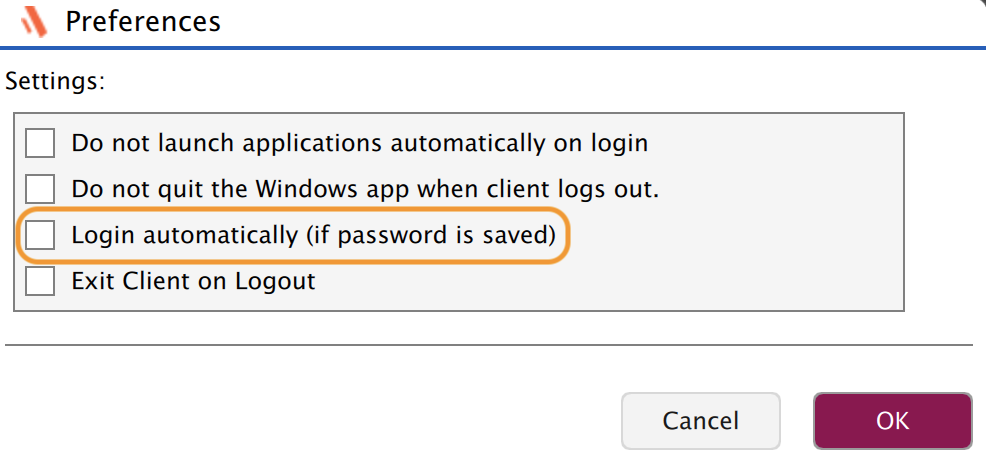
Preferences - Login Automatically (if Auto login is Enabled)
-
A new preference setting has been added to manage automatic login behaviour when Auto Login is enabled from the HySecure Gateway.
-
By default, this setting is unchecked when Auto Login is disabled on the gateway, ensuring the standard manual login flow.
-
When Auto Login is enabled on the HySecure Gateway, the option “Login Automatically” appears as checked by default in the Workspace macOS Client preferences.
-
Users have the flexibility to skip automatic login by manually unchecking the Login Automatically option before proceeding.
-
This feature gives users more control over their login experience.
Limitation
-
When the "Login Automatically" option is unchecked, users will not be able to log in using a different user account.
-
Additionally, users should not attempt to register with another HySecure Gateway or Controller and log in using a different user profile.
-
To enable login with alternate credentials or to allow registration across multiple gateways or controllers, it is advisable to disable auto-login within the HySecure Gateway settings.
-
Renamed the forgot password option to Trouble logging in? on the client login console
-
On the Workspace macOS Client login console, the Forgot Password link has been renamed to Trouble logging in? to provide a more inclusive and user-friendly message.
-
This updated label better represents the range of issues users may face during login, such as forgotten credentials, account lockouts, etc.
-
By selecting Trouble logging in?, users are redirected to the configured Self-Service Portal (SSP) or support page where they can reset their password, unlock their account.
