New Features in Accops Workspace macOS Client version 7.0.1.1101
Screen Sharing Block
This feature blocks screen capturing, recording, and sharing after a user logs in. Attempts to capture or share the screen will be prevented. This ensures the confidentiality and integrity of the data displayed during the session. This feature is primarily aimed at avoiding data leakage by restricting Applications by minimizing if screen sharing detected on Mac Devices after Workspace Login.
Currently, this feature is available for Microsoft Teams, QuickTime Player and Cisco Webex.
Gateway Configuration-
-
Log in to the HySecure Gateway using the SO user credentials and access the management console.
-
Navigate to the Client Profiles Section under the Policies menu.
-
Create a New Client Profile by selecting the +Add option, entering the desired configuration name, and saving the profile.
-
Select the newly created client configuration and proceed to modify its settings.
-
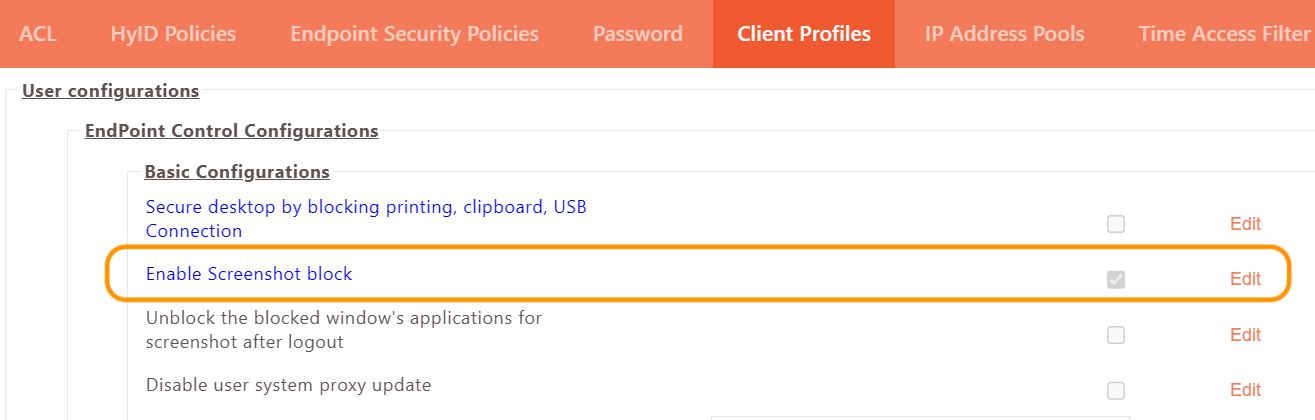
Enable the Screenshot Block Option by accessing the User Configuration section, then Endpoint Control Configurations, and finally Basic Configurations. Enable Screenshot Block
-
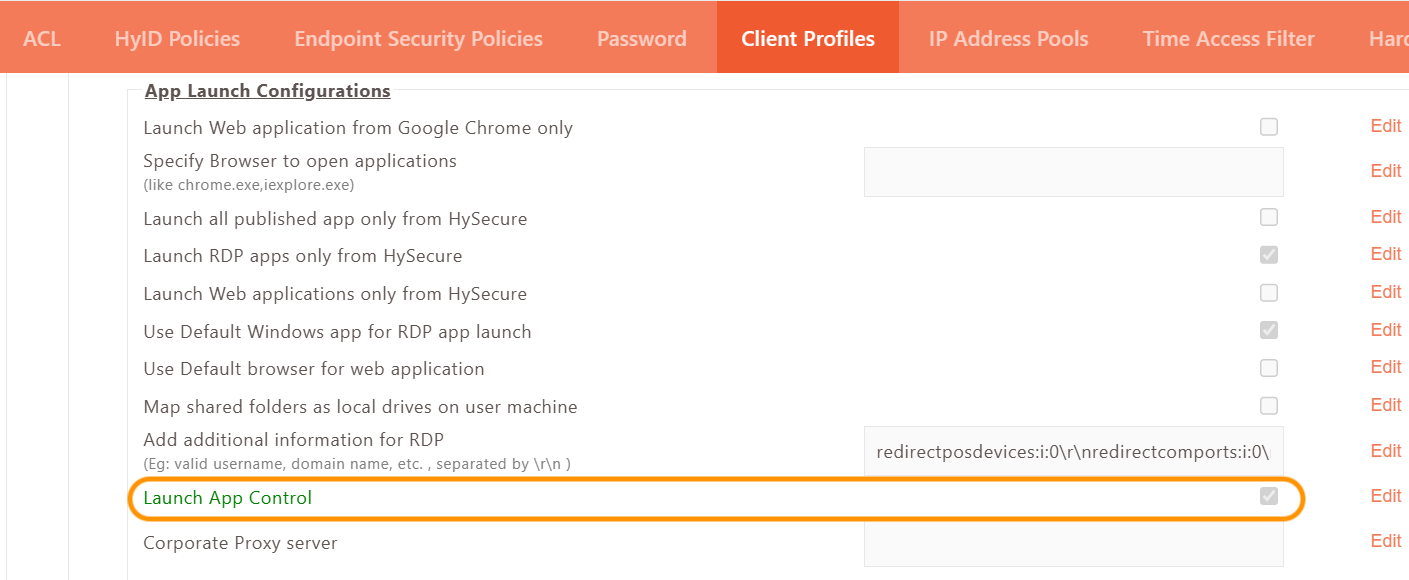
Enable Launch App Control from App launch configuration
-
Scroll to the bottom of the client configuration page, locate the Customized Options section, and add the tag: APPCONTROL_CONFIG=app_control.json
-
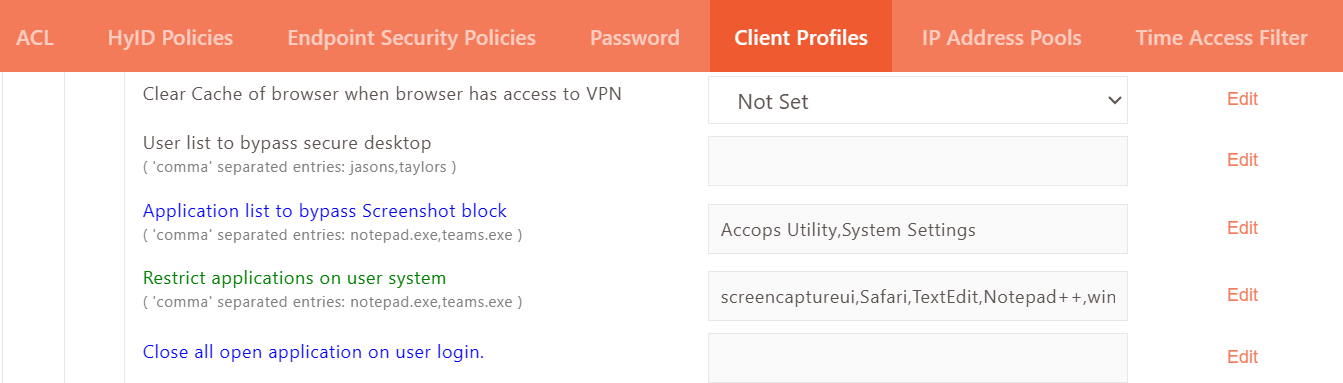
To exclude certain applications from screen sharing, enter their names in the designated field as a comma-separated list. When you need to bypass the log viewer, select Accops Utility. For managing system preferences, go to System Settings.
-
After saving the client configuration, proceed to set up an ACL specifically for that client configuration.
Configuration of app_control.json
-
Establish an SSH connection or WinSCP to the HySecure Gateway and navigate to the directory /home/fes/public.
-
Copy the app_control.json file and place it in the /home/fes/public directory. Download Link: app_control.json
-
Give the required permission for app_control.json file.
-
Whitelisting of app_control.json
-
Go to the directory /etc/httpd/conf/ and open the httpd.conf file.
-
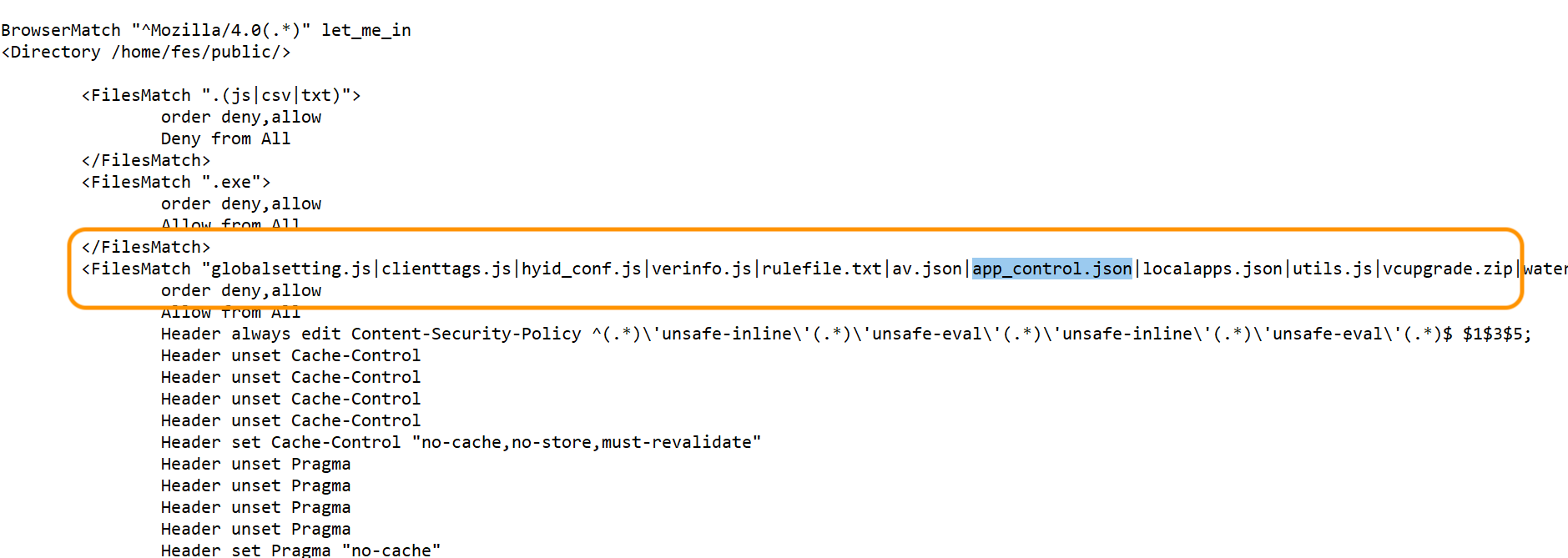
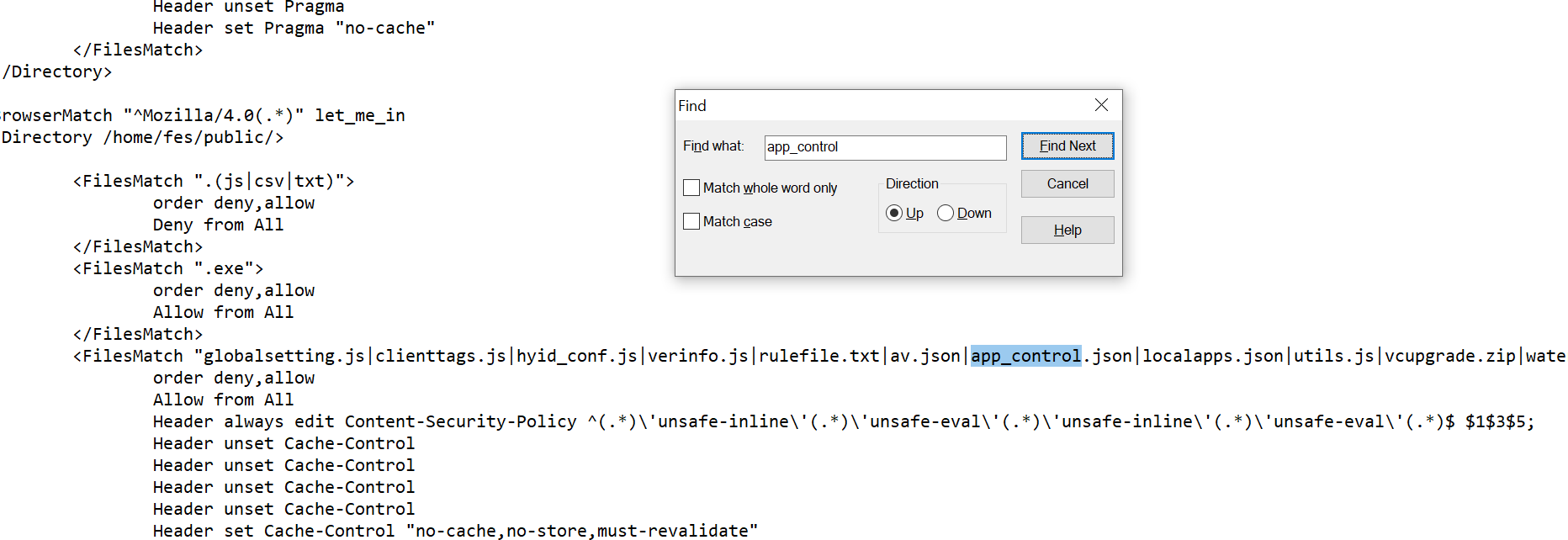
Add the following entry for app_control.json in the httpd.conf file as shown below.
-
Restart the httpd service by running the command after taking ssh of HySecure Gateway:
systemctl restart httpdNote
To verify ap_control.json is working, open the url in browser URL: https://<HySecure Gateway IP>/fes-bin/public/app_control.json
-
Supported Client platforms and Gateway compatibility
This new feature is supported in the client modes listed below and is compatible with the HySecure Gateway versions 5.4 SP6, 7.0, and above.
| Supported Client modes on macOS | HySecure 5.4 -SP2/5.4 SP5 | HySecure5.4 SP6 | HySecure 7.0 |
|---|---|---|---|
| Client Modes: · Admin/Standard Users | No | Yes | Yes |
HySecure Gateway Configuration
Kindly reach out to the Accops support team for assistance with the Gateway Configuration.
Microsoft InTune Mobile Device Management (MDM) Support
HySecure enables device authentication and validation by leveraging external servers, specifically through integration with Mobile Device Management (MDM) solutions. When a user initiates a login, HySecure collects the device’s details as part of the request. It then sends a query to the configured MDM server, using a predefined device parameter, to verify the device’s compliance status. If the device is both enrolled and compliant according to the MDM server, HySecure grants access; otherwise, it blocks the login attempt.
Supported Client platforms and Gateway compatibility
This new feature is supported in the client modes listed below and is compatible with the HySecure Gateway versions 7.1 SP-1 and above.
| Supported Client modes on macOS | HySecure 5.4 -SP2/5.4 SP5 | HySecure5.4 SP6 | HySecure 7.0/7.1 | HySecure 7.1 SP-1 |
|---|---|---|---|---|
| Client Modes: · Admin/Standard Users | No | No | No | Yes |
HySecure Gateway Configuration
Kindly reach out to the Accops support team for assistance with the Gateway Configuration.
Managing macOS App Permission Settings
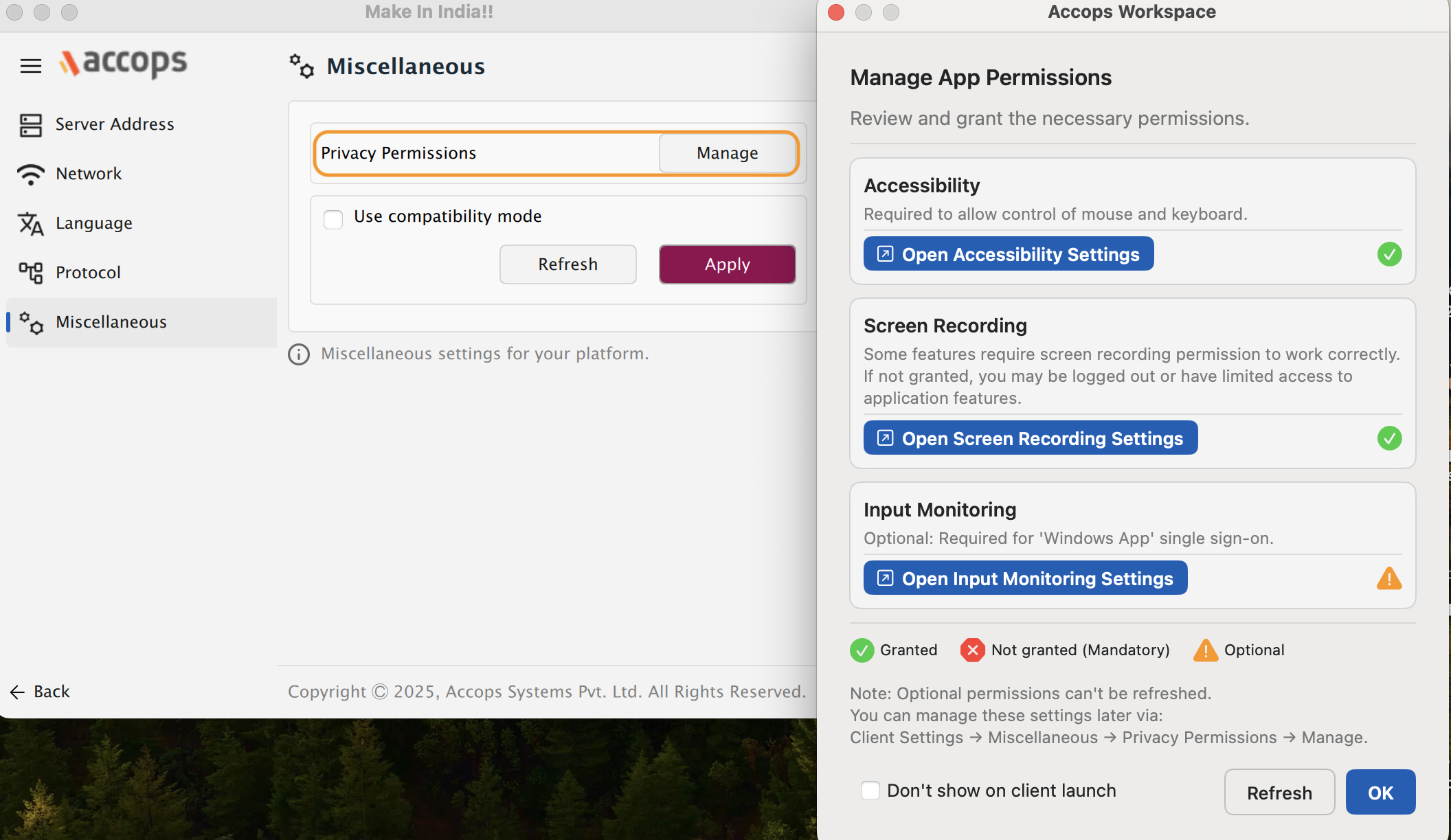
Managing app permissions on a Mac is essential for applications to function properly. For users of the Accops Mac client, specific permissions—such as those needed for Single Sign-On (SSO) integration with Windows applications and enabling the Screen share and recording block feature—are required to ensure seamless and secure operation.
Previously users had to navigate privacy settings manually from “Apple menu | System settings”, which was a cumbersome process. To provide direct access to macOS privacy settings, support has been added as a "Miscellaneous" menu within the Workspace client settings. This allows users to quickly reach the relevant sections of the macOS settings menu directly from within the Workspace client.
Change Password through 3rd Party URL
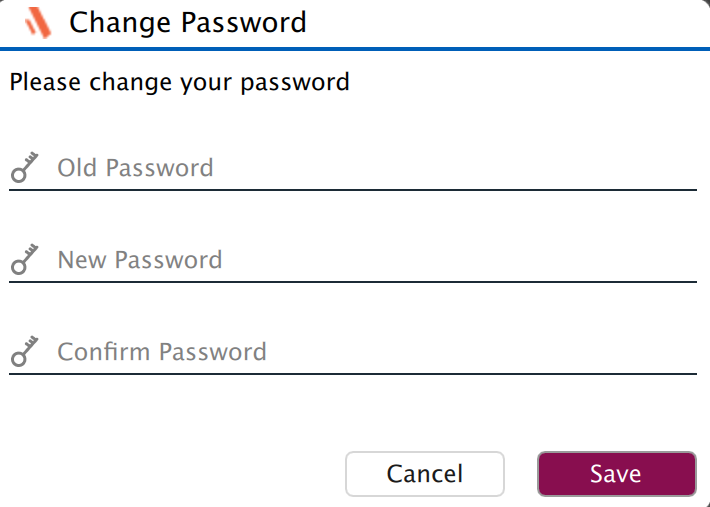
If an administrator wishes to redirect users to a password change page via a specified URL, rather than displaying the standard Change Password dialog, this can be configured by setting an appropriate tag or parameter in the relevant configuration settings.
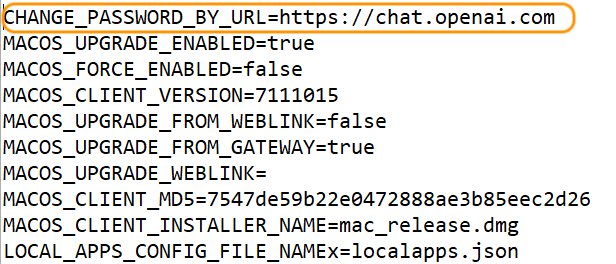
Update globalsettings.js tag
CHANGE_PASSWORD_BY_URL=https://url
CLIENT BASED CHANGE PASSWORD DIALOG screen shot attached, if URL configured then browser will be launched directly. We have set URL as https://chat.openai.com in the tag. Then upon clicking on =="Change Password"== option from the user profile page will automatically open this URL in the user's browser.
CHANGE_PASSWORD_BY_URL=https://chat.openai.com
Else, if tag is blank then, it will change the password from HySecure Gateway by default.
Supported Client platforms and Gateway compatibility
This new feature is supported in the client modes listed below and is compatible with the HySecure Gateway versions 5.4 SP6, 7.0, and above.
| Supported Client modes on macOS | HySecure 5.4 -SP2/5.4 SP5 | HySecure5.4 SP6 | HySecure 7.0 |
|---|---|---|---|
| Client Modes: · Admin/Standard Users | No | Yes | Yes |
HySecure Gateway Configuration
Kindly reach out to the Accops support team for assistance with the Gateway Configuration.