Clipboard Control – Block / Allow
The Workspace macOS client will be able to block clipboard operations if this feature is set up on the Gateway. The option to configure clipboard access is available within the client profile settings. Now, administrators can enforce clipboard control policies specifically for selected applications, providing greater flexibility and security.
This means that administrators now have improved control over how users can copy and paste data using the clipboard. If clipboard blocking is enabled in the client profile on the Gateway, users will not be able to transfer information via copy-paste on the client.
This restriction can also be applied selectively to particular applications, ensuring sensitive data is protected while still allowing necessary sharing where approved. This update strengthens data security and helps organizations comply with compliance requirements by reducing the risk of unauthorized data transfer through the clipboard.
Configuration for Clipboard Block
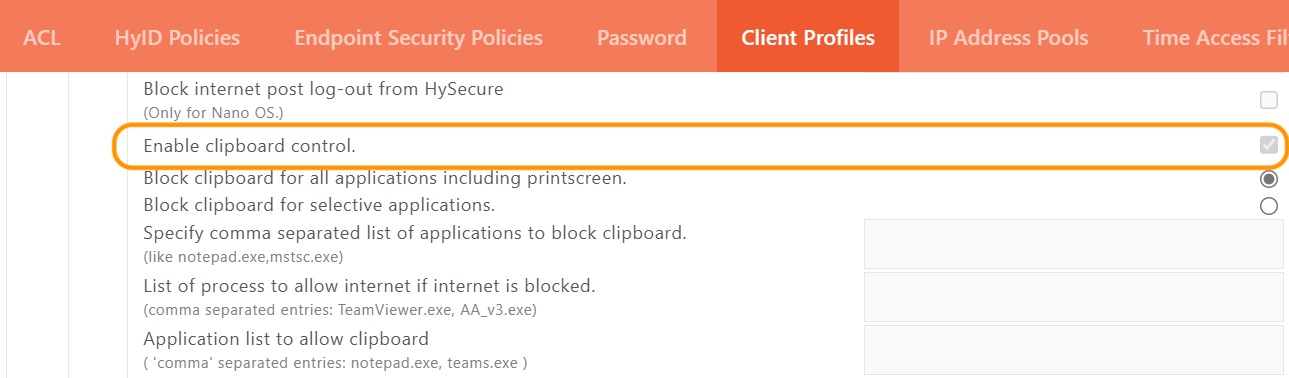
To configure Clipboard Block, simply activate the Enable clipboard control option within the client profile settings.
Steps to enable clipboard blocking:
-
Navigate to Policies > Client Profiles.
-
Select the Default configuration profile and click Modify.
-
Locate and activate the Enable clipboard block option as shown in the screenshot.
-
Once a user logs into the Workspace Mac client, copy-paste functionality on the macOS machine will be disabled.
Clipboard control can be managed in three ways.
-
Block clipboard for all Applications.
-
Block clipboard for selective Applications.
-
Allow clipboard for selective Applications.
1. Block clipboard for all Applications:
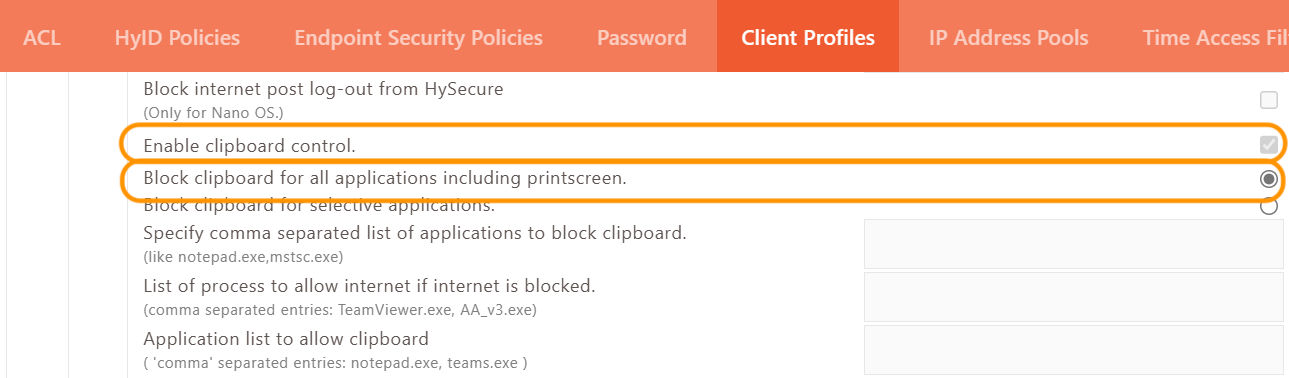
When Enable clipboard control is enabled within the client profile and the option to block clipboard operations for all applications is selected, copy-paste functionality will be disabled across the entire Workspace Mac client environment. As a result, users will be unable to perform any copy or paste actions in any application upon logging into the Workspace Mac client.
Important
This capability empowers organizations to enforce strict data loss prevention (DLP) policies, ensuring sensitive information remains protected within the corporate environment. By centrally managing clipboard restrictions, enterprises can mitigate the risk of unauthorized data transfer, uphold compliance requirements, and maintain robust endpoint security without compromising user productivity.
Settings on HySecure Gateway management console.
2. Block clipboard for selective Applications:
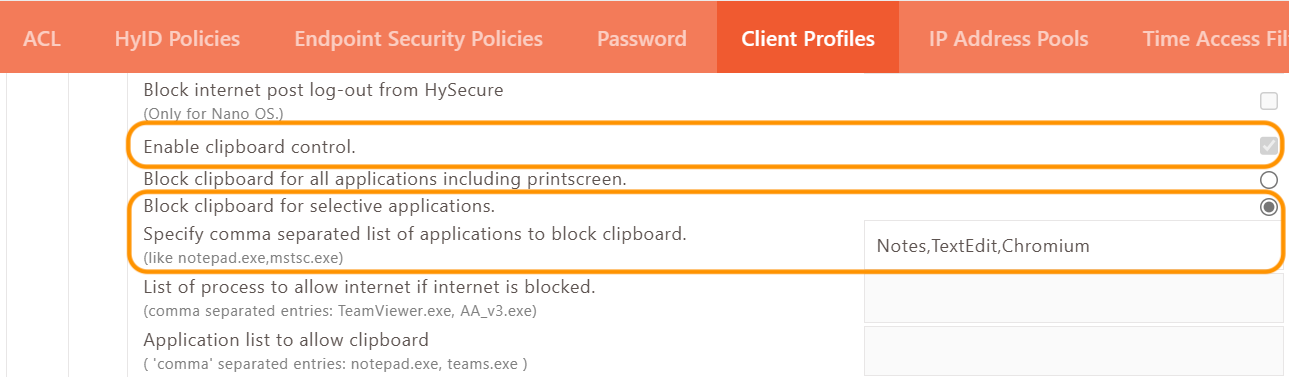
When the option Enable clipboard control is activated in the client profile and the setting to block the clipboard for specific applications is selected, copy-paste functionality will be restricted for the designated Mac applications that do not have file extensions. As a result, users will be unable to copy and paste in certain applications when they log into the Workspace macOS client.
For instance, users will not be able to copy and paste in the Notes, TextEdit, and Chromium applications. is enabled from the client profile, and block clipboard for selective applications is selected, then copy-paste will get blocked for the mentioned specific Mac applications without extension, and the user won’t be do copy copy-paste in specific applications upon login into Workspace macOS client.
For example, the User will not be able to do copy and paste in Notes, TextEdit and Chromium applications.
Settings on the HySecure Gateway management console:
3. Allow clipboard for selective Applications:
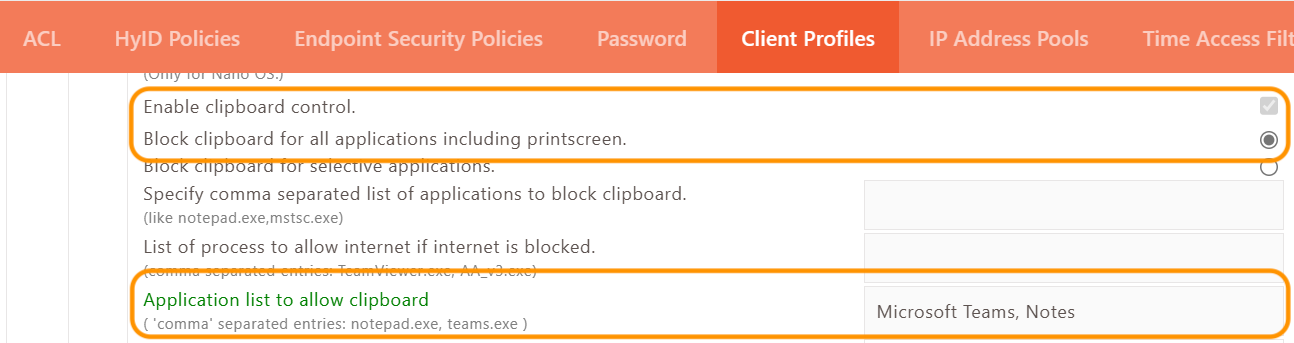
When Enable clipboard control is activated in the client profile and the option Application list to allow clipboard is selected for specific applications, users will be able to use the copy and paste feature in those designated Mac applications without the need for an extension. This functionality will be available upon logging into the Workspace Mac client. For example, users can copy and paste in applications such as Notes and Microsoft Teams.
For example, the User will be able to do copy and paste in Notes, the Microsoft Teams application.
Setting on the HySecure Gateway management console:
Note
VDI responsiveness, the apps need to be exempted from DLP controls.
For instance, by adding Citrix Viewer to the clipboard exception list, significant improvements in latency were observed, making the desktop VDI experience noticeably more responsive and usable compared to previous performance levels.
This adjustment highlights how targeted clipboard exception handling can optimize overall session responsiveness while maintaining necessary security controls.