Configure Smartcard Redirection
Overview
Redirection of digital signature based on smartcards such as ePass2003 Token, LONGMAI mToken CryptoID, etc., in a remote session of DVM from macOS.
Configuration
The following changes are required on the controller connection profile to enable digital signature redirection using a smartcard:
-
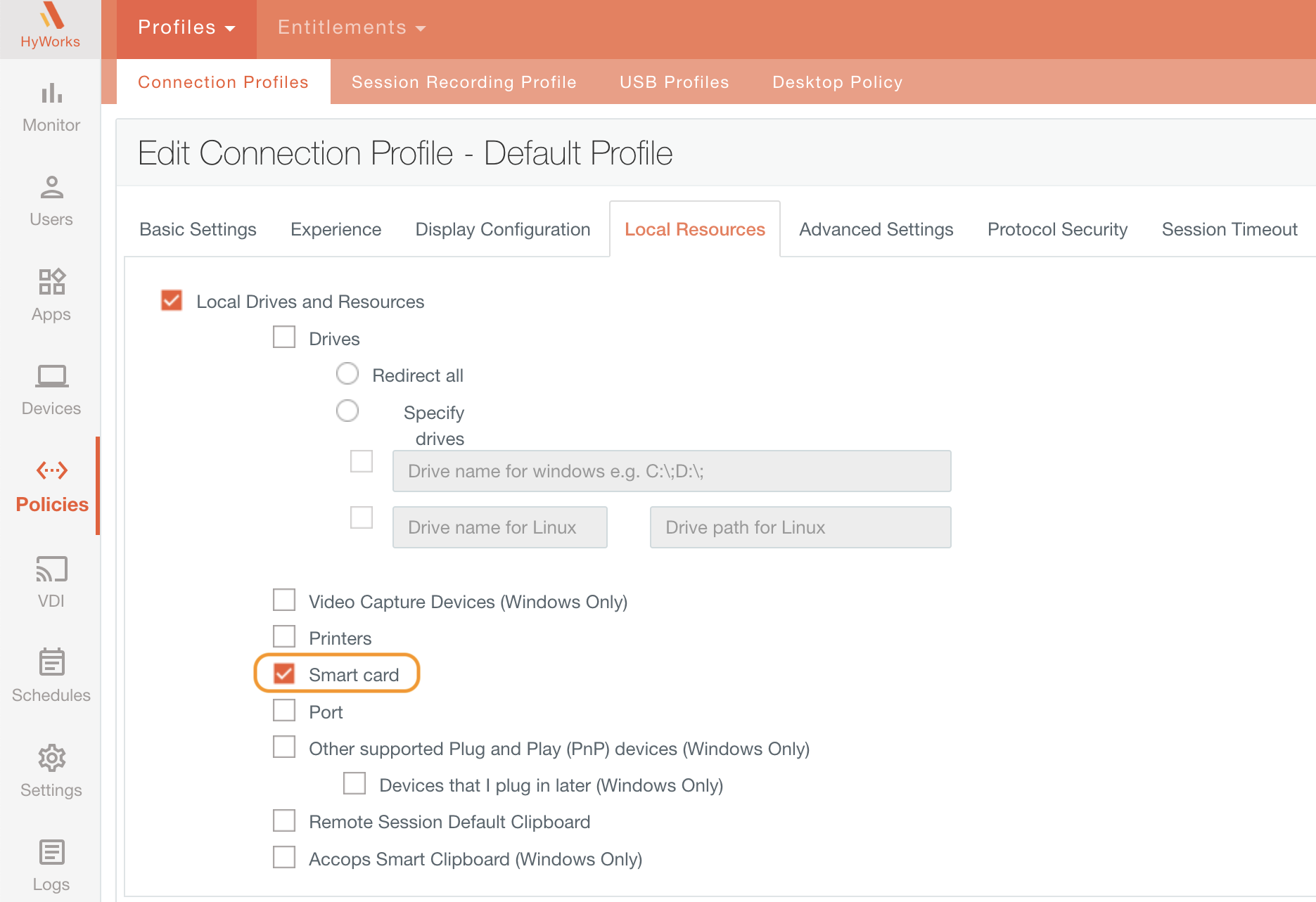
Navigate to Connection Profile > Local Resources.
-
Enable the Smartcard option.
Pre-requisite
On macOS, digital signature-based smartcard redirection is supported through two protocols:
- Legacy Protocol
- Windows App
Legacy Protocol
Digital signature-based smartcard gets redirected to SHD/VDI after adding a command parameter in the Additional Settings of Connection Profile.
Add /smartcard as a command parameter in RDP 8.0 Linux, as shown in the image below.
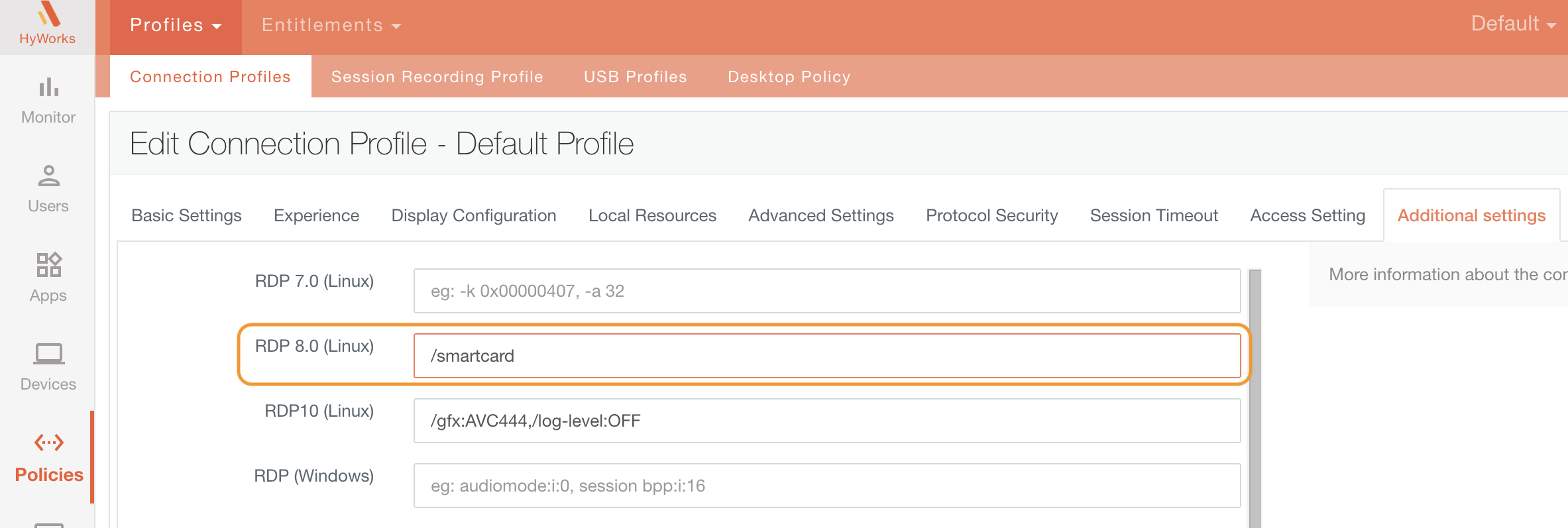
Supported macOS client Version: 7.1.1.1011, as shown in the image below.
Windows App
Digital signature-based smartcards are redirected to SHD/VDI once the Smartcard option is enabled in the connection profile.
Steps for Smartcard redirection
-
Launch the HyWorks client and log in with user credentials
-
Launch VDI/SHD
-
Install the driver of Smartcard Token (For example: we will take the ePass2003 Token Driver)
-
After the Installation of the Driver, open the ePass Token Application.
-
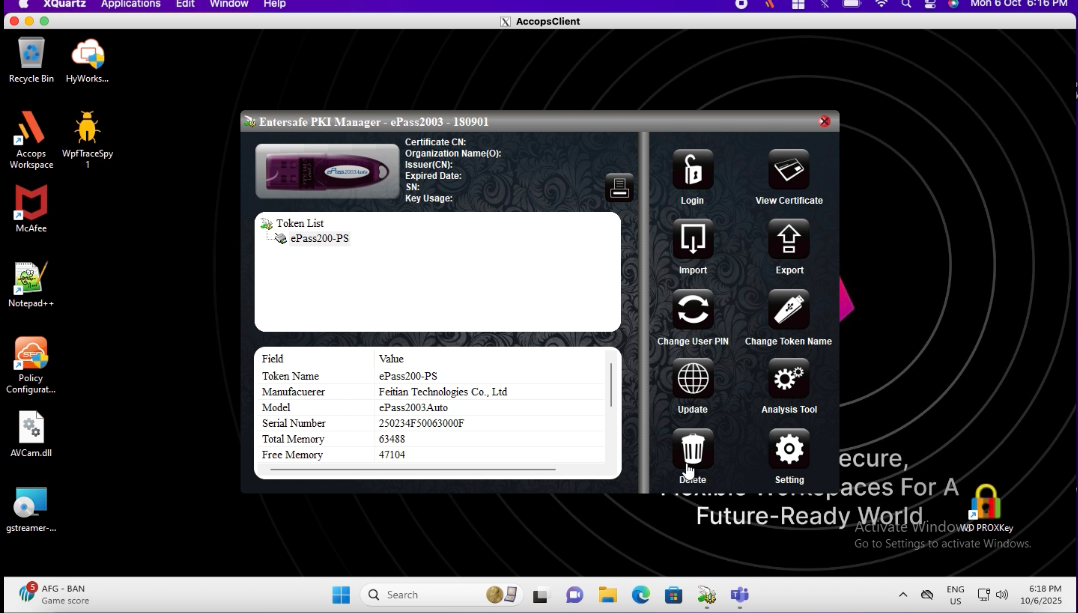
All the information digital Signature of the smartcard, will be displayed in the application as shown in the screenshot.
VDI Launched through Legacy protocol
VDI Launched through Windows App
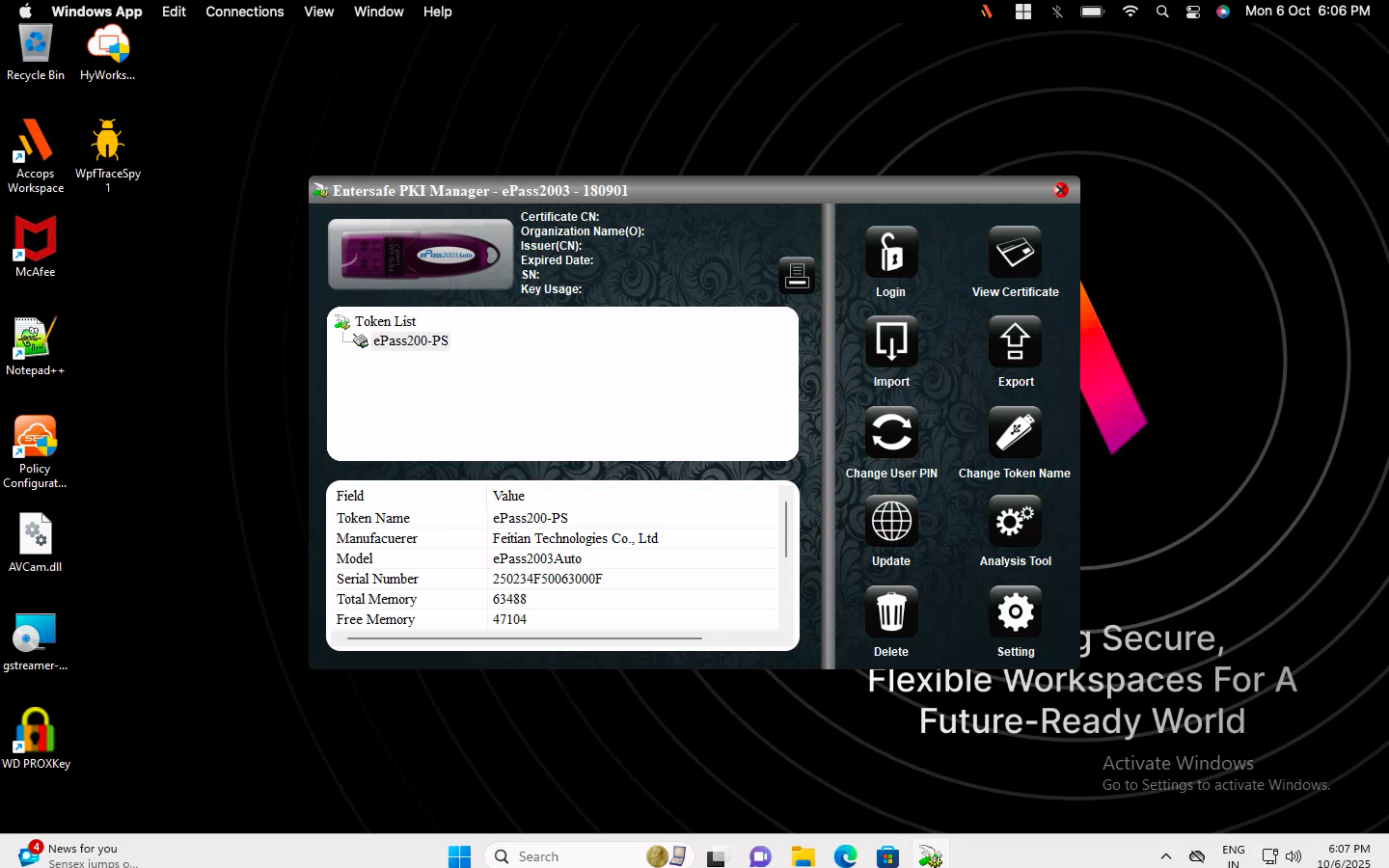
SHD/VDI can be launched with two different protocols, and with each, it gets redirected.
| Sr. No | Protocol | Digital Signature based Smartcard |
|---|---|---|
| 1 | Legacy | Yes |
| 2 | Windows App | Yes |
Important
- Before logging into the client, ensure that the smartcard is not being redirected through USB Redirection.
- Do not enable USB redirection for the ePass Token (Smartcard); it must remain unchecked in the USB Devices list.
Note
- Digital Signature-based Smartcard do not get redirected through USB Redirection with built-in and SEP Driver.
- USB device (smartcard) will not get redirected through Eltima and SEP.
Troubleshooting Smartcard Redirection
-
Verify the Connection Profile
-
Ensure that smart card redirection is enabled under Local Resources.
-
Confirm that USB redirection is disabled, or make sure the digital token device is not being redirected through USB.
-
Check that no policy enforcing USB redirection is applied to the connection profile.
-
-
Inspect the VDI/SHD Connection File
- Verify that the redirectsmartcards:i:1 parameter is present in the connection file.
-
Driver Installation
- Ensure the ePass2003 Token driver is installed both on the local machine and within the VDI or SHD environment.
-
Review Group Policy on VDI/SHD
-
Open the Local Group Policy Editor (gpedit.msc).
-
Navigate to Computer Configuration > Administrative Templates > Windows Components > Remote Desktop Services > Remote Desktop Session Host > Device and Resource Redirection.
-
Ensure the policy for smart card redirection (e.g., "Do not allow smart card device redirection") is set to "Not Configured" by default.
-
-
Check Smart Card Services
- Confirm that the smart card service is running on both the VDI/SHD and the local machine.