New Features in Accops Workspace macOS Client version 7.1.1.1018
Geolocation Support
In the latest Workspace client, administrators can restrict user logins to the HySecure gateway based on geographic location. Allowed login zones can be defined using latitude and longitude coordinates along with a configurable radius. Users will only be able to authenticate if they access the system from within these designated areas. The required GPS location should be stored in Active Directory as a user attribute.
To configure User Attributes for geolocation in Active Directory and HySecure:
-
Each user must have a geolocation attribute set in Active Directory in the format: Latitude|Longitude|Area (for example, 16.886543|74.358756|Nashik).
-
Users can have multiple geolocation entries stored. HySecure will permit login if the device's location corresponds to any one of the allowed geolocations.
-
To map these attributes in HySecure, navigate to Settings > Authentication > Authentication Server, and edit the configured authentication server.
-
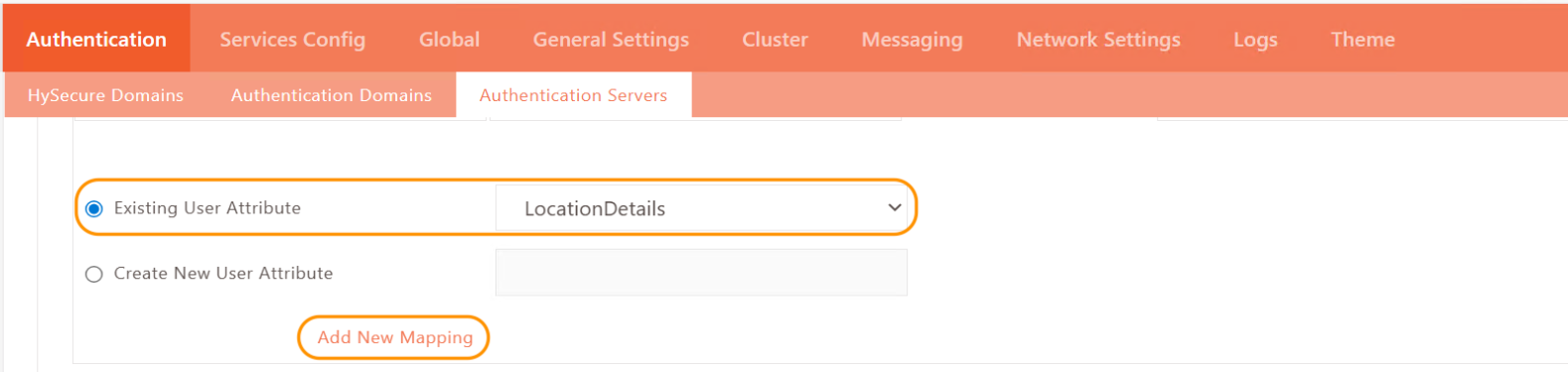
In the User Attribute Mapping section, choose the existing user attribute named "LocationDetails" and add a new mapping.
-
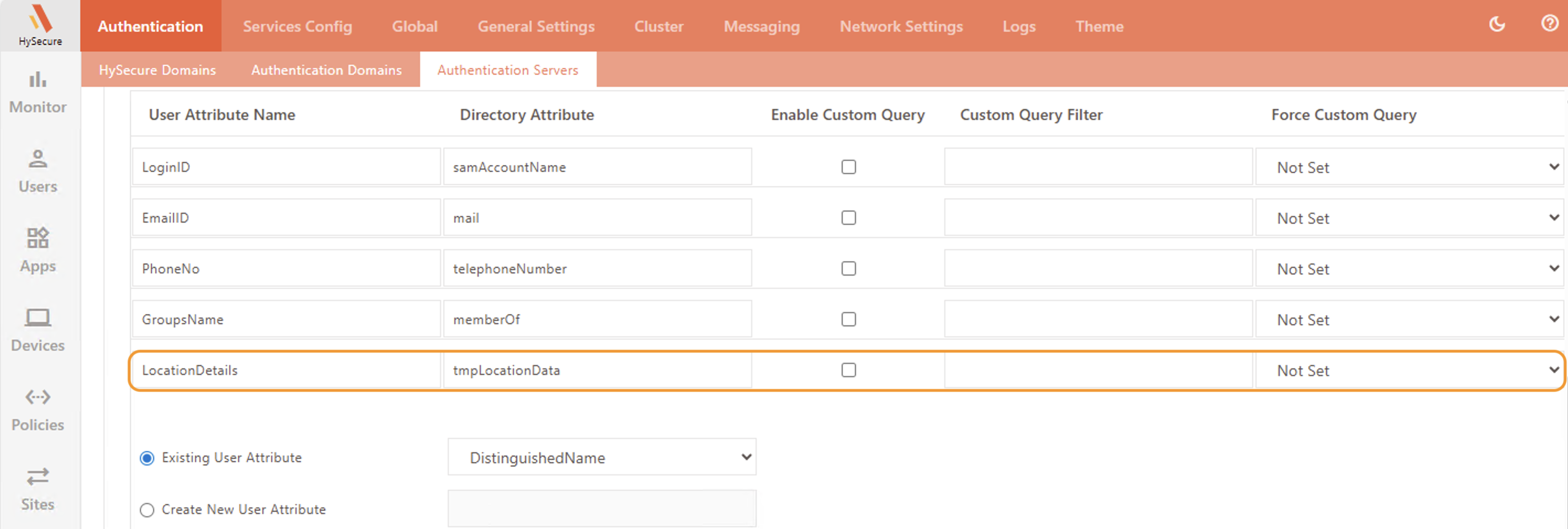
In the User Attribute Name field, make sure “LocationDetails” is selected. Then, enter the corresponding Directory Attribute that contains the user's geolocation information and click Submit to save the configuration.
To enable geolocation-based login on the HySecure Gateway:
-
Access the active HySecure Gateway node via SSH.
-
Open the “features.status” file with the command: vi /home/fes/features.status.
-
Enable geolocation login by setting the flag: GEOLOCATIONBASEDLOGIN=1.
-
Next, open the local.conf configuration file using: vi /home/fes/local.conf.
-
Set the allowed login radius (in meters) by defining the flag AllowedRangeInMeters. For example, AllowedRangeInMeters=200.
-
The default radius is 100 meters, allowing users to log in if they are within this distance from the permitted geographic coordinates.
Workspace macOS client
The Workspace macOS client supports two login modes for geolocation-based authentication, which administrators can enable individually or together:
-
Passwordless (login via QR Code)
-
Credential login combined with Push Notification as multi-factor authentication (MFA)
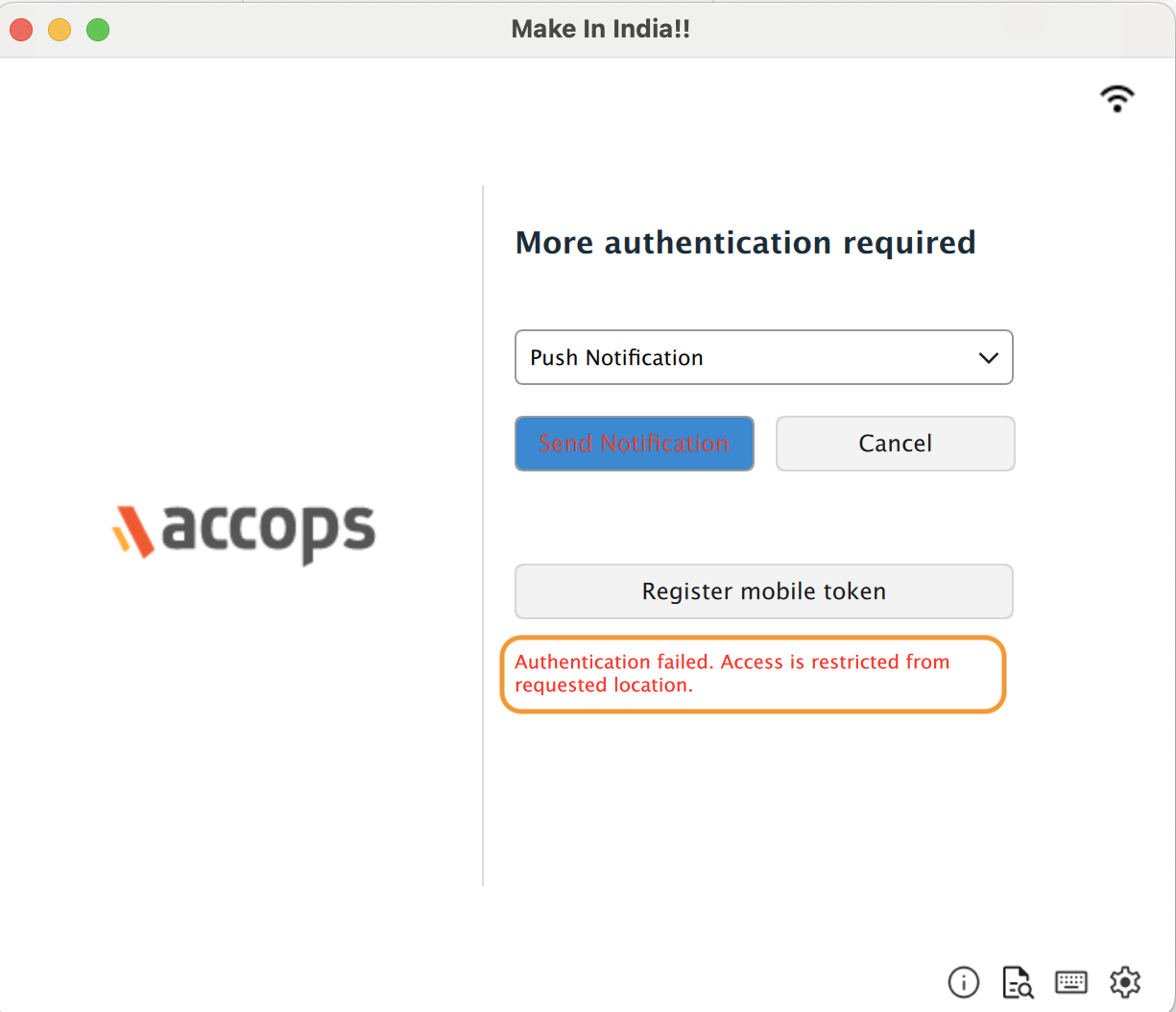
When a user logs into the HySecure Gateway through the Workspace macOS client using either Passwordless (QR Code sign-in) or Push Notification with the HyID client mobile app. (Android/iOS), the login will be granted or denied based on whether the location provided by the HyID client matches any of the user's authorized geolocations configured in the system.
This ensures that user access is controlled not only by credentials and MFA but also by the physical location of the device, enhancing security through location-based policies.
Note
This feature is supported only on Workspace macOS Client version 7.1.1.1018 and later requires the HyID (Android/iOS) client App to be updated to version 4.8.0 or above.
Supported Client platforms & Gateway compatibility
This feature is supported on the following types and modes of clients with HySecure Gateway versions 7.1 SP1 & above:
| Supported Client modes on macOS | HySecure 5.4-SP2/5.4 SP5/ | HySecure 5.4 SP6 | HySecure 7.0 | HySecure 7.01 SP1 |
|---|---|---|---|---|
| Client Modes: Admin/Standard Users |
No | No | No | Yes |
HySecure Gateway Configuration
Kindly reach out to the Accops support team for assistance with the Gateway Configuration.
MTU recalculation on network change
In previous versions of the Workspace client, the MTU was calculated and set only during Gateway login, without support for recalculation if the network changed. In the latest Workspace client, MTU is now recalculated automatically whenever a network change is detected.
Supported Client platforms and Gateway compatibility
This new feature is supported in the client modes listed below and is compatible with the HySecure Gateway versions 7.0 & 7.1 and above.
| Supported Client modes on macOS | HySecure 5.4 -SP2/5.4 SP5 | HySecure5.4 SP6 | HySecure 7.0/7.1 | HySecure 7.1 SP1 |
|---|---|---|---|---|
| Client Modes: · Admin/Standard Users | No | No | Yes | Yes |
PCOIP Support
The Workspace client for macOS now includes PCoIP protocol support, enabling users to connect to their virtual desktops with high-performance, secure streaming. This enhancement provides enterprises with a seamless, local desktop experience for macOS users, including features such as high-resolution display support and robust security.
Supported macOS
| System | Version Required |
|---|---|
| Anyware Client Operating Systems | macOS 15 (Sequoia) macOS 14 (Sonoma) |
Compatible Agents
| Agent Type | Supported (Yes/No) | Notes |
|---|---|---|
| Anyware Agent (latest) Version 25.06.1 and above | Yes | Best with matching version |
Hardware Requirements
| Display Setup | Processor Requirement | RAM Requirement | Supported (Yes/No) |
|---|---|---|---|
| Up to dual 1080p displays | 1.6 GHz dual-core or higher | Minimum 4 GB RAM | Yes |
| Up to dual 4K/UHD displays | 3.0 GHz quad-core or higher | Minimum 8 GB dual-channel | Yes |
| Single 4K with low-end specs | No official support | Insufficient performance | No |
Self-Service Portal
The Workspace macOS client includes a Self-Service Portal feature that allows users to perform tasks like password management, account management and session management.
Session Management from Client:
-
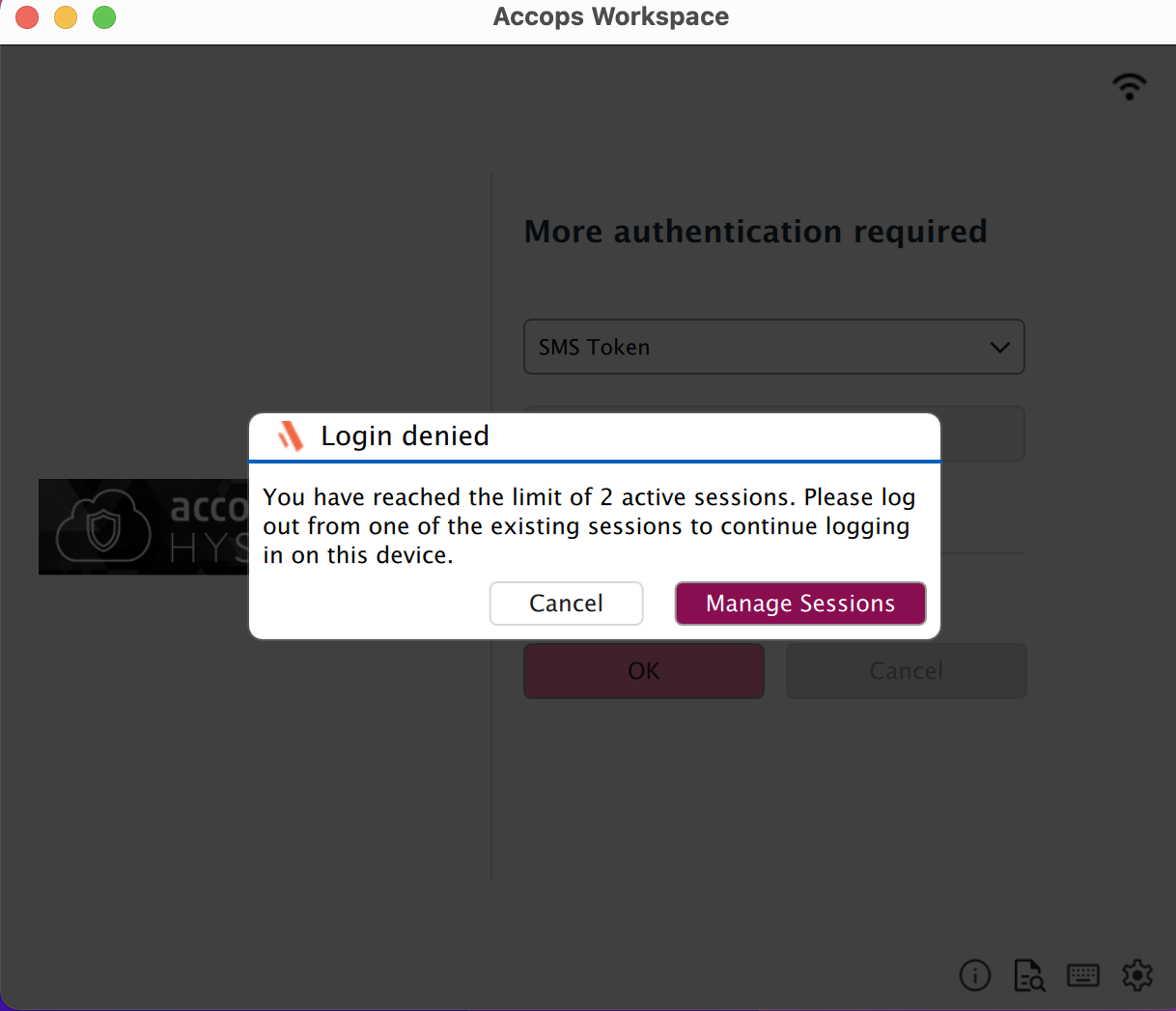
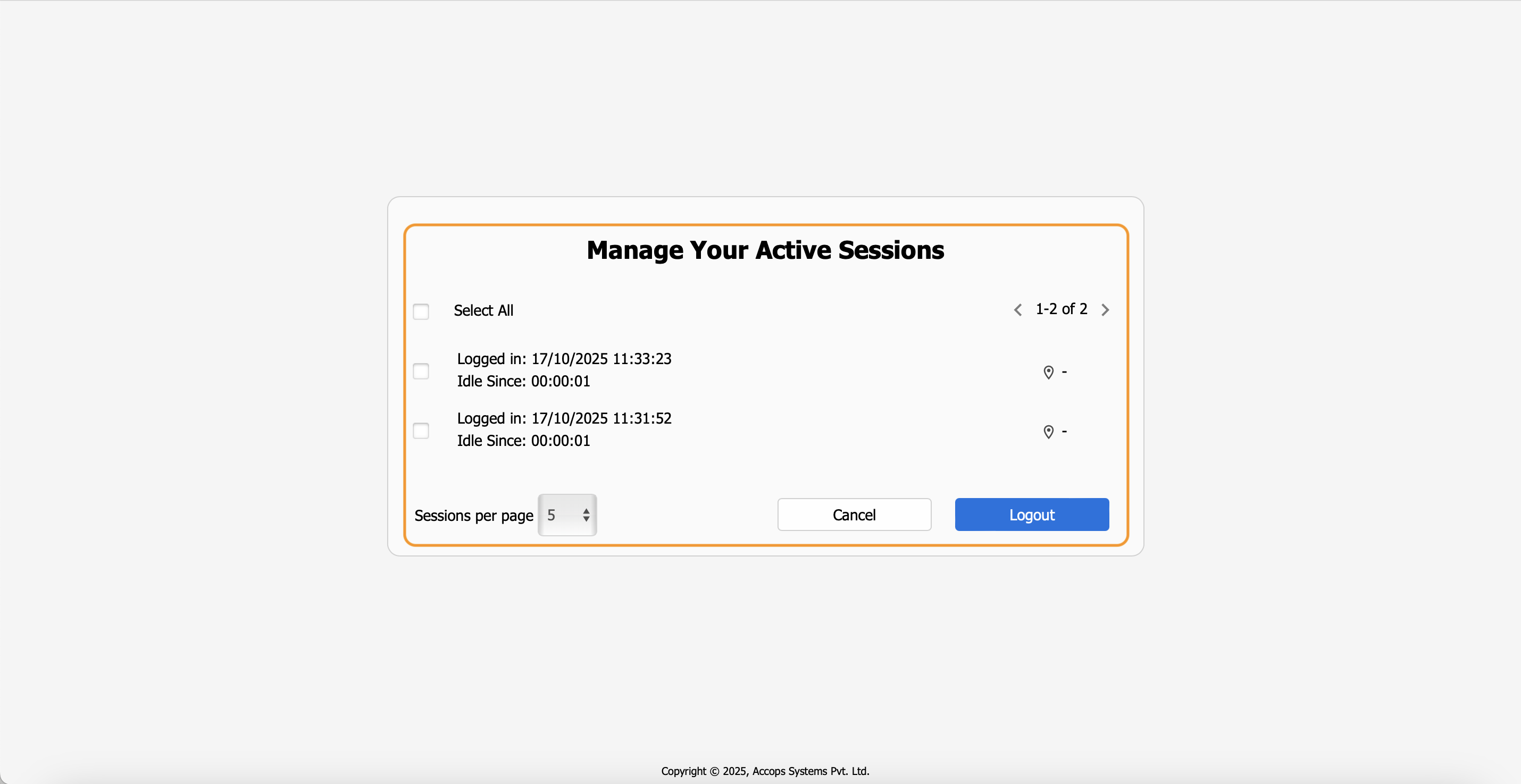
When an administrator configures N simultaneous sessions, and a user is already utilizing all of them, any additional login attempt is rejected by the gateway with a session exhaustion error.
-
In such cases, a Session Self-Service Portal (SSP) link is provided below the login error message, allowing the user to manage or terminate active sessions.
-
The same Session Management link gets displayed on the Workspace macOS Client when a login fails due to session exhaustion.
Supported Gateway compatibility-Session Management
This new feature is supported in the client modes listed below and is compatible with the HySecure Gateway versions 7.2 and above.
| Supported Client modes on macOS | HySecure 7.2 and above |
|---|---|
| Client Modes: Admin/Standard Users | Yes |
Supported Client platforms and Gateway compatibility, except for Session Management
This new feature is supported in the client modes listed below and is compatible with the HySecure Gateway versions 7.1 and above.
| Supported Client modes on macOS | HySecure 5.4 -SP2/5.4 SP5 | HySecure 5.4 SP6 | HySecure 7.0 | HySecure 7.1- SP1 |
|---|---|---|---|---|
| Client Modes: Admin/Standard Users | No | No | No | Yes |
Configurable copy/paste for the password field
Copy-paste functionality in the password field on the client launchpad is now controlled via Gateway configuration. By default, copy-paste functionality will be blocked in the password field on the client’s login page. If the admin enables it from the gateway configuration, copy and paste will be allowed in the password field.
Supported Client platforms and Gateway compatibility
This new feature is supported in the client modes listed below and is compatible with the HySecure Gateway versions 7.0 & 7.1 and above.
| Supported Client modes on macOS | HySecure 5.4 -SP2/5.4 SP5 | HySecure5.4 SP6 | HySecure 7.0/7.1 | HySecure 7.1 SP1 |
|---|---|---|---|---|
| Client Modes: Admin/Standard Users | No | Yes | Yes | Yes |
Gateway configuration
Establish an SSH connection to the HySecure Gateway and add a tag in home/fes/public/globalsetting.js file on the gateway.
ALLOW_COPY_PASTE_PASSWORD=true
| Tag Name | Location for Gateway Version 5.4 series & above | Possible values | Remarks |
|---|---|---|---|
| ALLOW_COPY_PASTE_PASSWORD= | /home/fes/public/globalsettings.js | True | It will allow copy-paste of the password |
| ALLOW_COPY_PASTE_PASSWORD= | /home/fes/public/globalsettings.js | False/Blank | It will not allow copy-paste of the password. |