Custom Application Icon
Gateway-based App Icon Support
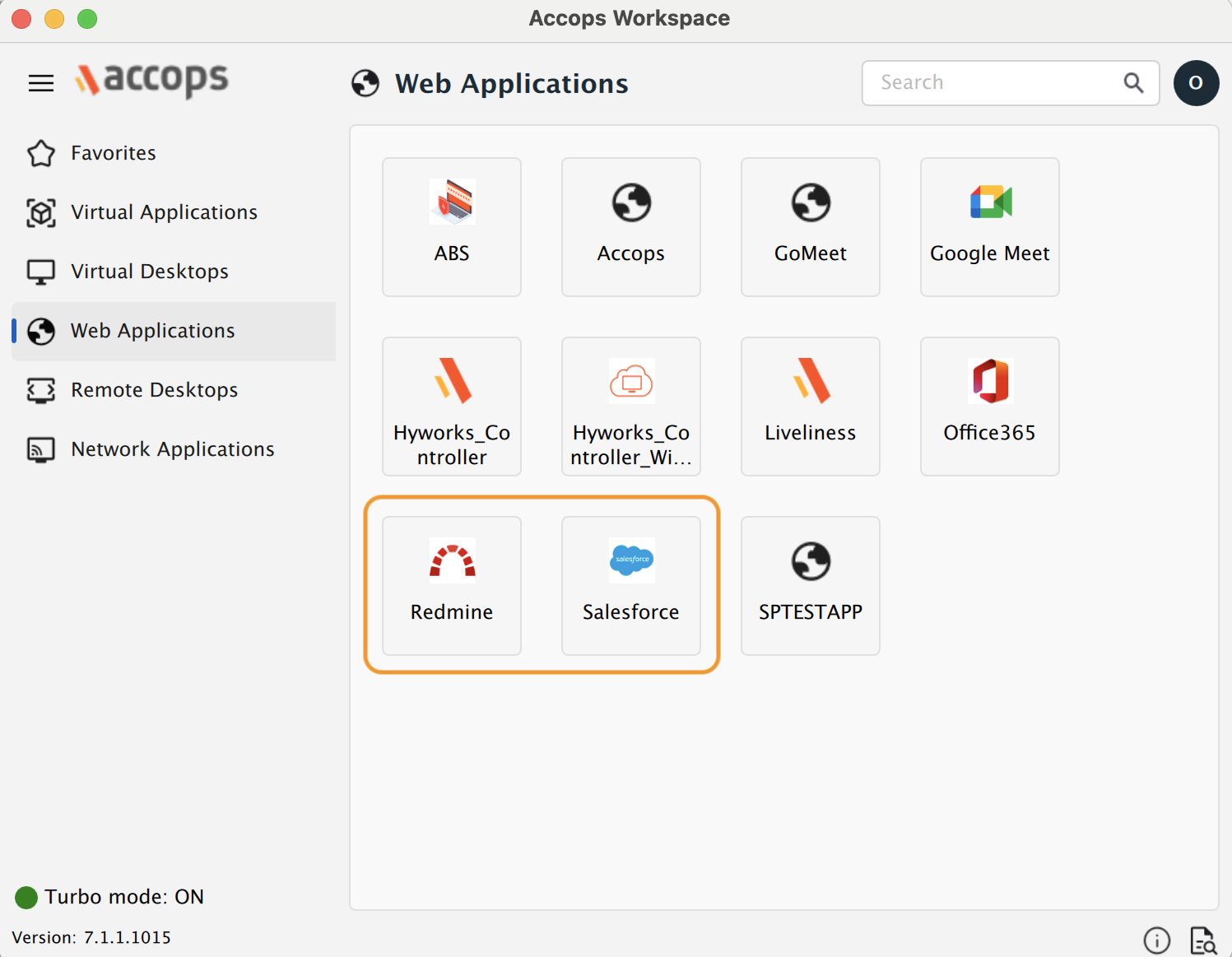
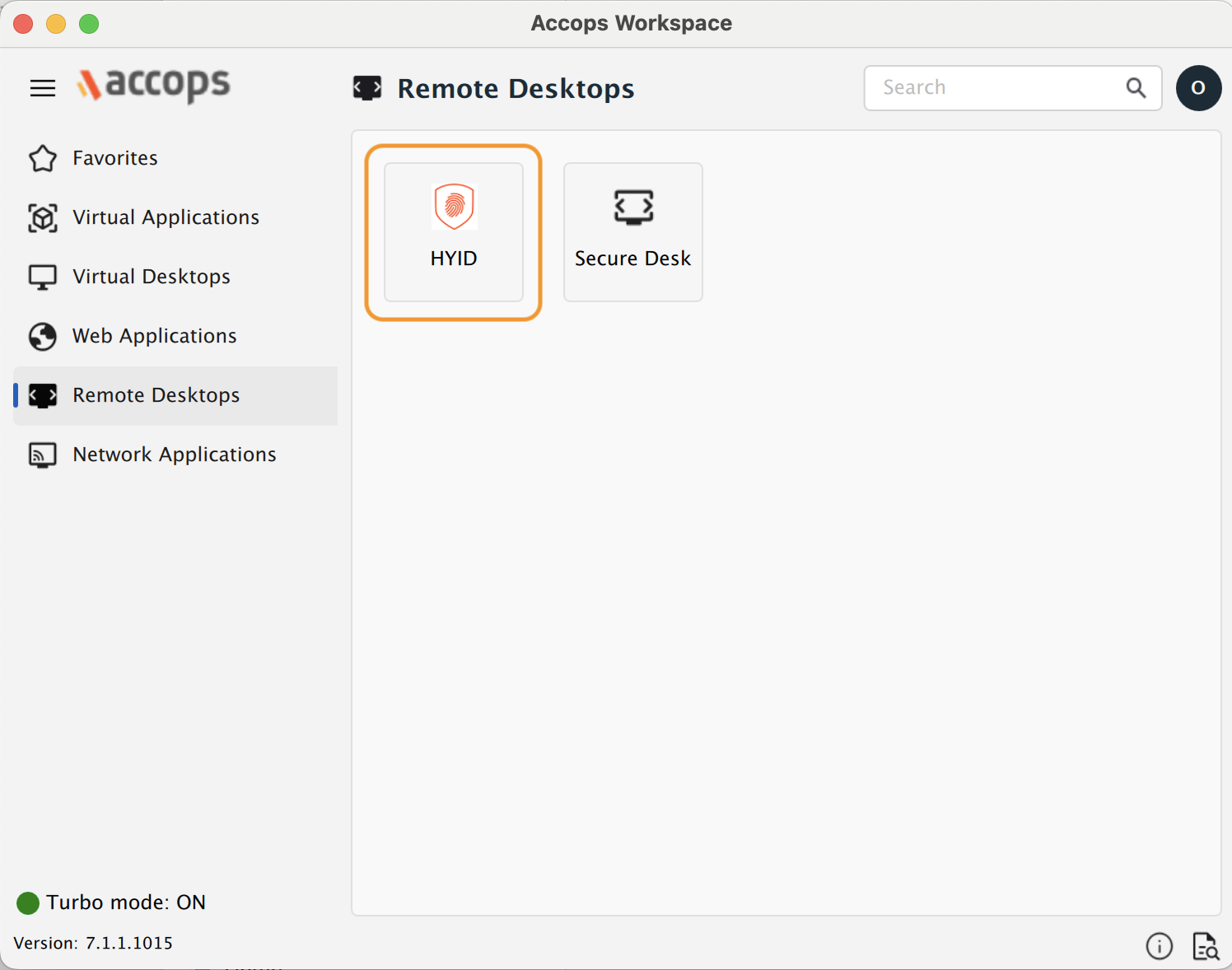
Accops HySecure Gateway provides the ability to assign custom icons to each published application. Administrators can upload a unique icon for any application directly from the HySecure Management Console.
Once an icon is uploaded, it will be displayed to users on the client and portal interfaces, enhancing application recognition and user experience.
Supported Client platforms and Gateway compatibility
This feature is supported by the client modes and types listed below, with HySecure Gateway version 5.4 SP6 and HySecure Gateway version 7.0.
| Supported Client modes on OS | HySecure 5299 | HySecure 5.3 | HySecure 5.4 -SP2/5.4 SP5 | HySecure5.4 SP6 | HySecure 7.0 |
|---|---|---|---|---|---|
| Client Modes: Admin/Standard Users | No | No | No | Yes | Yes |
HySecure Gateway Configuration
Kindly reach out to the Accops support team for assistance with Gateway Configuration.
Gateway Configuration
To configure a custom application icon:
-
Go to the HySecure Management Console page.
-
Select the desired application.
-
Click the Upload Icon button, browse for the PNG icon file (recommended size: 48x48 pixels), and then click submit.
-
The new icon will be visible to users upon their next login.
-
Administrators can restore the default icon by selecting Reset to Default if necessary.
-
After logging in, the client will automatically download and display the assigned application icons. Users will see the correct icons for each application once this download process is complete, ensuring a consistent and recognizable interface for published apps.