Enhancements in Accops Workspace macOS Client version 7.0.1.1088
Upgrade
The Workspace Client can be manually upgraded from the Workspace Client.dmg setup.
Upgrade from HySecure Gateway (Old to Latest Workspace client)
Gateway Configuration
Client upgrades can be done using 3 methods:
-
Client upgrade through the HySecure Gateway.
-
Client upgrade through URL.
-
Client downloads through the HyLite portal.
Method 1: - Client upgrade through HySecure Gateway
-
Upload the installer file with the file name mac_release.dmg to the Gateway at the publicly accessible location.
-
In the .js file, add or change the available macOS client version to the version number string.
-
Set up the Upgrade client hash in the default client settings.
-
Enable the Upgrade from Gateway flag.
-
Set the Upgrade mode as ask the user or enforce.
-
In the HySecure gateway, navigate to Client Settings > Enable HySecure Client Upgrade Notification to Users.
-
Specify the client version in the .js file.
Steps to Download Client and Upgrade Consent in Accops Workspace
-
Launch the Workspace client.
-
Connect to the HySecure Gateway and select the relevant realm.
-
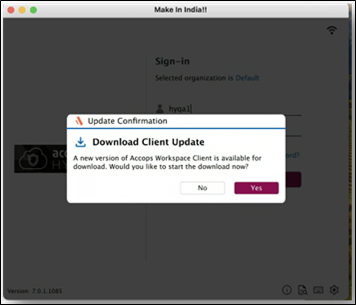
A client download notification consent pop-up will appear.
-
User consent is required for the download. Click Yes to proceed.
-
The client will be downloaded in the AccopsUpdater folder.
-
Once the download is complete, a consent notification for the upgrade will appear when the user logs in, logs out, or relaunches the client.

-
Click Yes to approve the upgrade. The new version of the Workspace client will be installed.
-
Client upgrade logs can be found in the AccopsUpdater folder.
-
When Force upgrade is enabled from the HySecure Gateway, users must provide consent for the upgrade by default before the process can proceeds.

Method 2: - Client upgrade through URL
Configuring Third-party websites
-
Upload the installer file to a designated location on the third-party website and create a downloadable URL. Ensure the download link works by testing it in a browser.
-
Ensure that the third-party website has a valid certificate (HTTPS is valid).
-
In the default client settings, add or change the available macOS client version to reflect the correct version number string.
-
Configure the Upgrade client hash in the default client settings.
-
Enable the Upgrade from the third-party website flag.
-
Set the URL in the configuration.
-
Choose the Upgrade mode, either prompt the user for confirmation or enforce the upgrade automatically.
Client download workflow
When the client is launched, it downloads the client settings from the gateway. If the upgrade flag is enabled, the following checks will occur in the client settings:
The version and self-version will be compared. If the self-version is lower than the version specified in the client settings:
-
The system will check if the installer file is present in the AccopsUpdater folder.
-
If the installer file exists, it will verify the hash of the setup file against the default client settings.
-
If the hash matches, the upgrade process will be initiated.
-
If it does not match:
- The system will determine whether to download from the gateway or a third-party website.
- If downloading from the gateway, it will retrieve the client and place it in the AccopsUpdater folder on the system.
- If downloading from a third-party website, it will use the download URL specified in the client settings to obtain the client and store it in a temporary location on the system.
Upgrade workflow
Ensure that the ask user to upgrade flag is enabled:
-
If yes, prompt the user to confirm whether they want to proceed with the upgrade.
-
If the user agrees, execute the installer with administrator privileges.
-
If the user declines, take no action and wait till the next execution.
Method 3: Client downloads through the HyLite portal.
-
Upload the new client setup file (i.e., mac_release.dmg) to the gateway at the publicly accessible location and grant all permissions to the file.
-
Rename the client setup file in the loginpage.htm file located at /home/fes/public/portal/act.
Client login
-
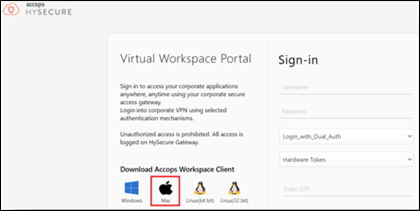
Step 1: In the HyLite portal of the HySecure gateway, locate the section labeled "Download Accops Workspace Client" and click on the Apple icon for Mac.
-
Step 2: A new setup file will be downloaded. Use this file to install the Accops Workspace Client for Mac.
Gateway-based App Icon Support
Accops HySecure Gateway provides the ability to assign custom icons to each published application. Administrators can upload a unique icon for any application directly from the HySecure management console. Once an icon is uploaded, it will be displayed to users on the client and portal interfaces, enhancing application recognition and user experience
Supported Client platforms and Gateway compatibility
This feature is supported by the client modes and types listed below, with HySecure Gateway version 5.4 SP6 and HySecure Gateway version 7.0.
| Supported Client modes on OS | HySecure 5.4 -SP2/5.4 SP5 | HySecure5.4 SP6 | HySecure 7.0 |
|---|---|---|---|
| Client Modes: Admin/Standard Users | No | Yes | Yes |
HySecure Gateway Configuration
Kindly reach out to the Accops support team for assistance with the Gateway Configuration.
Collect Logs
The latest macOS Workspace client version allows users to directly collect logs from the "View Logs" section. This enhancement allows users to easily generate and share a zipped log file for troubleshooting purposes, streamlining the process of providing necessary logs to support teams.
Two types of logs can be collected:
- Collect Detailed Logs
- Collect Recent Logs
To collect logs from the Workspace client, follow these steps:
-
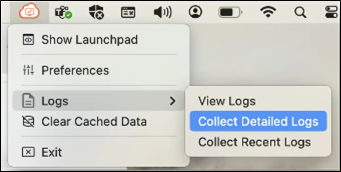
Launch the Workspace client and click on the workspace icon located on the top system bar of your Mac.
-
Navigate to the "Logs" section and select either "Collect Detailed Logs" or "Collect Recent Logs.
-
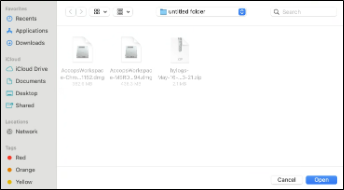
If you choose "Collect Detailed Logs," a folder will open, prompting you to select where you would like to save the zip file containing the logs.
-
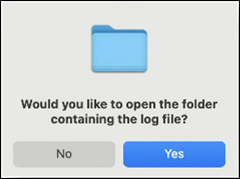
A prompt will appear asking, "Would you like to open the folder containing the log file?
-
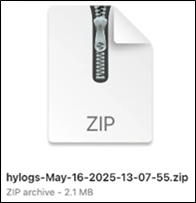
Click Yes. The logs will be collected under the name hylogs-Month-Date-Year-Timestamp.zip.
Launch RDP with IP – With Selected Protocol
Previously, users could only launch remote sessions using the default native protocol. With the latest update, users now have the flexibility to select their preferred protocol for launching remote sessions directly from the client settings. This enhancement allows users to choose the protocol that best fits their requirements, improving compatibility and user experience.
Auto-launch HySecure apps on login
Previously, the automatic launch of remote and web applications configured on the HySecure Gateway was not supported by the client. With the latest client update, the auto launch of HySecure applications is now supported applications configured for auto launch on the gateway will automatically start for users after they sign in.