Enhancements in Accops Workspace macOS Client version 7.0.1.1039
Post App Launch SSO Dialog Support
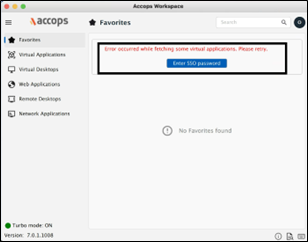
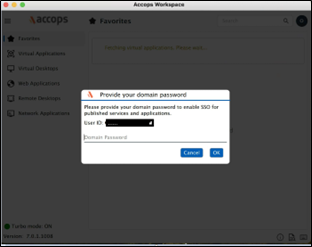
In the previous SAML and Passwordless login workflow, the users were prompted to enter their Domain Password immediately after login to access SSO-based applications assigned to them. With the latest client update, users will now be prompted for their Domain Password only when launching the first SSO app.
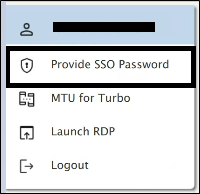
Additionally users can choose to skip entering the password, or if the incorrect password is submitted, they can update it later by selecting the Change SSO Password option in the user menu.
Supported Client platforms and Gateway compatibility
This feature is supported by the client modes and types listed below, with HySecure Gateway version 5.4 SP6 and HySecure Gateway version 7.0.
| Supported Client modes on OS | HySecure 5.4-SP2/v5.4 SP5 | HySecure 5.4 SP6 | HySecure 7.0 |
|---|---|---|---|
| Client Modes: Admin/Standard Users | No | Yes | Yes |
HySecure Gateway Configuration
Starting from this version, the FirstAppLaunch tag is supported. Management Console Contact Accops Support to enable this option.
| Tag | Value | Description |
|---|---|---|
| VPN_SAML_ASK_PASSWORD_ON_EVENT | AfterLogin | The SSO login dialogue will appear after logging into a client. |
| VPN_SAML_ASK_PASSWORD_ON_EVENT | FirstAppLaunch | The SSO login dialogue will appear when the first SSO application is launched. |
| VPN_SAML_ASK_PASSWORD_ON_EVENT | NoDialog | No SSO dialogue will be shown. |
| VPN_SAML_SKIP_PASSWORD_ON_EVENT | enabled/disabled | This tag provides the option to skip passwords on the SSO prompt. |
FirstAppLaunch Tag Support for Gateway Configuration
Previously available in the Management Console, the tag can now be set over the Gateway in the defaultclientsetting.js file with the following configuration: - VPN_SAML_ASK_PASSWORD_ON_EVENT: "FirstAppLaunch"
Usability and Behaviour of the Tag:
-
Gateway Non-SSO Applications Only: When a user is assigned only Gateway non-SSO applications, no SSO dialogue will appear. The Change SSO Password option will be hidden in the user menu.
-
Gateway Non-SSO and SSO Applications: When a user is assigned both Gateway non-SSO and SSO applications, the SSO dialogue will appear only when launching the first SSO app. The Change SSO Password option will then be available in the user menu.
-
Controller Applications: When a user is assigned Controller Applications, an SSO dialogue will appear after the controller login. This will be triggered by the first app launch, and the Change SSO Password option will be available in the user menu.
-
Gateway Applications with Common Credentials (SSO): When a user is assigned only Gateway applications that use Common credentials for SSO, no SSO dialogue will be triggered. The Change SSO Password option will remain hidden in the user menu.
Other Types of Applications
The latest Workspace client supports other types of applications published over the gateway. The behavior would be the same as that of the HySecure client, in which the user can access the published network from a third-party tool but not from the client launchpad.
Custom Logo Support
This version allows the addition of customized logos.
HySecure Gateway configuration
-
Login as an SO user and access the Management Console.
-
Navigate to Settings > Theme > Desktop Client Logo. Upload the custom logo image. Select the file. It should be in .bmp format, with dimensions 180*40, and 500 kb in size.

-
Click Submit.
-
In globalsetting.js add the tags listed below:
-
WORKSPACE_BANNER_ENABLED=true
-
WORKSPACE_BANNER_VERSION=1
-
WORKSPACE_BANNER_URI=/fes-bin/public/customerlogo.bmp
-
Client Login
Enter the server address and provide the user credentials. The custom logo will be downloaded to the user’s system during realm fetch only.
The location for the custom logo downloaded in the user’s system is:
/Users/Shared/edc/logs/
UI customization through GW
To configure custom colors for the primary buttons in the workspace client, follow below Steps:
Configuration Steps on HySecure Gateway
-
Access the Configuration File:
- Open the globalsetting.js file on the gateway.
-
Define Color Tags:
- Use the following tags to set the colors for different button states. Ensure that each property does not contain spaces and strictly adheres to the specified hex format without alpha values.
Color Tags
-
Default Background Color:
WORKSPACE_PRIMARY_BUTTON_BACKGROUND_DEFAULT=#RGB
-
Default Text Color:
WORKSPACE_PRIMARY_BUTTON_TEXT_DEFAULT=#RGB
-
Pressed Background Color:
WORKSPACE_PRIMARY_BUTTON_BACKGROUND_PRESSED=#RGB
-
Pressed Text Color:
WORKSPACE_PRIMARY_BUTTON_TEXT_PRESSED=#RGB
-
Hover Background Color:
WORKSPACE_PRIMARY_BUTTON_BACKGROUND_HOVER=#RGB
-
Hover Text Color:
WORKSPACE_PRIMARY_BUTTON_TEXT_HOVER=#RGB
-
Disabled Background Color:
WORKSPACE_PRIMARY_BUTTON_BACKGROUND_DISABLE=#RGB
-
Disabled Text Color:
WORKSPACE_PRIMARY_BUTTON_TEXT_DISABLE=#RGB
Important
- The RGB values must be in the format of a 6-character hex code (e.g., #RRGGBB).
- Avoid using any alpha values, as they are not supported. For example, do not use formats like #AARRGGBB.
- Ensure that all color codes conform strictly to the specified format without any additional characters or spaces.
Tip
Recommended Color Palette Material UI Color Palette
E.g.: WORKSPACE_PRIMARY_BUTTON_BACKGROUND_DEFAULT=#880E4F
WORKSPACE_PRIMARY_BUTTON_TEXT_DEFAULT=

WORKSPACE_PRIMARY_BUTTON_BACKGROUND_PRESSED=#9C27B0

WORKSPACE_PRIMARY_BUTTON_TEXT_PRESSED=

WORKSPACE_PRIMARY_BUTTON_BACKGROUND_HOVER=#D81B60

WORKSPACE_PRIMARY_BUTTON_TEXT_HOVER=#FFFF00

WORKSPACE_PRIMARY_BUTTON_BACKGROUND_DISABLE=#FF80AB

WORKSPACE_PRIMARY_BUTTON_TEXT_DISABLE=#212121
Radius Challenge MFA
HySecure Gateway now supports RADIUS challenge authentication, allowing users to enter a token (e.g., OTP) when prompted by the RADIUS server during authentication. This enhances security and enables seamless multi-factor authentication.
Note
(The radius challenge support was added on build 7.0 648 with Hotfix 01 (AH_OL9_NC_HF01_7.0_002_20250221.hpat) along with the macOS Workspace client version 7.0.1.1039).
Watermark
To configure a watermark on a gateway, follow these detailed steps:
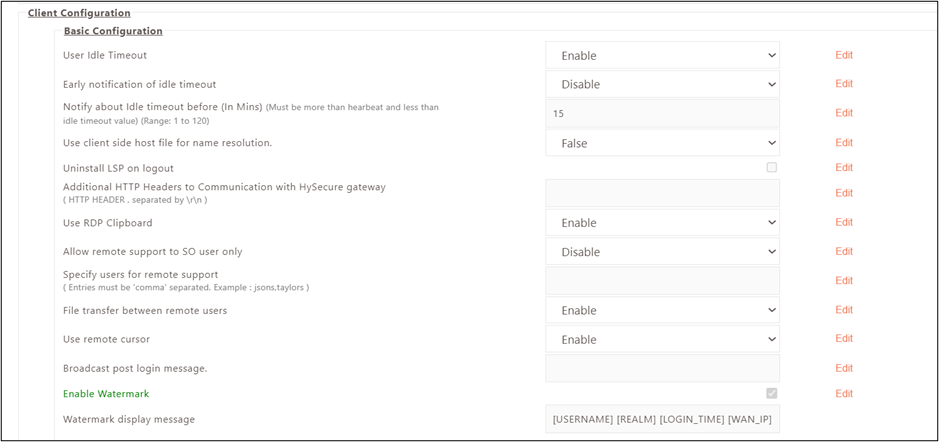
Enable Watermark
-
Access Client Configuration on HySecure Gateway:
-
Navigate to the client profile and select Client Configuration.
-
Enable the watermark feature.
-
-
Custom Watermark Text:
-
Enter your desired custom string in the “Watermark display message” field.
-
You can use the following tags within your string:
-
[USERNAME]: Displays the username.
-
[REALM]: Displays the realm.
-
[LOGIN_TIME]: Displays the login time.
-
[WAN_IP]: Displays the WAN IP address.
Example: "Hi [USERNAME], Domain [REALM], Login time [LOGIN_TIME], WAN IP [WAN_IP]."
-
-
Create and Configure Watermark File
-
File Creation:
-
Create a file named watermark_linux.conf in the directory /home/fes/public.
-
Ensure this file has permissions set to 755 and is whitelisted in httpd.conf.
-
-
XML Configuration:
- Add the following XML configuration to watermark_linux.conf:
xml

<WATERMARK_CONF_LINUX>

<IMAGE_INFO>

<IMAGE_WATERMARK>TRUE</IMAGE_WATERMARK>

<NUM_OF_ITERATION>1</NUM_OF_ITERATION>

<OPACITY>0.8</OPACITY>

</IMAGE_INFO>

<TEXT_INFO>

<TITLE_TEXT>Accops</TITLE_TEXT>

<MESSAGE_TEXT>This is Message Text</MESSAGE_TEXT>

<NUM_OF_ITERATION>1</NUM_OF_ITERATION>

<SCALE>2.0</SCALE>

<OPACITY>0.5</OPACITY>

<R>0.5</R>

<G>0.5</G>

<B>0.5</B>

</TEXT_INFO>

</WATERMARK_CONF_LINUX>
- Add the following XML configuration to watermark_linux.conf:
Key Configuration Tags Explained
- IMAGE_WATERMARK: Set to TRUE to display an image watermark.
Limitation
Image watermarking is not supported on the macOS Workspace client.
-
NUM_OF_ITERATION: Specifies how many times the watermark appears (range 1-10).
-
OPACITY: Controls transparency (0.0 = fully transparent, 1.0 = fully opaque).
-
TITLE_TEXT and MESSAGE_TEXT: Define the text displayed as a watermark.
-
SCALE: Adjusts text size (e.g., 2.0 means double size).
-
R, G, B: Define color values for red, green, and blue (range 0.0-1.0).
Image Watermark Configuration
-
Place your image file named watermark.png in /home/fes/public.
-
Ensure this image also has permissions set to 755 and is whitelisted in httpd.conf.
-
The image must support an alpha channel for transparency.
Watermark Display Logic
-
If a message string is provided on the gateway, it takes precedence and will be displayed.
-
If no message string is provided, the configuration from watermark_linux.conf will apply.
-
If both image and text are configured, the image will take priority if
is set to TRUE.
Limitation
- The workspace MAC client currently supports only text watermarks and does not support images.
- Watermarks are not supported in full-screen mode.
After completing these configurations, the watermark will appear when users log into the workspace client and will remain until they log out.
Favorite Apps
Users can now add HySecure Applications published by the HySecure Gateway to the Favorites tab.
Right-click the target application to add it to the Favorites tab.
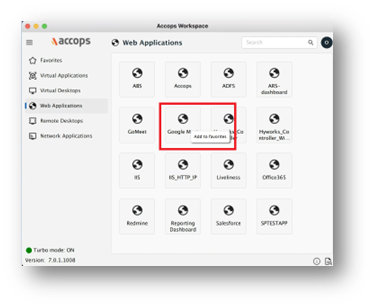
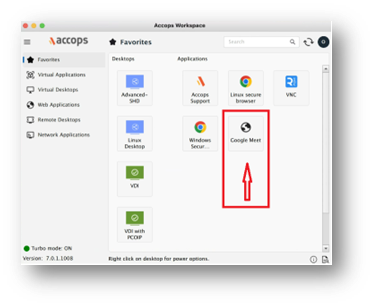
Upon clicking Add to favorites, the application will be added under the Favorites tab.
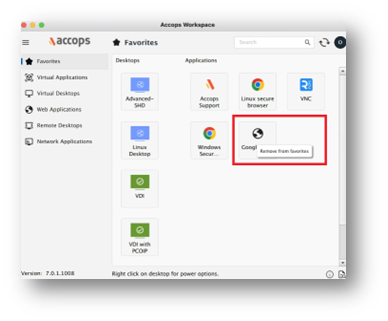
To remove an application from the Favorites tab, right-click the application in the Favorites tab and select Remove from favorites option.
Log viewer
Users can now directly view logs in the Log Viewer.
-
Listing Log files: Users can view various log files such as uac.log, ui.log, and edcservice.log, etc. These logs contain essential information, including:
-
Date and Time: Timestamp of when each event occurred.
-
User Login Details: Information about user authentication and sessions.
-
Application Information: Data related to the applications in use.
-
Problem Severity: Indicators of the severity of issues encountered.
-
Messages: Descriptive messages detailing events or errors.
This comprehensive logging allows for effective monitoring and troubleshooting of system activities.
User Idle session timeout
The Accops macOS Workspace Client has a user idle timeout feature that automatically logs out users after a set period of inactivity. This feature enhances security by closing unattended sessions. To configure the idle timeout, follow the provided specifications.
Configuration on HySecure Gateway
Idle Timeout Configuration: A flag in the version info file controls the idle timeout feature, specifically the USER_IDLE_TIMEOUT_ENABLE tag. This can be set to:
- Blank: No configuration is present; the feature is disabled by default.
- false: The idle timeout feature is disabled.
- true: The idle timeout feature is enabled, and the timeout value will be retrieved from the gateway.
Enable or Disable Idle Timeout:
The idle timeout feature is controlled by a flag in the global settings file.
-
Set the flag as follows:
-
To enable:
USER_IDLE_TIMEOUT_ENABLE=true -
To disable:
USER_IDLE_TIMEOUT_ENABLE=false
-
Specify Timeout Duration:
-
Use the TIMEOUT tag to define the idle timeout duration in minutes.
- Example:
TIMEOUT=3
This configuration indicates that the user will be logged out after 3 minutes of inactivity.
- Example:
When Idle Timeout is Disabled:
If USER_IDLE_TIMEOUT_ENABLE = false, the client will not trigger an idle timeout, allowing users to remain logged in regardless of inactivity.
When Idle Timeout is Enabled:
If USER_IDLE_TIMEOUT_ENABLE = true, the timeout value is read from the gateway's login response. The specified timeout duration determines how long the user can remain idle before being logged out.
What does "Idle" mean in this context?
A user is considered idle if there is no mouse movement or keyboard input detected on the system.
How can I change the idle timeout period?
Modify the TIMEOUT value in the globalsettings.js file on the gateway to adjust the idle timeout duration.
Definition of Idle: In this context, a user is considered idle if there is no mouse movement or keyboard input.
Behavior During Idle Timeout:
-
If the idle timeout is triggered, the client will log out the user and notify the gateway.
-
Users can change the idle timeout period through the gateway's Management Console.
Considerations:
- If a user is engaged in Remote Desktop Protocol (RDP) sessions, the idle timeout will not activate.
- Watching a movie or similar activities that do not involve user input will trigger idle timeout.
Important
It's important to ensure that the idle timeout settings on the HyWorks controller are greater than those on the HySecure gateway to avoid discrepancies in session management.
New UI and Icons
In the latest version of the Accops macOS Workspace Client, several new icons have been introduced to enhance the user interface.
Turbo alternate gateway support
The Accops HySecure Turbo Tunnel now supports alternate gateway configurations, enhancing the routing of IP traffic from end-user machines to the corporate network.
Here are the key features and functionalities of the Turbo Tunnel regarding alternate gateway support:
-
Turbo Tunnel Overview: The Turbo Tunnel operates at Layer 3 (L3) and utilizes a UDP-based mechanism to assign a virtual IP address to the end user's device. This allows for a seamless exchange of TCP, and UDP traffic between the user's machine and the corporate network.
-
Alternate Gateway Selection: The configuration allows users to sequentially select an alternate gateway endpoint if the primary gateway is unreachable during login attempts. This feature ensures continuous access to corporate resources even if one gateway turbo becomes unavailable.
-
Management Console Configuration: Administrators can manage Turbo Tunnel settings through the HySecure Management Console. They can add, modify, or delete Turbo interfaces and configure endpoints to ensure redundancy and reliability in connectivity.
-
Application-Specific Support: The Turbo Tunnel can be enabled for specific applications, including those requiring reverse connections initiated by server-side applications towards end users. This flexibility enhances performance for various use cases.
-
Keep Alive Mechanism: The system includes a keep-alive feature to maintain active connections with the gateway, further ensuring reliability during sessions
Alternate Gateway Configuration.
EDC Turbo Monitoring
Turbo Application Availability
-
Monitoring Behavior: If no turbo applications are published, EDC Turbo monitoring will stop once the turbo count reaches to 2. This indicates that monitoring will stop after two fetch attempts without any available turbo apps.
-
Default Monitoring: In scenarios where no turbo applications are available, the alternate gateway functionality will not be activated. Normal turbo status monitoring will continue without engaging the alternate gateway feature.
-
GCS(globalclientsetting) Configuration: When the Globalclientsetting (GCS) has the setting ALTERNATEGATEWAY_ENABLED=1, this configuration does not directly impact the client.
-
Feature Status Verification Path of feature.status is /home/fes
-
Activation Conditions:
- If feature. Status indicates ALTERNATEGATEWAY_ENABLED=1 and an alternate endpoint is correctly set on HySecure Gateway, and the alternate endpoint is received by the client, the following actions must be taken:
- Enable the alternate endpoint feature on the client.
- Note that this feature is disabled by default and requires explicit activation.
- If feature. Status indicates ALTERNATEGATEWAY_ENABLED=1 and an alternate endpoint is correctly set on HySecure Gateway, and the alternate endpoint is received by the client, the following actions must be taken:
-
Configuration Tag
TURBO_ALT_GATEWAY_WAIT_TIME
- The tag TURBO_ALT_GATEWAY_WAIT_TIME can be configured from the GCS to manage wait times associated with alternate gateway connections.
-
Set MTU support for mac
To set the Maximum Transmission Unit(MTU) for the Accops macOS Workspace Client, follow these guidelines:
- Access Client Settings: Open the HySecure Management Console to configure client settings related to MTU.
- MTU Configuration: Look for the MTU settings in the client configuration options. The recommended MTU size for optimal performance is typically at least 1200 bytes, especially when using HySecure.
- Adjust MTU Value: If necessary, specify a custom MTU value that suits your network configuration. Ensure that the MTU value is consistent across the network to avoid fragmentation issues.
We can check if the configured MTU exceeds the maximum allowable size and make adjustments as needed.
HySecure Gateway Tags
In the /home/fes/public/defaultclientsetting.js file, configure the following tags:
- VPN_CALCULATE_MTU: Set to True or False.
- VPN_CALCULATE_MTU_CHANGE_IP: Specify your VPN address (e.g., 8.8.8.8).
- VPN_CALCULATE_MTU_MIN: Minimum MTU value (e.g., 1000).
- VPN_CALCULATE_MTU_MAX: Maximum MTU value (e.g., 1500).
- DEFAULT_MTU_IN_ICMP_PING_FAILURE: Specify an MTU value between the maximum and minimum that is greater than 1000 bytes and less than 1500 bytes.
Turbo MTU Configuration (Default)
If the MTU is not specified in the interface configuration, the Turbo will automatically set to the default value of 1420.
Command
Use ifconfig to display the interface created for the Turbo tunnel. This will show the calculated MTU. ifconfig
HySecure Gateway Configuration
Add the tags to defaultclientsetting.js

Workspace Client Implementation
- When a client logs into the Workspace, the MTU will be automatically calculated using the server IP specified in VPN_CALCULATE_MTU_CHANGE_IP. If this IP is absent, the gateway IP will be used.
- The calculated MTU will then be applied to the Turbo interface.
- Users will have an option for MTU for Turbo in the Launchpad options menu, allowing them to enter a server IP for MTU calculation. This configuration feature is exclusive to the Workspace Client.
-
The calculated MTU will be displayed to users.
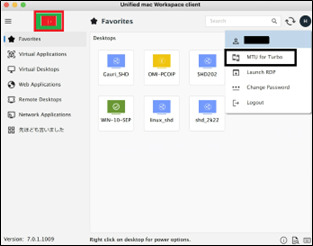
This approach ensures that users have a reliable connection with optimal packet sizes, reducing potential data loss due to fragmentation issues.
Corporate Proxy Support
The Accops macOS Workspace Client supports corporate proxy configurations to enhance connectivity and manage network traffic effectively.
The following are the key features and considerations regarding proxy support for the client:
Steps to Configure Corporate Proxy in HySecure Gateway
-
Log in to HySecure Gateway:
- Navigate to Policies > Client Profiles > DEFAULT CONFIGURATION Profile or Custom Profile.
- Click Modify. Navigate to App Launch Configurations > Corporate Proxy Server.
- Enter the Corporate Proxy Server IP/URL (e.g., 192.168.xx.xx: xxxx).
-
Enable and specify the Proxy Bypass List:
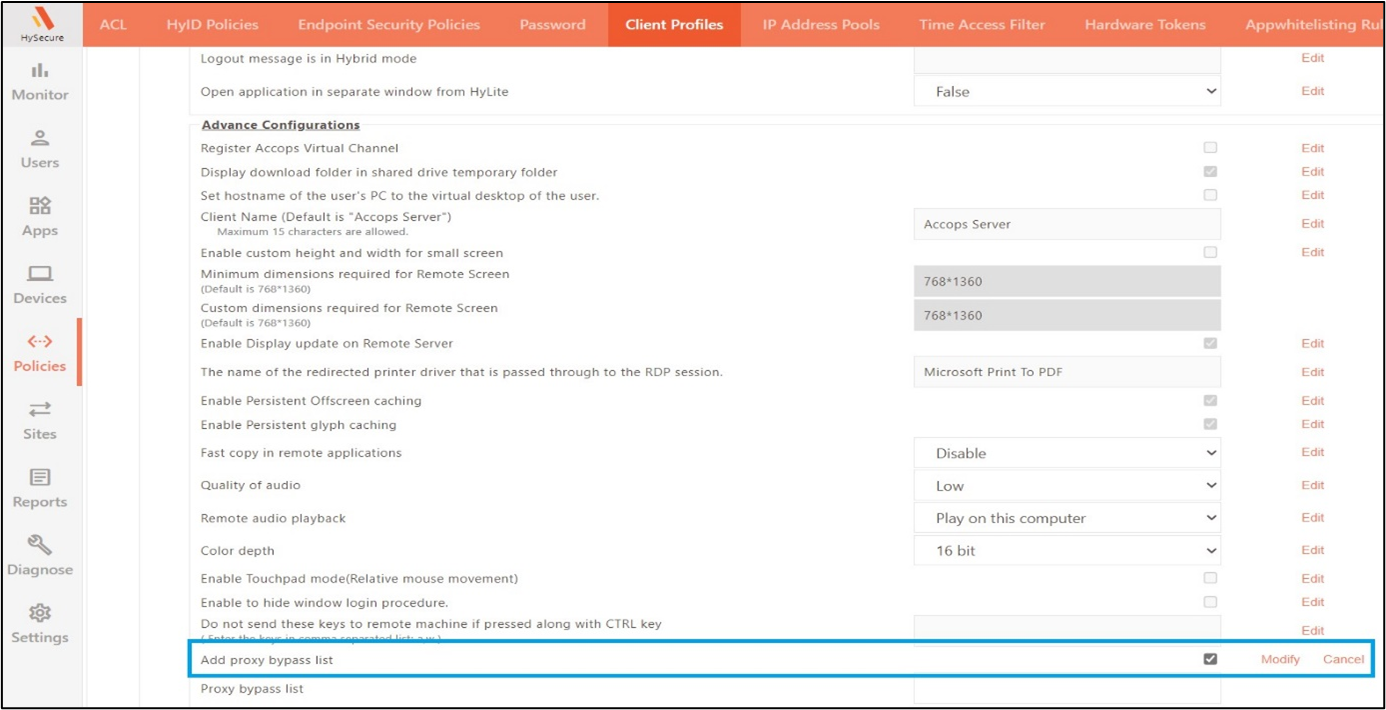
- To append and add published app IPs and URLs into the proxy bypass list on local user machines, enable the Add proxy bypass list option from the HySecure Gateway.
- Navigate to Policies > Client Profiles > DEFAULT CONFIGURATION Profile or Custom Profile > Advanced Configurations > Add proxy bypass list. Enable this option.
- Enter the semicolon-separated bypass list in the Proxy bypass list option and click SAVE CONFIGURATION.

How to Verify Proxy Bypass List from User/Client Machine
-
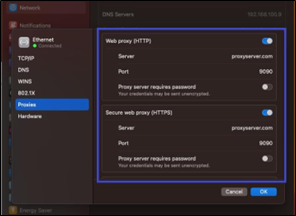
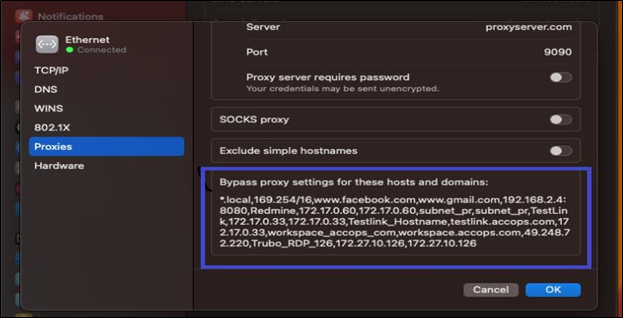
After logging into the macOS Workspace Client on the user machine, verify all published app IPs/URLs and the specified proxy bypass list on the HySecure Gateway.
-
Navigate to MAC Machine > System Settings > Network > (Ethernet/WiFi) > Details > Proxies.
Also, add the published app’s IP/URL along with the specified proxy bypass list on the HySecure Gateway.
Additional
- If Corporate Proxy Server details and Proxy bypass lists are specified in both DEFAULT CONFIGURATION and Custom Client Profiles, and a Custom Client Profile ACL is created for all users, then the Custom Client Profile will take precedence. Thus, the specified Corporate Proxy and Proxy bypass list from the Custom Client Profile will be added to the local user machine's proxy bypass list.
- Once a user logs out from the macOS Workspace Client, all Corporate Proxy Server details and specified bypass lists, along with published app IPs/URLs, will be cleared from the System Settings > Network > Proxies.