Troubleshooting
This document provides troubleshooting steps for resolving various issues encountered in ARS across different scenarios, such as:
-
Configuring issues
-
Problems encountered in production
-
Restarting ARS Services
Follow the steps listed below to address these situations.
Note
Back-end access is required to verify that the services are running, check the port status, and modify the configuration file as needed.
Troubleshooting Steps
Expansion of Disk
If the allocated disk space or any virtual disk attached to the ARS VM does not reflect /dev/sda, follow the steps below to expand the disk.
Additionally, this can be done to extend the ARS VM HDD:
-
Start the ARS VM.
-
Run the
fdisk /dev/sdacommand to check for available disks. -
Press
pto list the partition table and note the starting sector of the sda1 partition. -
Press
dto delete the partition. -
Select partition no. 1.
-
Press
nto create a new one. -
Partition type - (p) primary.
-
Sector start - 2048, or whichever is the first sector.
-
Sector end - default: press Enter.
-
Press
wto write to disk. -
Run the
partprobe /dev/sdaandresize2fs /dev/sda1commands one by one to update the partition table. -
Reboot the OS and verify if the updated disks are visible using the
fdisk -lcommand.
Configuration Checks
-
Checking ports and service status.
-
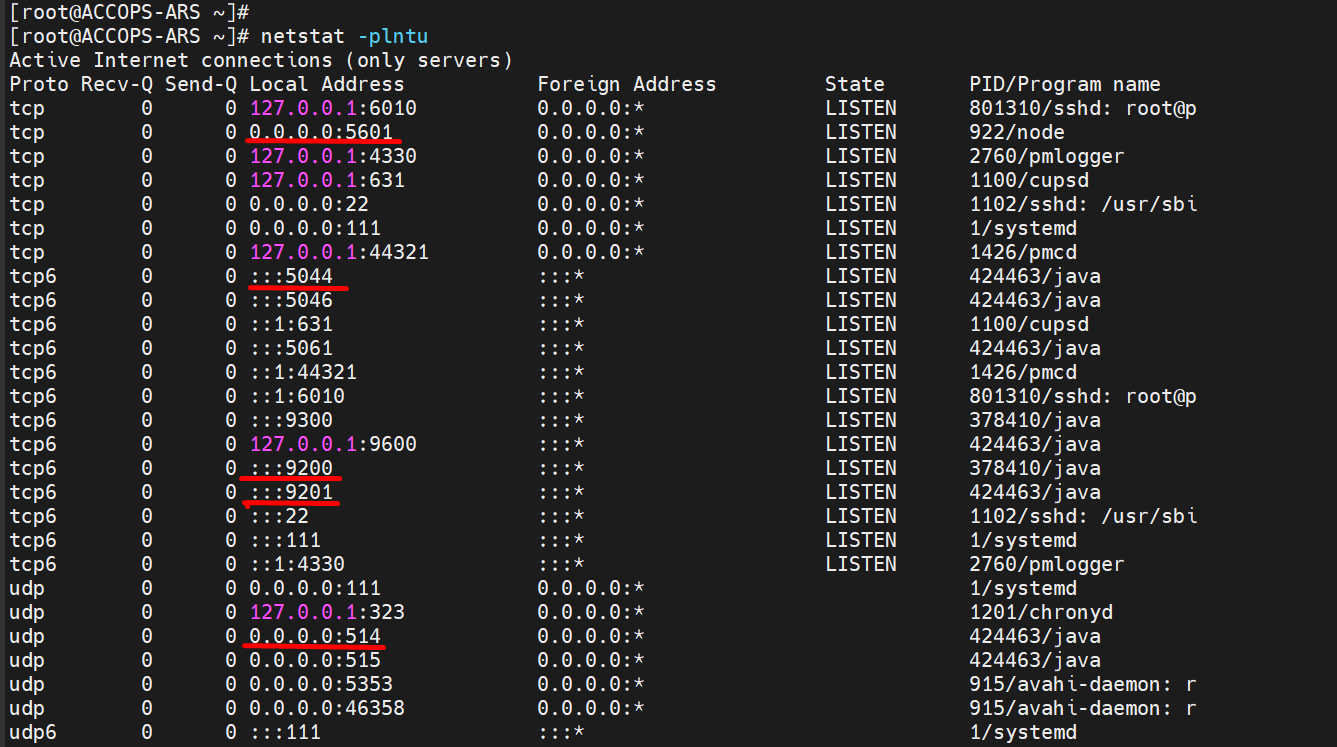
After the ARS VM is booted, run the
netstat -plntucommand on ARS to check the port status. -
The following ports should be in the LISTEN state:
- 5601- For OpenSearch-Dashboards
- 9200 - For OpenSearch
- 5044 - For Logstash (HySecure)
- 514 - For Logstash (HyWorks)
- 9201 - For Logstash (Metricbeat)
Note
Port 5044 is the default port used by HySecure for sending Filebeat logs. However, this port can be customized, so if an organization is using a custom port, verify that it is properly configured and listening.
-
Important command to check on the HySecure Gateway side for every HySecure node
Use the netstat -ant | grep <ARS_IP> command to check:
- HySecure should establish a TCP connection with the ARS IP on Logstash customized ports.

Production Issues
Follow the steps below to check for any issues if logs have stopped arriving at ARS in the production environment:
-
Check whether the Logstash port (5044) is in the Listen state. Since this port is customizable, check for the issue using the command:
netstat -plntu | grep <logstash_customized_port> -
Check the Logstash Logs using the command:
tail -f /var/logs/logstash/logstash-plain.log | grep error -
Restart the Logstash service if required.
-
Enter the command:
ps -ax | grep logstash-
Note the PID of Logstash.
-
Kill the process using the command:
kill -9 <PID> -
Restart the service by running the script:
/etc/logstash_start.sh
-
-
Check HDD and RAM utilization of ARS:
-
For HDD, use the command:
df -h -
For RAM, use the command:
free -h
Note
- If the HDD storage is more than 80% used, delete all closed indices from the OpenSearch log (provided a backup is taken before deleting them).
- If you have enabled auto-backup, check the ars_backup in the root directory; it contains all the backup logs. Move all these logs to another storage to free up the space.
-
-
Check whether OpenSearch has gone into read-only mode.
-
Enter the command:
tail -f /var/logs/opensearch/opensearch.log | grep read-only-
Disable the read-only mode. Enter the command (with proper username and password): `curl -X PUT "http://admin:password@localhost:9200/_all/_settings?pretty" -H 'Content-Type: application/json' -d'{"index.blocks.read_only_allow_delete": false}'
-
If the logs are still not appearing or if they are stuck in read-only mode, check the OpenSearch logs. There might be a message indicating that the flood stage disk watermark [95%] has been exceeded. In this case, the disk size needs to be increased. Use the following command to monitor the logs for warnings:
tail -f /var/log/opensearch/opensearch.log | grep WARN
-
-
Connection timeout issue:
-
Check if there are any rules for iptables; if yes, flush them using the command:
iptables -F
Restart ARS Services
- Restart the OpenSearch service using the command:
systemctl restart opensearch
Note
Upon restart, OpenSearch may take several minutes to fully initialize, depending on the number of open indices stored on the disk.
How to make sure OpenSearch is ready
Run the command and check the status of OpenSearch. It should be yellow.
curl -x GET 'https://localhost:9200/_cat/health?v -u admin:accopsars -k

Restart OpenSearch Dashboards Service
- Enter the command:
systemctl restart opensearch-dashboards
Restart the Logstash service
-
Enter the command:
ps -ax | grep logstash -
Note the PID of the Logstash process
-
Kill the process. Enter the command:
kill -9 <PID> -
Restart the service by running the script:
/etc/logstash_start.sh