ARS Monitoring & Management Tool
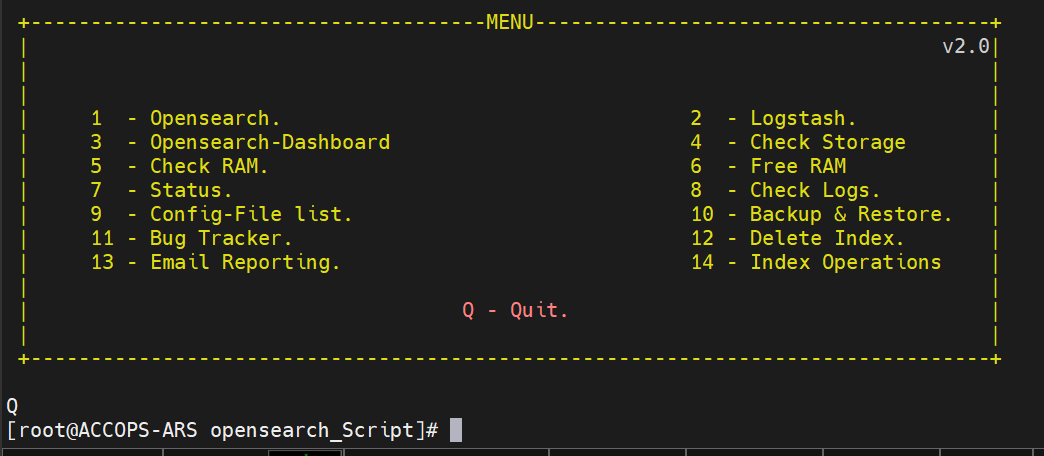
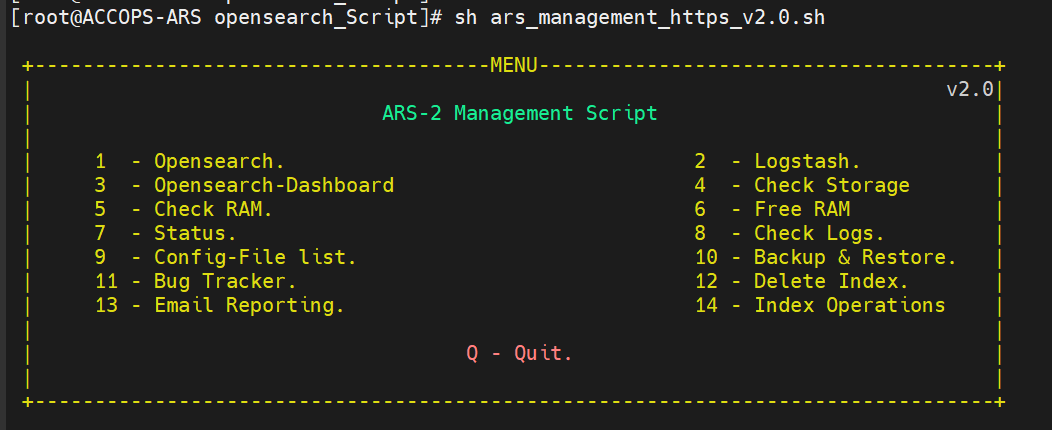
Execute the script using the commands displayed below:
For Opensearch, select option no. 1 from the ARS-2 Management Script MENU.
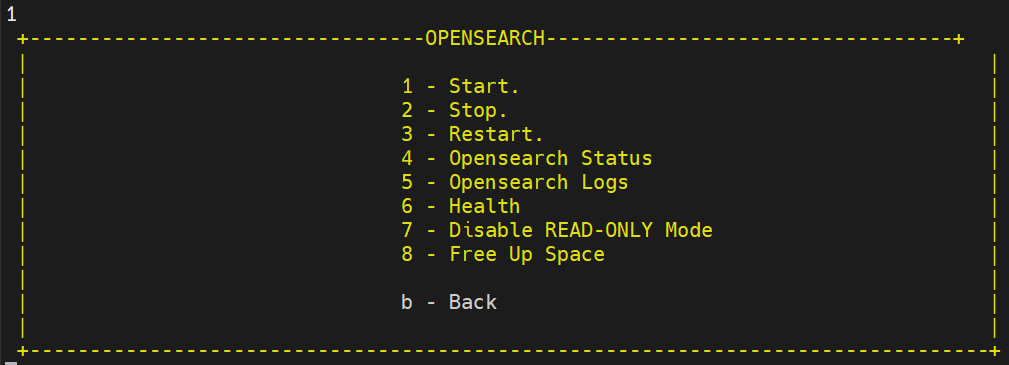
OpenSearch
Commands related to OpenSearch are listed inside OPENSEARCH.
-
Start
-
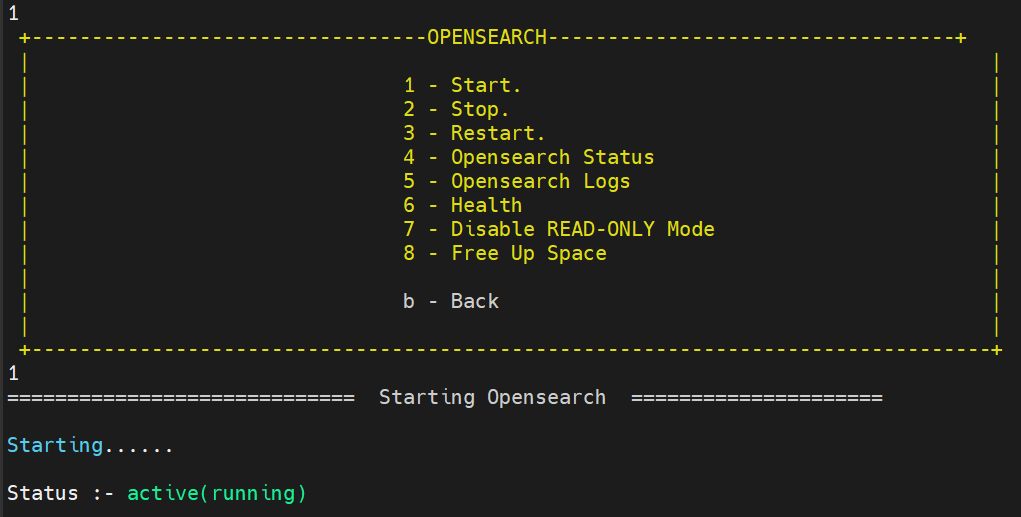
Select this option to start Opensearch. Before selecting, check the Opensearch status using option 4 (Opensearch Status). Use this option only if the status of Opensearch is showing as inactive (dead).
-
After starting the Opensearch service, it is mandatory to check the Opensearch Health. Enter option 6 and proceed for further operation if Opensearch health is displaying a YELLOW colour.
-
-
Stop
-
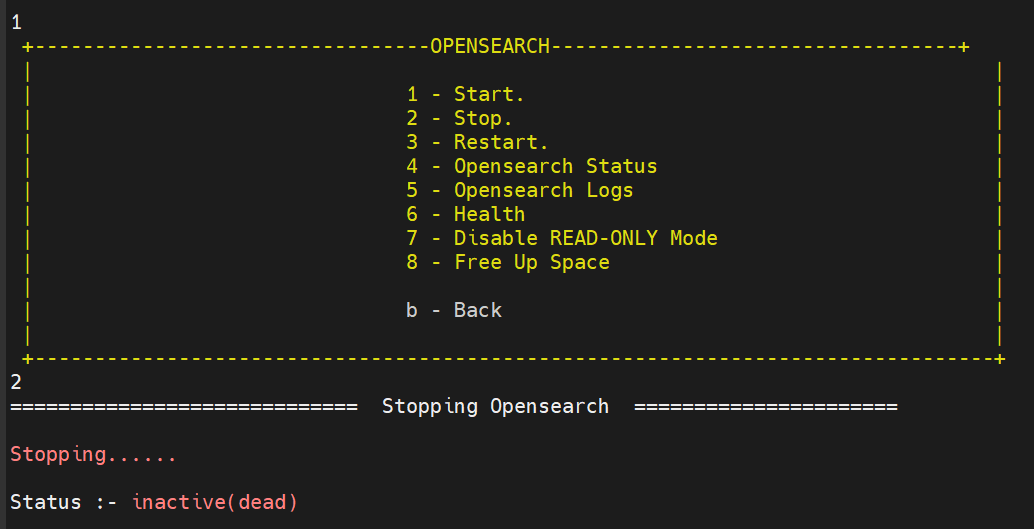
Select this option to stop Opensearch as a service. It is recommended that Logstash be stopped while selecting this option.
-
To upgrade OpenSearch, we must first stop it and then proceed with the upgrade.
-
-
Restart
-
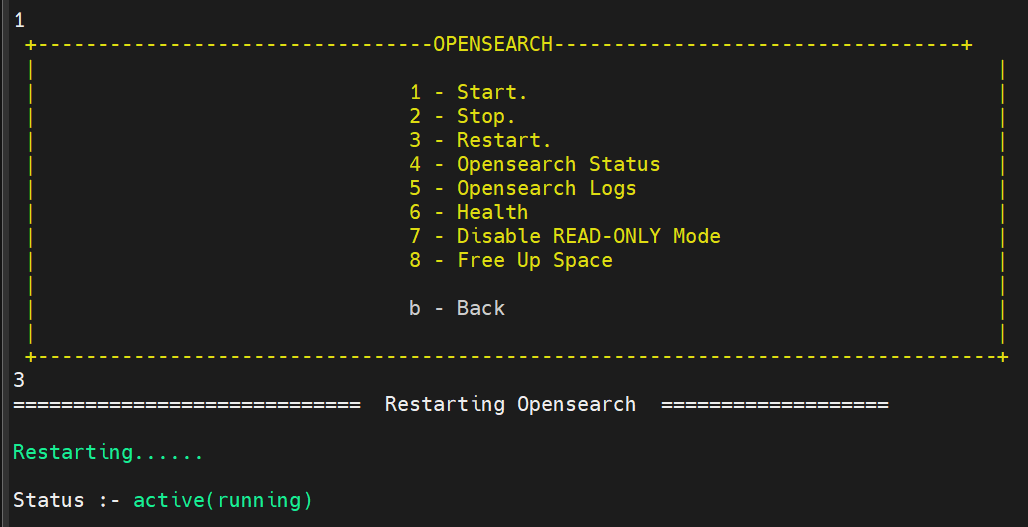
Select this option rather than stopping and starting the service again if any configuration changes are made while Opensearch is running.
-
After starting the Opensearch service, it is mandatory to check the Opensearch Health (option no.6) and proceed with further operation if and only if the health of Opensearch is YELLOW.
-
-
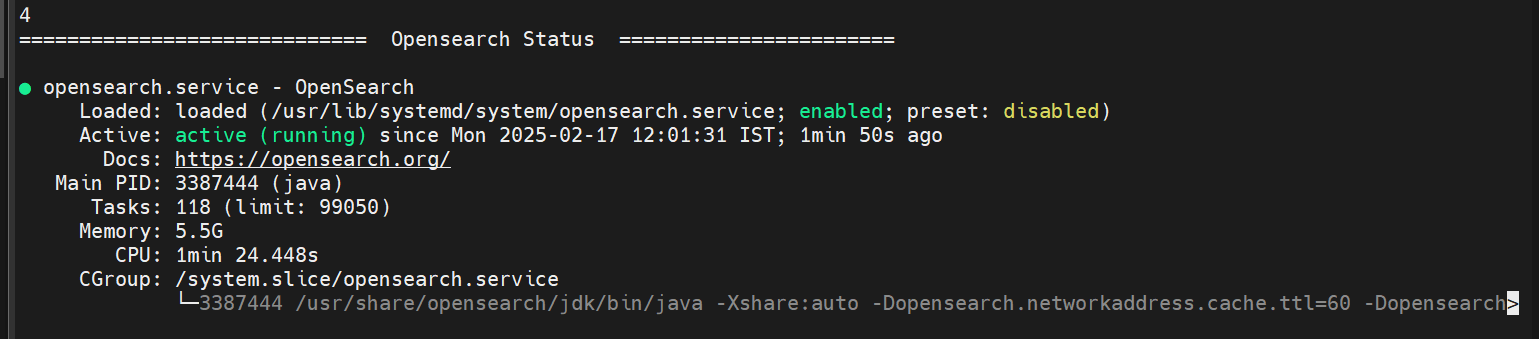
Status: This displays the current state of OpenSearch. The following are the various status codes:
-
Dead Status: This indicates that the Opensearch service is not running.

-
Running Status: This indicates Opensearch is running along with the time since it was started.
-
-
OpenSearch Logs
-
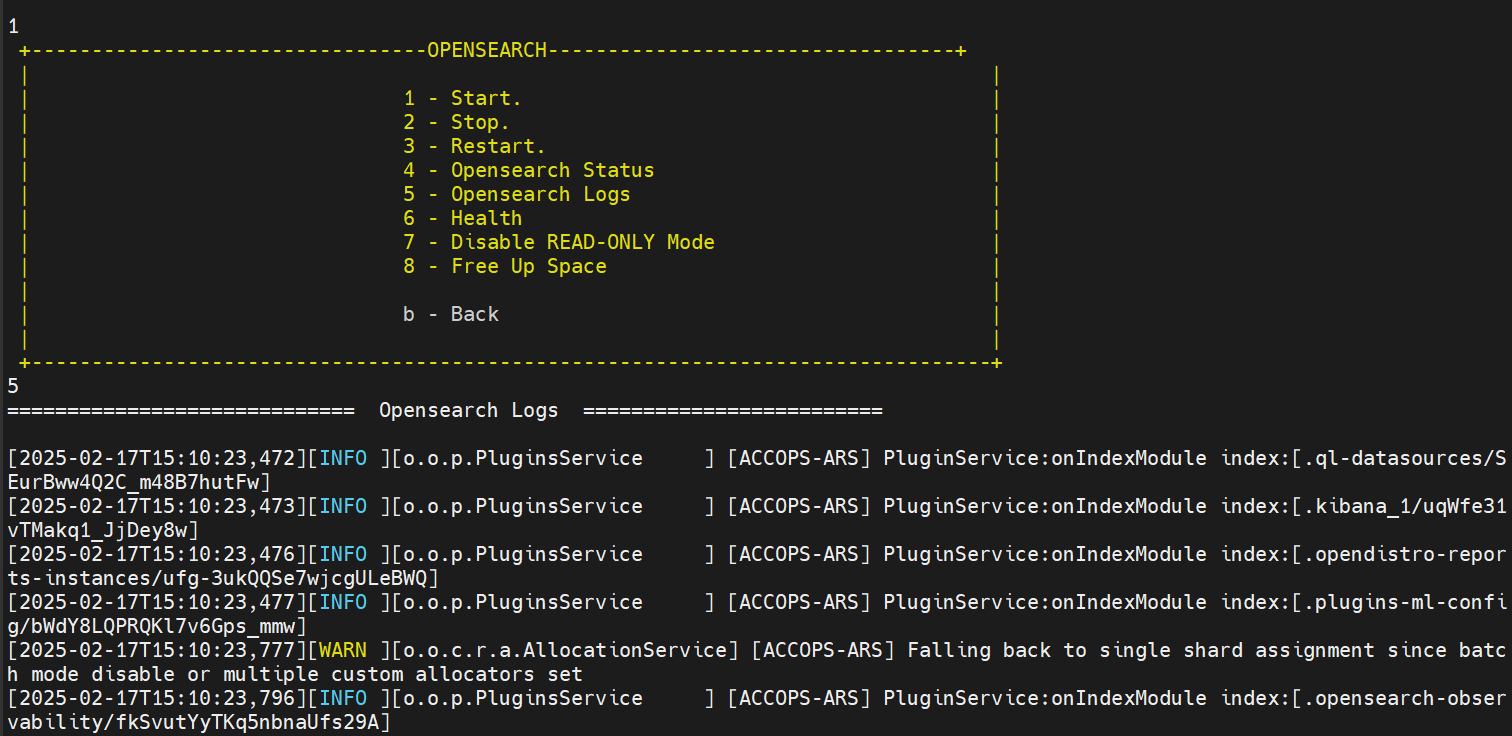
This displays the continuous stream of logs being sent to OpenSearch.
-
Errors related to OpenSearch communication, configuration, security, etc., can be detected through this option.
-
-
OpenSearch Health
- Select this option while trying to start or restart OpenSearch as a service. The following are the various health status codes:
- Yellow: Indicates service is ready to use.
- Red: Indicates service is in process.
Warning
Do not perform any operation when the Health status of OpenSearch is displaying as RED. Please wait until it changes to YELLOW.
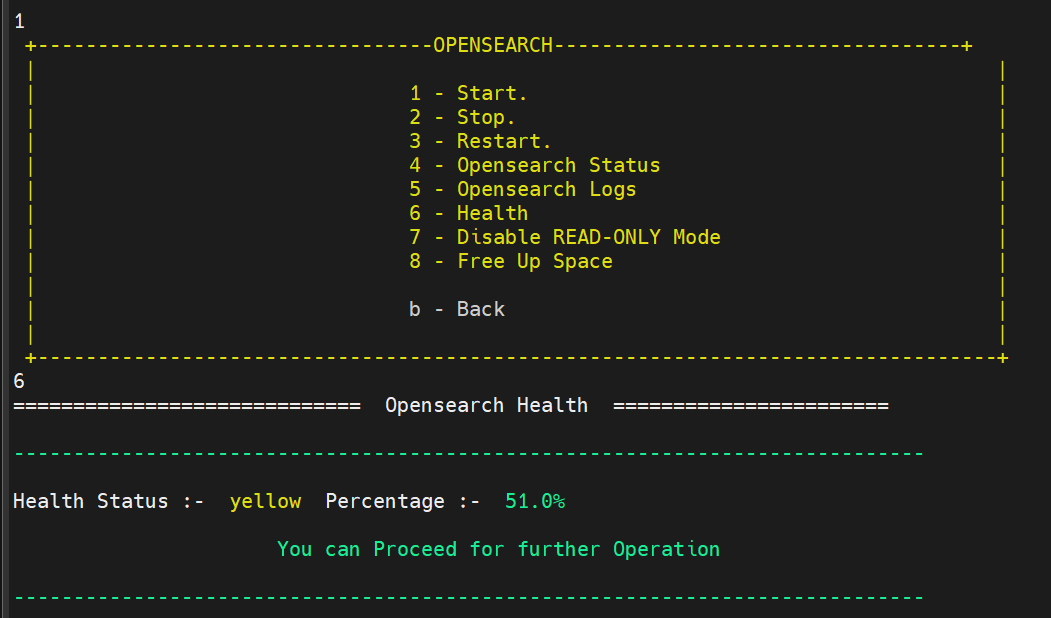
- Select this option while trying to start or restart OpenSearch as a service. The following are the various health status codes:
-
Disable Read-Only Mode
-
OpenSearch switches to READ-ONLY mode when the hard disk space reaches or exceeds 80%.
-
It is recommended to check the storage. Navigate to MENU > Option no. 4. If it is more than 80% then free up some space.
-
It displays acknowledgement: True in case of no errors.

-
Logstash
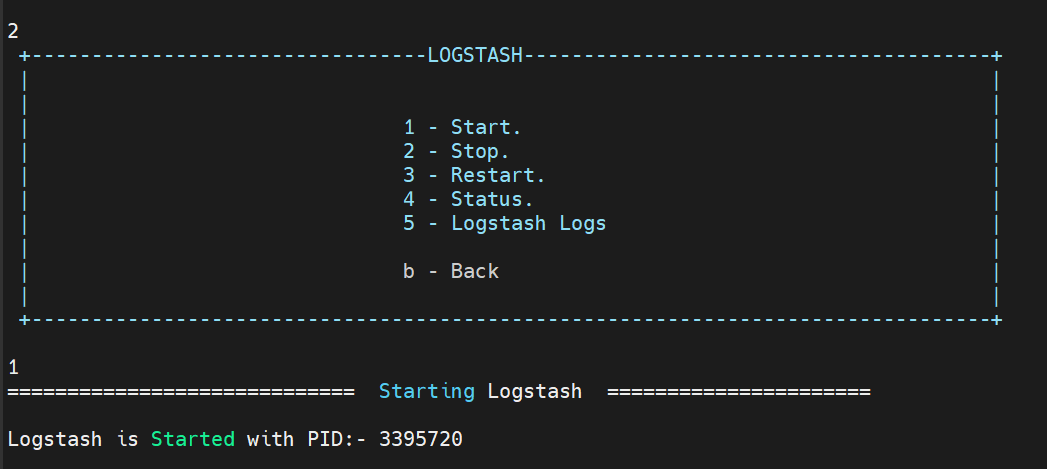
Commands related to Logstash are listed under LOGSTASH. Select option no. 2 from the ARS-2 Management Script MENU.
Commands related to Logstash are listed inside Logstash.

-
Start Select this option to start Logstash. Before selecting this option, make sure to check its Status using option no.4. If the status of logstash shows nothing, only then select this option.
-
Restart
-
Select this option rather than stopping and starting the service again if any configurational changes are made while Logstash is running.
-
It will show the logstash killed for which PID and the new PID on which logstash is currently running.

-
-
Stop
-
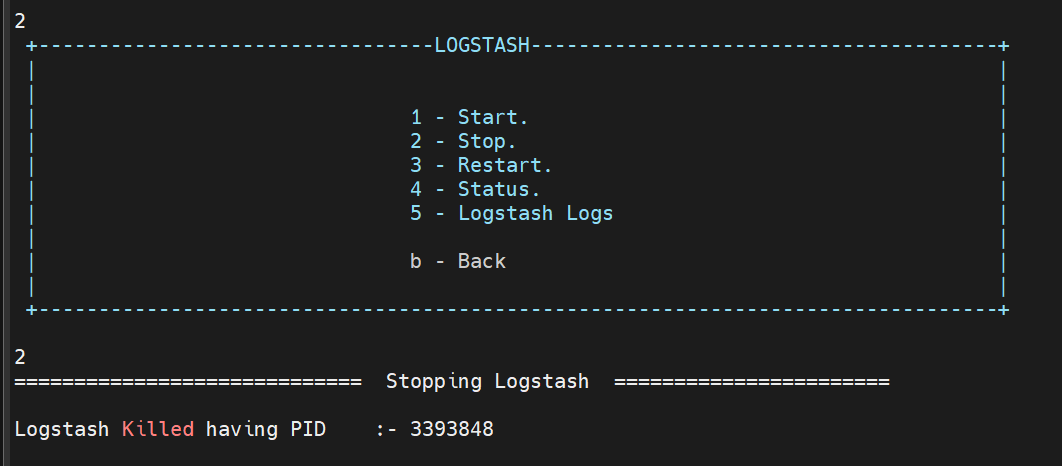
It is used to stop logstash. While selecting this option, it is recommended to stop OpenSearch services.
-
To upgrade Logstash, you must first stop the service before proceeding with the upgrade.
-
-
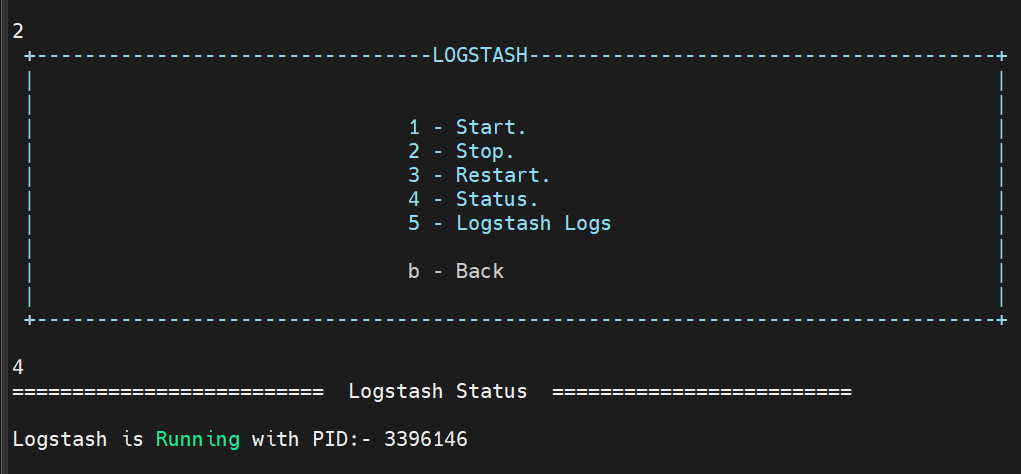
Status
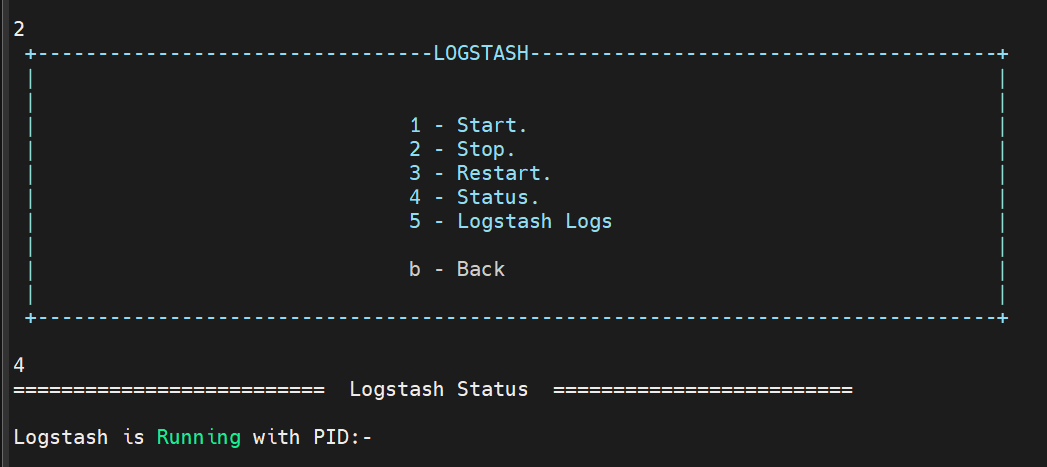
Select this option to check the current state of the logstash. The following are the various status codes:
-
Dead Status: This indicates that Logstash is not running.
-
Running Status: This indicates that Logstash is running and displays its PID.
-
-
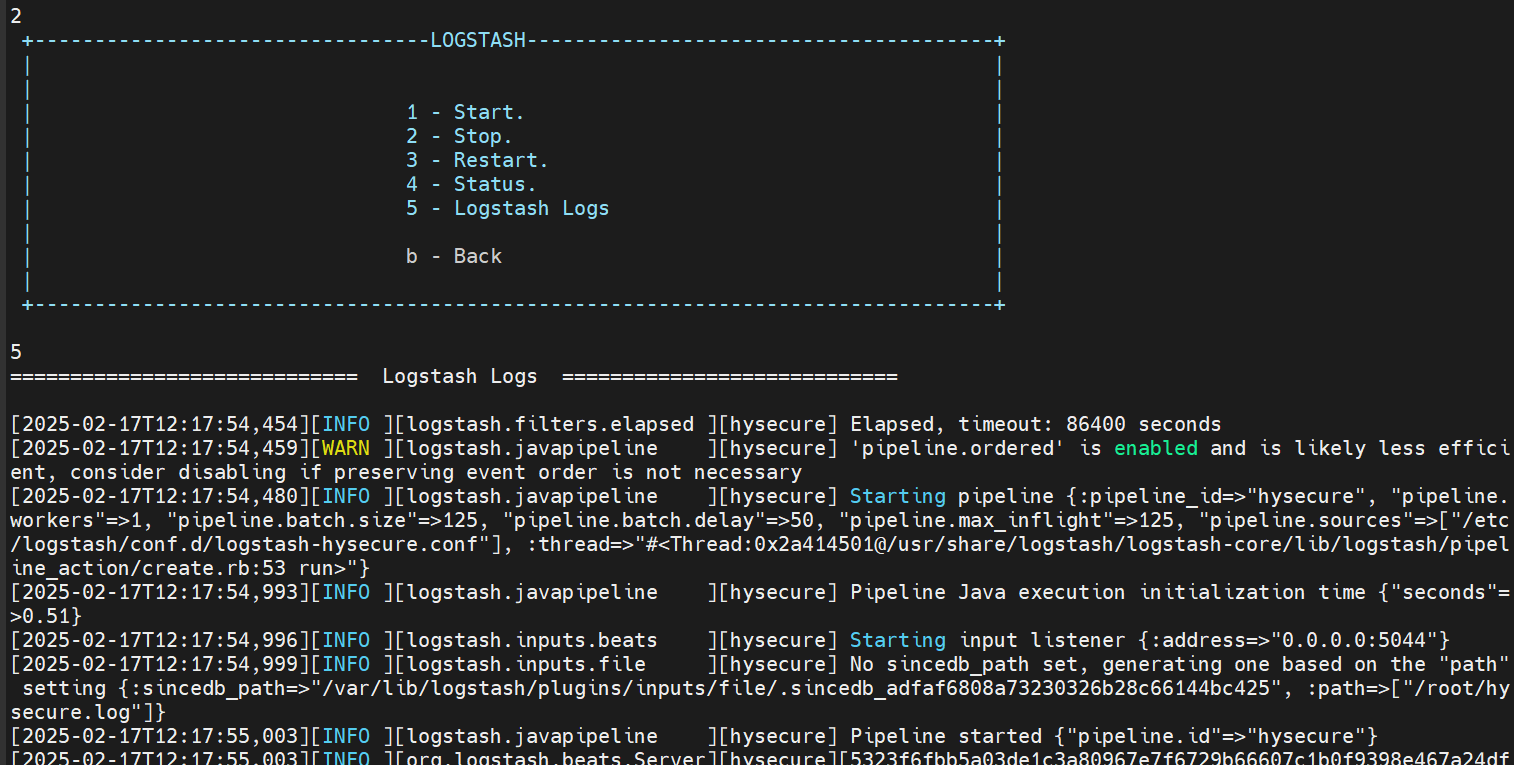
Logstash Logs
-
It shows continuous logs coming to logstash.
-
ERROR regarding logstash communication, configuration, security, etc. can be detected through this option.
-
Opensearch - Dashboard
For Opensearch - Dashboard select option no. 3 from the ARS - 2 Management Script MENU.
Commands related to OpenSearch Dashboard are listed inside Opensearch-Dashboard.

-
Start
To start the OpenSearch Dashboard, please select this option. Before doing so, confirm the Status (option no. 4). Only use this option if the status of the OpenSearch Dashboard is inactive (dead).

-
Stop
-
Select this option to stop OpenSearch Dashboard as a service.
-
In case of OpenSearch Dashboard upgrade, we must first stop it and then proceed with the upgrade.
-
After running this, it may take some time for the UI to reflect changes. In such cases, we might see the message OpenSearch dashboard server is not ready yet. However, after a while, the UI should become visible.

-
-
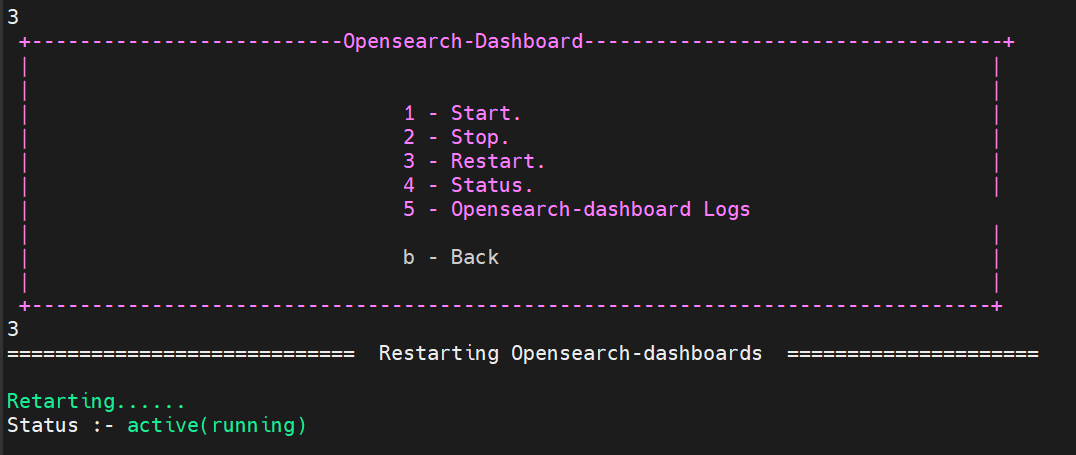
Restart
-
Select this option to modify any configuration while OpenSearch Dashboard is running. This option allows you to make changes without stopping and restarting the service.
-
-
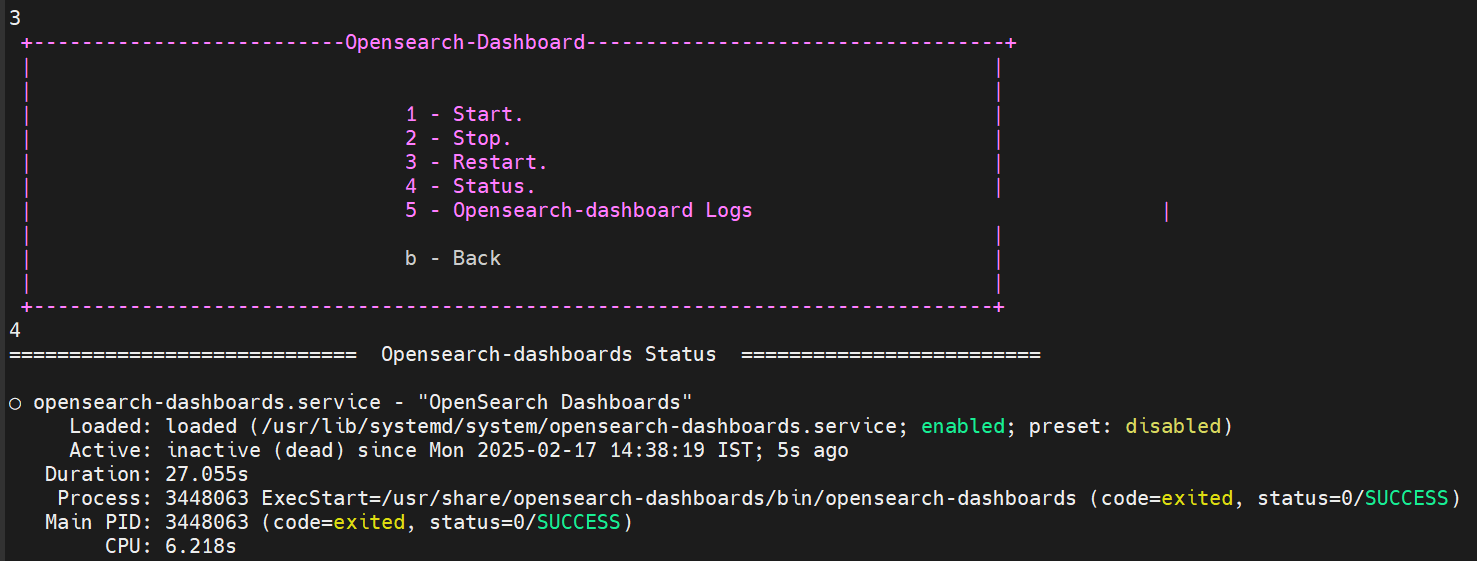
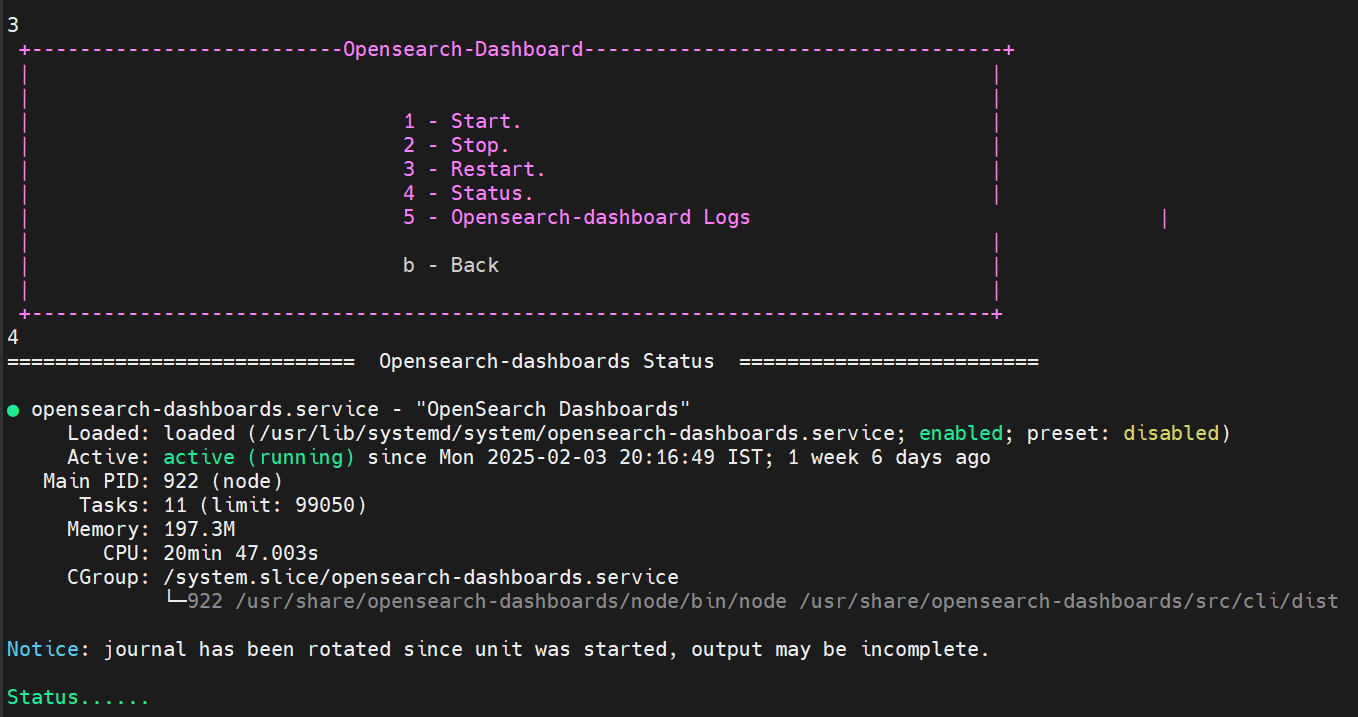
Status
Select this option to check the current state of the Opensearch-dashboard. The following are the various status codes:
-
Dead Status: This indicates that Opensearch-dashboard is not running.
-
Running Status: This indicates that OpenSearch Dashboard is running and the time since it was started.
-
-
Opensearch - Dashboard Logs
-
It shows continuous logs coming to the OpenSearch Dashboard.
-
ERROR regarding OpenSearch Dashboard communication, configuration, security, etc. can be detected through this option.

-
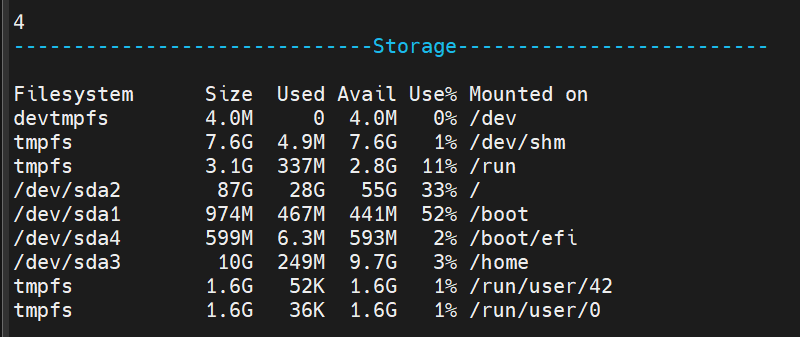
Check Storage
This option displays the Size, Memory used, available memory, user percentage, etc.
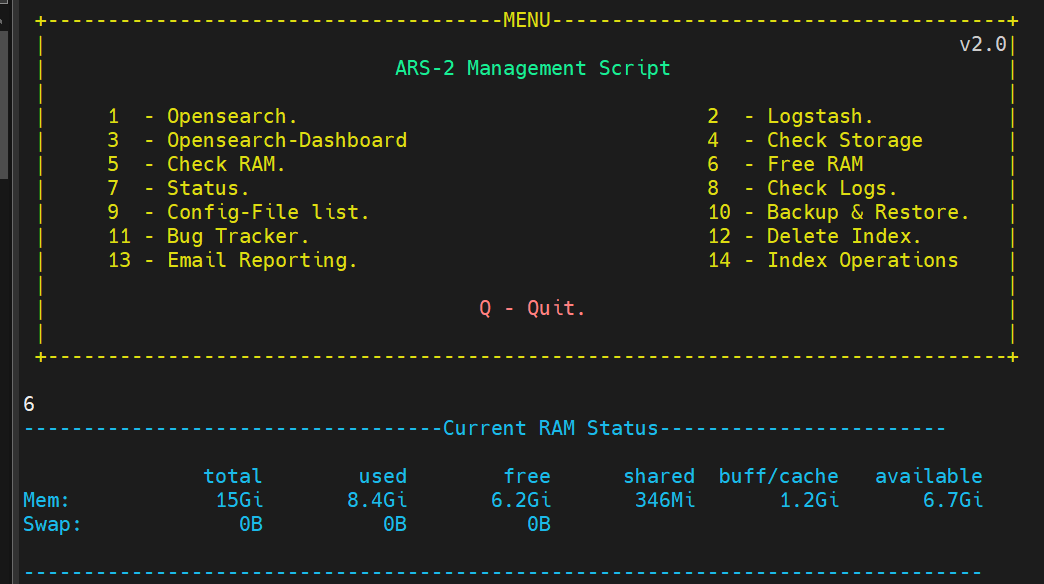
Check RAM
This option displays all the details related to RAM.
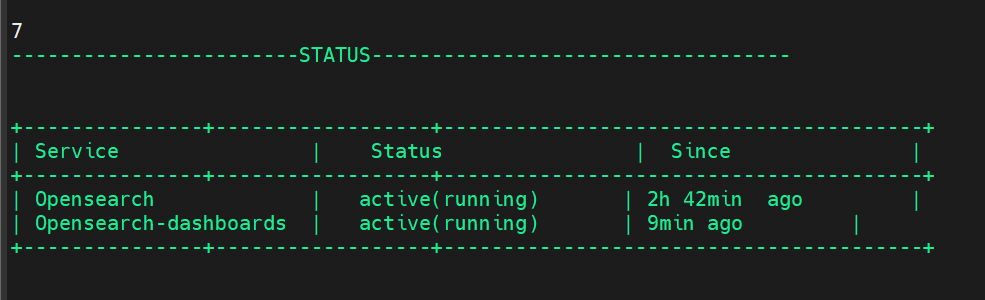
Status of Services
This option allows us to check the status of both Opensearch and Opensearch Dashboard simultaneously, while also displaying the uptime of each respective service.
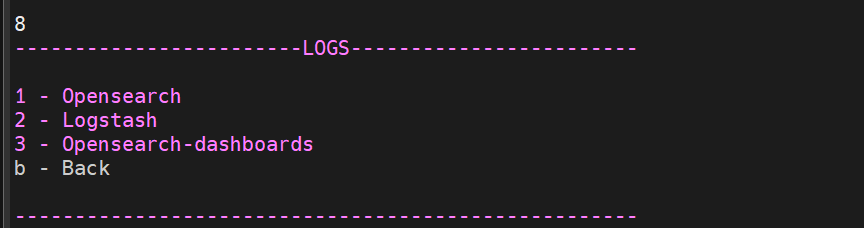
Check logs for different services.
This option allows us to select which logs we want to view.
-
It provides easy access to check logs of OpenSearch, Logstash & Opensearch-dashboard Dashboard.
-
Instead of having to go into each service to check the logs, you can use this option for more convenient access to all logs.
Email Reporting
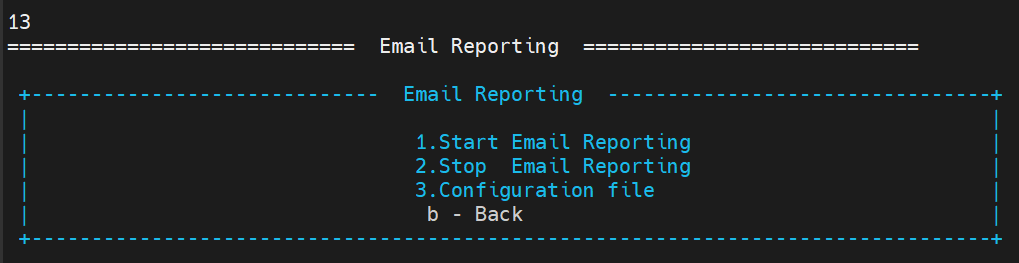
It includes the following two options:
-
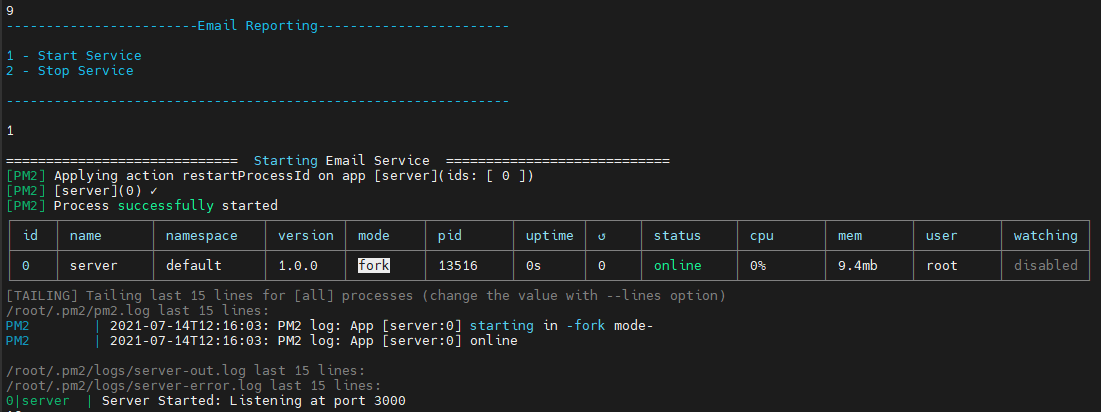
Start
-
It works in two steps: First, it will start the email reporting service.
-
Second, it will show the logs. In case of any errors, we can identify them through these logs.
-
-
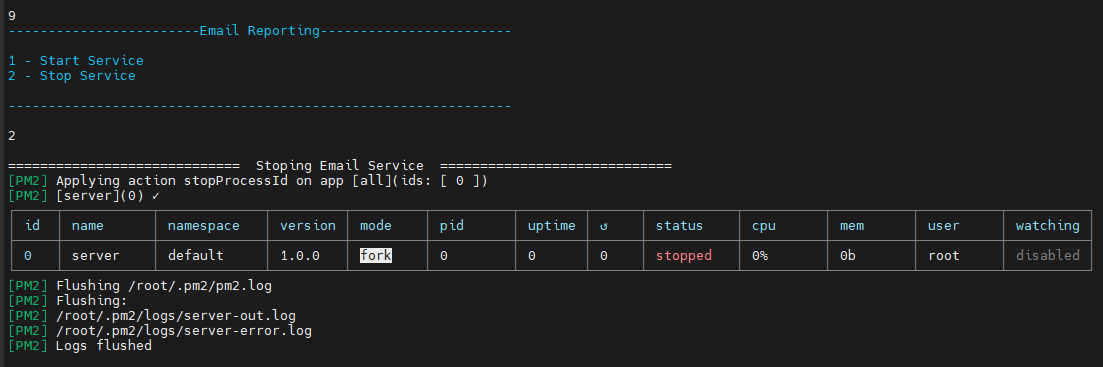
Stop
-
It works in two steps: First, it will stop the email reporting service.
-
Second, it will flush all the logs.
-
Location of Configuration Files in ARS
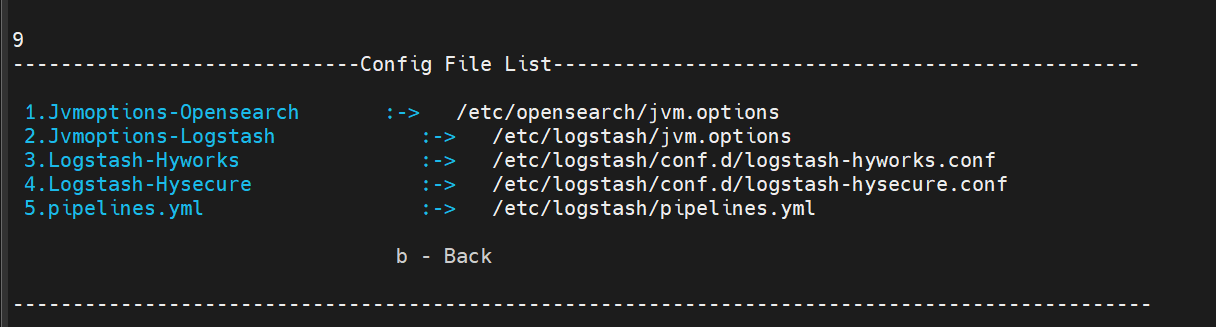
- Press Y or y to use this tool continuously.

- Press N or n to exit the tool.

- Quit
Press Q or q to quit the services.